Top 6 Free Snagit Alternatives to Take Screenshots in Windows 10

0

In general, you can easily take screenshots in Windows by pressing the Print Scr button on your keyboard. However, you need to manually paste the screenshot into another app like Paint to save the image. If you take screenshots extensivly this process is not that great for productivity. For better features and annotating capabilities, some of us use Snagit as our primary screenshot tool. Snagit is one of the best tools to take perfect screenshots and short videos with just a few clicks. But it is not free and it costs you around $50 per license to get access to all its features and functionality. Add to that, you have to pay extra for free upgrades.

The thing is, there are several free, capable, and better applications to take screenshots. You don’t have to burn your pocket for a screenshot tool with awesome features. In case you are wondering, here are some of the best Snagit alternative apps that are free and powerful.

Related: how to take screenshots in Windows

Best Free Snagit Alternative

1. Greenshot

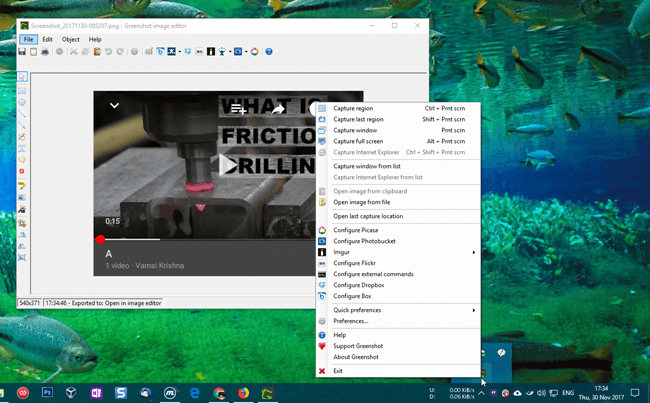
Greenshot is one of the best and free screenshot tool for Windows. Unlike Snagit, Greenshot is very small in size, uses fewer system resources, and is very fast at taking screenshots. Along with the regular full-screen capture, Greenshot can take screenshots of selected windows, region, and auto capture last region (useful when you are taking multiple screenshots of the same window). The good thing about Greenshot is that it has its own editor to annotate images. With the editor, you can crop, blur selected parts, draw lines and arrows, add text, add objects, etc. Moreover, Greenshots also makes it easy to upload load your screenshots to sites like Imgur, Photobucket, Picasa, Flickr, Box, Dropbox, etc.

Most of all, Greenshot is available in portable version. In case you are wondering, when you download a portable version, you can use it without installing. Just download, extract, and open the app. However, to use Greenshot portable you need to have .NET framework 2.0 installed on your system. You can download the Greenshot portable from here. If you are looking for a free and portable yet powerful screenshot tool for Windows then Greenshot is for you.

Supported platforms: Windows and MacOS. You can download MacOS version directly from the App Store by paying $1.99.

Related: Top 7 Free File Sync Software to Sync Files between Folders
2. ShareX

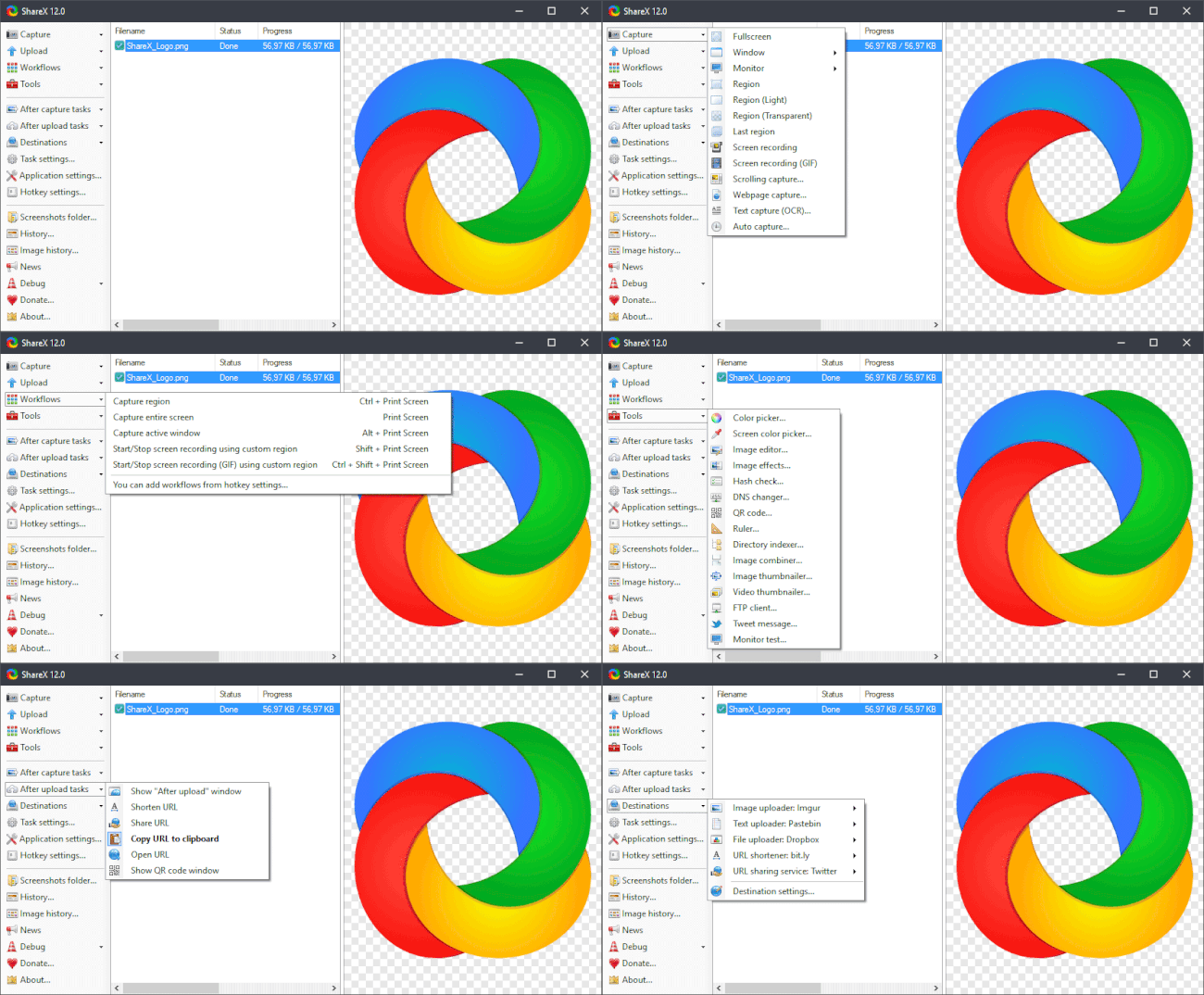
Some Windows users sware by ShareX to take screenshots, annotate, and save or upload them to your favorite image hosting sites. ShareX is a free, light-weight, open-source, and feature-rich application that can help you take quick screenshots in Windows. The good thing about ShareX is that it has a multitude of capture methods like fullscreen, active window, region, scrolling capture, webpage capture, etc. Of course, ShareX has its own editor to annotate images with just a few clicks. Just like Greenshot you can blur part of the capture, add text, crop images, draw lines and arrows, etc. Since ShareX prides itself on the ability to upload screenshots, it supports over 50 different destinations. Those destinations include but not limited to OneDrive, Google Drive, Dropbox, Box, FTP, Imgur, Google Photos, Photobucket, Flickr, Azure, Mega, MediaFire, Amazon S3, Gfycat, OwnCloud, etc.

Apart from a good editor and a multitude of upload destinations, you can configure ShareX to perform automatic after capture tasks like adding image effects, adding watermarks, saving the image to file, printing image, uploading the screenshot to selected host, save and copy file path, upload file and delete locally, etc. Of all the features, one of the best is the ability to record your screen and create GIFs from it as and when needed.

If you are using Windows 10, you can install ShareX directly from the Microsoft Store.

Supported platforms: Windows only.

Related: Top 5 Best Desktop Email Clients to Effectively Manage Your Email Accounts
3. Lightshot

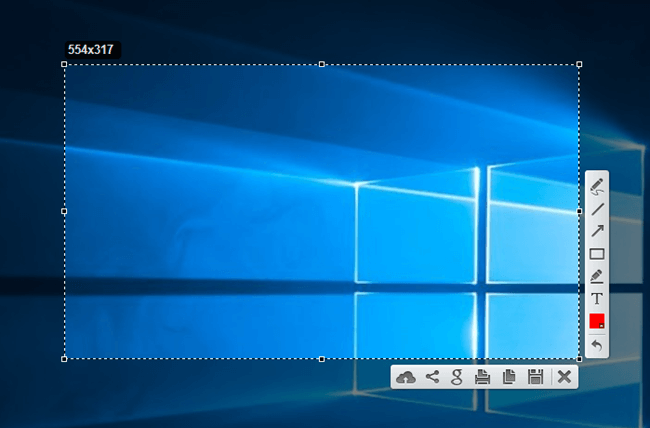
As the name implies, Lightshot is not only lightweight and small in file size, it is a free Snagit alternative. Unlike the other screenshot apps in this list, Lightshot allows you to annotate the screenshot using its onscreen annotation tools while you are taking it. No need to for manually opening an image editor and then annotating or editing the image. If you want to, you can configure Lightshot to automatically upload all your screenshots to prntscr.com. This feature is very useful to store and track screenshot history. Being a very simple app, using Lightshot is nothing hard. Just install the software and press the Print Src button your keyboard. Now, the select the area you want to take a screenshot, annotate the image if needed and click on the Save icon. That’s it. It is that simple to use Lightshot.

Lightshot also has an added functionality to find similar images with just a few clicks. As good as the app is, Lightshot doesn’t support active window capture like in Greenshot or ShareX. You have to manually select the screen area you want to capture by dragging your mouse. Other than that, if you are looking for a lightweight and free screenshot tool with basic annotation capabilities then Lightshot is for you.

Supported platforms: Windows and MacOS. By installing extensions, you can access Lightshot in Chrome, Firefox, Opera, and IE browsers.

Related: 10 Best Google Play Store Alternatives
4. PicPick

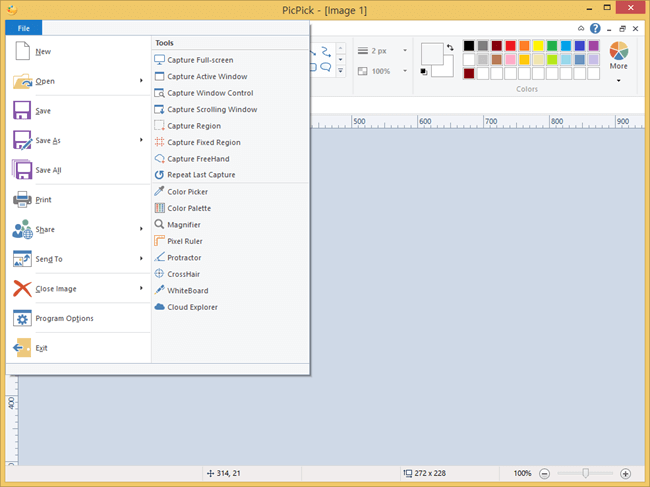
PicPick is yet another free yet feature filled screenshot tool for Windows. Of all the apps in the list, PicPick follows more conventional Windows style for its user interface. In fact, if you’ve ever used a Microsoft Office product with Ribbon interface, the PicPick user interface will be very similar. This makes it very easy to use it to take quick screenshots and edit or annotate them as and when needed. Just like ShareX, PicPick supports a wide range of screen capture modes like window capture, region capture, fixed region capture, free hand, scrolling window, fullscreen, etc. Once captured, you can use its powerful editor, which looks just like the good old paint app to annotate images. The editor supports almost all the basic functions you’d expect from a screen capturing software. Those functions include blur, crop, watermark, drawing, highlighting, inserting text, arrow, and lines, etc.

The similarities between ShareX and PicPick won’t end there, you can even directly upload your screenshots to a host of sites. Additionally, PicPick has a neat feature called Whiteboard which allows you to create a virtual whiteboard for presentation and drawing purposes. To top it all of, PicPick is available in portable version. So, if you looking for screenshot software with Office like interface then PicPick is for you.

Pricing: PicPick is free for personal use only and may show occasional ads. If you are going to use it professionally then you need to pay $24.99 per license.

Supported platforms: Windows only.

Related: How to Create Windows 10 Recovery Drive
5. Lightscreen

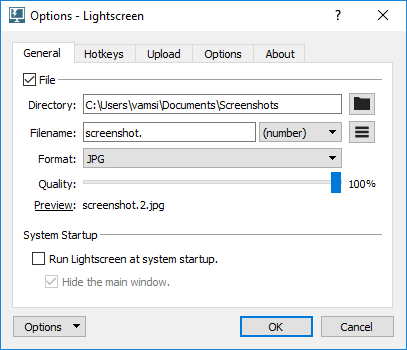
Lightscreen is mainly designed to quietly sit in the system tray and automatically save screenshots to a pre-configured folder when you press a hot-key. Much like “Win + Print Src” shortcut on Windows. However, Lightscreen is more customizable with multiple capture modes like fullscreen, active window, and region. For each capture mode, you can set a custom keyboard shortcut. When you press the keyboard shortcut, Lightscreen will take the screenshot and automatically save it to the folder of your choice. Additionally, you can automatically upload screenshots to Imgur and Pomf-clone.

Lightscreen also comes in portable variant if you don’t want to install the software. As good as it is, it has no dedicated editor to annotate screenshots. You have to use apps like Paint, Photoshop, GIMP, etc., to annotate screenshots. Simply put, compared to the other software on this list Lightscreen is just not powerful enough if you regularly use the screenshot functionality. But, if you just a want a software that can take and automatically save screenshots to a pre-defined folder then Lightscreen does the job pretty good.

Supported platforms: Windows and Linux.

Related: How to Download Android Apps to PC without Installing Any Software [Quick Tip]
6. Windows Snipping Tool

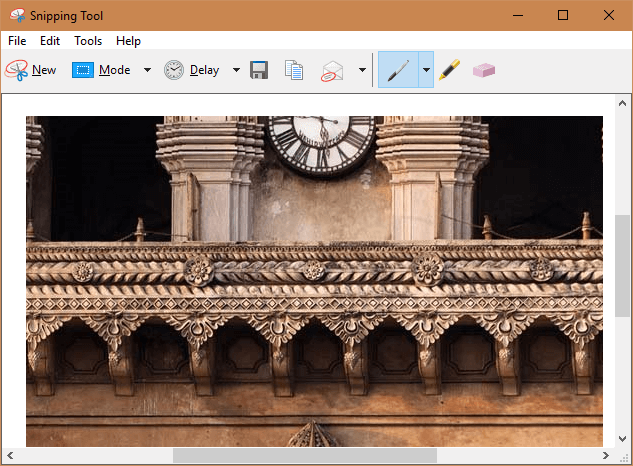
Windows Snipping tool is one of the lesser known features of Windows. If you only take screenshots occationally and don’t mind the basic editing options then Windows Snipping tool does the job pretty good. Just search for “Snipping Tool” in the start menu and open it. Though the app looks simple, you can choose between four different modes called Free-form Snip, Rectangular Snip, Window Snip, and Fullscreen Snip. Just like with Snagit, you can delay the screenshot for up to five seconds. This feature is very useful for timed activities.

After taking the screenshot, it will be automatically opened in a basic editor where you can annotate the image as needed. However, the editor is in no way as powerful as the built-in editors of the above apps (excluding Lightscreen which has no built-in editor). But, it should suffice for quick annotation like drawing, erasing, highlighting, etc.

Platform Support: Being a built-in tool, it is Windows only.

Related: 9 Google Spreadsheets Tips to Make Things Easier
That’s it for now. If you think I missed any of your favorite free Snagit alternatives to take screenshots in Windows then do comment below and share them with me.
Related: The Best Notepad Tricks Every User Should Know

Top 7 Free File Sync Software to Sync Files between Folders

0

Manually syncing one folder with another is not an easy task, especially when you have to do it each and every day or at certain scheduled times. To make things easier and better, you can use free folder sync software that can automate the process. Though there are many premium file sync software, you don’t have to burn your pocket to get a good folder sync software.

In case you are wondering, here are some of the best free folder sync software. Using these software, you can easily do things like Windows file sync between different folders with just a few clicks. Of course, some software in the below free file sync software list also supports other operating systems like MacOS and Linux. Depending on your operating system and needs, choose the best folder sync software and use it.

Related: Free Snagit Alternative to Take Screenshots

Free File Sync Software

1. FreeFileSync

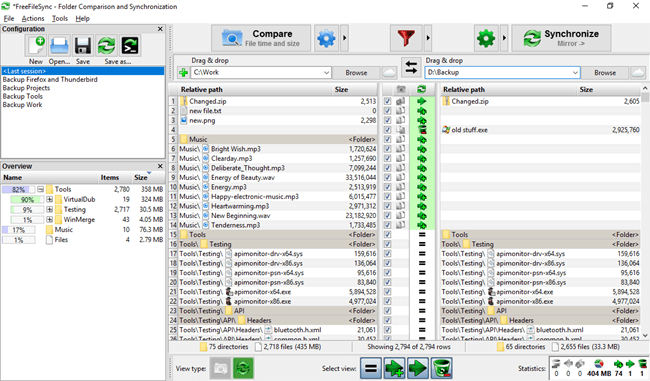
As you can tell from the name itself, FreeFileSync is a free and open source file and folder sync software for Windows, MacOS, and Linux. The thing that makes FreeFileSync one of the best is its powerful features and the ability to customize the synchronization tasks according to your needs. Some of the features of FreeFileSync include but not limited to miltiple sync modes, network sync, local file and folder sync, mobile sync using MTP (Media Transfer Protocol), cloud sync via SFTP, detect and solve file and folder conflicts while syncing, ability to copy locked folders, detect moved or renamed folders or files, fail-safe to prevent data corruption while syncing, macro support for recurring backups, include and exclude filters, ability to manage versions and keep a history of updated or deleted files and folders, compare files by content, etc.

Most of all, you can configure FreeFileSync to automate file sync tasks using batch jobs. This feature is very useful when you want to monitor a folder and sync the changes automatically with another folder on a daily basis. The batch job feature eliminates the need to manually configure and sync each and every time there is a change. There is also a portable version if you don’t want to install the software. Though the user interface looks a bit intimidating and confusing at the first glance, there are extensive tutorials to get you started on how to properly use FreeFileSync. If you ever found yourself lost, you can relay on those tutorials.

Price: Though FreeFileSync is completely free, it is ad-supported. While installing FreeFileSync, it tries to install adware. So, be careful while you click on the “Next” button in the FreeFileSync installation wizard.

If you want ad-free installation and other features like auto-updating, silent installation, and support for portable version then you need to donate to the project and use the donation version. The good thing is, you can donate however much you want to get the donation version, even if it is just a $1. If you use Windows file sync every day, FreeFileSync is worth your every penny.

Supported platforms: Windows, MacOS, and Linux.

Related: how to change folder icons in Windows

free folder sync software - freefilesync

2. SyncToy

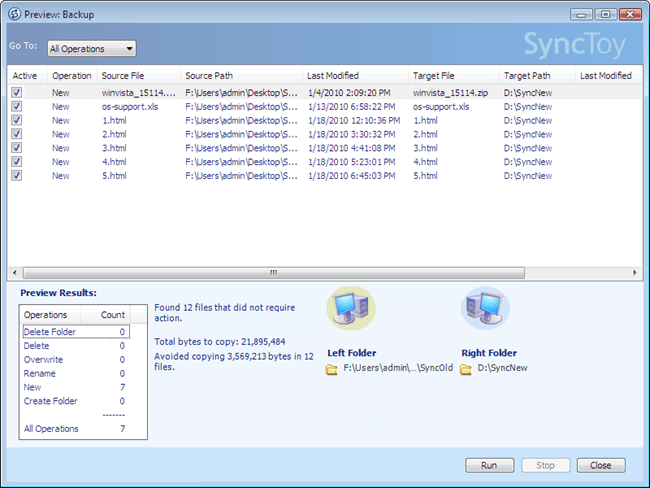
SyncToy is a free and lightweight application developed by Microsoft specifically for Windows systems to quickly sync files and folders. Just like FreeFileSync, once configured, SyncToy compares the two folders and either copy or deletes the files and folders in it depending on your settings. The good thing about SyncToy is that it can sync between local folders, external drives, and even folders on a network share. While syncing, SyncToy moves any and all removed files to the Recycle Bin. This feature is very useful when you want to recover a file or folder that is accidentally deleted or changed. If you want to you can preview what kind of changes SyncToy makes when you configure it to sync two folders.

Moreover, SyncToy offers three different sync modes called Synchronization, Echo, and Contribute. Each sync mode is designed for a specific purpose. For instance, Synchronization mode makes sure that the contents of the two folders are same, Echo mode replicates every change in the left folder to the right folder (it will not sync changes from right to left folder), Contribute mode works the same as Echo but this mode won’t delete any files or folders. So, don’t forget to choose correct sync mode while configuring SyncToy.

Though the app hasn’t been updated by Microsoft in a couple of years, it’s working as it should in my testing.

Platform support: SyncToy is a Windows-specific tool. So, it supports Windows only.

Related: How to Create Invisible Folder in Windows

free folder sync software - synctoy


3. Create Synchronicity

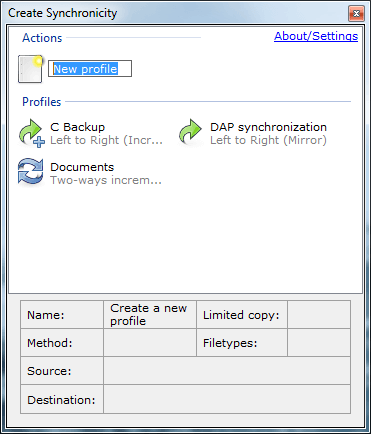
Create Synchronicity is a free and open-source software that can be used for both file sync and to create backups. Though Create Synchronicity is not as powerful as FreeFileSync, it is perfect if you want a simple software that can do mirror, one-way, and two-way synchronizations without much fuss. The good thing about Create Synchronicity is that it provides comprehensive previews, gives you the ability to set dynamic destinations, file and folder exclusions with regular expressions, fully featured command-line support for advanced users, integrity checks, on-the-fly compression using Gzip and Bzip2, etc. For maximum control, you can create profile groups with their own settings and configurations.

Add to that, Create Synchronicity is also available in a portable variant. i.e, you don’t have to install Create Synchronicity to use it. Just download the zip file, extract it to a folder of your choice, and execute the application to start using Create Synchronicity. If you dislike the FreeFileSync’s user interface and don’t mind fewer features then Create Synchronicity is a perfect choice.

Platform support: Windows only.

Related: How to Change Folder Location in Windows 10

free file sync software - create synchronicity

4. Syncredible

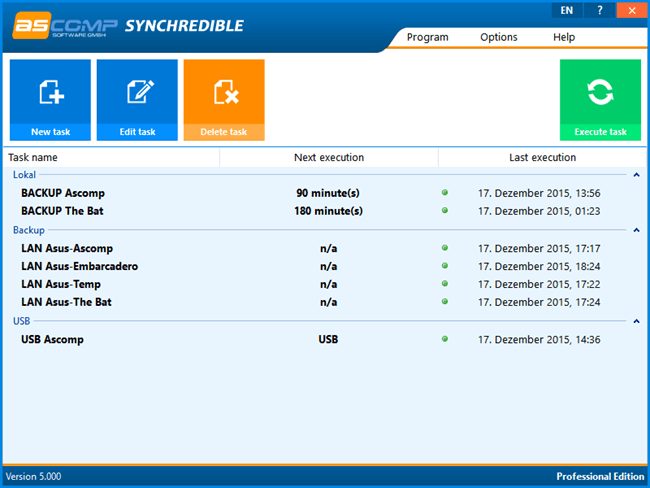
Syncredible is yet another free software that can do both one-way and two-way synchronization with just a few clicks. What’s more, Syncredible supports synchronizing files and folders on a network and external hard drives like USB sticks. The good thing about Syncredible is that while syncing it only syncs files that are changed rather than syncing all the files and folders. If Syncredible deletes any files or folders while synchronizing, it moves them to the recycle bin so that you can restore at a later time if need be. Other features include archive bit sync, filter options, sync preview, CRC32 verification, ability to set before and after sync activities, sync locked files, catch up to missed file while syncing, automatic synchronization, sync at Windows log on or off, etc.

Most of all, along with sync capabilities, Syncredible can also act as a dedicated backup software. So, if you are looking for a software with both sync and backup capabilities then Syncredible is for you.

Pricing: Syncredible is free for personal use only. If you want to use it professionally or in an office or work environment, you need to purchase the license for around $30 (actual price 25 EUR).

Platform support: Windows only.

Related: How To Change OneDrive Folder Location In Windows

free file sync software - synchredible

5. Synkron

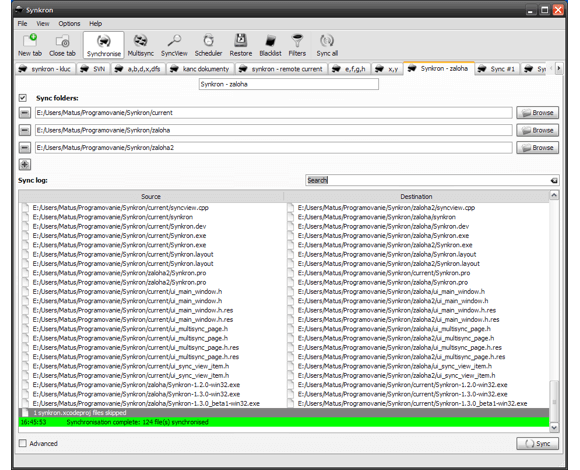
Synkron is a free and cross-platform application that makes it easy to sync files between two folders. The best thing about Synkron is it’s easy to use user interface. Some of the features of Synkron include but not limited to the ability to sync multiple folders at once, preview what happens when you sync without actually syncing, include and exclude file from sync, ability to restore files that are deleted or overwritten, extensive configuration settings to properly set sync between two folders, support for removable devices, automatic sync, etc.

Using Syncron is nothing hard. Simply select the “Synchronize” option from the top navigation menu, select a primary folder and secondary folder under Sync Folders section and click on the button “Analyse.” Once you are happy with how sync works, click on the “Sync” button to commit and perform the synchronization. For greater control over how Syncron works with your folder, use the advanced options like Blacklist, Filters, etc.

Platform support: Windows, MacOS, and Linux.

Related: How to Pin Any File to the Taskbar in Windows 10

free file sync software - synkron

6. SyncBackFree

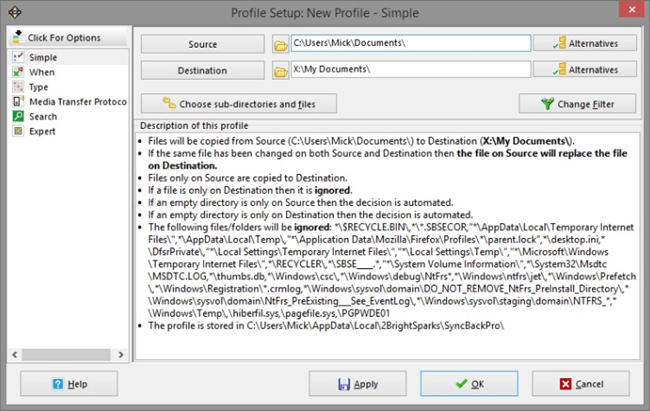
SyncBackFree is both a backup and synchronization application. Unlike other applications on this list, you need to first create a profile and then configure your folders to sync files and folders between them. Other features of SyncBackFree include folder and file compression, support from FTP servers, file encryption, and performance estimation acts as a complete backup program, extensive documentation, etc. The best thing about SyncBackFree is its ability to recover deleted or overwritten file and folders while synchronizing. A very useful feature in emergencies.

Price: SyncBackFree is completely free for personal use. To use professionally or in work environments, you need to purchase the pro version. Also, there is a server version to use it directly on servers.

Platform support: Windows only.

Related: How to Automatically Delete Previous Windows Installation Files in Windows 10 [Windows.old Folder]

free file sync software - syncbackfree

7. SyncFolders

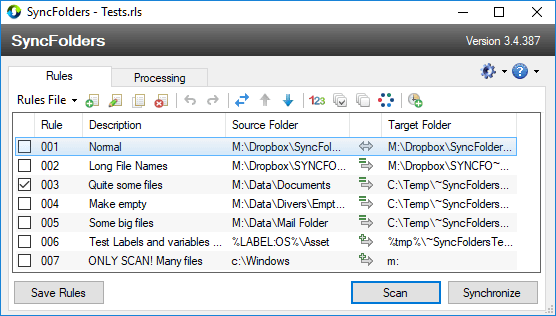
Of all the best sync software listed here, SyncFolders is one of the easiest to setup and use. This is especially true if you are a beginner on syncing files and folders. The good thing about SyncFolders Windows file sync software is that it allows you to run a scan first so that you will know if SyncFolders found any errors, the total size of data to be synced, etc. Features of SyncFolders include but not limited to two-way synchronization, ability to use it as a Windows backup tool, integration with Windows task scheduler app to automate sync tasks, multiple synchronization rules, ability to recover deleted or overwritten files, file compression, command-line support for finer control, file and folder filters, ability to detect and warn file conflicts and collisions, etc. Most of all, SyncFolders is available as a portable version so that you can use it without installing on your system.

Platform support: Windows only.

Related: [Solved] Fix These Items Are Too Big to Recycle Bin Error in Windows

free folder sync software - syncfolders

As a side note, if you are syncing your files onto cloud then I would recommend doing so with a VPN. This would ensure that the files being transferred would be encrypted and cannot be intercepted by Man in the Middle attacks.

That’s it for now. If you think I missed any of your favorite free file sync software then share them with me in the comments section below.

Related: Top 5 Best Desktop Email Clients to Effectively Manage Your Email Accounts

6 of the Best Clipboard Managers for Android to Manage Clipboard

0

Android makes it very easy to copy and paste text from one app to another. However, the same cannot be said for managing the clipboard. For instance, you cannot store the copied text for later use, cannot keep an accurate history of things you copied, cannot share the copied text or other items with your friends directly, etc. If you want to better manage your copied text then you have to use a good clipboard manager for Android.

The good thing is, most of the best clipboard managers for Android are free. Most Android clipboard managers have features like the ability share, create actions based on copied text, etc. So, to make you a pro at using the Android clipboard, here are some of the best clipboard managers for Android.

Best Clipboard Manager for Android

1. Multi Clipboard Manager

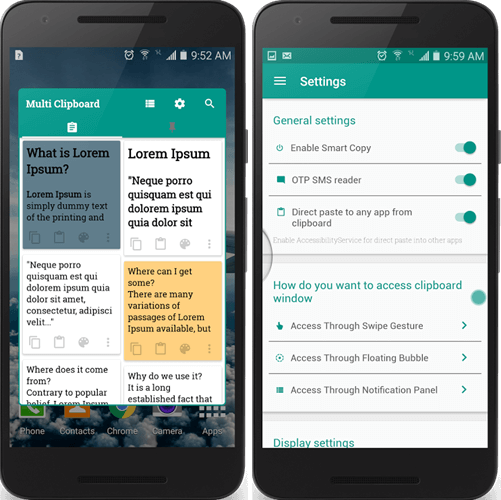
Multi Clipboard Manager is one of the most popular Android apps with a lot of excellent features to properly manage your Android clipboard. The app helps users do multiple things like organizing notes and clips, reading OTPs (One Time Passwords), managing notes, sharing important text, scanning copied QR code and much more. Notably, the app supports synchronization between multiple devices so that you can paste the copied item in whatever device you want. All you have to do is visit their web app from any browser, log in to your account and you are good to go.

The good thing about the app is that you can access notes and clips by simply swiping down from the notification area. Other features of the app include but not limited to paste copied text in other applications with just a single tap, automatic backup, clipboard journal, clipboard monitor, text manager, etc. If you are looking for an app that is easy to use, better manages your clipboard, syncs between devices then Multi Clipboard Manager is for you.

Price: The app is free with limited features and contains ads. To remove ads and get access to advanced features like real-time sync, access to the web app, etc., you need to subscribe to the service for $2 per month.

2. Clip Stack Clipboard Manager

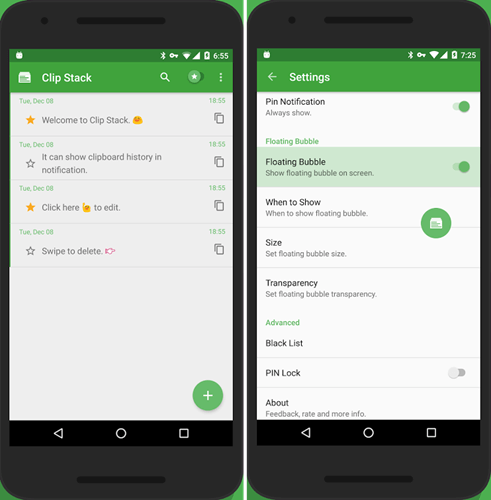
Clip Stack is an excellent open source clipboard manager for Android. The app can be used to save and remember all of your copied texts, clips, important notes, etc., on your Android device. The best part of this application is that all your copied texts and other items are persistent. i.e, they won’t get deleted when you reboot your device. In fact, if you want to, you can switch between five different copied texts directly from the notification area. No need to open the app to manage clips. You can also create simple tasks as and when needed and make use of them effectively.

Besides from storing texts, Clip Stack allows you to quickly copy using a transparent floating bubble and you can even star and share the clips. To delete a copied text, all you have to do is simply swiping right on the text or by long pressing on it. So, if you are looking for an open source app that can manage all the clipboard activities on Android then give Clip Stack and try and see if it fits your needs.

Price: Clip Stack is completely free and open-source.

3. Clipboard Manager

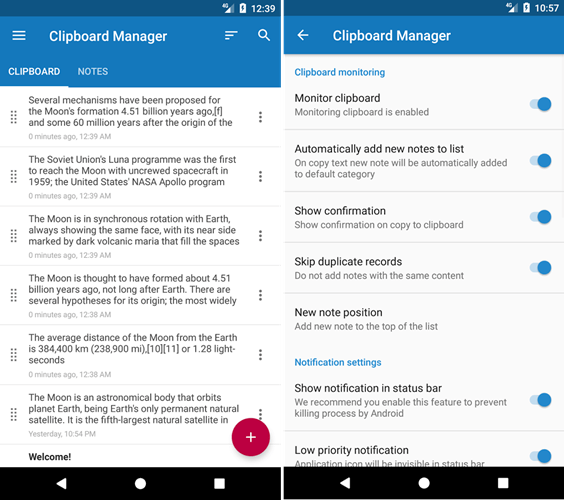
Clipboard Manager is yet another free clipboard manager for Android. In fact, Clipboard Manager not only stores the copied text but it takes managing the clipboard to a different level. Apart from the basic features, this app lets you manage all the clips in categories. You can create unlimited numbers categories where you can store unlimited number notes. Other features of the app include but not limited to search and replace notes, merge two different notes into one, sort by either ascending or descending order, save notes from the clipboard, smart actions, fast access to recent notes, optional cloud sync feature, and many more.

When copying or storing sensitive information like credit card details, wallets, bank account details, etc., you can use the “lock it” option. This lock ensures that no one but you can access those details. Like other clipboard apps, you can access it directly from the notification area.

Price: The app is completely free and contains advertisements.

4. My Clipboard

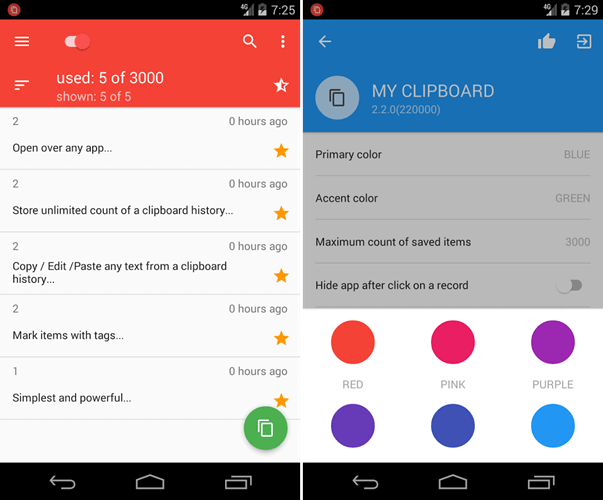
My clipboard has a great blend of functionality and material design. Unlike other apps on this list, My Clipboard allows you to customize the theme to some extent by changing the primary and accent colors. As soon as you install the app, it will start tracking your clipboard activities and stores them. If you want to, you can rearrange the stored clipboard items in a variety of orders based on ascending, descending, usage, data, favorites, etc.

Besides from the basic clipboard functions, My Clipboard has other advanced features like automatic clipboard history, ability to favorite notes, search feature to search through your clips, ability import and export data, support for tags, etc. The app can run as a floating window so that you can easily access the copied clips in your favorite browser. Again, just like other apps, you can access your clips by swiping down from the notification area. So, if you are looking for a minimal looking app with good enough features then My Clipboard does the job pretty good.

Price: The app is completely free and there are no advertisements as of writing this.

5. Clipboard Actions

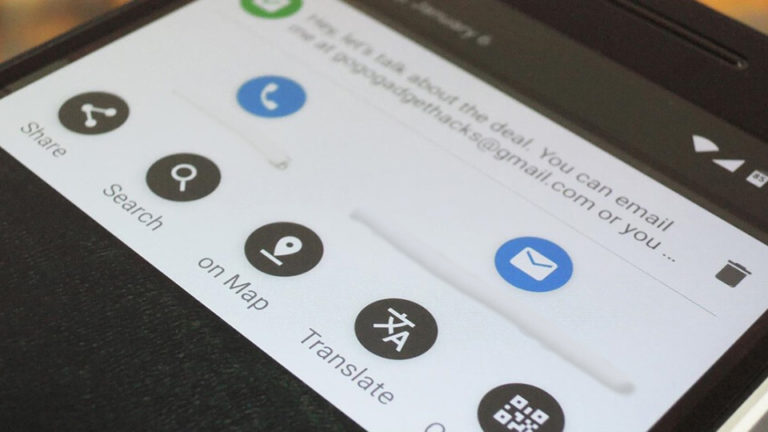
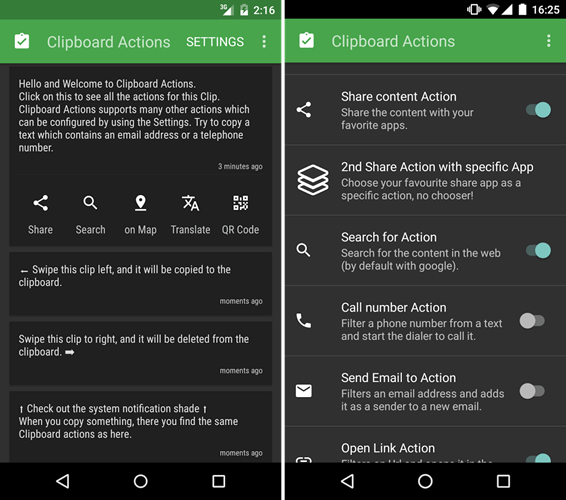
Clipboard Actions is an excellent android application that does much more than simply managing your clipboard. The app creates relevant actions based on the copied text. For instance, based on the copied text, Clipboard Actions can create actions like calling a number directly, sharing video, filtering email ID, currency conversion, opening links, etc. You can perform all those actions directly from the Android notification center. If you want to, you can even copy the text and share it with your friends with just a few taps.

One of the best thing about this app is that there is an action to translate the copied text using Google Translator. As you can guess, this is very helpful action in certain situations like when you are using apps or website that are not in your native language. Moreover, you can also copy QR codes and make payment via Paytm, Mobiwik, and other wallets.

Price: The app is completely free and there are no advertisements. If you want to support the app development, you can donate to the app developer via in-app purchase.

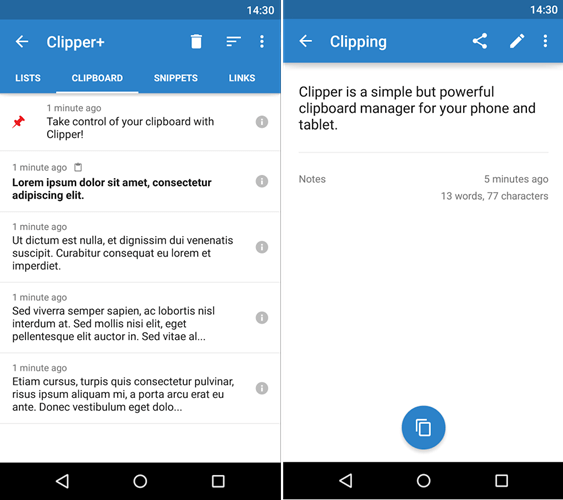
6. Clipper

Off all the app in this, Clipper is the most downloaded and highly rated app that can better manage all your clipboard activities without any hitch. While using the app, it will automatically track and store anything you copy so that you can access them later. Using Clipper you can organize all the clips in different folders. Form the folders, you can easily extract, add, modify and view the clips as and when needed. Other features of Clipper include, unlimited clippings, search feature to find the clips you want quickly, activity monitoring, dynamic values, online sync which enables you to access your clips from any device, etc.

Of course, just like other other clipboard managers for Android, you can easily access Clipper directly from the notification area. All you have to do is swipe down and you are good to go.

Price: The base app is free and contains ads. For advanced features like online sync, dynamic values, etc., and to remove the limit on how many clipping you can store, you need to upgrade to Clipper Pro for around $2.

That’s it for now. If you think I missed any of your favorite Android clipboard managers or to share thoughts and experiences about using the above clipboard managers for Android, comment below.

How To Install Linux Mint in VMware

0

Linux Mint is one of the most simple, beautiful and beginner friendly Linux-based OS. Linux Mint basically evolved from Ubuntu and provides the same functionality and security just as Ubuntu. Moreover, if you are a Windows user and want to try out the new Linux ecosystem, Linux Mint would be a good choice. In fact, Linux Mint closely resembles the Windows user interface. That being said, if you are new to Linux environment or if you just want to test out the new operating system then installing it virtually will give you ample space and opportunities. In case you are wondering, here is how you can easily install Linux Mint in VMware Player or Workstation.

Using VirtualBox for virtual machines? Step by step guide on how to install Linux Mint in VirtualBox.

Install Linux Mint in VMware

First off, head to the Linux Mint official website and download the ISO file. Depending on your preference, you can either download 32-bit version or 64-bit version.

1. To make things clear, I’ve already downloaded the 32-bit version of Linux Mint 16 featuring Cinnamon desktop. If you want you can download other flavors like XFCE or KDE.

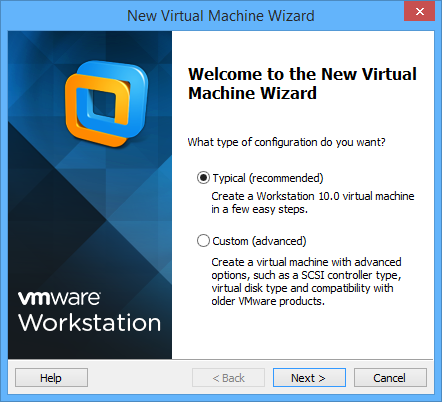
2. Now, open up the VMware player or workstation from the start menu and click File and select the option “New Virtual Machine.” This action opens the New Virtual Machine wizard. Here select the radio button “Typical” and click on the button “Next” to continue.

install-linux-mint-vmware (1)

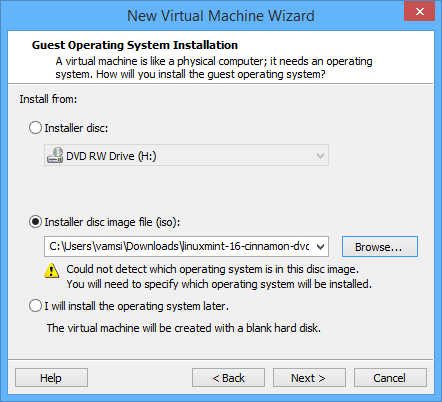
3. As you have already downloaded the Linux Mint ISO, select the radio button “Installer disk image file,” browse for the downloaded ISO file and click the “Next” button.

install-linux-mint-vmware (2)

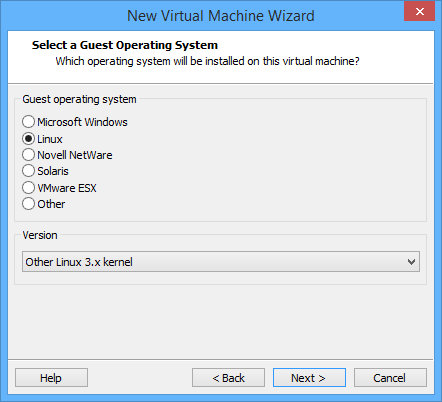
4. Here, select your guest operating system as “Linux” and the kernel version as “Other Linux 3.x kernel” from the drop-down menu.

install-linux-mint-vmware (3)

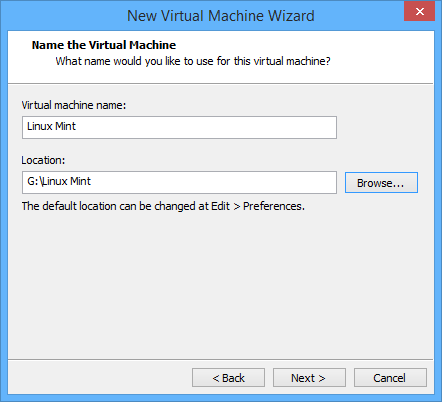
5. Now, name your virtual machine and click on the button “Next” to continue. If you want to change the location where the virtual machine is stored, you can do that by clicking on the “Browse” button. For instance, I’ve selected my location as G:\ drive.

install-linux-mint-vmware (4)

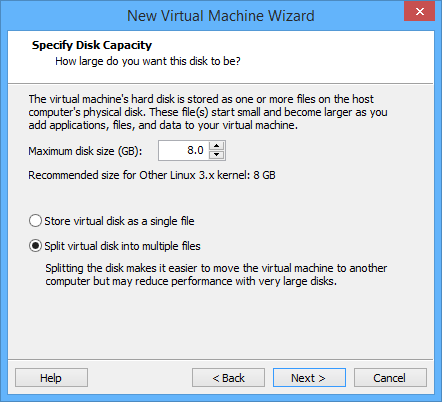
6. Here in this screen, enter the space you want to allot of the new virtual machine and click “Next” button. But do remember that the minimum space required is 8GB.

install-linux-mint-vmware (5)

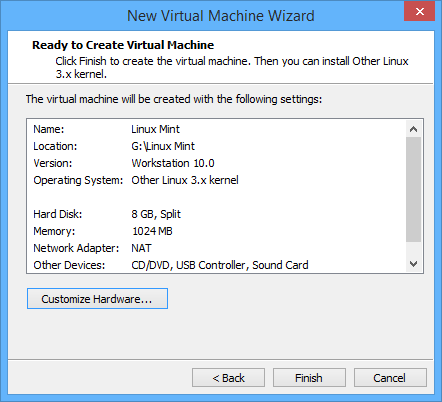
7. Here in this area you can easily review and customize your hardware requirements. To do that, click on “Customize Hardware” button. Once you are done with the changes, click on the “Finish” button to complete your setup process.

install-linux-mint-vmware (6)

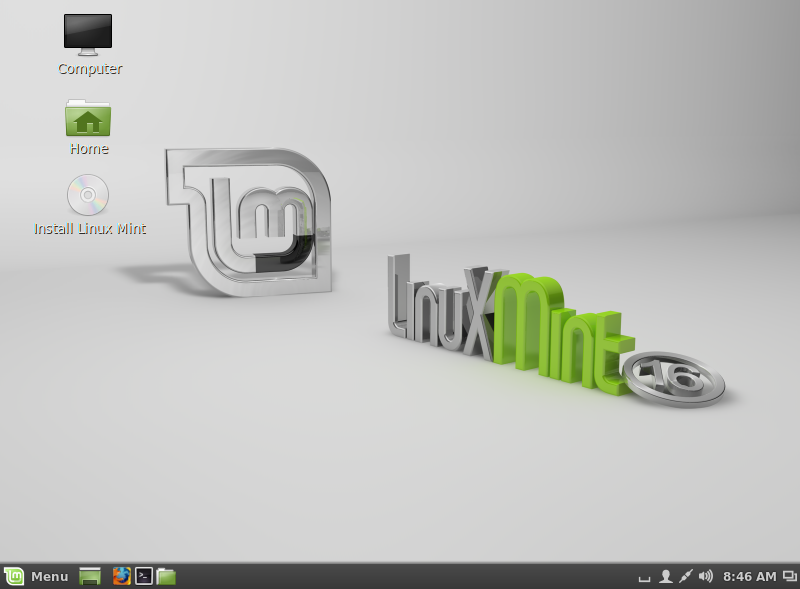
8.  Now, click on “Power on this virtual machine” on the main screen of VMware to boot into your new Linux Mint OS. Now wait a few seconds and you will be in the OS installation screen. Here, click on the button “Install Linux Mint” to start the installation process.

install-linux-mint-vmware (8)

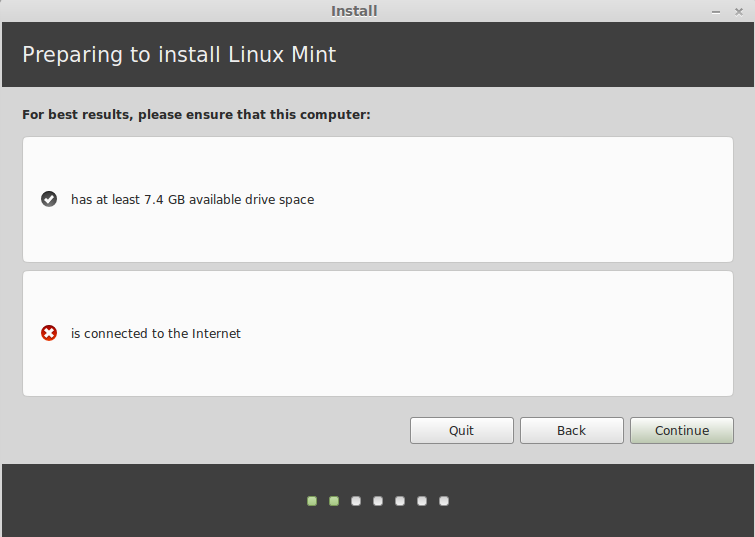
9. Now the OS screen will show minimum space required and other stuff, just review them once and click “Continue” button.

Note: If you are connected to the internet, Linux Mint will automatically download and install all the required updates and other restricted software, which is good. But, if you want to make the installation faster or if you have a slow internet connection then I would recommend that you disconnect from the internet by right-clicking on that little monitor icon on your VMware taskbar and selecting the option “Disconnect.”

install-linux-mint-vmware (10)

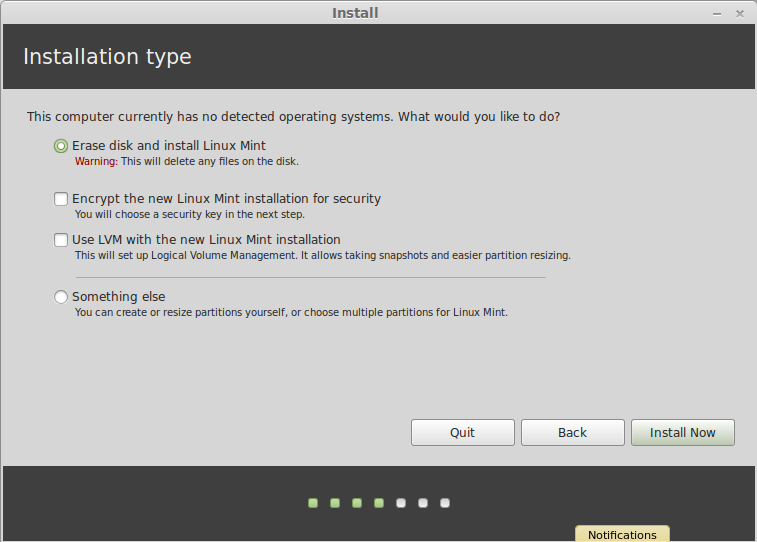
10. Here select the radio button “Erase disk and install Linux Mint” and click on “Install Now” button.

install-linux-mint-vmware (11)

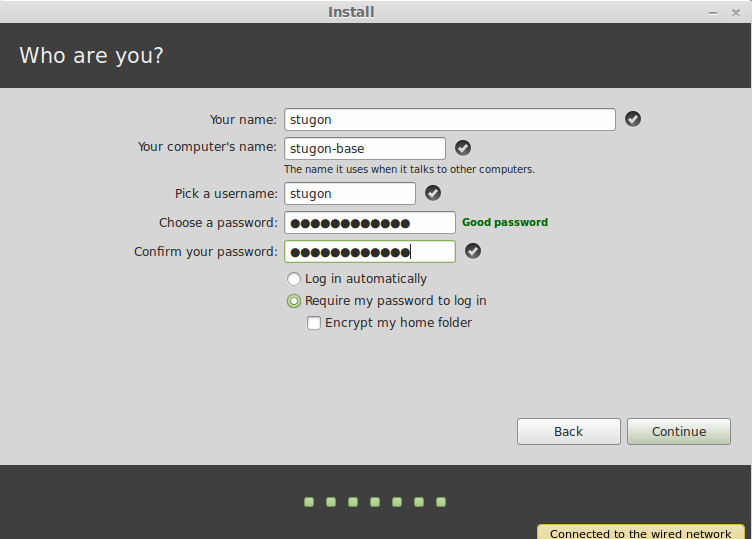
11. Now, just select your time zone, keyboard layout, username and password and click on the “Continue” button.

install-linux-mint-vmware (12)

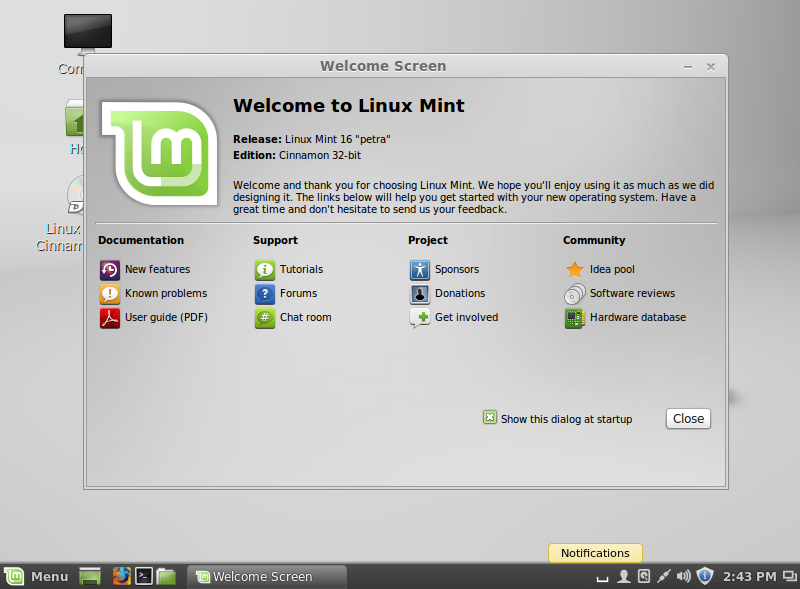
12. After completing the installation, just restart your VM and you are ready to experience the new Linux Mint OS.

install-linux-mint-vmware (13)

As this is a virtual machine, you can do whatever you want without any worries about breaking your system. But, before you do that just take a snapshot of the current state so that you can roll back when things are out of your hands.

That’s all there is to do and it is that simple to install Linux Mint in VMware Player or Workstation.

Do comment below sharing your thoughts and experiences about installing Linux Mint in VMware Player or Workstation

12 of the Best Google Pixel Tips and Tricks You Should Know

0

Google Pixel not just a powerful hardware with stock Android experience. It has a lot of features that make daily tasks faster and better. Some of these features are hidden and some of them are buried deep inside the Settings menu. So, to get most out of your Google Pixel device, here are some of the best Google Pixel tips that every Pixel user should know and use.

Google Pixel Tips

1. Get A New Wallpaper Everyday

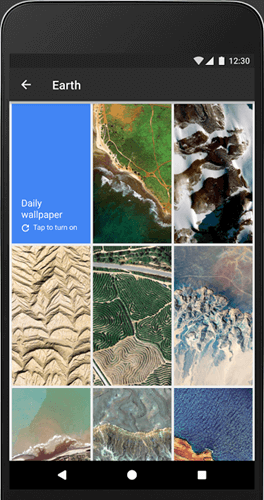
As most of you know, the Google Pixel phone comes with a lot of pre-loaded wallpapers. You can use these beautiful wallpapers to configure the device however you want. But the thing is, manually choosing a wallpaper and setting it is too much work. Especially, when you have a whole bunch of awesome wallpapers to choose from. Google knows that and added a new feature that automatically sets a new wallpaper from the collection of your choice.

All you have to do is long-press on the home screen, select “Wallpapers,” choose a collection of your choice and tap on the option “Daily Wallpaper.” That’s it, you will see a new wallpaper every day from the collection you’ve chosen earlier.

Now, if you are using an Android phone from other manufacture then you can use the official Google app called Wallpapers to get the same functionality. If you like Bing wallpapers then you can use apps like DailyPic or Daily Wallpapers that automatically download and set a new gorgeous wallpaper every single day. Trust me, Bing wallpapers are really good.

2. Pixel Lock Screen Tricks

In Android, the lock screen is much more than a simple way to prevent your device from unwanted or accidental usage. Though you can easily unlock the screen with your fingerprint, you might not need it in certain situations like when you are at home. By enabling the smart lock feature, in safe places like your home, you can automatically disable the fingerprint and unlock your device much more easily.
Enabling Smart Lock is nothing hard, open “Settings” and navigate to “Security and location > Smart Lock.” Here you will see different types of smart lock options. Choose the smart lock option you like and you are good to go.

Moreover, you can also add emergency info to the lock screen. This feature is very helpful in situations like when your phone is lost or when accidents happen. The person that found your phone can make use of that emergency info to make the right call. To set up emergency info, open Settings and go to “Users and accounts > Emergency information.” Here, enter your medical information and emergency contents.

3. Change the Theme with Wallpaper

Do you know that can easily shift between dark and light themes in Pixel? Well, not in a traditional sense, but you can do it. All you have to do is pick a dark wallpaper. As soon as you set a dark wallpaper, Pixel will change the notification shade, app drawer, and many other areas to a dark theme. Of course, this is not applied to the entire Android device, like for actual notifications and Settings app. But still, it is better than nothing.
To change the wallpaper, long press on the home screen, select “Wallpapers” and choose a dark wallpaper.

4. Make Use of Lens Blur Effect

If there is one thing that Google hammered over and over again about Pixel in their advertisements and other places is its camera. Of course, Pixel is not all talk, it goes toe to toe with Galaxy and iPhone. The camera is good by itself, it packs quite a few features that can help you in all sorts of ways. Once such feature is the Lens Blur effect. When used, the subject you are focusing will be sharp and the background is blurred. As you can tell, this is very useful for portraits.

5. Enable Pulse Notification Light

I don’t know about you but I’m a huge fan of the pulse light notification whenever there is a missed call, new message, and other notification. For whatever reason, the LED notification light is disabled by default. However, it is very easy to enable LED notification light in Pixel. All you have to do is open “Settings,” go to “Notifications,” tap on the Gear icon and toggle the “Pulse Notification Light” option.

That’s it. From this point forward, you will see a little LED light right next to your front-facing camera pulsing whenever there is a new notification.

6. Access Notifications with Fingerprint Swipe

This is one of the lesser known features of the Pixel but you can actually use gestures on the fingerprint sensor. In this case, you can access the Notification shade by simply swiping down on the fingerprint sensor. However, just like Pulse Notification Light, Swipe for Notification is disabled by default. To enable fingerprint swipe gesture, Open “Settings” and go to “Moves.” Here, toggle the option “Swipe for Notification.”

That’s it. From now on, whenever you want to access the notification shade, all you have to do is a swipe down on the fingerprint sensor. No need to struggle to reach the top of the screen with your thumb.

7. Enable Camera Gestures

The Pixel phone is filled with a variety of gestures that lets you do some mundane tasks much more quickly and efficiently. Though most of you know that you can easily launch the camera directly from the lock screen, there is a much easier way. That is, just double press the Power button and you will have your camera ready to take the pictures.

While using the camera, you can also quickly switch between the front-facing camera and rear camera, just twist your phone. No need to tap on that small camera icon.

To enable or disable these gestures, you can go to “Settings > Moves” and toggles appropriate settings.

8. Use the Power of Google Lens

As most of you know, Google has a pretty good image recognition AI (Artificial Intelligence). When using the Google Photos app, open a photo and tap on the “Lens” icon. This will trigger Google Lens and it tries to recognize the photo, show available suggestions, recognize text like email addresses, phone numbers, etc., detect artwork and media, related images, related links, related searches, etc.

9. Take Control of Notifications

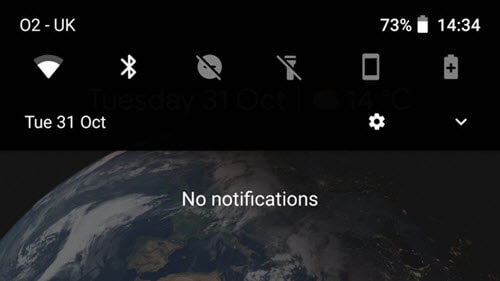
Notifications give you the information you need without actually opening the app. However, over the time, it is very easy to have tons of notifications distracting you from your work. But thanks to Android Nouget, it is very easy to control all those notifications. To disable or control the notifications, swipe down to bring the notification shade and slide over the notification. This gesture will show a Gear icon, tap on it and select appropriate option to take control of the notifications.

10. Save Mobile Data

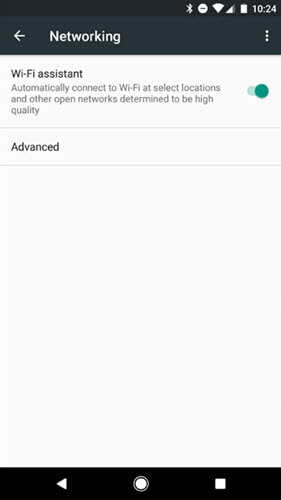
No matter where you live, mobile data is VERY expensive, at least expensive. By enabling the WiFi Assistant feature, you can save mobile data whenever and where ever possible by connecting to public WiFi networks. Now, when connecting to a public WiFi network, your Pixel device will automatically encrypt all incoming and outgoing data so that you don’t have to worry about security while using the public WiFi network.

Unless you are using Project Fi as your carrier, WiFi Assistant feature is disabled by default. To enable WiFi Assistant, open Settings, go to “Networking” and toggle the option “WiFi Assistant.”

11. Get the Internet Speed You Deserve

While it is good to connect to a WiFi network to save mobile data, it can be painful and a kind of punishment to use a WiFi connection when it is slow as a snail. In those situations, you can configure your Pixel device to automatically switch to the mobile data until there is a stable and speedy WiFi network.

To enable automatic switching between WiFi and mobile data, open “Settings,” go to “Network and Internet > WiFi Preferences” and tap on the option “Advanced.” Now, toggle the “Switch to mobile data automatically” option and you are good to go.

12. Enable Night Light Mode – Get Better Sleep

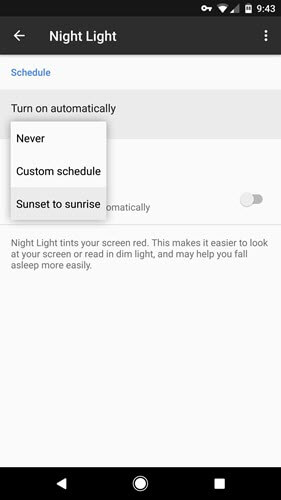
Though you might not know, the bright-light emitting from your Pixel device or any other device with a bright screen for that matter is making you lose your sleep at night. This is because, the light emitting from the screen is in blue light frequencies and it tricks your brain into thinking that it is still day-time, thus your lack of sleep. To deal with this problem, Google introduced the Night Light feature which gives the screen a yellow or orange tint at night times. This tint more or less imitates the natural light you see at sunset and lets you sleep better.

To enable night mode on Pixel, open “Settings,” go to “Display > Night Light.” Here, tap on the option “Turn on automatically” and then select “Sunset to Sunrise.” This option will make use of your location data to automatically detect sunset and sunrise timings. If you want to, you can also use a custom schedule by selecting the “Custom Schedule” option.

Wrapping Up

That’s it for now. If you think I missed any of your favorite Google Pixel tips then do share with me in the comments form below.

How to Install ADB on Windows 10, 8, and 7

0

Android is the most feature-rich platform. It has all the options you’ll ever need to control and configure the device however you want. However, some advanced settings are buried deep down. To access them you have to install ADB shell and use it. Today, I will show you how to install ADB on Windows 10.

What is ADB

Android Debug Bridge or more widely knows as ADB shell is a command line tool that helps developers access advanced settings and debug Android apps and system settings. Besides from debugging, you can use ADB shell to back up the android device, install apps on your SD card by default, disable specific features of an app, transfer files, etc. In fact, you can even use ADB to make system level changes.

Generally, ADB is bundled with Android SDK (Software Development Kit). So, if you’ve installed Android SDK then you already have access to the ADB shell on Windows 10 with several other essential tools like Fastboot. However, if you are not a developer and don’t want to install the complete Android SDK package for just one tool that is only used occasionally then you can install ADB on Windows separately. i.e, without installing Android SDK.

Related: How to Run Android Apps on Ubuntu [Natively]

Enable USB Debugging Mode

Before installing ADB on Windows 10, you need to configure your Android device to accept the ADB commands. To do that, you have to enable USB debugging mode. Thankfully, it is very easy to do. Just follow the below instructions.

  1. Launch apps menu and tap on the “Settings” icon.
  2. Here, scroll down and tap on the option “About“.
  3. Now, scroll down again and repeatedly tap on the option “Build number” 7 times.
  4. Go back to the main Settings screen, scroll down and tap on the new option “Developer Options“.
  5. Here, toggle the button next to USB Debugging option. Tap on the option “Ok” in the confirmation pop-up to enable USB debugging mode.

That’s it, you’ve configured the Android device to receive ADB shell commands. You can now install ADB on Windows 10.

Related: 10 Best Secret Texting Apps for Android (Private Texting Apps for Android)

Install ADB on Windows 10

Note: the same procedure is applicable for older versions of Windows like 7 and 8.

1. To start off, download ADB for Windows from the official Google website.

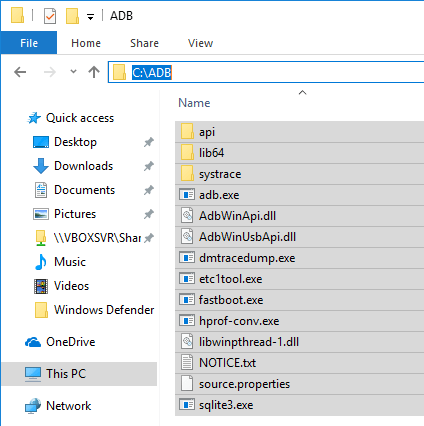
2. Create a new folder with the name “ADB” in the root of the C drive. Now, extract all the files in the downloaded ZIP file to the folder you just created. This is how it looks like when you are done extracting.

3. Grab a USB data cable and connect your android device to the Windows computer. If prompted, select “file transfer (MTP)” mode.

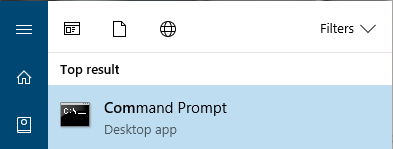
4. Now, search for “Command Prompt” in the start menu and open it.

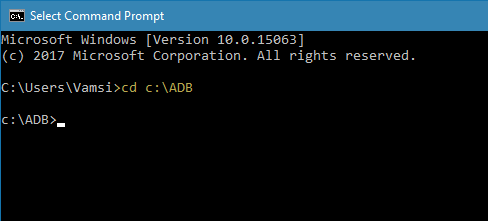
5. In the command prompt, use the below command to navigate the ADB installation folder. If you’ve installed ADB folder in some other place then change the command accordingly.

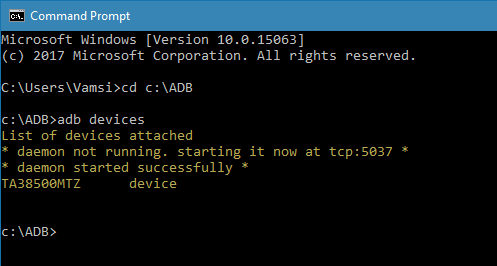
cd c:\ADB

6. Once you are here, execute the following command ADB Daemon.

adb devices

7. As soon as you execute the command, you will see “Allow USB debugging” prompt on your android device screen. Tap on the “Ok” button. Now, your device will be listed in the command prompt.

If you see your device listed then you’ve successfully installed ADB on Windows 10. If not, make sure that the device is properly connected and you have installed android drives on Windows. Generally, you can download android drivers specific to your device on the manufacturer website.

Related: How to Use Multiple Facebook Accounts on Android

Optional: Access ADB from Any Folder

As you can see, with the above method, you have to first navigate to the ADB installation folder if you want to use the ADB shell. This is not so much a problem but an inconvenience. To deal with that, you can add ADB to Windows Path. This allows you to access ADB from any folder or directory.

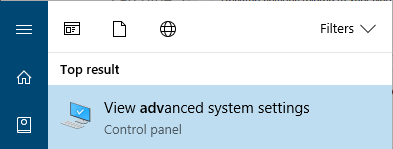
1. To add ADB to Windows path, search for “View advanced system settings” in the start menu and open it.

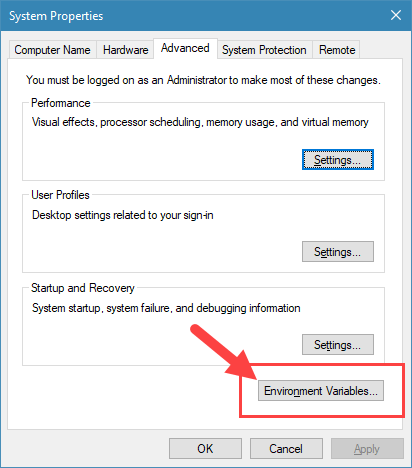
2. In this window, click on the button “Environment Variables“.

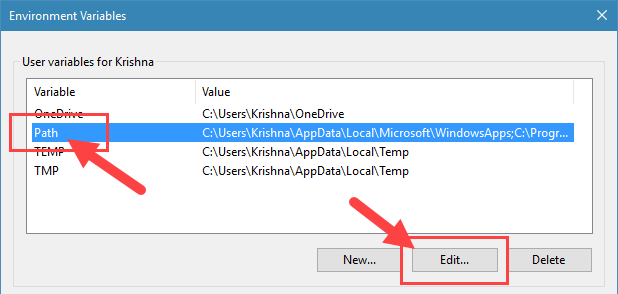
3. Here select the Path variable under “User variables for Username” and click on the button “Edit“.

Related: How To Disable Auto Media Download Feature In WhatsApp [Android]

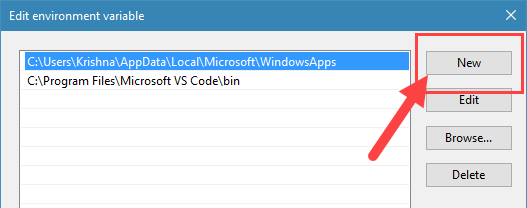
4. Now, click on the “New” button.

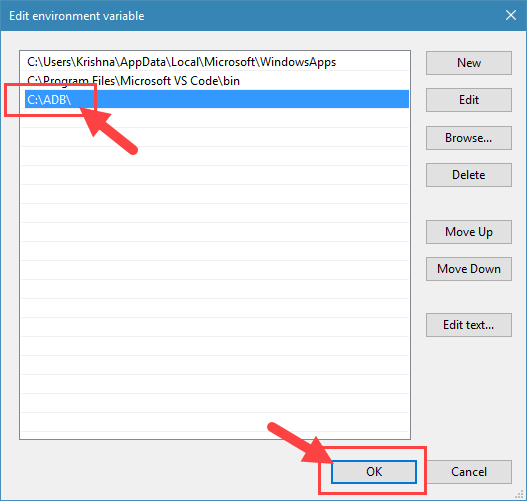
5. Enter the path to the ADB folder and click on the button “Ok” to save the changes. In my case, the folder path is C:\ADB.

6. Click on the “Ok” on other main windows to save the changes.

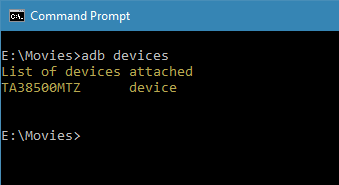
From this point forward, you can access ABD from any folder. As you can see from the below image, I’m starting the ADB daemon from a folder in my E drive.

That’s all there is to do and it is that simple to install ADB on Windows 10 and add ADB to Windows path. If you find this article useful then do read how to disable volume buttons in android and how to hide audiobooks from music players in android.

Comment below sharing your thoughts and experiences about using the above method to install ADB on Windows.

Related: How to Download Android Apps to PC without Installing Any Software [Quick Tip]

How to Bypass Chromecast DNS and Block Google DNS

0

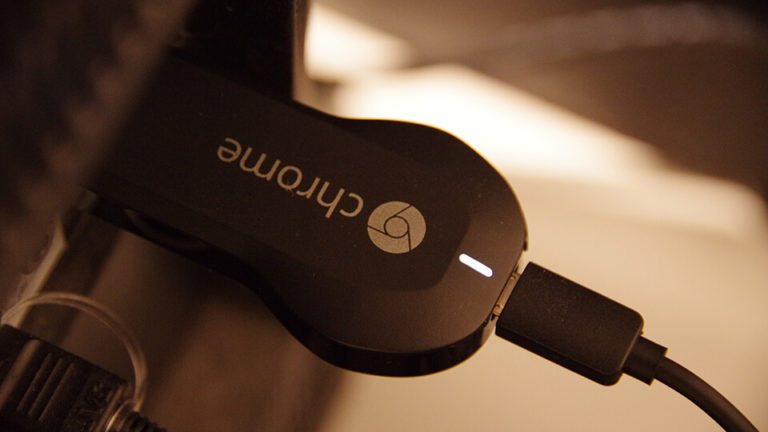
If you are using Smart DNS to bypass geo-restrictions placed by major services like Netflix, Hulu, etc., then you might face problems when trying to cast the show to your TV or other device using Chromecast. In case you are wondering, the casting simply won’t work and Chromecast refuses to screencast. In some cases, the same is true for another famous streaming device Roku.

So, Why’s This Happening

The problem might not be obvious at the first glance but what’s happening in the background is interesting. To put it simply, Google hardcoded Chromecast devices with Google Public DNS.

Generally, all your devices use whatever DNS is configured on your router. For instance, if you’ve configured your router to use Smart DNS then all the devices like your computer, mobile phones, laptops, etc., will use that DNS. However, since Chromecast is hardcoded to use Google DNS, it bypasses your router DNS. It makes it almost impossible to cast shows from Netflix when using services like Smart DNS to bypass geo-restrictions.

Solution to Bypass Hardcoded Chromecast DNS

You cannot change Chromecast DNS. To solve Chromecast blocking Netflix, you need to configure your router’s routing table to actively block Google Public DNS. By doing this, you can bypass hardcoded Google DNS in Chromecast and force it to use the default DNS provided by your router.

Fortunately, it is very easy to setup a static route in a router. However, your router needs to support advanced routing feature to add your own static routes. The good thing is, almost all major routers like D-Link, TP-link, Netgear, Tenda, Huawei, etc., support setting up static routes.

If your router doesn’t support advanced routing then you either need to get a new router or flash a custom firmware like DD-WRT. In general, custom firmware gives you a lot of advanced options to configure the router as you want.

Bypass Chromecast DNS

In my case, I’m showing how to setup static routes in a router to bypass Chromecast DNS on my TP-Link router. If you are using some other router, the procedure is pretty similar.

1. To bypass hardcoded Chromecast DNS, first, log into your router’s administration page. You can get to it by typing http://192.168.0.1 or http://192.168.1.1 in your address bar. If this didn’t work, consult your router’s manual to know the login page address.

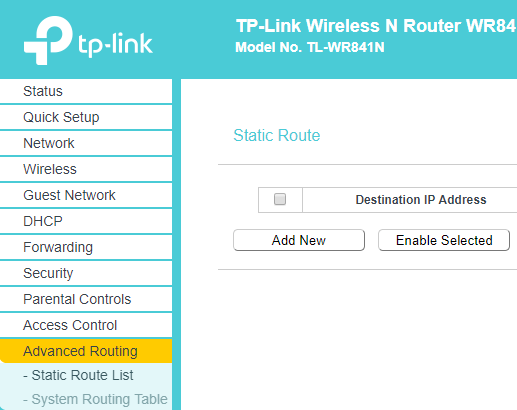
2. After logging into the router, navigate to “Advanced Routing > Static Route List” appearing on the left sidebar. On the right panel, click on the “Add New” button to create a new static route.

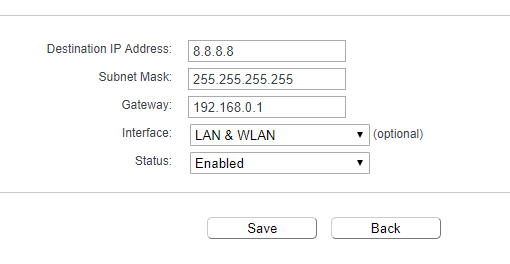
3. Now, fill in the fields as follows and save the changes by clicking on the button “Save.”

  • Destination IP Address: 8.8.8.8
  • Subnet Mask: 255.255.255.255
  • Gateway: 192.168.0.1 (if your router IP address is 192.168.1.1 then enter it)
  • Interface: Select “LAN” or “LAN & WAN” depending on your router options.
  • Status: Select “Enabled”

4. You need to the same thing with the other Google Public DNS IP address. So, click on the “Add New” button, fill in the fields as shown below.

  • Destination IP Address: 8.8.4.4
  • Subnet Mask: 255.255.255.255
  • Gateway: 192.168.0.1 (if your router IP address is 192.168.1.1 then enter it)
  • Interface: Select “LAN” or “LAN & WAN” depending on your router options.
  • Status: Select “Enabled”

After filling the details, hit the “Save” button save the changes.

5. Reboot your router to make the changes take effect and clear DNS cache.

6. To verify whether the changed settings are working or not, open the command prompt or the terminal and execute the following command.

ping 8.8.8.8

7. If you get “Connection timed out” error or if the terminal stays blank then the method is working as it should. You have successfully blocked Google DNS on your router. This forces the Chromecast to use your router’s DNS.

From now on, you can bypass Chromecast DNS and cast your favorite Netflix show to TV or another device.

Hope that helps. Comment below sharing your thoughts and experiences about using the above method to block Google DNS on Chromecast and bypass it with static route configuration on the router. Also, share any other methods you know to bypass Chromecast DNS.

DVDVideoSoft YouTube to MP3 Converter Review – Easy Way to Download YouTube Video as MP3

0

This article is sponsored by DVDVideoSoft. The content and views about this product are sole opinions of the author with complete editorial independence. 

Looking for a proper way to download YouTube video as MP3? Here’s how to do it. YouTube is one of the biggest platforms when it comes to video sharing. In fact, you can find almost any sort of video and enjoy it for free. Simply put, YouTube provides the best video viewing experience.

The one thing that YouTube doesn’t provide is any proper or easy way to download YouTube videos as mp3. This is understandable due to all the copyright and legal issues that entail with this feature. However, that doesn’t mean you cannot download YouTube videos. You can use free software like DVDVideoSoft YouTube to MP3 converter.

Features of DVDVideoSoft YouTube MP3 Converter

  • Clean and minimal user interface.
  • The software supports various audio formats like MP3 (Lame Insane and Extreme Profiles), M4A (AAC), WAV, FLAC, and OGG.
  • You can also download original stream for hi-fi sound.
  • Fast and multithreaded downloading.
  • Convert and download MP3s from entire YouTube playlists or channels.
  • Automatically convert YouTube playlists to iTunes.
  • Bulk download YouTube videos as MP3.

Installation and Usage

It is very easy to use DVDVideoSoft YouTube MP3 Converter. To start off, download DVDVideoSoft YouTube to MP3 Converter from the official website and install it.

After installing, launch the software by searching for it in the start menu. Now, launch the web browser, open YouTube, find the video you want to download as MP3.

While the video is playing, copy the URL from the address bar. You can use the keyboard shortcut Ctrl + C to copy the URL.

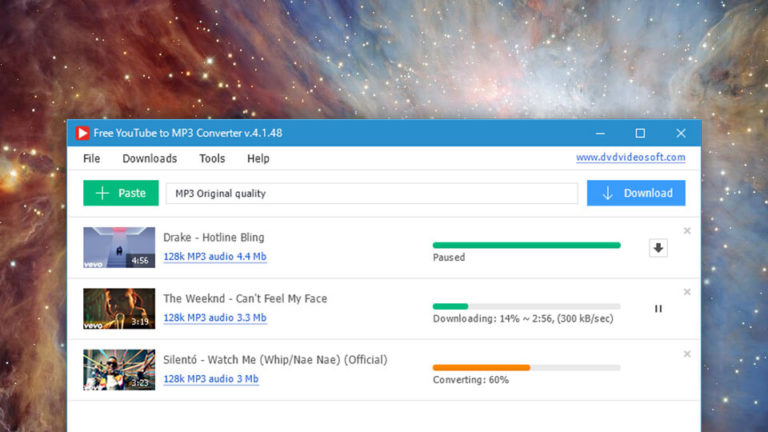
Now, click on the button “Paste” appearing in the software’s main window. This action will automatically list the video in the main window.

If you want to you can select the audio quality link appearing right under the video name. In my case, I’m selecting the standard quality audio.

After selecting the audio quality, click on the Download icon to start the download. Depending on the length of the video, it might take some time to download. So sit back and wait or do something else while the video is being downloaded and converted to MP3.

Once the video has been downloaded and converted, click on the Folder icon to see the downloaded file. Click on the Play icon if you want to play the downloaded file in your default music player.

That’s all there is to do and it is that simple to download YouTube video as MP3 in Windows. To download entire YouTube playlist as mp3, follow this official guide.

Conclusion

As you can see, the software is pretty minimal and easy to use. If you download a lot of YouTube videos as MP3 then do give the software a try and see if it fits your needs. After all, it is free to use and won’t take a lot of system resource.

To get access to some advanced features like entire channel download, fast downloading, etc., you need to buy the premium version. Like I said if you download a lot of music then consider the premium version, otherwise, stick to the free version it is good enough for most cases.

Hope that helps and it is that simple to convert YouTube video to MP3. Do comment below sharing your thoughts and experiences about using DVDVideoSoft to download YouTube video as MP3.

How to Delete Hiberfil.sys File in Windows 10 to Reclaim Lost Hard Drive Space

0

Here’s how to delete hiberfil.sys file in Windows 10. If you’ve seen all the files in the root of your C drive, you might have seen a big file named “hiberfil.sys”. The first thing you will notice apart from its name is its size. Typically, the hiberfil.sys will be anywhere from 2GB to 4GB. This file is created when you enable the Hibernation feature in the Windows 10.

In case you don’t know, Hibernation allows you to save the current state of your system before shutting down your system. When you turn on the system again, you will have the current state restored. This feature is pretty helpful when you want to save your workspace before shutting down the system. Moreover, when using the Hibernation feature, you can turn on your PC much faster as all your system does is restore the previous session rather than booting up fresh.

Though the Hibernation feature is very useful, it comes at the cost of the disk space. As you can tell, if you are using an SSD with low capacities like 60GB or 120GB, sparing this amount of disk space may not be an option. In those situations, you can delete hiberfil.sys file and reclaim hard disk space in Windows 10.

Note: You can follow the same procedure in Windows 7 and 8 to delete hiberfil.sys file.

How to View Hiberfil.sys file in Window 10

Being a system file, the hiberfil.sys file is hidden by default.

1. To view hiberfil.sys file, open File Explorer by pressing the keyboard shortcut Win + E.

2. Now, navigate to the “View” tab and click on the option “Options“.

3. In the Folder Options window, navigate to the “View” tab.

4. Here in the Advanced Settings section, scroll down and change the following settings:

  • Select the radio option “Show hidden files, folders, and drives
  • Select the checkbox “Hide protected operating system files

After the changes, click on the “Ok” button to save the changes.

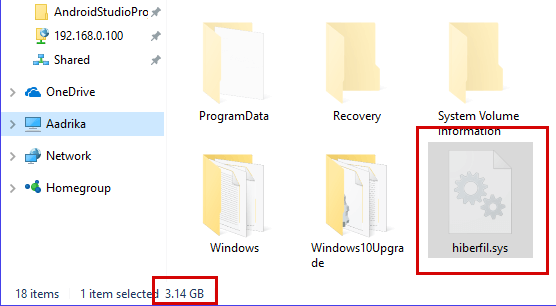
5. Now, open the C drive and you will see a file named hiberfil.sys. By selecting the file you can see its file size. As you can see, my hiberfil.sys is around ~3GB.

Delete Hiberfil.sys file in Windows 10

It is very easy to delete hiberfil.sys file in Windows 10. All you have to do is execute a single command and you are good to go.

1. To delete hiberfil.sys file in Windows 10, search for Command Prompt in the start menu, right-click on it and select the option “Run as administrator“.

2. In the command prompt, execute the following command.

powercfg /hibernation off

That’s it, the above command will turn off hibernation feature and deletes the hiberfil.sys file.

Hope that helps and do comment below sharing your thoughts and experiences about using above method to delete hiberfil.sys file in Windows 10.

How to Change the Bluetooth Name in Windows 10

0

Unless you specifically set your computer name, Windows 10 uses a random alphanumeric number something like “DESKTOP-2X5JW”. This name doesn’t bother much unless you want to remember it or when you are required to uniquely identify your computer when connecting to other devices.

Generally, Windows 10 shows the computer name as the Bluetooth name. So, you simply cannot change the Bluetooth name as needed. If you want to change the Bluetooth name in Windows 10 then you should also change the computer name. In case you are wondering, here is how to change the Bluetooth name in Windows 10.

Note: If you are using Windows 7 or Windows 8 then follow the second method.

Method 1: Change Bluetooth Name in Windows 10 Using Setting App

Fortunately, like many things in Windows, it is very easy to modify the Bluetooth name in Windows 10.

1. To start off, press “Win + X” to open the Power User menu and select the option “Settings” from the list.

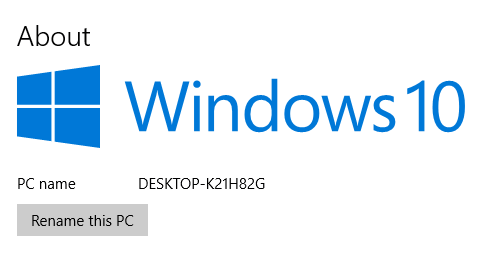
2. The above action will open the Windows 10 Settings panel. This is where you can manage the system and app settings. Here, navigate to “System” and then to “About” appearing on the left panel.

3. On the right panel, click on the button “Rename this PC“.

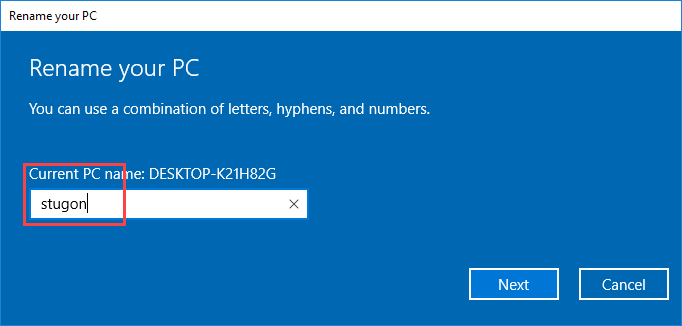
4. Now, enter your new PC name and click on the button “Next” to continue.

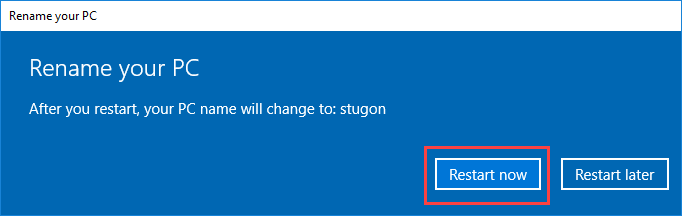
5. To make the changes take effect, you need to restart your system. Just click on the “Restart Now” button to restart your system.

That’s it. From this point forward, you will see the new name as the Bluetooth name in Windows 10.

Method 2 Change the Bluetooth Name Using Control Panel

Alternatively, you can also change the Bluetooth name using Control Panel. The good thing about this method is that it works with previous versions of Windows like 7 and 8.

1. Search for “Control Panel” in the start menu and open it.

2. In the Control Panel, find and open “System“.

3. Here, click on the link “Advanced System Settings” appearing on the left panel.

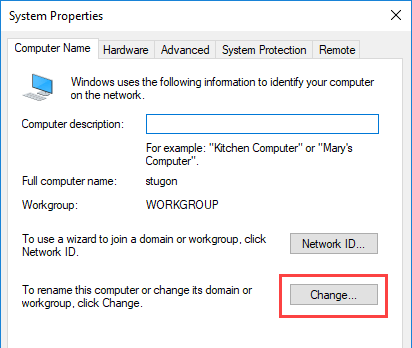
4. In this window, navigate to the “Computer Name” tab and click on the button “Change” appearing at the bottom of the window.

5. Now, enter the new name in the Computer Name field and click on the “Ok” button.

6. Again, to make the changes take effect, restart the Windows system.

That’s all there is to do. Since the computer name is shown as the Bluetooth name, you’ve successfully changed Bluetooth name in Windows 10.

Do comment below sharing your thoughts and experiences about using the above method change the Bluetooth name in Windows 10.