How to Install Google Chrome in Ubuntu

0

By default, Ubuntu comes pre-installed with Firefox to meet all your browsing needs. However, most of us use Google Chrome due to its simplicity, ease of use, and integration with Google account. As good as it is, sometimes you might be facing problems while you try to install Google Chrome in Ubuntu. Those problems may include but not limited to dependency errors, archive errors, etc. To deal will all the problems just follow the below steps and you will able to properly install Google Chrome in Ubuntu within a few minutes.

Install Google Chrome in Ubuntu

To install Google Chrome in Ubuntu, all you have to do is execute a few commands in the terminal. To start off, search for Terminal in the Dash and open it.
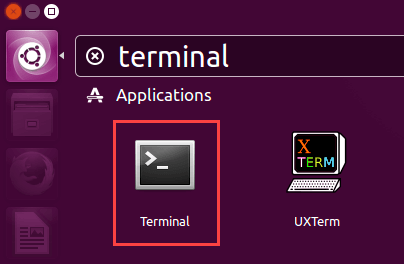
Install Chrome in Ubuntu - open terminal
Install Chrome in Ubuntu – open terminal

After opening the Terminal, use the below command to download Google Chrome’s latest built. The below command downloads the 64-bit version of Google Chrome.

wget https://dl.google.com/linux/direct/google-chrome-stable_current_amd64.deb

If you are on a 32-bit machine then use the below command to download Google Chrome 32-bit version.

wget https://dl.google.com/linux/direct/google-chrome-stable_current_i386.deb
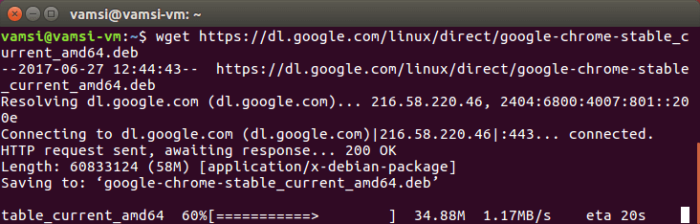
Install Google Chrome in Ubuntu - download Google Chrome latest build
Install Google Chrome in Ubuntu – download Google Chrome latest build

The downloaded Google Chrome package will be stored in your home folder. If you want to, you can use the “ls” command to see whether the file is there in that folder or not. As you can see from the below image, I’ve actually used it verify that the Google Chrome package is actually there.

To install Google Chrome in Ubuntu, use the below command.

sudo dpkg -i google-chrome-stable_current_amd64.deb

Note: if you are not a 32-bit machine then change the file name accordingly. The default 32-bit Google Chrome package name will be “google-chrome-stable_current_i386.deb.”
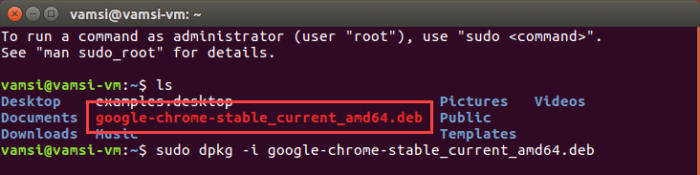
Install Google Chrome in Ubuntu - installation command
Install Google Chrome in Ubuntu – installation command

Now, you will be prompted for your user account password. Just type the password and press Enter to continue.
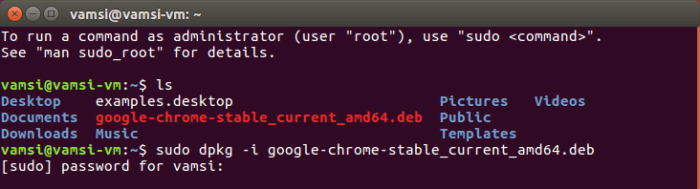
Install Google Chrome in Ubuntu - enter user password
Install Google Chrome in Ubuntu – enter user password

That’s all there is to do. As soon as you press the Enter button, Google Chrome should be installed in Ubuntu. However, in some cases, the installation might fail due to dependency errors. In that case, you will receive an error message something like the below one.

To meet the dependency needs and install Google Chrome in Ubuntu properly, use the below command. This command will automatically download any and all needed dependencies.

sudo apt-get -f install
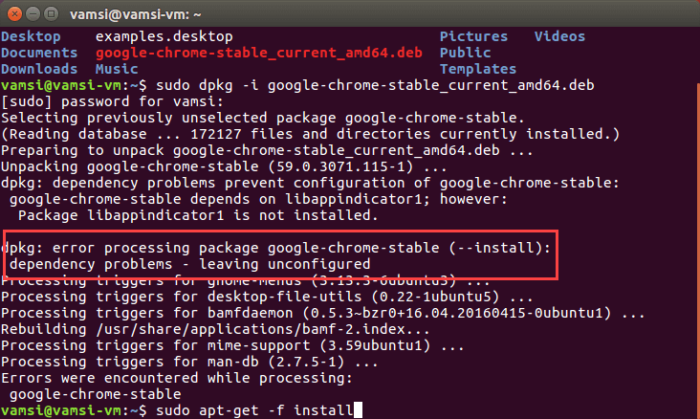
Install Google Chrome in Ubuntu - rectify errors
Install Google Chrome in Ubuntu – rectify errors

When you are asked whether would you like to download dependencies, type Y and press Enter to continue the procedure.
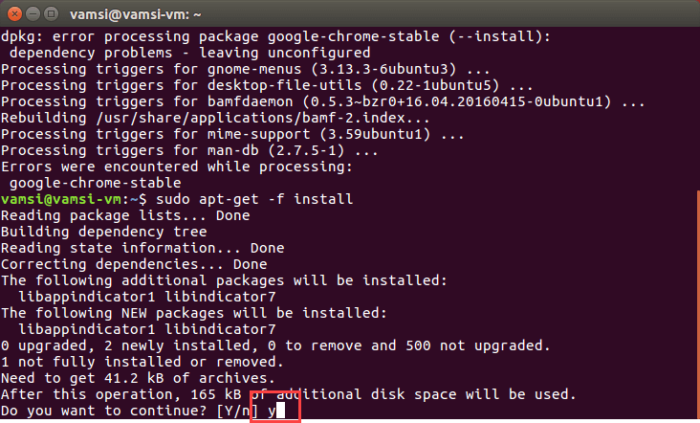
Google Chrome in Ubuntu - accept changes
Google Chrome in Ubuntu – accept changes

That’s it, you’ve successfully installed Google Chrome in Ubuntu. To start using Chrome, search for it in the dash and open it.
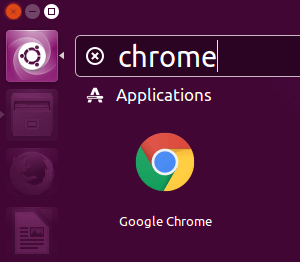
Open Google Chrome in Ubuntu

If you use Google Chrome daily, select the checkbox “Make Google Chrome the default browser” and click on the button “Ok.” This action will make Google Chrome your default browser in Ubuntu.
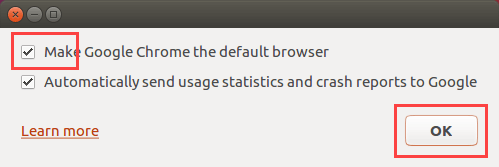
Google Chrome Ubuntu - make Google Chrome the default browser
Google Chrome Ubuntu – make Google Chrome the default browser

Do comment below sharing your thoughts and experiences about using the above method to install Google Chrome in Ubuntu.
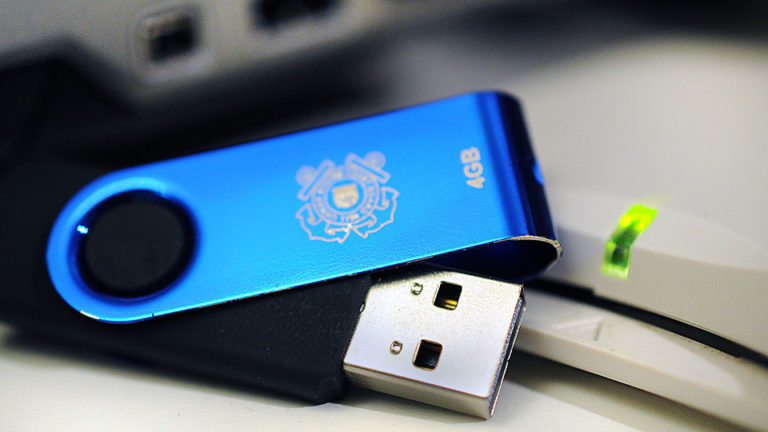
How to Create Windows 10 Recovery Drive

In this post, I will show you how to create Windows 10 recovery drive. There will be times when your operating system got corrupted and won’t boot no matter what you do. The reasons for a corrupted operating system are things like sudden power failures, malware, messing with OS files, etc. To make matters worse, most computers don’t have a Windows recovery drive to help you in these situations. Thankfully, it is very easy to create your own Windows recovery drive and repair Windows 10. Without further ado, let me show you how to create Windows 10 recovery drive in few simple and easy steps.

A Few Things Before You Proceed

1. The process requires you to have a USB drive. The USB drive should be at least 8GB in size.

2. Though I’m showing this in Windows 10, the Windows recovery drive procedure is same in Windows 7 and 8.

Create Windows 10 Recovery Drive

Creating Windows recovery drive is fairly simple. The system recovery drive gives you the access to advanced startup options to troubleshoot and restore the Windows operating system. To create a Windows 10 recovery drive, we are going to use an inbuilt Windows tool called “Recovery Media Creator.”

Looking to create system repair disk? Here’s how to create Windows 10 system repair disk.

Before doing anything, plug in your USB drive. As I said before, make sure that the USB drive is at least 8GB or more. Since the recovery drive creation process formats the thumb drive, make sure that there is no data in it.

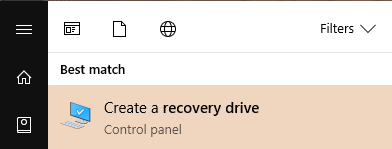
To get access to Windows recovery drive tool, open the start menu and search for “create a recovery drive.” Once you see the recovery drive utility in the search results, press the enter button. to open “Recovery Media Creator.”

Windows 10 recovery drive

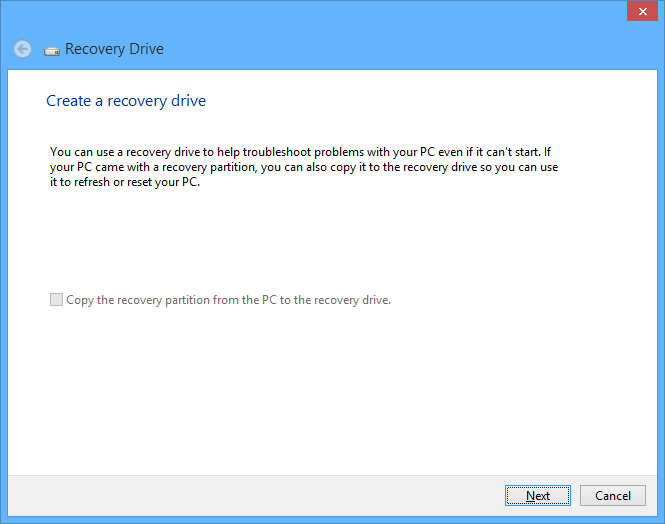
The above action will open the “Recovery Media Creator” window. Here, click on the “Next” button to continue.

Windows 10 recovery drive - click next
Windows 10 recovery drive – click next
Don’t want random USB drives plugged into your system? Here’s how to block USB drives in Windows.

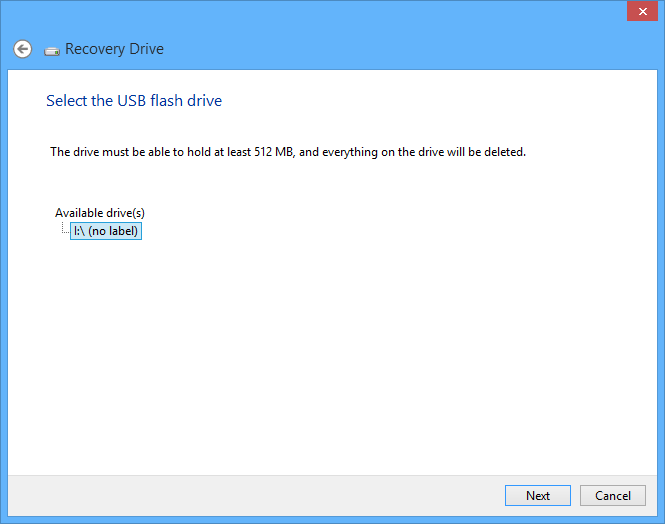
Here in this window, select your USB drive and click on the “Next” button to continue.

Windows 10 recovery drive - select USB drive
Windows 10 recovery drive – select USB drive

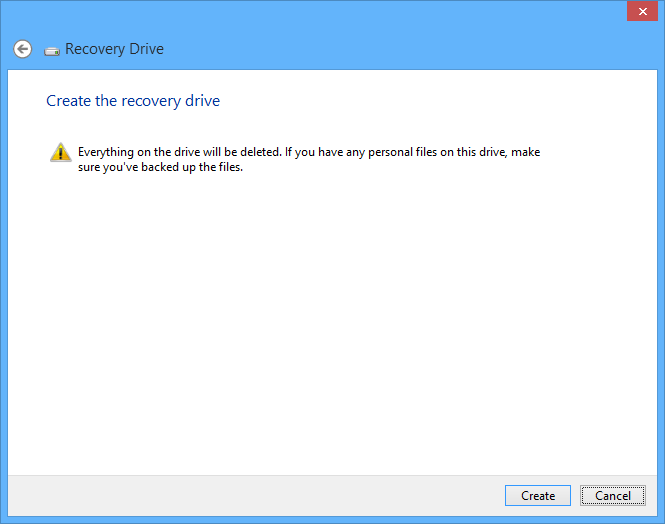
Now Windows will display a little warning message stating that all the data in the USB drive will be wiped out. So make sure that there is no important data that you need. Once you have confirmed that, click on the “Create” button to continue.

System recovery drive - format warning
System recovery drive – format warning
Want to change drive letters in Windows? Here’s how to change drive letters in Windows.

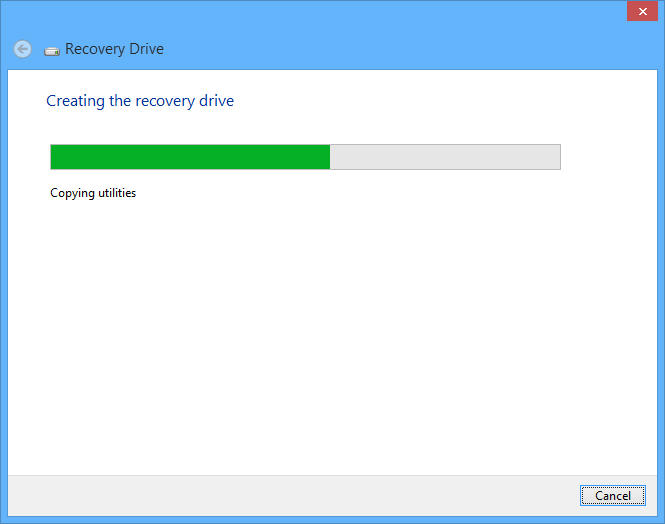
As soon as you click on the create button, Windows will start creating the recovery drive. Just sit back and wait as this process may take some time.

Windows 10 recovery drive - creation in progress
Windows 10 recovery drive – creation in progress

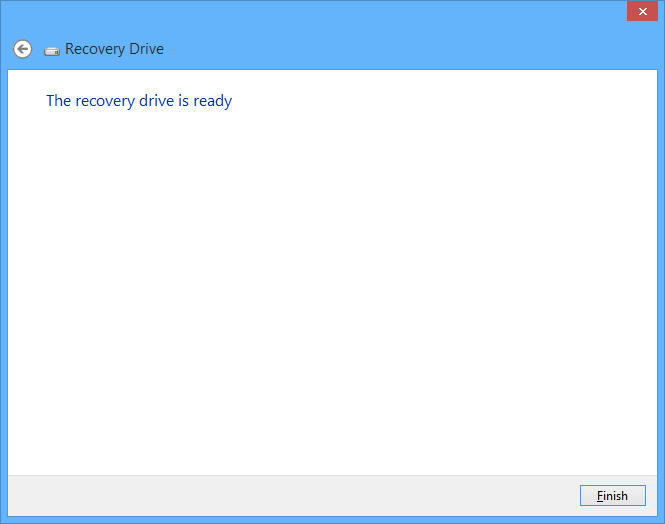
Once Windows is done creating the recovery drive, click on the button “Finish” to close the window. Unplug the USB drive and you are good to go.

Windows recovery drive - successfully created system recovery drive
Windows recovery drive – successfully created system recovery drive

From this point forward, whenever you cannot boot into your system just plug in the Windows 10 recovery drive and you will be able to access all the advanced tools to fix the operating system.

That’s all there is to do. Do comment below if you face any problems while creating recovery drive or to share your thoughts and experiences about creating Windows 10 recovery drive.

10 Best Secret Texting Apps for Android (Private Texting Apps for Android)

0

Have you ever wanted secret texting apps for Android? There are several instant texting apps like WhatsApp and Facebook Messenger to quickly communicate with your loved ones, friends, and colleagues. Generally, these conversations are not that secret. However, there certainly will be times when you might want others not to look into what you are talking via text messages. In those situations, general apps like WhatsApp cannot protect your privacy. In fact, anyone who has access to your smartphone can read the conversation without much resistance. To deal with that, here are some of the best secret texting apps for Android to keep your intimate communication private from prying eyes.

Secret Texting Apps for Android

1. Calculator

Don’t be fooled by the app name. The developer named the app as Calculator because when you open it, it looks just like a calculator. To get behind the fake interface, you have to enter the correct password. The good thing about the app is that you can configure it to hide or protect your text messages, multimedia messages (MMS), contact numbers, and even phone calls. Moreover, you even get access to different calculator skins to customize the look and feel of the app.

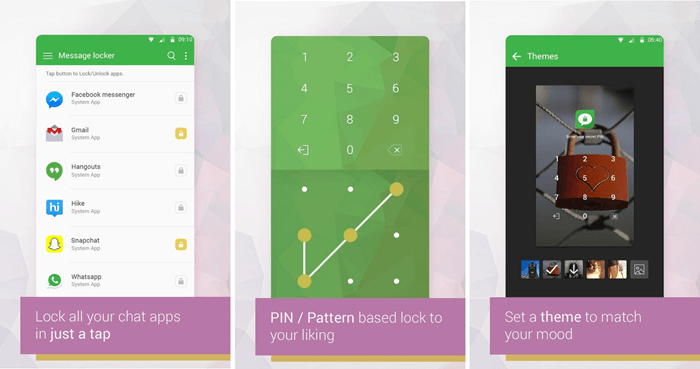
2. Message Locker – SMS Lock

As you can tell from the name itself, Message Locker lets you lock down all the texting and messaging apps using the PIN or Pattern lock. The good thing about the app is that detects all the popular messaging and texting apps like WhatsApp, Facebook Messanger, Snapchat, Telegram, Skype, Viber, Hangouts, etc. Other features of the app include but not limited to fast unlock, one lock to all messaging apps, etc.

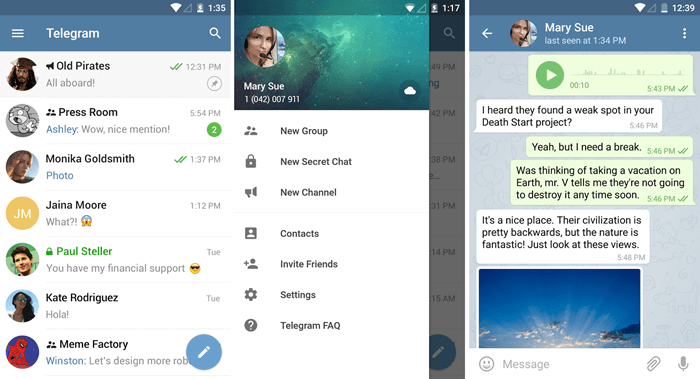
3. Telegram

Telegram is one of the most popular private and secure texting app for Android. Unlike the above two apps, Telegram is a pure instant messaging app designed with privacy and protection in mind. When using Telegram all your text messages and media files are encrypted using a combination of 256-bit symmetric AES encryption, 2048-bit RSA encryption, and Diffie–Hellman secure key exchange. Even with all the encryption and protection, you can chat seamlessly, create groups while still being simple to use. If you are looking for a completely private, secure, and secret texting app, Telegram is for you.

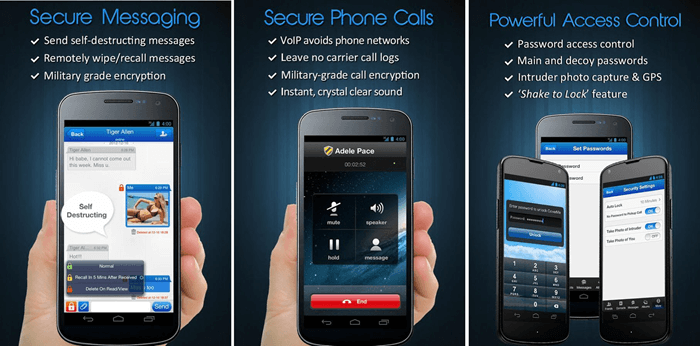
4. CoverMe Private Text Messaging

CoverMe private text messaging is much more than a private texting app for Android. Using CoverMe, you can encrypt phone calls and text messages, send self-destruct messages, remotely wipe or recall sent messages, hide messages, phone numbers, and call logs, and create private vault to securely store documents, media, notes, and diary.

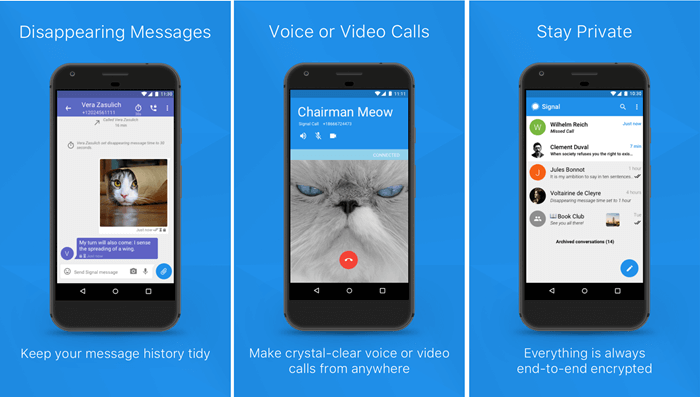
5. Signal Private Messenger

Just like Telegram, Signal Private Messenger uses end-to-end encryption. The Signal app is an open source project and uses peer-reviewed cryptographic protocols to keep your messages safe. Moreover, Signal uses your existing phone number and is specifically designed to work faster even in constrained environments. If you want to, you can also create group chats. Since Signal uses end-to-end encryption, no one includes the Singal developer can access your data without your permission.

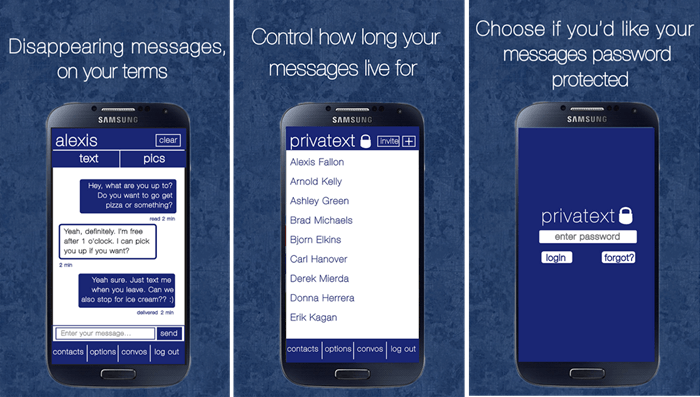
6. Privatext

As you can tell from app name, Privatext lets you send texts and pictures securely between your contacts. Privatext work just like any other text messaging application. However, all your messages are encrypted and you control the messages you send. For instance, you can always delete a message whenever you want, even when they are unread by the recipient. If you want to, Privatext even lets you automatically delete the message within 30 seconds and 24 hours time frame.

7. Couchgram

Couchgram is not necessarily a secret texting app but, it is pretty helpful if you simply want to simply lock download your default texting app or to manage your call logs. Some of the features of the app include but not limited to app lock, hide or rename caller ID, incoming call lock, auto delete call logs, take pictures of intruders who are snooping on your phone, etc.

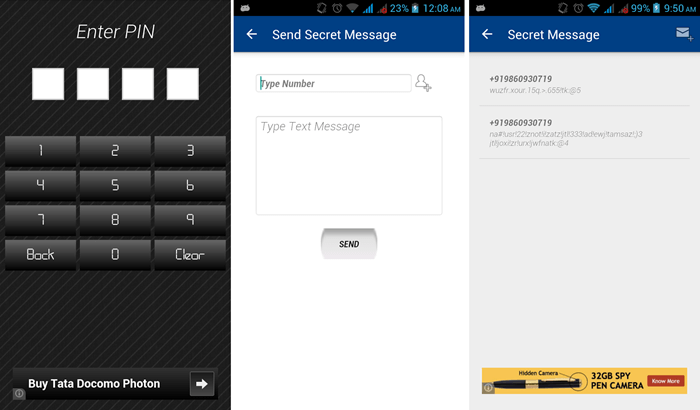
8. Secret SMS

If you are looking for a simple, minimal, and straightforward app to send secret text messages in Android then Secret SMS if for you. The text messages sent using this application are protected with a PIN password. If you want to, you can auto delete messages in your inbox. Moreover, to make things a bit more simple, the sender name is never displayed in the list.

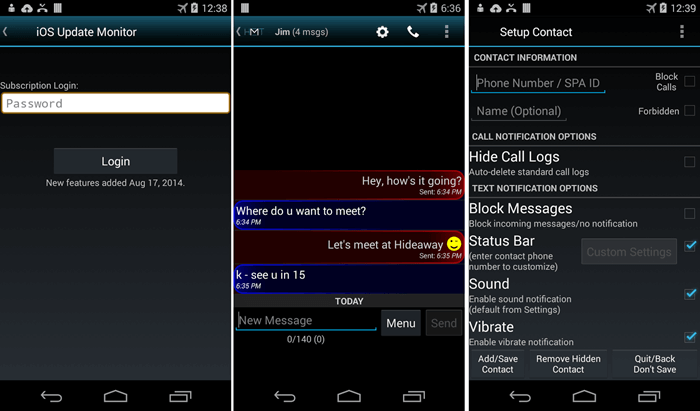
9. Hide My Text – Invisible

The name says it all, Hide My Text app hides text messages, call logs, and can block unwanted messages and calls. The good thing about this app is that it automatically hides text message of selected contacts so that no one but you can read the messages. Other features of the Hide My Text app include password protection, hide app icon in app drawer, hide call logs, chose custom colors, modify status bar icons and descriptions, etc.

10. GO SMS Pro

GO SMS Pro is one of the popular secret texting apps for Android that has a lot of customization options to make the app look and feel as your own. Just like the other secret texting apps for Android, GO SMS Pro encrypts all your text message and keeps them private. Some of the features of the app include but not limited to the private box, custom themes, sticky messages, quick viewing and reply, support for dual SIMs, SMS blocker, delay send, etc.

Do comment below sharing your thoughts and experiences about using the above secret texting apps for Android.

How to Install Linux Mint in VirtualBox (Step by Step with Images)

0

Want to test or try Linux Mint? All you have to do is install Linux Mint in VirtualBox. Linux Mint is one of the most popular Linux distros. The good thing about Linux Mint is that it is very beginner friendly, minimal, and uses fewer resources compared to Ubuntu. If you wish to try new Linux Mint OS then you can install it in a virtual machine using VirtualBox, no need to install it directly on your system. In case you are wondering, here’s how to install Linux Mint in VirtualBox.
Using VMware for virtual machines? Step by step guide on how to install Linux Mint in VMware.

Download VirtualBox and Linux Mint

If you haven’t already, download and install VirtualBox. You can install VirtualBox like any other Windows software.

Download latest Linux Mint build from the official site. Once you have both of these, you can proceed to install Linux Mint on VirtualBox.

Install Linux Mint in VirtualBox

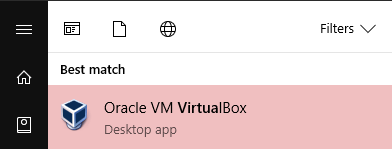
1. To install Linux Mint in VirtualBox, search for VirtualBox in the start menu and open it.

Install Linux Mint in VirtualBox - Open VirtualBox
Install Linux Mint in VirtualBox – Open VirtualBox

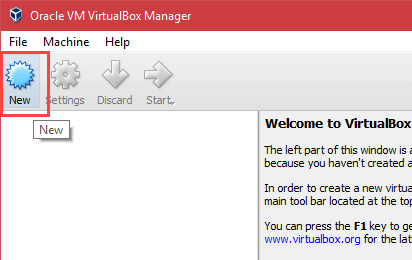
2. After opening VirtualBox, click on the button “New” on the top navigation bar.

Install Linux Mint in VirtualBox - Click New
Install Linux Mint VirtualBox – Click New

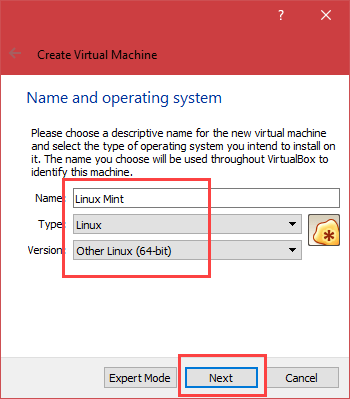
3. In the Create Virtual Machine window, enter the name of your virtual machine, select Type as “Linux” and Version as “Other Linux (64-bit).” If you’ve downloaded the 32-bit version of Linux Mint then select “Other Linux (32-bit)”.

Install Linux Mint in VirtualBox - Name VM
Install Linux Mint in VirtualBox – Name VM

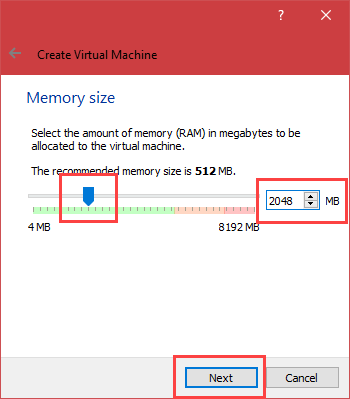
4. Here, select the memory size by sliding the bar. In my case, I’m assigning 2GB memory. At the minimum, assign at least 1GB to good performance.

Install Linux Mint in VirtualBox - Set Memory Size
Install Linux Mint VirtualBox – Set Memory Size

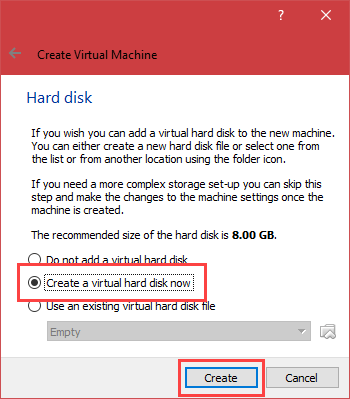
5. Select “Create a virtual hard disk now” and click on the button “Create”.

Install Linux Mint in VirtualBox - Create Virtual Disk
Install Linux Mint in VirtualBox – Create Virtual Disk

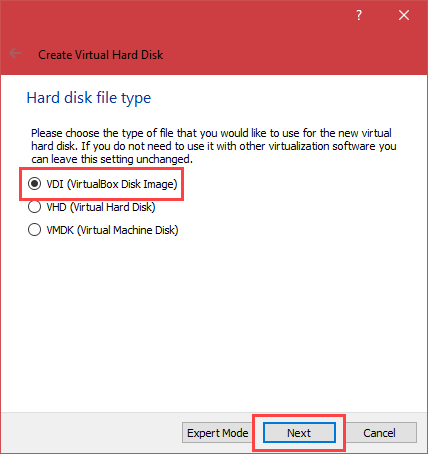
6. Now, select “VDI (VirtualBox Disk Image)” and click “Next” button.

Install Linux Mint in VirtualBox - Select VDI
Install Linux Mint VirtualBox – Select VDI

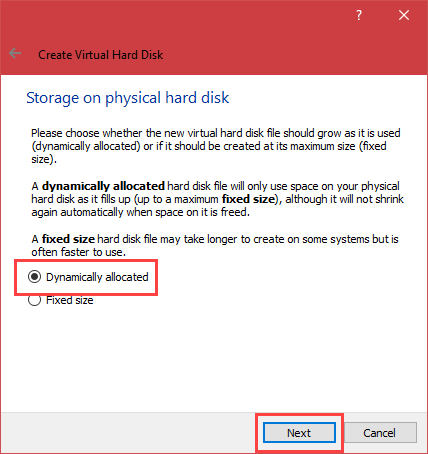
7. Here, select the radio button “Dynamically allocated” and click “Next” button.

Install Linux Mint in VirtualBox - Select Dynamically Allocated
Install Linux Mint in VirtualBox – Select Dynamically Allocated

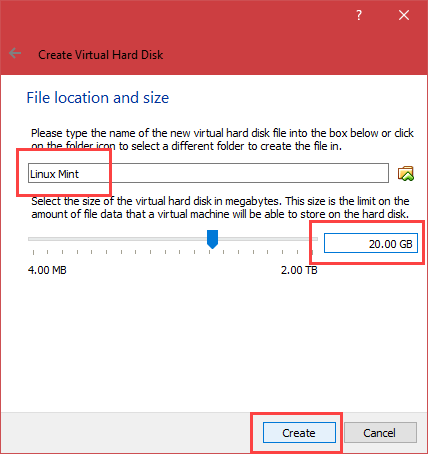
8. Enter the amount of hard disk size you want to assign and click on the “Create” button. In my case, I’m assigning 20GB hard disk space. Minimum recommended hard disk space is 8GB.

Install Linux Mint in VirtualBox - Set Hard Disk Size
Install Linux Mint VirtualBox – Set Hard Disk Size

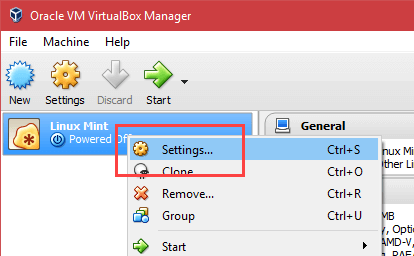
9. You’ve successfully created a virtual hard disk to install Linux Mint in VirtualBox. On the main window, right-click on the newly created virtual machine and select the option “Settings”.

Install Linux Mint in VirtualBox - Select Settings
Install Linux Mint in VirtualBox – Select Settings

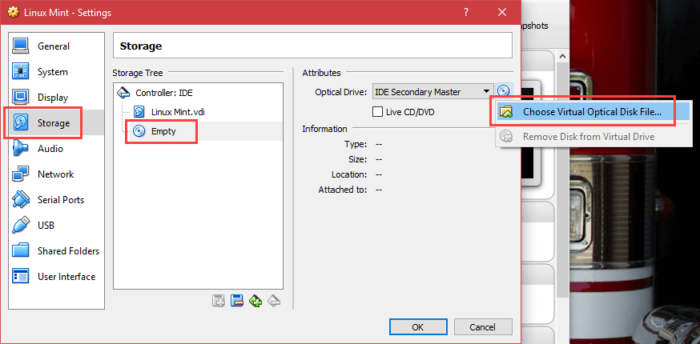
10. In the Settings window, navigate to “Storage” on the left pane, select “Empty CD drive” under Storage Tree section, and select “Choose Virtual Optical Disk File” from the drop-down menu.
Install Linux Mint in VirtualBox - Select Virtual Disk Option
Install Linux Mint in VirtualBox – Select Virtual Disk Option

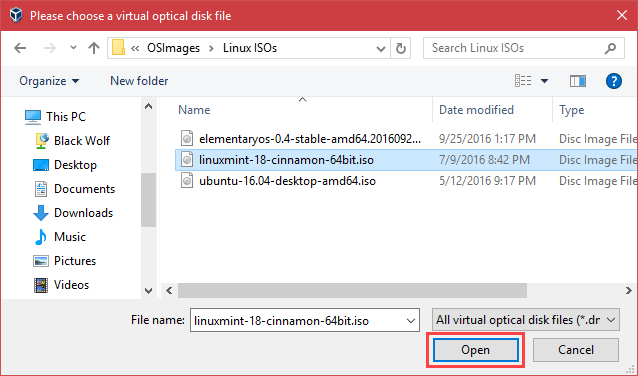
11. Navigate to the Downloads folder, select the downloaded Linux Mint ISO file and click on the button “Open”.
Install Linux Mint in VirtualBox - Select Linux Mint ISO File
Install Linux Mint in VirtualBox – Select Linux Mint ISO File

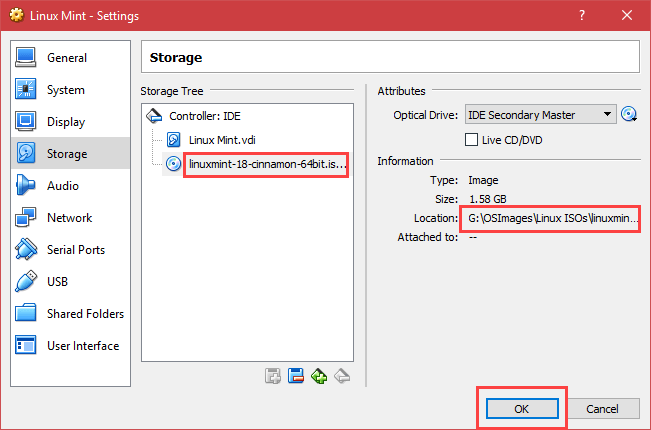
12. This is how it looks like in the virtual machine settings window. Click on the button “Ok” to save the changes.

Install Linux Mint in VirtualBox - Confirm Virtual Disk File
Install Linux Mint in VirtualBox – Confirm Virtual Disk File

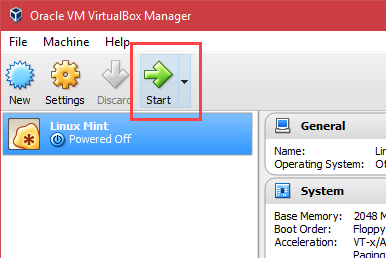
13. In the main window, click on the “Start” button to start the newly created virtual machine.

Install Linux Mint in VirtualBox - Click Start Button
Install Linux Mint VirtualBox – Click Start Button

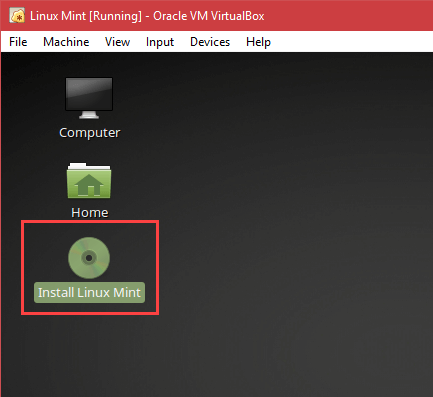
14. As soon as you start the virtual machine, you will boot into Linux Mint. Here, double-click on the option “Install Linux Mint”.

Install Linux Mint in VirtualBox - Select Install Linux Mint
Install Linux Mint in VirtualBox – Select Install Linux Mint

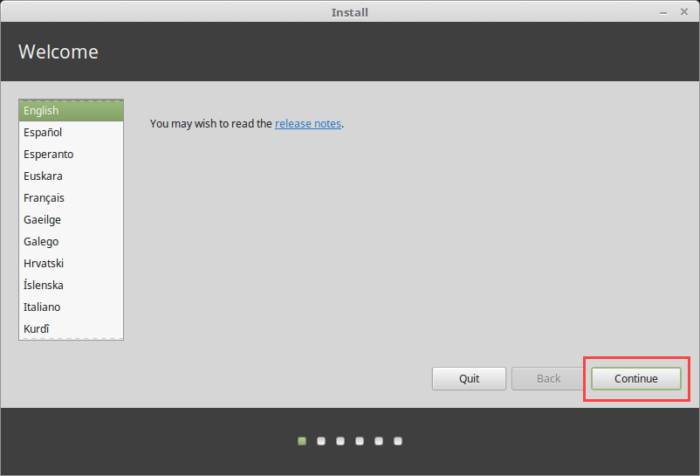
15. Here, select your language and click “Continue”.

Install Linux Mint in VirtualBox - Select Language
Install Linux Mint VirtualBox – Select Language

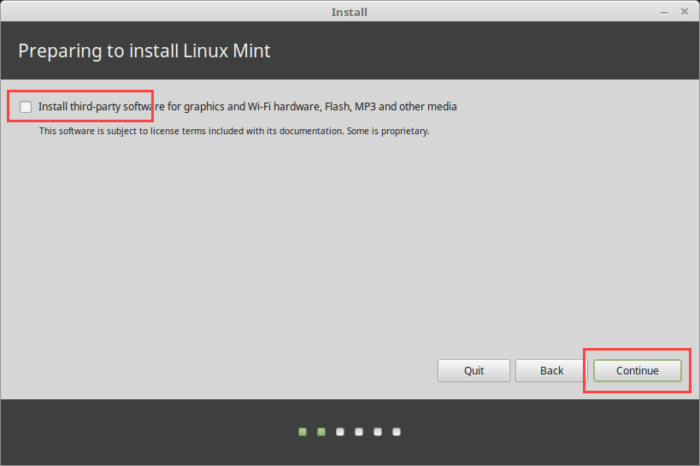
16. If you want to download third-party software like codecs, select the checkbox and click on the “Continue” button. You can also install this third-party software after install Linux Mint.

Install Linux Mint in VirtualBox - Install Third-party Software
Install Linux Mint in VirtualBox – Install Third-party Software

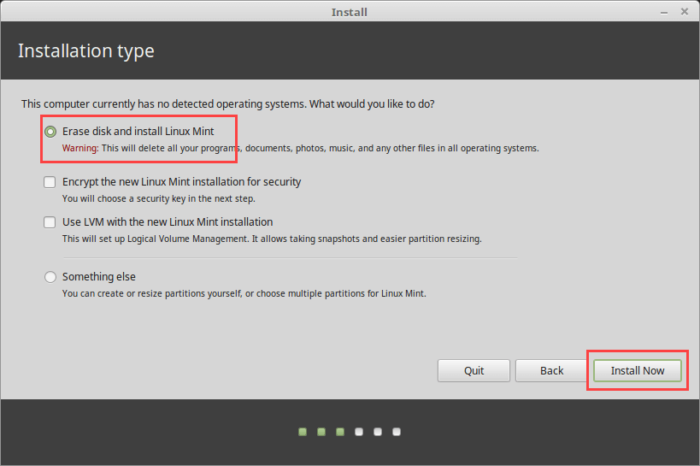
17. Select “Erase disk and install Linux Mint” and click on “Install Now” button.

Install Linux Mint in VirtualBox - Select Erase Hard Disk Option
Install Linux Mint VirtualBox – Select Erase Hard Disk Option

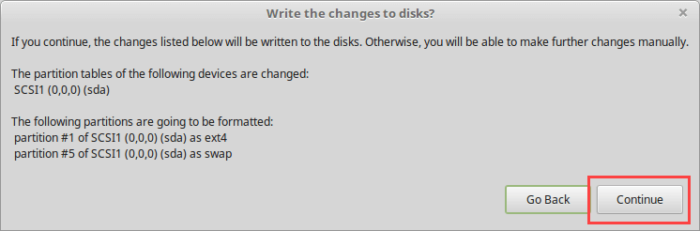
18. You will be prompted with a warning message. Simply click on the button “Continue”.

Install Linux Mint in VirtualBox - Confirm Erasing Disk
Install Linux Mint in VirtualBox – Confirm Erasing Disk

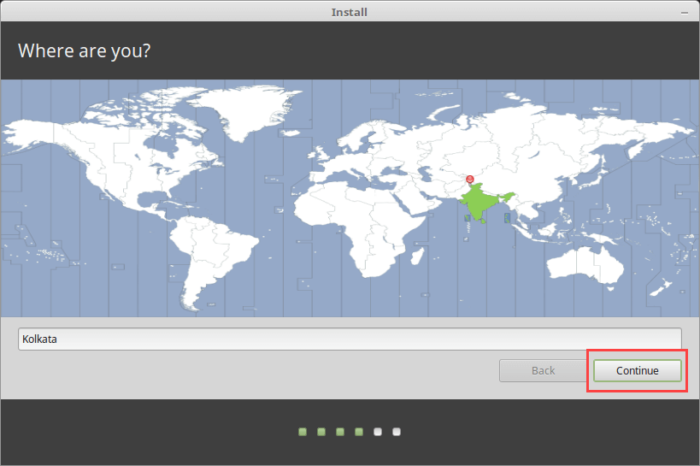
19. Now, select your country and click “Continue” button.

Install Linux Mint in VirtualBox - Select Country
Install Linux Mint VirtualBox – Select Country

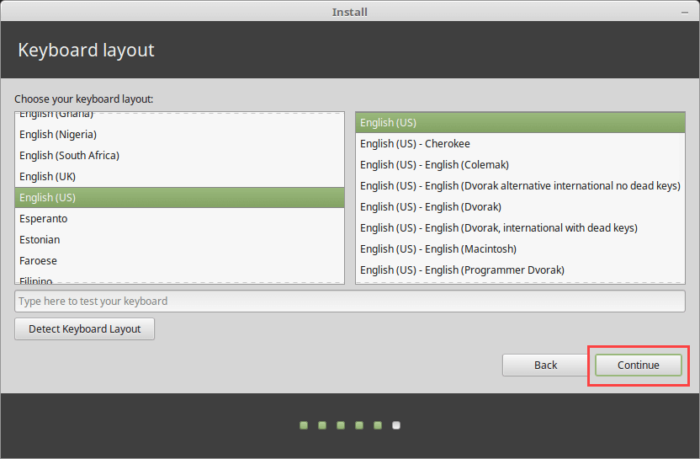
20. Here, select your keyboard layout and click “Continue”. By default, Linux Mint automatically detects your proper keyboard layout. If you want to verify, simply click on the button “Detect Keyboard Layout”.

Install Linux Mint in VirtualBox - Select Keyboard Layout
Install Linux Mint in VirtualBox – Select Keyboard Layout

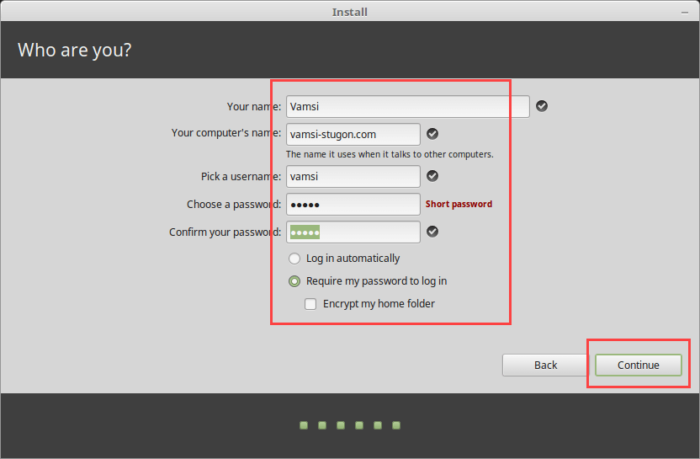
21. Enter your name, computer’s name, username, password and click on the button “Continue”.

Install Linux Mint in VirtualBox - Set Username and Password
Install Linux Mint VirtualBox – Set Username and Password

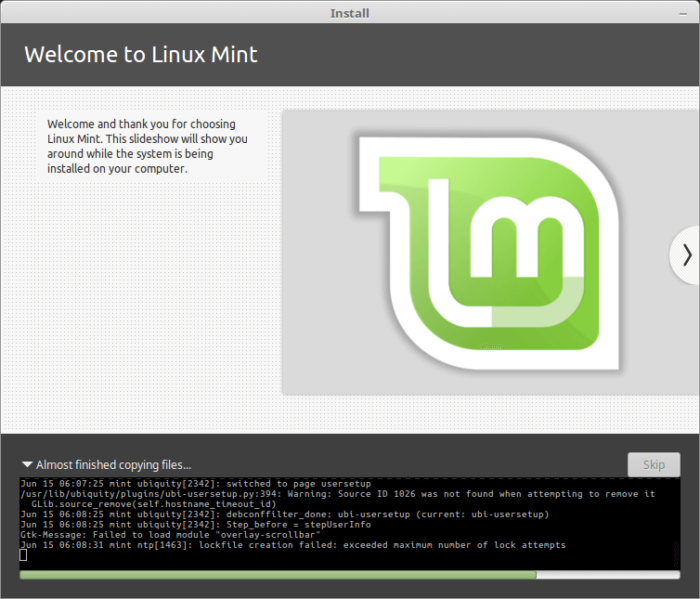
22. That’s it. Linux Mint will now begin the installation procedure. Just sit back and wait. The installation will be done in a few minutes.

Install Linux Mint in VirtualBox - Installation Started
Install Linux Mint in VirtualBox – Installation Started

23. Once the installation has been completed, you will be prompted to restart your virtual machine. Just click on the button “Restart Now.”

Install Linux Mint in VirtualBox - Click Restart Now Button
Install Linux Mint VirtualBox – Click Restart Now Button

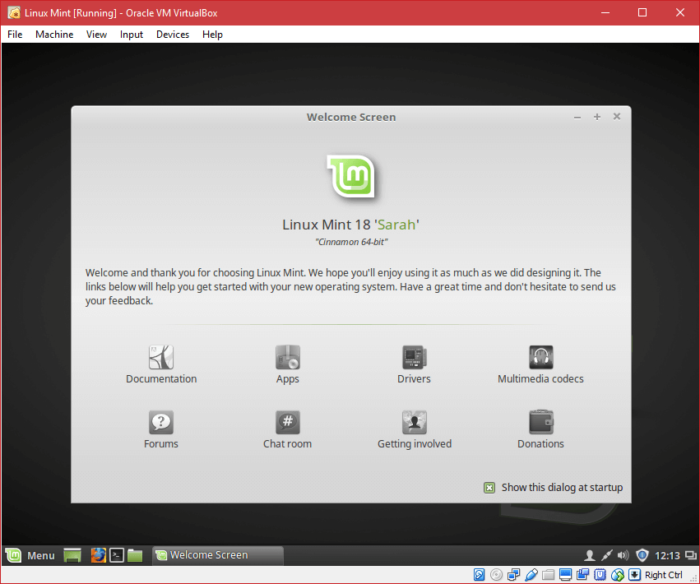
That’s all there is to do and it is that simple to install Linux Mint in VirtualBox. If you are again booted into the ISO image, then remove the disk image the virtual machine settings (refer step 10).

Install Linux Mint in VirtualBox - Installation Completed
Install Linux Mint in VirtualBox – Installation Completed

Hope that helps and do comment below sharing your thoughts and experiences about installing Linux Mint in VirtualBox.

Featured image credit: medithIT

How to Hide Developer Options in Android

0

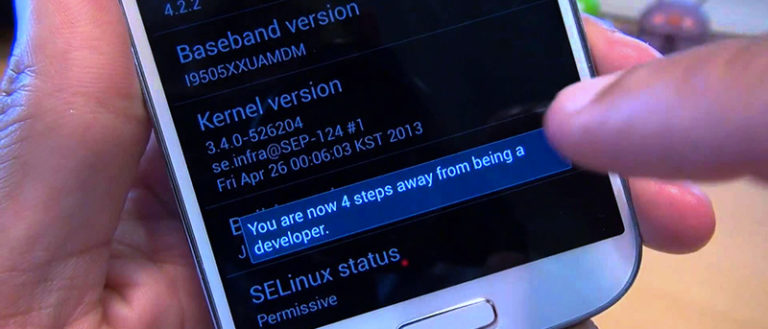
Ever wonder how to hide developer options in Android? Developer options in Android will let you enable several of the locked settings. These settings can help improve performance and security, sideload apps, etc. Not to mention, you need this option enabled if you want to root your device or perform other activities by connecting to your PC. Previously, I’ve shown how to enable developer options in Android. Once you enable the developer options, there is no visible option to hide developer options in Android. There may be several reasons to disable developer options like not wanting to mess with advanced settings, to remove access to USB debugging mode, prevent app sideloading, etc.

No matter what reason is, if you ever want to, here is how to hide developer options in Android.

Love to learn to program? Here are some best apps to learn to program on Android device, you don’t need a PC.

Hide Developer Options in Android

Even though there is no straightforward way, hiding developer options in Android is pretty easy.

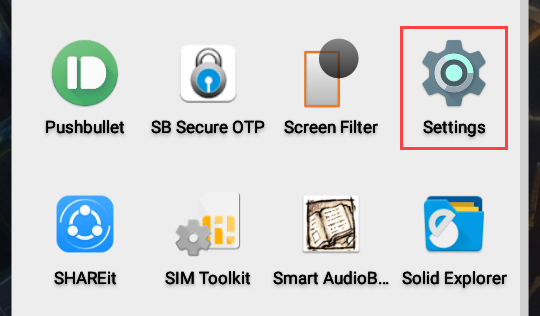
1. To start off, open the main menu on the Android device and select “Settings”.

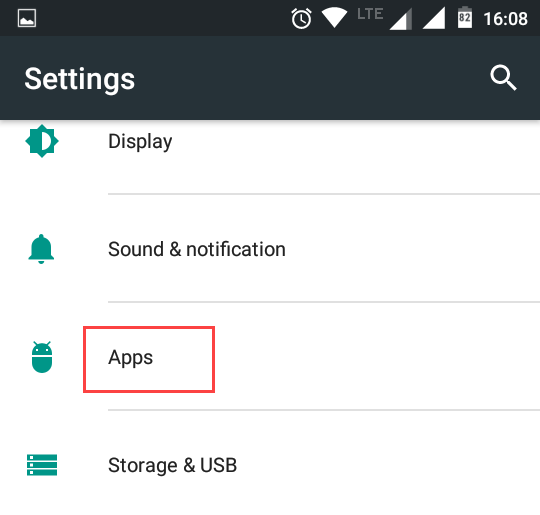
2. Now, navigate to “Apps”.

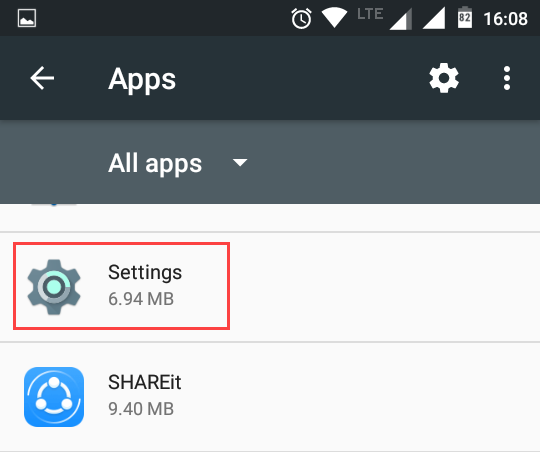
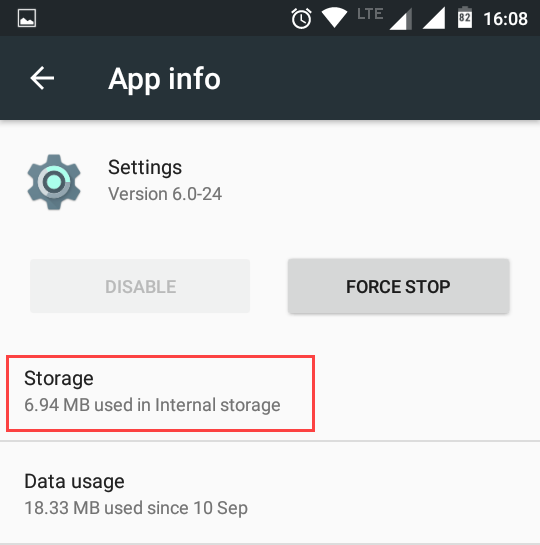
3. Here, select “All Apps” from the drop-down menu, scroll down and then select the option “Settings”.

4. In the App info page, select the option “Storage”.

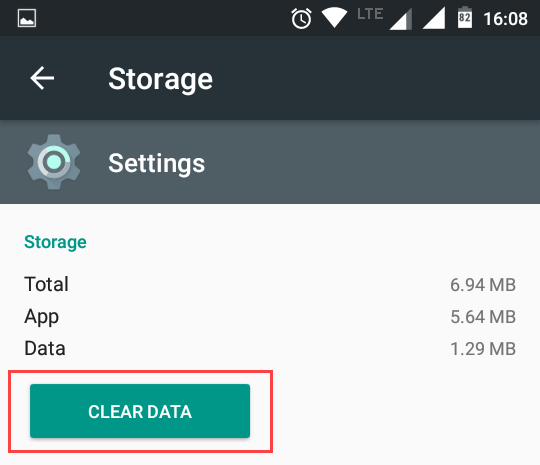
5. In the Storage Setting page, tap on the button “Clear Data”.

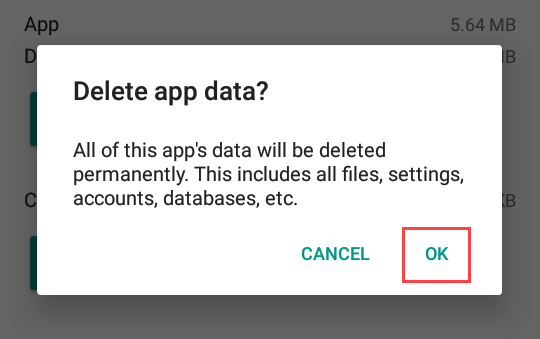
6. You will see a confirmation window. Here, tap on the option “Ok” to clear the settings data.

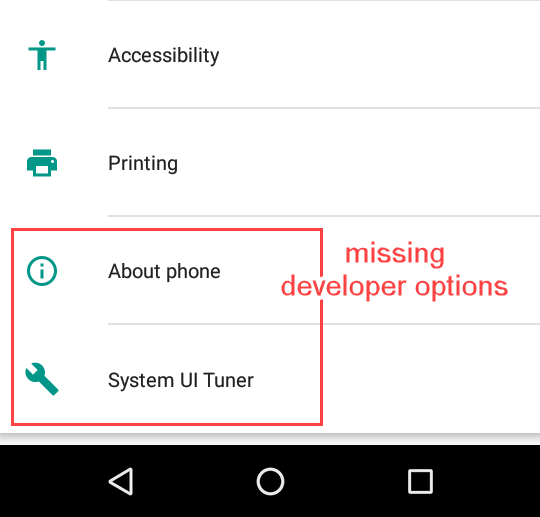
That’s it, you’ve successfully hide developer options in Android.

What happens When You Clear Settings Data?

When you clear settings data, you won’t notice any major changes on your Android device. All your WiFi settings, Bluetooth settings, Display settings, Theme settings, etc., will stay intact. However, since you’ve disabled developer options in Android, the USB debugging mode, other security settings, and performance settings you see in the developer options page will also be disabled.

That being said, you can always enable developer options with just a few taps.

Hope that helps and do comment below sharing your thoughts and experiences about using the above method to hide developer options in Android.

How to Recover WiFi Password in Windows (Forgot WiFi Password)

0

Every once in a while, we forget WiFi password and stumble around to recover WiFi password. But forgetting WiFi password doesn’t affect us much because our devices remember the password and connect to the network automatically. The problem with this approach is if you ever forgot WiFi password, you may not be able to add another device to the network or you cannot make any additional changes which require the said password. So, you need to recover WiFi password.

If you are ever in this situation, here is how you can recover WiFi password in Windows. I will show you two different ways to recover WiFi password. Follow the one you like when you forgot WiFi password.

Note:

1. To recover WiFi password, you must be first connected to the said wireless network. Otherwise, the procedures shared below won’t work.

2. Though I’m showing this in Windows 8, the same procedure is applicable to Windows Vista, 7, and 10.

Recover WiFi Password

Before doing anything, make sure that you have administrative privileges. You need to have admin rights to recover WiFi password in Windows.

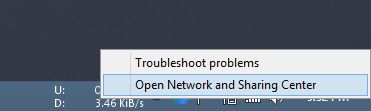
1. To start off, right-click on the network icon located on the taskbar. Select the option “Open Network and Sharing Center.”

Recover WiFi Password - Select Network and Sharing Center
Recover WiFi Password – Select Network and Sharing Center

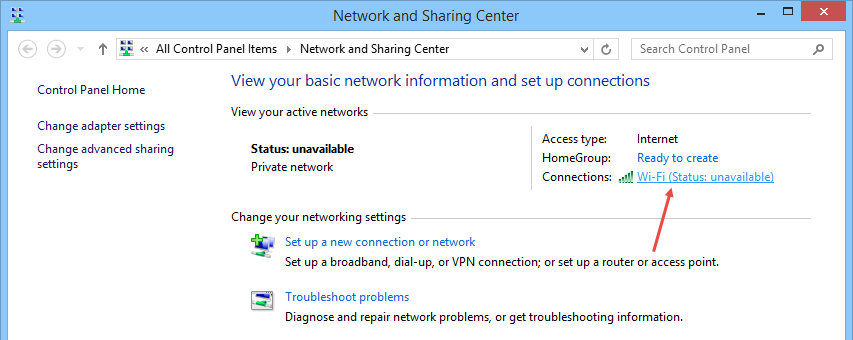
2. The above action will open the “Network and Sharing Center”. Here, click on the wireless network link located next to “Connections” under the “Active Networks” section.

Forgot WiFi Password - Select Wireless Network
Forgot WiFi Password – Select Wireless Network

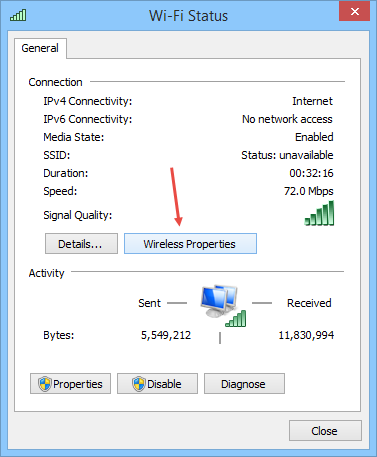
3. In the WiFi status window, click on the button “Wireless Properties”. This will open the network properties window for the selected wireless network.

Forgot WiFi Password - Click on Wireless Properties
Forgot WiFi Password – Click on Wireless Properties

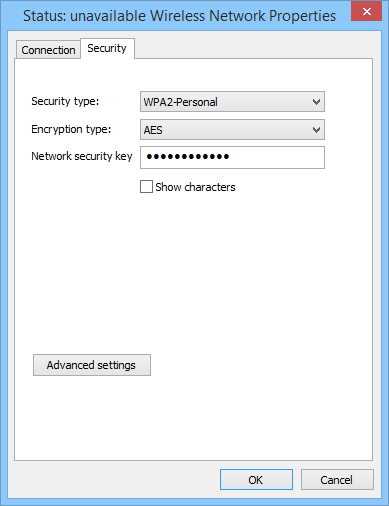
4. Once the network properties window has been opened, navigate to the “Security” tab.

Forgot WiFi Password - Open Security Tab
Forgot WiFi Password – Open Security Tab

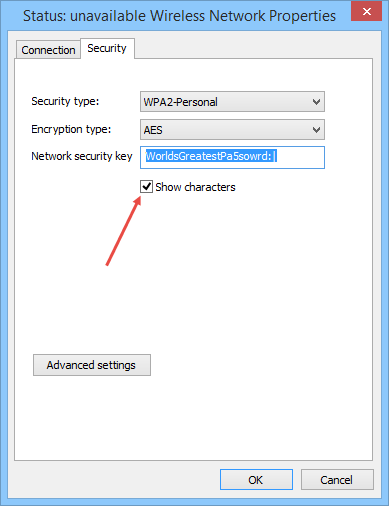
5. Here in this window, select the checkbox “Show Characters”. As soon as you do that, you will see the WiFi password.

Note: If you are not logged in as an administrator then you might receive a UAC (User Access Control) pop-up. You should authenticate yourself as an administrator.
Forgot WiFi Password - Select Show Characters
Forgot WiFi Password – Select Show Characters

That’s all there is to do. It is that simple to recover WiFi password in Windows using the Network and Sharing Center options.

Recover WiFi Password Using External Software

As you can see from the above method, if you forgot WiFi password, it is very easy to recover it.

That being said, if you don’t want to go through all the above steps, then you can use a free software called WiFi Password Decryptor. The good thing is, it lets you recover WiFi password with just a few clicks.

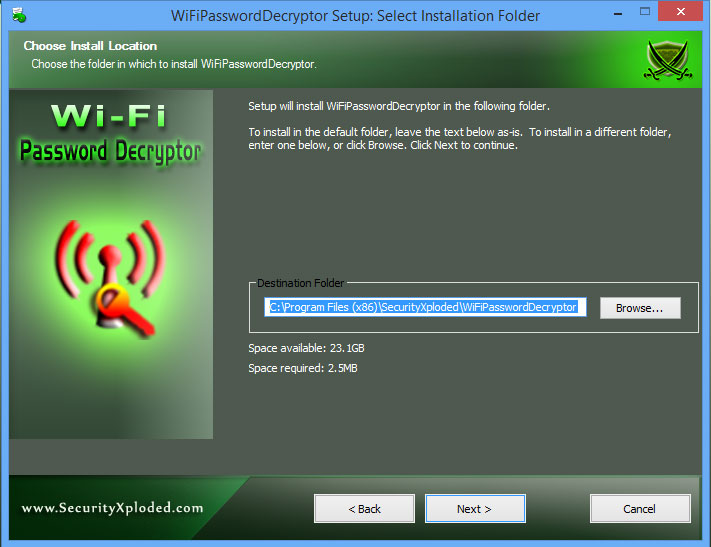
1. First off, download the freeware and install it like any other Windows software.

Forgot WiFi Password - Install Wi-Fi Password Decryptor
Forgot WiFi Password – Install Wi-Fi Password Decryptor

2. After installing, open up the WiFi Password Decryptor application either from the start menu or by using the desktop shortcut icon.

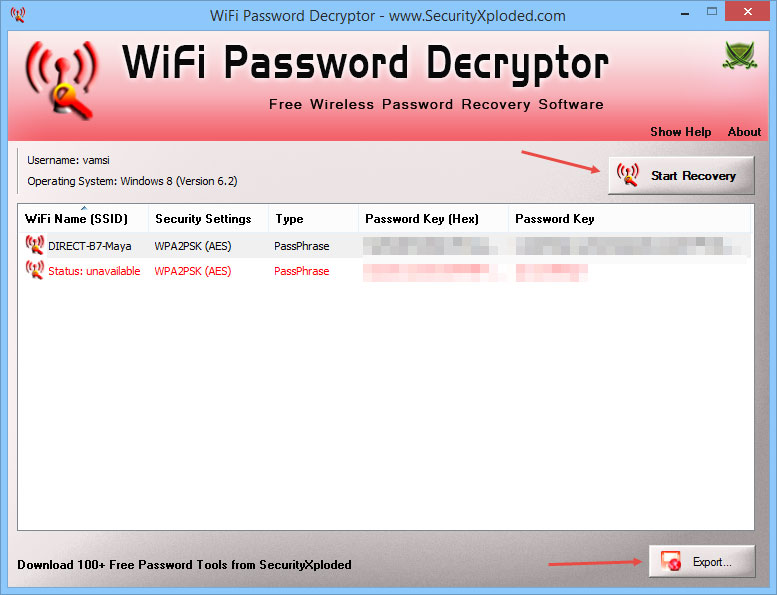
3. Once launched, click on the “Start Recovery” button located on the upper-right corner.

4. This action will scan for any WiFi passwords and displays them as a list. The password is listed under the “Password Key” section.

Recover WiFi Password - Click Start Recovery
Recover WiFi Password – Click Start Recovery

5. As you can see, the WiFi Password Decryptor also displays some other relevant and useful information about your wireless network like the WiFi SSID (Service Set Identifier), security settings, passphrase in hex, etc.

6. If you want to, you can also save the recovered WiFi password by clicking on the “Export” button located at the bottom right corner of the Window.

Recover WiFi Password – Conclusion

That’s all there is to do and it is that easy to view forgotten wireless network passwords using a free software like WiFi Password Decryptor. If you are like this article then know how to enable pin security in Windows 10. It helps you log in quickly without the need for your user account password.

If you cannot recover WiFi password using the above methods then you might want to reset your wireless router and reconfigure it.

Do comment below sharing your thoughts and experiences about using the above methods to recover WiFi password in Windows.

How To Increase Volume in Windows Over Its Maximum Limit

When you are trying to increase volume in Windows, the default Windows volume bar maxes out at 100%. Now, this range is pretty good for general usage. However, when you are listening to quite songs or watching a video with low sound, you might want to increase volume in Windows over its maximum limit. For instance, media player applications like VLC can increase the volume over the maximum limit (up to 200%). But that volume boost is limited to that specific application.

If you want to universally increase volume above its maximum then you need to change some Windows volume settings. In case you are wondering, here’s how to increase volume in Windows over its maximum limit.

Note: when you increase volume above maximum, the speakers or headphones may produce a popping or crackling sound. Moreover, it may sometimes damage your speakers. So, always be wary while increasing volume in Windows over the maximum limit.

Increase Volume in Windows Over Its Maximum Limit

To increase volume in Windows above its maximum limit, we are going to enable Loudness Equalization feature. This trick should work with all updated Realtek sound drivers. Even if you are using some other drivers, it should work as long as the drivers are up to date and support the feature.

Note: though I’m showing this in Windows 10, the procedure is same even when you are using Windows 8 or Windows 7.

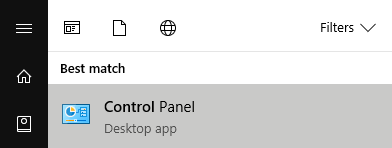
1. To start off, search for “Control Panel” in the start menu and open it. Alternatively, press Win + R type “Control Panel” and press the enter button to open Control Panel.

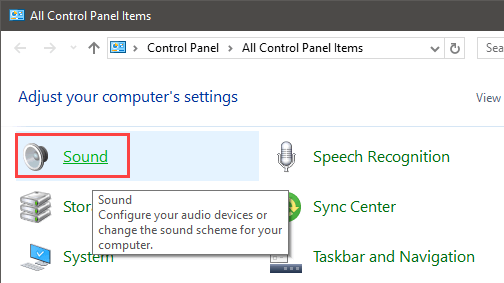
2. After opening the Control Panel, find the option “Sound” and open it. This is where you can manage all the general settings related to sound.

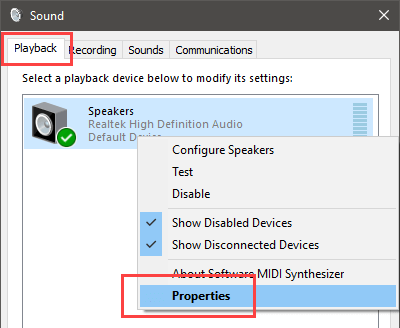
3. In the Sound window, navigate to the “Playback” tab, right-click on “Speakers” and select the option “Properties.” If you are using multiple sound systems then right-click on your current active speakers.

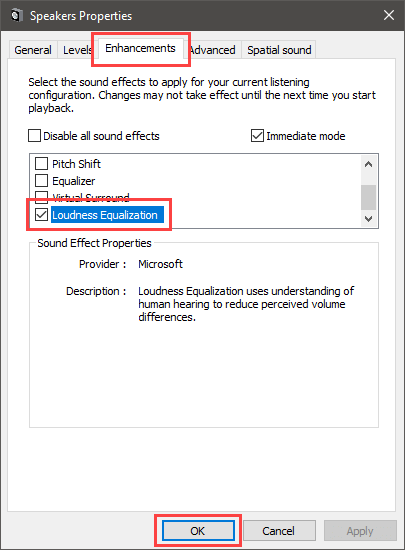
4. In the Speakers Properties windows, navigate to the “Enhancements” tab. Here, scroll down, select the checkbox “Loudness Equalization” and click on the button “Ok” to save the changes.

That’s all there is to do. As soon as you save the changes, the Windows volume will be increased by at least 50% over the maximum.

As I said before, be careful while are using this feature. If you are hearing crackling or popping sounds from your speakers, reduce the volume so that your speakers won’t get damaged.

If you like this simple tip then you might also like the tip on how to automatically adjust volume in loud action scenes and quite dialogs in VLC media player.

Do comment below sharing your thoughts and experiences about using the above method to increase volume in Windows without using any external or third-party software.

How to Clear Thumbnail Cache in Windows 10/8/7 and XP

Clear thumbnail cache – Whenever you view a document or media files like photos and videos, Windows shows a preview of that file instead of the generic thumbnail icons. These previews are pretty helpful as they let you quickly recognize the file you are looking for. Generally, these preview thumbnails are cached so that Windows can show the previews quickly when you re-open the File Explorer or the target folder. However, from time to time, the thumbnail cache gets corrupted and you don’t see proper thumbnail previews.

This happens due to any number of reasons like sudden power loss, accidental deletions, etc. In those situations, all you have to do to fix thumbnail cache is to clear thumbnail cache. Here’s how to clear thumbnail cache in Windows 10, 8, and 7.

Windows has two different methods to clean thumbnail cache. The first one is to use the built-in Disk Cleanup tool and the second one is to use the Command Prompt. I will show both the methods, follow the one that is easy for you.

Note: though I’m using Windows 10, the procedure to delete thumbnail cache is same for Windows 7 and Windows 8.

Clear Thumbnail Cache – Using Built-in Disk Cleanup Tool

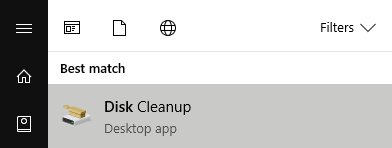
1. Using Disk Cleanup tools to clear thumbnail cache is pretty easy and straightforward. Search for “Disk Cleanup” in the start menu and open it.

Clear thumbnail cache - Open Disk Cleaup tool
Clear thumbnail cache – Open Disk Cleaup tool

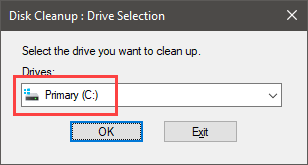
2. The above action will open the Disk Cleanup tool. Here, select C drive from the drop-down menu and click on the “Ok” button.

Delete thumbnail cache - Select C drive
Delete thumbnail cache – Select C drive

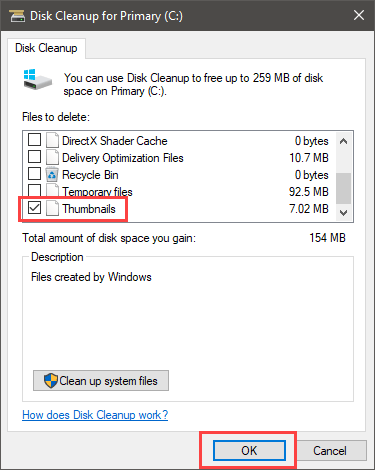
3. Under the Files to Delete section, deselect all the checkboxes and only select the checkbox “Thumbnails.” Now, click on the “Ok” button.

Delete thumbnail cache - Select Thumbnails checkbox
Delete thumbnail cache – Select Thumbnails checkbox

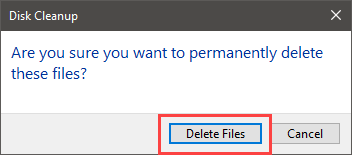
4. You will be prompted with a confirmation window, just click on the button “Delete Files” to delete thumbnail cache.

Clear thumbnail cache - Click Delete Files button
Clear thumbnail cache – Click Delete Files button

That’s all there is to do, you’ve successfully cleared the thumbnail cache in Windows.

Clear Thumbnail Cache – Using the Command Prompt

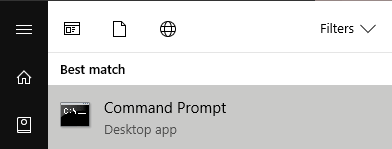
1. Alternatively, you can also use the Command Prompt to delete thumbnail cache. To start off, search for “Command Prompt” in the start menu and open it.

Clear thumbnail cache - Open Command Prompt
Clear thumbnail cache – Open Command Prompt

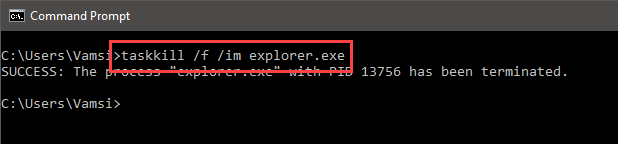
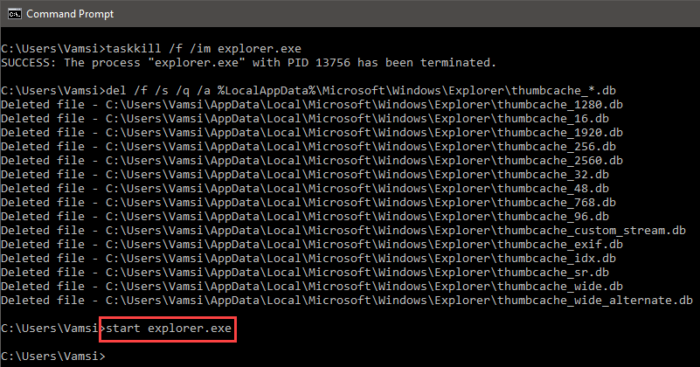
2. Once opened, you need to stop the Windows Explorer before you can proceed. So, copy the below command and execute it.

taskkill /f /im explorer.exe
Delete thumbnail cache - Stop Explorer
Delete thumbnail cache – Stop Explorer

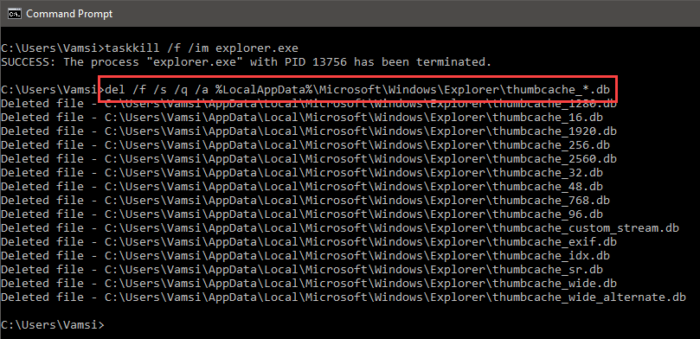
3. Now, use the following command to clear thumbnail cache in Windows.

del /f /s /q /a %LocalAppData%\Microsoft\Windows\Explorer\thumbcache_*.db
Clean thumbnail cache - Execute command
Clean thumbnail cache – Execute command

4. To start the stopped Windows Explorer, use the below command and you are good to go.

start explorer.exe
Clean thumbnail cache - Restart Explorer
Clean thumbnail cache – Restart Explorer

That’s it, with just a few command, you are done with cleaning thumbnail cache in Windows. As I said before, both the above methods work on Windows 10, Windows 8, Windows 7. and even in Windows XP (if you are still using it).

Do comment below about using the above method to clear thumbnail cache in Windows.

AOMEI Backupper Review – a Must Have Free Backup Solution

0

AOMEI Backupper Review – No matter who you are, backing up your files and folders is the most important thing to do. The reason for this is simple, no one can tell when the disaster gets in your way and you lose access to all your data. For instance, the latest WannaCry ransomware used an undisclosed exploit in Windows XP, 7, and 8 systems to wreak havoc by encrypting all the files and holding them for ransomware. If you want to get access to those encrypted files, you need to pay $300 to $600.

Even when you pay the ransomware, there is no guarantee that the bad guys will decrypt the encrypted files. To avoid these kinds of situations and to never lose access to your data, it is recommended that you backup your data regularly. There are several free software to help you backup your data safely and securely, AOMEI Backupper is one of them. In this AOMEI Backupper review, let me show you how to use it to quickly backup your system.

AOMEI Backupper Review – Features

Some of the features of AOMEI Backupper include but not limited to:

  • Support for MBR/GPT, NTFS/FAT/EXT, Hardware RAID, etc.
  • System backup, Disk and partition backup, and File or folder backup.
  • Support for Full, Incremental, Differential, Sector-by-sector, and Intelligent backup.
  • Backup to local disk, network disk, NAS, and external disk.
  • Support for exploring, compressing, encrypting, splitting, and checking backups.
  • Create bootable Windows PE and Linux bootable media.
  • Clone disks and partitions.
  • Manage previously created backups.
  • Support for Hot backup or clone.

AOMEI Backupper Review – Is It Free?

AOMEI Backupper is available in both free and paid versions. The free version of Backupper lacks some advanced enterprise features like support for Windows server, image deployment, system clone, universal restore, command line support, PXE boot tool, event triggered backups, etc.

However, if you are a home user or if you just want a simple yet effective backup solution then the free version does the job. The free version has all the necessary features you’ll ever need.

AOMEI Backupper Review – Installation and Usage

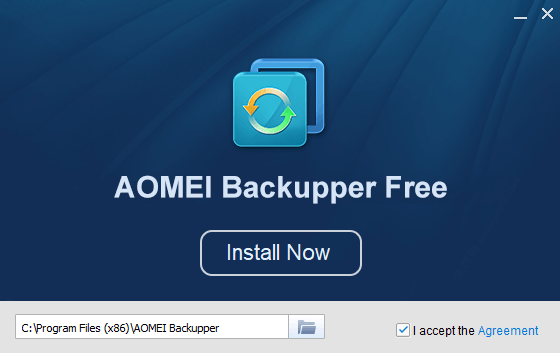
First off download AOMEI Backupper and install it like any other Windows software.

AOMEI Backupper Review - Install AOMEI Backupper
AOMEI Backupper Review – Install AOMEI Backupper

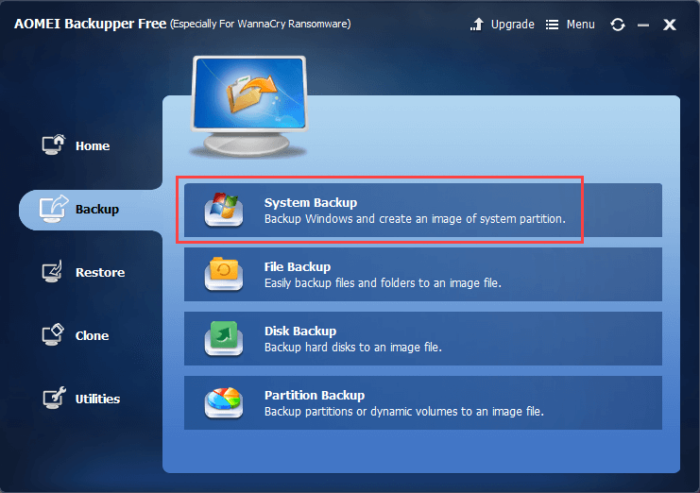
After installing, launch AOMEI Backupper from the start menu. Now, navigate to the “Backup” tab. Since I want to create a System Backup, I’m selecting the option “System Backup.” If you want to backup files then select the option “File Backup.”

AOMEI Backupper Review - Select System Backup
AOMEI Backupper Review – Select System Backup

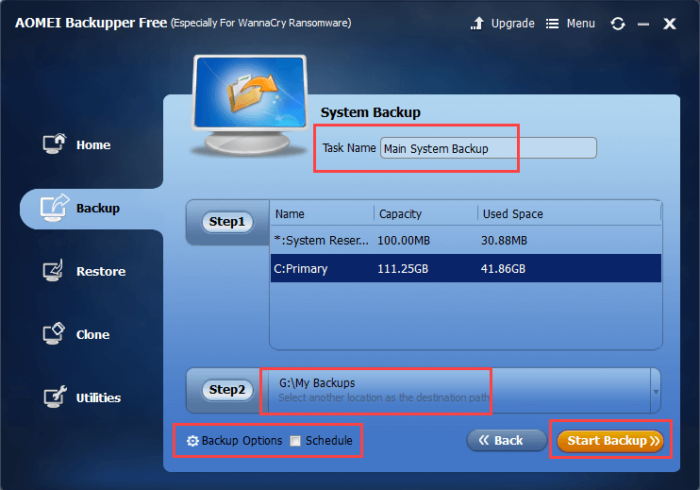
Here, enter the name of the backup, select which drive to backup, select the backup destination, and click on the button “Start Backup.” If you want to, you can select a network drive or NAS as the backup destination. Simply select “Network Share or NAS” from the dropdown menu.

AOMEI Backupper Review - Start Backup
AOMEI Backupper Review – Start Backup

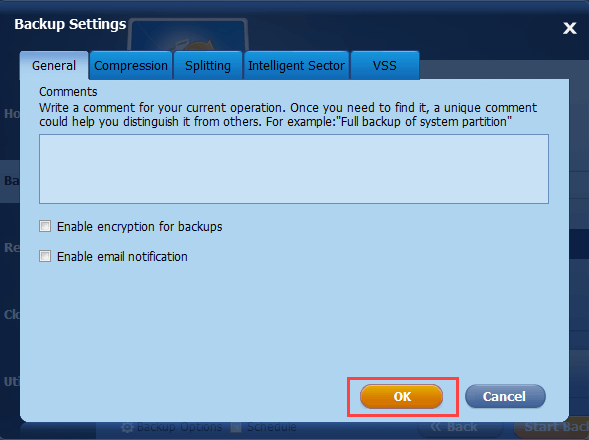
If you want to customize the backup then click on the option “Backup Options” appearing at the bottom. Here, you can modify settings like encryption, compression, splitting, etc. All these settings are optimally configured by default. So, only modify them if you know what you are doing. After changing the settings, click on the button “Ok” to save the changes.

You can also schedule automatic backups by selecting the checkbox “Schedule” in the main window.

AOMEI Backupper Review - Advanced Backup Settings
AOMEI Backupper Review – Advanced Backup Settings

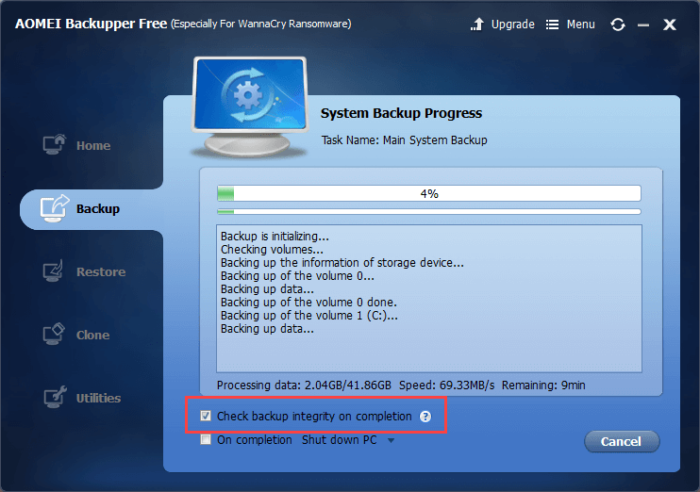
As soon as you click on the “Start Backup” button, AOMEI Backupper will start the backup process. In this window, select the checkbox “Check backup integrity on completion.” This option enables AOMEI to check the backup after its completions for any errors.

AOMEI Backupper Review - Backup in progress
AOMEI Backupper Review – Backup in progress

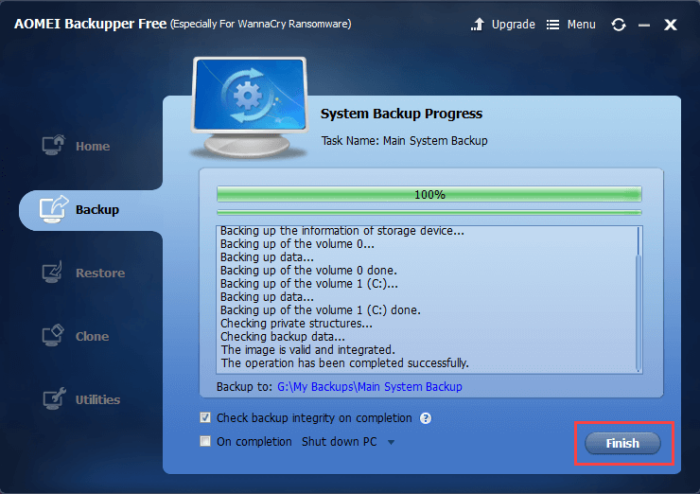
After completing the backup, click on the button “Finish” and you are good to go.

AOMEI Backupper Review - Backup Completed
AOMEI Backupper Review – Backup Completed

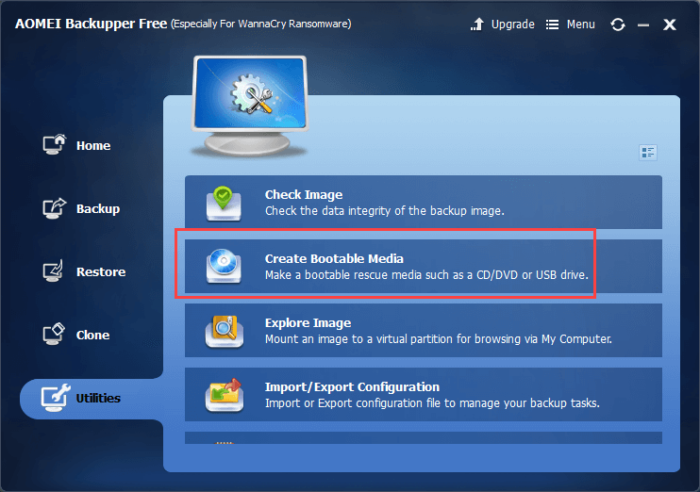
After creating the system backup, make sure that you create an emergency bootable media. It helps you to recover or restore your system when you cannot boot into your system. To create a bootable disk, navigate to “Utilities” tab, select “Create Bootable Media” and follow the on-screen instructions.

AOMEI Backupper Review - Create Emergency Bootable Media
AOMEI Backupper Review – Create Emergency Bootable Media

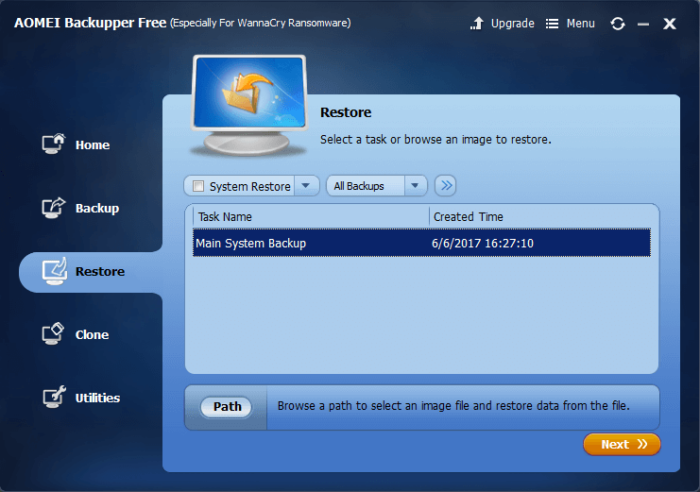
When you want to restore a backup, navigate to “Restore” tab, select the backup and then click on the “Next” button. Follow the on-screen instructions and you will restore the backup in no time.

AOMEI Backupper Review - Restore Backup
AOMEI Backupper Review – Restore Backup

AOMEI Backupper Review – Conclusion

AOMEI Backupper is a must have software for any Windows user. It helps you to quickly backup your system and all your files and folders so that you don’t lose access to them. Being a free software, do give the software a try and see if it fits your needs.

Do comment below sharing your thoughts and experiences about using the AOMEI Backupper to backup your system.

Google Spreadsheets: How to Add Multiple Lines in a Single Cell

0

Google Spreadsheets: Add multiple lines in a single cell – Google Spreadsheets is not only the best and free alternative to Microsoft Office, it is just perfect for any user. Moreover, it is cloud app and you don’t have to worry about saving and file corruption.

Just like MS Office, Google Spreadsheets allow you to add multiple lines in a single cell. All you have to do is use a single keyboard shortcut. In case you are wondering, here’s how to add multiple lines in a single cell.

Add Multiple Lines in a Single Cell – Google Spreadsheets

Adding multiple lines in a single cell is pretty helpful when you merge multiple cells into a single cell or block to add the content.

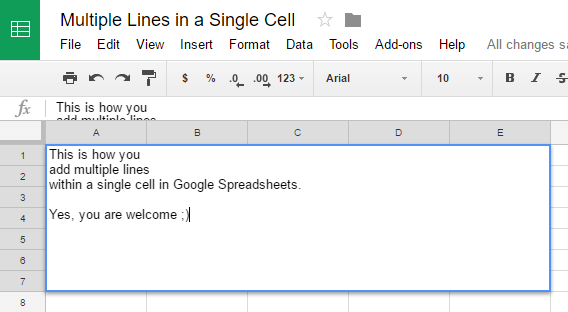
  • To add multiple lines, simply type your first line and then press the keyboard shortcut Alt + Enter to move to the next line.
  • If you are on a Mac then the shortcut will be Option + Enter.
Add Multiple Lines in a Single Cell - Google Spreadsheets
Add Multiple Lines in a Single Cell – Google Spreadsheets

That’s all there is to do. As soon as you press the keyboard shortcut, you will be moved to the next line to type the data. As you can see from the above image, I’ve used this keyboard shortcut to quickly add multiple lines in a single cell in Google Spreadsheets.

Hope that helps and do comment below sharing your thoughts and experiences about using the above method to add multiple lines within a single cell in Google Spreadsheets.