How to Pin Any Website to the Taskbar in Windows 10

0

Pin any website to the taskbar in Windows 10. We all have a couple of websites that we visit every day. Like, Gmail, YouTube, Google, Facebook, Twitter, etc. For most of us, the daily routine to open these websites would be to launch the browser, enter the URL, and press Enter button. All this doesn’t even take more than a few seconds.

However, you can make this daily routine a bit easier by pinning your favorite websites to the Windows 10 taskbar. After pinning the website, you can simply launch it by clicking on the taskbar icon. For instance, I use this specific method to quickly launch Gmail on my desktop and laptop. You can pin any website to the taskbar in Windows 10 using the Edge browser or Google Chrome. Depending on which browser you use daily, follow that method.

In case you are wondering, here’s how to pin any website to the taskbar in Windows 10.

Pin Any Website to the Taskbar in Windows 10 Using Google Chrome

Note: this method works even in Windows 7 and 8 too.

It is very easy to pin any website to the taskbar in Windows 10 using Google Chrome. Just follow the steps shown below and you will have your favorite website pinned to the taskbar in no time.

1. To start off, launch Google Chrome and open your favorite website. In my case, that would be Gmail.

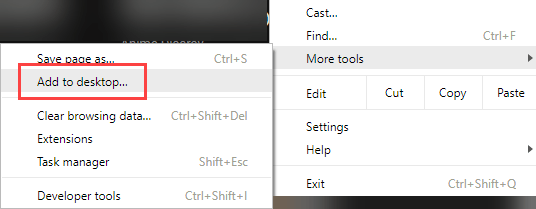
2. After the website has been loaded in Google Chrome, click on the Menu icon (three vertical dots) appearing on the upper right corner, navigate to “More tools” and then select the option “Add to Desktop“.
3. You will be prompted to enter a new name to the shortcut. Either accept the default name or enter the name of your choice and click on the “Ok” button.

4. The above action will add a shortcut on your desktop. Simply drag and drop this shortcut onto your taskbar.

That’s it. You’ve successfully pinned a website to the taskbar in Windows 10. Using this same method, you can pin any website to the taskbar in Windows 10.

Pin Any Website to the Taskbar in Windows 10 Using Edge Browser

If you are using the Edge browser then it is even easier to pin a website to the taskbar in Windows 10. Unlike with Google Chrome, Edge provides a straightforward way to pin a website to the taskbar.

1. Just like with Google Chrome, launch the Edge browser and open your favorite website.

2. After loading the website, click on the menu icon (three horizontal dots) and then select the option “Pin this page to the taskbar“.

That’s all there is to do. You are done adding your favorite website to the taskbar in Windows 10. When you click on the website icon in the taskbar, the website will be launched in the Edge browser.

One thing to keep in mind while using this method is that if you pin the website using Google Chrome, the website will launch in Google Chrome. If you’ve pinned the website using Edge then the web page will be opened in the Edge browser.

Hope that helps and do comment below sharing your thoughts and experiences about using the above method to pin any website to the taskbar in Windows 10.

How to Run Android Apps on Ubuntu [Natively]

0

Running Android apps on a PC has never been a simple task. Even when you try to install android OS via a virtual machine or when you are using some sort of emulator, the apps run very slow and clunky. However, there is an even better way to run android app on Ubuntu.

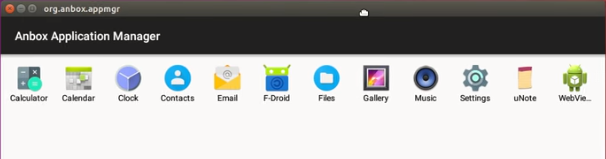
That is, you can use Anbox to install and run Android apps on Ubuntu. What makes Anbox the best when it comes to running Android apps on Ubuntu is that it lets you run android app natively on your Ubuntu machine by integrating core system services into a GNU Linux system. Moreover, Anbox mounts itself as a separate volume so that it can better integrate with the system and provides you with best possible experience. Such that, your Android app experience on Ubuntu will be much better and smoother. In fact, when you try to launch an Android app using Anbox, it will launch itself in a separate window.

Run Android Apps on Ubuntu

Without further ado, here’s how you can install Anbox and run Android apps on Ubuntu. In case you are wondering, Anbox means “Android in a Box.”

Install Anbox

The first thing you need to do to run Android apps on Ubuntu is that you need to install Anbox snap.

1. Since Ubuntu already has Snap installed, launch the Terminal by pressing the keyboard shortcut Ctrl + Alt + T and execute the below command.

snap install --classic anbox-installer && anbox-installer

2. Follow the on-screen instructions and Anbox should be installed on your system in no time. You need to select the “Install Anbox” option and then agree to the warnings by typing “I AGREE” in all caps. Only then you can install Anbox on Ubuntu.

3. After installing, don’t forget to reboot your system. This ensures that all the changes made by Anbox will take effect.

4. Once you are done rebooting, you can launch Anbox by searching for it in the Dash. If you cannot open it, then open the terminal and execute the following command.

anbox session-manager

5. After executing the command, try to launch the application without closing the terminal. Don’t worry if it didn’t launch immediately. Anbox will launch in a few seconds.

Install and Run Android Apps on Ubuntu

Since the application is in its early stage, there is no simple way to install android apps in Anbox. However, the process is nothing hard and you can easily do it using the Android ADB.

6. If you don’t already have Android ADB installed then open terminal using the keyboard shortcut and execute the following command. This command will download and install Android ADB and Fastboot tools.

sudo apt install android-tools-adb android-tools-fastboot

7. Once you’ve done that, download your favorite app’s APK file, launch the terminal and execute the below command. Don’t forget to replace “app.apk” with the actual app name.

adb install "app.apk"

That’s all there is to do and it is that simple to run android app on Ubuntu using Anbox. Do comment below sharing your thoughts and experiences about using the above method to run Android apps on Ubuntu.

How to Disable Desktop Notifications for Specific Apps in Windows 10

0

Here’s how to disable desktop notifications for apps in Windows 10. Unlike in previous versions of Windows, Windows 10 shows all your notifications in a single place called the Action Center. The good thing about this approach is that all apps in your system can use this central place to show notifications rather than in their own specific ways. You can access the Action Center by clicking on the Notification icon appearing at the bottom right corner of your screen.

Having notifications displayed in a particular way is pretty helpful and useful. However, there will be some apps, like gaming and social media apps that abuse the notification feature and distract you from the real work. In those situations, it is better to disable notifications for that specific app. After all, disabling the entire action center isn’t going to help you much. Not to say, you might miss important notifications from other apps you like.

In case you are wondering, here is how to disable desktop notifications for specific apps in Windows 10.

Disable Desktop Notifications for Specific Apps in Windows 10

In Windows 10, it is very easy to disable desktop notifications for specific apps. In fact, you have all the required options to block notifications from specific apps in Windows 10.

1. You can disable notifications for specific apps in Windows 10 using the Settings app. To open the Settings app, press the keyboard shortcut Win + I.

Quick tip: you can also open the Settings app by opening the Action Center and then clicking on the “All Settings” button.

2. In the Settings app, navigate to “System” and then “Notifications and Actions” options on the left panel.

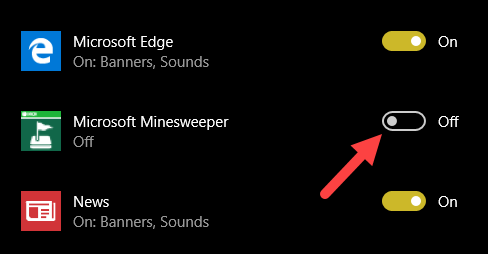
3. Here, scroll down until you find the “Get notifications from these senders” section. Under this section, find the app you want to stop from showing notifications and toggle the button next to it. In my case, I’m turning off notifications from the Microsoft Minesweeper gaming app.

As soon as you toggle the button next to an app, it will go to OFF state from ON state. This is how it looks like when you are done stopping an app from showing notifications in Windows 10.

4. If you want to app to show notifications in the Action center but don’t want it to show an alert on the desktop then you can do that too. Simply turn on the notifications for that app and click on the App in the list.

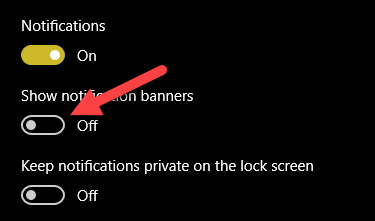
5. This will show you additional notification settings for that specific app. Simply toggle the button to OFF under “Show notification banners” and you are good to go.

From this point forward, you will receive notifications in the Action center but won’t get disturbed by the desktop notification with sound. As you can see, there are additional options to further customize how notifications appear for a specific app. Do play with those settings to see what configuration better suits your needs.

That’s all there is to do and it is that simple to disable desktop notifications for apps in Windows 10. Comment below sharing your thoughts and experiences about using the above methods to disable app-specific notifications in Windows 10.

[Solved] Fix External USB Drive Not Showing up in File Explorer in Windows

0

Fix external USB drive not showing up in File Explorer in Windows. We regularly use external USB drives to carry or quickly transfer files and folders. Generally, you plug in the USB drive into your system and it will magically appear in the File Explorer. From there you can transfer files and folders to it the usual copy and paste method. However, there will be times when you plug in the USB drive and it won’t show up in the File Explorer. There might be several reasons why the USB drive not showing up in File Explorer in Windows 10.

Fix USB Drive Not Showing up in File Explorer in Windows 10

If you are facing this odd issue, here are some things you can try and fix external USB drive not showing up in File Explorer in Windows10.

Method 1: Show Empty Drives in File Explorer

Depending on your system configuration, File Explorer might not show the external USB drive if it is completely empty. In fact, File Explorer has a specific option to hide empty drives. Fortunately, it is very easy to show empty drives in File Explorer.

1. To show empty drives in File Explorer, launch File Explorer using the keyboard shortcut Win + E.

2. After opening File Explorer, navigate to the “View” tab and click on the option “Options“.

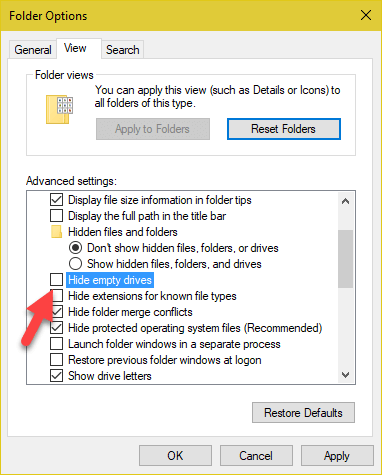
3. The above action will open the Folder Options window. Here, navigate to the “View” tab.

4. Once you are here, scroll down and uncheck the checkbox “Hide empty drives” under the Advanced Settings section and click on the button “Ok” to save the changes.

That’s it. Changing this option should fix external USB drive not showing up in File Explorer in Windows 10.

Method 2: No Drive Letter Associated with the USB Drive

If the above method didn’t work then the problem might be that there is no drive letter associated with the external USB drive. You can easily fix that using the Windows Disk Management tool.

1. To start off, press Win + X keyboard shortcut to open Power User menu. Here, find and click on the option “Disk Management“.

2. The above action will open the Disk Management utility. Here, find your USB drive. Generally, you can see the word “Removable” under the disk number. Now, check if the external USB drive already has a drive letter assigned to it. If it already has a drive letter, you can find it next to the drive name [ex: My Drive (G:)].

3. If there is no drive letter, right-click on the external USB drive in the Disk Management utility and select the option “Change Drive Letter and Paths“.

4. In this window, click on the “Add” button.

5. This will open “Add Drive Letter or Path” window. Here, select the radio option “Assign the following drive letter” and select a drive letter from the drop-down menu next to it. Once you’ve done that, click on the “Ok” button to save the changes.

That’s all there is to do. You should be able to see the external USB drive in the File Explorer in Windows 10.

Do comment below if you face any problems or just to share your thoughts and experiences about using the above methods to fix external USB drive not showing in File Explorer in Windows 10.

How to Check If Your Windows 10 PC Is Ready for Mixed Reality

0

In the next few months, almost all the major brands like Dell and HP are releasing their Mixed Reality headsets. The good thing about these mixed reality headsets is that they are less expensive and are less demanding in terms of system resources.

Since mixed reality demands fewer resources (at least on paper), are you curious whether your PC is ready for Mixed Reality? Thankfully, Microsoft has created a simple app that scans your system and tells you whether your system is ready or not. So, here’s how you can do Windows mixed reality check so that you can be sure before buying the mixed reality headsets.

Check If Your PC Is Ready for Mixed Reality

Before proceeding, Microsoft has a dedicated page where it lists the minimum requirements for a PC to run mixed reality applications. Go ahead and check it out before using the app to determine mixed reality compatibility.

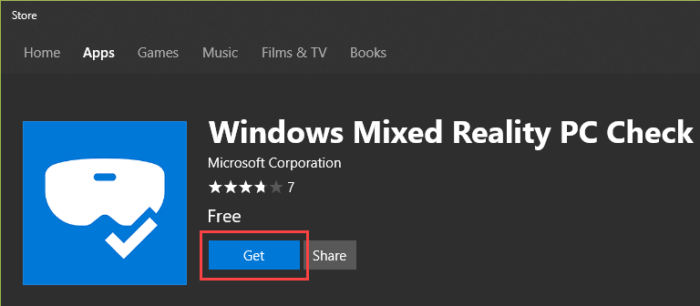
1. Once you’ve done that, download and install the official Windows Mixed Reality PC Check app from Windows Store. To install this app, you should be running Windows 10 with Anniversary update or above.

2. After installing, launch the app by click on the “Launch” button or by searching for the app in the Start menu.

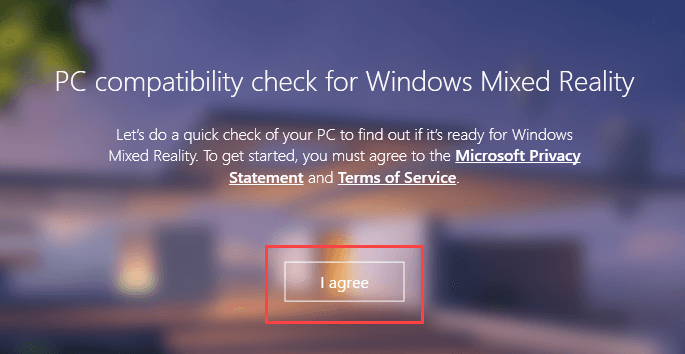
3. In the app, agree to the terms and conditions by clicking on the link “I Agree.”

4. As soon as you click on the button, the mixed reality check app will scan your system and shows whether your PC is ready for mixed reality or not.

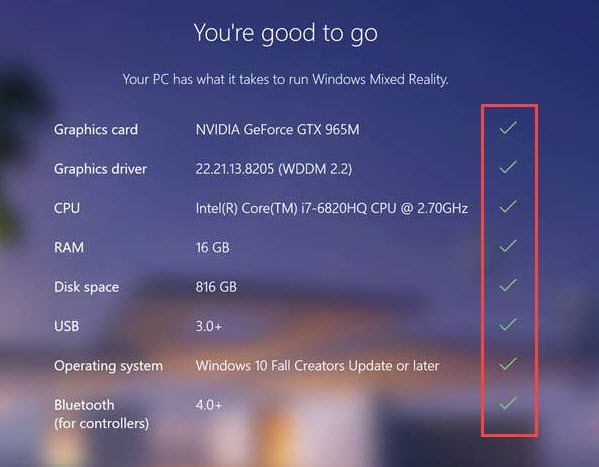
  • If your PC is ready for mixed reality, it will show something like this.

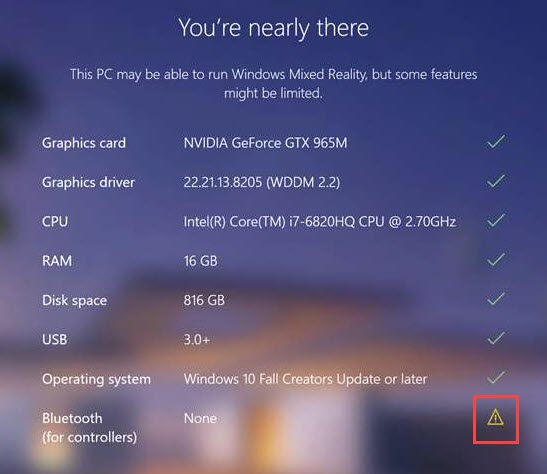
  • If your PC has some problems that can be easily fixed then those items will show with a caution icon next to them. If you fix those issues, your PC is ready for mixed reality.

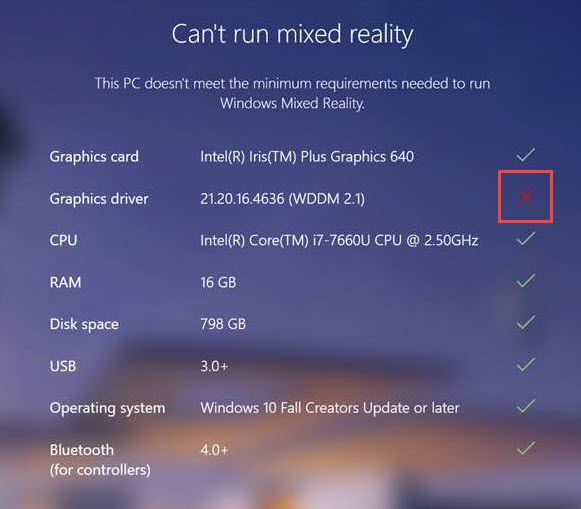
  • If your PC is missing something or is just not ready for mixed reality then you see something like this. If you see this then you need to upgrade your system in order to enjoy mixed reality.

That’s all there is to do and it is that simple to check if your PC is ready for Mixed Reality. Also, do remember that mixed reality hardware checklist while you are upgrading your system.

Do comment below sharing your thoughts and experience about using the above app for Windows Mixed Reality PC check.

How to Modify Time Machine Backup Frequency for Mac

0

Here’s how to to change Time Machine backup frequency for Mac. On a Mac system, Time Machine is one of the best, easiest, and a painless backup tool to properly backup files or even the entire operating system. The good thing about Time Machine is that once configured, it runs silently in the background and backs up everything so that you don’t have to worry about unlikely events that may cause data loss or corruption.

This is all good and very useful. However, when you schedule Time Machine to backup your system, it can be a bit aggressive and runs once every hour to backup files to the target location. As you can tell, unless your data is super important, it can be a bit of nuisance if the backup is running once every hour and taking up the CPU cycles and Disk I/O. This is especially true if you want to use your system to its fullest.

To make matters worse, there is no simple way to change Time Machine backup frequency to meet your needs. But that doesn’t mean you cannot do it. In case you are wondering, here’s how to modify Time Machine backup schedule so it won’t be a pain in the back on a daily basis.

Change Time Machine Backup Frequency

To change Time Machine backup schedule, we are going to use a free and lightweight app called Time Machine Editor. So, head over to the official site, download the software and install it like any other Mac application.

1. After installing, launch Time Machine Editor to start modifying the Time Machine backup schedule.

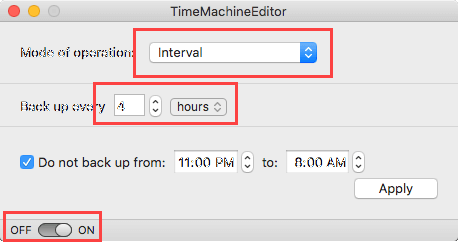
2. As soon as you open the application, you can see that it provides you with three options in the drop-down menu.

  • Inactive: When you set this option, the backups are done when you are not using your system. i.e, when your system is inactive.
  • Interval: Using this mode, you can configure Time Machine to backup in set intervals. Like every 2 hours, every 4 hours, etc.
  • Calendar Intervals: If you would like to be more specific about the Time Machine backup schedule then you can select this option. Using this option, you can schedule backups based on dates, weeks, time, etc.

3. So, select the backup frequency next to “Mode of Operation,” configure additional settings, toggle the button appearing at the bottom of the window to ON and then click on the button “Apply” to save changes.

In my case, I’ve selected mode of operation as “interval” and configured Time Machine to backup once every four hours.

One Thing to Keep in Mind

If you think you no longer need this app to manage or modify Time Machine backup frequency then you need to turn off Time Machine Editor first and then uninstall the app. To do that, open the app and toggle the button appearing at the bottom of the Windows to OFF.

If you uninstall the app without turning it off, the regular Time Machine backup schedule may get conflicted and cause unnecessary problems. However, it is easy to solve. Simply install the Time Machine Editor again, launch it, turn it off, and then uninstall it.

That’s it and it is that simple to change the backup schedule for Mac. Do comment below sharing your thoughts and experiences about using Time Machine Editor to modify Time Machine backup frequency.

How to Enable Zoom in and out in Photos App in Windows 10

0

Microsoft is slowly ditching old apps and replacing them with new and improved apps that not only look good but also work well with modern touch-enabled devices. Some examples of this are the good old paint app and the Windows Photo Viewer. Unlike the Paint app, Microsoft completely removed Windows photo viewer from Windows 10 and replaced it with the Photos app. In fact, Photos app is the default app to view images and photos in Windows 10.

Photos app is pretty good and has all the regular features you’d expect from a photo viewer app. Most of all, you can configure it to show photos stored in your OneDrive account, just like Google Photos app on Android. However, one thing that bothers most Windows 10 users using the Photos app is that you cannot zoom in and out with your mouse wheel. Instead, scrolling the mouse wheel will either take you to the next or previous photo.

To zoom in or out of photos, you either have to use the buttons in the Photos app or scroll the mouse while holding Ctrl key on your keyboard. Which is cumbersome if you ask me.

If you like the old way of zooming in and out using mouse wheel then you can easily enable it. Here’s how to do it. Oh, if just don’t like Photos app and want the Windows photo viewer back then you can do that too.

Enable Mouse Wheel to Zoom In and Out in Photos App

Thankfully, it is very easy to enable mouse wheel to zoom in and out in Photos app. You don’t have to edit Registry or Group Policy Settings. All you have to do is select a single radio button and you are good to go.

1. To start off, open Photos app by searching for it in the Start menu.

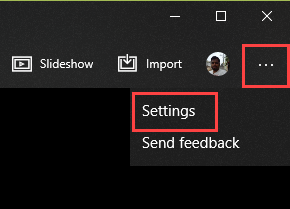
2. After opening the Photos app, click on the menu icon (three horizontal dots) appearing on the top right corner and select the option “Settings“.

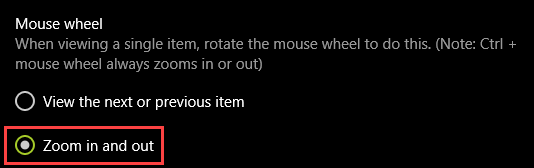
3. The above action will open the Photos app Settings page. Here, scroll down and select the option “Zoom in and out” under Mouse Wheel section.

That’s all there is to do. From this point forward, you can use the mouse wheel to zoom in and out in the Photos app in Windows 10.

Know What Kind of Processor Your Android Device Has

0

Do you know what kind of processor your android device has in it? You may not think of it much but there will be times when you need to know the specific processor type. For instance, if you are trying to install Xposed framework then you need to know what type of processor you are using and its exact version. Moreover, if you’ve ever used apps like MX Player then you should know that you need to install additional codecs to properly play video files. To install MX player codecs, you need to know the specific processor type and its version. Without knowing what kind of processor you have, you cannot properly install required apps, custom ROMs, and other add-ons on your android device.

Types of Processors

In case you don’t know, there are three types of processors for your android device. They are as described below.

ARM (Advanced RISC Machine): ARM is the most common processor type you will see in the majority of Android devices. The ARM processor is designed to be very power efficient and battery friendly.

ARM64: As you can tell from the name itself, ARM64 is the 64-bit version of ARM and carries 64-bit instruction set. Most modern Android phones use ARM64 type processor.

x86: This type of processor is powerful than the ARM and ARM64 processor, but it is power hungry and not that battery efficient. So, you won’t see it that often on mobile devices where the balance between battery efficiency and processing power is everything.

Now that you know the different types of processors used in mobile devices, here’s how to know what kind of processor you are using on your android device.

Want to stop people from peeping into your text messages? Here are some of the best secret text messaging apps for Android.

Know Your Processor Type in Android

It is very easy to know what kind of processor is in your android device. Generally, you can know it by opening the Settings app and navigating to “About Phone” and then to “Hardware information.”

However, depending on your phone manufacturer, you might not see what type of processor is on your Android device. So, this method is not that reliable.

The good thing is, there are plenty of apps in the Play Store that can help you get this information.

1. First off, head over to Play Store and install Droid Hardware Info app. The app is free, lightweight and shows every bit of information about your Android device.

2. After installing the app, grant the permissions it asked for. Those permissions are required to show all the details you need to know. If you want to know about the permissions, you can see them in Play Store’s app description.

3. As soon as you grant required permissions, you will see everything about your Android device. To know the processor type, navigate to the “System” tab.

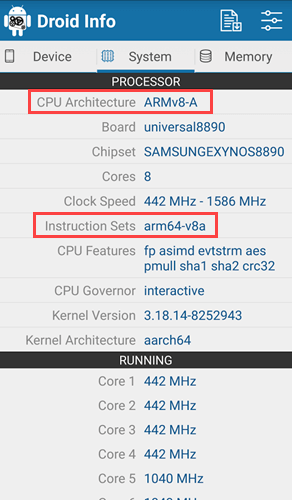
4. Here, you can see the processor type next to “CPU Architecture” under the Processor section. You can also see the Instruction Set used by the CPU next to “Instruction Sets” in the same section.

Note: If you see AArch64 then your processor type is ARM64.

That’s all there is to do and it is that simple to know what kind of processor your android device has. If you like this guide then know how to set up VPN on Android so that you can avoid ISP restrictions and download apps not available in your location.

Do comment below sharing your thoughts and experiences about using the above method to know the processor type in Android.

[Solved] Fix “These Items Are Too Big to Recycle Bin” Error in Windows

0

Fix “these items are too big to recycle bin” error. It may not be that often but there will be times when you try to delete some files or folders and Windows will show you an error telling you that the target file or folder is too big for recycle bin. Since the items are too big to recycle bin, you have the choice to either permanently delete them or cancel the operation and keep the files and folders as is.

As you can tell, if you choose to delete items permanently, you cannot recover them via recycling bin if you need them in the future or if you accidentally deleted those files. In those situations, it is better to fix “These items too big to recycle bin” error before proceeding to delete the files and folders. When you fix the error, the files will be moved to the recycle bin and you can recover them if need be.

The reason why you are seeing this error is that there is no space in the Recycle Bin to store the files you are about to delete. There are two methods to fix this recycle bin error. I will show both methods, follow the one that is better suited for you. Here’s how to fix these items too big to recycle bin error in Windows.

Note: these methods will work in Windows 7, Windows 8, and Windows 10. As for me, I’m showing this in Windows 10.

Method One: Delete Unwanted Files in Recycle Bin

Since you are receiving this error due to low disk space in the recycle bin, this method is a no-brainer. All you have to do is delete unwanted files in recycle bin.

1. To do that, open recycle bin by double-clicking on the Recycle Bin icon on your desktop.

2. Now, find the files you would like to permanently delete and press the Delete button on your keyboard.

3. If you’d like to delete all files and folders in the recycle bin then simply select all the items using the keyboard shortcut Ctrl + A and then press Delete key on your keyboard.

Quick tip: Alternatively, just right-click on the Recycle Bin icon on your desktop and select the option “Empty Recycle Bin”

Once you do that, the recycle bin space should be cleared and you won’t receive the error again.

Method Two: Increase Recycle Bin Disk Space

If you are receiving the recycle bin error even after clearing the recycle bin then you need to increase the disk space allocated to it.

1. First of all, right-click on the recycle bin icon on your desktop and select the option “Properties.”

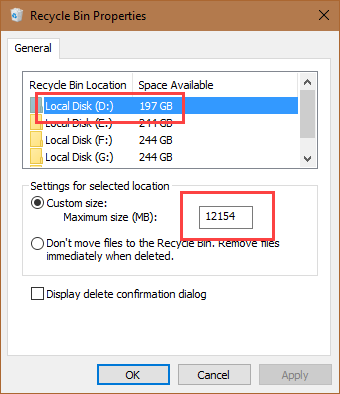
2. The above action will open the Recycle Bin properties window. Here, select the drive from where you are trying to delete the files. For instance, if you are trying to delete files from your D: drive then select that drive from the list.

3. Under the “Settings for selected location”, increase the space by entering the size in MegaBytes (MB). For instance, I’ve allocated around 12 GigaBytes of space from my D: drive’s recycle bin. Once you are done with changes, click on the “Ok” button to save the changes.

That’s all there is to do. By following these two simple methods, you can fix “these items too big to recycle bin” error with just a few clicks. Comment below sharing your thoughts and experiences about using the above methods to fix the error.

How to Automatically Delete Previous Windows Installation Files in Windows 10 [Windows.old Folder]

0

Here’s how to delete Windows.old folder automatically in Windows 10. When you upgrade to a newer version of Windows 10 or if you’ve installed Windows 10 on top of the previous installation, Windows will automatically create “Windows.old” folder. This folder contains previous Windows installation files and helps you to downgrade to the previous version if you don’t like or just not comfortable with the newer version.

Typically, the “Windows.old” folder takes up anywhere from five to twenty gigabytes in your C: drive or the system installation drive. If you are not going to downgrade then this is nothing but wasted space. If you are using an SSD for your installation drive then this is especially true as most of the SSDs used for system installation drives are around 60GB and 120GB.

Generally, you can delete Windows.old folder manually or using the Disk Cleanup utility. Alternatively, you can also use the new Storage Sense feature in Windows 10 to automatically delete Windows.old folder. Not to say, Microsoft is releasing two new major updates every year. So, enabling this feature is pretty important to save some disk space and avoid the low disk space warnings.

Automatically Delete Previous Windows Installation Files (Windows.old Folder)

To delete previous Windows installation files or the Windows.old folder, you can use the new Storage Sense feature. When using the Storage Sense feature, it will automatically delete the previous Windows installation files 10 days after you upgrade your system. Along with the Windows.old folder, you can also configure Storage Sense to clear temporary files and files in Recycle Bin that are older than 30 days.

1. First of all, open Windows 10 Settings app by pressing the keyboard shortcut Win + I.

Quick tip: You can also open the Settings app by searching for it in the start menu or from the Notification Center. Also, download Windows 10 Keyboard Shortcuts.

2. In the Settings app, navigate to “System” and then “Storage” appearing on the left panel.

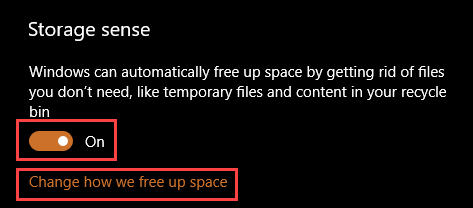
3. Once you open the Storage page in the Settings app, scroll down and toggle the button under “Storage Sense.”

enable storage space Windows 10

4. After turning on the Storage Sense feature, click on the link “Change how we free up space” to manage how this tool will clear unwanted files.

5. Here in this page, select the checkbox “Delete previous versions of Windows” under the “Free up space now section.”

Note: you might not see this option if you don’t have previous Windows installation files or the Windows.old folder in the root of your C drive.

That’s all there is to do. You’ve successfully configured Storage Sense to automatically delete previous Windows installation files ten days after upgrading your system.

Did you know that you can create an invisible folder in Windows?

Additional Storage Space Settings

Additionally, you can also make Storage Sense to clean temporary files and recycle bin files older than 30 days. If you would like to use this option then toggle the buttons next to “Delete temporary files that my apps aren’t using” and “Delete files that have been in the recycle bin for over 30 days” and you are good to go.

If you want to clean these files right now then click on the button “Clean new” under “Free up space now” section and Windows will automatically delete the files according to the configuration.

That’s it and hope this tip on how to automatically delete Windows.old folder will help you gain back some lost space. If you like this article then do read how to increase volume above maximum in Windows, very helpful when you are watching videos or listening to songs will low volume.

Comment below sharing your thoughts and experiences about using the Storage Sense feature.