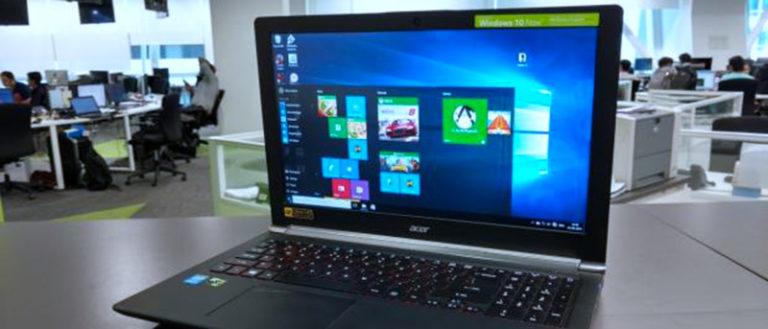
How to Create System Repair Disk in Windows 10

0

No software – or manmade thing for that matter – is foolproof. It is bound to have some problems from time to time. And the worst thing that can happen to you while working is a system crash. Apart from the data loss, it is the mental harassment that is more irritating.

Generally, you can easily create Windows system image backup with just a few clicks. But it may not be accessible at all times. So, it is always handy to have a system repair disc which can be helpful in such situations. In this article, I’m going to show you how to create system repair disk in Windows. It takes just about five minutes to have your very own system repair disc.

Note: creating a system repair disk is a pretty old feature in Windows. In fact, it still requires you to create it using a CD or DVD. So, make sure that you have CD/DVD drive and an empty CD or DVD. Moreover, though I’m showing this in Windows 10, the procedure is similar for Windows 7 and Windows 8.

Create System Repair Disk in Windows 10

1. Insert a blank CD in the CD drive of your machine. The repair disc will take up at least 140MB – 150MB of your CD space.

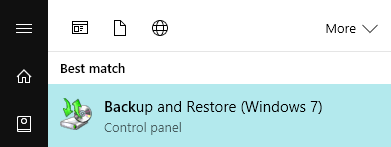
2. Click on Start, search for “Backup and Restore” and then open it.
windows system repair select back and restore

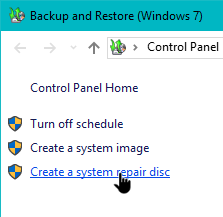
3. Here in this window, click on the link “Create System Repair Disk” appearing on the left pane.
windows system repair click system repair disc link

4. In the pop-up dialogue box, you can select the CD drive using the drop-down menu. If there is not disk inserted, you will receive a warning message.

5. Now, click on the “Create disc” button.

6. The Windows operating system will now create a system repair disc on your blank CD. No special CD burning software is required.

7. Close the dialogue box once the system repair disc operation has been completed.

8. Click the OK button back on the original “Create a system repair disc” window.

9. Just take a marker and label the CD as Windows repair disc and keep it somewhere safe.

You can now use this system repair disk in case of any emergency like a system crash. After booting from this disc, you will have access to the System Recovery options. This is where you will find all system recovery tools available for the Windows operating system. However, do note that the system repair disk you create in your system will only work with your system. i.e, it will not work with any other Windows systems.

You will need to watch for “Press any key to boot from CD or DVD” message on screen while booting from the disk and press any key on your keyboard. This will take you to the actual repair environment where you can do a system restore or system repair.

Hope you found this guide useful. Feel free to comment in case I missed anything or if you have any questions.
How to Clear DNS Cache in Google Chrome

Google Chrome is one of the best web browsers available out on the internet. Google Chrome provides plenty of wonderful and interesting features including extensions. Also, Google Chrome has many under the hood options to tinker with. With a little digging, you can easily modify these options to best fit your needs and requirements.

One such feature is the DNS cache. DNS (Domain Name System) cache is a small database that stores the IP (Internet Protocol) addresses of the websites you try to access. Its main purpose is to make it easier and faster to access the websites you regularly visit. Using the DNS cache, Google Chrome won’t need to fetch the IP address of the target website each and every time.

Also read: tips to increase browsing speed

If your computer has trouble reaching a certain website or server then this may be due to the corrupt local DNS cache in Chrome. Sometimes when you buy a new domain name, after hosting it on your server and changing nameservers, it takes a lot of time to propagate the DNS. Due to Chrome’s internal DNS cache system, even after you flush the DNS cache on the operating system level, the domain may still resolve to the old IP address.

Since the Chrome browser is resolving the old IP address, the website you are visiting might not work as it should.

The solution to all the above-mentioned problems is to flush out or clear DNS cache in Google Chrome browser. A DNS flush will make your computer erase any existing information regarding DNS names and IP addresses that have been  stored locally. After you perform a flush, the next time you try to access a website, your computer will ask for all the new IP and DNS information related to that site resulting in an error free browsing experience.

Also read: use Google public DNS to increase browsing speed

In case you are wondering, here is how you can easily clear DNS cache in Google Chrome.

1. Clear DNS Cache in Google Chrome

  • Open a new tab in your Google Chrome browser.
  • Type in the Chrome URL chrome://net-internals/#dns in the address bar.
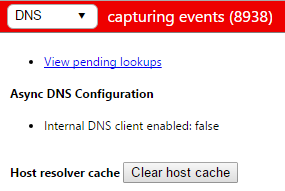
  • Now, click on the “Clear Host Cache” button.
  • That’s all there is to do. Your Google Chrome DNS cache has now been flushed.

clear dns cache google chrome flush dns

2. Clear DNS Cache Using Command Prompt

If flushing the DNS cache in Google Chrome still doesn’t solve the issue then you might also want to clear the Windows DNS cache. To do that, you can use the regular Command Prompt.

  • Open the command prompt in Admin mode. To do that, search for Command Prompt in the start menu, right-click on it and then select the option “Run as Administrator.”
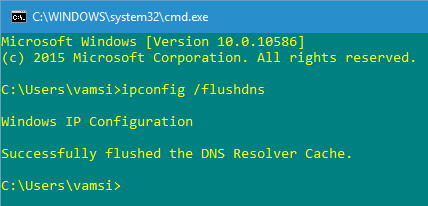
  • Type in the command ipconfig /flushdns and press Enter.
  • After flushing your DNS cache, the message “Successfully flushed the DNS Resolver Cache” will be displayed on the command prompt.

clear dns cache google chrome cmd flush dns

That’s it. You’ve successfully cleared Windows DNS cache. If you are still facing the problem then change the DNS service. The usual DNS services provided by your ISP might not be that optimal. So, changing the DNS service might solve the problem.

Hope you found this guide useful. If you are a regular Google Chrome user then you will find these Google Chrome keyboard shortcuts cheat sheet useful. So, do check it out.

Also, comment below sharing your thoughts and experiences about using the above methods to clear DNS cache in Google Chrome.

9 Ways to Launch the Task Manager in Windows 10

0

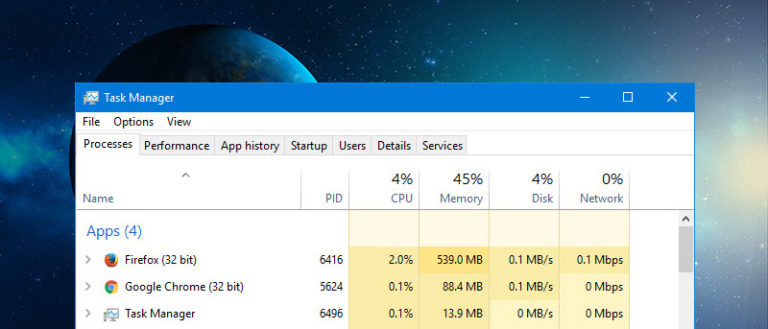
If you are using Windows then one time or the other, you might find yourselves using Windows Task Manager. You may use it either to check the processor and memory usage, to end unresponsive process, to check background processes, to enable or disable startup programs, etc.

As you can tell, Task Manager in Windows is an important tool that helps in a lot of situations. To launch the Task Manager, most of us only know a couple of ways. But there are quite a few ways to launch the Task Manager. Knowing different ways might help when you cannot launch the Task Manager in your usual way. So, here are nine different ways to launch the Task Manager in Windows.
Also read: how to create recovery drive in Windows

Launch the Task Manager from Taskbar

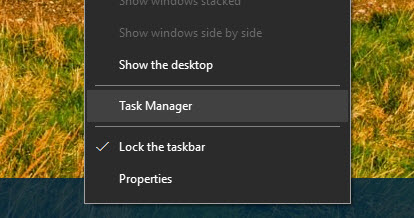
Launching the Task Manager from the Taskbar is one of the most known and used ways in Windows. To launch the Task Manager from the Taskbar, simply right-click on the Taskbar and then select the option “Task Manager.” The good thing about this approach is that it works on almost all versions of Windows.

win-task-manager-task-manager-taskbar

Ctrl + Alt + Del Keyboard Shortcut

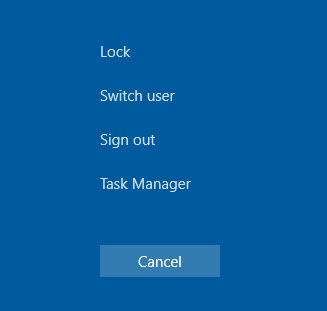
Ctrl + Alt + Del is one of the most famous ways to launch Task Manager when the system is not responding. When you press the keyboard shortcut Ctrl + Alt + Del, it interrupts whatever is happening in your system and takes you to the secure screen. From this screen, you can launch the Task Manager. The good thing about this keyboard shortcut is that it allows you to do other things like signing out of the current session, locking your system, and switching users.

win-task-manager-task-manager-ctrl-alt-del

From Power User Menu

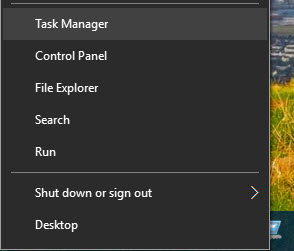
Microsoft introduced a new feature called Power User menu back in Windows 8. This little feature is pretty helpful as it lets you access some of the important parts of the Windows system without fiddling with the Control Panel. As such, you can also access the Task Manager from the Power User menu. All you have to do is, press the keyboard shortcut “Win + X” and then press “T.”

win-task-manager-power-user-menu

Also read: how to shutdown and put Windows into sleep with keyboard shortcut

Using Start Menu

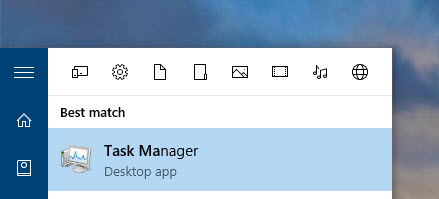
Obviously, you can easily launch the Task Manager by simply searching for it in the Start Menu. If you want to, you can also open the Task Manager as an administrator by selecting the option “Run as Administrator” from the right-click menu.

win-task-manager-task-manager-start-menu

Alternatively, you can also find the Task Manager under the “Windows System” folder in the Windows 10 Start Menu.

From File Explorer

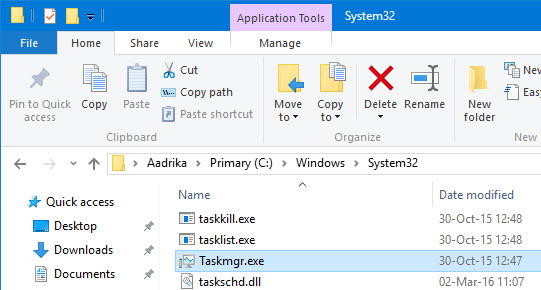
Since the Task Manager is an application built into Windows, you can also launch it using the executable. To do that, open the File Explorer using the keyboard shortcut “Win + E” and navigate the following location.

C:\Windows\System32

Here, find the file “taskmgr.exe” and double-click on it to launch the Task Manager. Just like in the Start Menu, you can launch it with the admin rights using the right-click menu.

win-task-manager-task-manager-file-explorer

Also read: list of useful Command Prompt keyboard shortcuts

Using Run Command

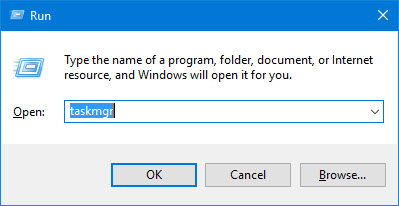
You can launch almost any Windows application using the Run dialog box, provided you know the file name or actual command. To launch the Task Manager, all you have to do is open the Run dialog box by pressing “Win + R,” type “taskmgr” and then press the enter button.

win-task-manager-task-manager-run-command

Using Command Prompt or PowerShell

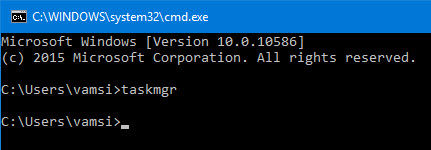
This is one of the lesser known ways but you can actually launch the Task Manager and several other applications directly from the Command Prompt or PowerShell. To launch the Task Manager from Command Prompt or PowerShell, simply type the below command and press the enter button.

taskmgr

win-task-manager-command

Using AutoHotKey

If you think that the above keyboard shortcut placement is awkward then you can create a custom keyboard shortcut using the AutoHotKey. For instance, you can use the below script to quickly launch the Task Manager using the keyboard shortcut Ctrl + '. Of course, you can always customize the shortcuts as per your needs.

; Launch Task Manager
^'::run taskmgr.exe ;Ctrl + '
return

That’s all for now and do comment below sharing your favorite way to launch the Task Manager in Windows.

How to Install Overgrive for Google Drive in Ubuntu

0

Google Drive is one of the most popular cloud storage services out there with awesome features and the ability to sync with your Gmail account, not to mention the ease-of-use, speed, the storage capacity.

Though introduced in back April 2012 for Windows, Google Drive has no official software supporting Linux platform. Of course, you can always use the web version of Google Drive from the browser. But, having an app installed on your Ubuntu machine makes things much easier. Though many developers have come up with a few unofficial Google Drive apps for Linux, they seldom work. However, OvergGrive is an exception. OverGrive is one of the most popular apps to add Google Drive to Ubuntu. In this article, I will show you how to install and configure OverGrive for Google Drive in Ubuntu.

Note: though I’m showing it in Ubuntu, the instructions are same for other Ubuntu derivatives. Also, this is a premium application but is available as a trial version for you to try.

Install OverGrive in Ubuntu

To start off, download the latest version of OverGrive from the official site.

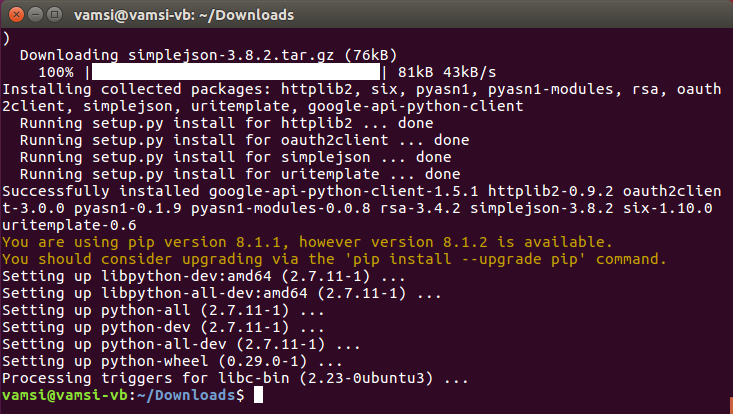
Once the software has been downloaded, press Ctrl + Alt + T to open the Terminal. You can also search and open Terminal from the Dash.

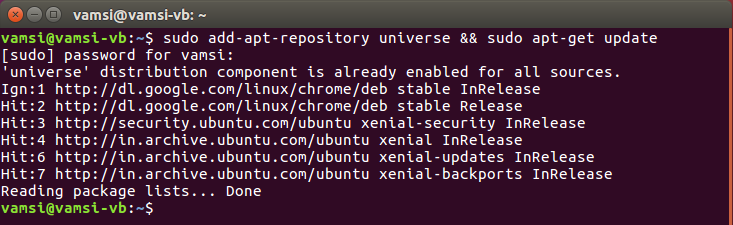
Now, execute the below command to add the OverGrive repository.

sudo add-apt-repository universe && sudo apt-get update

ubuntu overgrive add repository

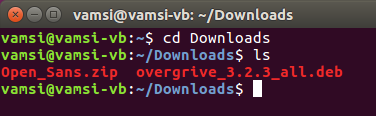
In the terminal window, execute the command below to navigate to the Downloads folder. Usually, this is where you will find the downloaded OverGrive executable. You can also use the ls command to list all the files and folders in the directory.

cd Downloads

ubuntu overgrive navigate to downloads folder

Now, execute the command below to install the application. Don’t forget to replace the version number in the command. You can press the tab key on your keyboard to autocomplete the file name.

sudo dpkg -i overgrive_3.x.x_all.deb

If you receive any errors, simply execute the below command to automatically rectify and install the application.

sudo apt install -f

ubuntu overgrive install overgrive

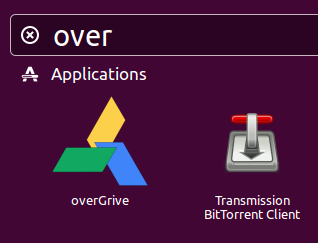
Once you are done installing, search for OverGrive in the Dash and open it.

ubuntu overgrive search for overgrive

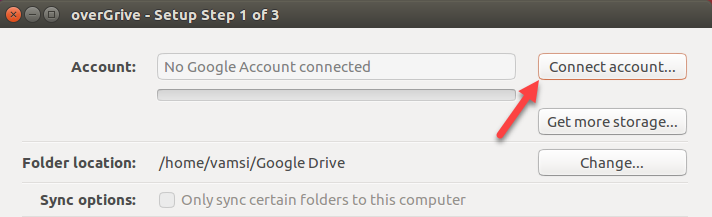
After launching the application, click on the “Connect Account.”

ubuntu overgrive connect account

This action will open the sign in page in your default browser. Sign into your Google Account to continue.

Click “Accept” to grant permission for OverGrive to access your Google Drive account.

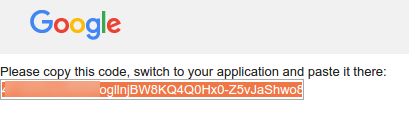
You will see an authorization token code generated by Google on your screen, copy the unique code.

ubuntu overgrive copy code

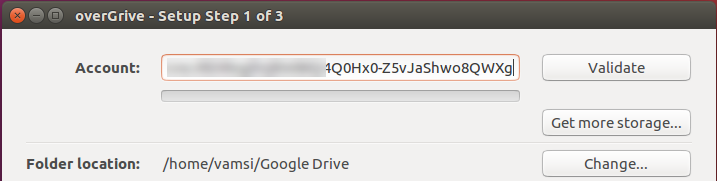
Paste the copied code next to the “Account” field and click on the button “Validate” to validate the entered code.

ubuntu overgrive paste unique code

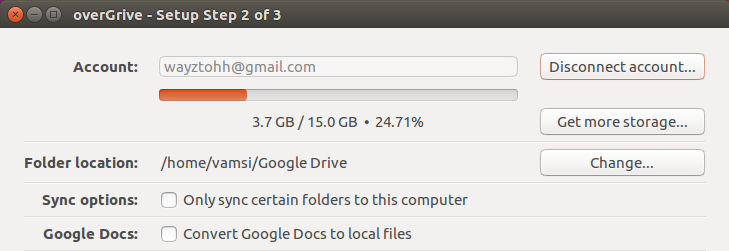
After the code is validated successfully, your account will be connected.

ubuntu overgrive account added

By default, OverGrive will sync all the folders and files in your Google Drive account. However, you can also select specific folders from your Google Drive account under the preferences section.

There are other options available for selecting a theme, conversion of Google documents to office file formats.

After you have set the preferences, click Start Sync.

Your files will now be synchronized to your local Google Drive folder from your Google Drive online.

Note: if the first sync does not complete it will open the OverGrive setup screen again on restart. You can simply select Start Sync again to complete the synchronization process.

Hope you found our guide useful. If you’ve faced any problems following the above procedure, do let me know in the comments section below.

How to Fix Incorrect Clock Settings in Windows 10 When Dual Booting

0

Having multiple operating systems running on a machine is not a new thing. People working on different platforms need to have their systems booted in Windows as well as other operating systems like Linux or MacOS. This is called dual booting.

When your machine is dual booted, it will get the current time of your location from the system hardware clock. If the hardware clock was set to local time, more than one operating system may adjust it after a DST (Daylight Saving Time) change, thus resulting in an overcorrection. By default, Windows uses the GMT time zone while OS X and Linux uses UTC time zone. Thus, when Windows tries to synchronize with your local time zone after a reboot, it gets confused and shows you the wrong time.

To solve this problem, all you have to do is add a single registry entry in the Windows Registry and you are good to go. Follow the steps below to fix incorrect clock settings in Windows 10 while dual booting.

Note:

1. Before doing anything, make sure that you backup Windows registry, just in case.

2. Though I’m showing this in Windows 10, the same procedure is applicable to Windows 7 and 8.

Fix Incorrect Clock Settings in Windows When Dual Booting

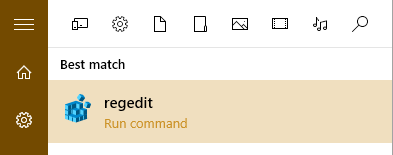
1. To start off, click the on Start button, type “regedit.exe” in the search box, and hit enter on your keyboard. This action will open the Windows Registry Editor.

win10-incorrect-time-select-regedit

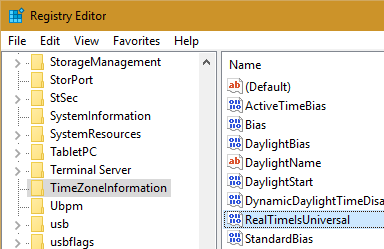
2. In the Windows Registry Editor, navigate to the following path.

HKEY_LOCAL_MACHINE\SYSTEM\CurrentControlSet\Control\TimeZoneInformation\

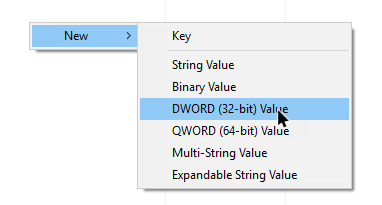
3. Once you are here, right-click anywhere on the white space in the right pane. Now, select “New” and then “DWORD (32-bit) Value.”

win10-incorrect-time-select-dword

5. The above action will create a new DWORD value, rename the value as “RealTimeIsUniversal.”

win10-incorrect-time-create-dword-value

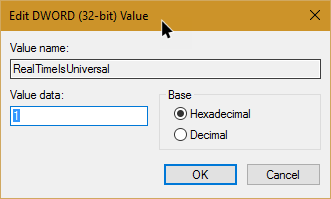
6. Now, double-click the value and change the value data of RealTimeIsUniversal value to “1.” Click on the Ok button to save the changes.

win10-incorrect-time-enter-value-data

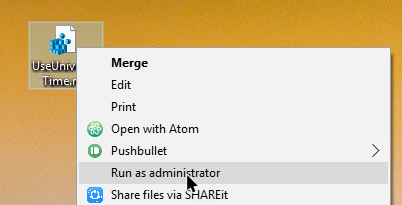
Note: if you are unable to create the key due to permission issues, then I’ve created the registry key for you. Just download this file and extract the contents onto your desktop. Now, right-click on the .reg file and select the option “Run as Administrator”.

This action should install and configure the “RealTimeIsUniversal” key. If you are curious, you can open the .reg file with Notepad to see what is inside the file.

win10-incorrect-time-run-reg-file-as-admin

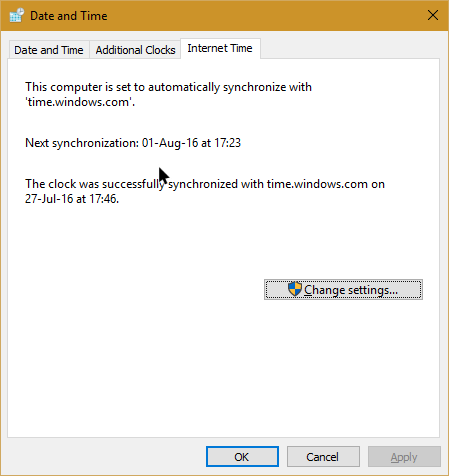
7. After creating the registry key set the current time and time zone on the clock. Open the “Date and Time” window from the control panel, navigate to the “Internet” tab and then click on the “Change Settings” button.

win10-incorrect-time-change-time-settings

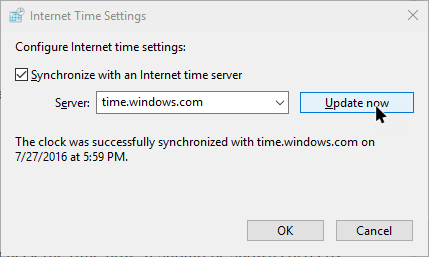
8. In this window, click on the button “Update Now” and your time will be synchronized with the internet.

win10-incorrect-time-update-time-internet

That’s all there is to do and from this point forward, you will no longer see the wrong time in Windows when you dual-boot with Linux or MacOS. I hope you found this guide useful. Let me know in the comments how this simple tip helped you save the frustration of Windows showing incorrect clock settings when dual booting.

How to Completely Uninstall Java on Mac OS X

0

Java is prone to many holes and vulnerabilities. Unless you are using some application that absolutely needs Java, there is no reason for you to have it installed on your Mac. In fact, most websites and web services don’t require you to have Java. Simply put, unless you absolutely require Java, you should either disable Java on Mac or uninstall Java on Mac, just like Adobe Flash.

That being said, if you think you might need Java in future then you can always install it with just a few clicks. So, here is how to completely uninstall Java on Mac OS X.

Uninstall Java on Mac OS X

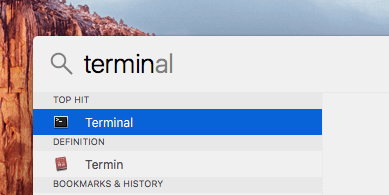
1. Uninstalling Java on Mac OS X is pretty easy but not straightforward if you don’t like to use the terminal. To start off, launch the terminal by searching for it in the Launchpad or Spotlight.

uninstall-java-mac-terminal

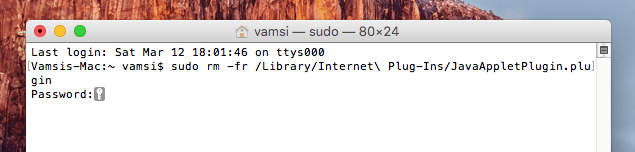
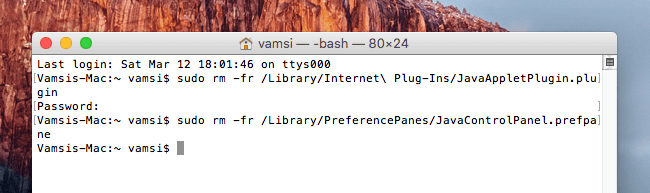
2. Once the terminal has been launched, copy the below command and execute it. You might be prompted for the admin password, just enter it to continue. Once the command has been executed, you won’t receive any confirmation message. So, don’t worry if you don’t see one.

sudo rm -fr /Library/Internet\ Plug-Ins/JavaAppletPlugin.plugin

uninstall-java-mac-command-one

3. Next, copy and execute the below command. Just like before, you won’t receive any confirmation message.

sudo rm -fr /Library/PreferencePanes/JavaControlPanel.prefpane

uninstall-java-mac-command-two

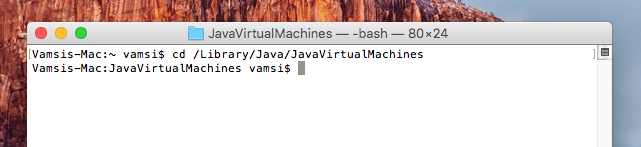
4. Optionally, if you have Java JDK installed, you might want to uninstall it too. To verify if you have Java JDK installed, execute the below command.

cd /Library/Java/JavaVirtualMachines

uninstall-java-mac-navigate-to-folder

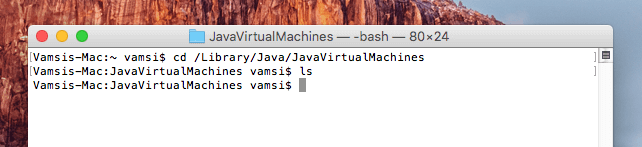
5. The above action will take you to the JavaVirtualMachines folder. Here, use the command ls to see if it has any files. In my case, there are no files in the folder so I don’t have to do anything.

uninstall-java-mac-no-files-java-folder

6. However, if there are any files in the folder, then use the below command to remove them. Don’t forget to replace “fileName” with the actual file name.

sudo rm -rf fileName

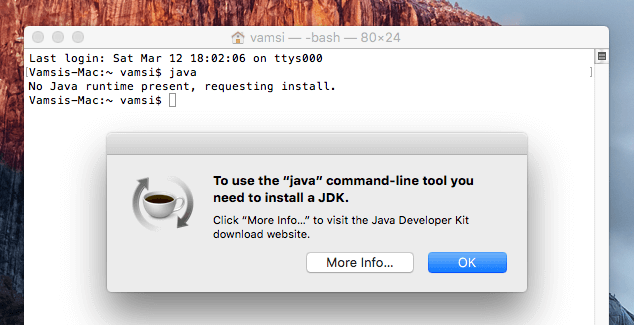
That’s it, you’ve successfully removed Java on Mac OS X. To confirm, just enter below command press the Return button. If there is no Java, you will be presented with an error message like the below one.

uninstall-java-mac-done

Hopefully that helps and do comment below sharing your thoughts and experiences about using the above method to completely uninstall Java on Mac OS X.

How to Enable Dark Mode in Windows 10

0

Microsoft recently released the all new Anniversary update with a lot of new and improved features. Not only that but, from the fluid user interface to free updates and upgrades, Microsoft seems to have struck gold with Windows 10. Some of the improvements include but not limited to better Cortana, improved Settings app, revamped Action Center, all new Start Menu, etc.

That being said, there are several themes supported by Windows 10 to make your desktop look much more awesome than it looks now. However, until now there are no inbuilt themes. But the dark mode in Windows 10 Anniversary update transforms the look of the user interface and impacts the appearance of the Start menu, app bar, colors and even apps.  In fact, the dark mode in Windows 10 is one of the most requested features. So are you ready to go to the dark side? In this article, I’m going to show the step by step guide on how exactly you can enable dark mode in Windows 10 Anniversary update.

Enable Dark Mode in Windows 10

Before the Anniversary update, you need to modify the Registry entries in order to enable dark mode in Windows 10. But with the Anniversary update, all you have to do is toggle an option in the Settings panel.

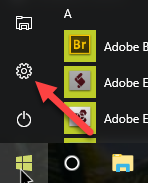
1. To start off, press the Start button on your keyboard and then click on the Settings icon appearing on the left side of the Start menu.

enable dark mode in windows 10 click settings

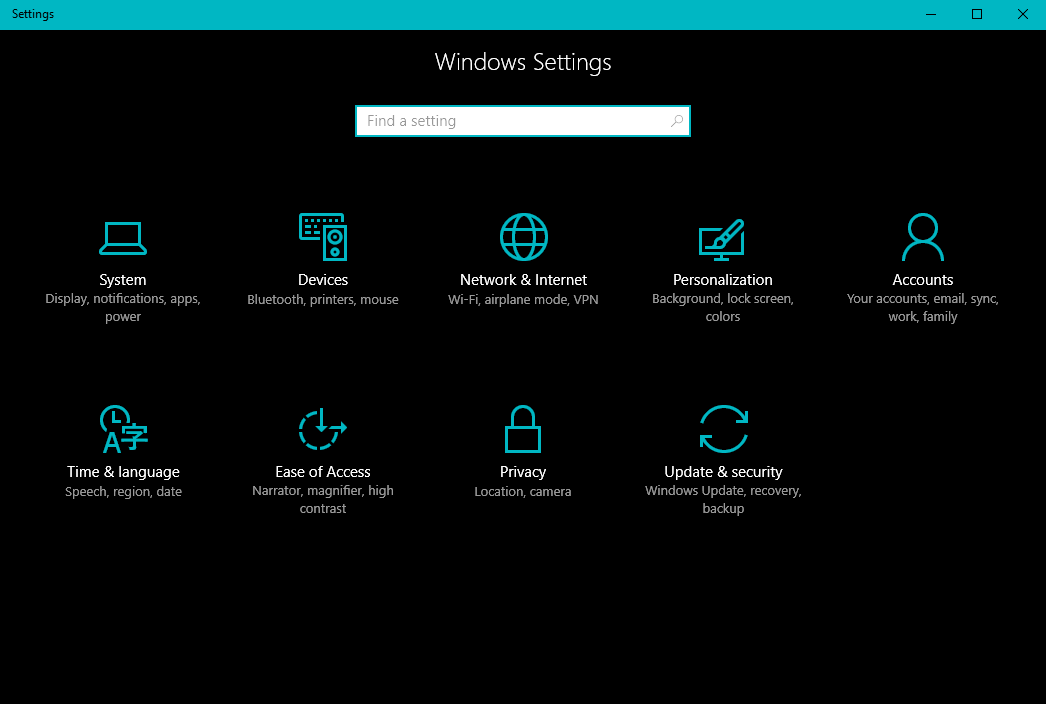
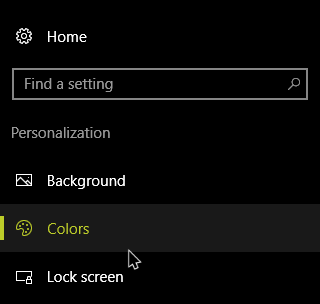
2. The above action will open the Setting app. Here, navigate to “Personalization -> Colors.”

enable dark mode in windows 10 select colors options

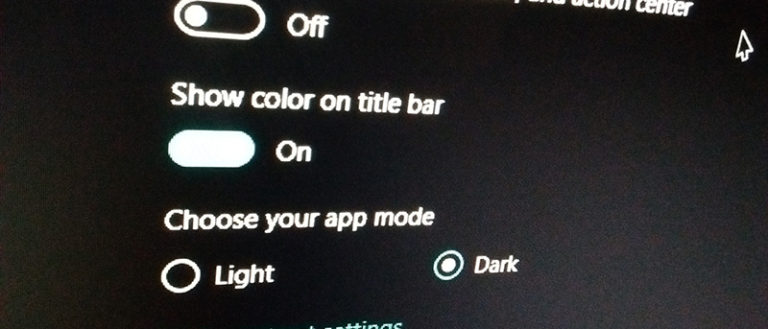
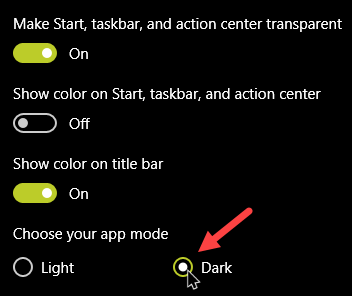
4. Now scroll down to the bottom of the page and find “Choose Your Mode” option. Here, select the radio button “Dark.”

enable dark mode in windows 10 select radio button

5. As soon as you select the option, the dark mode will be enabled in Windows. In fact, you can see the changes immediately. It is that easy to enable dark mode in Windows 10.

enable dark mode in windows 10 dark mode enabled

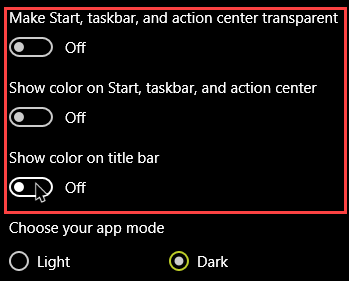
6. If you want to extend the reach of the Dark mode then make sure that the toggles of all options above the Dark option are set to the disabled (off) position. This will ensure that the Dark mode is applied to Start menu, taskbar, action center and title bars.

enable dark mode in windows 10 turn off all settings

7. Then, finally, from the color palette at the top, choose the color you think best compliments the dark mode in Windows 10. Choosing “Automatically pick an accent color from my backgrounds” option lets Windows 10 make the decision for you depending on your current desktop wallpaper.

That’s all there is to do and it is that simple to enable dark mode in Windows 10. Do comment below sharing your thoughts and experiences about using the above method to enable dark mode in Windows 10 and if you like the new dark mode in Windows 10.

How to Download Windows 10 for Free Legally Using Microsoft Accessibility Site

0

Yes, you can still download Windows 10 for free. Microsoft has been consistently marketing its latest version, Windows 10, to its customers. It had even offered to let the Windows 7 and 8.1 users to upgrade their operating system to Windows 10 for free.

Now, technically, the free upgrade offer from Microsoft has ended on 29th of July 2016. But Microsoft being Microsoft, has left a loophole for those who are still interested in upgrading their machines to Windows 10. In this article, I’m going to tell you exactly how to download Windows 10 for free using Microsoft accessibility site even after the free upgrade has been ended.

Note:

  1. This offer works only for those who already have genuine Windows 7 or Windows 8.1 running on their machines. If you are using Windows 8, you will need to first upgrade (for free) to Windows 8.1 and then avail this offer.
  2. This is just a temporary thing, so hurry up before Microsoft closes the loophole.

Get Windows 10 for Free

1. To start off, open your favorite browser and visit Microsoft’s hidden accessibility website.

download windows 10 for free click upgrade now

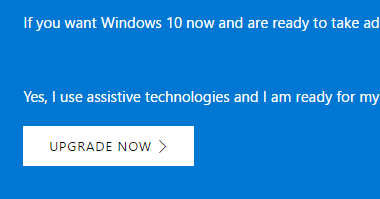
2. Once you are on the webpage, click on the “Upgrade Now” button.

3. As soon as you click on the button, you will automatically download the Windows 10 upgrade assistance program.

4. Just complete the download and run the downloaded program (.exe file).

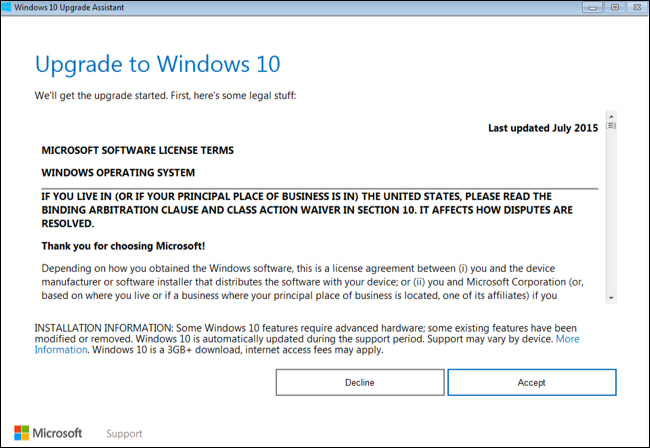
5. Once the application has been opened, agree to the license agreement and then click through the wizard till the end.

download-windows-10-for-free-upgrade-assistant

6. The software will first check for the hardware compatibility of your machine.

7. If found suitable hardware, the software will then download the Windows 10 upgrade automatically and installs it on your machine.

There, you have done it. Once the upgrade has been installed, your machine will now be running on Windows 10. Also, you will now be in possession of a digital license that lets you reinstall Windows 10 at any future point in time. Since you are are using a digital license, you don’t have to use any product key when you reinstall. Windows 10 will be automatically activated when you connect to the internet.

That being said, if you’ve upgraded your machine to Windows 10 and you want to rollback to 8.1 or 7 later, you can do it at any time within the first 30 days. Then you can again upgrade to Windows 10 at any time using your digital license copy.

Hope you found this guide useful. Do Comment below sharing your thoughts and experiences about using the above method to download Windows 10 for free.

How to Extract Pages from a PDF Document on Mac

0

Often times, when you download or want to share a document, it will be in the PDF (Portable Document Format) format. More often than not, in the entire PDF document, all you need is a single page or a couple of pages. There are several reasons for this like the page you want has all the gist you need, you just want to share a couple of pages out of the entire document, etc.

No matter what the reason is, here is how you can extract pages from a PDF document on your Mac without using any third party software.

Extract Pages from a PDF Document

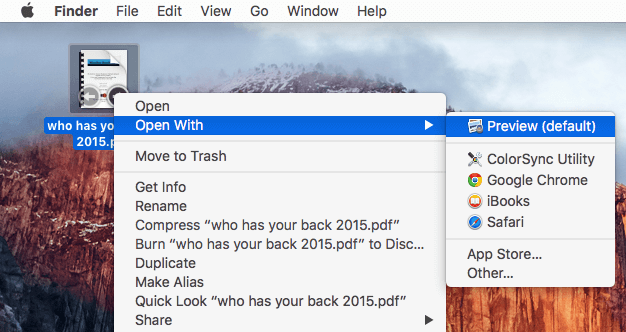
Fortunately, extracting pages from a PDF document is easy but not exactly straightforward. To start off, right-click on the PDF document you want to extract and then select the option “Preview” from the “Open with” menu.

mac-extract-pages-from-pdf-open-with-preview

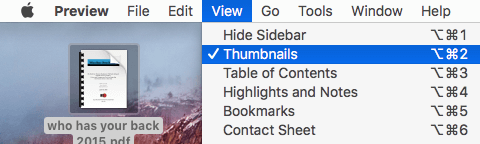
Once the document has been opened, it should have the thumbnails enabled by default. If not, enable thumbnails by selecting the option “Thumbnails” under the View menu.

mac-extract-pages-from-pdf-enable-thumbnails

Now, select the page thumbnail you want to extract. In my case, I want to extract the page number 13. So I selected that thumbnail appearing on the left side of the window. If you want to extract multiple pages, then simply select the multiple page thumbnails by holding download the command button on your keybaord.

mac-extract-pages-from-pdf-select-page-thumnail

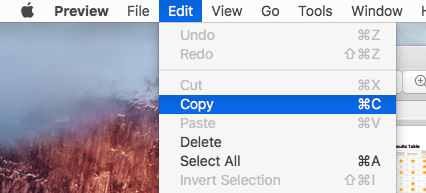
After selecting the page thumbnail, select the option “Copy” from the “Edit” menu.

mac-extract-pages-from-pdf-select-copy

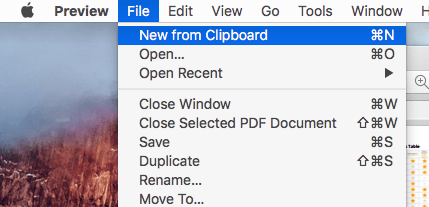
The above action will copy the target page. Now, navigate to the “File” menu and then select the option “New from Clipboard.”

mac-extract-pages-from-pdf-select-new-from-clipboard

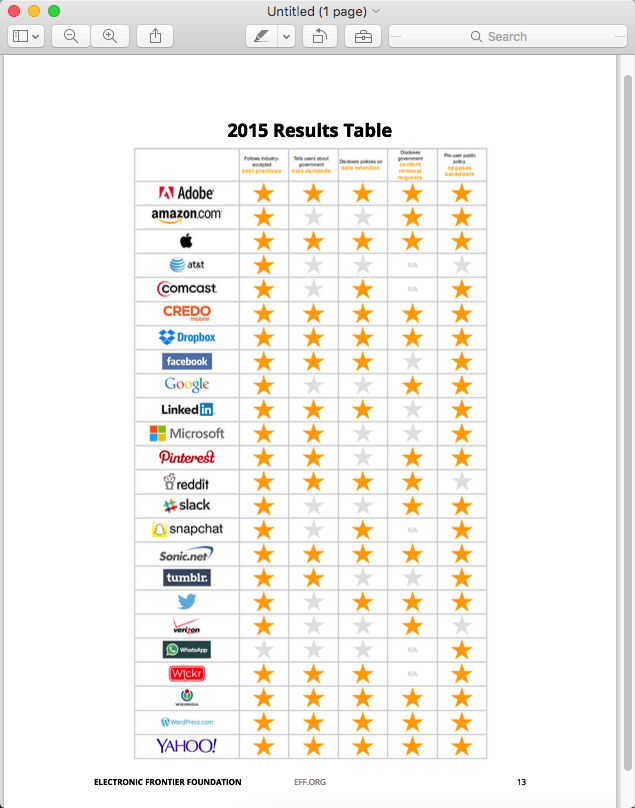
This will create a new document with the copied page.

mac-extract-pages-from-pdf-page-copied

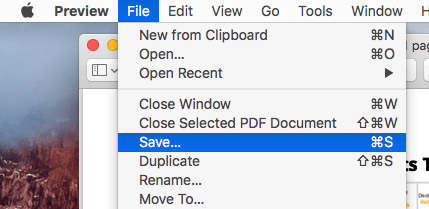
Now, all you have to do is save the document. To do that, open the “File” menu and select the option “Save.”

mac-extract-pages-from-pdf-select-save

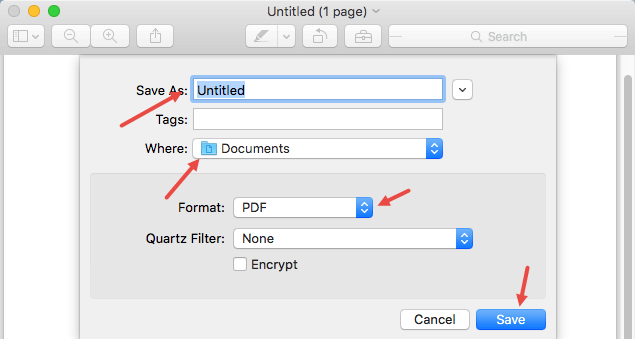
The above action will open the save window. Just enter the name of the document, select where you want to store and click on the button “Save” to save the document.

mac-extract-pages-from-pdf-save-pdf

That’s all there is to do and is that simple to extract pages from a PDF document on Mac OS X.

Do comment below sharing your thoughts and experiences about using the above method to extract pages from a PDF document on Mac OS X.

How to Turn off Auto Correct on Mac OS X

0

Auto correct is one of the most useful features on any device. Obviously, this is because it automatically corrects all your spelling mistakes and saves you from the embarrassment when you share your writing. As useful as it is, the auto correct feature on Mac can be a headake when you are dealing with words that are not available in a standard English dictionary. For instance, when you are writing about how good the Cheetos are, your Mac may auto correct Cheetos to Cheetahs and it will be a pain to change all those changed instances manually.

So, if you think the feature only creates more problems than it solves then here is how you can disable or turn off the auto correct feature on Mac OS X.

Turn off Auto Correct on Mac OS X

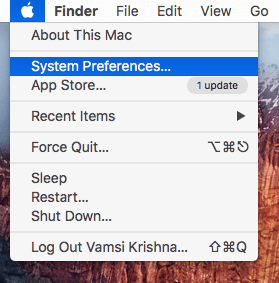
Fortunately, disabling or turning off the auto correct feature on Mac is pretty easy and straightforward. To start off, click on the Apple icon appearing on the top-right corner and then select the option “System Preferences.”

mac-os-turn-off-auto-correct-select-system-pref

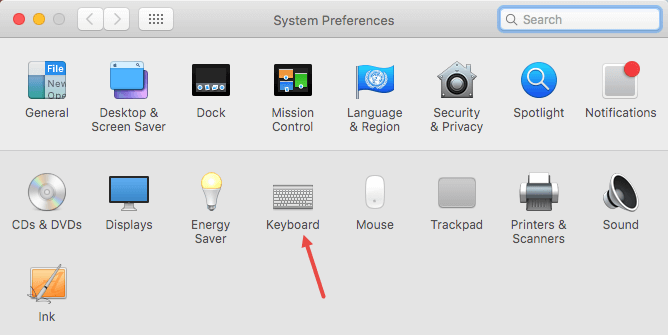
Once you are in the System Preferences window, find and double-click on the option “Keyboard.”

mac-os-turn-off-auto-correct-system-pref

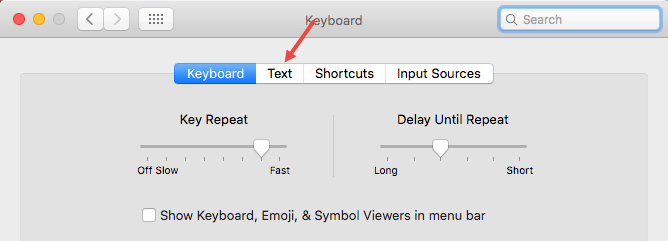
The above action will open the Keyboard settings window. Here, navigate to the “Text” tab.

mac-os-turn-off-auto-correct-keybaord-settings

In the Text tab, uncheck the checkbox “Correct Spelling Automatically” and you are good to go.

mac-os-turn-off-auto-correct-uncheck-checkbox

From this point forward, your Mac won’t autocorrect your spelling. If this doesn’t work on certain applications, then you might want to check the target application settings and ensure that the auto-correct is turned off in that application.

If you ever want to revert back and want your Mac to auto-correct your spelling mistakes then select the checkbox “Correct Spelling Automatically” under the “Text” tab in the Keyboard window.

That’s all there is to do and it is that simple to disable or turn off auto correct on Mac OS X. Do comment below sharing your thoughts and experiences about the auto correct feature on Mac OS X.