How to Enable YouTube Dark Mode – Dark YouTube Theme

0

YouTube Dark Mode – Recently, YouTube is trying a new design to get it in line with other Google services that use the Material Design. The material design offers simplicity, consistency, and beauty. To make things even better, the new design is built on a new faster and secure framework called “Polymer.”

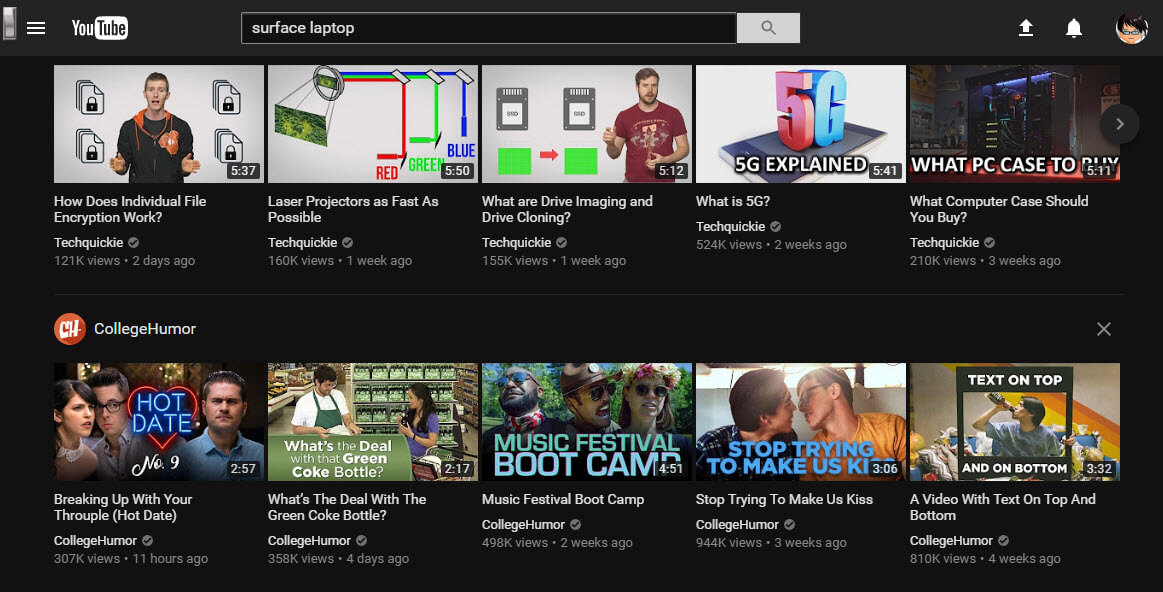
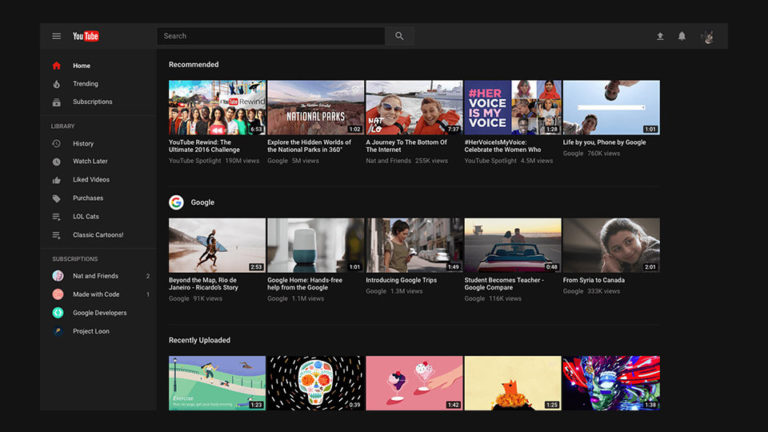
As part of the new design language, you can have a new dark YouTube theme. The good thing about the YouTube dark theme is that it turns all the light surfaces of the page dark. Since all the light surfaces are dark, it is very pleasant on your eye and very ideal for night watching. So, if you are dark theme lover, then you should definitely try out the new YouTube dark theme.

Using Google Chrome? Here are some of the best dark themes for Google Chrome

However, it is not enabled by default. In case you are wondering, here’s how to enable YouTube dark mode in simple steps.

Enable YouTube Dark Mode

Enabling dark YouTube theme is nothing hard. Before you can enable the YouTube dark mode, you need to first enable the new YouTube design.

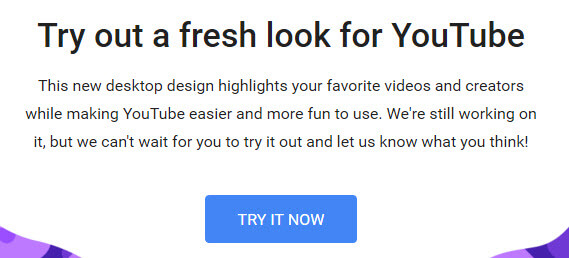
1. Since the new design is still in testing stage, you can try it out by opening this web page and clicking on the button “Try It Now.”

2. The above action will apply the new material design. Go to YouTube page and you should see the new material design theme applied to your YouTube page.

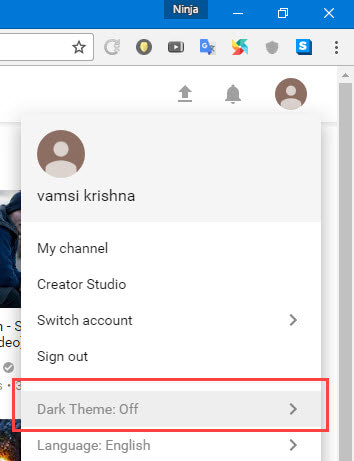
3. Now, click on your account icon appearing on the upper right corner. This action will show you additional options. Here, click on the option “Dark Theme: Off.”

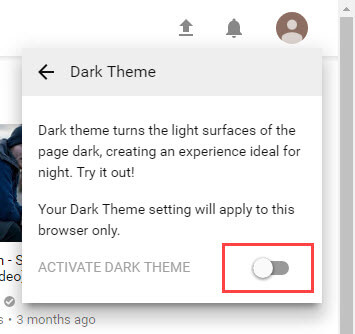
4. This will show the Dark Theme menu. Here, toggle the button next to “Activate Dark Theme.”

5. That’s all there is to do. As soon as you toggle the button, the YouTube dark mode will be enabled.

If you ever want to revert back, simply toggle the switch again and the YouTube dark mode will be disabled.

So, what do you think about the new YouTube dark theme? Do you like it? Do you want any to be added or modified to the dark YouTube theme? Share your thoughts and experiences about the new YouTube dark mode in the comments form below.

How to Hide Facebook Profile without Deleting Your Account

Hide Facebook profile – hate it or love it, Facebook is the most popular way to connect and communicate with other people. There are many instances where people find their lost or forgotten friends, family members, etc. As good as it is, there will be times when you need to hide your Facebook profile so that you don’t expose too much to the public eyes.

Facebook has many privacy options to let you hide Facebook profile. Today, I’m going to show you two different methods to hide Facebook profile. The first method is to modify the privacy settings to make your profile less visible to the public and the second is to deactivate your Facebook account.

1. Modify Privacy Settings to Hide Facebook Profile

It’s great that Facebook has many privacy settings to protect your privacy. However, it can be a pain in the back to modify them. Here’s how to hide facebook profile by modifying the Facebook privacy settings.

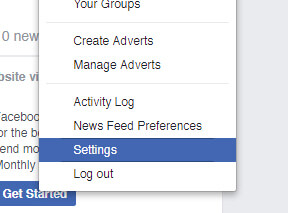
1. Go to your Facebook account, click on the little down arrow appearing in the upper right corner and then select the option “Settings.”

Select settings
Select settings

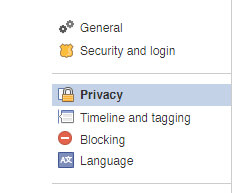
2. In this page, select “Privacy” from the left panel.

Select privacy
Hide Facebook profile – Select privacy

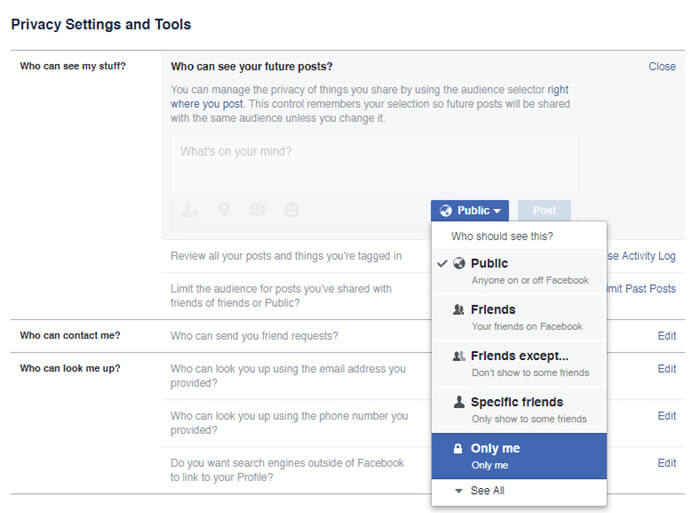
3. Now, in the “Who can see my future posts” section, select “Only me” from the drop-down menu.

Hide Facebook profile - Select only me
Hide Facebook profile – Select only me

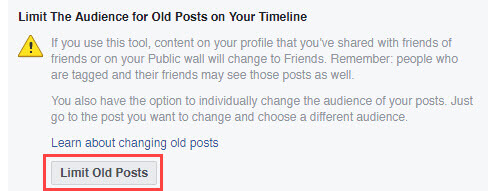
4. After that, click on the link “Limit old posts” in the same section.

Hide Facebook profile - Click limit old posts link
Hide Facebook profile – Click limit old posts link

5. Here, click on the button “Limit old posts.” This will hide all your old posts in Facebook from outsiders. Your friends in the Friends List can still see those old posts.

Note: if you don’t want your friends to see the old posts then you need manually go through those posts and set the status to “Only me” for each and every post.

Click limit old posts button

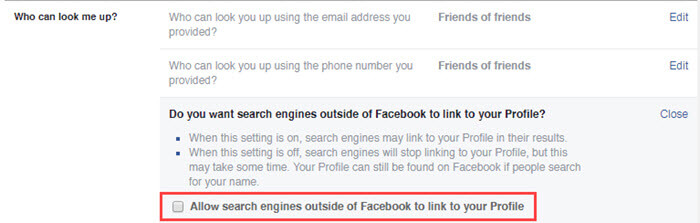
6. In the “Who can look me up” section, click on the “Do you want search engines outside of Facebook to link to your Profile” option and uncheck the checkbox “Allow search engines outside of Facebook to link to your Profile.” This makes sure that search engines don’t find your profile.

Disallow search engines form showing your page in search results
Disallow search engines from showing your page in search results

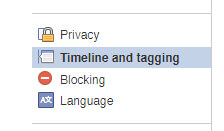
7.  Now, navigate to “Timeline and tagging” in the left panel.

Select timeline and tagging

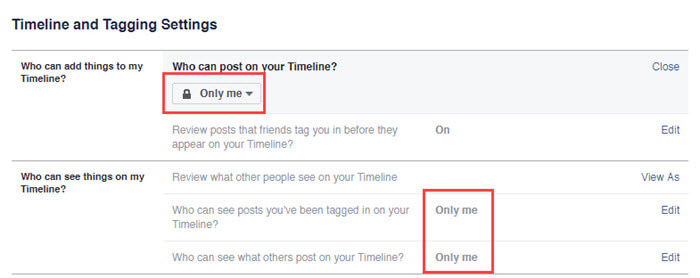
8. Here, change the settings to “Only me” under the sections “Who can add things to my Timeline” and “Who can see things on my Timeline.”

Hide Facebook Profile - Select only me in Timeline and tagging section
Hide Facebook Profile – Select only me in Timeline and tagging section

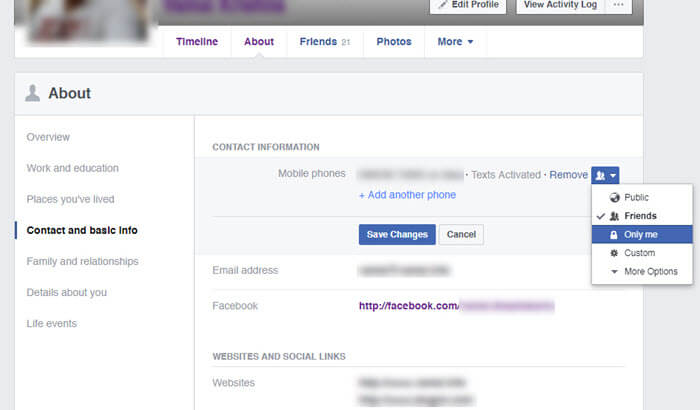
9. The last thing you have to do is modify your Profile page so that the details of your job, contact info, etc are not visible to the public. To do that, open the Facebook profile page, click on the tab “About” and individually change each and every setting to “Only me” or “Friends” depending on the options.

Hide Facebook Profile - Select only me in profile page
Hide Facebook Profile – Select only me in profile page

That’s it. With the above modifications, you’ve successfully hidden Facebook profile from outsiders or public. When you want to revert back, simply change the settings back to default and you are good to go.

2. Deactivate the Account to Hide Facebook Profile

If you are not going to use your Facebook account for a while or if you just want to go offline for an extended period of time, then the best way to hide Facebook profile is to deactivate it.

Don’t worry, the account will be automatically reactivated as soon as you log in again.

It is very easy to hide Facebook profile by deactivating your Facebook account.

1. To start off, open your Facebook account, click on the little down arrow appearing in the upper right corner and then select the option “Settings.”

Click settings
Click settings

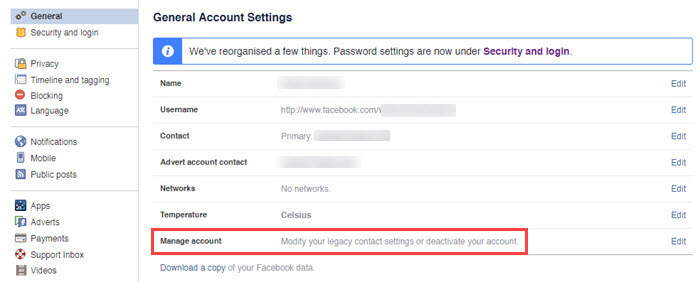
2. On the right panel, click on the option “Manage account.”

Hide Facebook profile - Click on manage accounts
Hide Facebook profile – Click on manage accounts

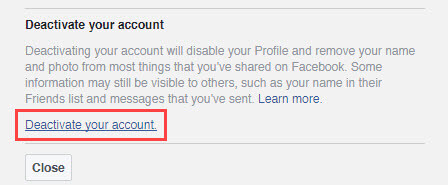
3. Here, scroll down and click on the link “Deactivate your account” and follow the on-screen instructions.

Click deactivate your account

That’s all there is to do and it is that simple to hide Facebook profile in two different ways. The first method is useful if you want to actively use the Facebook account and the second is useful when you want to temporarily stay away from Facebook.

Reliance Jio Prime Membership – All You Need to Know: Plans and Free Stuff

0

Reliance Jio Prime Membership – If you are a Jio customer enjoying the current Happy New Year offer with unlimited voice calls, unlimited messages (SMS), and unlimited 4G data then rejoice. Starting March 1st, 2017, Reliance is launching Jio Prime Membership that lets you continue the already using Happy New Year offer. In this article, let me tell everything you need to know about Reliance Jio Prime Membership, what you should do, how to become Jio Prime member, and what you get with the Jio Prime Membership.

What is Reliance Jio Prime Membership?

Since Reliance is soon ending its free plan for unlimited calls and 4G data, it is introducing a new membership plan called Jio Prime Membership.

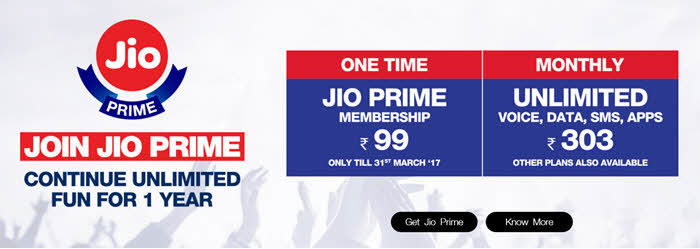
To subscribe to Jio Prime Membership, you need to recharge with ₹99/- between March 1st and March 31st of 2017. Once subscribed, you will be eligible for Prime Membership exclusive plans for an entire year. i.e, from April 1st, 2017 to March 31st, 2018.

Jio Prime Membership Plans

As I said before, with Jio Prime Membership you get access to Prime exclusive plans that gives you free data, messages, and voice calls to any network. Below are the Jio Prime membership plans that we currently know of.

Note: with ever Jio Prime membership plan, you get free voice calls to any mobile network throughout India. The only difference is how much data you will get. So, I’m only going to tell you much data you can use with every Jio Prime exclusive plan.

Currently, Reliance offers three different Jio Prime exclusive plans.

Plan Plan Details (All Plans have unlimited voice calls and messaging) Validity
₹149 2GB High-Speed 4G Data per Month 28
₹303 1GB High-Speed 4G Data Daily (post speed 128 kbps) 28
₹499 2GB High-Speed 4G Data Daily (post speed 128 kbps) 28

You are only eligible for the above plans if you subscribe to Jio Prime Membership by paying ₹99 per year.

Benefits of Jio Prime Membership

With every Jio subscription plan (149, 303, or 499), you will get free unlimited voice calls and SMSs to any network throughout India.

As I’ve shown above, you will also get free data. Depending on the plan you choose, there will be limits on the high-speed data. For instance, with the ₹303 recharge, you will get 1GB 4G high-speed data daily. Post 1GB, the speed with the reduced to 128 kbps.

Moreover, with the ₹99 Jio Prime subscription, you will get free access to all Jio premium apps like Jio TV, Jio Cinema, etc., for one year. Generally, these premium apps amount to ₹10,000.

You can use unlimited data between 2 am, and 5 am. This data doesn’t count in your daily or monthly quota.

Jio Prime Membership FAQ

With all the buzz around Jio subscription service or Jio Prime Membership, you will surely have some unanswered questions. So, below are some important Jio Prime Membership FAQs.

Do I have to pay ₹99 every month?

  • No, Jio Prime Membership is a yearly subscription. So, you have to pay ₹99 per year.

Can Jio postpaid users subscribe to Jio Prime Membership?

  • Yes, the offer is applicable to all Jio users including prepaid, postpaid, and JioFi users.

Do I have to recharge with ₹149 or ₹303 or ₹499 every month to continue Jio Prime?

  • As of now, there is no official rule or statement from Reliance that talk about the cancellation terms. However, if you want unlimited calls and message, you have to recharge with one of the above plans.

I don’t want to subscribe to Jio Prime Membership, what recharge plan do I have?

  • If you don’t want to or cannot subscribe to Jio Prime Membership, you can recharge your Jio sim with regular 4G plans.

How to Join Jio Prime Membership

There are three easy ways to become Jio Prime member.

1. Become Jio Prime Member though MyJio App on your Mobile

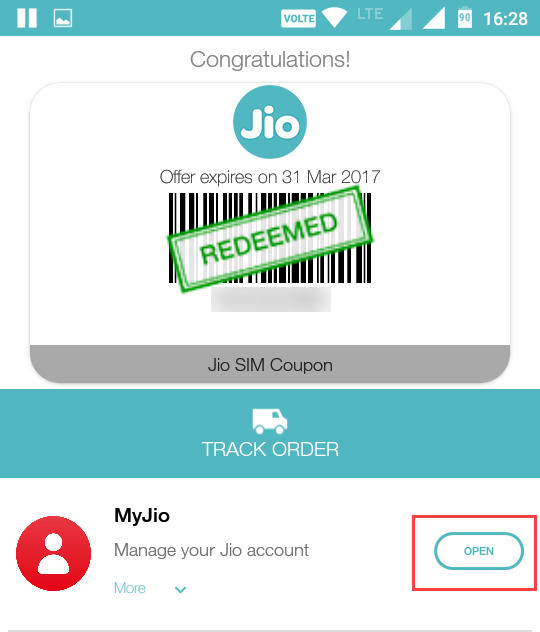
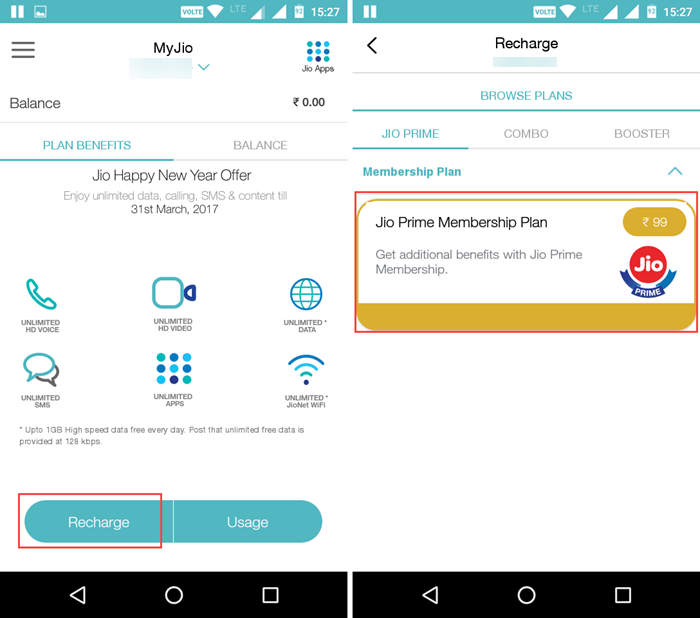
The easiest way to become Jio Prime membership is to use the MyJio app. So, install the app, open it, sign in, and tap on the button “Open” next to MyJio.

Here, tap on the “Recharge” option appearing at the bottom of the screen. Now you will see a new option called Jio Prime. Just tap on the option “Jio Prime membership Plan” and proceed with the payment.

That’s it.

2. Become Jio Prime Member though Jio Website

Besides from your mobile, you can become Jio Prime member using the official Jio website.

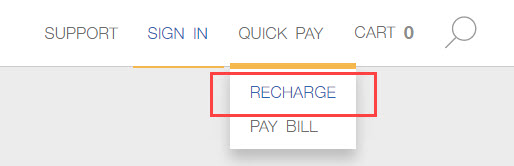
To start off, head over to the official site, and click on the option “Recharge”  from the “Quick Pay” menu appearing at the upper right side of the screen.

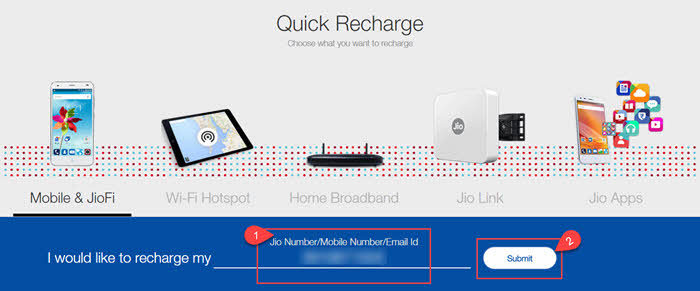
Now, enter your Jio number and click on the button “Submit.”

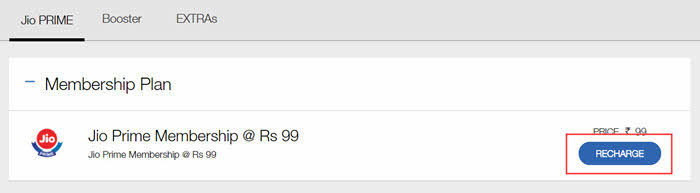
The above action will take you membership plans. Just click on the “Membership Plan” to expand it and then select click on the button “Recharge” to “Jio Prime Membership @ Rs 99.”

That’s it. Follow the on screen instruction to pay the payment.

3. Become Jio Prime Member though Jio Store (offline)

If you don’t want to become Jio Prime member with online recharge then you can go to one of your nearest local jio stores. In the Jio store, you can simply pay ₹99 to join Jio Prime Membership.

Hope that helps and if you have any more question or thoughts about the new Jio Prime membership then to comment below. I will try to answer you question and doubts.

10 Best Google Play Store Alternatives

0

For a vast majority of people, Google Play Store is where we download and install Android apps. Google Play Store has all the apps you’ll ever need. However, Google Play Store is not the only place to download Android apps. There are some best Google Play Store alternatives where you can safely download Android apps. In fact, you can find Android apps in Google Play Store alternatives that you cannot file in the official Play Store. In case you are wondering, here are some of the best alternatives to Google Play Store.

Why Do You Need Play Store Alternative?

There are several reasons why you might want to use Google Play Store alternatives. Here are some of those reasons.

  • You cannot find the app you need because the Play Store won’t allow it. Adblock apps are a good example.
  • You are banned from Play Store, thus in need for Google Play Store alternative.
  • To discover new apps and games that you might like.
  • You don’t want to use yet another Google app.
  • Your Android device doesn’t have Google Apps pre-installed.
  • You want to support open-source Play Store alternatives like F-Droid.
  • To get huge discounts on paid apps.
  • To download paid apps for free given away by Play Store alternative like Amazon app store.

Before you can start using the Play Store alternative, you need to set up your Android device properly. i.e, you need to enable third-party app installation.

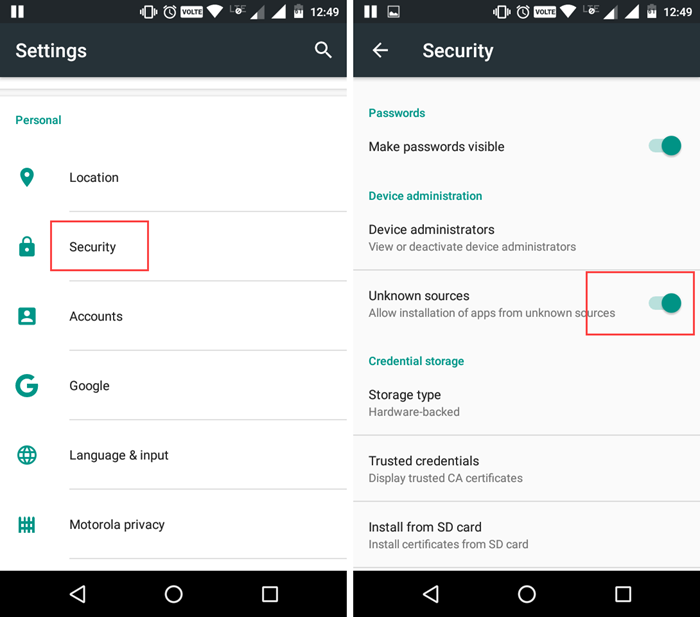
To do that, open the Settings app and select “Security.” Now, scroll down and toggle the button next to “Unknown Sources” under Device Administration and you are good to go. From now on, you can install apps from third-parties without any difficulty.
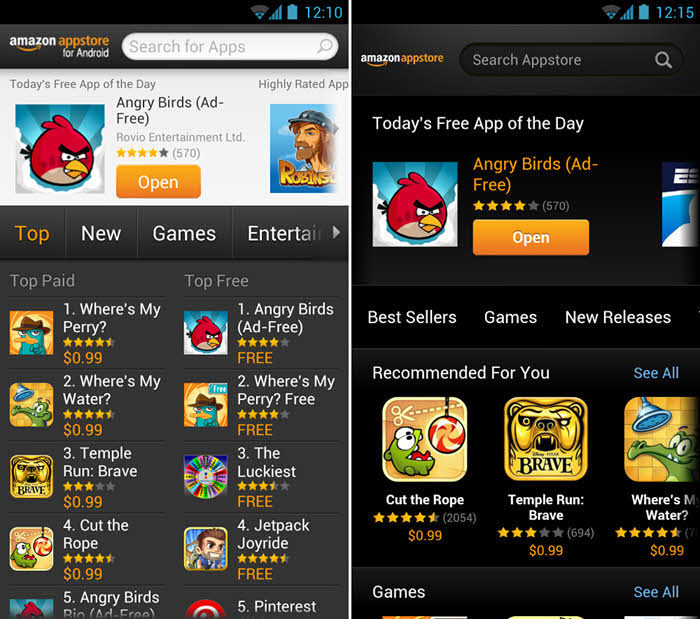
Amazon Appstore is one of my favorite Google Play store alternatives. Amazon launched its app store along with the Kindle tablet edition, which is the main app store for those devices. Amazon app store has a lot smaller app and game selection compared to Play Store, but the good thing is that each and every app is checked to be on par with Amazon’s quality control. Along with the quality, Amazon Appstore lets you test drive an app to know its functionality within your browser before spending your hard earned money on a paid app.

To make things a bit more interesting, Amazon Appstore has a feature called “Free paid app of the day” where it gives you one paid app for free per day. Amazon app store is available in over 200 countries including India, US, Canada & UK. So, do download and try Amazon Appstore. You won’t be disappointed.
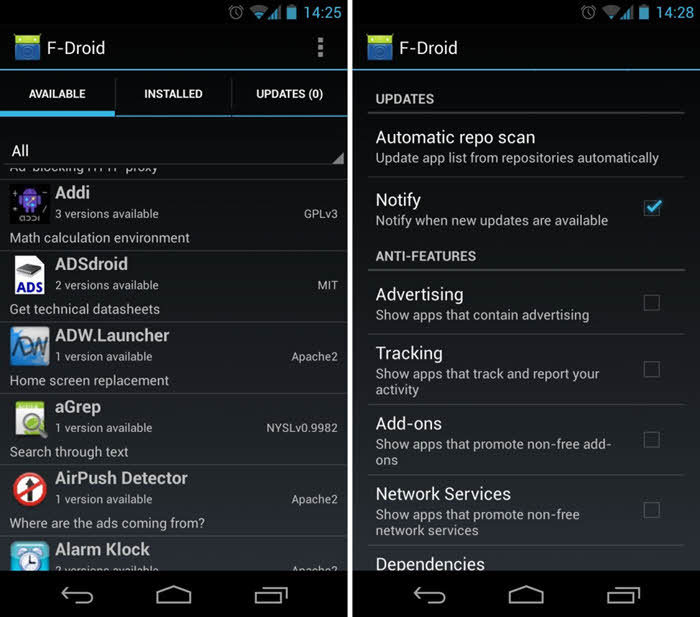
F-Droid is a unique Google Play Store alternative with the primary focus of free and open-source apps. In fact, F-Droid is funded by donations. There are a lot of people who support free and open-source apps. So, if you are one of those then F-Droid is for you. Since every app in the F-Droid is open-source, you can download and access the code in the app. Moreover, all the apps in F-Droid come with no tracking, no malware, and no advertising.

However, the selection of apps is pretty limited due to the strict policies and no profit for developers. That being said, if you are an app developer then F-Droid is highly recommended as you can see how an app works and get access to the code underneath.
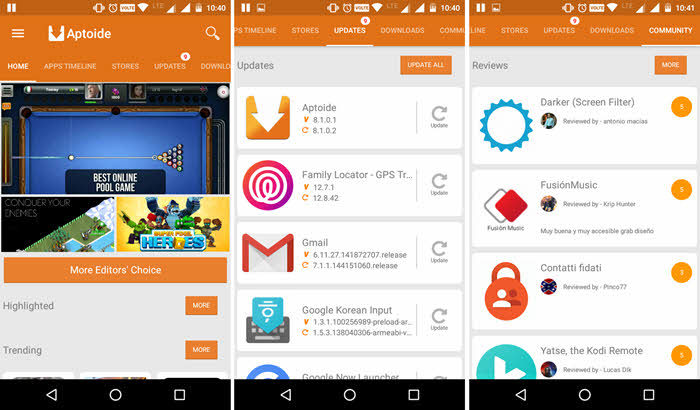
Just like the Amazon Appstore, Aptoide also gives paid apps for free. All you have to do is search for them. That being said, the workings of Aptoide is different from other Google Play Store alternatives. For instance, Aptoide lets users create their own repositories and upload apps. Since users can upload their own apps, you find paid apps for free in Aptoide much more frequently when compared to other Play Store alternatives.

As you can tell, this raises the question of security from malware in apps. To deal with this, Aptoide has three different systems in place to detect malware as they are uploaded to Aptoide. Moreover, Aptoide has a “Trusted Stamp”. If you see the Trusted stamp next to an app, it is most certainly malware free and safe to the end-user. So, if you are looking to install a paid app for free, then do try Aptoide. More often than not, Aptoide has what you need, thanks to its huge community and community driven apps.
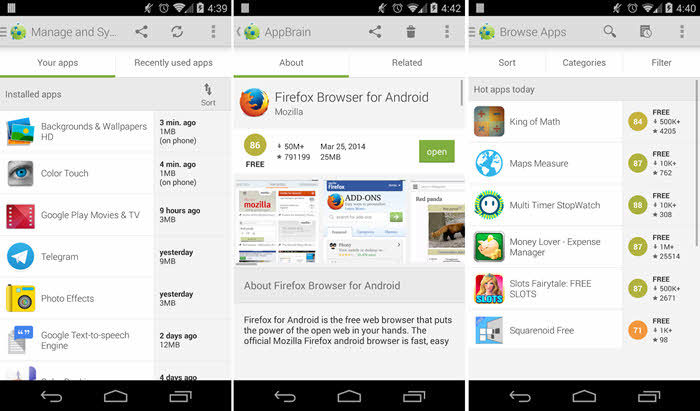
AppBrain is quite amazing and interesting because of its search functionality. The search feature in AppBrain lets you search using your geolocation, device type, interests, etc. The good thing about AppBrain is that it gives you full control over what the app is doing. For instance, you need to explicitly give AppBrain permission to track and update the apps when there is an update available. This specific feature lets you use the older version of an app without the annoying update notifications from the app store.

Along with at, AppBrain lets you install android apps directly from your PC’s web browser, just like the Google Play Store. Moreover, from time to time, AppBrain makes some paid apps free to download. When it comes to the user interface, it is quite familiar and doesn’t take any time to get used to. So, if you are looking for more control over the app store behavior and some free paid apps from time to time then do give AppBrain a try.
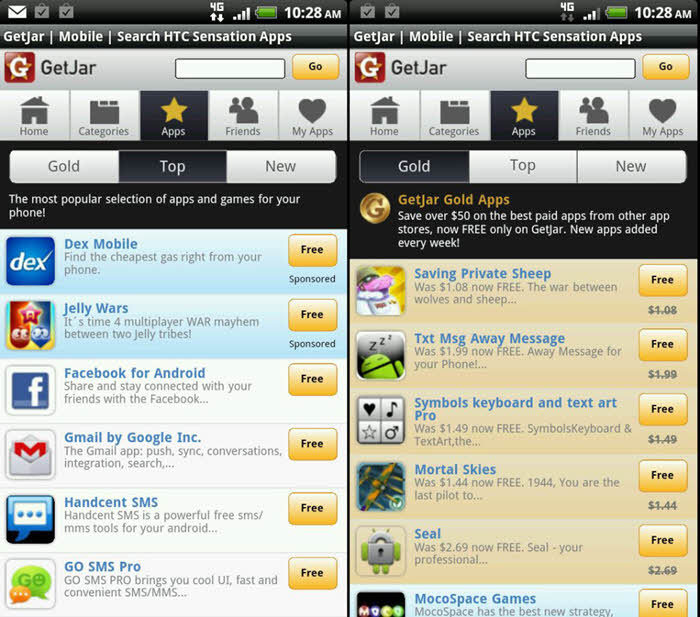
GetJar doesn’t need any introduction as it is one of the oldest app providers for different platforms like Symbian along with Android. GetJar divides apps into categories and sub-categories which are quite comfortable for searching a particular niche app. Each and every app here has like, dislike and comments feature by which you can check out the worthiness of the app. The good thing about GetJar is that it gives you the premium apps for free. However, those free paid apps have in-app advertising by which Getjar generates the lost revenue.

That being said, GetJar still relies on older Android APIs and the user interface looks a bit dated on newer Android versions. Downloading and installing an app using Getjar is pretty easy, just like with Google Play Store.
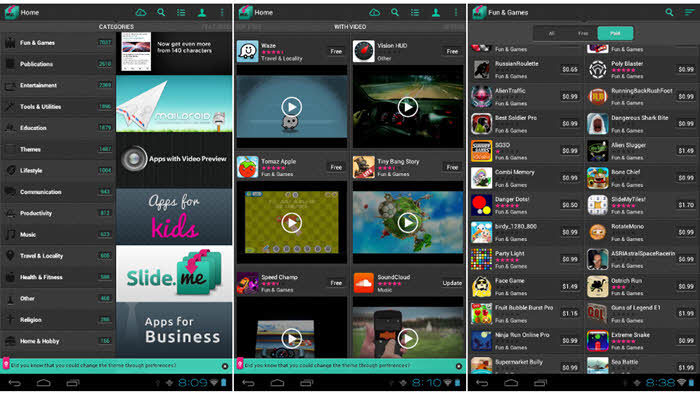
SlideMe is one of the most trusted app stores when it comes to Play Store alternatives. In fact, SlideMe is frequently shipped with devices that don’t use Google Play Store or Google Apps. SlideMe Appstore assures you with high-quality apps by manually testing each and every app with its quality team. All the apps in SlideMe app store are neatly categorized according to user ratings, app type, devices, location, etc. To make things easier, SlideMe provides you with interest-based app results by default rather than the device based results. The good thing about SlideMe is the apps are available globally, no geo-restrictions. Moreover, the app store also supports a wide range of currencies and payment gateways including but not limited to PayPal.
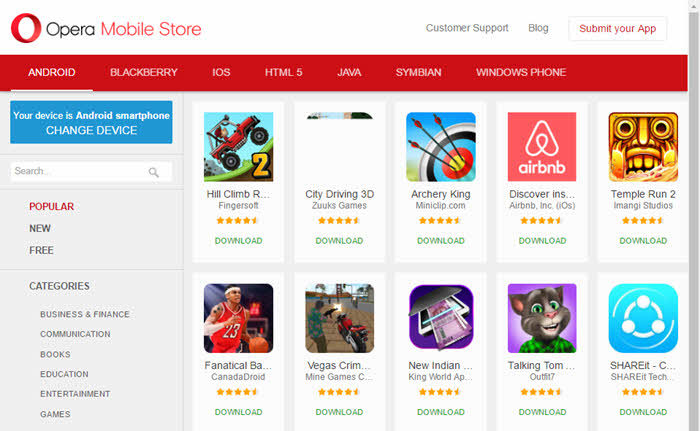
Opera Mobile Store is not that popular but offers apps to a variety of platforms like Android, Blackberry, iOS, Windows Phones, Symbian, etc. Though it looks simple, Opera Mobile Store has a wide selection of apps and games. However, compared to the other play store alternatives, Opera Mobile Store is not that feature rich and configurable. That being said if all you want to is download and install an app then simply visit Opera Mobile Store from your favorite browser app and you are good to go. This eliminates the need to install an App Store app to manage your installed applications.
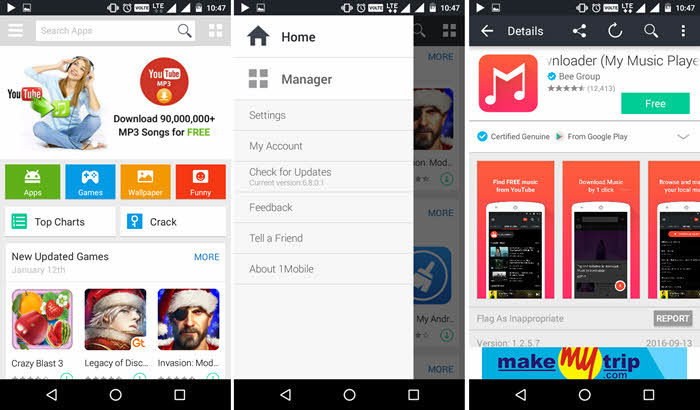
1Mobile Market is one of the popular Play Store alternatives that offers quality and safe app downloads. As of writing this, 1Mobile Market has over one million apps and games. The good thing about 1Mobile is that all the apps in the market undergo strict security inspection to detect any virus or malware embedded in the app. 1Mobile gives you high app download speeds and better download resuming in case of download interruptions. Moreover, 1Mobile lets you better manage your installed apps even when you are offline with thoughtful app update caution.
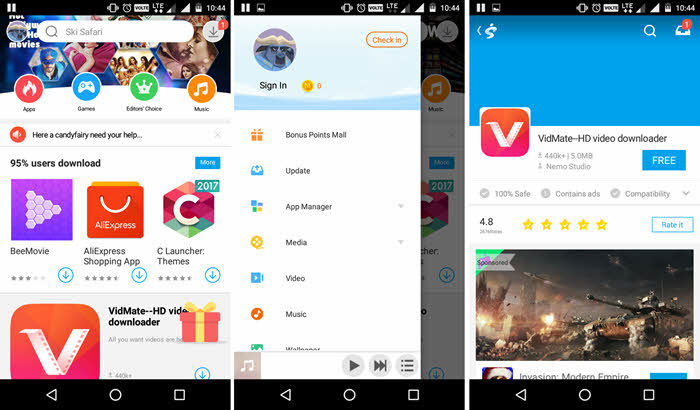
Mobogenie claims itself to be the ultimate Android app store with a wide variety of apps and games. The good thing about Mobogenie is you can find apps that are not available in Play Store without any registration whatsoever. Some of the those banned Play Store apps include but not limited to Vidmate, YouTube downloader, etc. Along with a great search function, the app store is divided into Featured, Categories, Top, and Collections which make it very easy to find the apps you need. Mobogenie also has a file manager to better organize wallpapers, documents, wallpapers, etc. Using the PC client, you can manage your device directly from your PC.
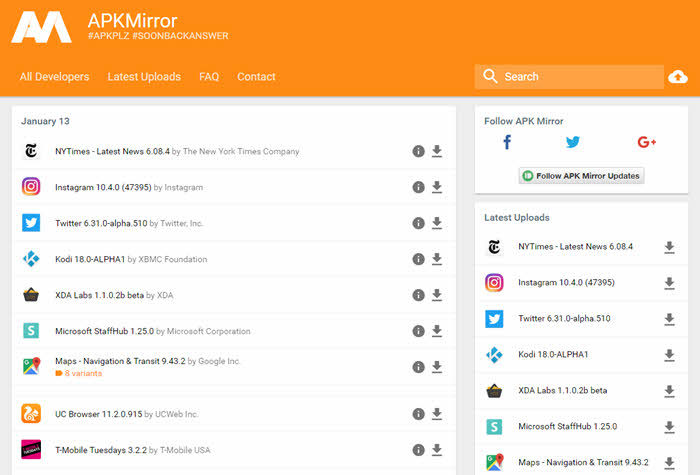
Of all the Google Play Store alternatives shared here, APKMirror is not so much an app that manages your installed apps. APKMirror is a web-based service and you can access it from any browser app on your Android device. The user interface is pretty neat and finding an app is pretty easy. As you can tell from the name itself, you can download the .apk file from APKMirror. The good thing about APKMirror is that it lets you download the older versions of an app.
All the alternatives to Play Store shared in this article has their own pros and cons. Not to mention, they provide some awesome features and access to some interesting apps that are not available in the Google Play Store. That being said, there are many other Google Play Store alternatives that are yet to be experienced. However, one should always be careful when using alternative play store apps.

Hope that helps. Do comment below to share your thoughts and experiences about above discussed Play Store alternatives or to share your favorite Android app store.

How to Disable Start Menu Advertisements in Windows 10

0

With Windows 10, Microsoft is doing a lot of things like aggressively pushing the new operating system to all the Windows 7 and 8.1 users, making all the updates including the driver updates mandatory, etc. Among all the new features, app suggestions (start menu advertisements) in the start menu are one of the controversial features as some critics call it as Ads in the start menu. Microsoft clarifies this feature as App Suggestions which displays both free and paid apps and they don’t get paid in any way by the app developers to promote the apps.

No matter what you want to call it, the start menu advertisements are enabled by default. If you don’t like this feature or if you think it is intrusive then here is how to disable start menu advertisements in Windows 10.

Disable Start Menu Advertisements in Windows 10

To disable app suggestions or advertisements in the Windows 10 start menu, you need to modify the personalization settings.

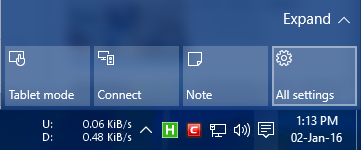
Step 1: To do that, click on the Notifications icon in the taskbar and select the option “All Settings“.

turn-off-app-suggestions-win10-select-allsettings

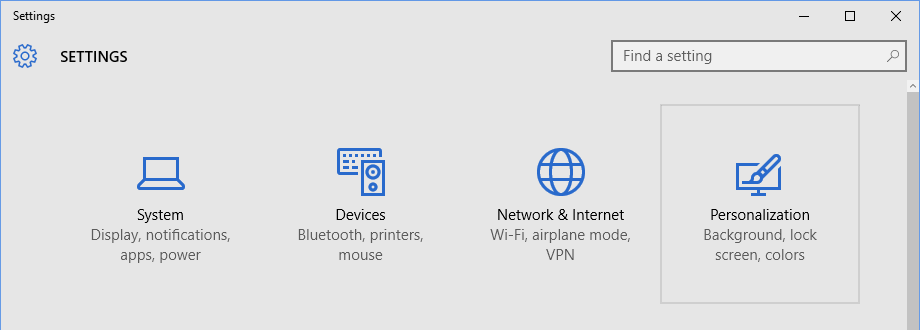
Step 2: The above action will open the All Settings window on your Windows machine. You can also open this window using the Windows 10 keyboard shortcutWin + I“. In the settings panel, find and select the Personalization option.

turn-off-app-suggestions-win10-select-personalization

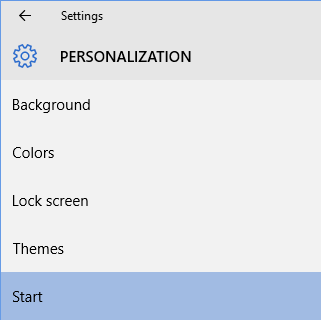
Step 3: Once the personalization panel has been opened, navigate to the “Start” category appearing on the left pane.

turn-off-app-suggestions-win10-select-start

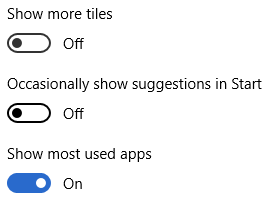
Step 4: This action will bring forward the options related to the Start Menu. On the right pane, find the option “Occasionally show suggestions in start” and toggle it from On to Off.

turn-off-app-suggestions-win10-toggle-app-suggestions

Step 5: That’s all there is to do. From this point forward, the Start menu won’t show you any app suggestions.

Alternate Method to Disable Advertisements in Windows 10 Start Menu

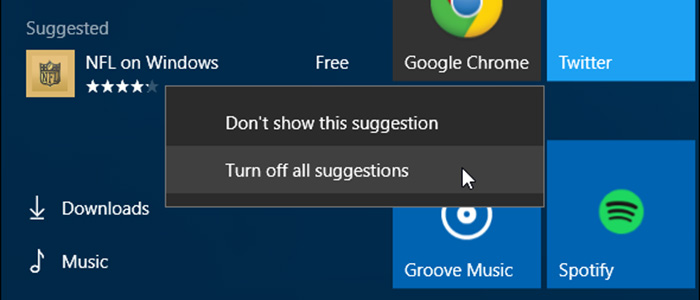
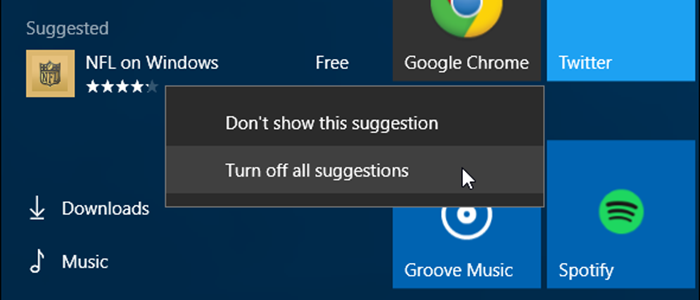
Alternatively, you can also turn off the start menu app suggestions directly from the start menu. Just right-clicking on the app suggestion and select the option “Turn off all suggestions.”

turn-off-app-suggestions-win10-turn-off-from-start-menu

The good thing about this approach is it will give you the ability to reject the current suggestion. All you have to do is select the option “Don’t show this suggestion“.

As you can see, it is very easy to disable app suggestions or advertisements in the Windows 10 Start menu.

Do comment below sharing your thoughts and experiences about using the above methods to disable start menu advertisements in Windows 10.

How to Use Multiple Facebook Accounts on Android

If not many, some of us use multiple facebook accounts. There may be any number of reasons for this like a work facebook account, personal facebook account, etc. Of course, you can always hide Facebook profile if you need to, even when using multiple Facebook accounts. More often than not, multiple facebook accounts make things a tad bit easier to deal with. However, when using Facebook app on Android, you cannot switch between multiple facebook accounts easily.

So, if you have multiple facebook accounts and want to use those accounts at the same time, here is how to do it on Android. In case you are wondering, it is very easy to use multiple facebook accounts on Android, using a free app called Parallel Space.

What is Parallel Space App?

Parallel Space is a simple, free, and effective app that lets you run the same app simultaneously in different instances. Parallel Space does this by simply cloning the app into its own space. Since the app is in its own space, you can log into a different account without affecting the original app.

Use Multiple Facebook Accounts on Android

Step 1: As I said before, you are going to use Parallel Space app to use multiple facebook accounts on Android. So, download and install the Parallel Space app.

multiple facebook accounts on android install parallel space app

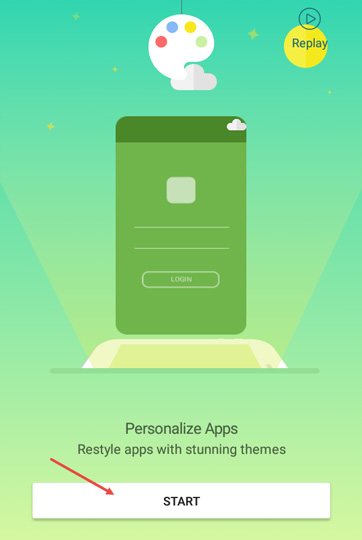
Step 2: After installing the app, open it and tap on the button “Next” to continue.

multiple facebook accounts on android tap of start

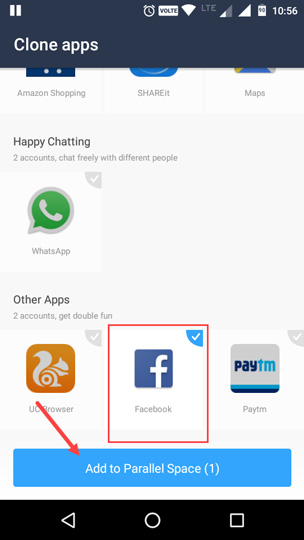
Step 3: As soon as you click on the “Next” button, Parallel Space will show you all the apps that are compatible with the app. You can find the Facebook app in the “Others” section at the bottom. Simply select the facebook app and tap on the button “Add to Parallel Space.”

If you cannot see the facebook app then it means that you did not install the facebook from the Play Store.
multiple facebook accounts on android select facebook app

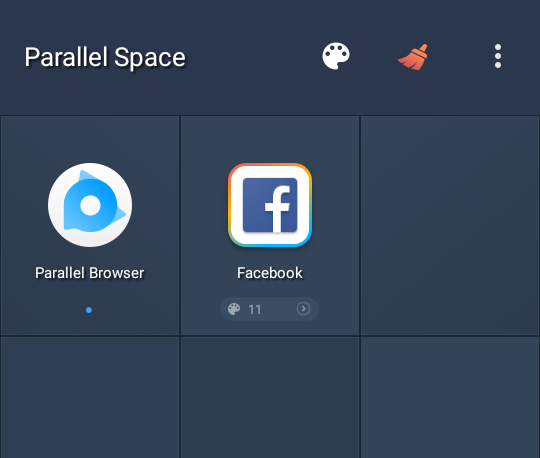
Step 4: The above action will add the facebook app to a parallel space. From now, whenever you want to use another account, simply open the app from parallel space and you are good to go.

multiple facebook accounts on android facebook app added

As I said before, you can use multiple facebook accounts simultaneously without logging out. In fact, you can switch between multiple facebook accounts using the multitask button (little □ icon next to the home icon).

Customizing Apps Added to Parallel Space

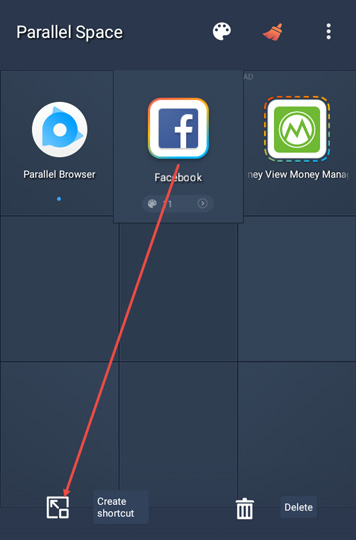
If you use this account frequently then you can create a shortcut on your home screen. To do that, drag the facebook icon to the “Create Shortcut” icon.

multiple facebook accounts on android drag facebook app to create shortcut

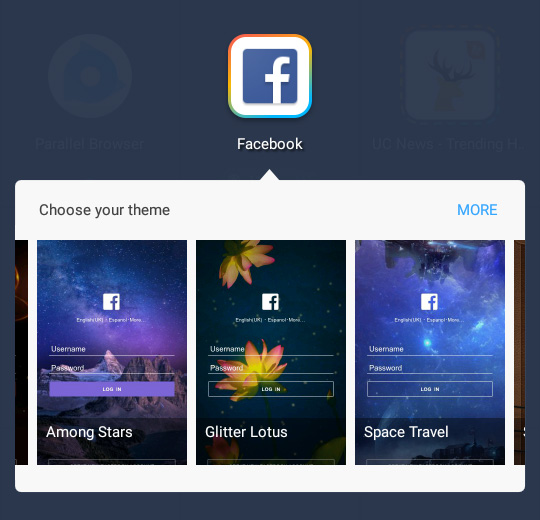
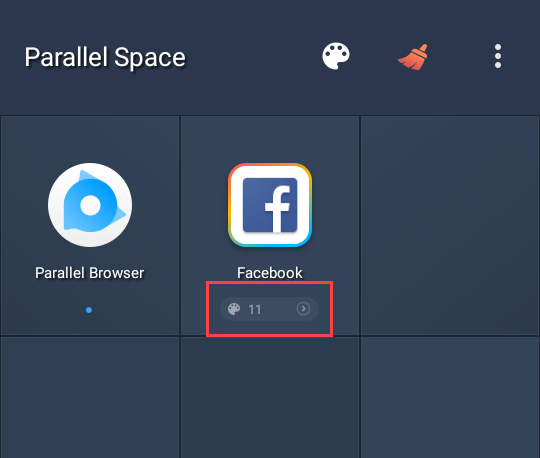
Moreover, if you think you will get confused, you can change the theme of the app added to the parallel space. To change the theme, tap on the tiny “theme” icon.

multiple facebook accounts on android tap on themes

The above action will show you a bunch of themes for the facebook app. Just select the theme and you no longer get confused when using two facebook accounts on android.

multiple facebook accounts on android facebook themes

If you like this, then do read how to avoid spam by disabling the facebook email address.

That’s all there is to do and hope that the how to use multiple facebook accounts on android guide helps you. Do comment below sharing your thoughts and experiences about using the above app to use multiple facebook accounts on android.

Jio Effect: Airtel to Offer Free 4G Data for One Year

0

Jio did make a lot of things good. And, still forcing other telecom companies to make their 4G tariff rates as consumer friendly as possible. In an attempt to counter the Reliance Jio’s free plans with unlimited calls and free data, most telecom operators are biting their tongues and lowering their tariff charges.

Airtel to Offer Free 4G Data for One Year

The latest was from the India’s biggest telecom operator Airtel. Starting from today. ie, from Wednesday 4th January 2017, any new Airtel customer, including existing prepaid and postpaid plans and users who are upgrading to 4G will get 3GB free 4G data per month. The offer ends on 31st December 2017, which simply means that you are quick enough, you can get free 3GB data for 12 months from Airtel.

The total worth of the data provided by Airtel for the entire 12 months amounts to ₹9000 per customer.

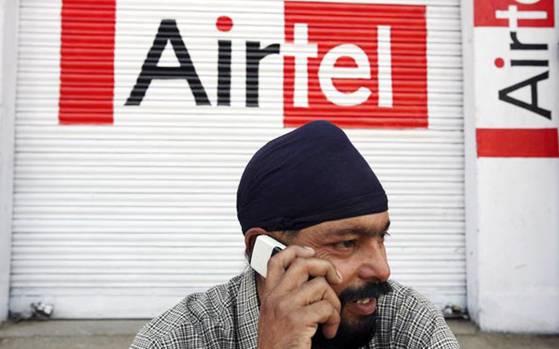
Airtel Free 4G Plans - Man talking with phone
Airtel Free 4G Plans – Man talking with phone

In a statement, Bharathi Airtel spokesperson said:

Customers will get free 3GB data every month till December 31, 2017 with select prepaid and postpaid packs under this offer. This free data benefit will be over and above the pack or plan benefits.

Moreover, the good thing about this offer is that it is available across India.

In case you don’t know, this new free 4G data by Airtel is over and above the existing tariff plans like 1GB 4G data for ₹354 and unlimited calling to any network in India.

Additionally, any customer switching to Airtel 4G gets 4GB data along with free calls in India. i.e, free local and STD calls.

If you are a postpaid Airtel customer then you can also avail the Airtel free 4GB data offer along with your regular Infinity plan. For instance, the ₹549 Infinity plan gets you 6GB 4G data (3GB with the Infinity plan and 3GB free Airtel 4G data). Similarly, you will get 8GB 4G data (5GB + 3GB) on ₹799 Infinity plan.

Finally, thanks to Jio and its aggressive plans and promotions, biggest players in the Indian telecom like BSNL, Idea, Airtel, Vodafone, etc.., are coming out of woodworks with better, affordable, and sensible tariff plans. Thanks to this, the access to the internet is more affordable in India than ever.

So, what you think? Does the new Airtel free 3GB 4G data per month get you excited? Does it make you switch or upgrade to Airtel 4G? Do share your thoughts and experiences in the comments section below. I love to hear from you guys.

How to Create Shared Folders in VMware [Share Host Folders with Guest]

0

Create shared folders in VMware (share host folders with guest): Virtual machines are the best way to experience a new operating system or even to create a suitable testing environment. In fact, I use several different operating systems by installing them on VMware.
As you are using, you may sometimes want to access host operating folders in the guest operating system.

Thankfully, VMware makes it very easy to create shared folders. In case you are wondering, here is how to create shared folders in VMware – from host operating system to guest operating system.

Note: before proceeding, make sure that you have VMware tools installed.

Create Shared Folders in VMware

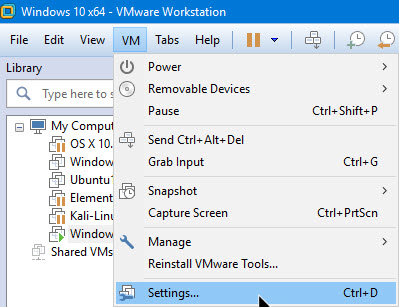
Creating host to guest shared folders in VMware is very easy and straightforward. To start off, open VMware and launch the virtual machine. After starting the virtual machine, navigate to “VM” and then select “Settings.”
shared-folders-vmware-click-settings

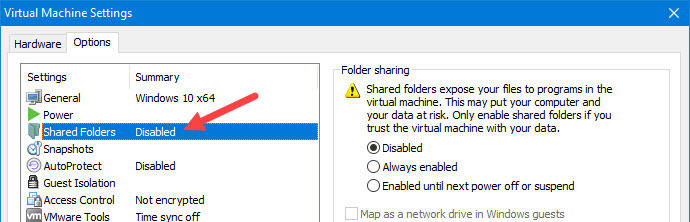
The above action will open the VM settings. Here, navigate to the “Options” tab and select the “Shared Folders” on the left panel.
shared-folders-vmware-select-shared-folders-option

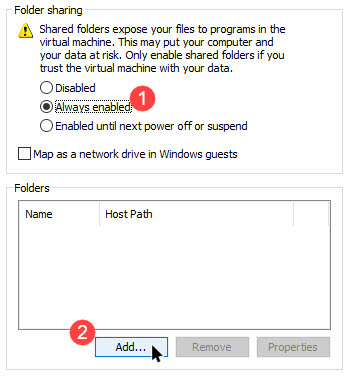
Now, on the right panel select “Always Enabled” and then click on the button “Add.”

shared-folders-vmware-click-add

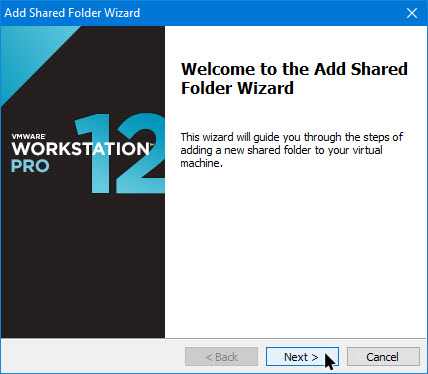
The above action will open the Shared Folder wizard. Here, click on the next button to continue.

shared-folders-vmware-click-next

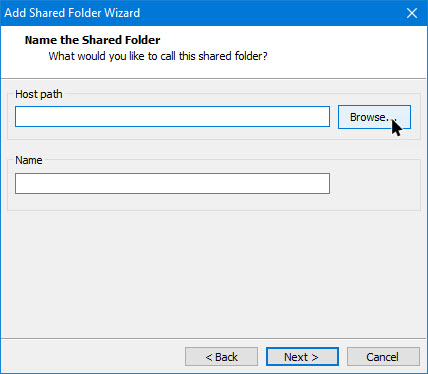
In this window, click on the button “Browse.”

shared-folders-vmware-click-browse

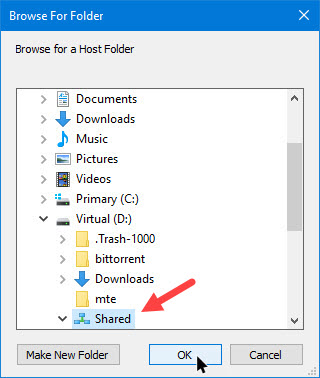
In the browse window, select the folder you want to share and click on the “Ok” button.

shared-folders-vmware-select-folder-to-share

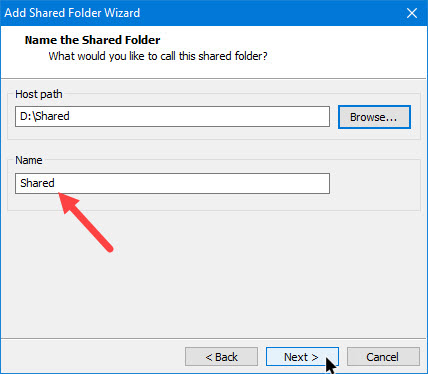
Now, name the folder and click on the “Next” button.

shared-folders-vmware-name-shared-folder

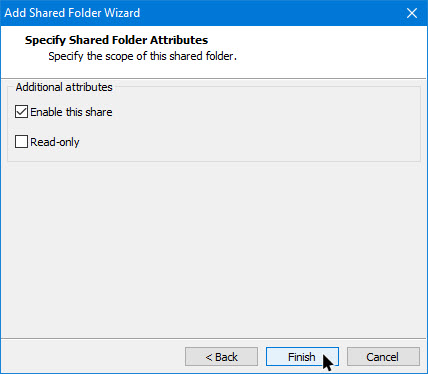
Here, click on the button “Finish” to complete the procedure. If you want to make the folder read-only then don’t forget to select “Read Only” checkbox.

shared-folders-vmware-finish-wizard

Access Shared Folder in VMware

To see the folder in your guest operating system, you need to open the network shares. I’m using Windows, but the procedure should be similar for other operating systems.

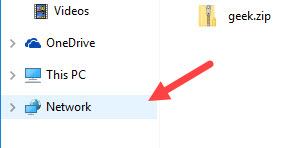
To start off, open the file explorer and then select the option “Network” appearing on the left panel.

shared-folders-vmware-click-network

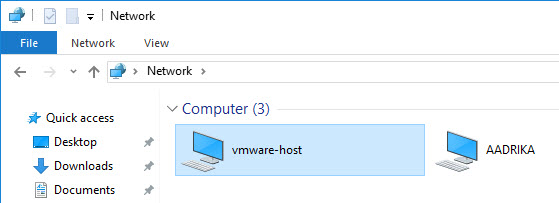
Wait for the scan to complete and you will see a new network share named “vmware-host”. Double-click on it to open.

shared-folders-vmware-network-share

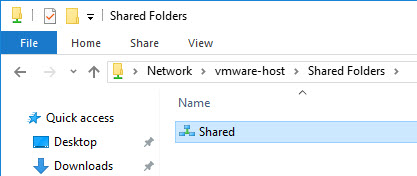
Here, you will see your newly shared folder in Vmware.

shared-folders-vmware-shared-folder

Hope that helps and do comment below sharing your thoughts and experiences about using the above method to create shared folder in VMware.

How to Block USB Drives in Windows 10 [Quick Tip]

0

Block USB Drives in Windows: We all use different USB devices to do a lot of things like storing data, adding peripheral devices like keyboard, mouse, etc. However, you many need to sometimes need to block USB drives in Windows 10.

There may be several reasons like you not wanting people to attach random USB drives into your system or you want to protect your system from USB viruses and malware.

That being said, you usually see the USB devices being blocked in environments like schools, offices, etc. So, no matter what the reason is, it is very easy to block USB drives in Windows. Here’s how to block USB in Windows.

Block USB Drives in Windows 10

Generally, you need to go through Registry edits or Group Policy edits to block USB devices in Windows. However, you can also do the same thing with just a few clicks.

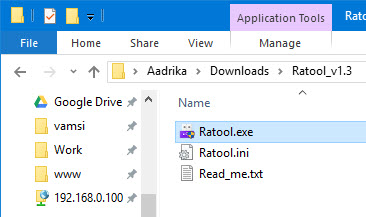
To start off, download the free and portable Removable Access Tool, extract it and execute the EXE file.

block-usb-dirves-windows-open-application

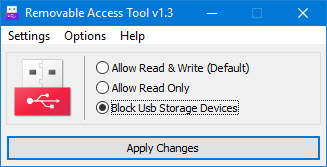
After opening the application, select the radio button “Block USB storage devices” and click on the button “Apply.”

block-usb-dirves-windows-block-usb-drives

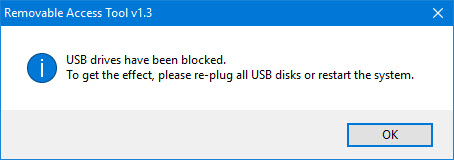
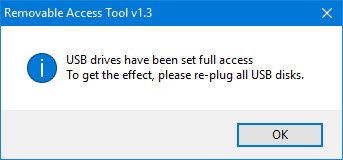
You’ll receive a message telling that you need to replug all your drives or restart the system to see the changes. Click on the button “Ok” to close the window and do as it says.

In my case, I’ve replugged my USB drive and it no longer shows in the File Explorer.

block-usb-dirves-windows-block-usb-drives-confirmation

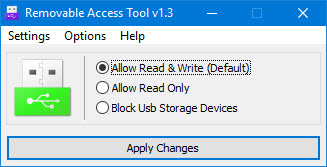
If you want to unblock USB drives then select the radio button “Allow Read and Write (Default)” and then click on the button “Apply.”

block-usb-dirves-windows-allow-usb-drives

Again, either replug all your USB devices or restart your system to see the changes.

block-usb-dirves-windows-allow-usb-drives-confirmation

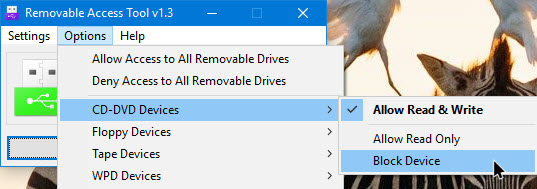
Apart from blocking USB drives, you can block the CD drives too. Just navigate to “Options > CD-DVD Devices” and then select “Block Device.”

block-usb-dirves-windows-block-cd-drive

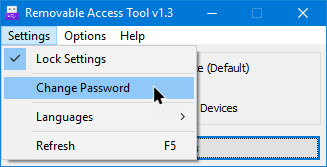
If you don’t want other to change the settings then you need to password protect the application. To do that, navigate to “Settings” and then select “Change Password.”

block-usb-dirves-windows-change-password

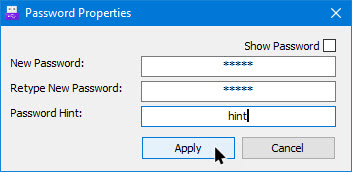
This action will open the Password Properties window. Here, enter your password twice and then click on the button “Apply” to save the changes.

block-usb-dirves-windows-enter-password

From this point forward, whenever you want to change the settings, you need to provide the password.

Hope that helps and do comment below sharing your thoughts and experiences about using the above method to block USB drives in Windows 10.

How to Hide Audiobooks from Music Players [Quick Tip]

0

Hide Audiobooks from Music Players: Most of us love audiobooks. They provide the best way to spend the leisure time and enjoy our favorite books. The good thing about the audiobooks is we can listen to them whenever we want no matter what we are doing.

Why Hide Audiobooks from Music Players?

Unless you are using a service like Audible, you will be using any of the several audiobook readers available for your particular platform. Moreover, most audiobooks will be in the popular music format like MP3. As you can tell. these files will be shown and played by your general music player on your smartphone.

Though this is not a bad thing, we don’t want to hear an audiobook when in fact we launched the music player for listening music. So, it is better to hide audiobooks from other music players

In case you are wondering, here is how to hide audiobook from Music Players.

Hide Audiobooks from Music Players

The good thing is, the trick I’m going to show you will work on any smartphone (Android or iOS) and you don’t have to use any apps whatsoever.

To hide audiobooks from other music players, all you have to do is create a simple file.

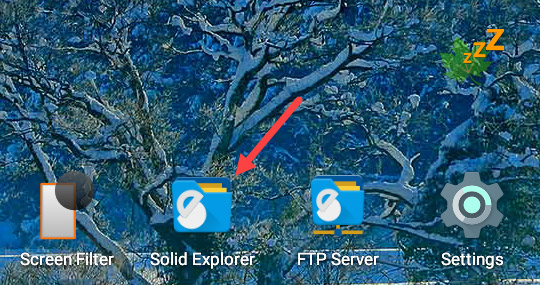
To do that launch the file manager on your smartphone. I’m using Solid Explorer on my android device. You can use your favorite application.

hide-audiobooks-open-file-explorer

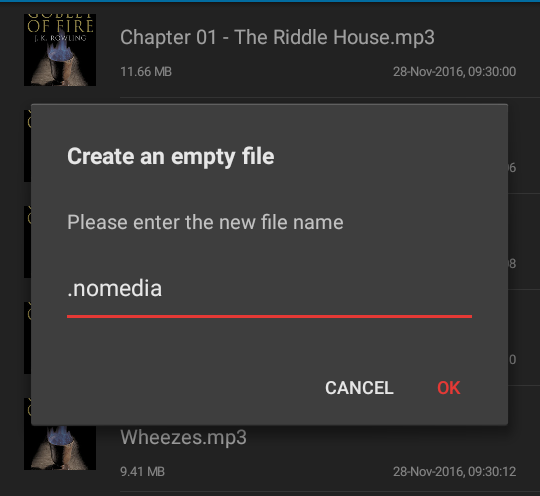
Once launched, navigate to the audiobook folder and then create a new file with the name “.nomedia“. The period in front of the name is important.

Note: if you don’t have access to a file manager on your smartphone then you can also use a computer.

hide-audiobooks-create-nomedia-file

That’s all there is do. As soon as you create, other than your audiobook reader, all the other music players on your smartphone will ignore the directory and will not play those files.

In fact, they won’t even be visible in your music player app.

Hope that helps and do comment below sharing your thoughts and experiences about using the above method to hide audiobooks from music players.