10 DuckDuckGo Search Tips You Should Know and Try

0

Even though most or even majority of us think of Google when we hear the word search, DuckDuckGo is also one of the best search engines that is trying to go head to head with Google while protecting the user privacy. The good think about DuckDuckGo is that unlike Google, it won’t filter the search results based on your interests or search trends.

Instead, DuckDuckGo displays the same search results for all its users regardless of their interests and geographic location. Just as you can enhance how you can search Google using Google search tips, DuckDuckGo has its own search cheat sheet that enables you to search quickly and efficiently. In case you are wondering, here are some of the best DuckDuckGo search tips you should know and try.

DuckDuckGo Search Tips You Should Try

Below are the DuckDuckGo search tips that you should know. Do give all of them a try and see how it works out in your daily usage.

1. DuckDuckGo Search Tips – Shorten/Expand Web Links

You can shorten or expand a web link with DuckDuckGo. Simply type shorten followed by the web link to get the shortened URL. Similarly, type expand followed by the shortened link to get the expanded version. Trust me, this simple feature is pretty helpful in a lot of times. Especially when you want to quickly share a link or two.
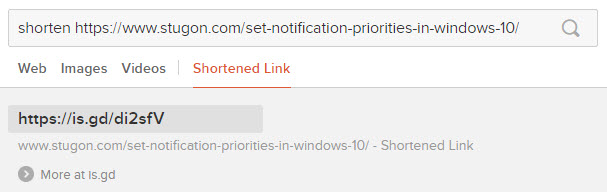
duckduckgo search tips create shortlink

2. DuckDuckGo Search Tips – Search Social Media Information

When you type the sign of that social media followed by the username, you will get a snapshot of the user bio. For Twitter use “@”, for Google Plus use “G+” and so on. As you can see from the below image, I’ve used the twitter sign to get the social media information. Also, follow us on twitter.

duckduckgo search tips social media search

3. DuckDuckGo Search Tips – Create Random Passwords

Using DuckDuckGo, you can easily generate random and strong passwords. Just type password followed by the number of characters you wish the password should be and hit the enter button. For instance, you can create an eighteen character password using the search term password 18. As soon as you do this, DuckDuckGo creates a strong password which includes alphabets and numbers.
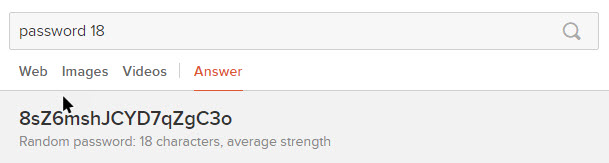
duckduckgo search tips create password

4. DuckDuckGo Search Tips – !bang

Exclamation mark has a special importance in DuckDuckGo. You can search other websites from DuckDuckGo by typing in exclamation, followed by the external website name, followed by the search terms. It will look something like this !twitter #Olympics. This search term will show the twitter search page with the results of the entered hashtag.
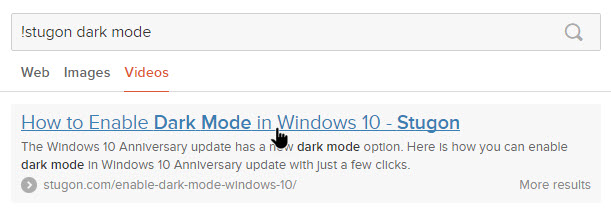
duckduckgo search tips search with bang

5. DuckDuckGo Search Tips – Find Cheatsheets

Who doesn’t love using a cheat sheet or quick keyboard shortcuts? Type in the app name followed by cheatsheet and DuckDuckGo will show you the full cheat sheet of the target app or service if it is available. For instance, typing facebook cheatsheet, will get the shortcuts which you can use on facebook.
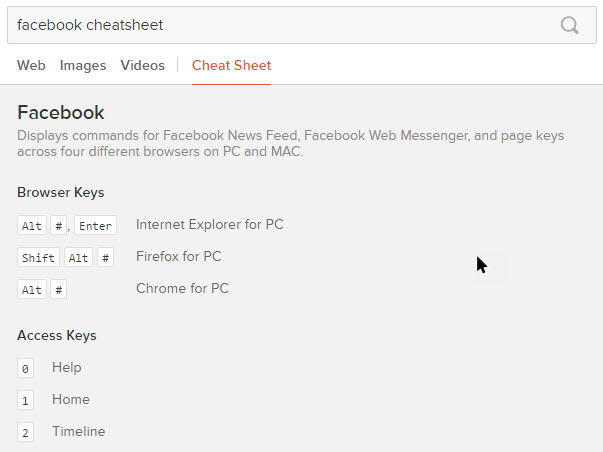
duckduckgo search tips get cheetsheets or keyboard shortcuts

6. DuckDuckGo Search Tips – Emoticons

How many times have you seen an emoticon and not know the meaning of it? Sometimes, this can be embarrassing. To get rid of it, just type in the emoticon expression in the search bar, and DuckDuckGo will tell you what it means. The good thing is that the support is continuously updated to accommodate the latest emoticons.
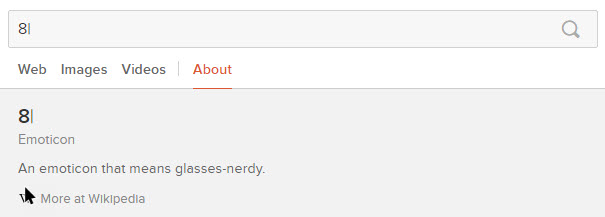
duckduckgo search tips know about emoticons

7. DuckDuckGo Search Tips – Change Case of Text

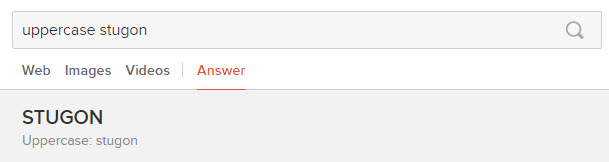
There will be times when you need to quickly change the case of the text. More often than not, you won’t find a readily available service to do that. However, just type uppercase or lowercase followed by the text and DuckDuckGo will change the text case for you. A pretty handy tool if you write a lot.
duckduckgo search tips change text case

8. DuckDuckGo Search Tips – Generate QR Code

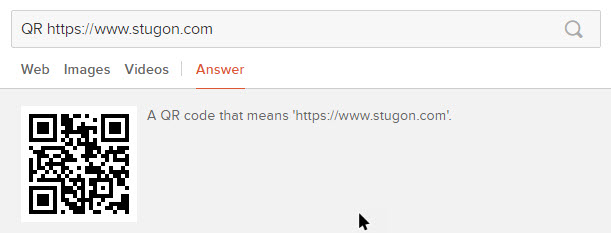
This is one of the coolest features of DuckDuckGo. To generate a quick and simple QR code, you don’t actually have to use separate service or software. Just type in QR followed by your website URL or any other text and DuckDuckGo will generate an awesome QR code in just seconds.
duckduckgo search tips create qr code

9. DuckDuckGo Search Tips – Encode URLs for Developers

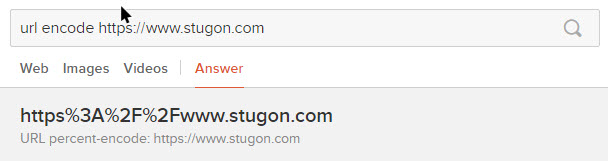
If you are a developer, you should have come across a situation where you need to encode the URLs that you are about to include in your code. To do that, just type in url encode followed by the web link, and DuckDuckGo will percent encode the non-alphabets, non-numerals, and non-special characters to give you a safe and error free link to include in your code.
duckduckgo search tips encode url

10. DuckDuckGo Search Tips – Generate Figlets

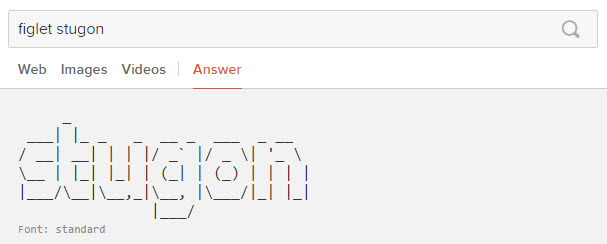
Do you love ASCII Art? Just type in figlet followed by your text and DuckDuckGo will generate a neat figlet of that text. Once generated, copy the figlet and use it as needed.
duckduckgo search tips create figlet

That’s all there is to do and hopefully that helps. If you think I missed any of your favorite DuckDuckGo search tips then do command below sharing your thoughts and experiences.

How to Set Notification Priorities in Windows 10

0

Microsoft has introduced some cool new features in the Anniversary update, including but not limited to the new action center and the ability to set notification priorities in Windows 10. The action center resides in the bottom-right corner of the taskbar. It collects and shows all the notifications and alerts from both the regular windows applications and the new modern apps.

If you click on action center, a pane opens up on the right-hand side of your screen, which shows the notifications from various applications running on your system. Windows 10 gives you the option to set notifications priorities. What it means is that you can decide which app notification you would like to see on the top of the others or vice-versa. For instance, if you don’t want to miss the email or skype notifications by burying them under all the other not-so-important notifications then you can adjust the notification priorities in Windows 10 accordingly.

As you can tell, the ability to set notification priorities in Windows is pretty helpful as you won’t miss the important notification among all the other one. So, in this article, I’m going to show you how to set notification priorities in Windows 10 the easy way.

Windows 10 Notification Priority Levels

Since you can set notification priorities in Windows 10, there are multiple notification priority levels in Windows 10 called Top, High, and Normal. Here’s what these notification priorities actually mean.

Top Priority: The top priority notifications appear on top of all the other notifications at all times. Since the notification appears on top all the other notifications, you can only set one app as the top priority. If you try to set multiple apps to top priority, the previous app will be automatically demoted to high priority.

High Priority: Notifications set to high priority will be shown right below the top priority notifications. You can set as many apps you want as the high priority, they will be shown one after the other.

Normal Priority: The notifications set to normal priority will be shown below the high priority notifications. Just as high priority notifications, you can set as many apps as you want to the normal priority.

Below is how you can set notification priorities in Windows 10.

Set Notification Priorities in Windows 10

Also read: how to enable dark mode in Windows 10

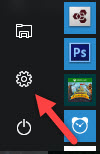
1. It is very easy to set notification priorities in Windows 10. To start off, click on the Start button and then click on the Settings icon to open the Settings app. You can also use the shortcut Win + I to open the Settings app.

set notification priorities in windows 10 click settings icon

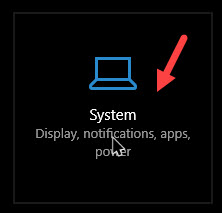
2. In the Settings app, click on the System icon.

set notification priorities in windows 10 select system

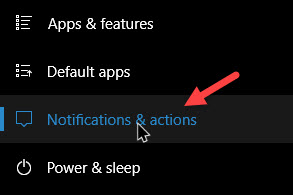
3. Here, go to the navigation pane appearing on the left side of the screen and click on the option “Notifications and Actions” option.

set notification priorities in windows 10 select notifications and actions

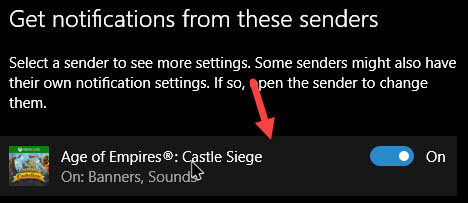
4. On the right pane, scroll down to the “Get notification from these senders” section and select the app you want to set notification priorities in Windows 10. In my case, I’m selecting the Age of Empires: Castle Siege app.

set notification priorities in windows 10 select app

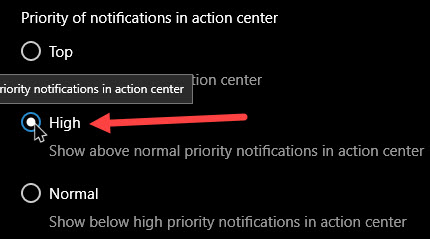
5. Once the app settings are opened, scroll down to “Priorities of notifications in action center” and set your priority. As you can see, I’m setting the notification priority in Windows to “High.”

set notification priorities in windows 10 set notification priority

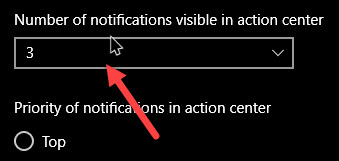
6. That’s all there is to do. If you want to, you can also set how may notifications are visible in the action center from a particular app in the “Number of notifications visible in action center” section. Just select the number from the drop-down menu and you are good to go.

set notification priorities in windows 10 set number of visible notifications

Hope that helps and do comment below sharing your thoughts and experiences about the ability to set notification priorities in Windows 10.

How to See the Number of Files in a Google Drive Folder

0

Google Drive is one of the most popular online storage service used by many users around the world. Surprisingly, it still lacks a few basic features which you would otherwise assume to be present. For instance, finding the total number of files present in a Google Drive folder is one such missing feature. If you have stored multiple files in a Google Drive folder, you will find it difficult to see how many files are in there because the site does not have an option that lets you see the file count.

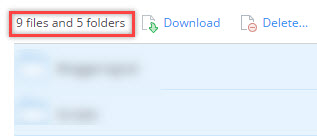
In case you are wondering, other cloud services like Dropbox will show you the file and folder count as soon as you select all the files and folder in a particular folder, similar to Windows File Explorer.

see file count in google drive dropbox file count

Nevertheless, if you ever want to see the number of files in a Google Drive folder, here is how you can do it.

Related: How to Remote Upload Files to Google Drive

See the Number of Files in a Google Drive Folder

Though there is no built-in straightforward way, there are multiple ways to see the number of files in a Google Drive folder. I will list all of them, just follow the ones you are most comfortable with.

Related: Dropbox Vs Google Drive

1. Drag but Not Drop Method

Though the name may sound a bit odd and out of place, Drag but not Drop is one of the quickest ways to see the number of files in a Google Drive folder.

1. To start off, log in to your Google Drive account and navigate to the folder where you want to see the number of files.

2. If you have so many files in a single folder then scroll all the way to the bottom of the folder so that Google Drive lists all the files and folders.

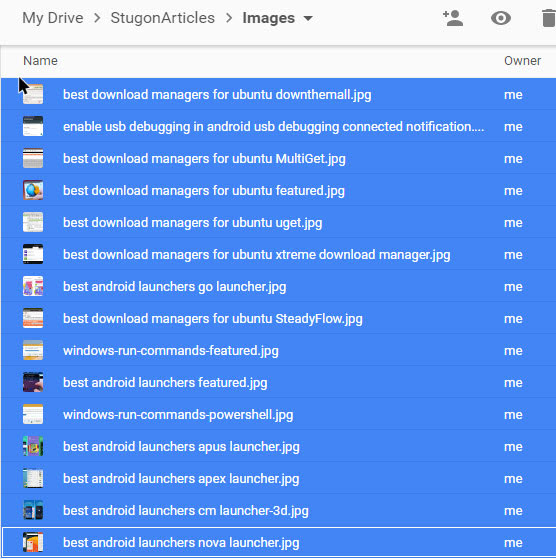
3. Once all the files have been listed, select all the files using the keyboard shortcut CTRL + A.

see file count in google drive select all files

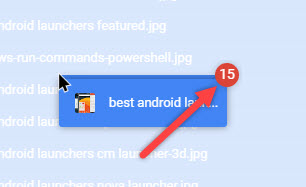
4. Now, simply drag the selected files as if you are going to drop them into another folder, but do not drop, just hold on to your mouse button.

As you can see, you will see the count of the files on the top right corner of the dragged files.

see file count in google drive file count when dragged

Once you are done counting the files, simply press the Esc key on your keyboard to deselect all the files.

Related: Fix: How To Fix “Establishing Secure Connection” Error in Chrome [2018]

2. Using Share Method

1. The second method is to use the sharing functionality in the Google Drive. To start off, open the Google Drive folder and select the files using the keyboard shortcut Ctrl + A.

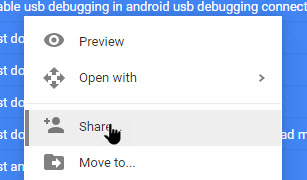
2. Now, right-click on any one file and select option “Share.”

see file count in google drive select share option

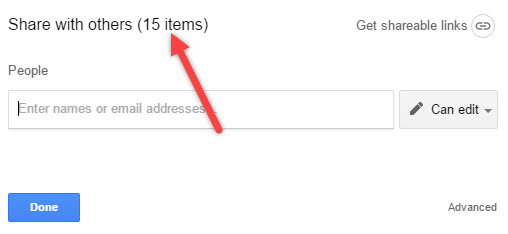
3. As soon as you do this, you will see a pop-up screen which shows you the total number of files or items you are sharing.

see file count in google drive file count in share dialog box

Once you know the file count, simply cancel the sharing operation and you are good to go.

3. Downloading the Folder

Alternatively, you can also see the number of files by attempting to download the files from Google Drive.  Of course, you don’t actually have to download, just initiate the download and then quickly cancel it. I will show you how.

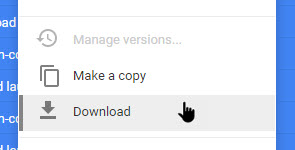
1. To start off, open your Google Drive folder and then select all the files. Once you are done selecting, right-click on any file and then select the option “Download.”

see file count in google drive select download option

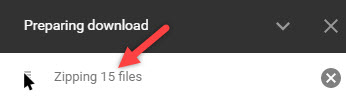
2. As soon as you click on the download option, you will see a  pop-up box “Preparing download” which shows the total number of files present in the folder.

see file count in google drive file count in download prompt

3. Once see the total number of files, simply cancel the download operation by click on the close (X) button and you are good to go.

4. Using Google Drive App

1. If you don’t want to go through all this hassle then you can just install and use the Google Drive app on your system and try it that way. If you haven’t already installed Google Drive, head over to the official site, download and install it.

2. Once installed, sync the folder you want to see the number of files in it. Now, open that folder in the File Explorer.

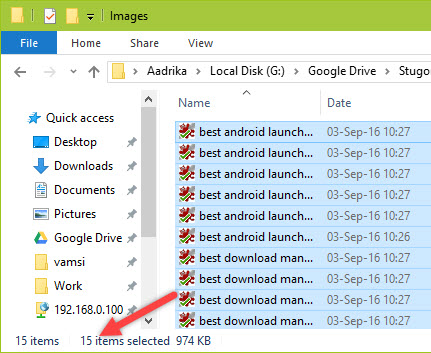
3. You can now see the number of files present in the folder. Just select all the files and the file or item count will be displayed at the bottom of the window.

see file count in google drive file count in file explorer

That’s all there is to do and it is that simple to see the number of files in a Google Drive folder.

Do comment below sharing your thoughts and experiences about using the above methods to see the number of files in a Google Drive folder.

A Complete List of All the Windows Run Commands

0

Windows operating system has a lot of functionalities and most of them, if not all, can be executed and modified manually according to your requirements. Moreover, if you are using Windows for long enough, you might have come across a simple Windows keyboard shortcut Win + R that launches the Run dialog box. This simple dialog box allows you run a plethora of Windows Run commands. These Windows Run commands will enable you to configure or run programs in a quick and efficient way.

In fact, if you learn some of the most used Windows Run commands, you can launch different built-in Windows applications without meddling with the Control Panel or searching for it in the start menu. Simply put, Windows Run commands makes it so that rather than going all the way to the control panel or the folder in which the program and tools reside, you can simply type in the Windows run commands for executing that program.

So, here is a complete list of all the Windows Run commands that you should know and try for better productivity.

How to Use Windows Run Commands

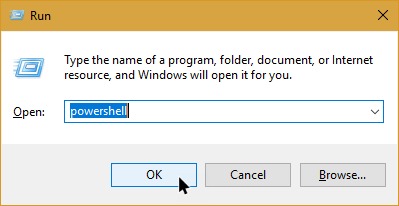
Using all the Windows Run commands listed below is pretty simple. To start off, press the keyboard shortcut Win + R to launch the Run dialog box. Here, enter any of the commands listed below and click on the button “Ok.” This action will open the target program or tool. As you can see from the below image, I’m opening the PowerShell from the Run dialog box.

windows run commands powershell

List of Windows Run Commands

Below is the list of all the most used Windows Run commands that every Windows user should know. Do try all the below listed Windows Run command and see what happens.

1. calc – Opens the calculator application.

2. cmd – Opens the Command Prompt.

3. write – Opens a new WordPad file.

4. powershell – Opens the PowerShell.

5. gpedit.msc – Opens the Group Policy Editor where you can set policies for the local or remote computer.

6. perfmon.msc – Opens the Performance Monitoring tool.

7. powercfg.cpl – Opens the Power Options window where you can set your power usage plans.

8. devmgmt.msc – Opens the Device Manager for Windows where you can manage all your hardware drivers.

9. regedit – Opens the Windows Registry Editor where you can modify the variables.

10. appwiz.cpl – Opens the Programs and Features window where you can install or uninstall Windows programs.

11. msconfig – Opens System Configuration window where you can check the startup options, services and even force Windows safe mode.

12. sysdm.cpl – Shows the System Properties of your PC.

13. certmgr.msc – Lets you manage the certificates installed in your system.

14. comexp.msc – Opens the Component Services window,

15. colorcpl – Opens the Color Management window.

16. timedate.cpl – Opens the clock configuration window where you can set or fix incorrect clock settings in Windows.

17. msdt – Opens the Windows Support Diagnostic tool.

18. dfrgui – Opens the Windows Defragmenter tool which can be used to defragment your hard drive if you are using a mechanical hard drive.

19. dpiscaling – Opens the Display Panel where you can change the size of the text.

20. dccw – Opens the Color Calibration tool, a must use tool for new monitors as you can set the color settings as required.

21. joy.cpl – Lets you configure the game controllers.

22. iexplore – Opens the Internet Explorer browser. If you are not using it, you can easily uninstall Internet Explorer.

23. inetcpl.cpl – Opens the Internet Properties window.

24. mmc – Opens the Microsoft Management Console root window.

25. main.cpl – Opens the Mouse Properties window where you can set and modify various mouse settings.

26. notepad – Opens a new Notepad file.

27. documents – Opens the Documents folder.

28. downloads – Opens the Downloads folder.

29. favorites – Opens the Favorites folder.

30. pictures – Opens the Pictures folder.

31. recent – Opens the Recent folder.

32. mspaint – Opens the Microsoft Paint application. Often used to paste the screenshots taken in Windows.

33. videos – Opens the Videos folder.

34. telephon.cpl – Opens the Phone and Modem configuration window.

35. psr – Opens the Problem Step Recorder where you can record the steps to recreate your issue.

36. mstsc – Opens the Remote Desktop connection.

37. syskey – Lets you configure the Accounts database.

38. desk.cpl – Opens the Display settings window where you can set the screen resolution.

39. services.msc – Lets you configure the Services running on your PC.

40. snippingtool – Opens the default Windows tool for taking snapshots.

41. soundrecorder – Opens the Sound Recorder tool.

42. stikynot – Opens the sticky notes tool to quickly take notes.

43. taskmgr – Opens the Task Manager tool. In fact, there are multiple ways to open Task Manager.

44. taskschd.msc – Opens the Task Scheduler tool.

45. sndvol – Opens the Volume Mixer tool.

46. \ – Opens up the C: drive on your PC.

47. %userprofile% – Open the folder which contains the personal folders for your login.

48. %programfiles% – Open the program files folder on your PC.

49. compmgmt.msc – Opens the Computer Management window where you can manage shared folders, disk services, and other operations.

50. cleanmgr – Opens the prompt where you are asked to select a drive to be cleaned by the operating system. A good tool to quickly clean up your hard disk to free up some space.

51. fsmgmt.msc – Opens the Shared Folders window where you can see the folders and devices shared by your machine.

52. firewall.cpl – Opens the Firewall settings window.

53. msinfo32 – Opens the system information windows which contains all the hardware and software information.

54. netplwiz – Opens Users panel where you can create or configure the users registered on your machine.

55. osk – Opens the On-Screen keyboard.

56. utilman – Opens the Access Center of the control panel.

57. wuapp – Opens the Windows Update panel where you can configure the update settings.

58. lusrmgr.msc – Opens the Local Users window where you can configure the local users and user groups.

59. ncpa.cpl – Opens the Network Connections window where you can quickly configure your network connection and other adapter settings.

60. charmap – Opens Character Map window which can be used to quickly copy special characters in Windows like the dollar sign, copyright symbol, etc.

That’s all for now and hopefully that helps. If you want these Windows Run commands for offline usage, then download Windows Run commands as a PDF document (direct download link). This enables you to see and use the Windows Run commands whenever you want and wherever you want.

Do comment below sharing your thoughts and experiences about using the above Windows Run commands. Also, do share your favorite Windows Run commands if you think I missed listing here.

How to Fix SYSTEM_SERVICE_EXCEPTION error in Windows 10

0

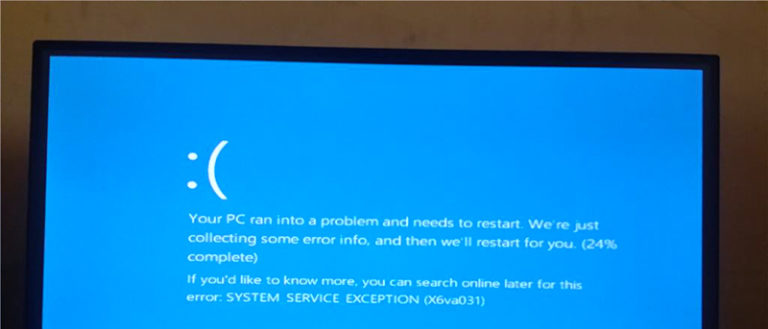
If you are using Windows for long enough, you should have faced the dreaded Blue Screen of Death or BSOD for short. BSOD is one of the most annoying errors in Windows. Generally, it is shown when your system crashes due to some critical system error. Most of the times, the error number or name is also shown at the bottom of the BSOD screen. One such widely known BSOD error is the SYSTEM_SERVICE_EXCEPTION error in Windows 10.

In this article, I will show how to fix System_Service_Excpetion error in Windows 10 using different methods. So, go through all the methods one by one and see what fixes the SYSTEM_SERVICE_EXCEPTION error in Windows 10.

Note: though I’m showing this in Windows 10, this should also work with other versions like Windows 7 and 8.

Fix SYSTEM_SERVICE_EXCEPTION Error – Using Command Prompt

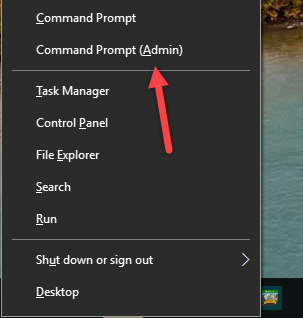
The first thing you need to do is find and fix any bad sectors or errors on your hard disk. You can use the Chkdsk tool in Windows to do it. To start off, press Win + X and then select the option “Command Prompt (Admin).”

fix SYSTEM_SERVICE_EXCEPTION error Windows 10 open cmd as admin

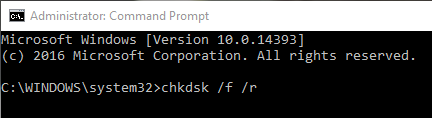
Once the command prompt has been opened, enter the below command and press the enter button.

chkdsk /f /r

fix SYSTEM_SERVICE_EXCEPTION error Windows 10 run chkdsk command

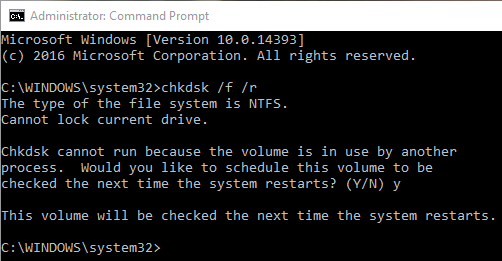
As soon as you run the command, Windows will ask you to schedule the scan as your system drive is still in use. Simply press Y on your keyboard and then press the enter button.

fix SYSTEM_SERVICE_EXCEPTION error Windows 10 schedule chkdsk

That’s all there is to do. When you restart your system, Windows scans your hard drive and fixes and bad sectors or other errors. If you are using an old hard drive then you should also monitor hard drive health.

Fix SYSTEM_SERVICE_EXCEPTION Error – Using System File Checker Tool

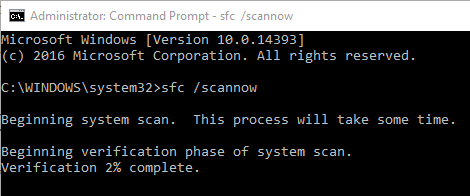
Alternatively, you can also use the System File Checker tool to fix the error. Just like the above process, open Command Prompt with admin rights and then execute the below command. The scan may take some time to complete. So, sit back and wait till the scanning is completed.

sfc /scannow

fix SYSTEM_SERVICE_EXCEPTION error Windows 10 run sfc command

Once the scan has been completed, restart your PC and you should be good. If not, follow through.

Fix SYSTEM_SERVICE_EXCEPTION Error – Driver Issues

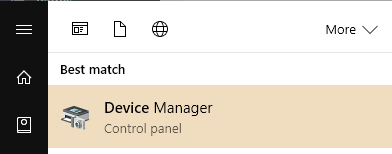
Sometimes, the installed video or graphic drivers might be causing the issue. So, head over to the product manufacturer website and download the up to date drivers. Once downloaded, uninstall the drivers from the Device Manager. In case you are wondering, you can open the Device Manager by searching for it in the start menu.

fix SYSTEM_SERVICE_EXCEPTION error Windows 10 open device manager

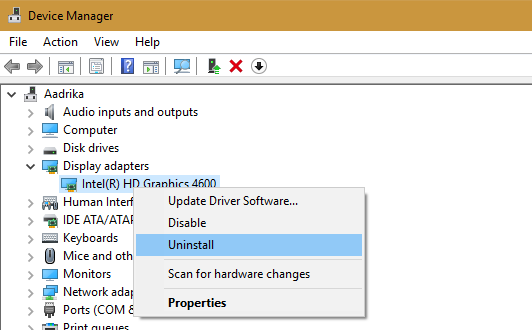
In the Device Manager, right-click on the video driver and then select the Uninstall option. This uninstalls the driver.

fix SYSTEM_SERVICE_EXCEPTION error Windows 10 uninstall driver

Once uninstalled, restart your system and then install the newly downloaded driver. After installing, restart your system and you should be good.

Fix SYSTEM_SERVICE_EXCEPTION Error – Antivirus Issues

McAfee, BitDefender antivirus software and Comodo Firewall are known to cause the SYSTEM_SERVICE_EXCEPTION error in Windows. So, if you using any one of these software, try uninstalling them and see if it fixes the issue.

Fix SYSTEM_SERVICE_EXCEPTION Error – Disable Automatic Updates

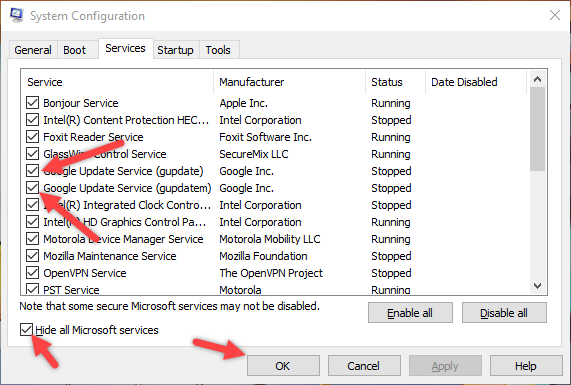
Some services like Google Chrome and Firefox checks for updates every time you start your computer. This may look relatively harmless, but sometimes these services may also be a reason for this BSOD error. To solve this, you need to disable those services at system startup. To do that, press the start button, search for msconfig and open it.

Here, navigate to “services” tab, select the option “Hide all Microsoft Services.” Now, uncheck the Google Update services and other update services. Once you are done, click on the button “Ok” to save the changes.
fix SYSTEM_SERVICE_EXCEPTION error Windows 10 disable update services

If this did solve the problem, then pinpoint the issue by simply enabling one service at a time and see what service is causing the issue. Once you find out the service that is causing the issue, either uninstall that particular software or disable its update service.

However, if this didn’t solve the issue, don’t forget to re-enable all the update services and try other solutions.
Fix SYSTEM_SERVICE_EXCEPTION Error – System Recovery

If nothing else works then you can also try resetting your system. However, do note that you may need to re-install all the software once you are done resetting your system. So, only reset your system once you’ve tried everything and there is no other option to fix SYSTEM_SERVICE_EXCEPTION Error in Windows.
Hope that helps and do comment below sharing your thoughts and experiences about using the above methods and fix SYSTEM_SERVICE_EXCEPTION error in Windows. Also, do share which method worked for you as it might help other Windows users.

8 Apps to Enable Gesture Control on Any Android Device

0

Generally, using an android device is nothing hard. However, if there are some tasks that you do regularly and repeatedly, like bringing down the notification center, accepting calls, opening certain apps, etc.., then adding gestures on android can save you some time. Moreover, you can also be more productive if you enable gesture control on Android.

In fact, if you have used some of the high-end smartphones like Google Nexus, Samsung Galaxy or Huawei Honor, then you might have noticed the air gesture controls and other gestures built into those android phones. In case you are wondering, these gesture controls work through the proximity and other sensors on your android phone. It detects your palm as you bring it close to your phone and then takes the appropriate action (in case of air gestures).

Enable Gesture Control on Android

In this article, I will show you eight different apps to enable gesture control on Android device. Do try them and see what fits your needs.

1. Gesture Control Apps for Android – Air Gesture Control

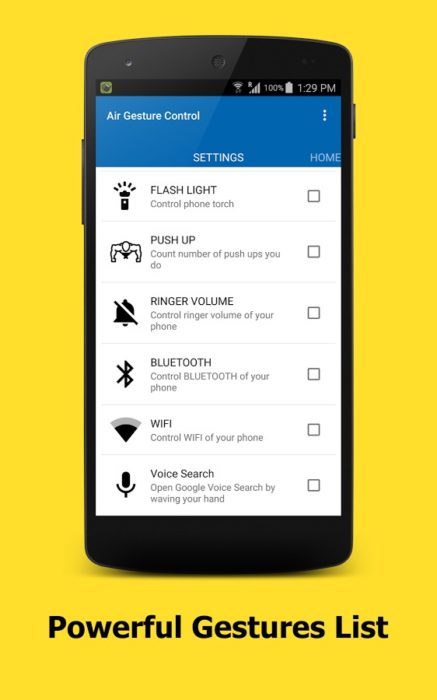
Using Air Gesture Controler app you can toggle on or off various gestures like controlling the music player, opening the voice search, unlocking phone, recording audio, counting push ups (or doing exercise), turning on the flashlight, controlling the ringer volume, etc. A pretty lightweight app that you can try.

enable gesture control android air-gesture-control

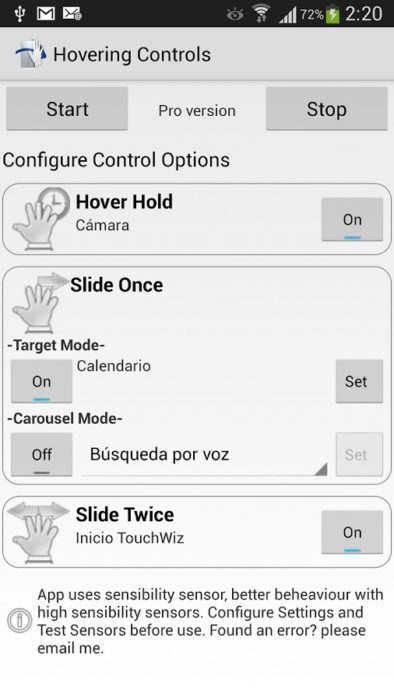
2. Gesture Control Apps for Android – Hovering Controls

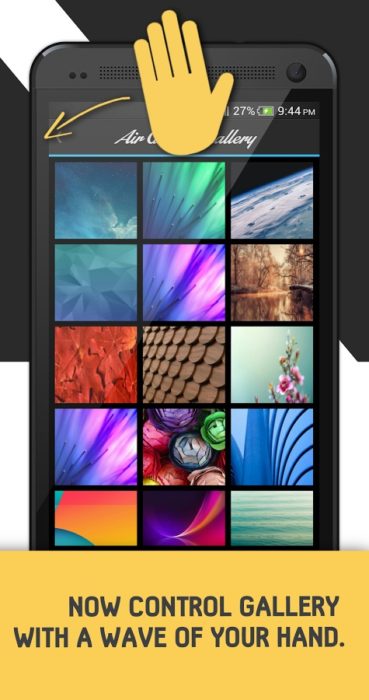
Hovering Controls app detects your swipe and allows you to open custom apps, browse your gallery and answer phone calls.

enable gesture control android hovering-controls

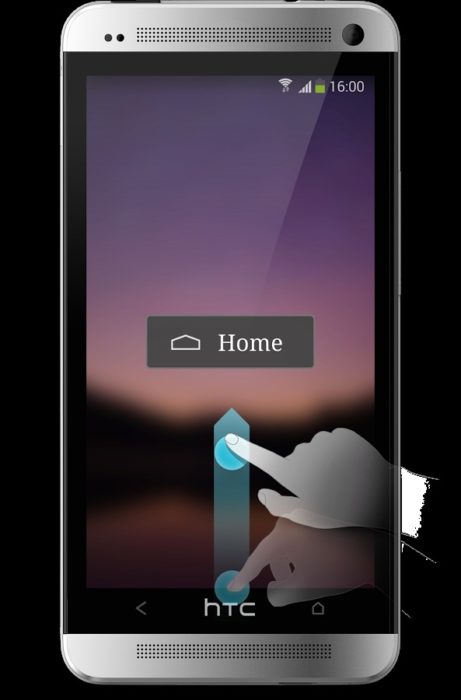
3. Gesture Control Apps for Android – All in One Gestures

With the All in One Gestures app, you can swipe from device edges, press and hold hard keys, double-tap the status bar, or use a mouse or stylus to manipulate your device. You can also designate gestures to go Home, to go to Recent Apps, Back, turn your screen off, or go into Immersive Mode. You can also choose gestures that will launch a shortcut or application.

enable gesture control android all-in-one-gestures

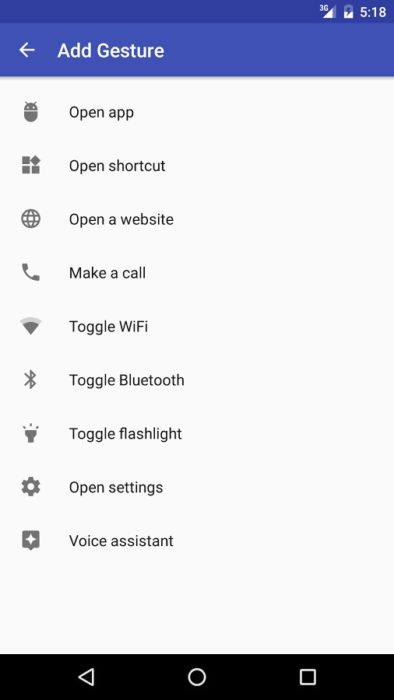
4. Gesture Control Apps for Android – Gravity Gestures

Using Gravity Gestures app, you will be able to answer your phone, turn on your camera, open an app, turn on Wi-Fi, etc. with just a slight gesture. This one works best on android phones with a gyroscope and accelerometer.

enable gesture control android gravity-gestures

5. Gesture Control Apps for Android – Google Gesture Search

Google Gesture Search app lets you draw letters or numbers to save yourself some time and effort accessing apps, music, contacts, settings, and bookmarks. It supports more than 40 languages and recognizes both upper and lower case letters.

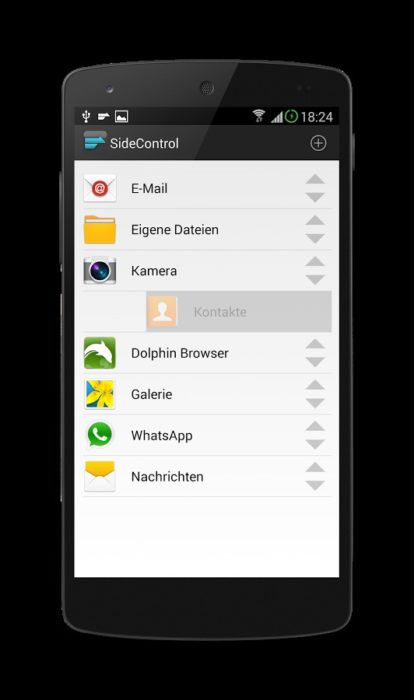
6. Gesture Control Apps for Android – Side Control

Side Control lets you set up your own dedicated gestures for specific actions like locking your phone, killing all the running apps, switch to recent apps and open latest notifications.

enable gesture control android slide-control

7. Gesture Control Apps for Android – Air Call-Accept

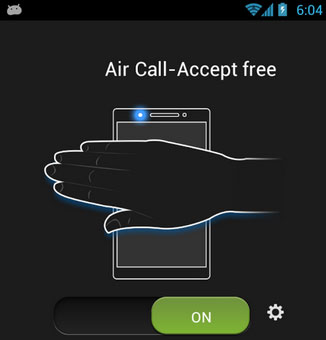
With the help Air Call-Accept app, you can effortlessly answer or reject your phone calls without even touching it. This app automatically detects when you wave your hand over the screen or when you place the phone near your ear and accepts the phone call. A pretty neat app if you receive a lot of phone calls.

enable gesture control android air accept call free

8. Gesture Control Apps for Android – Smart Controls

Smart Controls provides many features such as air gesture controls, speaking notifications, speaking mode, pocket mode, and flip mode. This one works only for Android version 4.0 or higher.

enable gesture control android smart-controls

Hope you liked this list. Do share your favorite gesture control apps for android and talk about what you like or dislike in the gesture control apps share above in the comments section.

How to Install and Enable Bash on Windows 10

0

Windows and Linux have been adversaries since ages. But there have been good hearted programmers out there who have made it easier for common folks to use Windows applications on Linux Wine. And now, Window 10’s Anniversary update brings you a full, Ubuntu based Bash shell that can run Linux software directly on Windows. Previously, Windows users had use Cygwin to emulate bash on Windows 10 or other versions, which is good but is not quite what Windows users wanted.

Ubuntu Bash shell in Windows can be thought of as opposite to Wine. Microsoft has collaborated with Canonical (folks who develop Ubuntu) to offer a full Ubuntu based Bash shell that runs directly on Windows 10 using the Linux subsystem for Windows 10. But mind you, there is no virtual machine stuff going in the background, it is running directly on Windows.

That being said, this is not real Linux. The Linux kernel is not available here. Instead, Linux subsystem for Windows 10 allows you to run the Bash shell on Windows 10 with the exact same binaries you would normally run on Ubuntu Linux.

The Bash shell on Windows 10 will get you close to the experience of working on Linux systems. In case you are wondering, here is how you can install and enable bash on Windows 10.

Enable Bash on Windows 10

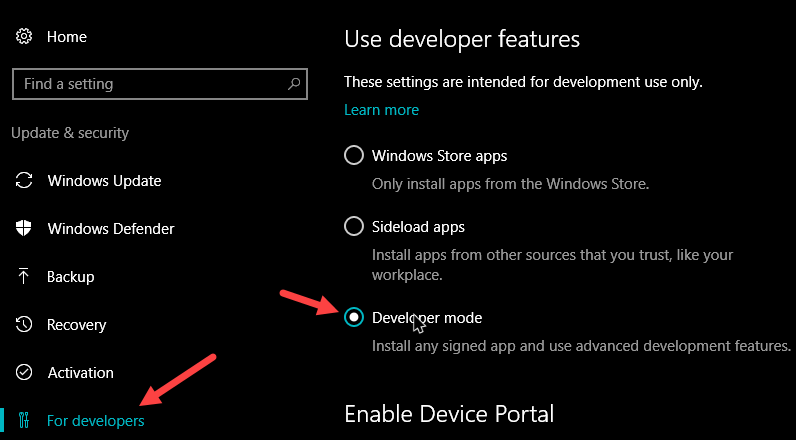
1. To install and enable bash on Windows 10, you should have a 64-bit system with the Anniversary update installed. Once you have these things set, you need to enable the Developer Mode. To do that, press Win + I to open the Settings app. Here, navigate to “Update and Security > For Developers” and select the radio button “Developer Mode” under the Use Developer Features section.

Also read: how to enable dark mode in Windows 10

bash on Windows 10 enable developer mode

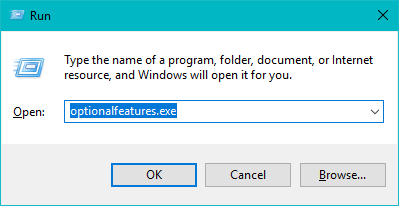
2. Now, press Win + R to open the Run dialog box. Here, enter optionalfeatures.exe and press the enter button. This action will open the Windows Features window.

bash on Windows 10 optional features run command

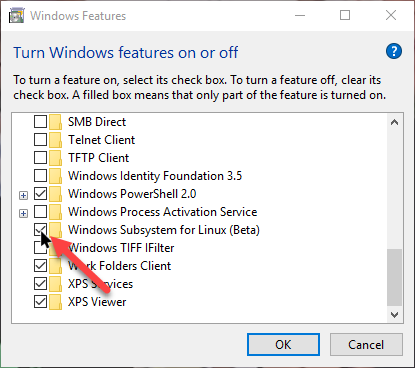
3. Here, select the check box next to “Windows Subsystem for Linux (Beta)” option in the list and then click on the button “Ok” to save the changes.

bash on Windows 10 turn on windows subsystem for linux

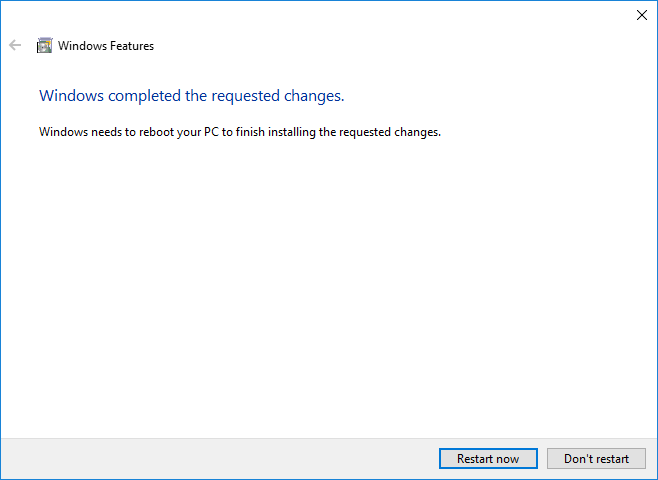
4. As soon as you do that, Windows will apply the changes and asks you to reboot your system. Simply save all your work and click on the button “Restart Now” to reboot your machine.

bash on Windows 10 restart windows 10

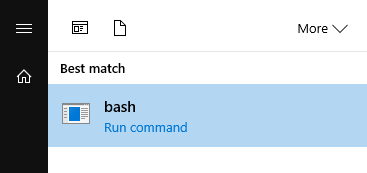
5. Once your machine restarts, click Start button, search for “bash” and press the Enter button on your keyboard.

bash on Windows 10 run bash command

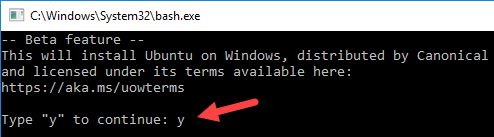
6. When the bash command prompt opens, press the Y key on your keyboard and then press the enter button.

bash on Windows 10 accept terms

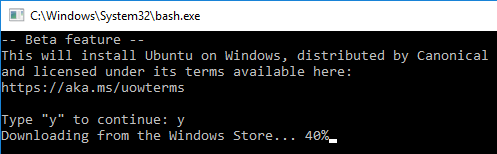
7. This action will download and install the Bash on Ubuntu on Windows 10 from the Windows Store. The download size is anywhere from 300MB to 400MB. So sit back and wait while Windows installs bash on Windows 10.

bash on Windows 10 downloading

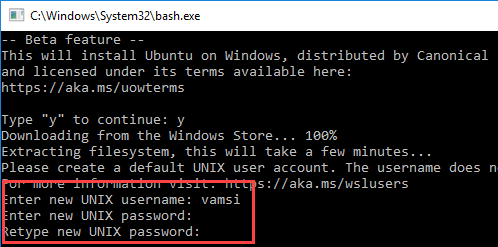
8. Once Windows completed installing bash on Windows 10, it will ask you to enter a new username and password. Simply enter the username and password of your choice and you are good to go.

bash on Windows 10 enter username and password

Enable Bash on Windows 10 – Conclusion

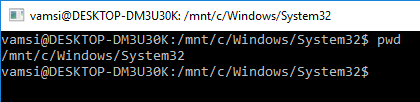
From this point forward you can use almost all the Linux commands and even the SSH directly from Windows using bash on Windows 10.

bash on Windows 10 in action

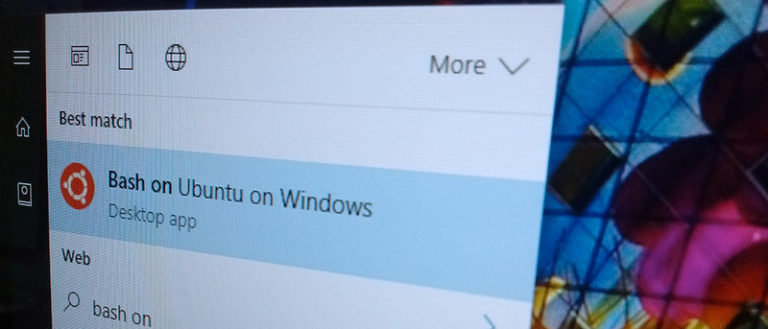
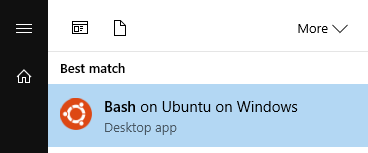
In case you are wondering, you can open bash on Windows 10 by searching for “bash on Windows 10” in the Windows 10 Start menu.

bash on Windows 10 in the start menu

Hope that helps and do comment below sharing your thoughts and experiences about installing and enabling bash on Windows 10 and how you’ve been using bash on Windows 10.

7 Google Keep Tips for Power Users to Get Most Out Of It

0

There are a lot of note taking and organizing apps out on the internet. Some offer ease of use while some offer innovative features. Some are paid while some are free of cost. After using many such apps, I have zeroed in on Google keep as one of the best note taking apps with basic yet useful functionality.

Google Keep is especially useful for simple tasks like listing to do tasks, to set reminders, etc. Google Keep is free, absolutely easy to use, and offers plenty of features to help organize your notes efficiently and quickly. Though using Google Keep is pretty easy, here are few Google Keep tips to better organize your notes.

Note: I’m using the Google Keep android app while writing these tips. If you are using the web version of Google Keep then the placement of different options discussed below may differ.

1. Google Keep Tips – Set Time and Place Reminders

Setting a reminder using time or an event is what many of the current apps offer. Google Keep goes one step further and offers location-based reminders. While setting your reminder, click on Place instead of Time. Then select the location on the map or type in the address and you are done. Next time when you are passing by that location, Google Keep will remind you of your note(s).

2. Google Keep Tips – Share Notes with Other Users

Sharing your notes is a breeze in Google Keep. Tap the action tab (the labeling buttons with three dots at bottom right corner of the app), then click “Collaborator,” add the contact you want to share the note with, and click Save. Your sharing partner can now see and edit your shared note.

3. Google Keep Tips – Color Labeling

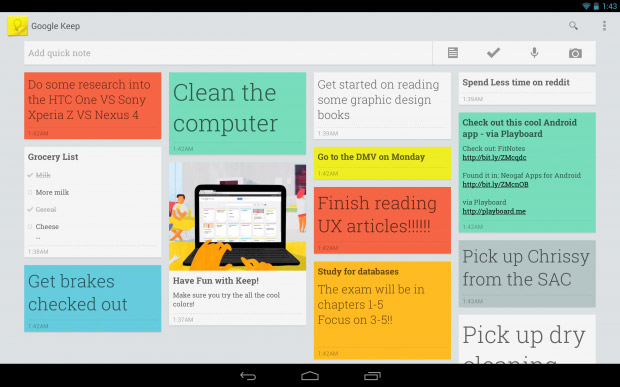
Who doesn’t love a colorful notebook? Google Keep allows you to choose from a wide range of different colors for each note. These colors help you recognize all your notes instantly. Also, you can label your notes, just like in Gmail.

google-keep-tips-in-action

4. Google Keep Tips – Add Drawings to the Notes

Are you fond of doodling? Then Google Keep is the best app you can take your notes on. Keep allows you to draw on a new or an existing note easily. Also, there are three different colors and strokes you can choose from. To add drawing on a note, click on the plus button at the bottom-left corner, then click on “Drawing,” and you can start creating those awesome notes.

5. Google Keep Tips – Create Voice Typed Notes

How can Google not allow voice typing? To create a note with your own voice, just tap the plus button, and click on Recording to start recording your notes. A pretty helpful feature if you are traveling or don’t have the time to type the notes. Now, imagine the note telling you to do your tasks.

6. Google Keep Tips – Export Notes to Google Docs

When a note gets big enough, you can easily export it to Google Docs, and continue your work there. Just tap the action button appearing on the bottom right corner, click on Send, and then click on “Copy to Google Docs” option.

7. Google Keep Tips – Turn a note into a list

If you are halfway through your note, and suddenly realize you need a list, not a note, no worries, Google Keep has you covered there too. Just tap the Plus button, and click on Checkboxes. The note is now a list.

You can see now why Google Keep is the best to create your reminders and notes if your usage is pretty basic. It offers a plethora of features and does not cost a dime. Please let me know in the comments below if I have missed any of your favorite Google Keep tips.

How to Backup Windows Registry in Windows 10

0

Windows Registry is the brain behind all the operations done in Windows operating system. It contains information about all the things like software settings, operating system settings, hardware settings, file associations, etc. As you can tell, if the Windows Registry gets corrupted, your machine becomes sort of helpless and sometimes it won’t even boot. This is because your computer simply won’t know how and when to start or manage different software and hardware settings.

Moreover, there will be times when you might need to change some settings in your windows registry in order to suit your needs. In fact, most Windows tips I share here at Stugon requires you to edit the Windows Registry. And if you enter the wrong values, or delete values and keys in the Registry then it might get corrupted. Thus, it is very much recommended that you always backup Windows Registry. Backing up Windows Registry can help you in a lot of situations.

Why Backup Windows Registry?

In case you are wondering, here are some situations or scenarios when you might want to backup Windows Registry.

When

  • Installation of a major software or hardware.
  • Performing direct registry edits like creating, modifying or deleting keys and values.
  • Using a registry cleaning software to clean or repair Windows Registry.
  • When using third-party uninstallers which delete registry keys and values, etc.

So, no matter what the reason is, here’s how to backup Windows Registry with just a few clicks.

Note: though I’m showing this in Windows 10, the procedure is similar even if you are using Windows 7 and 8.

Backup Windows Registry – Manual Method

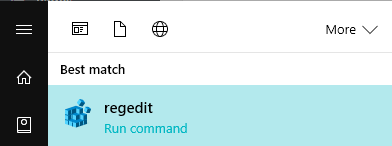
To start off, click on Start button, search for “regedit.exe” and open it. Alternatively, you can also use the command regedit in the Run dialog box.

backup windows registry open regedit

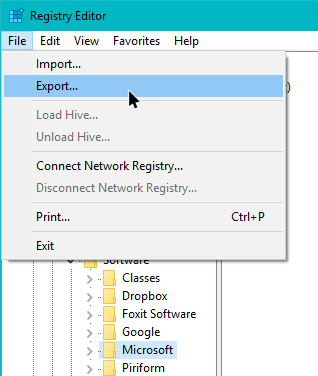
The above action will open the Windows Registry. Here, select the registry key you want to back up. Now, click on “File” and then “Export.”

backup windows registry select export option

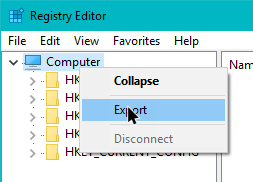
If you want to backup complete Windows Registry then right-click on Computer and then select the option “Export” from the context menu.

backup windows registry select export from context menu

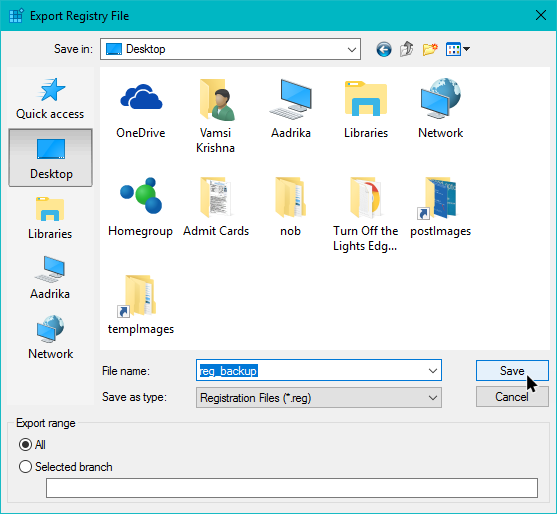
In the popup window, select the destination location, give it a name and then click on the button “Save” to save the file. While backing up full registry, make sure that the radio button “All” is selected.

backup windows registry save reg file

That’s all there is to do. You’ve successfully backed up Windows Registry.

Backup Windows Registry By Creating System Restore Point

If you don’t like the manual way to backup Windows Registry, then you can just create a Windows system restore point. Creating a system restore point whenever you do something major to your system is a good thing as it creates a snapshot (kinda) of all the system settings and files. When you restore the system, even your registry is restored to previous state.

Also read: how to create a system image backup in Windows

Restore Windows Registry

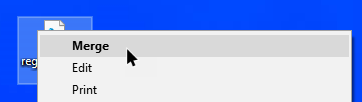
You can easily restore Windows Registry with just a click or two. The first method is to right-click on the backup registry key and then select the option “Merge.” This action will restore the all the backed up registry keys.

backup windows registry select merge option

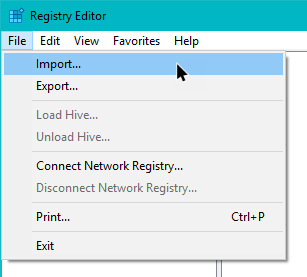
Alternatively, you can also restore Windows Registry by importing the backup. To do that, open the Windows Registry and select the option “File” and then “Import.” If you are selecting a particular registry key then select that target registry key before selecting the import option.

backup windows registry select import option

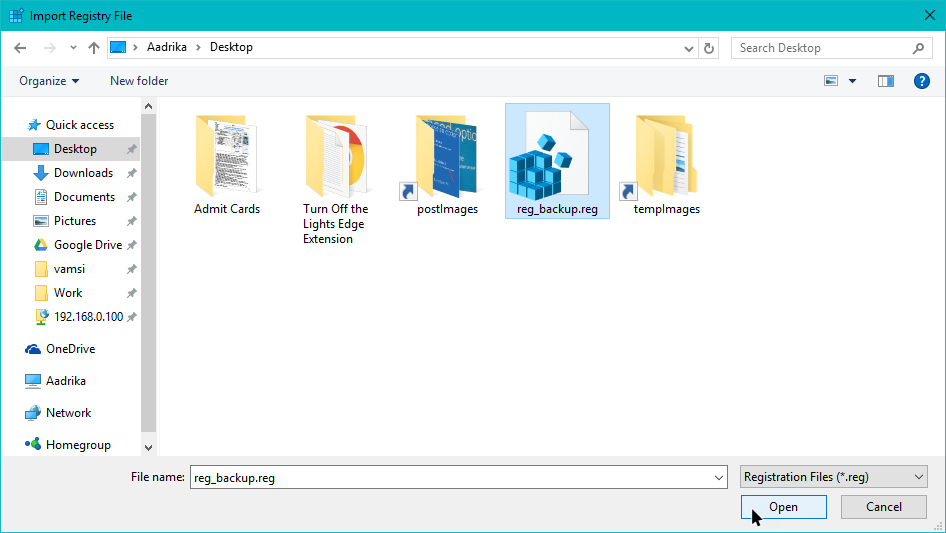
Now, navigate to the backed up registry file location, select it and then click on the button “Open.”

backup windows registry select backed up reg file

That’s all there is to do. The selected registry key or entire Windows Registry will be restored.

Hope you found our guide useful. Do let me know your feedback on how to back Windows Registry in the comments section below.

How to Format SD Card in Android

0

As most of you know, the SD card is a tiny memory card used for extra storage on almost any Android device. As useful as it is, the SD cards may stop working sometimes or may become quite cluttered. In those situations, it may become necessary for you to format SD card in your Android device.

Also, if you are thinking of re-selling your Android device or giving away your SD card to someone you know then you most probably don’t want your information to go with it. In those cases, formatting the SD card in Android is quite helpful. So, no matter what the reason is, if you ever want to format SD card then you actually don’t have to have access to your computer, you can just use your Android device.

In case you are wondering, here is how to format SD card in Android.

Note: before proceeding to format SD card in Android, make sure that you have a good backup of the contents on the SD card. This is because all the data will be lost when you format the SD card.

1. Format SD Card in Android – Manual method

  • Open your Android Menu and then tap on the Settings icon. This action will take you to the Android settings screen.
  • Here, scroll down and tap on the “Storage and USB” option.
  • This action will show you the information like your total SD card space, your available free space, etc.
  • Here, tap on your external SD card to open it. Once opened, click on the menu icon (three vertical dots) appearing on the top-right corner and select the option “Settings.”
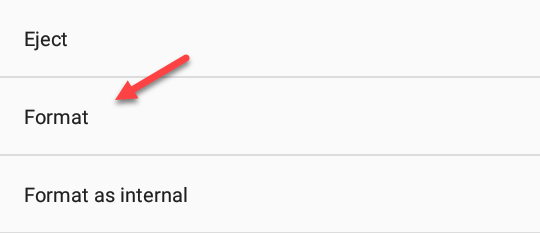
  • The above action will open the SD card options. Here, tap on the Format option and confirm your action on the next screen.
  • That’s all there is to do, you’ve successfully formatted the SD card in your Android device.

format sd card in android select format

2. Format SD Card in Android – Using an Android app

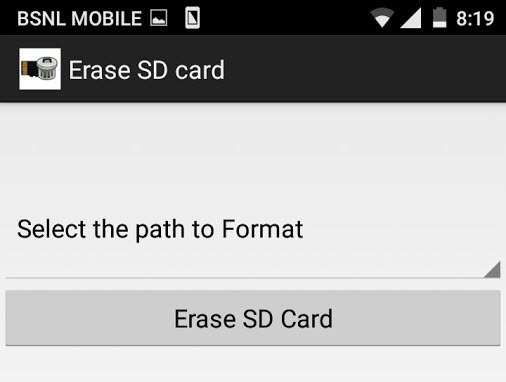
  • Go to PlayStore and then download and install the Erase SD Card app.
  • The app the pretty simple and straightforward. As soon as you open the app, it gives you the option to erase the data on your SD card with a single click.
  • The good thing about this app is that it supports formatting the SD card as an internal and external storage. If you don’t know what the internal and external storage is then select the option “External Storage.”
  • There will be no backup of the data, everything will be erased permanently as you as you tap of the “Erase SD Card” button.

format sd card in android erase sd card app

So now you can be free of worries even if your SD card stops working. Just follow the steps mentioned above and your SD card will be ready to be used again.

Hope you found this guide useful. Let me know your feedback in the comments section below.