How to Easily Change Drive Letter in Windows 10 [No CommandLine]

0

Change Drive Letter in Windows: In Windows, all the drive letters are assigned automatically and they don’t change every time you restart your system. While the driver letters look like they are unchangeable, they are very much changeable.

In fact, Windows provides a simple tool called Diskpart that allows you to change drive letter in Windows. However, most of the time it requires you to use the Windows Command Prompt which is not that user-friendly.

So, if you ever want to, here is how to change drive letter in Windows 10 with just a few clicks, no command line.

Note: though I’m showing this in Windows 10, the procedure is same for Windows 7 or 8.

Change Drive Letter in Windows 10

It is very easy to change drive letter in Windows. Since we are not going to use the command prompt, we need to use a free and portable software called Drive Letter Changer.

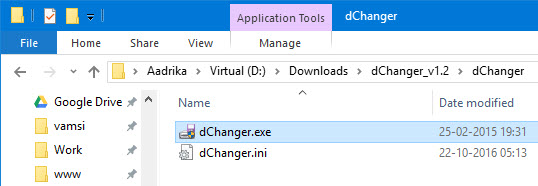
So, download the software, extract it and double-click on the EXE file. You need to have admin rights to use the software.

win10-change-drive-letter-open-app

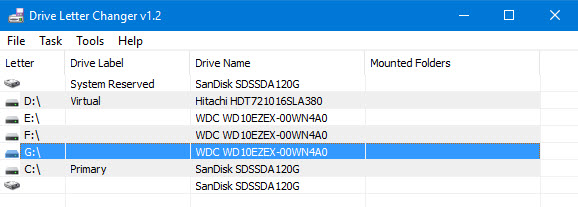
As soon as you open the application, you will see all your drives as a list in the window.

win10-change-drive-letter-drive-list

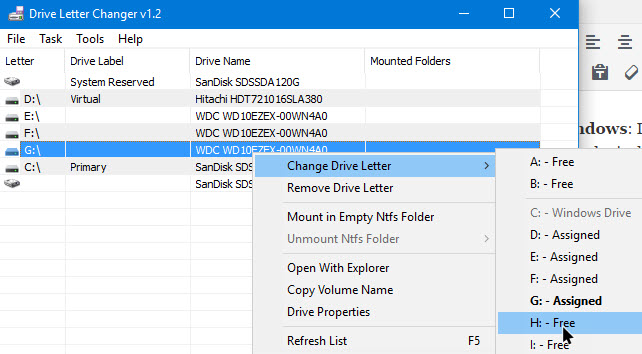
To change drive letter with Drive Letter Changer, click on the drive you want to change the drive letter,  select the option “Change Drive Letter” and then select the drive letter. In my case, I’m changing my drive letter from G to H.

win10-change-drive-letter-select-drive-letter

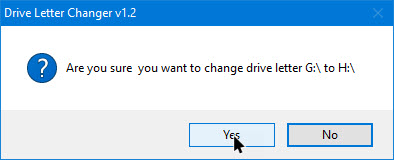
The as soon as you select the option, you will receive a confirmation window. Here, click on the button “Yes” to continue.

win10-change-drive-letter-click-yes-button

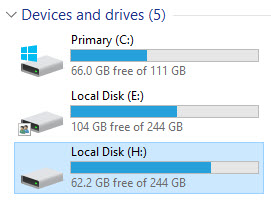
With the above action, the drive letter will be changed instantly in Windows. You can see the change in the File Explorer (Win + E).

Download: Windows 10 keyboard shortcuts

win10-change-drive-letter-drive-letter-changed

If you want to revert back, simple go through the process again and then select the previous drive letter to change the drive letter in Windows 10.

Remove Drive Letter

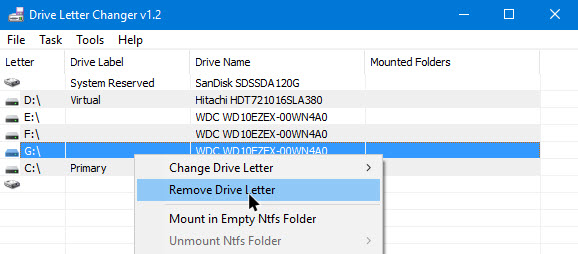
Using Drive Letter Changer software, you can also remove drive letter. To do that, simply click on the drive in the window and then select the option “Remove Drive Letter.”

win10-change-drive-letter-remove-drive-letter

Do remember that as soon as you remove the drive letter, the drive will not be visible in the File Explorer. So, it is a good but not foolproof way to hide drives in Windows. If you like this, you will also like how to assign custom icon to USB drivers.

Hope that helps and do comment below sharing thoughts and experiences about using the above method to change drive letter in Windows 10.

How to Remote Upload Files to Google Drive

0

Remote upload files to Google Drive: Previously, I’ve shown you how to force download files from Google Drive, which is quite useful. However, from time to time, you may want to remote upload files to Google Drive.

This lets you download the files when and on whatever device you are on. Moreover, when you remote upload to Google Drive, you don’t have to worry about your download speeds when you are in a hurry. Or about the broken downloads.

In case you are wondering, here is how to remote upload files to Google Drive.

Remote Upload to Google Drive using OffCloud

1. It is easy to remote upload files to Google Drive using Offcloud. To start off, open this web page and click on the button “Sign In with Google“.

remote-upload-google-drive-sign-in-to-google-drive

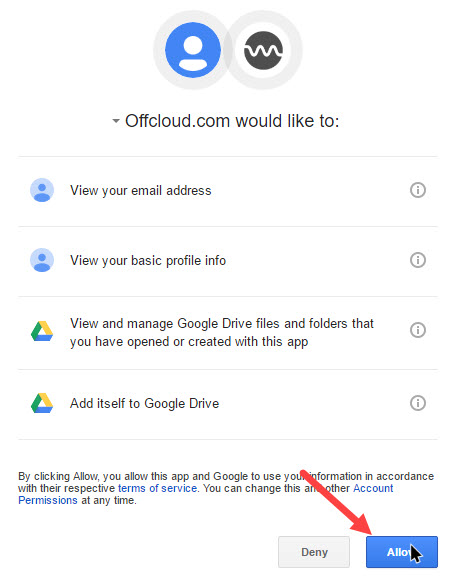
2. The above action will take you to the permissions screen. Here review the permissions and click on the button “Allow“. This will let Offcloud remote upload files to Google Drive.

remote-upload-google-drive-allow-offcloud

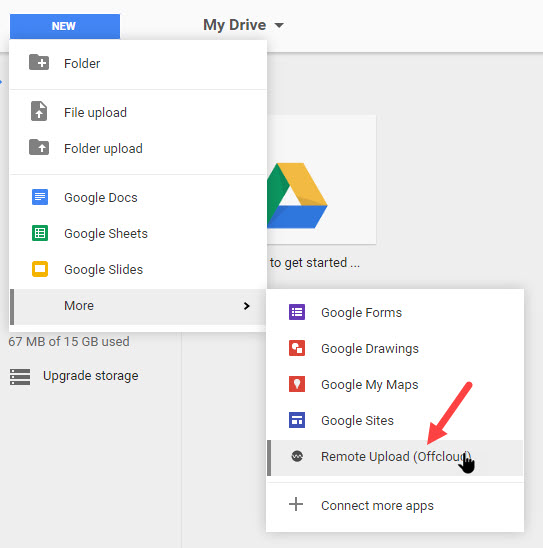
3. After providing the permissions, open your Google Drive account, navigate to “New > More” and then select the option “Remote Upload (Offcloud)“.

remote-upload-google-drive-select-remote-upload

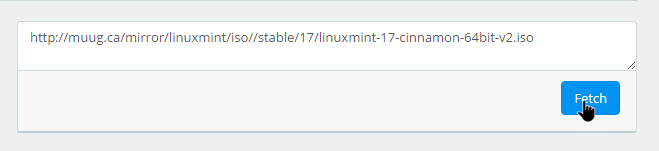
4. As soon as you click on the option, a new tab will be opened. Here, enter the download URL of the file and click on the button “Fetch“.

remote-upload-google-drive-paste-link

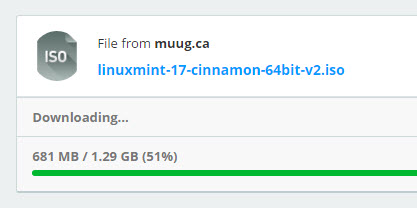
5. That’s all there is to do. Your file will be automatically downloaded and remote uploaded to Google Drive.

remote-upload-google-drive-file-downloading

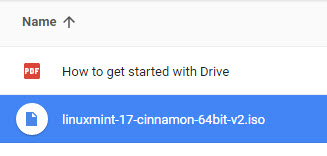
6. You can find the download file in your Google Drive account.

remote-upload-google-drive-file-uploaded

7. The good thing about Offcloud is that you can remote upload any file to Google Drive, including

  • torrents
  • FTP links
  • HTTP links
  • HTTPS links, etc.

The free version of Offcould lets you remote upload three links per month. If you want more, you need to be a premium member.

So, if you are in a hurry or if you want to upload files directly to Google Drive without downloading them first by yourself then do give Offcloud a try.

Hope that helps and do comment below sharing your thoughts and experiences about using Offcloud to remote upload files to Google Drive.

Pinebook: $89 Linux Laptop That Resembles MacBook Air

0

Pinebook $89 Linux Laptop: There are not many Linux laptops out there. Even if there are, they just a few bucks less than the Windows variants. Meet Pinebook, an $89 Linux laptop that is as stylish as a MacBook Air. In fact, it even looks similar to MacBook air.

So, if you looking for an affordable and stylish Linux laptop then Pinebook is for you.

Pinebook: $89 Linux Laptop That Looks Like MacBook Air

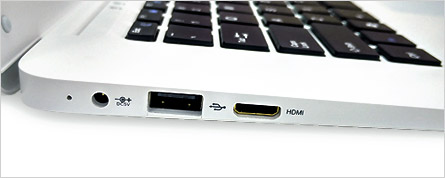
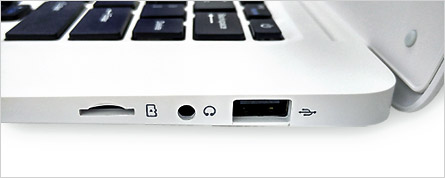
Pinebook uses a single board with ARM-based processor just like in pine 64. Since Pinebook uses ARM processor, it is lightweight and easy to carry. Even though it is lightweight, it boasts the full-size keyboard, a large multi-touch trackpad and a good set of usable ports, unlike the new MacBook Pro 2016. These ports include Micro SD slot, mini HDMI, USB 2.0, and Headphone jack.

Pinebook comes in two different variants with 11-inch and 14-inch screens with a resolution of 1280 x 720 pixels. Along with the Allwinner A64 Quad-core Cortex-A53 64Bit @ 1.2 GHz CPU and Mali-400MP2 GPU, the laptop has a 2GB LPDDR3 RAM. For most Linux distros, 2GB memory is plenty.

pinebook-ports

As for the storage, the Pinebook comes with a built-in 16GB eMMC 5.0 flash storage. With the built-in micro-sd slot, you can increase the storage up to 256 gigabytes.

The good thing about Pinebook is it supports many of the Linux distros like Ubuntu, Raspbian, Debian, etc. Moreover, it also supports Windows IoT and Android OS as well.

pinebook-ports-2

The Pinebook also has a 1.2-megapixel front camera with the built-in mic for your communication needs. Just like many standard laptops, it has other connectivity options like WiFi and Bluetooth. To get you through your day, the Pinebook has huge 10,000 mAh lithium polymer battery.

If you want to buy or to know more about the Pinebook, visit the official website. Since the laptop is pretty cheap, do give it a try and see it fits your daily light activities like emails, spreadsheets, and browsing.

Hope that helps and do comment below sharing your thoughts and experiences about Pinebook. The cheap and useful Linux laptop.

How to Send Big Emojis in WhatsApp [3X Bigger]

0

Send big emojis in WhatsApp: recently WhatsApp received a notable update that has a lot of changes and new features. These new features are mainly aimed to improve the user experience.

Some of those new features include but not limited to big emojis, ability delete multiple private chats, etc.

Ever since WhatsApp introduced big emojis, most of us are trying to make the emojis 3X bigger but to no avail. Previously, only the heart emojis are make made bigger but with this new update, you can post any emoji 3x bigger.

So, if you ever want to, here’s how to send big emojis in WhatsApp.

Send Big Emojis in WhatsApp

It is really easy to send big emojis in WhatApp.

All you have to do is type a single emoji and send it. You should not add any text or other emojis. Just a single emoji.

In fact, this method is similar to the method where you can only send heart emojis 3X bigger.

As soon as you send the emoji, it will become 3x bigger.

big-emojis-whatsapp-big-emojis

If you add anything to the single emoji, like another emoji or text then it will appear normal.

You can see the above image for reference. The single emoji is 3X bigger in WhatsApp and the emojis in other message are normal.

Hope that helps and do comment below sharing your thoughts about the new bigger emojis in WhatsApp.

Also, do you like to send big emojis in WhatsApp?

How to Find DirectX Version in Windows

0

Do you want to find DirectX version in Windows or do you want to check whether DirectX is installed or not in Windows? No problem here is how to check the DirectX version installed on Windows. The good thing about the below method is that you can check if your system has DirectX 12 or the other older DirectX versions, like DirectX 11.

Note: though I’m showing this in Windows 10, the same procedure is applicable to Windows 7 and 8.

Find DirectX Version in Windows

It is easy to check the DirectX version in Windows. Just follow the instructions and you should see the DirectX version number pretty soon.

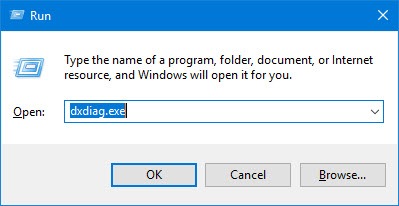
Step 1: To start off, open the Run dialog box by pressing the keyboard shortcut Win + R. Here, enter dxdiag.exe and press the enter button.

find-directx-version-dxdiag-run-command

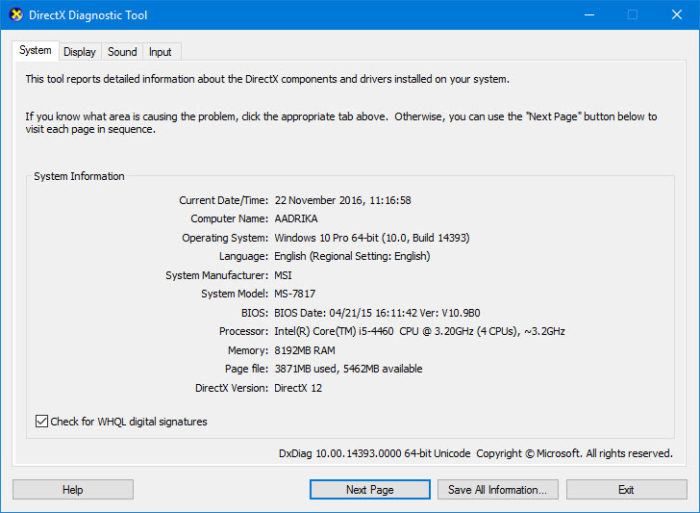
Step 2: As soon as you press the enter button, DirectX Diagnostic Tool will be opened. Here, you can find DirectX version right next to “DirectX Version” appearing at the bottom of the window.

find-directx-version-dxinfo

Save DirectX Version Information

You can also save the DirectX version information for the future use. To do that, click on the button “Save All Information” appearing at the bottom of the window.

find-directx-version-save-dx-info

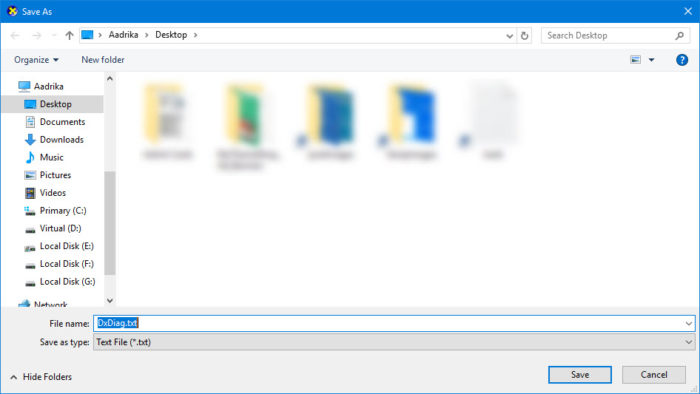
The above action will open the Save As window. Here, select the destination, file name and click on the “Save” button.

find-directx-version-save-dx-info-file

That’s it. You’ve saved the information regarding the DirectX version in Windows along with other hardware and driver information.

Download DirectX 12 in Windows 7

As of writing this, you cannot download and install DirectX 12 in Windows 7. Microsoft isn’t offering the DirectX12 as a standalone installer.

DirectX 12 is being shipped bundled with Windows 10. So, if you want DirectX 12, you need to install Windows 10.

If you are using Windows 7, you are stuck with DirectX 11.

Hope that helps and do comment below sharing your thoughts and experiences about using the above method to find DirectX version in Windows 10.

Fast and Secure VPN – LiquidVPN Review

0

VPN services are no longer only for tech geeks to IT professionals. If you are someone who travels a lot and/or uses public WiFi hotspots like in coffee shops or airports, then you should know that accessing sensitive websites or information over these networks is not ideal. This is because the public networks usually have crappy security which makes it really easy to compromise your network connection and sniff sensitive data.

So, it is very important that you secure your network using a VPN which encrypts all your inbound and outbound network connections so that no third-party (including your ISP) can monitor or sniff your data over the network. Apart from encrypting your network connections, a good VPN can also mask your location so that you can watch your Netflix or Hulu even while you are traveling.

In case you are wondering, LiquidVPN is one such VPN service that encrypts and masks your location so that you can stay secure and access geo-restricted websites without any hiccups.

Features of LiquidVPN

  • Unlimited bandwidth.
  • Unrestricted download and upload speeds.
  • Zero Log with very clear TOS. Yes, LiquidVPN won’t log any of your connections or data.
  • You can choose between multiple servers in multiple locations including USA and Europe.
  • LiquidVPN is available for Windows, Mac, and Android.
  • Liquid Lock feature creates optimum rules on your OS’s firewall to protect from any type of leak or network outage.
  • Three different OpenVPN tunnel topologies.
  • LiquidVPN supports L2TP, SSTP, and OpenVPN.
  • No restrictions on P2P usage.
  • The LiquidVPN client supports Modulating and Dynamic VPN topology.
  • LiquidVPN offers Perfect Forward Secrecy, which simply means that the keys are renegotiated between you and the server every 30 minutes.
  • 24×7 support via email or remote desktop connection.

Signup for LiquidVPN

Installing and Using LiquidVPN

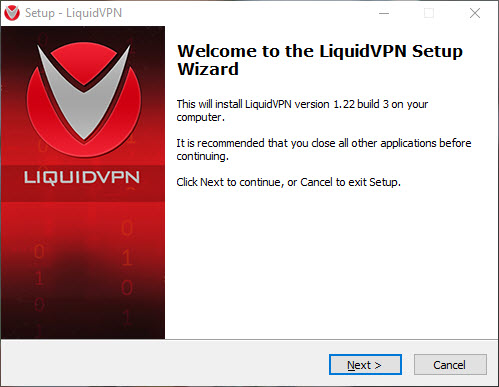
Installing and using LiquidVPN is pretty easy. To start off, head over to the official site and download the LiquidVPN client for your system. Once downloaded, install the client like any other software.
liquidvpn-review-install-liquidvpn-application

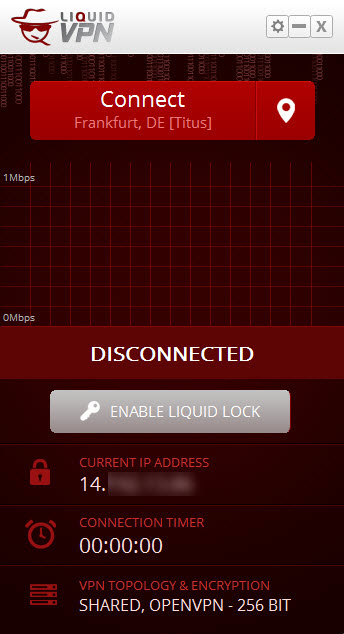
Once LiquidVPN has been installed, open it by searching for in the start menu. As you can see from the home screen, the user interface it very minimal and it even shows your current IP address.
liquidvpn-review-home-screen

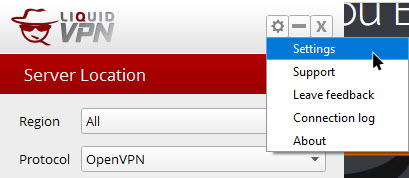
The first thing you need to do before connecting to the VPN service is to enter your login details. To do that, click on the Settings icon appearing on the top right corner and then select the option “Settings.”
liquidvpn-review-select-settings

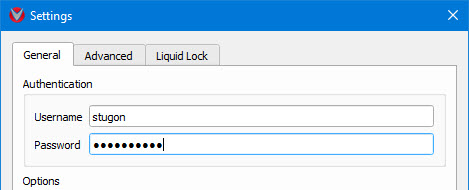
Here in the Settings window, enter your login details that you’ve received from LiquidVPN and click on the button “Ok” to save the changes.
liquidvpn-review-enter-login-details

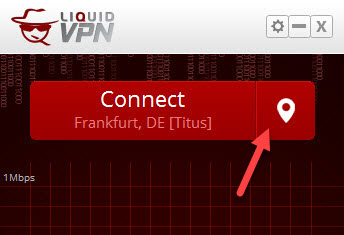
Now, in the main window, LiquidVPN automatically chooses the best possible server and configuration for you. If you want to change the server or location, click on the “Location” icon.
liquidvpn-review-click-location-icon

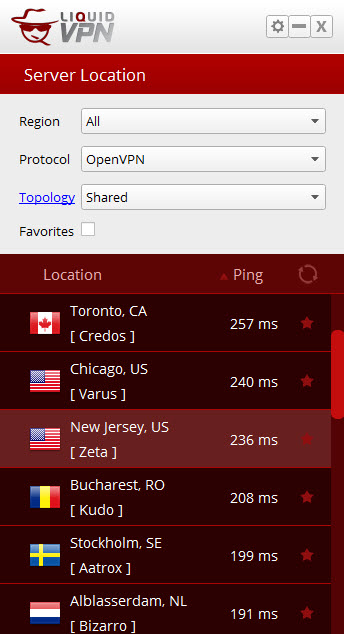
The above action will show you multiple locations and servers. Just select the location you want and then double-click on it to confirm the location. As you can see, I’ve selected the New Jersey server/location.
liquidvpn-review-select-server-or-location

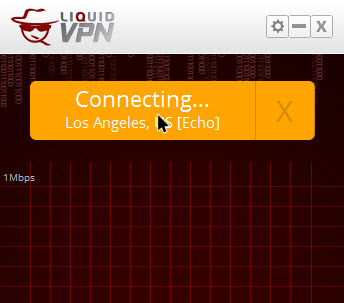
After selecting the location, click on the “Connect” button to start the VPN.
liquidvpn-review-click-on-connect

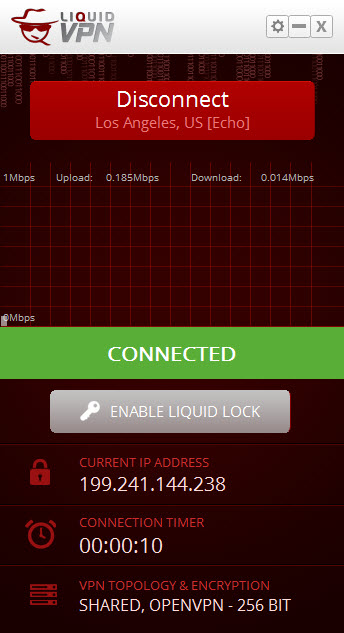
It may take a few seconds to connect to the VPN server. Once connected, the window will let you know the same with the big “Connected” text. In fact, you can also see your current masked IP in the main window itself.
liquidvpn-review-vpn-connected

As I said before, you can actually access geo-restricted websites like Netflix.

liquidvpn-review-netflix-available

What about Hulu? Yes, you can access it too.

liquidvpn-review-hulu-available

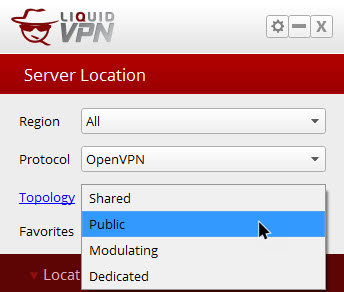
When choosing the server, you might’ve noticed Topology settings. Here’s what those topology settings actually mean.

Shared: This setting means that you will get a shared IP address that is protected from many of the common incoming threats. Moreover, your connection is also protected by the LiquidVPNs server-side firewall. This is a great choice when you are on mobile devices.

Public: This setting allows you to have a dynamic IP address that is good for a wide range of activities like web surfing, P2P downloading, gaming, VOIP, and other general activities. However, you won’t have any protection like in the Shared setting.

Modulating: The Modulating setting allows LiquidVPN to tunnel your data and the data of dozens of other users to an external load balancer. The load balancer will have a subnet of public IP addresses so that it can rapidly change the actual IP address of your device without forcing you to disconnect.
liquidvpn-review-topologies

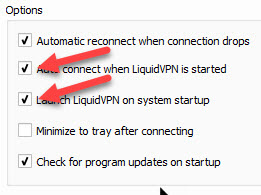
By default, LiquidVPN doesn’t start with Windows. However, if you use VPN regularly, open the “Settings” window and then select both the checkboxes “Launch LiquidVPN on system startup” and “Autoconnect when LiquidVPN is started.” This setting helps you to have your system connect to the VPN as soon as it starts.
liquidvpn-review-system-startup-settings

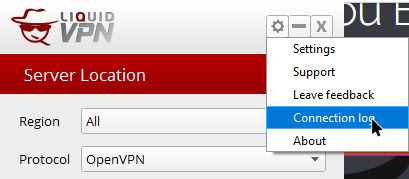
The good thing about LiquidVPN application is that you can see all the internet activity from the Connection Log. As I said before, LiquidVPN doesn’t log or store any of your data. The data you see in the Connection Log is only stored on your system.
liquidvpn-review-select-connection-log

Conclusion

All in all, LiquidVPN is a pretty good service and in my testing, there are no connection drops and even the internet connection speed is pretty good. In fact, I’m able to easily stream a 720p video on YouTube while browsing other web pages. So, if you are looking for a good dedicated VPN service then do give LiquidVPN a try and see if it fits your needs.

Hope that helps and do comment below sharing your thoughts and experiences about using LiquidVPN to encrypt and mask your internet connection.

Note: This is a sponsored article. What it means is that we are paid to review this product. But the opinions in this article are not affected in any way.

List of All Windows 10 Keyboard Shortcuts [Download as PDF]

0

Windows is back on the successful track with Windows 10 and with the Anniversary update, there are a lot of new features that introduced and a lot of improvements to the existing features. Just like Windows 8 keyboard shortcuts, you have Windows 10 keyboard shortcuts that enable you to access Windows 10 specific features or settings.

Using Windows 10 keyboard shortcuts you can easily access different settings and features quite easily without fiddling with the Settings app or the Control Panel. In case you are wondering, below is the list of all the Windows 10 keyboard shortcuts that you should try and use in day to day Windows 10 usage.

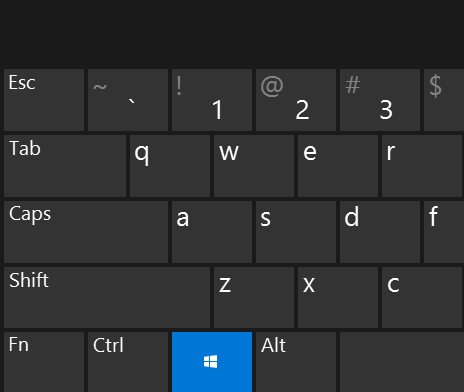
Note: in the below Windows 10 keyboard shortcuts, when I say win key I’m talking about the Windows key on your keyboard. In case you are confused, you can see the below image to find the Windows key on your keyboard.

windows 10 keyboard shortcuts windows 10 windows key

Windows 10 Keyboard Shortcuts

Below is the list of all Windows 10 keyboard shortcuts that every Windows 10 user should know and use to be more productivity in day to day Windows 10 usage.

  • Win + Tab – Launches the Task View interface where you can move between virtual desktops.
  • Win + C – Opens Cortana search bar in the speech input mode.
  • Win + S – Opens Cortana search bar in keyboard input mode.
  • Win + I – Opens Settings app for Windows 10. If you access the settings app regularly, it is one of the best windows 10 keyboard shortcuts. Do you know, you can easily enable dark mode in Windows 10 from the Settings application?
  • Win + A – This Windows 10 Keyboard shortcut will open the Action Center where you can see all the notifications in Windows 10.
  • Win + Ctrl + D – Creates new virtual desktop.
  • Win + Ctrl + F4 – Closes current virtual desktop.
  • Win + Ctrl + Left/Right – Switch between virtual desktops.
  • Win + H – Opens the Share charms bar in Windows 10.
  • Win + K – This Windows 10 keyboard shortcut lets you connect to wireless displays and audio devices.
  • Win + X – Opens the Power User menu. One of the most useful Windows 10 keyboard shortcuts.
  • Win + G – Opens Game Bar for taking screenshots in Windows 10 and recording game video. A pretty good application to record screencasts in Windows for short intervals.
  • Win + Left/Right/Up/Down – Depending on the keyboard shortcut, it will snap the current window to the left or right or up or down to your screen.
  • Win + Spacebar – Switch Windows keyboard language. A pretty helpful language if you’ve multiple languages installed in Windows 1o.
  • Win + 1 to 9 – Opens the programs pinned to the taskbar excluding the Start button and Cortana icon.
  • Win + P – Project a screen.
  • Win + O – Lock device orientation (Landscape/Portrait). Useful if you are using 2-in-1 devices, like Surface Book or Surface Pro.
  • Win + M – Minimize all window screens.
  • Win + T – Cycle through the apps pinned in the taskbar.
  • Win + U – Open ease of access center.
  • Win + Enter – Open Narrator app.
  • Alt + Spacebar – Resize, minimize or maximize the current window.
  • Shift + Left click on the app icon in taskbar – Open an another instance of the app.
  • Ctrl + Shift + Left click on the app icon in taskbar – Open an instance of the app in Admin mode.
  • Shift + Right click on the app icon in taskbar – Show the window menu for the app.
  • Ctrl + Left click on grouped taskbar app icon – Cycle through windows of present in that group.

Also read: a list of all Run commands that every Windows user should know

Windows 10 Command Prompt Shortcuts

Among all the improvements in Windows 10, the Command Prompt has also been improved to some extent with has got its own Command Prompt keyboard shortcuts in Windows 10.

  • Shift + Left/Right/Up/Down – Moves cursor to left/right a character or up/down a line while selecting the text all along.
  • Ctrl + Shift + Left/Right – Moves cursor to left/right one word at a time while selecting that text on the way.
  • Shift + Home/End – This shortcut moves the cursor to the beginning/end of current line.
  • Ctrl + Up/Down – Moves up/down one line at a time.
  • Ctrl + PageUp/PageDown – Moves the cursor up/down one page at a time.
  • Ctrl + M – Go into Mark mode for selecting text.
  • Ctrl + C – Copy selected text or command.
  • Ctrl + V – Paste copied text or command.
  • Ctrl + F – Opens find dialogue box to find the text.

That’s all for now and hopefully, these Windows 10 keyboard shortcuts will help you in the day to day activities. If you want to, you can download Windows 10 keyboard shortcuts as a PDF document for offline usage.

If you think I missed any of your favorite Windows 10 keyboard shortcuts then do share them in the comments section below.

How to Hide SMS on Android to Secure Your Text Messages [Quick Tip]

0

Mobile theft is a major reason of grievance in today’s world. From stealing private information like contact numbers, messages to media like images and videos, information privacy has become the number one priority for everyone. In fact, if you are using android then privacy is one of the main concern and you need to hide SMS on android.

That being said, even though instant messaging apps like WhatsApp, Facebook Messenger, Skype, etc.., are becoming quite popular, we still use SMS or text messaging for some of our important communications like banking and other stuff.

Considering the importance of SMS on your android device, you don’t want those text messages to fall in wrong hands or don’t want people to snoop around. To do that, you can simply hide SMS on android. In case you are wondering, here is how to hide SMS on android.

Hide SMS on Android

Unfortunately, there is no built-in option in android to hide SMS or text messages. However, there are lots of apps in the market which claim to ensure the safety of your data on your android device by hiding text messages on android. We have cherry picked two such apps which will help you hide SMS on android.

Also read: how to send and check SMS on android from PC

1. Hide SMS on Android – Using Vault-Hide

Using Vault – Hide you can easily hide SMS on Android. Moreover, you can also hide email messages, photos, videos, and contacts along with the text messages.

This app allows users to create private contacts, whose messages and call logs will be hidden from the regular logs. Moreover, the app will also hide all incoming messages, alerts, and text messages from these private contacts by default.

To start off, download the app, install it and then open it from the menu.

  1. Here you will need to create a numeric PIN (3-15 digits) and confirm it on the next screen.
  2. Set up your email account to get your PIN through email if you ever forget the pin in future.
  3. There are tabs for different kind of media like photos, videos, SMS and contacts. You can tap on each of the tabs to protect the information you wish to hide from prying eyes.
  4. Tap on SMS and Contacts tab to hide SMS on android.
  5. The good thing about the app is that you can import messages to make them private in the same tab.

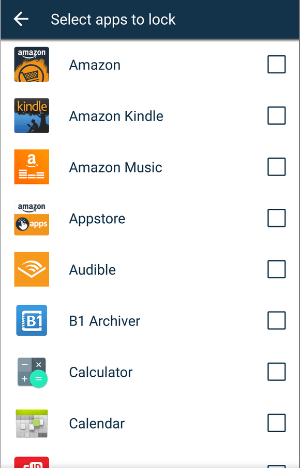
hide sms on android vault hide app

Also, you can enable the Messenger plug-in. This will ensure that private messages which you have selected won’t be displayed in your default SMS application or even in the notification bar.

That’s all there is to do and it is that simple to hide SMS on android.

2. Hide SMS on Android – Using Message Locker (SMS Lock)

Using Message Locker you can easily hide SMS on android with just a few clicks. Well, not hide per say but you can lock the access with a pin.

Not only you can hide SMS on android but you can also hide or lock email messages and your media like photos. Just download the app from Play Store and follow the below instructions to hide text messages on android using Message Locker app.

  1. After opening the app, create a numeric pin (4-8 digits) and confirm it again in the next screen. Note that you also have the option of entering a pattern instead of a numeric PIN. You can do this through the settings option.
  2. Then it will ask you to enter a recovery email ID. This comes in handy in case you forget your PIN code. Just enter it to continue.
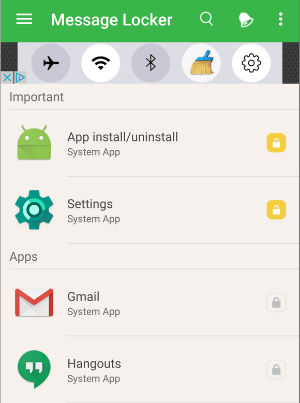
  3. Now, the app will search through your phone and display a list of messaging apps like SMS and email.
  4. Just select the apps which you want to lock out or hide.
  5. That’s all there is to do, the apps which are locked using this method will now require the PIN which you entered earlier each time it is opened.

hide sms on android message locker

Hope this guide helped you and do comment below sharing your thoughts and experiences about using the above app to quickly hide text messages on Android. If you think I’ve missed your favorite app to hide SMS on android then do share it in the comments section below.

5 Best Start Menu Alternatives for Windows 10

0

Looking for some best start menu alternatives for Windows 10? Windows operating system has become synonymous with one of its most iconic characteristic, the Start button or the Start menu. First introduced in Windows 95, it progressed on the user interface front from XP to Windows 7.

After getting a backlash for discarding it in Windows 8, Microsoft has brought it back in Windows 10. In fact, the start menu in Windows 10 has best of both Windows 8 and Windows 10. You can even customize Windows 10 start menu to a certain extent.

That being said, there are many independent software providers who capitalized on the missing start button during the Windows 8 period and created some of the best start menu alternatives for Windows 10 and 8. The good thing about these start menu alternatives for Windows 10 is that they are pretty stylish and way functional than the native one.

So, no matter what the reason is, if you are looking for the best start menu alternatives for Windows 10 then here are a few of them.

Best Start Menu Alternatives for Windows 10

Note: the best start menu alternatives listed below are also compatible with Windows 8 along with Windows 10.

Also read: how to set notification priorities in Windows 10

1. Start Menu Alternatives for Windows 10 – Classic Shell

Released in 2009, Classic shell is one of the most popular start menu alternatives for Windows 10 which is easy to install and simple to use. If you choose all the default options, you will get a Windows 7 style start menu. It has multiple styles and skins for you to choose from.

start menu alternatives for windows 10 classicshell start menu

Moreover, Classic Shell also enables several of the classic Windows File Explorer options which are most familiar with Windows 7 and Vista users. You can select one of the three styles, the classic, classic with two columns, and Windows 7 style. In addition to this, it also provides the caption and toolbar for Internet Explorer.

start menu alternatives for windows 10 classic shell settings

2. Start Menu Alternatives for Windows 10 – Start Menu X

Start Menu X yet another start menu alternatives for Windows 10 that comes in both free and paid versions. The free version will have all the features which will satisfy a normal user like you and me. So, you can always go for the free one. Using the free version, you can add tabs and get access to any folder on your PC right from the start menu. Some of the features that are included in the free version are the ability to replace the start button, shutdown times, support for any scale DPI, virtual groups, etc.

Start Menu X also has fully equipped power buttons that even lets you set a delay timer. Simply put, you can actually schedule your system to shutdown. Moreover, this start menu alternative for Windows 10 supports any Windows version that is XP and above.

3. Start Menu Alternatives for Windows 10 – Power8

Power8 is one of the best start menu alternatives for Windows 10 that comes with loads of features. You will get all the power features like shutdown, sleep and hibernate built directly into the start menu. If you are a fan of old Windows 98 or XP style menu, it provides you with an exact replica. Additional features include but not limited to enabling auto checks for updates, shows about windows, exits applications, toggles auto-start, context menu over menu items, hot-key activation, support for jump lists, etc.

If you are looking for a simple, free and open source start menu alternative for Windows 10 or Windows 8 then do give Power8 a try.

start menu alternatives for windows 10 power8 start menu

4. Start Menu Alternatives for Windows 10 – Pokki Start Menu

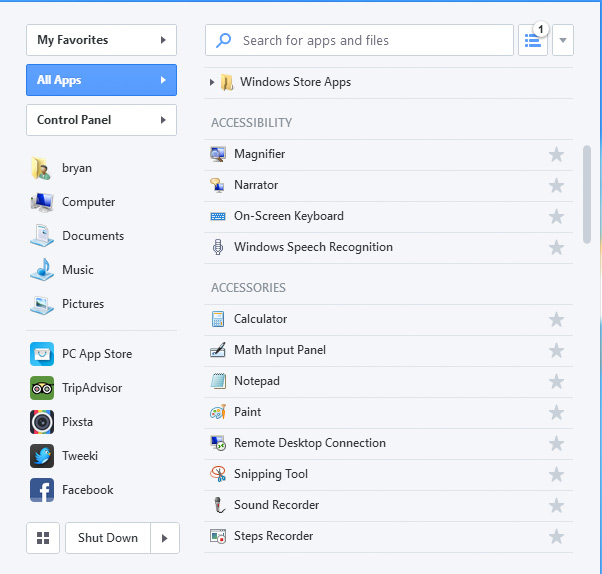
Pokki Start Menu is one of the distinct looking and modern start menu alternative for Windows 10 and 8. It creates a custom start menu which works along with the default one. A rich user interface with dark and light themes is the main highlight of this software. It also features starring of items to quickly access them from the Favorites subsection. As you can see from the below image, you can customize the start menu both on the left and right sides. Just like the default start menu in Windows 10.

Even though the download page says it is for Windows 8, this start menu alternative works with Windows 10 too. So, if you are looking for a modern looking start menu then do give Pokki Start Menu a try.

start menu alternatives for windows 10 pokki start menu

5. Start Menu Alternatives for Windows 10 – StartW8

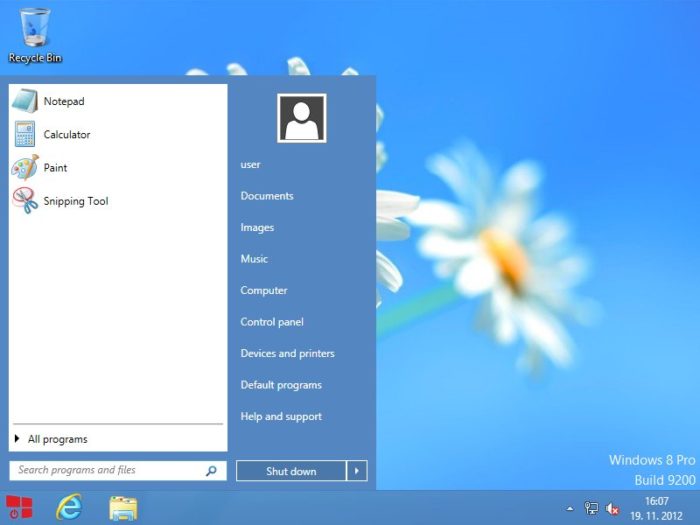
Again, even though StartW8 is designed for Windows 8, it works flawlessly with Windows 10. Moreover, StartW8 is one of the most basic start menu alternatives for Windows 10 listed in this article. If you are not the fancy type and prefer the simple and straightforward start menu then StartW8 is for you. With two column menu, it lists the recently used programs in the left pane and the shortcuts in the right pane. You can customize the default behavior of some components like shutdown button, menu items to be listed, transparency and color scheme.

As you can tell from the image below, StartW8 mimics Windows 7 style start menu for Windows 10 perfectly.

start menu alternatives for windows 10 startw8 start menu

Hope that helps and do comment below sharing your thoughts and experience about using the above start menu alternatives for Windows 10. If you think I missed any of the best start menu alternatives for Windows 10 and 8 then do share them in the comments section.

How to Take a Screenshot in Windows 10

0

If you are using a computer for long enough then you might have faced with a situation where you need to quickly take a screenshot in Windows 10. There may be several reasons for this like to an error message, to quickly capture something that is being displayed on your computer screen, etc.

No matter what the reason is, it is very easy to take a screenshot in Windows 10. In fact, you don’t actually have to use any third-party software to take a screenshot in Windows 10. In case you are wondering, here is how to take a screenshot in Windows 10.

Note: though I’m showing how to take a screenshot in Windows 10, the below method is applicable to almost any Windows version.

Take a Screenshot in Windows 10 – Full Screen

It is way easier than you think to take a screenshot in Windows 10. To start off, make sure that you are on the screen that you want to take a screenshot in Windows and then simply press the keyboard shortcut

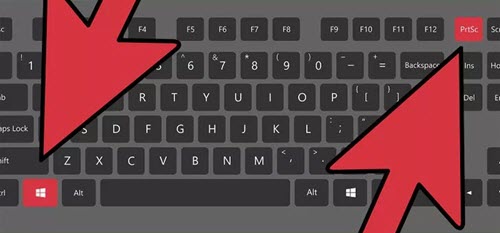
1. To start off, make sure that you are on the screen that you want to take a screenshot in Windows and then simply press the keyboard shortcut Win + PrintScr.

take a screenshot in windows 10 alt print screen

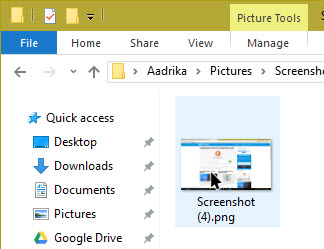
As soon as you do that, you will see a visual cue letting you know that you took a screenshot in Windows. The good thing is, the screenshot will be automatically saved to the Pictures folder.

2. To see the file, simply navigate to the following location. Don’t forget to replace [username] with the actual username. You can simply paste the below folder location in the Run dialog box.

C:\Users\[username]\Pictures\Screenshots

take a screenshot in windows 10 screenshot saved

Alternate Method to Take a Screenshot in Windows 10

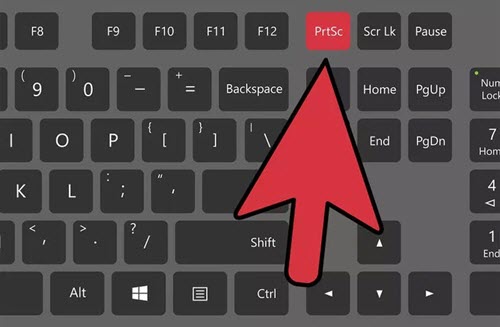
1. If for some reason you are not able to use the above keyboard shortcut then we can use the paint application to save the screenshot. To do that, simply press the PrintSrc key on your keyboard.

take a screenshot in windows 10 print screen button on keyboard

With the above action, the screenshot has been captured and copied to the clipboard. Unlike the above procedure, you will not get any kind of notification or the visual cue letting you know that the screenshot has been taken.

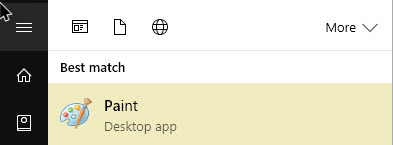
2. Now, click on the start button, search for “Paint” and then open it.

take a screenshot in windows 10 open ms paint

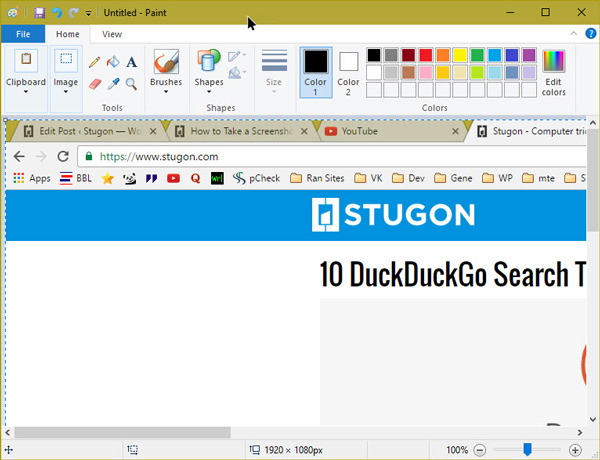
3. Once opened, press the keyboard shortcut Ctrl + V to paste the screenshot. Once you are done, you can see your screenshot image in the Paint window. If you want to, you can use various options given in MS Paint to edit the screenshot taken Windows 10.

take a screenshot in windows 10 paste screenshot in paint

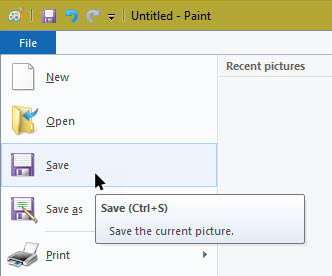
4. Once you are satisfied with the image, go to “File” and then select the option “Save.”

take a screenshot in windows 10 select save option

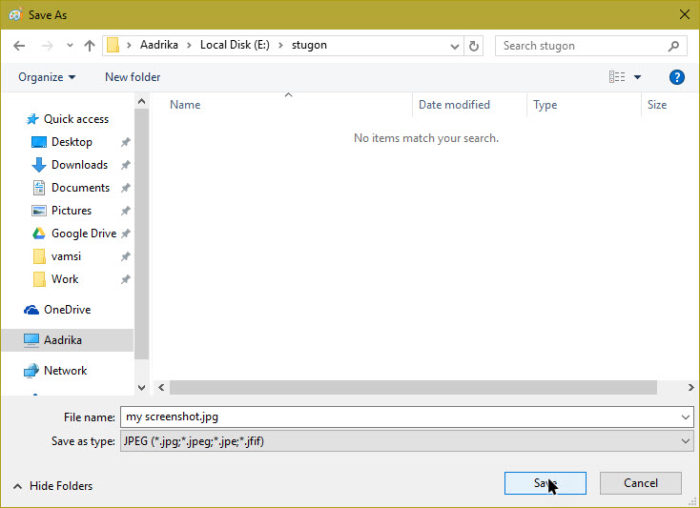
5. This action will open a new window. Here, select the location where you want to save the image and image format type. In my case, I’m selecting the JPEG format. Once you are done, click on the “Save” button. Your screenshot image is now saved on your PC.

take a screenshot in windows 10 save screenshot

Take a Screenshot in Windows 10 – Only Active Window

1. If you do not want to capture the whole screen or just want to capture the active window then press the keyboard shortcut Alt + PrintScr. This action will only capture the active window and ignores everything. A pretty helpful method if you want to capture an error message or something of that sort.

2. Once you are done capturing, paste it in the MS Paint application as detailed above and save it.

That’s all there is to do and it is that simple to take a screenshot in Windows 10. Do comment below sharing your thoughts and experiences about using the above methods to take a screenshot in Windows 10.