A List of Useful Command Prompt Keyboard Shortcuts That Every User Should Know

0

The Command Prompt has been there since the inception of Windows operating system. In fact, almost every windows user uses the Command Prompt at least once for different things like to quickly find your IP address, executing files, troubleshooting for error, etc.

There are a lot of handy keyboard shortcuts you can use in the Command Prompt to make your life a lot easier and efficient. In this article, I bring you a list of useful Command Prompt keyboard shortcuts which will enhance your productivity and you can also have the bragging rights of being a Command Prompt power user.
command prompt keybaord shortcuts

List of Command Prompt Keyboard Shortcuts

The keyboard shortcuts listed here are supported by all existing Windows versions.

1. Opening/Closing of Command Prompt

  • Windows + R (then type “cmd”) – Open the command prompt
  • Alt + Enter – Toggle full screen
  • Alt + F4 – Close the Command Prompt

2. Moving the Cursor Along the Page

  • Home/End – Move the cursor to the beginning or end of the current line
  • Ctrl + Left/Right arrow – Move cursor to the beginning of previous or next word in the current line
  • Ctrl + Up/Down arrow – Scroll page up or down
  • Ctrl + M – Enter or exit Mark mode (useful to copy output from the Command Prompt)

3. Selecting Text

  • Ctrl + A – Selects all the text in the current line
  • Shift + Left/Right arrow – Extend current selection by one character to the left or right
  • Shift + Up/Down arrow – Extend current selection by one line up or down
  • Shift + Ctrl + Left/Right arrow – Extend current selection by one word to the left or right
  • Shift + Home – Extend current selection to beginning of line
  • Shift + End – Extend current selection to the end of line
  • Shift + Ctrl + Home/End – Extend current selection to beginning or end of screen
  • Shift + Page up/Page down – Extend current selection by one page up or down

4. Modifying Text

  • Ctrl + C – Copy current selected text
  • Ctrl + V – Paste current selected text
  • Backspace – Delete character to the left
  • Ctrl + Backspace – Delete word to the left
  • Escape – Delete current line of text
  • Tab – Autocomplete a folder or file name
  • F2 + letter – Copy text to the right of the cursor up to the typed letter
  • Ctrl + Home/End – Delete text from current selection to the beginning or end of the line
  • Ctrl + Z – Marks the end of the line.
  • Insert – Toggle insertion mode. When ON, the character you type will be inserted at the current cursor location.

5. Command History

  • F3 – Repeat previously executed command
  • Up/Down arrow – Scroll through the previously executed commands
  • F7 – Show history of previously executed commands
  • Alt + F7 – Clear history of previously executed commands
  • F8 – Move backward in the command history to commands matching the current command.
  • Ctrl + C – Abort the current command

So now that you are familiar with the command prompt shortcuts, give all of them a try. If you want to, download these keyboard shortcuts as a PDF file for offline usage.

Hope that helps and do comment below sharing your thoughts and experiences about using the above Command Prompt keyboard shortcuts. Also, let us know if I missed any of your favorite keyboard shortcuts.

How to Fix Movies with Loud Action and Quiet Dialogue Sounds in VLC Media Player

0

Movies are where we live our dreams. And the sound is the platform on which those movies are based on. Even silent movies cannot do without adding sound effects. But some movies overdo the soundtracks, which gets extremely frustrating at times.

To make matters worse, in some movies or videos, the background music varies constantly and the dialogues are drained in those loud sounds. If you have ever experienced the irritation of constantly having to change the volume in your media player due to inaudible dialogues or sudden increase in sound during an action scene, welcome to the club.

VLC, a universally acclaimed video player, can do a lot of cool things like going through frame by frame in VLC, playing youtube playlists, etc. In fact, it has just the right solution to fix movies with loud action and quiet dialogues using VLC compression tool. Here I list all the steps on how to enable compression tool in VLC media player to fix movies with loud action and quiet dialogue sounds.

Why not make things easier using these VLC keyboard shortcuts.

Enable Compression Tool in VLC

1. Open the VLC media player.

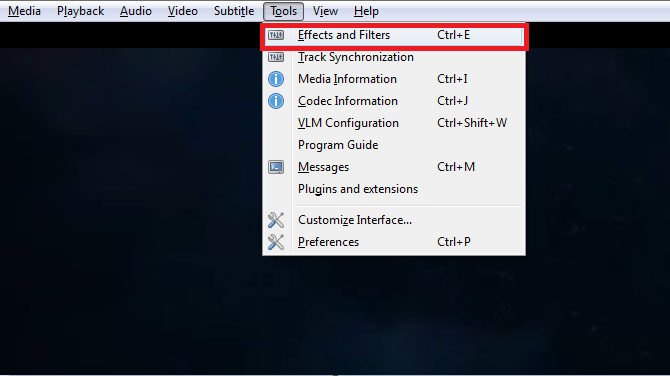
2. Go to “Tools” and click on “Effects and Filters”

vlc-fix-loud-sounds-vlc-effects-filters

3. The above will open the “Adjustments and Effects” window.

Want to increase volume in Windows Universally? Here’s how to increase volume in Windows above its maximum limit.

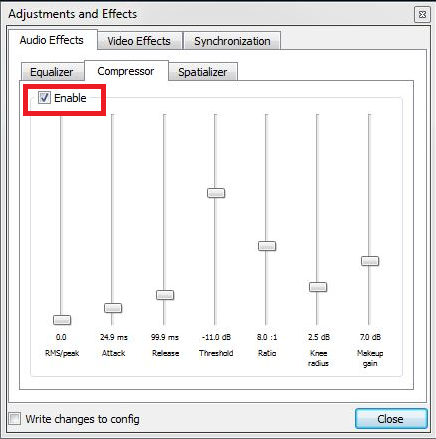
4. Go to “Compressor” tab and select the “Enable” checkbox. This will enable the dynamic range compressor function of VLC player.

vlc-fix-loud-sounds-enable-compressor

5. Here in this window, a default preset setting is already available. You can keep the same setting if it solves your problem. If not, you can continue the steps below.

6. Without changing the speaker volume, find a quiet scene in the movie, and slowly raise the “Makeup gain” slider till you are comfortable with the dialogue sound.

Want to open multiple VLC windows at the same time? Here’s how to open multiple instances or windows.

7. Turn up the “Ratio” slider to the top.

8. Now find an action scene where the sound is too loud. Lower the “Threshold” slider till the sound comes down to a normal level.

9. Lastly, keep the “Attack” slider to about 50ms, and the “Release” slider to about 300ms. With this setting, VLC media player will automatically change the volume when it gets too loud or when the quite dialogs are at inaudible levels.

You are done with the settings for now. The good thing is that you can always tweak and tune the above settings to meet your needs on different videos. From now on, you can enjoy your movie without worrying about the sound variation or waking up your neighbor when that amazing action scene comes up. Let us know if this guide was useful to you in the comments section below.

How to Find System Uptime on Mac OS X [Quick Tip]

0

It may not be too often but sometimes you may want to find out the system uptime of your Mac. There may be several reasons for this like to troubleshoot an issue, to see how long you have been using your Mac without a reboot, to brag with your friends, etc. In case you are wondering, system uptime is nothing but the amount of time your system is running without being restarted. So, no matter what the reason is, here is how you can find system uptime details on your Mac OS X.

Find System Uptime on Mac OS X

There are two ways to find system uptime on Mac. I will show you both the ways, use the one that is comfortable to you.

Using a Simple Terminal Command

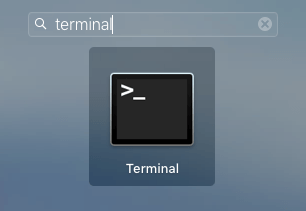
1. Using the terminal to find system uptime is that fastest and easy way. To start off, search for “Terminal” either using the Spotlight or Launchpad and then open it.

mac-uptime-open-terminal

2. Once the terminal has been opened, execute the below command and you will have your system uptime details.

uptime

mac-uptime-terminal-output

3. In case you are thinking, here is the breakdown of what the terminal is telling you.

  • Current time – uptime in days, hours and minutes.
  • The number of accounts used during the uptime.
  • Load average in last 1, 5 and 15 minutes.

Using System Report (GUI)

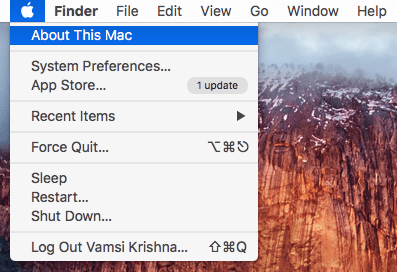
1. If you don’t like using the terminal to the get the system uptime report then you can use the System Report application on your Mac. To do that, click on the “Apple” icon appearing on the top-left corner and then select the option “About this Mac.”

mac-uptime-select-about-this-mac

2. The above action will open the System Overview window. Here, click on the button “System Report.”

mac-uptime-select-system-report

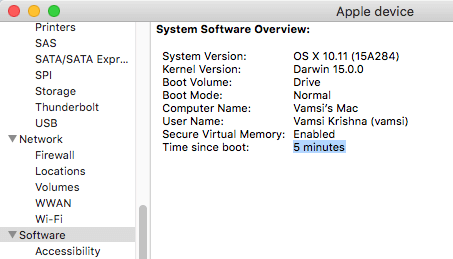
3. Once the System Report window has been opened, scroll down and choose the option “Software” on the left side of the screen. As soon as you’ve done that, your system uptime will be displayed in the right pane next to “Time Since Boot.”

mac-uptime-system-report

That’s all there is to do and it is that simple to get system uptime details on your Mac OS X.

Hopefully that helps and do comment below sharing your thoughts and experiences about using the above methods to find system uptime report on Mac OS X.

How to Create System Image Backup in Windows 10

0

Toiling away for months on a project, saving it on your PC, going for a vacation for a couple of days and coming back only to see a virus or something similar has corrupted your machine. To make matters worse, the data corruption or virus and malware infections can sometimes wipe the slate clean. Sounds familiar? If yes, then you should create system image backup of your Windows system for a worry free vacation from next time onwards.

With windows 10 becoming increasingly popular, here I’m providing the process of creating a full system image backup in Windows 10. However, this same procedure can be used to create system image backup in windows 7 and 8.1 as well.

Note: it is recommended that you should create system image backup of Windows on an external hard drive. If you don’t have an external hard drive then you can simply use one of your partitions. Just make sure that you have enough space to create system image backup of your system.

Create System Image Backup in Windows 10

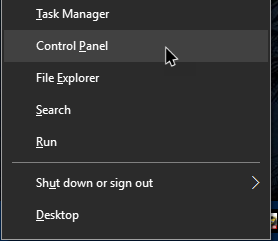
To create system image backup, go to the ‘Start’ button on your desktop, right-click on it to open the Power User menu. Here, select the option “Control Panel.”

win10-create-system-image-backup-control-panel

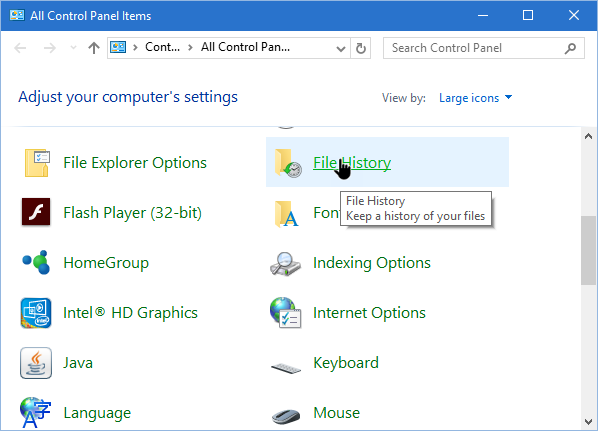
Once the Control Panel has been opened, click on the “File History” option. Make sure that the Control Panel view has been set to “Large” or “Small” icons. Alternatively, you can type ‘File History’ in the start menu search field, and open the File History application.

win10-create-system-image-backup-select-file-history

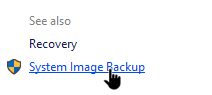
When the File History window opens, click on the ‘System Image Backup’ link appearing in the bottom-left corner of the window.

win10-create-system-image-backup-click-system-image-backup-link

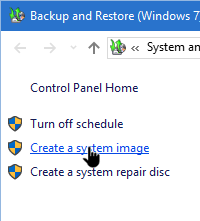
In the next window, click on Create system image link appearing on the left-hand side of the window.

win10-create-system-image-backup-click-system-image-link

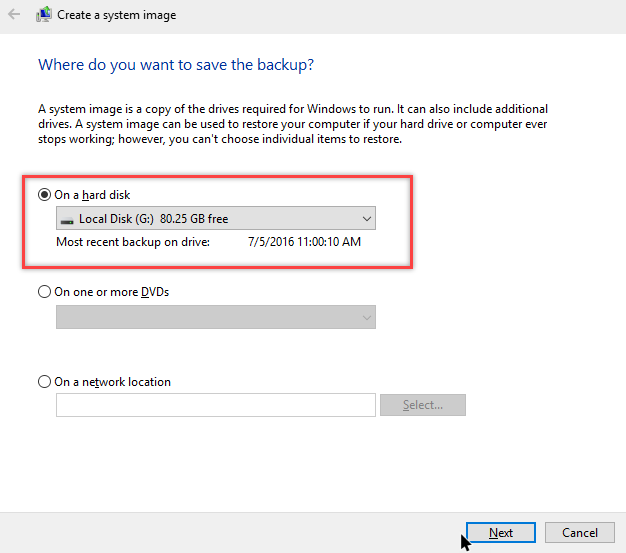
Here, select the option “On a hard disk” and choose a partition of your choice from the drop-down menu. However, it is recommended that you use an external hard disk. It is much safer in the event of hard disk failure in your system. Once you are done selecting the drive, click “Next” to continue.

Note: if you have a network location where you can save your system image backup then select the radio button “On a network location” and then choose the network location where you want to create system image backup.

win10-create-system-image-backup-select-backup-destination

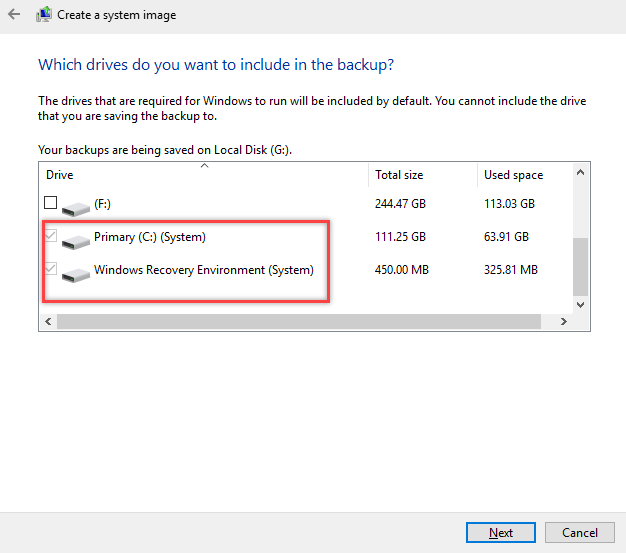
By default, Windows will automatically select all the system partitions. Simply click on the button “Next” to continue.

win10-create-system-image-backup-system-partitions-selected

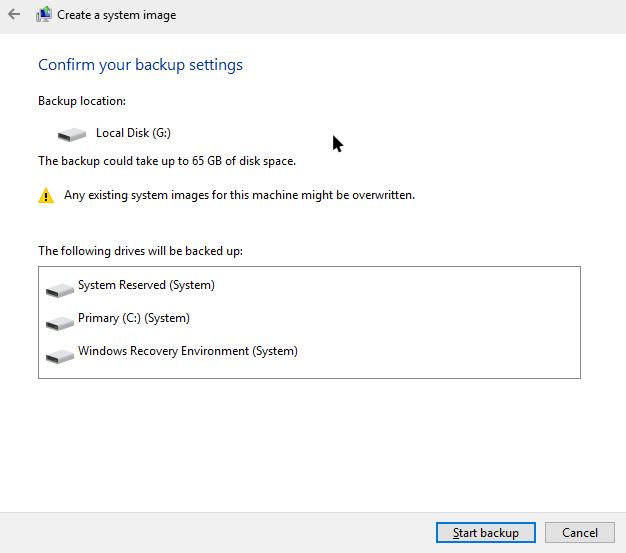
In the next window, review all the settings listed and click “Start Backup” button. The system will now start to create system image backup of your system.

win10-create-system-image-backup-review-settings

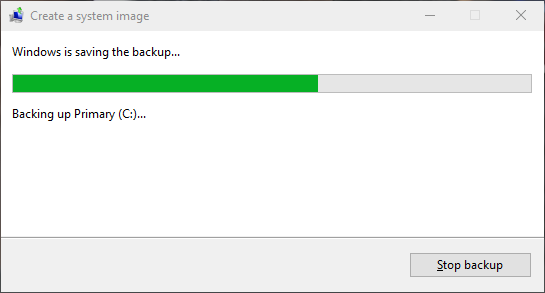
Once the backup has completed, you can close the wizard and unplug your external drive (if you’ve used one). You now have the full system backup of your windows 10 machine. Windows might prompt you to create a system repair disk. So, go ahead and follow the on-screen instructions. The system repair disk helps you boot into your system even when your system is corrupted or not bootable.

win10-create-system-image-backup-creating-backup

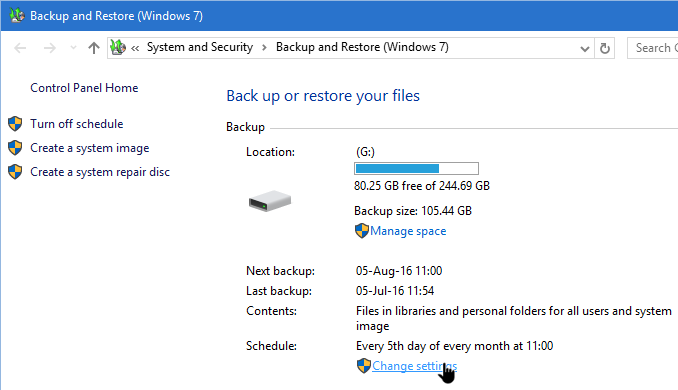
That’s all there is to do and it is that simple to create system image backup in Windows 10. Generally, Windows automatically backs up your system on a weekly basis. If you want to change the schedule, simply click on the link “Change Settings” in the Backup and Restore window.

win10-create-system-image-backup-change-schedule-settings

Hope that helps and do let me know if you found the step by step guide useful. Please feel free to comment in case I missed anything or if you have any other better solution with in Windows.

How to Install Microsoft Fonts in Ubuntu [Quick Tip]

There are a lot of open source fonts available to use on the internet. However, there are some commonly used fonts on the Microsoft platform. If these fonts are not installed on your machine, some websites and documents which are designed with Microsoft Windows standard fonts may look a bit weird. Another instance where you need those Microsoft fonts installed in Ubuntu is when you use PowerPoint or Word documents written by MS office users.

In case you are wondering, here are some of the most commonly used or required Microsoft fonts.

  • Andale Mono
  • Arial Black
  • Arial (Bold, Italic, Bold Italic)
  • Comic Sans MS (Bold)
  • Courier New
  • Times New Roman (Bold, Italic, Bold Italic)
  • Verdana (Bold, Italic, Bold Italic)
  • Webdings

I’m listing below the various ways you can install Microsoft fonts in Ubuntu. Follow the one you are comfortable with.

1. Install Microsoft Fonts Using Terminal

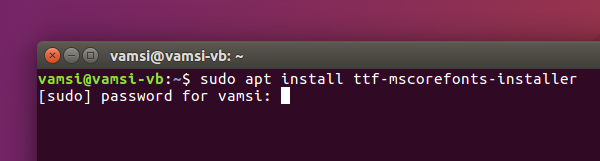
The fastest way to install Microsoft fonts is to use the terminal. You can install the whole bundle of Microsoft fonts by following the below steps. To start off, press the keyboard shortcut Ctrl + Alt + T. This action will open the terminal.

Once the terminal has been opened, copy the below command and press the enter button.

sudo apt-get install ttf-mscorefonts-installer

install-microsoft-fonts-ubuntu-ms-fonts-command

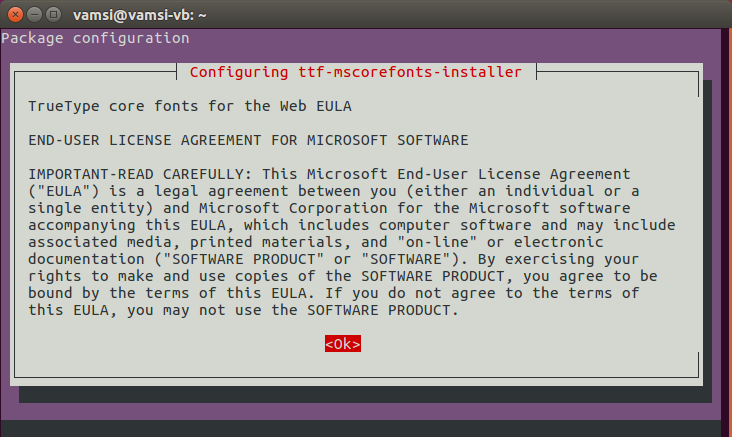
As soon as you execute the above command, you will be asked for your password. Type it in and press the enter button. Now, you will be asked to read the license agreement. Simply press the tab key on your keyboard to highlight the option “Ok” and then click on the button Enter on your keyboard.

install-microsoft-fonts-ubuntu-read-terms

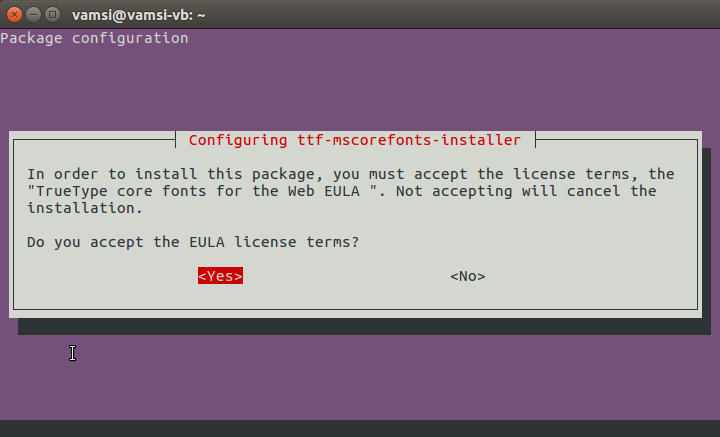
Now agree to the terms to install Microsoft fonts.

install-microsoft-fonts-ubuntu-accept-terms

Once you are done installing, use the below command to refresh the font cache. If this didn’t work, simply restart your system to clear the font cache.

sudo fc-cache –fv

2. Install Microsoft Fonts Manually

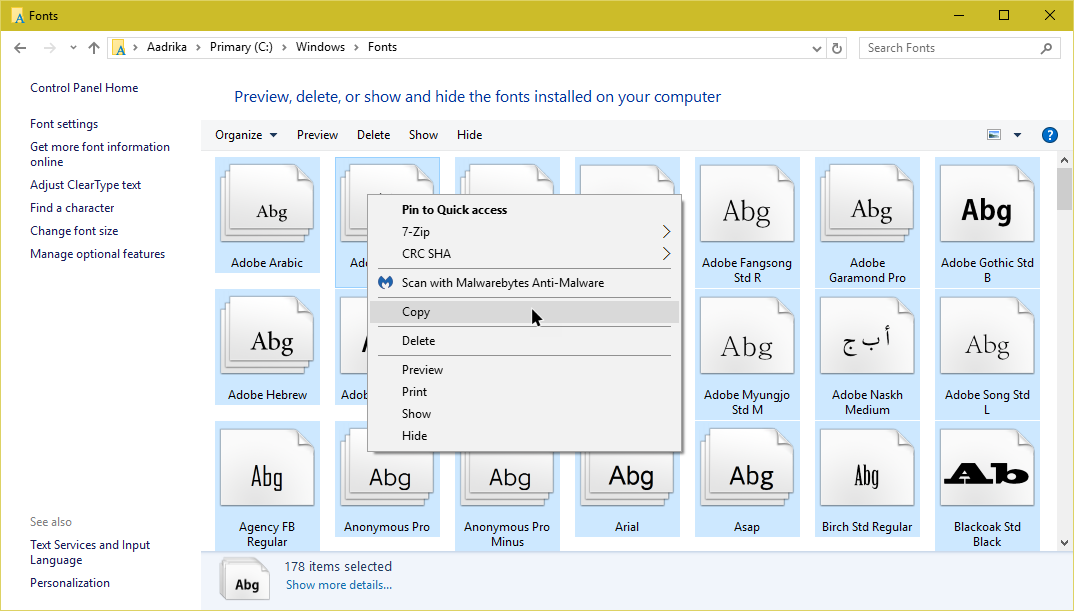
This method is useful for those who are dual booting or are networked to a Windows machine. You can copy the fonts directly from Windows and then install them in Ubuntu. To start off, log into your Windows machine, search for “Fonts” in the start menu and then open it. Now, select all the fonts using the keyboard shortcut Ctrl + A, right-click and then select copy.

install-microsoft-fonts-ubuntu-copy-fonts

Now, create a new folder, open it and paste all the fonts. Copy this folder onto your Ubuntu machine.

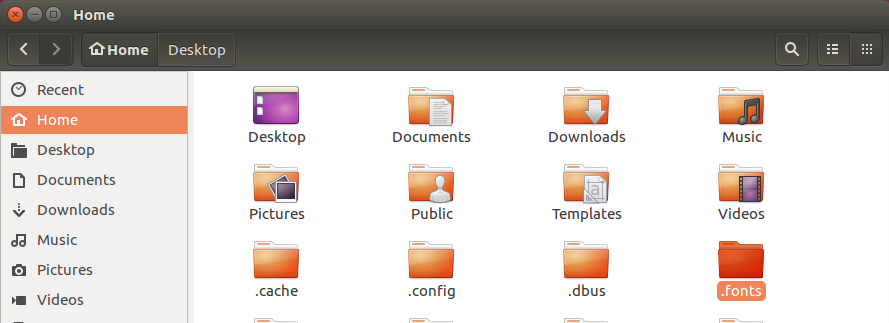
In your Ubuntu machine, open your home folder, create a new folder and name it “.fonts”. The “dot” in front of the folder name represents that it is a hidden folder.

install-microsoft-fonts-ubuntu-create-fonts-folder

Now, copy all TTF (True Type) fonts from the earlier folder to this folder. That’s all there is to do. You’ve successfully installed all the fonts.

Now you can restart the machine or refresh the font cache through the terminal using the below command.

sudo fc-cache –fv

3. Install Microsoft Fonts Using Software Center

This is the easiest way if you don’t want to deal with the terminal or with the manual installation. Simply open the Ubuntu software center, search for the package “ttf-mscorefonts” and click on the button “Install” to install Microsoft fonts in Ubuntu.

After installation, restart your system and you are good to go.

You can now read all the MS documents in the correct format. Do let us know if you found this guide useful in the comments section below.

How to Change Desktop Icon View Styles on Windows 10 [Quick Tip]

0

The default icon appearance style for any program shortcut, file or folder on your Windows desktop is either the medium or small icons. But do you actually know that there are different icon views that you can apply to your Windows desktop?

Yes, you can actually change the icon view styles just like in the File Explorer. However, there is no GUI (Graphics User Interface) to achieve the same on the Windows desktop. But you can still do it. In case you are wondering, here is how you can quickly change the desktop icon view styles on Windows.

Change Desktop Icon View Styles on Windows

Note: though I’m showing this in Windows 10, the same trick will work even in older versions of Windows like 7, 8, and 8.1.

If you’ve ever tried, in the File Explorer, you can easily change the icon style by holding down the “Control” button on your keyboard and using the mouse scroll wheel (Ctrl + Scroll Wheel Up or Down). But this trick doesn’t work on the desktop. In fact, when used the aforementioned shortcut, the icons just change their size.

So, to change the desktop icon view style, you can use the keyboard shortcut Ctrl + Shift + 1 - 8.

windows-dekstop-icon-view-styles-content-view

Below is the brief explanation of which icon style can be viewed using which keyboard shortcut.

  • Ctrl + Shift + 1: Extra Large Icons
  • Ctrl + Shift + 2: Large Icons
  • Ctrl + Shift + 3: Medium Icons
  • Ctrl + Shift + 4: Small Icons
  • Ctrl + Shift + 5: List View
  • Ctrl + Shift + 6: Details View
  • Ctrl + Shift + 7: Tiles View
  • Ctrl + Shift + 8: Content View

The above metioned keybaord shortcuts may not work in some version of Windows. In those cases, you may have to try the alternative keybaord shortcut Ctrl + Alt + 1 - 8.

That’s all there is to do and it is that simple to change desktop icon view style on Windows desktop.

Do comment below sharing your thoughts and experiences about using the above method to change desktop icon view styles on Windows.

How to Edit Hosts File On Mac OS X

0

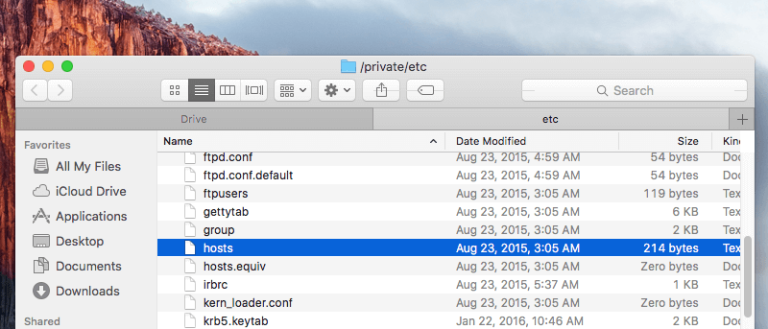
In computers, the hosts file is used to map IP addresses to domain names. This is an important part of any computer as it lets your manually add or delete domain mapping. Obviously, this file is usually used by the system administrators, power users or developers so that they can map particular domains to a particular IP address. If you are using Windows, editing hosts file is as easy as editing any text file. But on Mac, it’s a little bit tricky.

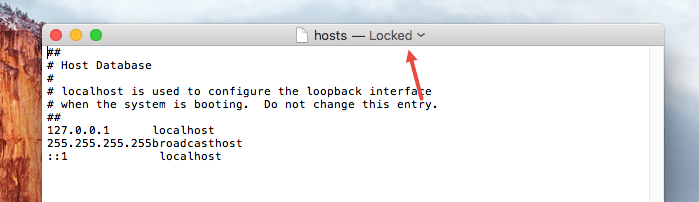
In fact, if you try to open and edit the hosts file, you will see the text “Locked” on the title bar. Since the file is locked, you are blocked from making any changes.

mac-edit-hosts-file-locked-hosts-file

So, if you ever want to edit hosts file on Mac, here is how to do it.

Edit Hosts File On Mac OS X

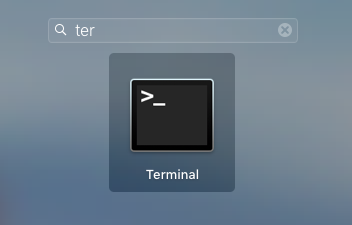
Though editing hosts file on Mac OS X is a bit tricky, it is still easy. To start off, search for the terminal in Launchpad or Spotlight and open it.

mac-edit-hosts-file-open-terminal

Once the terminal has been opened, copy the below command and execute it.

sudo nano /etc/hosts

mac-edit-hosts-file-command

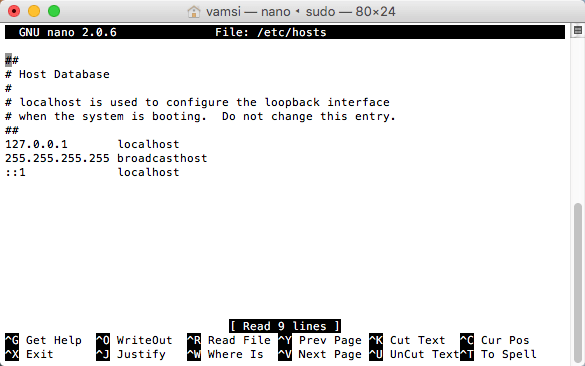
As soon as you execute the command, the terminal will open the hosts file in the nano editor. Here you can edit the file to add or remove entries.

mac-edit-hosts-file-opened-in-nano

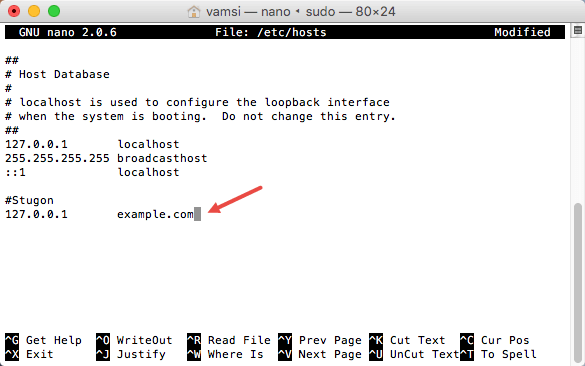
To add an entry, use your keyboard to move the text cursor and you can use the below format to add your own entries. For instance, I’m mapping example.com to the localhost IP address 127.0.0.1.

#Your custom comment
127.0.0.1   example.com

As you can see the below image, I’ve also added comments before the entry. To put it simply, anything after the # symbol is treated as a comment, thus ignored.

mac-edit-hosts-file-add-entries

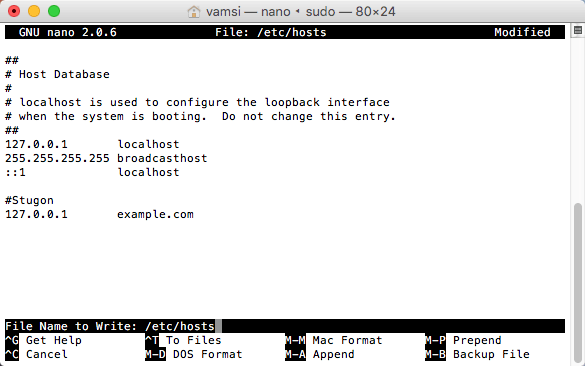
Once you are done added or removing the entries from the hosts file, press the keyboard shortcut Control + O to save the changes. The editor will ask for location and name, just leave the default as is and press the Enter button.

mac-edit-hosts-file-save-file

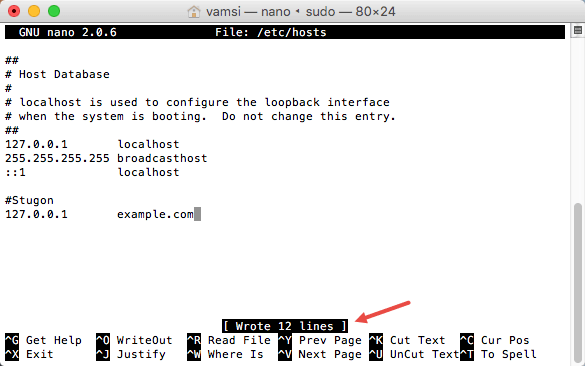
Once the changes are saved, you will receive a confirmation message telling you how many new lines are added.

mac-edit-hosts-file-file-saved

To close the editor, press the keyboard shortcut Control + X and you are good to go.

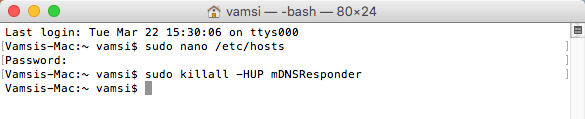
Generally, the changes are instantly reflected. But if your mac is taking longer than expected, then use the below command to flush the DNS cache.

 sudo killall -HUP mDNSResponder

mac-edit-hosts-file-flush-dns

That’s all there is to do and it is that simple to edit hosts file on Mac OS X.

Do comment below sharing your thoughts and experiences about using the above method to edit hosts file on Mac OS X.

How to Enable Night Mode in Chrome and Firefox

Most websites on the Internet use white and other bright colors in their design to make websites and blogs attractive. Though it looks good, it is bad for your eyes if you are staring at your computer screen for long periods of time. This is especially true when you are using your PC or laptop to browse at night times.

In case you are wondering, the computer screens emit a kind of blue light and this light messes with your sleep. So to reduce the friction on your eyes, you can either use apps like F.lux for windows or you can just enable night mode in Chrome and/or Firefox. Enabling the night mode in your browser is the best way to go if do a lot of browsing at night times.

Here is how you can enable night mode in Chrome and Firefox.

Enable Night Mode in Chrome

To enable night mode in Chrome, we are going to use a free Chrome extension called Night Mode Pro. So, head over to the Chrome extensions page and click on the button “Add to Chrome.” You may receive an alert pop-up, just click on the button “Add” to continue.

install-night-mode-chrome-extension

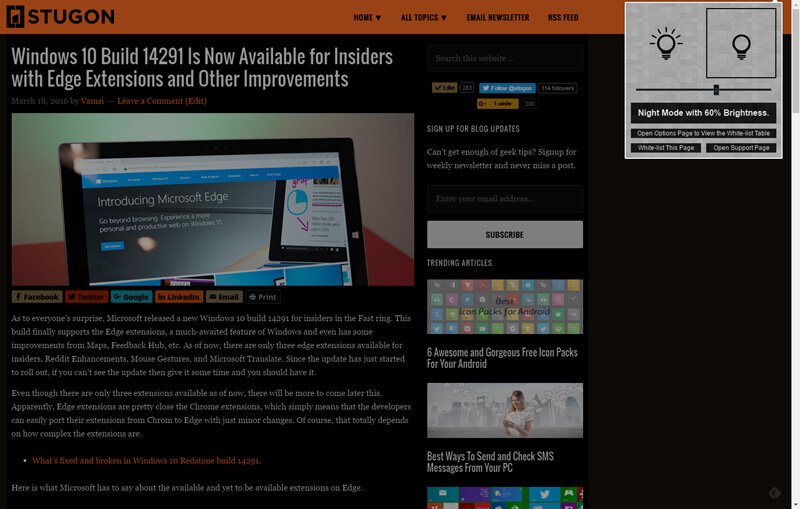
Once the extension has been added, you will see it next to the address bar. To activate the night mode, click on the extension and you will be provided with two choices, “Night mode with brightness” and “Day mode with brightness.” If you want a complete night mode then select the option “Night mode with brightness” and it will invert all the colors. You can adjust the brightness using the slider.

night-mode-chrome-extension

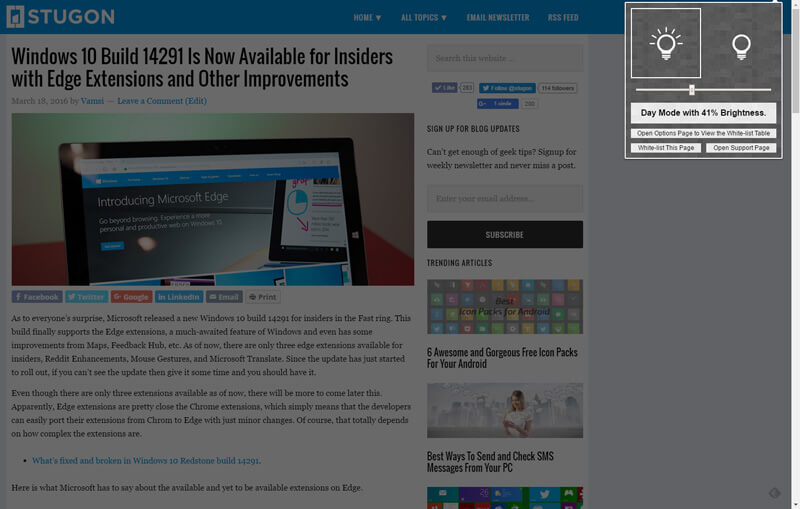
If you don’t want to enable the complete night mode then you can just dim the screen by selecting the option “Day mode with brightness.” Of course, you can adjust the brightness level using the slider.

day-mode-night-mode-chrome-extension

Enable Night Mode in Firefox

Dark Theme in Firefox: if you are looking to enable Night or Dark Theme in Firefox then you can do that directly from the Customization menu. Open Firefox menu (three horizantal lines) appearing on the upper right corner and select “Customize.” In the customization screen, select “Dark Theme” from the “Themes” menu.

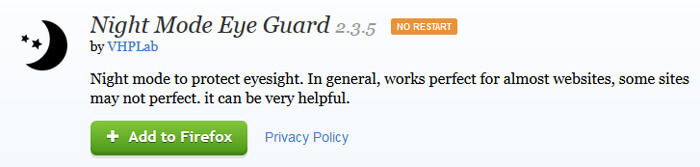
Night Mode in Firefox: Just like in Chrome, you can enable night mode in Firefox using a free add-on called Night Mode Eye Guard. So, download and install the add-on. The good thing about this add-on is that it doesn’t require any browser restart.

Update: looks like the Night Mode Eye Gaurd extension is no longer working with the new Firefox Quantum update. You can try Dark Mode add-on which is compatible with the new Quantum update. I’ve tried it recently it is working pretty good.

install-night-mode-addon-firefox

After installing the add-on, click on the Night Mode Eye Gaurd icon appearing next to address bar and toggle button next to “Night mode.” This action will enable the night mode in Firefox.

night-mode-firefox

If you want to, you can also schedule the night mode by selecting the option “Automatic timer.” Moreover, you can also customize the darkness by changing shades next to “Customize darkness.”

That’s all for now and hopefully that helps. Do comment below sharing your thoughts and experiences about enabling night mode in Chrome and Firefox.

How to Show Hidden Files and Folders on macOS

0

On any operating system, there will always be several hidden files or folders. Generally, these files and folders are hidden from plain sight because the regular user has no reason to see or access those files or folders. This is because most of those hidden files and folders are related to the system. However, there will be times when you need to access the hidden files and folders or macOS to perform certain actions.

But unlike in Windows and Linux, macOS doesn’t provide any point and click solution to show hidden files and folders. That being said, it isn’t that hard to make your Mac show hidden files and folder. So, if you ever need to, here is how you can show hidden files and folder on macOS.

Show Hidden Files and Folders on macOS

As I said before, the Finder app in Mac doesn’t have any GUI (Graphical User Interface) to quickly show hidden files and folders. But you can use the terminal to achieve the same.

To do that, search for the terminal using the Launchpad or Spotlight and then open it.

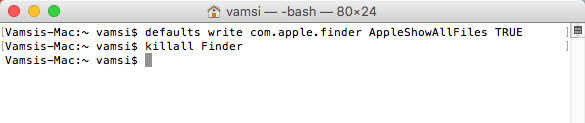
Once the terminal has been opened, copy the below command and execute it.

defaults write com.apple.finder AppleShowAllFiles TRUE

show-hidden-files-mac-command-1

As soon as you execute the command, the Finder shows all the hidden files and folders system-wide. However, to see the changes, you either have to restart your system or the Finder app. You can use the below command to restart the Finder app.

killall Finder

show-hidden-files-mac-kill-finder

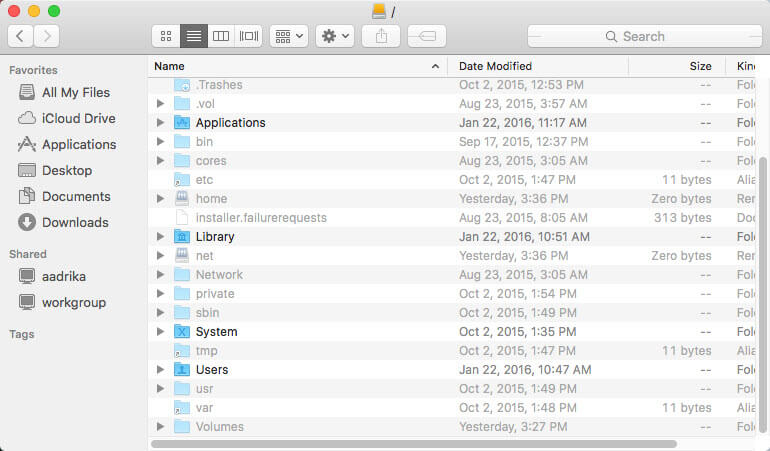
After restarting, you can see all the hidden files and folders in Finder.

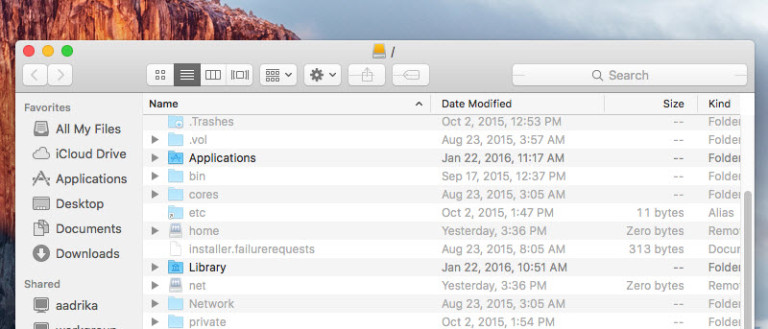
show-hidden-files-mac-in-action

If you ever want to revert back, simply execute the below commands one after the other and your finder hides all the files and folders as before.

defaults write com.apple.finder AppleShowAllFiles FALSE
killall Finder

show-hidden-files-mac-command-2

That’s all there is to do and it is that simple to show hidden files and folders on macOS.

Do comment below sharing your thoughts and experiences about using the above method to show hidden files and folders in macOS Finder.

Here’s What’s Fixed and What’s Broken in Windows 10 Build 14332

0

Microsoft just now released the all new Windows 10 build 14332 for fast ring insiders with some new features and several other improvements. Starting from this build, Microsoft is concentrating fully on bashing the bugs rather than adding new features to prepare for the upcoming Anniversary update. As always, there are several things that are fixed and there are also some know issues that you should be aware of. So, here is what’s fixed and what’s broken in Windows 10 build 14332.

Things That Are Fixed in This Build

Oh boy, there are a whole lot of issues that are fixed in this build. Glad to see all of them.

  • We fixed the issue causing some PCs to bluescreen (bug check) when entering Connected Standby after updating to the latest build from the Development Branch.
  • We fixed the issue where some large downloads may appear to get stuck at 99% completion in Microsoft Edge.
  • We fixed an issue which made it look like you couldn’t drag and drop to reorder your favorites on the Favorites Bar.
  • We fixed the issue causing Groove Music to crash on launch at the splash screen.
  • We fixed an issue where adding a song to Groove Music’s Now Playing list might cause the current song to stop playing and start over.
  • We fixed the issue where PCs are unable to go back to a previous Insider Preview build via “Go back to an earlier build” under Settings > Update & security > Recovery if they have BitLocker/Device Encryption enabled.
  • We’ve made improvements to the share UI for Cortana Reminders. The experience is much more polished now.
  • We improved reliability of the Chinese IME.
  • Going forward (from this build), apps for which you’ve selected “Show windows from this app on all desktops” will be remembered after you update to a new build.
  • We fixed an issue where the taskbar’s overflow tray for notification area (systray) icons was not being padded correctly for certain multi-monitor setups.
  • We fixed an issue where the Game Bar would not appear if the DPI had been changed from 150% to 100%.
  • We fixed an issue where notifications with more content sometimes could not be expanded in the Action Center.
  • We fixed an issue where tiles on the Start menu might flash at the wrong size after exiting tablet mode.
  • We fixed an issue where the battery icon in the notification area might display incorrectly after a DPI change.
  • We fixed an issue where clicking on the “X” button on a window in Task View removed the thumbnail, but the title and X button would still be shown.
  • When an app is displayed in the Start menu with the name “@{<app package name>}”), there will now be an option to uninstall it.
  • We fixed an issue where re-directed folder Libraries would appear as duplicate folder entries in the File Explorer navigation pane.
  • We fixed an issue for multi-monitor users, where launching a desktop (Win32) app from Start would result in the full screen video being played on the other monitor getting minimized.
  • We fixed an issue where the Settings app would crash if you tried to pin a settings page to Start.
  • We fixed an issue where opening Windows Defender from the Settings app would fail.
  • We fixed an issue resulting in blurry and/or overlapped text in Start’s All apps list.
  • We fixed an issue where the touch keyboard might not come up in the password field after you switched users on the Lock screen.
  • We fixed an issue where Windows Spotlight wouldn’t remember if you had already said you liked that image the last time you locked your PC.

Known Issues in Windows 10 Build 14332

  • We’re adding a built-in network speed test under Settings > Network & Internet > Status however it doesn’t work just yet. The UI is there but we still have some backend work to get it turned on and working.
  • Feedback Hub is not localized and the UI will be in English (U.S.) only, even with language packs installed.
  • Feedback Hub takes about 20-30 minutes after updating to this build to download and hydrate itself. If Feedback Hub is not fully hydrated, if you receive a mini-survey notification it will take you nowhere in the app, search in Feedback Hub won’t show results, and if you click to go to Feedback Hub from another app or setting, Feedback will not open.
  • The Desktop App Converter Preview (Project Centennial) will fail to run on the Windows 10 Insider Preview Build 14332. If you are a developer utilizing the converter tool to convert your desktop app to UWP, we suggest skipping this build until we can fix this issue.
  • All Tencent online games no longer work in current builds from the Development Branch.
  • The updated UAC UI breaks the ALT + Y keyboard shortcut to choose “yes”.
    You may receive 0x8004C029 errors when attempting to play Groove Music Pass (DRM) content in Groove Music.
  • UPDATED: If you have previously played DRM-protected content from services like Groove Music, Movies & TV, Netflix, Amazon Instant Video or Hulu, after updating to this build you might no longer be able to playback content from those services – you will instead receive error DRM_E_INVALID_SECURESTORE_PASSWORD(0x8004C029) or DRM_E_DOMAIN_STORE_GET_DATA(0x8004C503). We are working to have this fixed in the near future.
  • Playing music in the Groove Music within 2 minutes after logging into your PC will result in 0xc10100ae playback errors. If you wait more than 2 minutes after logging in to play music in Groove Music you will avoid this issue.
  • You may see square boxes in certain apps when using some of the new emoji – we’re still getting things set up, this will be resolved in a future build.
  • We are continuing to make changes to our extension datastore schema in Microsoft Edge. As a result, after updating to this build any extensions installed will be removed. You can reinstall these extensions to get them back.
  • If you are using a non-English keyboard, you can’t accept Bash prompts.
  • We are investigating an issue where if you’re running Insider Preview builds in certain languages, the All apps list on Start appears empty. A workaround for this is to use search to launch apps.