How to Set up VPN on Android

0

Just like in desktop computers, it is very easy to set up VPN on Android. No matter what country you live in, VPNs are very helpful. Using a VPN you can download apps not available in your country, avoid ISP tracking, stay safe while using public WiFi, connect to protected networks like companies and organizations, access regionally restricted websites, etc.

There are several dedicated VPN apps for Android that can help you quickly connect to your favorite VPN service. In fact, most popular VPN services provide their own VPN apps to make the VPN experience as easy and smooth as possible. However, Android also has built in options to set up VPN without using any third party software.

By default, Android supports three different VPN protocols. They are, PPTP, L2TP, and IPsec.

To use the built-in VPN feature, you need to know what protocol to use, the username and password. You can easily find all those details on your VPN provider’s website. If you can’t, just send them an email or search using Google.

Set up a VPN on Android

Note: Every Android device is different and the procedure might differ a bit depending on your phone manufacturer and Android version. This guide assumes that you are using stock Android version 6 Marshmellow.

As I said before, it is very easy to set up a VPN on Android. However, the required options are buried deep and you might not find them unless you know where to look for.

1. To start off, launch the menu and tap on the “Settings” icon to open the Settings app.

2. Here, find “Wireless and networks” section, and tap on the option “More”.

3. In the More options screen, select the option “VPN” from the list.

4. Here in this screen, you will find a + sign on the top-right corner. Just tap on it to add your new VPN connection.

5. Here, enter the name for your VPN, protocol type, server IP address and tap on the “Save” button.

6. Go back to main VPN screen and tap on it connect to the VPN server. You will be prompted for a username and password. Enter them and hit “Ok” to complete the procedure. Like I said, you can get those details from your VPN service provider or from your network administrator.

If you want to the VPN connection to be always on, hit on the 3-dot menu button and set up the VPN to always be on.

That’s all there is to do and it is that simple to set up a VPN on Android. If you want to further simplify the procedure then you have to install the custom app provided by your VPN providers. Generally, you can download them from the Android app store. If you cannot find the specific app, contact the VPN provider.

Do comment below sharing your thoughts and experiences about using the above method to set up a VPN on android without using any third party software.


How to Stop Websites from Asking to Show Notifications

0

Ever wonder how to disable “Show notifications” pop-up in your favorite browser? Ever since browsers introduced the “Push API” technology, more and more websites are making good use of it to show quick notifications as required. These notifications are generally called as web notifications.

By default, web browsers ask for your permission when it wants to show notifications. If you grant the permission, you will see a notification whenever a new article is published on that website. In case of shopping websites, you will receive notifications regarding your favorite products or wishlist items. If you chose to block, the website is blocked from showing any web notification. However, if you simply close the pop-up, then the decision is postponed and you will see the pop-up again when you visit the website next time.

More often than not, web notifications are really useful. However, over the time, this web notifications system is being abused by many websites and being used to spam users with unnecessary content notifications, text based advertisements, etc. In those situations, it is better to completely stop websites from asking to show notification in your browser. In case you are wondering, here’s how to disable “Show notifications” in Chrome and Firefox.

Disable Notifications on Google Chrome

Google Chrome provides built-in options to quickly block web notifications.

1. To start off, click on the Menu icon (three vertical dots) appearing on the upper right corner and select the option “Settings”.

2. Now, scroll down and click on the Advanced option appearing at the bottom center of the setting page. Now, click on the option “Content Settings.”

3. The above action will expand Content Settings. Find and click on the option “Notifications.”

4. Now, toggle the button next to the option “Ask before sending.” As soon as you toggle, the option will be shown as “Blocked.”

That’s all there is to do and it is that simple to disable notifications in Google Chrome. If you want to you can manually add or remove any website you previously granted or revoked permissions.

Disable Notifications on Firefox

Unlike Google Chrome, Firefox doesn’t have any options in its Settings page to block web notifications. Instead, you need to do it via the Config page.

1. Open Firefox browser, enter about:config in the address bar and press the Enter button on your keyboard.

2. You will see a warning message, simply click on the button “I accept the risk” to continue.

3. Now, type “notifications” in the search box and press Enter.

4. Double click on the option dom.webnotifications.enabled so that it changes from “true” to “false”.

That’s all there is to do. You’ve successfully disabled web notification in Firefox. If ever change your mind, go through the procedure once again and double-click on the option so that it changes from “false” to “true”.

Hope that helps and do comment below sharing your thoughts and experiences about using the above methods to stop websites from asking to show notification in your browser.

How to Create an Invisible Folder in Windows

0

There are many ways to hide and stop people from snooping in on your private files and folders. However, do you know that you can also do that without using any complicated software? All you have to do is create an invisible folder in Windows.

No, not a hidden folder, but an invisible folder. This invisible folder in Windows can help you stop people from messing with your files and folders. Of course, it is not as secure as dedicated file and folder encryption but it is still very helpful when you want to simply hide them in non-conventional methods.

Now, you might be thinking why not hide the folder using folder properties? The thing is, most Windows users know about the hidden folder and they can easily unhide them with just a few clicks. On the other hand, if you can create an invisible folder then you can hide all your stuff in plain sight and others cannot find that invisible folder unless they know where to look for.

Fortunately, it is very easy to create an invisible folder in Windows. In case you are wondering, here’s how to do it.

Note: I’m showing this in Windows 10 but this invisible folder trick works on Windows 7 and 8 too.

Create an Invisible Folder in Windows

As I said, it is very easy to create an invisible folder in Windows. There are two steps to this procedure. First, you need to create a new folder with a blank name. Second, you need to make it invisible.

1. To start off, create a new folder by right-clicking and selecting the option “New” and then “Folder”.

2. After creating the new folder, you need to rename it. To do that, select the folder and press F2 on your keyboard. Now, hold ALT key on your keyboard and press 255 on your keyboard’s number pad.

Note: you have to use your keyboard number pad to press ALT + 255. This will not work if you try to use the numbers below the function keys on your keyboard.

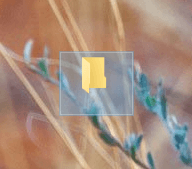
3. The above action will create a nameless folder.

4. Now you need to make this nameless folder invisible. To do that, right-click on the nameless folder and select the option “Properties”.

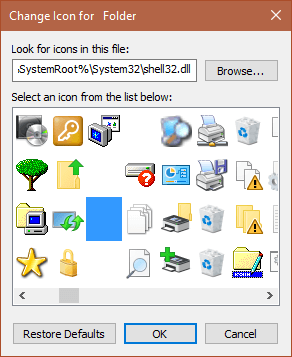
5. Here, navigate to the tab “Customize” and click on the button “Change Icon” under the Folder Icons section.

6. Now, scroll sideways to the right until you see empty spaces between folder icons. The empty spaces you see there are invisible icons. Simple select one invisible icon and click on the “Ok” button.

7. On the main window, click on the “Ok” button to save the changes and you are good to go.

That’s all there is to do and it is that simple to create an invisible folder in Windows. Just place the folder where ever you like and no one can find the files you want to hide. Being an invisible folder rather than a hidden folder, other users cannot make it appear when they unhide files and folder in Windows.

Of course, don’t trust this invisible folder trick with your important and private files. But, this is a pretty trick to prank your friends or just to hide your not-so important files and folders in plain sight.

If you want to restore the folder icon, simple open folder properties window, navigate to “Customize”, click “Change Icon” button, click on “Restore Default” and click on the “Ok” button to save the changes. With this, you will have the normal folder icon restored.

That’s all for now and do comment below sharing your thoughts and experiences about using the above method to create an invisible folder in Windows.

How to Run PowerShell as Administrator in Windows

0

Windows is moving slowly but surely towards using PowerShell as its main terminal. For instance, even Microsoft removed the Command Prompt option from the WinX Power User menu and replaced it with the PowerShell option. Of course, this doesn’t mean that the Command Prompt is becoming irrelevant or going away, it just that the PowerShell is gaining more popularity due to its features and ease of use.

More often than not, most online tutorials and Windows tips you see on the internet requires you to execute some sort of command the PowerShell window. Though most commands execute as they should, some might throw you an error letting you know that you don’t have enough privileges to execute the command.

Run PowerShell as Administrator

In those situations, you need to run PowerShell as administrator. In case you are wondering, here are different ways to run PowerShell as administrator.

1. Using Start Menu

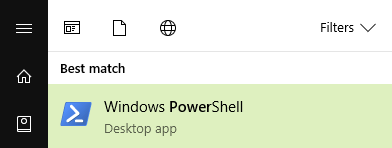
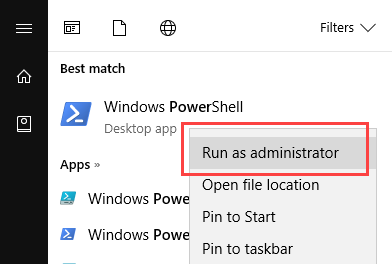
One of the easiest ways to run PowerShell as administrator in Windows is via the Start Menu. To start off, search for PowerShell in the Start Menu.

Now, right-click on the PowerShell result and select the option “Run as Administrator.”

You will get a UAC (User Account Control) pop-up requesting for your approval. Simply click on the button “Yes” and the PowerShell will be opened with administrator rights.

2. Using the Power User Menu

The second easiest method is to use the Power User menu or WinX menu. Microsoft added the Power User menu back in Windows 8. The Power User menu is one the best features that gives you quick access to many Windows tools like PowerShell, Disk Management, Device Manager, etc.

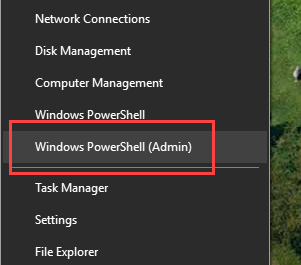
To start off, press the keyboard shortcut “Win + X” or right-click on the start menu to open the Power User menu.

From this menu, select the option “Windows PowerShell (Admin).”

You will get a UAC (User Account Control) pop-up requesting for your approval. Simply click on the button “Yes” and the PowerShell will be opened with administrator rights.

3. Using File Explorer

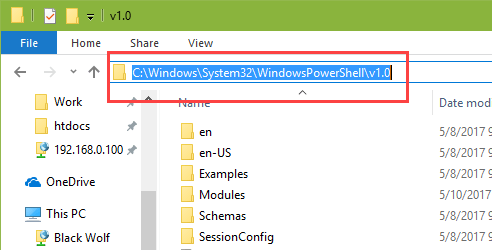
Just like with many tools and programs, you can open PowerShell with admin rights using the File Explorer. To get started, press “Win + E” to open the File Explorer. Once opened, copy the below path, paste it in the address bar, and press enter button.

C:\Windows\system32\WindowsPowerShell\v1.0\

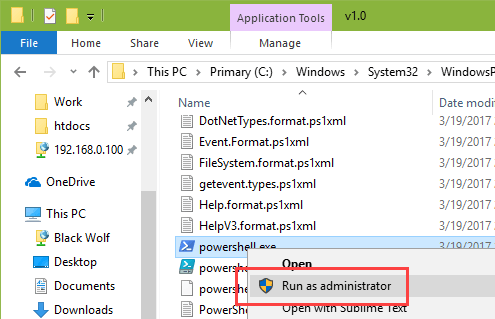
Here in this window, find and right click on the file “PowerShell.exe.” Now, select the option “Run as administrator.”

You will get a UAC (User Account Control) pop-up requesting for your approval. Simply click on the button “Yes” and the PowerShell will be opened with administrator rights.

4. Using Windows Task Manager

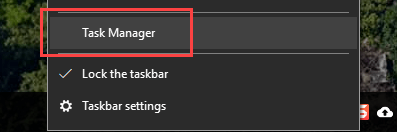
Using the task manager to run PowerShell as administrator is a round about way but you can do it if need be. First off, right-click on the taskbar and select the option “Task Manager.”

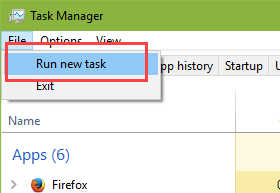
After opening the task manager, navigate to “File” and select “Run new task.”

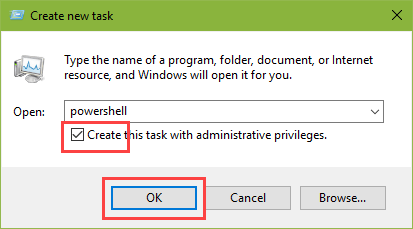
Now, enter “PowerShell” in the blank field, select the check box “Create this task with administrative privileges” and click on the “Ok” button.

You will get a UAC (User Account Control) pop-up requesting for your approval. Simply click on the button “Yes” and the PowerShell will be opened with administrator rights.

That’s it. Do comment below sharing your thoughts and experiences about using the above methods to run PowerShell as admin in Windows.

How to Stream a Video from VLC to Chromecast

0

VLC is one of the best media players no matter what operating system you are using and Chromecast is one of the best devices to stream media to your TV or external monitor. Though it is relatively a new feature, you can actually stream videos from VLC to Chromecast with just a few clicks. Not only videos but you can also stream audio files from VLC to Chromecast. In case you are wondering, here’s how to stream videos from VLC to Chromecast.

Things You Need to Know before Hand

This feature is only available in VLC 3.0 nightly builds. As of writing this, the current stable build is version 2.2.6 Umbrella. So, if you want to use the Chromecast feature then you need to download and install VLC 3.0 nightly build. However, do keep in mind that these builds can be unstable and cause problems while streaming. Windows 64-bit download link | Windows 32-bit download link | Other operating systems and builds

Though I’m showing this in Windows 10, the procedure is similar no matter what operating system you are using.

Also, make sure that your computer and Chromecast are on the same network and are working properly.

Stream Videos from VLC to Chromecast

Step 1: To start off, connect the Chromecast to your TV or external monitor.

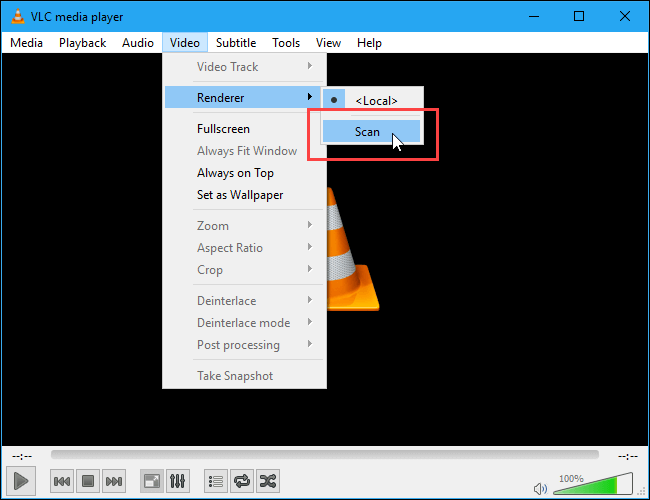
Step 2: While the video is being played, navigate to the “Video” tab appearing on the top navigation bar and select the option “Renderer” and then “Scan.”

Step 3: As soon as you click on the “Scan” option, VLC will scan the local network and detects the available Chromecast device. Just select your Chromecast device from the list.

Step 4: Now open your favorite media or video file in the VLC media player.

Step 5: Since this is your first time streaming video from VLC to Chromecast, you will receive “Insecure Site” prompt. Here, click on the “View Certificate” button.

Step 6: Now, click on the button “Accept Permanently” to accept the connection between VLC and Chromecast permanently.

Step 7: That’s all there is to do. As soon as you accept the certificate, the video should start playing on your TV from VLC via Chromecast.

Hope that helps and do comment below sharing your thoughts and experience about using the above method to stream videos from VLC to Chromecast.

Subsystem for Linux on Windows 10 Is Now out of Beta

0

Microsoft long ago introduced Bash on Windows or Windows Subsystem for Linux in the effort to be more developer friendly. At first, only Ubuntu is supported on Windows 10. With time, Microsoft worked with other distributions and started supporting SUSE Linux Enterprise Server and openSUSE Leap 42.

Subsystem for Linux is Now out of Beta

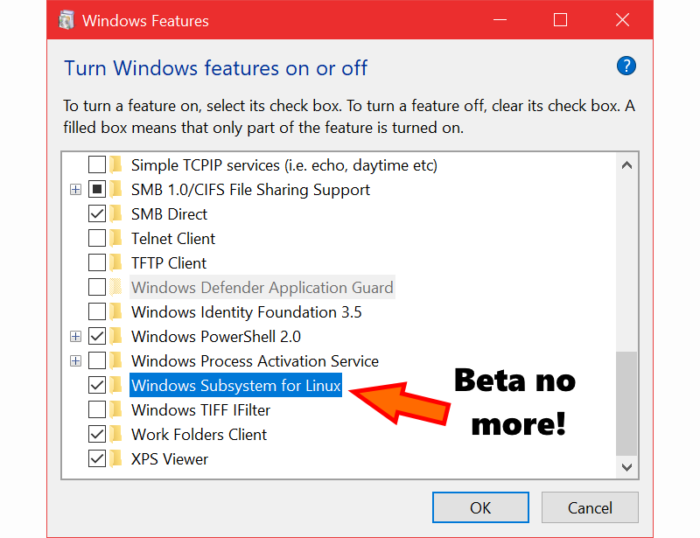
Though the support is great and many developers are regularly using the Windows subsystem for Linux, it has been in beta stage up till now. However, in the latest insider preview build the Windows Subsystem for Linux is a full-fledged member of Windows 10 and no longer in beta stage. This is a great news for any developer who is holding back from Windows Subsystem for Linux because of the beta tag.

Since WSL is no longer in its beta stage, you can use it as a day-to-day developer tool set and use the built-in Windows 10 support mechanisms to file any issues you found. Moreover, you can also directly post the bugs and issues you found on the official GitHub repo.

Related: How to Enable Bash on Windows (Subsystem for Linux)

Of course, like many things you need to know what works and does not work in Windows Subsystem for Linux.

What’s supported on Windows Subsystem for Linux:

  • Run Linux Command-line tools for development and (basic) administration
  • Share and access files on the Windows filesystem from within Linux
  • Invoke Windows processes from Linux, e.g. ~$ cd /mnt/c/temp/ && echo “Hello” > hello.txt && notepad.exe hello.txt
  • Invoke Linux processes from Windows command-line, e.g.: C:\> bash -c “fortune | cowsay”

What’s not supported on Windows Subsystem for Linux:

  • Linux distro’s running atop WSL are for interactive user scenarios, NOT for running production workloads on pache/nginx/MySQL/MongoDB/etc.
  • Linux files are NOT accessible from Windows (we’re working to improve this scenario over time)
  • NO current plans to support X/GUI apps, desktops, servers, etc. at this time

Download Ubuntu

Download OpenSUSE Leap 42

Download SUSE Linux Enterprise Server

Groove Music Gets a Touch More Fluent Design in Latest Insider Preview Build

0

Recently Microsoft made an announcement letting insiders know that the built-in Windows apps will no longer receive any insider updates. In fact, all the added features will be disabled or disappear from the apps.

According to Microsoft the reason for this decision is that the insiders can experience and test the same version of apps that the general Windows users. i.e, non-insiders. However, those who chose to skip ahead to the Redstone 4 preview builds got an interesting update that added a little bit more fluent design to the Groove Music app in Windows 10.

Groove Music Gets Fluent Design Update

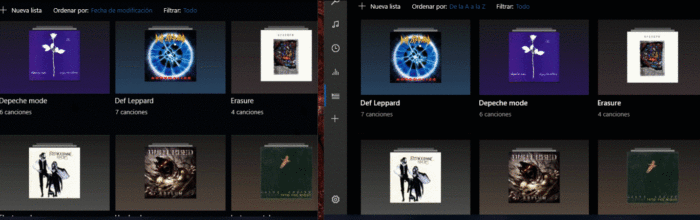
So, if you are one of those guys that are trying out the new Redstone 4 insider build then do try the new Groove Music app. As you can see from the below GIF image, there is a new lighting effect when you mouse hovers over albums and playlists. In case you are wondering, the right side one is the new version that is available in Redstone 4 preview build.

Apart from the added fluent design, an additional new feature called Visualizers has been added to Groove Music app. However, you still cannot use this feature. In fact, when you click on the option, nothing happens. Though this is a very small update with only minor fluent design changes, it still is good to see them in actual apps.

One thing to keep in mind is that this new update is only for Windows 10 PCs. Since there is no Skip Ahead option for Windows 10 mobile users, you need to wait until the official Fall Creators update has been released. If you are an insider and haven’t received any update on your PC then be patient. This is a slow rollout, so the update may take some time to get to your PC. That being said, manually check for the app updates in Windows Store.

Do comment below sharing your thoughts and experiences about the Fluent design update to Groove Music app in Windows 10.

Image source: On MSFT

Latest Action Launcher Update Adds Android O Features and Google Now Integration

0

Action Launcher is one of the most popular launchers for Android devices with many interesting features. Along with the regular features, the new Action Launcher update added Android O features and integrated Google Now into the launcher.

The catch is that you have to download Google Now plugin apk file separately from APKMirror or from Action Launcher official server (direct download link). The reason for this round about way to add Google Now integration is because Google doesn’t provide any official API for third party developers. So, almost all developers use some sort of round about way or other creative means to integrate Google Now in their launchers.

As soon as you install the Google Now plugin for Action Launcher, you can launch Google Now, by swiping from the left side on the home screen. Of course, just like the regular Google Now launcher, you can see all the latest feed on the Google Now screen.

Action Launcher Updates Adds Android O Features

Apart from integrating Google Now into the Action launcher, here are some of the Android O inspired features you get the latest version.

  • NEW: Google Now integration for all! Requires installation of the Action Launcher Google Plugin application.
  • NEW: Full Notification Dots support!
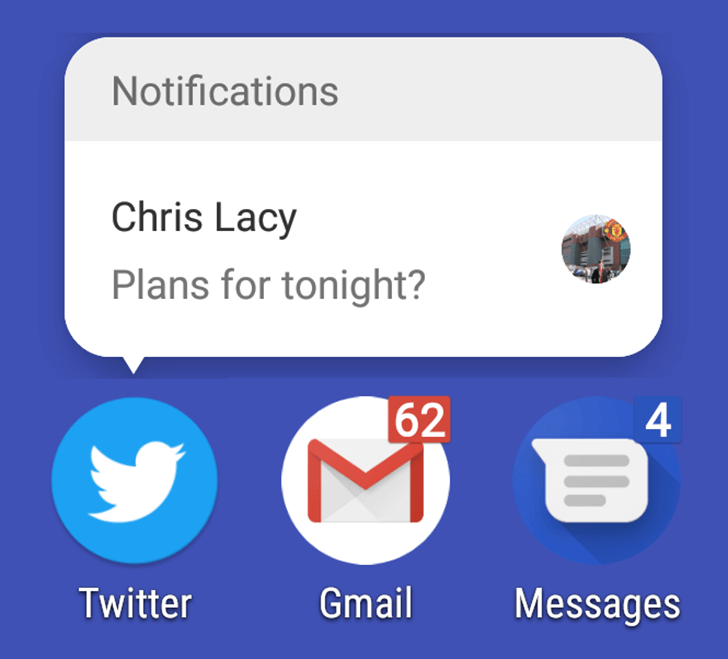
  • NEW: Long-pressing a shortcut will display a preview of app’s notifications and allow notifications to be dismissed ala Android O. Available when using either Notification Dots or Unread Count.
  • NEW: Unread Count support extended to all apps that have a current notification.
  • NEW: Android O style App Shortcuts panel.
  • NEW: Allow granular control as to which apps display Notification Dots/Unread Count.
  • NEW: Android O style widget picker, which displays all relevant widgets for a given shortcut.
  • NEW: Directly engage Action Launcher’s Quickedit panel via a shortcut’s long-press pop-up UI.
  • NEW: Dedicated “Icons & App Shortcuts” settings page, which is home to all icon related settings.
  • NEW: When Google Pill widget is on the left screen edge and Google Now integration is enabled, display a tinted edge background as per Pixel Launcher.
  • NEW: Option to adjust the scale of icon indicators.
  • NEW: Revamped interface for selecting the apps that are hidden from app drawers.

Besides from the Android O features, this update also brings UI refinements to meet Android O guidelines. That being said, one of the best features introduced in this update is the support for Notification dots that work very similar to Android O. When you receive a notification, just long press on the icon and you can see all your recent notifications. If you want to, you can dismiss that notification directly from the pop-up. You no longer have to launch the app to do simple tasks.

The update is already live you can download it directly from the Play Store. However, do remember that you need to install the Google Now plugin APK file in-order to integrate Google Now into the Action Launcher (APK download links are provided in the second paragraph).

Download Action Launcher Pixel Editon

Download Free-to-Play Elder Scrolls: Legends for Android and iOS Smartphones

0

After long months of waiting you can now take a breath of fresh air as the Bethesda released their much-awaited card game The Elder Scrolls: Legend game on Android and iOS smartphones. In case you are wondering, yes, Bethesda actually already release their game back in March for iPad users and on June for Android tablet users.

Elder Scrolls: Legends for Android and iOS Smartphones

If you’ve never heard of Elder Scrolls Legend game, it is a very addictive and free-to-play strategy based card game. Elder Scrolls Legend game will have all most all the fan-favorite characters from the world of Skyrim and Dragons to do things your way.

For Android users, as long as you are using Android version 4.4 or higher, you can download the game now from the Play Store and start playing. For iOS users, you should be running iOS version 10.0 or newer to play the game on your iPhone.

One thing to keep in mind while or before you start your The Elder Scrolls: Legend game is that it is still in its early stage. There are many in-game things like power and strategy that need balancing. So, it might take some time and a good number of updates to get the app mature enough for advanced users. But if you are a beginner, then do try The Elder Scrolls: Legend game on your Android or iOS device and see how good it is for you.

Though, The Elder Scrolls: Legend game comes with the Heroes of Skyrim expansion pack for free, you need to buy the other two expansion packs via in-app purchases. Why? Because there should always be in-app purchases rather than a single payment. The good thing about these two premium expansion packs is that they single player story mode.

Do comment below sharing your thoughts and experiences about playing the Elder Scrolls: Legend game and how much fun you can get out of it or how much you spent on in-app purchases.

Download The Elder Scrolls: Legend

How to Download YouTube Video with VLC Media Player

0

Did you know that you can actually download YouTube video with VLC media player? When it comes to the media player, VLC is one of the popular and best applications that is also free and open-source. Unlike other media player applications, you can play almost any video and audio format using VLC media player. Besides from playing any format, there are many hidden features in VLC to make our lives a tad bit easier. One such feature allows you to download YouTube video with VLC media player. You no longer have to use special software or other YouTube download sites to download YouTube videos. Without further ado, let me show you how to download YouTube video with VLC media player.

Note: though I’m showing this in Windows 10, the process is same even if you are using other Windows versions, Mac, or Linux. Just make sure that VLC is installed on your system. You can download VLC media player from here.

Download YouTube Video with VLC

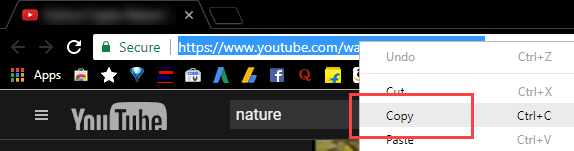
It is very easy to download YouTube video with VLC media player. To start off, head over to YouTube, find your favorite video and copy the URL appearing in the address bar. To copy the URL, select it and press Ctrl + C. Alternatively, you can also right-click and select “Copy.”

Download YouTube video with VLC - Copy YouTube URL
Download YouTube video with VLC – Copy YouTube URL
Like to see your Google Chrome browser with a dark theme? Here are some of the best Google Chrome dark themes.

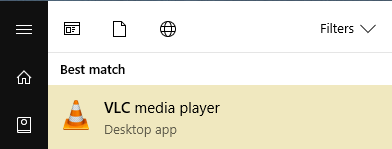
After copying the URL, search for VLC media player in the start menu and open it.

Download YouTube video with VLC - open VLC
Download YouTube video with VLC – open VLC

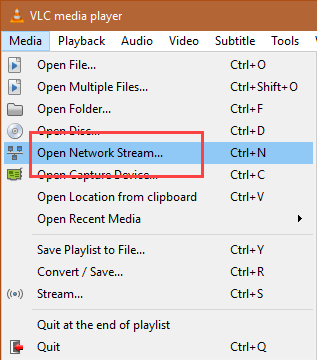
Now, navigate to “File” and then select the option “Open Network Stream.” Alternatively, press the keyboard shortcut Ctrl + N.

Download YouTube videos - Select open network stream
Download YouTube videos – Select open network stream

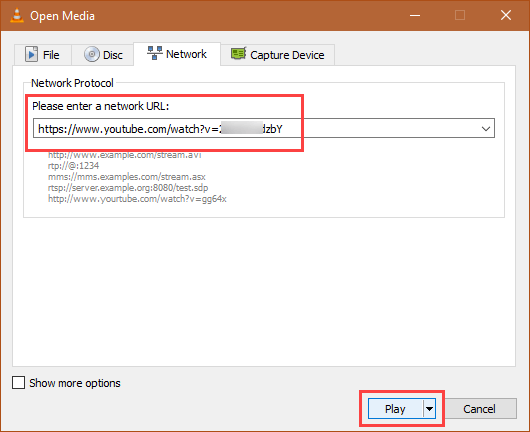
In the “Network” tab, paste the URL under the Network Protocol section and click on the button “Play.”

Download YouTube videos VLC- click on play button
Did you know that just like in YouTube, you can go through a video in VLC frame by frame?

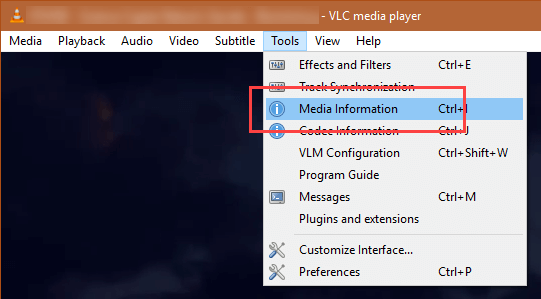
As soon as you click on the button, VLC starts playing the YouTube video. While it is playing, pause the video, navigate to “Tools” and select “Media Information.” Alternatively, press the keyboard shortcut Ctrl + I.

Download YouTube videos with VLC- select media information

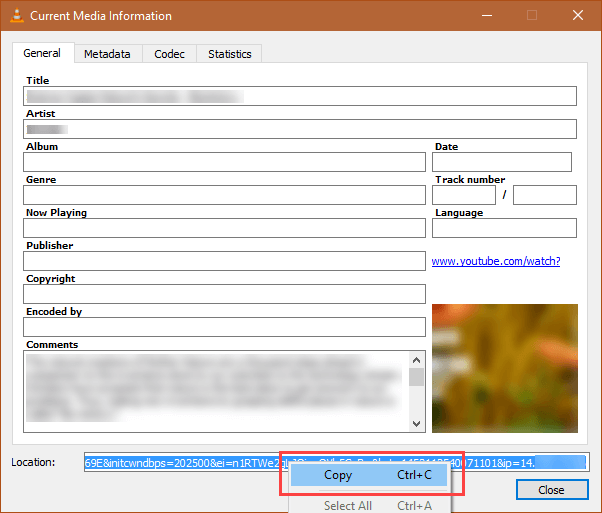
The above action will show the currently playing video’s media information. Select URL in the Location field appearing at the bottom of the window, right-click on it and select the option “Copy.”

Download YouTube videos VLC- copy YouTube video URL

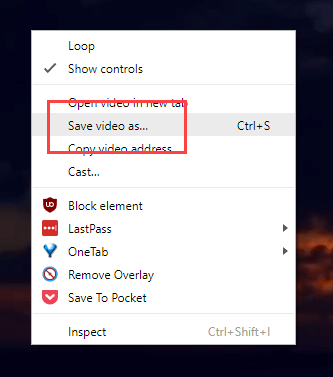
Now, open your favorite browser, paste URL in the address bar and press the “Enter” button. As soon as the video starts playing, right-click on the video and select “Save video as.” In the save window, select the destination and click on the “Save” button.

Download YouTube videos VLC- save YouTube video
Use VLC media player on a daily basis? Here are some VLC keyboard shortcuts to increase productivity and make life easier.

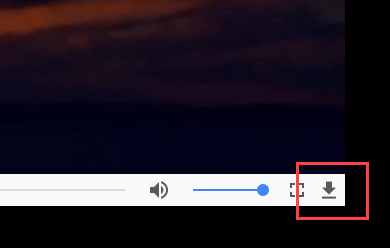
If you are using Google Chrome, you can also click on the Download icon appearing at the bottom right corner of the video player to download YouTube video.

Download YouTube videos VLC- click on download button

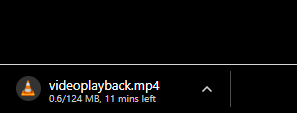
As soon as you select the option or click on the Download button, your browser starts to download YouTube video.

YouTube video downloading

That’s all there is to do and it is that simple to download YouTube video with VLC media player. Do comment below sharing your thoughts and experiences about using the above method to download YouTube video with VLC.