How to Disable the Microphone in Windows 10

0

When you are not using, it is always a good idea to disable the microphone. By disabling the microphone, you can restrict any software or app from spying on your conversions. In case you are wondering, here’s how to disable the microphone in Windows 10.

There are three methods to disable the microphone in Windows 10. I will show all of them, follow the one you are comfortable with.

Method 1: Disable the Microphone Using Windows 10 Settings App

If you want the easiest way to turn off or disable the microphone then you can do that using the Settings app. The good thing about this method is that you can either restrict all the Store apps at once or restrict individual apps from accessing your microphone.

1. To open Windows 10 Settings app, press Win + X and then select “Settings” from the Power User menu.

Note: You can also use the keyboard shortcut Win + I to directly open the Settings app. Here are more Windows 10 shortcuts.

2. In the Settings app, navigate to “Privacy” and then to “Microphone” appearing on the left panel.

3. On the right panel, toggle the button to Off under “Let apps use my microphone“. That’s it.
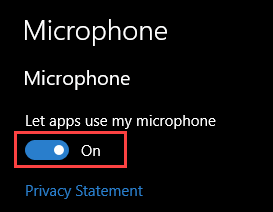
If you want to control individual apps then you can do so by scrolling down and toggling the button next to the app.

Method 2: Disable the Microphone Using Control Panel

Alternatively, you can also disable the microphone using the Sound options in the Control Panel.

1. Search for Control Panel in the start menu and open it.

2. In the Control Panel, find and click on the option “Sound“.

3. The above action will open the Sound settings window. Here, navigate to the “Recordings” tab, find the microphone, right-click on it and select the option “Disable“.

That’s it. You’ve disabled the microphone using the Control Panel. If you want to enable the microphone in future, right-click and select “Enable“.

Method 3: Disable the Microphone Using Device Manager

1. To start off, search for Device Manager in the Start menu and open it. Alternatively, you can also open it by typing”devmgmt.msc” in the Run dialog box (Win + R) and pressing the Enter button.

2. In the Device Manager, expand “Audio Inputs and Outputs” section

3. Now, right-click on your microphone and select the option “Disable device“.

If you want to enable microphone, simply select “Enable device” from the right-click menu and you are good to go.

That’s all there is to do and it is that simple to disable microphone in Windows 10. Comment below sharing your thoughts and experiences about using the above methods to disable microphone in Windows.
How to Control Screen Brightness Using Slider in Windows 10

0

Have you ever thought it would be awesome to easily control display brightness using a simple slider? Sure, Windows 10 provides some keyboard shortcuts and action center buttons to control display brightness if you are using a laptop or a notebook.

But, if you are on a desktop then you have to use the buttons on your monitor to control the display brightness. More often than not, the buttons on your monitor will be positioned awkwardly. To make things worse, the user interface of the monitor menu would probably be horrible to do anything productive much less adjusting the screen brightness.

Moreover, for some reason, the desktop computers with Windows 10 has no keyboard shortcuts to adjust screen brightness. In fact, there isn’t even a simple or straightforward way to enable those keyboard shortcuts or the action center button. So, to deal with all this mess here’s how to control screen brightness in Windows 10 using a slider.

Control Screen Brightness in Windows 10 using Slider

To adjust screen brightness in Windows 10 using a slider, we are going to use a program called Brightness Slider.

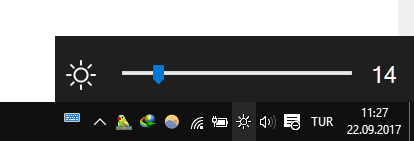
The Brightness Slider is a free, portable, and lightweight program that allows you to control or adjust the screen brightness using a volume like slider. So, download the software and execute the application. As soon as open the application, it will silently sit in your taskbar.

Windows SmartScreen filter might show you a warning. Don’t worry, click on the “More info” link and then click the button “Run anyway“.

To adjust screen brightness, simply click on the Brightness Slider icon and drag the slider. The good thing about this software is that it allows you to adjust screen brightness in increments or decrements of one.

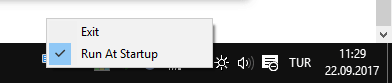
By default, the software won’t start up with your device automatically. If you want to start the application when you turn on your system then you need to add it to the startup programs. To do that, right-click on the Brightness Slider icon and select the option “Run at Startup“.

This action will make sure that the application will start with your system so that you don’t have to manually launch it when you want to adjust screen brightness in Windows 10.

Do comment below sharing your thoughts and experiences about using this tiny yet very useful application to control screen brightness in Windows 10. Also, do let me know if you know any other apps to adjust screen brightness in Windows 10.

[Solved] Fix Windows Store Not Working in Windows 10

0

Here how to fix Windows Store not working error in Windows 10. The Windows Store is becoming popular every day with more and more apps added to it. Some of the famous desktop applications are also making their entry to the Windows Store. Two of the best things about Windows Store is that it gives you the ability to install and uninstall an app with just a single click and all apps can be updated from a single place.

As good as the Windows Store is, it may sometimes act weird and may not function as it should. In fact, on some occasions, it might not open when you are trying to open it to install or update an app. In those situations, here are some things you can try to fix Windows store not working in Windows 10.

Fix Windows store not working in Windows 10

There are three different ways to fix Windows store not working error. I will show you all three ways to fix the issue. Follow one by one until you fix the Windows store not opening error.

1. Clear Windows Store Cache

The first thing you should try when Windows Store not working as it should is clear Windows Store Cache. Fortunately, it is very easy to clear Windows Cache, all you have to do is execute a single Run command and you are good to go.

1. To start off, press Win + R to open the Run dialog box.

2. Here, type wsreset and press Enter key on your keyboard.

The above action will open a command prompt window. At first, it might look like it got stuck and not doing anything. But be patient until the window closes itself.

That’s it. As soon as the window is closed, the Windows Store will automatically open. At this point, you can be sure that the Windows Store cache is cleared and the Windows store not working issue is fixed.

2. Reset Windows Store App

If the Windows store not working error is not fixed by clearing the cache, you can try resetting the Windows Store app. This action will reset the entire Windows Store app thus fixing any issues.

1. To reset Windows Store app, press Win + I to open the settings app.

2. In the Settings app, navigate to “App” and then “Apps and Features” appearing in the left panel.

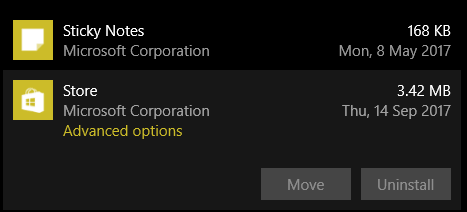
3. On the right panel, scroll down and find the app named “Store” and click on it. Now, click on the link “Advanced Options“.

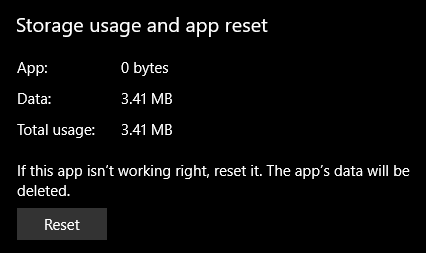
4. In this window, click on the “Reset” button.

That’s it. As soon as you click on the reset button, Windows 10 will reset the Store app. After resetting, you can use the Windows Store app without any problems.

3. Re-register Windows Store App

If the above two methods didn’t work to fix Windows store not opening error then you can try the final method of re-registering Windows Store App.

1. To re-register Windows Store app, search for Command Prompt in the start menu, right-click on it and select the option “Run as Administrator”. This action will open Command Prompt with admin rights.

2. Now, copy and execute the below command.

PowerShell -ExecutionPolicy Unrestricted -Command "& {$manifest = (Get-AppxPackage Microsoft.WindowsStore).InstallLocation + '\AppxManifest.xml' ; Add-AppxPackage -DisableDevelopmentMode -Register $manifest}"

That’s all there is to do. You’ve successfully re-registered Windows Store app and fixed Windows store not working error. From this point forward, you should be able to open and Windows Store app.

Comment below sharing your thoughts and experiences about using the above methods to fix Windows store not working error in Windows 10.

How to Save Emails As PDFs in Windows 10

0

Here’s how to save emails as PDF in Windows 10. It may not be that often but there will be times when you need to save emails as PDFs in Windows 10. For instance, you might want to save the order confirmation form, invoice, bank statement, etc., as a PDF document for backup or simply for offline usage.

However, most modern and free email clients like Windows Live, Windows 1o Mail app, Thunderbird, etc., don’t have any specific option to save emails as PDF in Windows 10. So, if you ever want to, here is a simple way to save emails as PDFs in Windows 10.

I’m going to show the procedure using the Thunderbird and Windows 10 default Outlook email app. But, the same method should work with almost any other email client you are using.

Save Email As PDF in Windows 10 Using Thunderbird

1. To start off, launch Thunderbird application by searching for it in the start menu.

2. Once you’ve opened the Thunderbird application. Open the email you want to save as PDF.

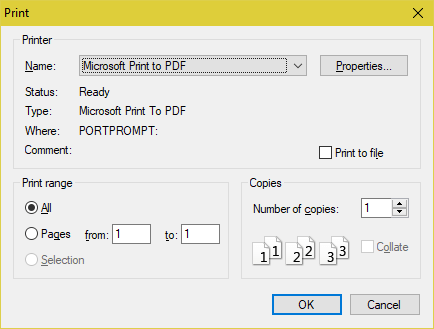
3. After opening the email you want to save as PDF, press the keyboard shortcut Ctrl + P.

4. The above action will open the Print dialog box. Here, select the option “Microsoft Print to PDF” from the drop-down menu next to Name and click on the “Ok” button.

5. Now, choose the destination folder, the name of the file, and click on the “Save” button to save the email as PDF in Windows 10.

Save Emails As PDFs Using Windows 10 Outlook Mail Client

If you are using the Windows 10 Outlook Mail app as your default email client then you can do much the same as above to save the email as PDF document in Windows 10.

1. First, open Windows 10 Outlook Mail app by searching for it in the start menu.

2. Now, open the email you want to save as PDF in Windows 10.

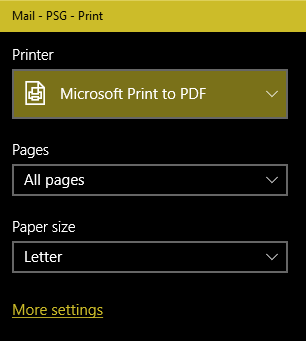
3. After opening the email, press the keyboard shortcut Ctrl + P.

4. The above action will open the Mail Print window. Here, select “Microsoft Print to PDF” option from the drop-down menu and click on the button “Print.”

5. Now, choose the destination folder, the name of the file, and click on the “Save” to save the email as PDF in Windows 10.

That’s all there is to do and it is that simple to save emails as PDF in Windows 10. Do comment below sharing your thoughts and experiences about using the above method to save emails as PDFs in Windows 10.

How to Change Folder Icon in Windows

0

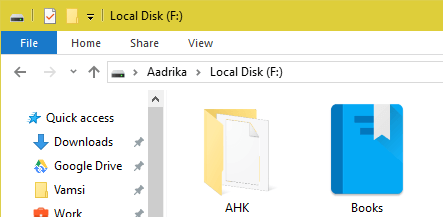
Here’s how to change folder icon in Windows. The regular Folder icons in Windows are pretty standard and do the job pretty good. However, having the same icons for all your folders can make things a bit harder when you have a lot of folders and want to find a specific folder quickly. For instance, I use songs icon for my Songs folder, movies icon for my Movies folder, book icon for my Books folders, etc. These icons make the folder stand out from other regular folders. In fact, programs like OneDrive, Google Drive, Dropbox, etc., use their own folder icons to differentiate themselves from other folders.

Moreover, Windows folder icons stayed almost the same throughout the years and seeing the same icons every day can be boring. This is especially true if you want to customize Windows to meet your needs. In case you are wondering, here’s how to change folder icon in Windows with just a few clicks.

Though I’m showing this in Windows 10, the same procedure is applicable to Windows 10 and 8.

Customize Folder Icon in Windows

Fortunately, it is very easy to change folder icon in Windows. By default, Windows provides some generic icons to help you customize the folder. However, these are pretty old and you may not find the icon of your choice. But, you can download icons in ICO format and use them as the folder icons.

There are many websites that provide you with great icons and IconArchive is one such website. While downloading, don’t forget to download icons in .ico format. If you already have icons in some other format like JPG or PNG then use this website to convert those icons to ICO format.

Once you have the icon in .ico format, store it somewhere on your hard drive and proceed to change folder icon in Windows.

Change Folder Icon in Windows

1. To change folder icon in Windows, right-click on the target folder and select the option “Properties“.

2. In the Folder Properties window, navigate to the folder “Customize“.

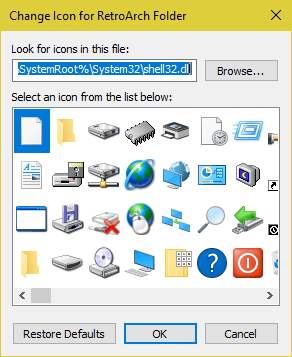
3. Here, click on the button “Change Icon” under the Folder Icons section appearing at the bottom of the window.

4. Now, you can either select one of the listed icons or you can set your custom icon. To set your custom icon as a folder icon, click on the “Browse” button.

5. In the Browse window, navigate to the folder where you’ve stored your downloaded .ico icon, select it, and click on the “Open” button.

6. Click on the “Ok” button to continue.

7. In the main window, click on the “Ok” button to save the changes.

That’s all there is to do and it is that simple to change folder icon in Windows.

Change Folder Icon in Windows to Default

If you ever want to change back to default folder icon then go through the process again until step 4. Here, click on the “Restore Defaults” button and the default icon will be restored.

Do comment below sharing your thoughts and experiences about using the above method to change folder icon in Windows.

How to Save WEBP Images As PNG or JPG in Google Chrome

0

If you are using Google Chrome while visiting Google specific websites like Google Play Store, you will notice that all the images in those websites are in WEBP format. i.e, not in widely known formats like JPG or PNG. According to Google, the new webp format greatly reduces the image size without sacrificing image quality when compared to jpg and png formats.

When you try to save those images in Google Chrome, they will be saved as webp images. You cannot save them in regular and well-known image formats. However, this specific image format is exclusive to Google Chrome. So, if you visit the same website in any other browser, you will see the images in regular formats like png and jpg.

Avoid Saving Images in WEBP Format in Google Chrome

The problem is, when you save an image in webp format, most image viewers installed on your system are not equipped to show the images in this format. When you try to open those images, they will be opened in Google Chrome. Which is not the most desired way to view images. Not to mention, you cannot use webp images in other programs. If you want to use webp images in your system or in any other program, you have to manually convert webp to png or webp to jpg.

Save WEBP Images As PNG or JPG

So, to solve this issue here’s how to save webp images in png format in Google Chrome. There are multiple ways to save webp images as png or jpg. I will show you all three methods, follow the method you are comfortable with.

Method 1: Modify the Image URL

1. Since webp images are exclusively used on Google-specific websites, one of the easiest ways to save webp images as png is to modify the image URL. To do that, right-click on the image and select the option “Open image in new tab“.

2. The above action will open the image in a new tab. As you can guess, it is in webp format. Now, click on the address bar and remove the last three characters “-rw” of the URL and press the enter button.

3. This action will reload the image either in jpg or png format. Simply right-click on the image and select the option “Save image as“. Now you can save the image either in jpg or png format.

Method 2: Save WEBP as PNG Using Extension

If you have a lot of images to save or just want a more sophisticated way to save webp images as png or jpg then you can use a free Chrome extension.

1. To start off, head over to Chrome web store and install Save image as PNG extension.

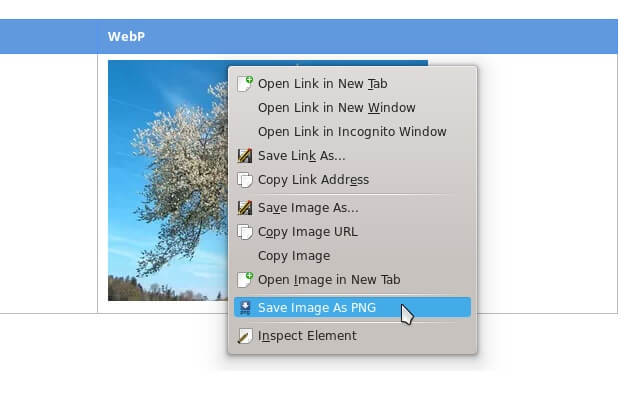
2. After installing, right-click on any webp image and select the option “Save image as PNG” and the image will be saved as a png rather than in webp format.

Method 3: Use Another Browser

If you don’t like to use an extension and the URL method is not working for some reason, you can use this method.

Generally, this method works 100 percent of the time. This is because, since most browsers don’t support webp images, they fall back to jpg or png images when you visit Google specific websites from other browsers like Firefox, Safari, Edge, Opera, etc.

So, simply open the webp image website using any other browser besides Google Chrome, right-click on the image and select the option “Save image as“.

You should be able to save the image in jpg or png format.

That’s all there is to do and it is that simple to avoid saving images in webp format. Do comment below sharing your thoughts and experiences about using the above method save webp images in png or jpg format in Google Chrome.

How to Pin Any File to the Taskbar in Windows 10

0

In my previous post, I’ve shown you a hand way to pin any website to the taskbar in Windows 10. This approach is very useful to open your favorite website with just a single click. In the same manner, you can pin any file to the taskbar. Obviously, you can open the pinned files with just a single click on the taskbar. You don’t have to go back and forth in the File Explorer. For instance, I use this specific method to pin my expense tracker Excel sheet to the taskbar so that I can open it with a single click.

In case you are wondering, here how you can pin files to the taskbar in Windows 10.

Pin Any File to the Taskbar in Windows 10

Note: This method works in Windows 7 and 8 too.

Since Windows doesn’t provide any easy to way to pin files to the taskbar, we have to be creative. That being said, the method is very easy. Just follow the below procedure as is and you can pin any file to the taskbar in Windows 10.

1. First, open File Explorer and navigate to the file you want to pin to the taskbar.

2. Once you find the file, select it and press F2 on your keyboard. Now, change the file extension to .exe. For instance, if the file name is MyFile.epub, you need to change it to MyFile.exe.

3. You will be prompted to confirm the extension change. Just click on the button “Yes” to continue.

4. Now, drag and drop the renamed file onto your taskbar. The file will be automatically pinned to the taskbar.

5. After pinning the file, select the renamed file in the file explorer, press F2, and change the extension to its previous state. In my case, I’m changing the extension from .exe to .epub.

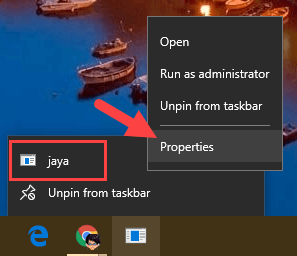
6. Right-click on the pinned file in the taskbar, again right-click on the file name and select the “Properties” option.

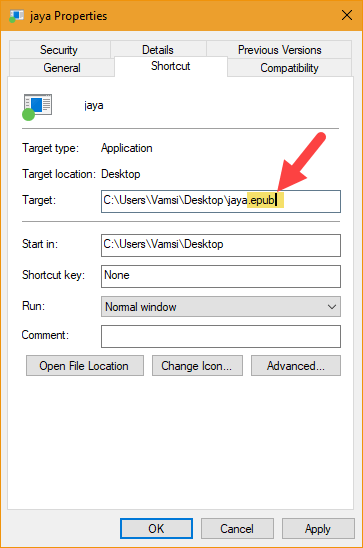
7. The above action will open the Properties window. Here, change the file extension to its original in the target field. Do not modify the file name or file path, simply change the file extension.

8. Now, click on the button “Change icon“.

9. Here, select the icon of your choice and click on the “Ok” button.

10. In the main window, click on the button “Ok” to complete the procedure.

That’s all there is to do. You’ve successfully pinned a folder to the taskbar. If you ever want to remove the pinned file from the taskbar then right-click on the item and select the option “Unpin from taskbar”.

Do comment below sharing your thoughts and experiences about using the above method to pin any file to the taskbar in Windows 10.

How to Enable Automatic Login in Ubuntu

0

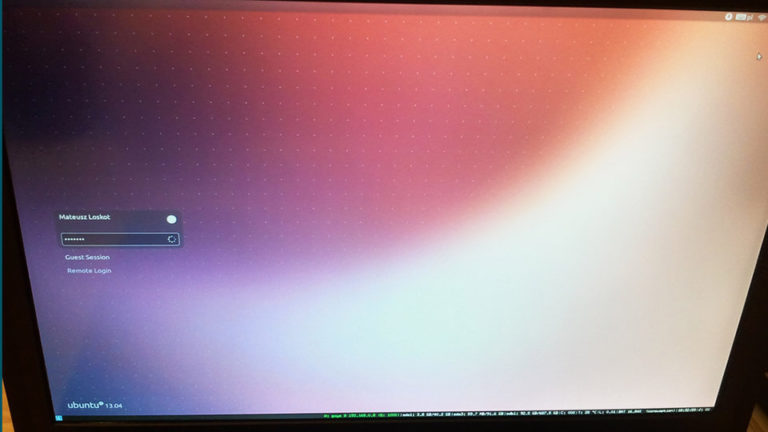
Here’s how to enable automatic login in Ubuntu. As with any operating system, you are required to enter a password to log into your Ubuntu machine. Generally, it doesn’t take more than a couple seconds to enter the user account password and press the Enter button. However, if you are the only person using your system, you don’t worry about other person using your system, and if it is physically secure from intruders then you can make your life a bit easier by enabling automatic login in Ubuntu.

Once you enable automatic login in Ubuntu, you don’t have to enter your password again when you turn on your system. It automatically will take you to your desktop. Moreover, if you have encrypted your disk then this approach makes it so that there is one less password to enter.

In case you are wondering, here’s how to enable automatic login in Ubuntu.

Enable Automatic Login in Ubuntu

Fortunately, it is very easy to enable automatic login in Ubuntu. In fact, you don’t have to mess with the Terminal, you have all the options in the Settings panel.

1. To start off, search for “Settings” in the Dash and open it.

2. Now, open your user account settings by navigating to “User Account” in the Settings app.

3. Here, select your user account in the left panel. This is where you can edit all the settings related your user account.

4. Before enabling automatic login in Ubuntu, you need to unlock the settings. To do that, click on the “Unlock” button appearing on the upper right corner.

5. This action will prompt for your user account password, enter the password and click on the button “Authenticate” to unlock the settings.

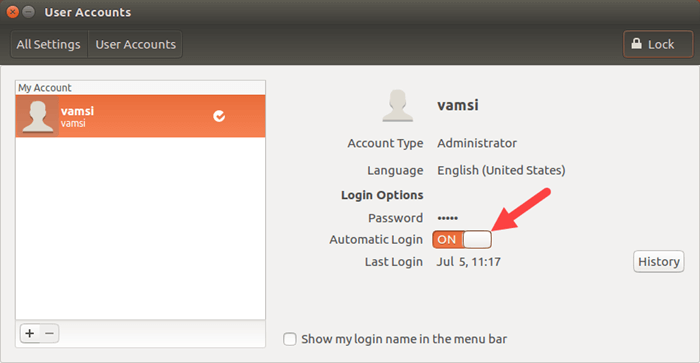
6. Now, toggle the button next to “Automatic Login” from Off to On and you are good to go.

Just close the window and reboot your Ubuntu system to make sure the changes take effect. When you restart your system, you will see that you will be automatically logged into Ubuntu.

If you ever want to disable this feature for security reasons, follow through the first step and toggle the button next to “Automatic Login” from On to Off. This action will disable automatic login in Ubuntu. When you disable automatic login in Ubuntu, you need to enter your user account password to login.

That’s all there is to do and it is that simple to enable automatic login in Ubuntu. Comment below sharing your thoughts and experiences about using above method to enable automatic login in Ubuntu. Also, do share if you know any other better ways to do that task.

[Solved] Fix: Edge Browser Not Opening PDF Files

0

Windows 10 has a new browser called Edge which follows modern web standards and is much better than the dreaded Internet Explorer. Moreover, according to Microsoft, Edge gives your better battery life and best performance on laptops. Apart from using the Edge browser to open regular web pages, you can also use it to open documents like PDF files and EPUB files.

By default, Edge browser is the default PDF reader in Windows 10. For the most part, it does a good job at displaying a PDF document in the browser and eliminates the need to install yet another software to simply a PDF file.

However, on some occasions, the Edge browser may have problems with your PDF document and/or just won’t open the PDF file for whatever reason.

Fix Edge Browser Not Opening PDF Files in Windows 10

In those situations, here are some things you can try to fix Edge browser not opening PDF files in Windows 10.

1. Restart Edge Browser or Your System

Obviously, the first thing you should do when something didn’t work on your system is to restart it. So, close the Edge browser and re-open it. After reopening, try to open the PDF file again and see it might solve the issue.

To make sure of things, try restarting your system too. To restart Windows, right-click on the start menu and select “Shut Down or Sign Out > Restart” option.

2. Repair Edge Browser in Windows 10

If the above method didn’t work, you can repair the Edge browser. Thankfully, it is very easy to repair Edge browser in Windows 10.

1. To start off, press “Win + I” to open the Settings app.

2. Here, navigate to “Apps” and then “Apps and features” appearing on the left panel.

3. Find Microsoft Edge in the right panel and click on it. Now, click on the link “Advanced Options“.

4. In the Advanced Options page, click on the button “Repair” and Windows will repair the Edge browser for you.

After this, you should be able to open PDF files using the Edge browser.

3. Set Edge As Default PDF Viewer

When Edge is not opening PDF files, you can try setting it as the default PDF viewer. Just like repairing the Edge browser, it is very easy to set Edge as the default PDF viewer.

1. To start off, press “Win + I” to open the Settings app.

2. Here, navigate to “Apps” and then “Default Apps” appearing on the left panel.

3. On the right panel, scroll down and click on the link “Choose default apps by file types“.

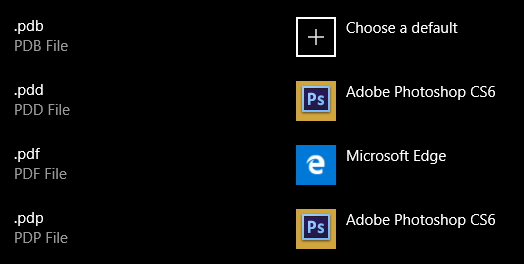
4. Now, scroll down until you find “.pdf” extension. Click on it and select “Microsoft Edge” from the list of options. This is how it looks like when you are done setting Edge as default PDF viewer.

Hope these methods help you fix Edge not opening PDF files. Do comment below sharing your thoughts and experiences about using the above methods to fix Edge browser not opening PDF files.

How to Add Favicons to Safari Tabs on macOS

0

Add favicons to safari tabs on macOS. For any Mac users, Safari is the best browser even when compared to Chrome or Firefox. Even though many consider it to be stripped down version of Google Chome, it is much better and does the job with flying colors. In fact, if you are using Safari on Mac you will get much better battery life and better performance even on older Macs. Which you cannot say with other browsers like Chrome or Firefox on Mac. Not to mention, it flawlessly syncs with your iPhone and iPad.

All things considered, Safari is the best browser for Mac users. However, like many things in the world, it’s not all sunshine and rainbows. For whatever reason, Safari won’t show favicons (those little icons you see in browser tabs) in the browser tabs. If you are a heavy tab user like me, you will know how useful those little icons are to quickly identify a site and navigate to it.

So, to solve this issue here is a simple tip that helps you show or add favicons to Safari tabs on macOS.

Add Favicons to Safari Tabs on macOS

Thankfully it is very easy to add favicons to Safari tabs on macOS. You don’t have to change complicated settings or deal with the terminal commands.

1. To add favicons to Safari tabs on macOS we are going to use a free software called Faviconographer. So, head over to the official website and download the software.

2. Once downloaded, open the DMG file and drag and drop it into the Applications folder. This action will install the app on your system.

3. After installing Faviconographer, launch it. Now, click on the button “Open Accessibility Preferences“. You need to provide accessibility permissions in order for this app to work properly and show favicons in Safari tabs.

4. The above action will open Accessibility settings. Here, click on the Lock icon appearing at the bottom left corner to unlock the settings. Select the checkbox next to Faviconographer under the “Allow the apps below to control your computer”.

5. That’s all there is to do. You are done setting up Faviconographer. From this point forward you will see favicons in Safari tabs.

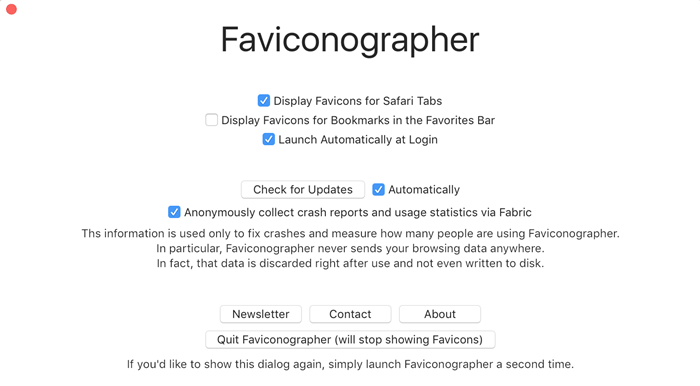
Additionally, you can also make Faviconographer show favicons for bookmarks in the Favorite Bar in Safari. To do that, launch Faviconographer and select the checkbox “Display favicons for Bookmarks in the Favorites Bar“.

If you want the application to automatically launch at every time you turn on your system then select the checkbox “Launch automatically at Login” and you are good to go.

Since there is no menu bar icon, you have to launch the application in the regular way to modify and changes. To quit the application, click on the button “Quit Faviconographer” appearing at the bottom of the window. As soon as you quit Faviconographer, you will no longer see favicons in Safari tabs on macOS.

That’s all there is to do and it is that simple to show favicons in Safari tabs on macOS. Comment below sharing your thoughts and experiences about using the above method to add favicons to Safari tabs on macOS.