20+ Awesome Geek Wallpapers For All Geeks & Nerds

I’d like to keep my desktop as new and inspiring as possible, As this weekend is near why not just spice up our system screens??? Today Stugon shares some of the best geek wallpapers out there in internet, So cover up your screens with these geeky wallpaper collection of the month.

If you wish to download the wallpapers individually, just click on the image otherwise you can find the download link at the bottom of the page to download them as a pack.

Note: Also note that these wallpapers may vary in size, so you may have to crop or stretch to fit your screen.

Download The Geek Wallpaper Pack (10.5 MB)

 im_a_geek_wallpaper_by_thegraphicgeek

binary-rain

got root???

hello world

wallpaper-2010546

wallpaper-1857777

trescientos-red

wallpaper_11_by_0mega_hd-d477ybe

wallpaper-748

wallpaper-409063

wallpaper-1530120

BOOM_WALLPAPER_1920x1200

Nintendo_3D_Mario_by_NES__still_the_best

minimalistic-computers-humor-geek-nerd-vector-overclock-1920x1080-hd-wallpaper

man_women_geek-other

blue-geek

evolution-by-axter-1920x1080

Geek_by_Baddie

geek-girls-881803

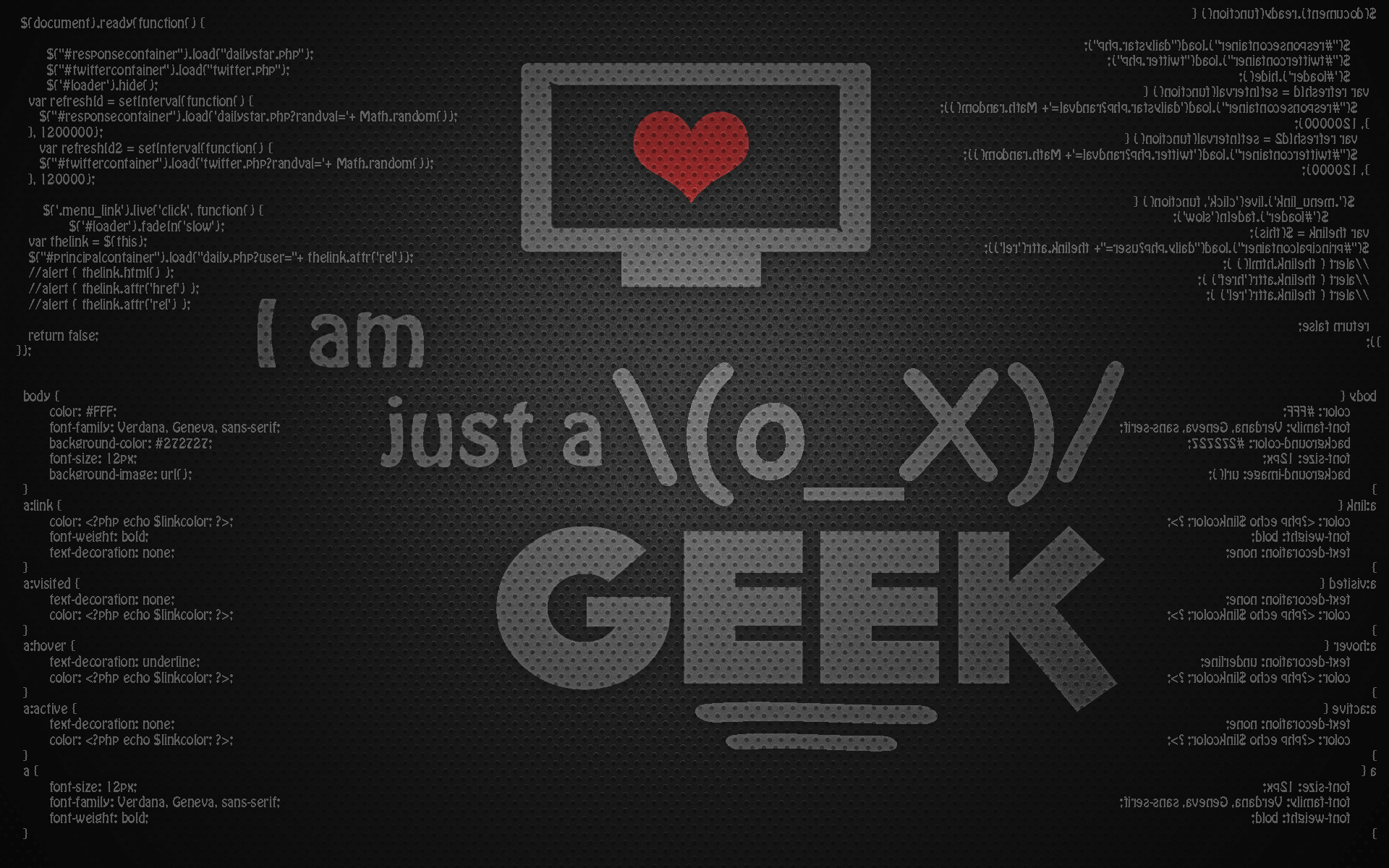
i-am-just-a-geek-wallpaper

black-pie

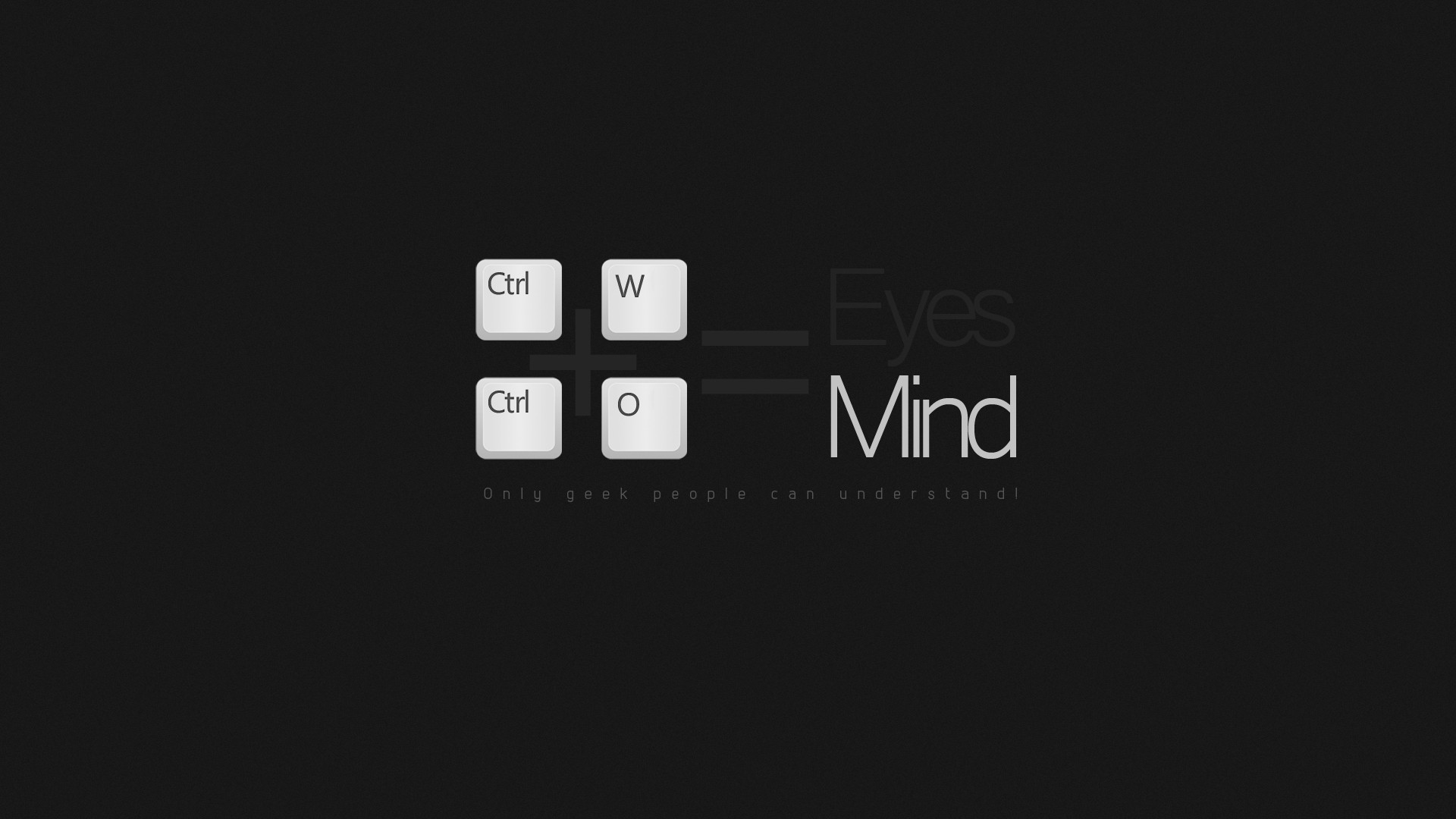
black-and-white-geek-keyboards-fail-1920x1080-hd-wallpaper

Download The Geek Wallpaper Pack (10.5 MB)

Other Wallpaper Collections

Windows 8 HD Wallpaper Collection

Ubuntu 13.10 Raring Ringtail Wallpaper Collection

Best Linux Distros For Beginners

0

So, you want to try Linux but don’t know where to start, how to start or which Linux distro to start with, every Linux distribution has their own set of differences. We’ve done our research (not truly scientific, just a small experiment) and would like to share the best Linux distros for beginners which gives optimal user experience even for novice users.

In this article I’m just barely introducing all the three operating system otherwise we could talk all day long about how wonderful these operating systems are.

Who Are Beginners Actually

When I say beginners, I’m talking about the savvy’s who wants to try Linux based operating systems for the first time or the one who wish to get their hands dirty by exploring the new worlds or the one who wish to breathe a life into their old machines.

Really, There are too many choices out there to choose from, so we just thought to go with popular yet beginner friendly operating systems. Those are, Ubuntu, Mint & Elementary OS. If you wish to know all the distros, just head on to Distrowatch.

Ubuntu – Linux for human beings

Yep!!! That’s Ubuntu’s slogan. By far, Ubuntu has the reputation for beginners, it is really user friendly, stable, and secure. Ubuntu nearly have 20 million users worldwide and that no small number. They provide with great support, regular updates and most of all… It’s free. Ubuntu has a great community of people who are readily willing to help people to get their way with Ubuntu.

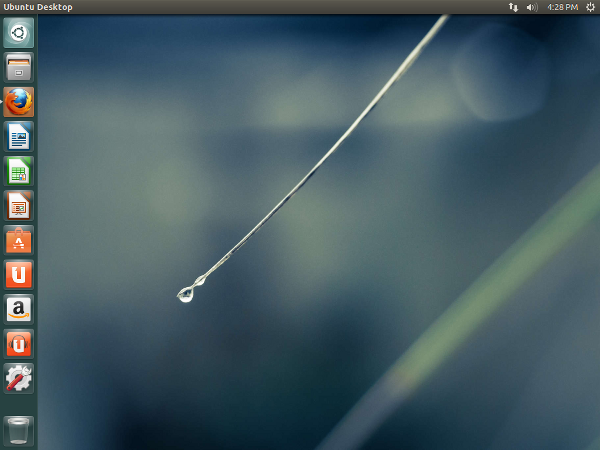
ubuntu

Though Ubuntu is easy, it may take some time for beginners to understand the new user interface (Unity) and you will love it as you get to know and it’s not a fail like windows 8. Unlike windows, In Ubuntu like any other Linux based operating system it comes with a bunch of useful apps pre-installed and it’s easy to install and uninstall softwares that you like using Ubuntu software center app. Moreover, Ubuntu comes in different flavors like Kubuntu, Lubuntu, Xubuntu, Eubuntu, etc.., So find your’s > Download > Install > Experience.

Download Ubuntu

If you are not sure to install Ubuntu on your machine then give it a try by installing it virtually or just by running it through your USB stick or CD/DVD drive.

Linux Mint – Freedom & Elegance

No matter how you look, every time people talk about Ubuntu there will be a discussion of Mint, either be it a recommendation or alternative, mint takes it. Linux Mint is based on Ubuntu and offers the same experience with a different user interface and applications. Linux Mint looks pretty close to windows so that beginners will learn quickly and dares to experiment a bit.

linux-mint

Download Linux Mint

Elementary OS

elementary-os

If you want beautiful, sexy and elegant OS then Elementary is the way to go. Elementary OS is also based on Ubuntu but is much more friendly, faster and better looking OS. If you love to or want use MAC, may be elementary OS can help you as it looks pretty macish and also community driven. If you wish to try Elementary OS then you can download it from here and here is how you can install Elementary OS virtually.

How To Install Elementary OS On VMware Player

0

Elementary OS is one of the most beautiful, simple, effective and powerful Linux-based OS. It comes pre-packed with all sorts of functionalities and security that Ubuntu has to provide. In recent years, Elementary OS is really gaining popularity and is close to being a part of top 10 Distros according to the Distrowatch website. If you haven’t tried Elementry yet, do give it a try by learning how to install Elementary OS on a virtual machine like VMware Player. Before getting started, make sure that you have a latest ISO copy of Elementary OS which can be downloaded from its official website.

Note: Even though I’m showing the installation procedure using VMware, the process is pretty similar even when you are using VirtualBox.

Install Elementary OS On VMware Player

1. Installing Elementary OS in VMware is pretty simple. First off, open the VMware player and select ‘Create New Virtual Machine.

2. In the next window, select the first radio button “Typical” and click ‘Next‘ button to continue.

3. As we are going to install Elementary OS using downloaded ISO file, select the option ‘Installer disc image file,’ browse for the Elementary ISO and click on the ‘Next‘ button. At this point, you don’t have to worry about that little caution mark.
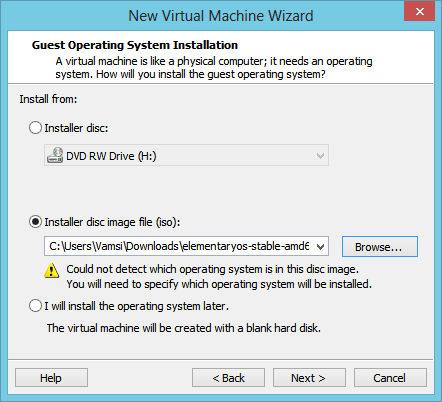
2-elementary-os-select-iso

4. Here in this window, select guest operating system as ‘Linux‘ and the version as ‘Other Linux 2.6.x‘ and click ‘Next‘ button to continue.If you are trying to install the 64-bit version of Elementary OS, then don’t forget to select the 64-bit kernel.
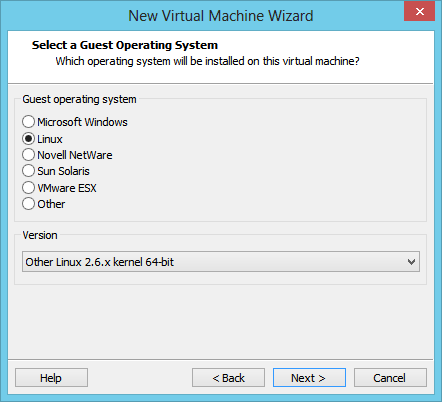
3-select-os-and-kernal-version

5. Here in this window, you need to allocate some disk space to be used by your new operating system. Enter the space as required and click ‘Next‘ button. For this guide, I’ve selected the default 8GB as my disk space.

Space requirement purely depends on how extensively you are going to use your new operating system. For instance, a clean installation only took 3.65GB of space. The one I frequently use took around 26GB space.

Note: Minimum space to allocate is 5GB.
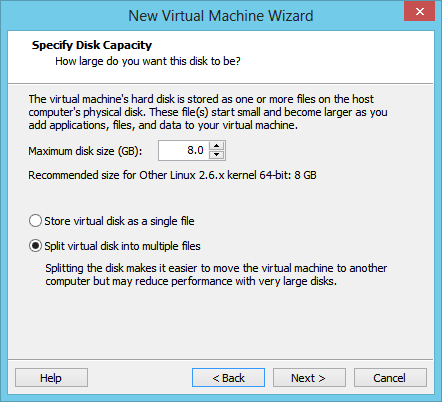
4-elementary-os-hard-drive-space

6. Now you can easily review and customize your hardware requirements. As you can see from the image below, I’ve  increased the memory to 1 GB as I have plenty of it to spare. If you wish to customize your hardware specs, click on ‘Customize Hardware‘ button.
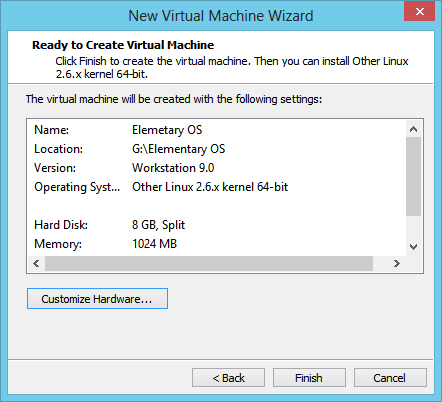
6-elementary-os-confirm-settings

7. Make required changes and click ‘OK‘ button. After finishing hardware settings click on the ‘Finish‘ button on the main window to complete the setup process.
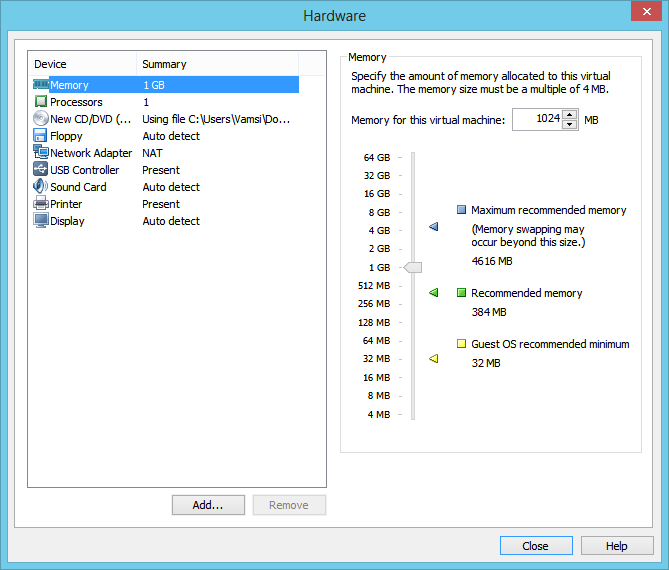
8. Now click on the ‘Power on this virtual machine‘ option in the main VMware window to boot into the new Elementary OS.

Configure Elementary OS in VMware

1. Wait for a few seconds and the OS installation screen will greet you. Here click on the ‘Install Elementary OS‘ button to start the installation process.
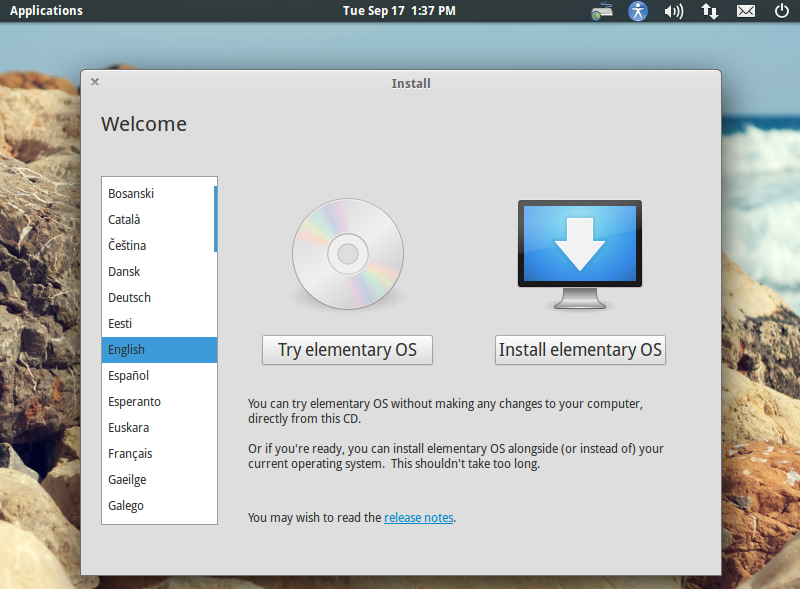
7-elementary-os-install

2. Here the operating system will show you the minimum space required and other stuff. If you wish to download all updates and third-party software during the installation procedure then select the required check boxes and click on the ‘Continue‘ button.

Note: These updates and third-party software require you to have a decent internet connection. However, I recommend you not to install the updates as it prolongs the installation procedure. You can always install the required updates after completing the installation.

3. Now select the radio button ‘Erase disk and install elementary OS‘ and click on the  ‘Continue‘ button and then the ‘Install Now‘ button in the next window to start the installation procedure.
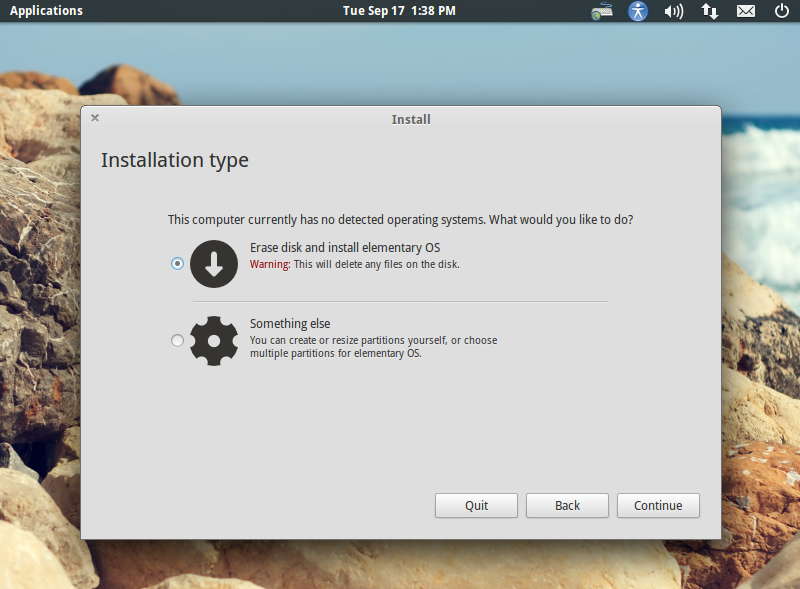
8-elementary-os-erase-harddrive

4. From here it’s just a cake-walk, select your time zone, keyboard layout, username, computer name and password. After completing the installation, restart the virtual machine and you are good to go.
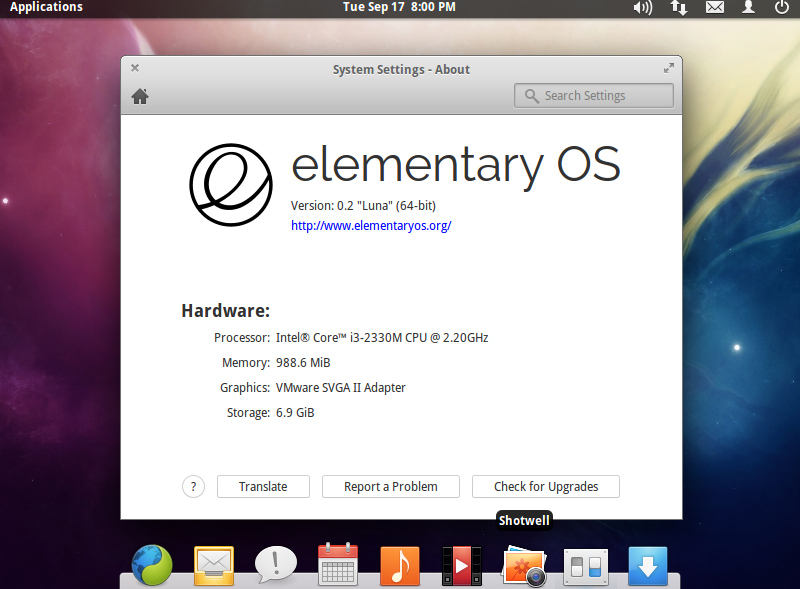
9-elementary-os-successfully-install

That’s all there is to do and it is that simple to install Elementary OS on VMware.

As this is a virtual machine, you can experiment all you want and don’t have to be worried about damaging your system or files. However, make sure that you take quick snapshots of a known good condition (ideally, right after the installation). This helps you to roll back when things go wrong.

Hopefully that helps and do comment below if you face any problems or to share your thoughts and experiences.

16 HD Windows 8 Wallpapers – Download Now!!!!

0

Just can’t live with all those boring wallpapers or just need some great windows 8 wallpapers??? Here are 16 great and creative windows 8 wallpapers by deviant art freaks. Stugon, today presents you with the best HD wallpaper collection, which enables you to throw away the frustration of downloading your favorite wallpapers individually. Just download and enjoy your brand new look of your screen.

> Said that you can also download them individually, just open up the image in the new tab and select ‘save as’ from your right click.

click here to download them as a pack(3.82 MB).

I know you are good at math and only 15 wallpapers are displayed, but trust me,  there are 15 + 1 wallpapers in the downloadable.

Top 3 Reasons Why I Hate Google Chrome

0

Google Chrome is one of the most popular web browsers of the world, Major competent to Firefox and occupies nearly 39% of worldwide usage share of web browser(according to Wikipedia). But everything is bad at something, So here are the top 3 reasons why I hate google chrome.

Scary Permissions For Extensions

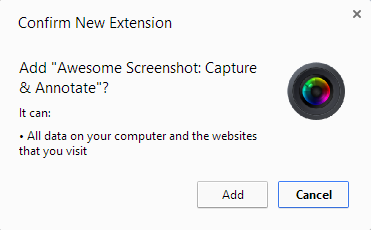
Why do some chrome extensions need a wide range of permissions for simple tasks like taking a screenshot or to manage tabs??? It sure looks scary when we first see the pop-up. Actually, chrome divided their alert range from…

  • High All data in your computer can be accessed including your files, webcam, etc.
  • Medium Access data on all the websites, includes access to your cookies.
  • Low Browser history, physical location, data you copy & paste, etc.

More about these permissions: Permissions requested by apps & extensions || Permission Warnings

chrome-extensions-permissions-stugon

Chrome uses all or nothing policy, i.e., developers sometimes have no choice but to abide these rules and at the same time, it helps extension makers to code easily. Unfortunately, there is no way you could tell why a specific extension needs specific permissions and sometimes it’s very obvious that some extensions need some privileged permissions.

But the sad truth is that chrome doesn’t granulate those permissions or a normal user can’t easily find any useful like to know more about the scope of these permissions. So, it’s always a good idea to be cautious about what extensions you install.

Also, Read 9 Must-Have Chrome Extensions.

Memory Usage

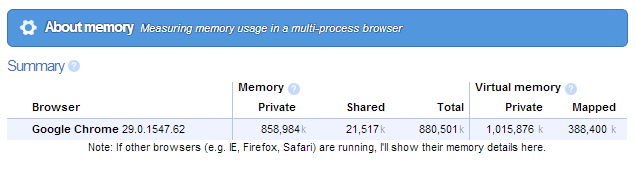
There is no denying that chrome is fast but the catch is, It sucks out your memory. Sure, chrome has improved over the versions but it has a long way to improving the memory usage. The most common reason is crash proofing so that you don’t have to wind up because of one single issue or one plugin goes belly-up.

chrome-memory-usage-stugon

There are lots ways to reduce the memory usage of chrome like using fewer extensions, not opening too many tabs, etc. But for nongeeks or people with less memory, this sure is a problem and sometimes you can’t avoid crashing.

Typography Rendering

I’ll be simple here, What’s wrong with chrome??? Chrome’s font rendering sucks (windows only). I mean look at the screenshot below, Sure, there are ways to correct this issue(like declaring SVG resource) but the catch is that the end user can’t do anything to smoothen the font.

Click on the image to enlarge

chrome-font-rendering-stugon

Nevertheless, there are other small things I hate about chrome, like auto update without any notifications, no local files, google’s monopoly, preinstalled Java (read: Do you need Java), flash crashing, etc. But, I still use and love chrome.

Download Ubuntu 13.10 Community Wallpapers

0

Ubuntu recently released their upcoming ubuntu 13.10 saucy salamander community wallpapers and as alway they are beautiful and elegant. These wallpapers include 3 hi-res pics of those salamanders.

Webupd8 has made a post regarding this and you can download those wallpaper from webupd8 directly. Alternatively, if you want to download all the ubuntu 13 community wallpapers, you can do so via webupd8 or you can just click this link to download directly.

Credits: Webupd8 13.10 Community wallpapers

9 Must Have Chrome Extensions For Every Chrome User

0

The good thing about chrome is, it does have tons of extensions which make our life easier and flexible. But finding useful extensions for your daily use may be tough. So, stugon took the struggle and made a collection of nine useful chrome extensions.

List of chrome extensions

Shorten Me

Shorten Me is a simple URL shortener, using this you can instantly shorten any URL with goo.gl and you can even generate QR codes for that urls.

Download Shorten Me (extension removed from Chrome web store).

Spell Book

With Spell Book, you can simply place all your bookmarks in bookmarklet and can access them by simply right-clicking on the contextual menu.

Download Spell Book

Time Warp

Time warp is a simple extension which lets you be focused by reminding you of to-do things and make you stay focused and avoid distractions.

Download Time Warp

Chime

If you heavily use the social media user then you will love this extension. Chime simply aggregates all the notification of your Gmail, Twitter, Facebook, Reddit, etc.

Download Chime

Panic Button

Don’t close your tabs when someone is peeking over your shoulder, just hide then with one single click and restore later. The Panic button lets you hide all your current tabs with one single click and opens a predefined web page instead. You can even password protect the button from unauthorized usage.

Download Panic Button

URL Expander

Don’t be fooled by the URL shorteners. Using this extension enables you to look what’s behind the shortened URL without actually clicking it.

Download URL Expander (extension removed from Chrome web store).

Youtube Ratings

See the number of likes and dislikes in a bar style over every video thumbnail in youtube. This helps you know the rating of that video even before watching or clicking it.

Download Youtube Ratings

Nifty Split

This is extension is pretty handy. Nifty Split splits your chrome browser into two halves. clicking the link in the left window open the link in the right window.

Download Nifty Split

Disconnect Me

Disconnect helps you save your privacy by letting you block the otherwise invisible websites that track  your browser history and search history. It even hides all the ads on a website. That being said, do whitelist Stugon as this website only shows very minimal and non-intrusive ads.

Download Disconnect Me

15 Universal Keyboard Shortcuts For All The Browsers

0

Everybody loves keyboard shortcuts, ’cause they reduce frustration and increase efficiency of work. Especially when you are using some browser to surf, you do lot of things like move back and forth between tabs, enter new web address, open links in new tabs etc.., most of the times these action demand mouse usage if you don’t know the shortcuts of exact browser. So, stugon made a collection 15 most useful universal keyboard shortcuts which work on all major web browsers like chrome, firefox, opera, safari, etc.

Shortcut List

ctrl + T – Open new tab.

ctrl + N – Open new browser window.

ctrl + tab – Cycle through tabs.

ctrl + W | F4– Close current active tab.

Mouse middle click – Close tab.

ctrl + shift + T – Reopen closed tab.

Backspace | Alt + ← – Navigate Back.

F5 – Reload.

ctrl + F5 – Reload page freshly, ignoring cache.

F11 – Full screen.

ctrl + ‘+’ – Zoom in, ctrl + ‘-‘ – Zoom out, ctrl + 0 – Zoom normal.

ctrl + Enter – suffix ‘www’ and prefix ‘.com’ to a domain name automatically. Ex: stugon turns to www.www.stugon.com.

ctrl + F – Find.

ctrl + H – Open recent browsing history.

ctrl + D – Bookmark current tab.

ctrl + shift + delete – Clear browsing history.

Escape – Stop current loading or action.

Download the list in PDF format

You can also download the PDF version of these shortcuts from here, So that you can refer when needed.

How To Install Ubuntu In VMware Player

Would you like to try and use Ubuntu without actual physical installation? VMware makes it easy, You can install Ubuntu or any other operating system virtually and use it as if you installed physically. To make this easy, I’m going to show you how to install Ubuntu in VMware player/workstation.

Stuff You Need

  • Ubuntu ISO – You can download Ubuntu 13.04 Raring Ringtail(Latest Version) from here. In my case, I’ve downloaded 64-Bit version of Ubuntu.
  • You also need virtual machine software – VMware Player(free). After downloading, Install it as any other software.

Install Ubuntu

Get Started – Once you installed VMware player, Open it up and click ‘Create New Virtual Machine’. I’m assuming that you’ve downloaded Ubuntu 13.04, If not please download before you proceed.

Installing Ubuntu can be done in two different ways, Either by disk or from ISO you’ve just downloaded. For this guide I’m using ISO method as it will be fast and easy. Here, click the second radio button ‘Installer disk image file (ISO)’, Now click ‘Browse’ and select your downloaded Ubuntu ISO and click ‘Open’ and ‘Next’.

In this next window, Enter your full name, user name and password and click ‘Next’.

Note: Username must be all lowercase and password must be at least 8 characters.

In this window give your virtual machine a name and Location(leave default if you don’t know what it is) and click ‘Next’. In my case, I’ve entered the name as ‘Test Ubuntu 64-bit’ and the location is some where in ‘F Drive’.

In this next window, Allot the disk space and click ‘Next’, The default disk space is 20GB. But note that the entire 20GB is not used at a stretch, For me the clean installation took 4.35GB but it may increase as you install programs, updates, etc.

That’s it, If needed you can check and customize you configuration in this next window and click ‘Finish’.

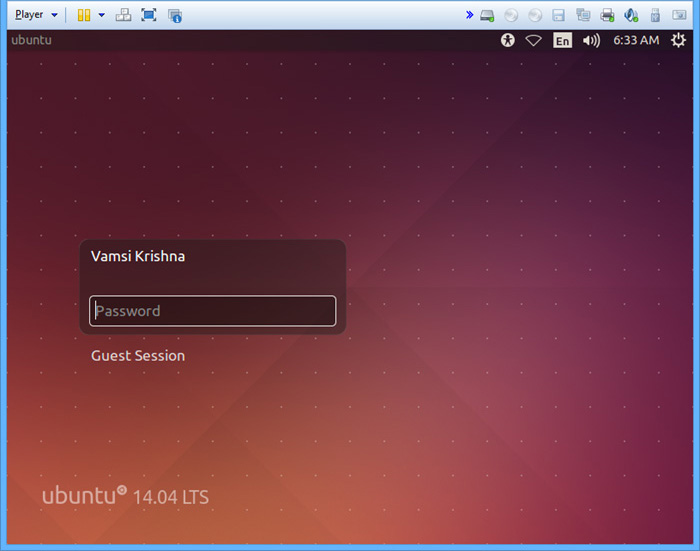
At this point, VMware will automatically install Ubuntu without any further human interference. So sit back and relax, VMware will soon greet you with Ubuntu login screen. During or after the installation VMware may prompt you to install VMware tools, Go ahead and install them. VMware tools will give extended functionality like drag and drop support, etc.

If need any help with using Ubuntu or if you ran in to any problems or to learn about Ubuntu then AskUbuntu and UbuntuForums are your friends.

3 Ways To Use Linux Without Installing

0

Sometimes you want to try Linux but you may back down with the fear of loosing all your Windows applications and known environment. But as always, that should not stop us from trying out the Linux operating systems as there are multiple ways to use Linux without actually installing them physically on your hard disk. In fact, there are plenty of Linux distributions and most them would work without installing. So if you ever need, here is how you can use Linux based operating systems like Ubuntu, Fedora, etc.., without actually installation.

Use Live CD

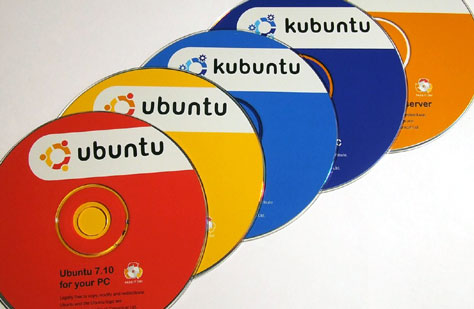
A live CD is a complete version of a Linux Distro and almost every version of Linux can run through the live CD. With a live CD, you can actually use full fledged Linux operating system without installing it. Even though most Notebooks and Laptops doesn’t have CD/DVD drive anymore, it still is a good thing and I always recommend everyone to have it as a precaution to troubleshoot Windows whenever necessary.

ways-to-use-linux-ubuntu-live-cds

To use a Linux live CD, you can simply download the ISO file of your favorite Linux Distro like Ubuntu or Fedora and burn it your CD/DVD using your favorite CD/DVD burner. After successfully burning, you can use that CD/DVD to boot with and use it as you like. If you are to buy a Laptop or Notebook with pre-installed Linux operating system, then you will surely have spare Linux live CD/DVD lying around.

USB Stick Method

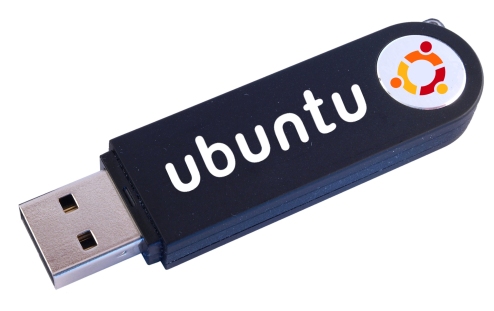
USB stick method is same as using the live CD but with even more small and easy to carry device. Most notebooks and Laptops aren’t  supporting optical drive anymore and the good thing is that you can easily buy a basic 4 gig USB drive relatively cheap. USB sticks are easy to carry and are also reusable and much faster than the regular optical drives.

ways-to-use-linux-usb-drive

Since USB drive is not bootable by default, you need to use a specialized software like LiLi or UNetbootin to create your live Linux USB stick. The good thing about using USB stick as a Linux drive is that you can easily allocate some amount space for “Persistence” so that you may also have all the changes made to the operating system and can also carry the software you installed or other downloaded files. Of course, to use Persistence, you need to have a USB stick with bigger memory.

Virtual Installation Method

By far this is my favorite method, Virtual installation is simple, versatile, and safe. There is so many virtual machine software out there and the most used are VMware and Virtual Box, both are available as freeware. Using virtual machines is risk-free and you can do all you want and never have a fear of breaking your Linux operating system. This is because you can take snapshots of your Linux operating system before doing any changes or messing up the operating system. When you are done with changes, you can always revert the changes by restoring the snapshots. I had already published several articles on using virtual machines and installing Ubuntu in VMware player is a good start.

ways-to-use-linux-ubuntu-vmware

Hopefully that helps and do comment below sharing your thoughts and experiences using the comments form below.