How to Add or Remove Startup Programs in Mac OS X

0

When you turn on your Mac, there will always be a bunch of programs, processes and other things that automatically start so as provide you with useful features. Generally, these programs are called as startup programs. As useful as it is, the more programs and processes you have in the startup queue, the more time it takes to log into your system. On the flip side, you might want to an app to the startup queue so that you can start working with it as soon as you logged into your Mac. So, if you are someone who is looking to clean up the startup programs or want to add an application to startup programs, then here how you can add or remove startup programs in Mac OS X.

Add Startup Programs in Mac OS X

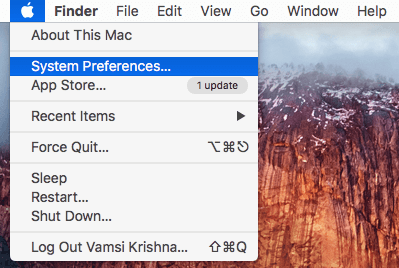
1. Adding startup programs in Mac OS X is pretty easy and straightforward. To start off, click on the Apple icon appearing on the top-right corner and then select the option “System Preferences.”
mac-startup-programs-select-system-pref

2. Once the System Preferences window has been opened, find and double-click on the option “Users and Groups.”
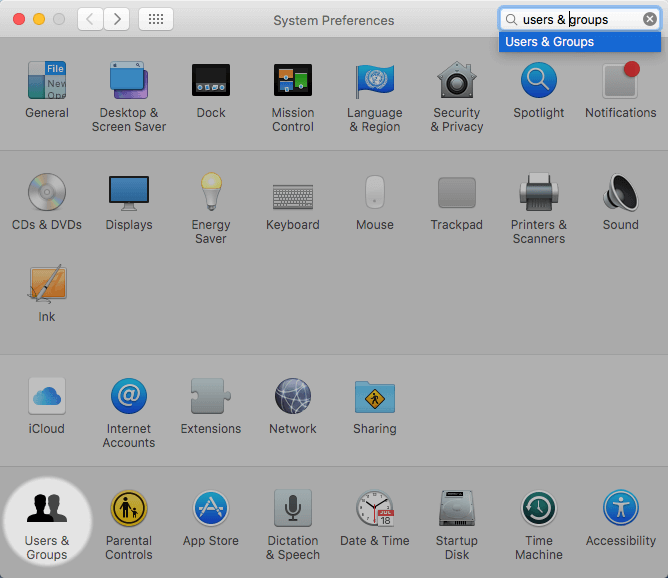
mac-startup-programs-select-users-groups

3. The above action will open the “Users and Groups” window. Here, make sure that you have your user account selected in the left pane and navigate to the tab “Login Items” on the right pane.
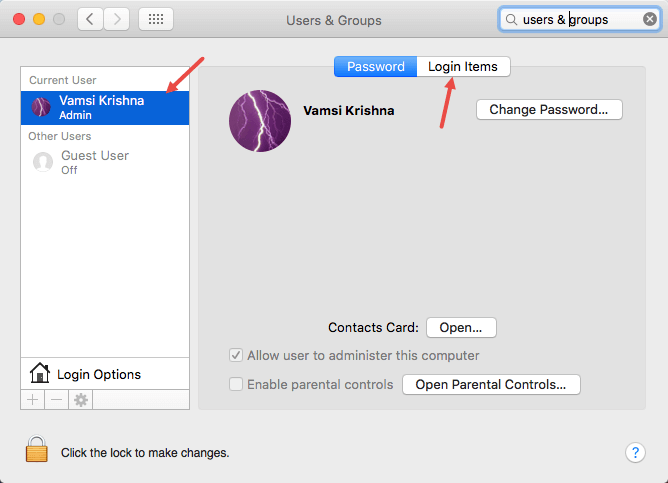
mac-startup-programs-select-login-items

4. This is where you manage the startup items on Mac. To add an application to the startup list, simply drag and drop the application, file or folder.

For instance, I want my frequently used folder to launch automatically when I log in. So, I dragged it into the startup list.
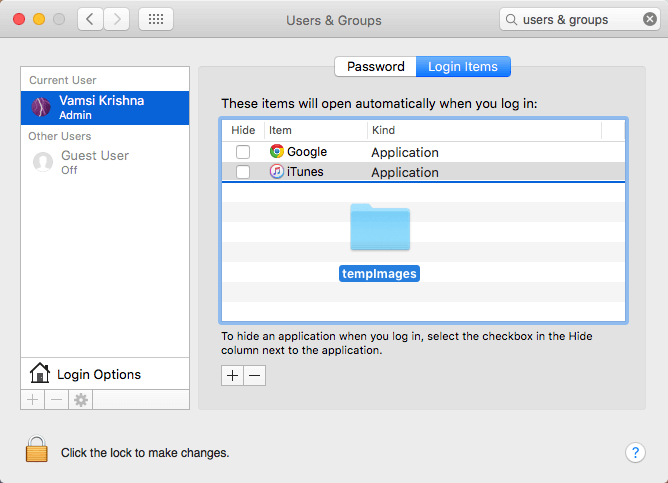
mac-startup-programs-drag-drop-folder

5. As soon as you drag and drop, the item will be added to the Startup list and from this point forward it will be opened automatically when you log into your system.
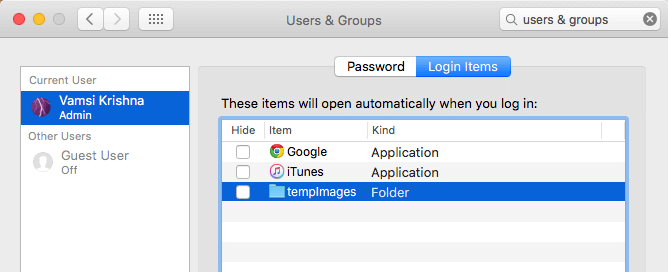
mac-startup-programs-drag-drop-folder-added

Alternate Way to Add Startup Items on Mac

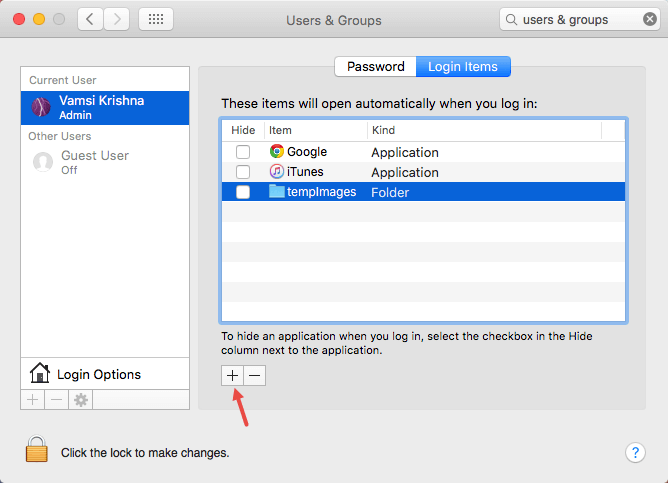
1. Alternatively, you can also add an application or folder by clicking on that little Add (+) icon.
mac-startup-programs-click-add-icon

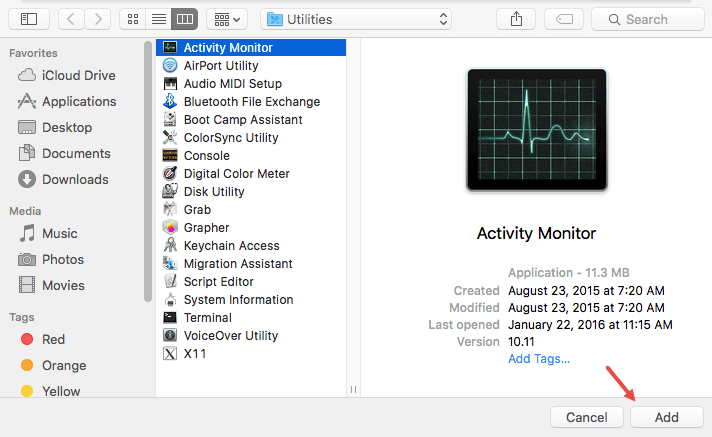
2. Once you click on the add icon, you will be asked to choose the startup item. In my case, I’m selecting the “Activity Monitor.” Once you chose the application, click on the button “Add.”
mac-startup-programs-add-program

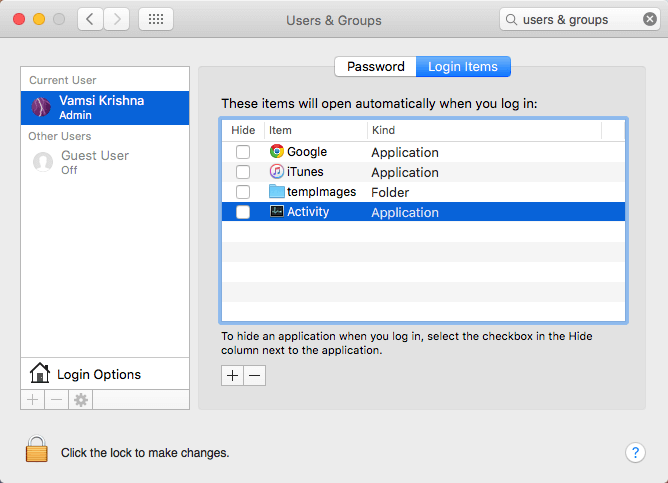
3. The above action will add the application to the startup list.
mac-startup-programs-added

Remove Startup Programs in Mac OS X

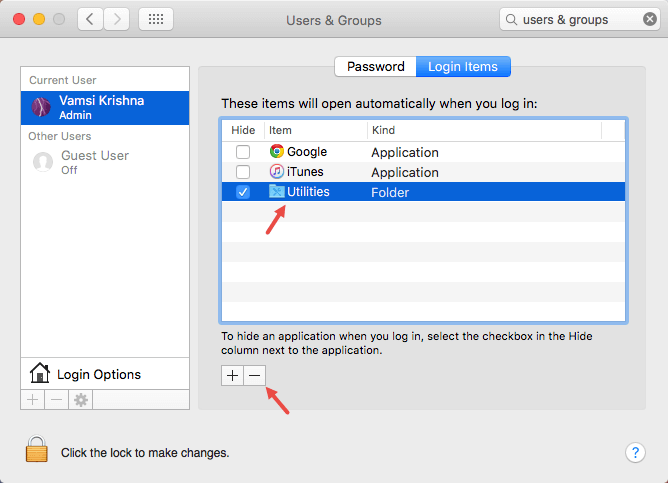
1. Removing an item from the startup list is also pretty easy. All you have to do is select the program or folder you want to remove and then click on the Remove (-) button. For instance, here I am removing the Utilities from the startup list.
mac-startup-programs-click-remove-icon

2. That’s all there is to do and it is that simple to add or remove startup programs in Mac OS X.

Do comment below sharing your thoughts and experiences about using the above method to manage your startup programs in Mac.

How to Download Android Apps to PC without Installing Any Software [Quick Tip]

0

Android has a very rich app ecosystem where you can find an app for almost anything like fitness, note taking, financing, traveling, navigation, time management, educational needs, etc. To compliment the ecosystem, the Google Play Store has made it very easy to install and uninstall an app from the market. As good as it is, the only problem with the Play Store is that you won’t have any access to the APK (installer file) file. In case you are wondering, having the APK file of your most used or important app makes it easy to install the app even if you don’t have access to the Play Store, to the internet connection or if the app is not available in your country. No matter what the reason is, here is how you can download Android Apps to PC.

Though I’ve previously shared a simple way to download Android APK files to PC, the procedure needs you to install a free software. If you don’t want to install any software then follow on to know how to download Android apps to PC.

Download Android Apps to PC

Using APK Pure

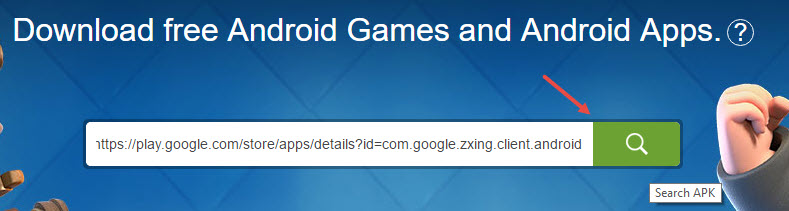
APK Pure is a simple web service that lets you download any app from the Play Store with a single click. All you have to do is, head over the website, paste the app URL and click on the button “Search” button.

download-android-apps-to-pc-apkpure-paste-url

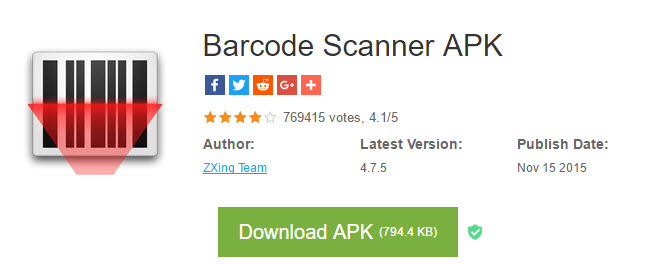
This action will take you the app download page. Here, click on the button “Download APK” and you are good to go.

download-android-apps-to-pc-apkpure-download-apk-file

The good thing about this service is that you can search for the apps directly from the homepage if you don’t have the Play Store URL.

Using APK-DL

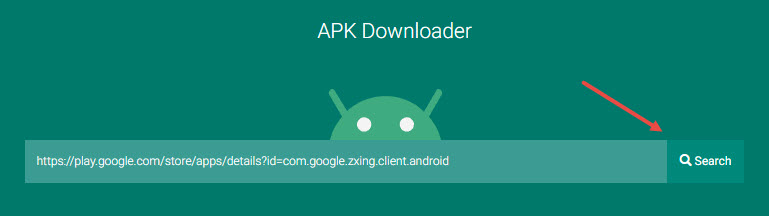
APK-DL is also similar, you can search for almost any app in the Play Store using the URL, Package name, or App name. To download the app, simply enter the app URL and click on the search button.

download-android-apps-to-pc-apk-dl-paste-url

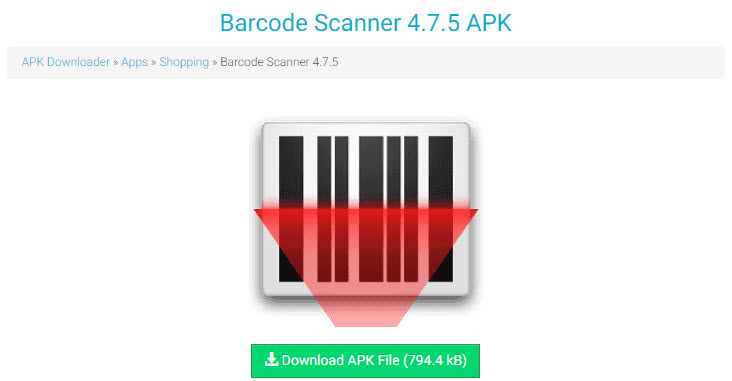
The above action will take you to the download screen. Here, click on the button “Download APK File.”

download-android-apps-to-pc-apk-dl-download-apk-file

Depending on the app size, you will have your APK file downloaded to your PC in seconds.

Using APK Leecher

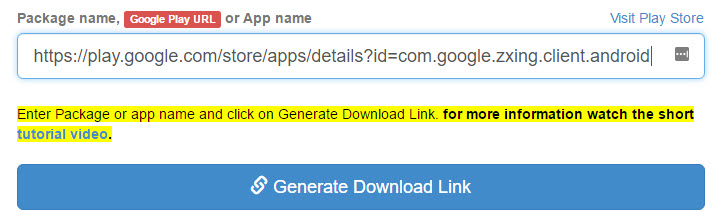
Just like with APK-DL, you can also use APK Leecher to search for almost any app using package name, URL, or app name and download it. Once you have the URL, paste the URL in the search bar and click on the “Generate Download Link” button.

download-android-apps-to-pc-apkleecher-generate-download-link

In the download page, click on the button “Procced to Download.”

download-android-apps-to-pc-apkleecher-proceed-to-download

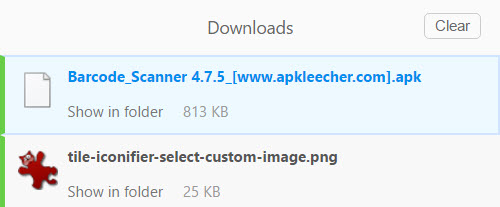
The above action will initiate and complete the download process.

download-android-apps-to-pc-app-downloaded

That’s all there is to do and it is that simple to download Android apps to PC without using any software. However, one thing to keep in mind while using the above services is that you cannot download paid apps. To download the paid apps, you have no other choice but to use the Play Store or app developer website.

Do comment below sharing your thoughts and experiences about using the above web apps to download Android apps to PC without using any software.

How to Check MD5 and SHA Checksums on Mac

0

Whenever you are downloading a file from the internet, more often than not, the developer gives you or shows you the MD5 or SHA checksum of that particular file. This file checksum can be used to check the integrity of the file when you are done downloading. The good thing about checksums is that it is highly unlikely that any two files have the same checksum. If the downloaded file is modified in any way (even a tiny bit) or got corrupted, the checksum automatically changes. In case you are wondering, you can easily check MD5 and SHA checksums directly on your Apple Mac. Here is how you can do it.

Check MD5 Checksum

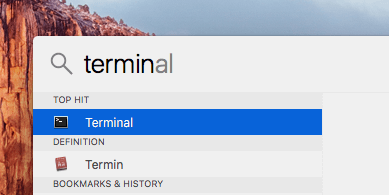
To check MD5 checksum, you don’t have to install and use any third-party application. You can just use your terminal. To start off, use Spotlight or Launchpad to search for the Terminal and then launch it.

mac-verify-checksum-search-terminal

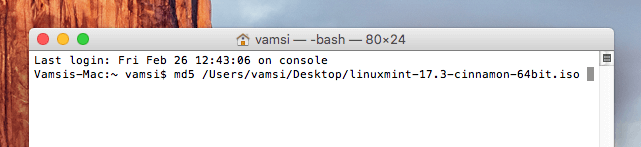
Once the Terminal has been launched, use the blow command while replacing “filePath” with the actual file path in your local storage and press the Return key on your keyboard. For instance, I want to check the MD5 checksum of the downloaded Linux Mint ISO. So I entered the file path of that target file.

Quick tip: to enter the file path, simply drag and drop the file in the Terminal. This action will automatically populate the file path.

md5 filePath

mac-verify-checksum-check-md5-checksum

As soon as you press the Return key, your system will calculate the MD5 checksum and will display it.

mac-verify-checksum-md5-checksum

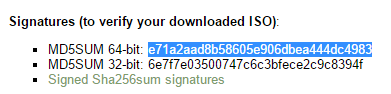
Once you have the checksum, head over to the developer website and verify the checksum.

mac-verify-checksum-linux-mint-md5-checksum

Check SHA Checksum

Just like you can check MD5 checksum, you can also check SHA checksum right in the Terminal.

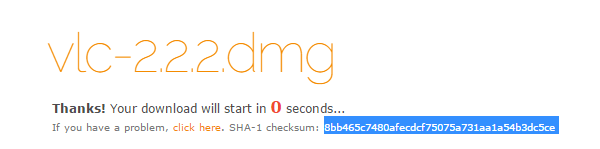
To do that open up the Terminal and execute the below command while replacing “filePath” with the actual file path in your local storage. Again you can simply drag and drop the file in the terminal to autofill the file path. For instance, here I am checking the SHA checksum of the VLC disk image file downloaded from the official VLC website.

shasum filePath

mac-verify-checksum-check-sha-checksum

As soon as you execute the command, the terminal shows the actual SHA checksum of the target file.

mac-verify-checksum-sha-checksum

Once you have the SHA checksum, simply cross check it with the checksum available on the developer website and you are good to go.

mac-verify-checksum-vlc-sha-checksum

That’s all there is to do and hopefully that helps. Do comment below sharing your thoughts and experiences about using the above method to check MD5 and SHA checksums on Mac.

Download Windows 10 Insider Redstone Preview Build 14295 ISO

0

Microsoft recently released the new Windows 10 insider Redstone Preview build 14295 to the slow ring. One of the several announcements of Build 2016 is the availability of downloadable ISOs of Windows 10 insider build 14295. This is a good thing because if you have trouble upgrading the new insider build then you can manually download and install it. In fact, it is a good way to see what you get from the new insider builds. Of course, if you are still not a Windows Insider then you can signup using this link.

Click here to download Windows 10 Insider Redstone Preview Build 14295 ISO.

One thing to keep in mind while using the download link is that the generated ISO download links are only valid for 24 hours. Though there are not many changes in this build when compared to the previous build, do give it a try. In case you are wondering, here is what’s fixed and what’s broken in this new Windows 10 Insider Redstone Preview Build 14295.

Things That Are Fixed for PC

According to Microsoft

  • We fixed the issue that was causing PCs to freeze when plugging in an Xbox One or Xbox 360 controller and other gamepads.
  • We fixed an issue where Microsoft Edge would refresh the tab if you pressed caps lock in a password field.
  • We fixed an issue preventing the Xbox app and other Xbox Live enabled apps and games from signing in.
  • We have fixed the driver bug that prevents Kaspersky Anti-Virus, Internet Security, or the Kaspersky Total Security Suite installed from working as expected in builds from the Development Branch.

Things That Are Broken and Known Issues for PC

According to Microsoft

  • We are aware of issues with Narrator and other screen reader apps being unable to read the menu options in the Feedback Hub, as well as issues with Narrator not reading selected text in the Feedback Hub, Cortana, and other apps. We’re working diligently to fix these bugs as soon as possible and apologize to Insiders impacted by this.
  • If you use Hyper-V and have a Virtual Switch configured for your network adapter, you may see an error indicator (red-colored “X”) for your network adapter in the notification area of your taskbar. The error indicator is incorrect and your network adapter should continue to work just fine.
  • On some PCs with TPM chips, such as the ASUS Zenbook UX31, you may experience glitchy audio and jumpy movement when using the trackpad due to the “tpm-maintenance” task running constantly in the background instead of once per boot-up like it should. As a temporary workaround, you can disable the tpm-maintenance task in Task Scheduler (under \microsoft\windows\tpm).
  • PCs that use Windows Hello or a PIN to sign-in to the device will launch the Microsoft Passport service. When this happens, there is an issue in this build where Bluetooth will then repeatedly scan for devices. This causes a few issues on the PC including reduced battery life, audio glitches, responsiveness issues with Bluetooth keyboards and mice, a decrease in Wi-Fi throughput on Wi-Fi/Bluetooth combo chipsets, and a decrease in throughput for Bluetooth file transfers. As a workaround, you can disable the Microsoft Passport (NgcSvc) service by opening an elevated Command Prompt, run “reg add HKLM\System\CurrentControlSet\Services\NgcSvc /v Start /t REG_DWORD /d 0x4 /f” and then reboot. However, you will not be able to use Windows Hello or a PIN to sign-in to your device. The service will be re-enabled again when you update to the next build.
  • After upgrading to this build from Build 14291, attempting to connect to a Miracast receiver the connection will fail. The workaround to get out of this state is to go to this registry key “HKEY_LOCAL_MACHINE\SYSTEM\CurrentControlSet\Services\SharedAccess\Parameters” and select “StandaloneDhcpAddress” and change the value from “192.168.173.1” to “192.168.137.1” (value type is REG_SZ). Then retry the connection to the Miracast receiver.
  • We are seeing reports of some apps such as QQ crashing. We are currently investigating, and this bug may also impact older apps such as Windows Live Mail and Expression Encoder 4.

That’s all for now and do comment below sharing your thoughts about the new Windows 10 Insider Redstone Preview Build 14295.

How to Change Grub Boot Order in Ubuntu / Linux Mint

0

If you’ve installed Ubuntu, Linux Mint or other Ubuntu derivatives alongside Windows, then you might be familiar with the Grub Boot Loader with lets you choose the operating system when you first start your machine. By default, the Grub Boot Loader makes the Ubuntu/Linux Mint as the primary OS. If you didn’t select any other option within ten seconds, you will be logged into the primary OS. But if you are just testing a Linux distro and want to make the Windows as the default OS then changing Grub Boot order is a good thing to do. In case you are wondering, here is how you can change Grub boot order in Ubuntu or Linux Mint.

Note: even though I’m showing this in Linux Mint, this method works with any Ubuntu derivatives.

Change Grub Boot Order in Ubuntu or Linux Mint

First of, you can change the grub boot order using the terminal, but even a small mistake can be fatal. So we are going to use a GUI editor to change the grub boot order so that you don’t have to worry about all the syntax and other stuff.

1. To start off, launch the terminal either by searching for it or by pressing the keyboard shortcut CTRL + ALT + T.

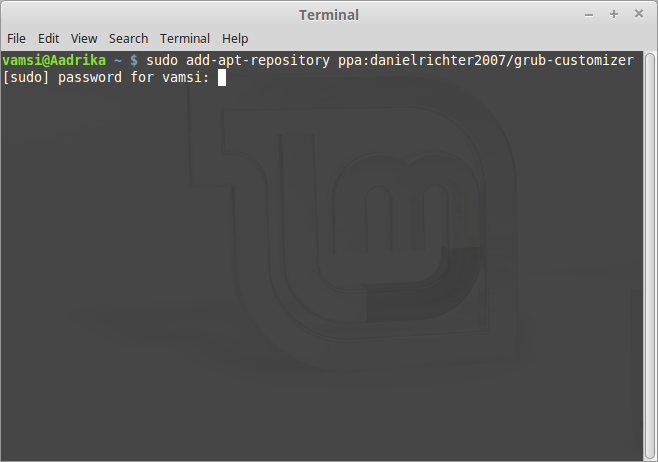
2. Once the terminal has been opened, copy and execute the below commands one by one. To execute these commands, you need to have admin privileges.

sudo add-apt-repository ppa:danielrichter2007/grub-customizer

grub-customizer-change-grub-boot-order-add-ppa

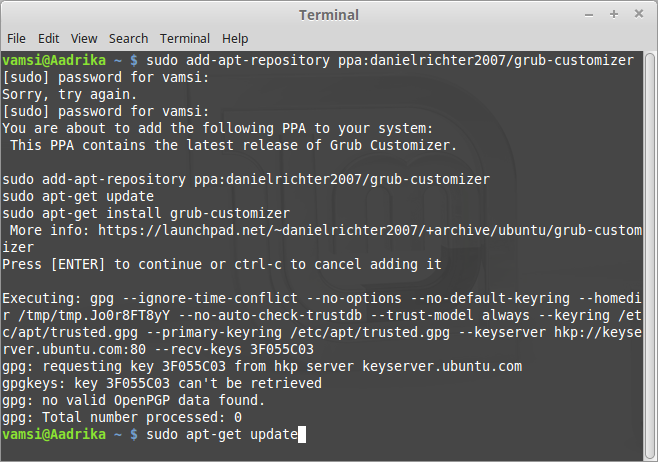
3. next

sudo apt-get update

grub-customizer-change-grub-boot-order-update

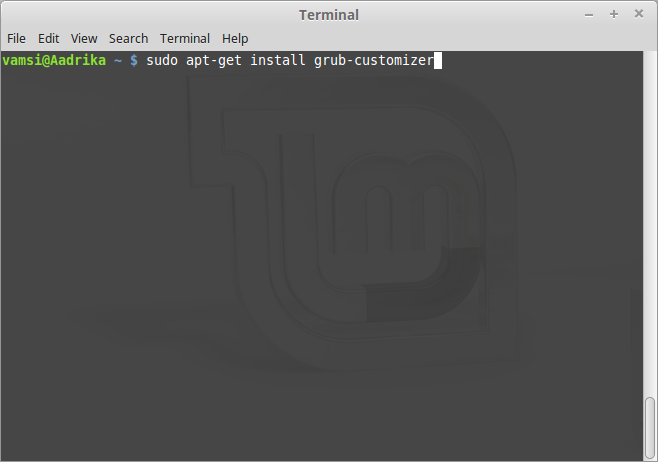
4. next

sudo apt-get install grub-customizer

grub-customizer-change-grub-boot-order-install-grub-customizer

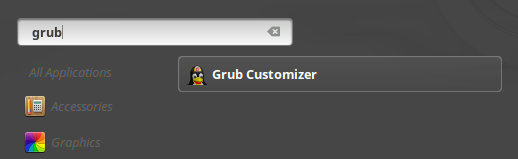
5. Once you are done installing, search for Grub Customizer and open it. You might me asked for the admin password, just enter it to open the application.

grub-customizer-change-grub-boot-order-search-for-app

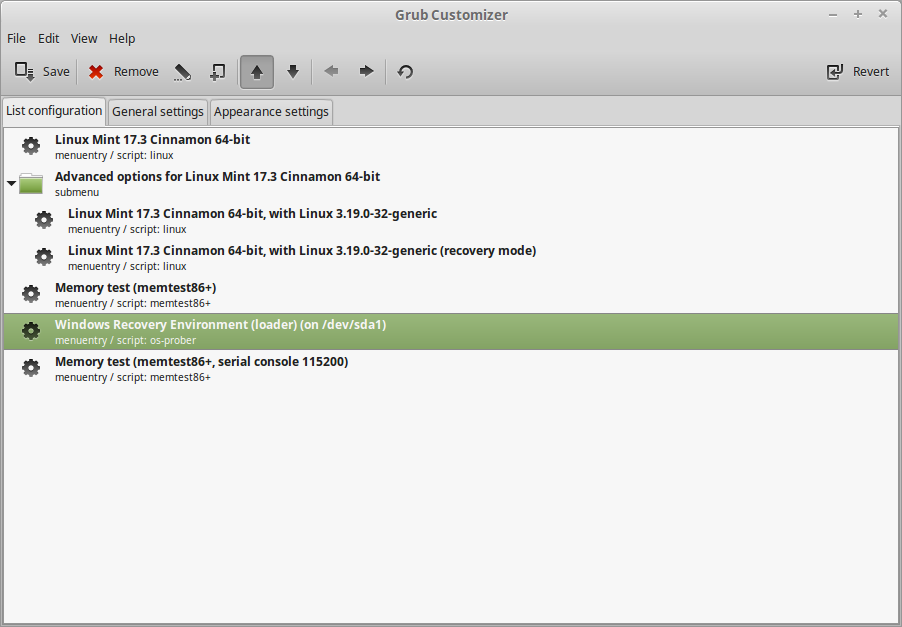
6. In the Grub Customizer, you will see all the entries that appear in the Grub boot loader. To change the order, simply select the entry you want to change and click on the arrow buttons appearing on the top navigation bar. For instance, I want to move the Windows option to the top of the list. So, I selected it and clicked on the up arrow.

grub-customizer-change-grub-boot-order-select-option

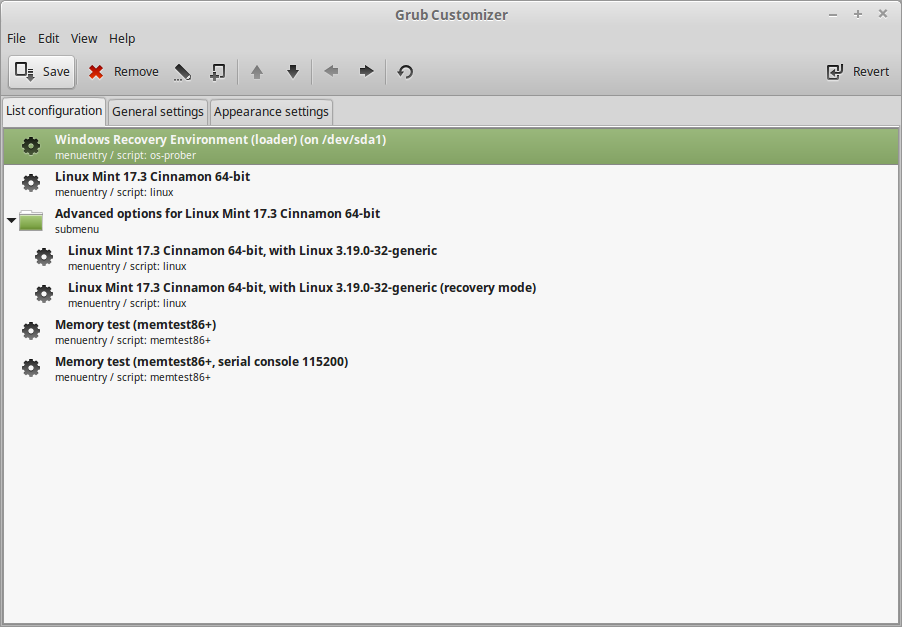
7. After moving the option, this is how it looks like. Once you are done with the change, hit the save button appearing on the top navigation bar and you are good to go.

grub-customizer-change-grub-boot-order-option-moved

Rename GRUB Options

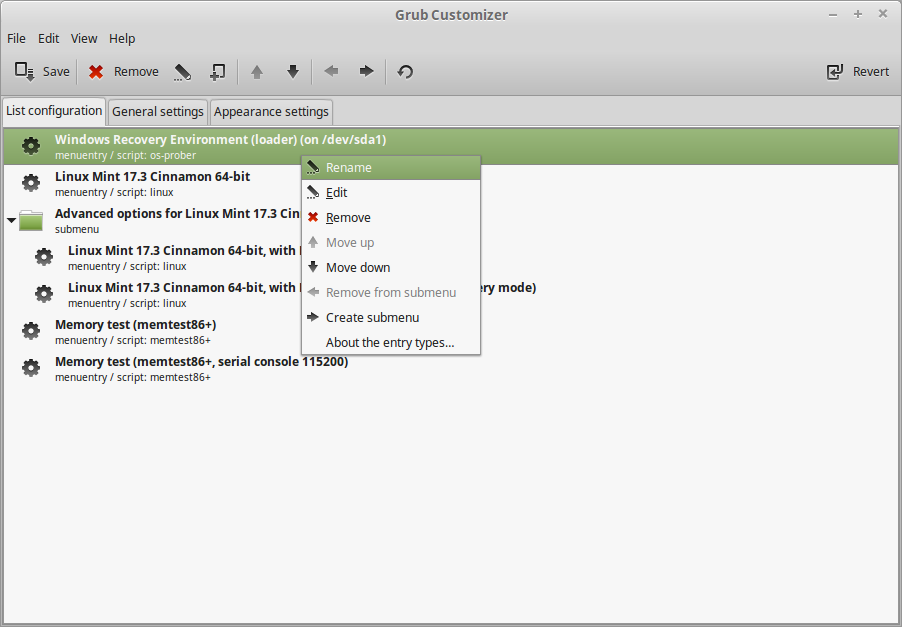
8. The good thing about Grub Customizer is that it even lets you rename the Grub options to your liking. For Example, the Windows option in Grub is listed as “Windows Recovery Environment.” I want to change it to “Windows 10.” To do that, right-click on the option and select the option “Rename.”

grub-customizer-change-grub-boot-order-select-rename

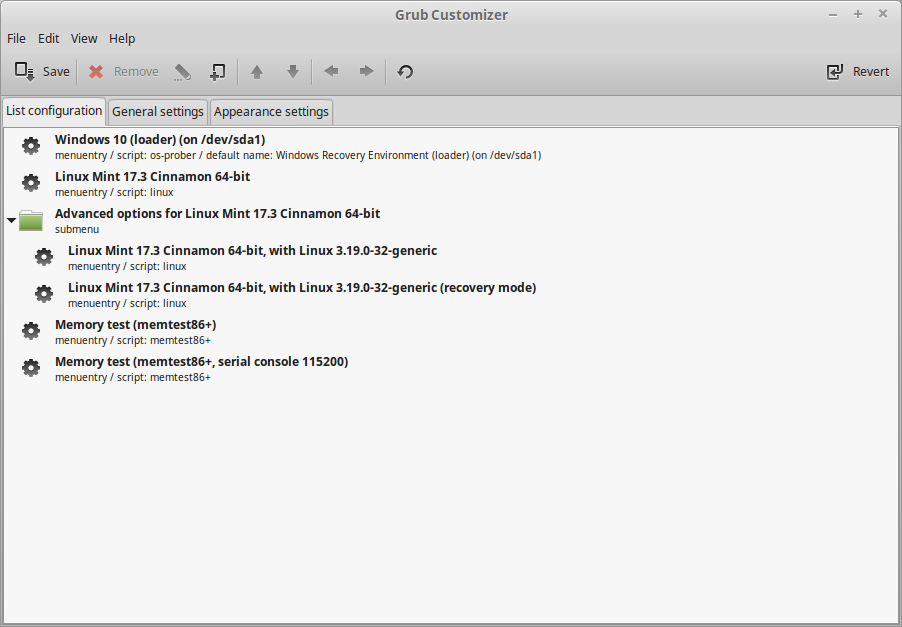
9. Once you are done renaming the option, press the Enter button on your keyboard to exit the edit mode and then click on the Save button to save the changes.

grub-customizer-change-grub-boot-order-option-renamed

10. That’s all there is to do and from this point forward, you will see the modified Grub boot loader.

Moreover, the Grub Customizer also lets you play with other options like the number of seconds before automatically selecting the default option, colors, wallpaper, etc. Do check them out, but be careful while using all those options.

Hopefully that helps and do comment below sharing your thoughts and experiences about using Grub Customizer to change Grub boot order in Ubuntu, Linux Mint or other derivatives.

How to Disable Notifications Alearts on Mac

0

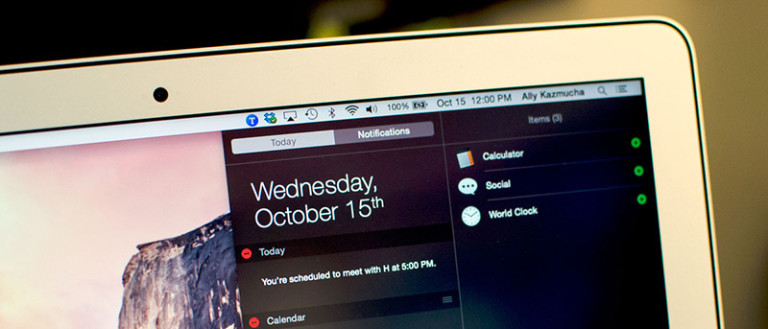
Notifications alerts are a great way to get a quick glance at what is happening. But when you are working or doing something this busy, these notification alerts can be a little annoying and may even distract you from your actual work. Moreover, not all of us are fond of the random notification alerts. Fortunately, OS X has built-in options to activate Do not Disturb mode for all notifications. So, if you ever want to disable all notification alerts on Mac, here is how to do it the easy way.

Disable Notifications Alerts on Mac

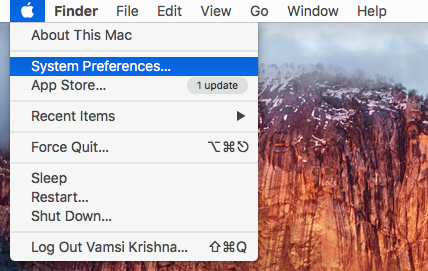
Disabling notification alerts on Mac is pretty easy and straightforward, thanks to the “Do not Disturb” options. To start off, click on the Apple icon appearing in the top-left corner and then select the option “System Preferences.”

disable-notifications-os-x-mac-sys-preferences

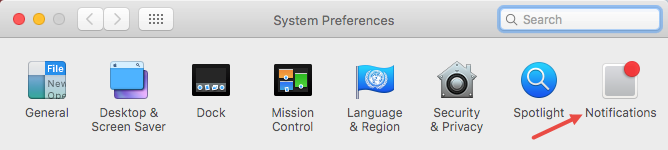
The above action will open the System Preferences window. Here, find and select the option “Notifications.”

disable-notifications-os-x-mac-select-notifications

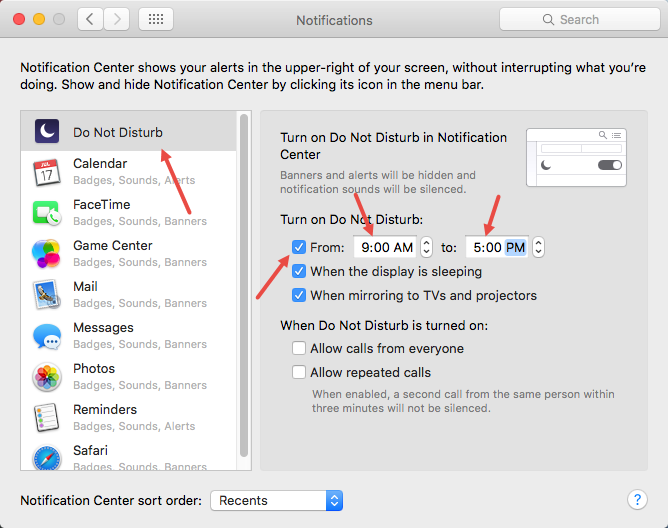
Here in the Notification window, select the option “Do not Disturb” from the left pane, and then select the checkbox “From” under “Turn on Do not Disturb.” Now enter the time from when to when the notification alerts should be disabled.

For instance, I typical work from 9 A.M to 5 P.M. So, I’ve I’ve entered the same in the “From” and “To” fields.

disable-notifications-os-x-mac-select-don-not-disturb

If you want the notification alerts to be completely disabled (sort of) then enter the time in the “To” field really close to whatever time you’ve entered in the “From” field. i.e, if you’ve entered the time in “From” field as 09.00 AM, then enter the time in “To” field as 08:59 AM. That way, the notification alerts won’t disturb you all day long.

That’s all there is to do and it is that simple to turn off or disable notification alerts in Mac. Do comment below sharing your thoughts and experiences about using the above method to disable notification alerts in Mac when required.

How to Install and Configure Firewall on Any Android Device [No Root Required]

0

Almost every app you install on your Android device connects to the internet to send and receive data. This can be a huge deal if you are on a limited data plan. On the flip side, the smartphone in your pocket is no less than a computer, you have a lot of personal stuff like photos, videos and you do a lot of other things like paying bills online, accessing your bank accounts, managing your social accounts, access important emails, etc. So, to protect your device, restrict, and keep an eye on what apps are connecting to the internet, you are going to need a firewall, just like on computers. In case you are wondering, here is how you can install and configure a firewall on any Android device.

Firewall for Android

To add firewall on Android, we are going to install a free app called NoRoot Firewall. As you can tell from the name, the app needs on root permissions. Since the app doesn’t need any root permissions, it can be used on any device.

In case you are wondering, the inner workings of this app are simple. Once you install the app, it will create a local VPN and diverts all the internet traffic through that local VPN so that it can monitor the requests and allow or deny the connections according to the rules set by you.

Install and Configure Firewall on Android

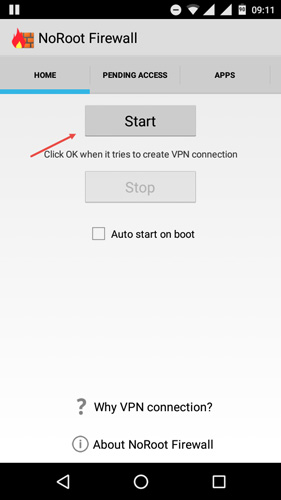
To configure the firewall on Android, you first need to install the app. So, head over to the Play Store and install NoRoot Firewall. After installing, open the app and tap on the button “Start” the firewall.

android-app-noroot-firewall-start-firewall

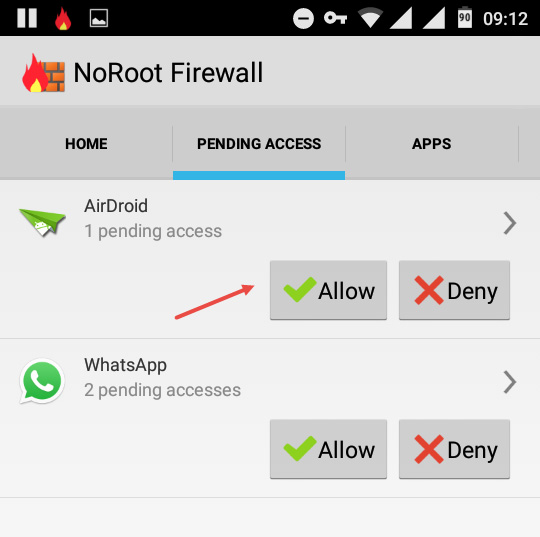
By default, the app blocks all the internet access to all the apps and displays an alert message when an app tries to connect to the internet. To allow access to an app, navigate to the Pending Access tab and tap on the button “Allow.” If you want to deny the access then select the option “Deny.”

android-app-noroot-firewall-allow-apps

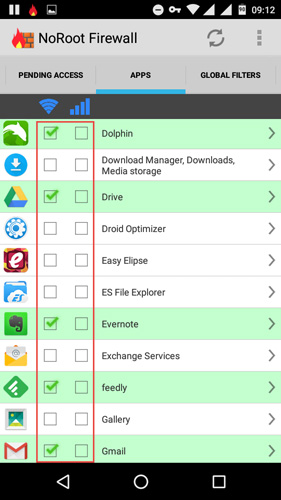
Under the Apps tab, you can select the apps that can access the internet via WiFi and mobile data. The good thing is, NoRoot firewall even allows you to restrict apps based on WiFi or mobile data plan.  To allow an app access the internet, simply select the checkboxes under the WiFi and/or mobile data.

android-app-noroot-firewall-bulk-allow-apps

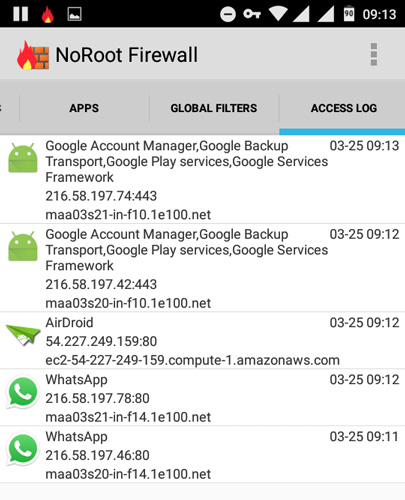
To see what apps are being connected to the internet, navigate to the “Access Log” tab. Here you will find all the apps that are connected to the internet.

android-app-noroot-firewall-access-log

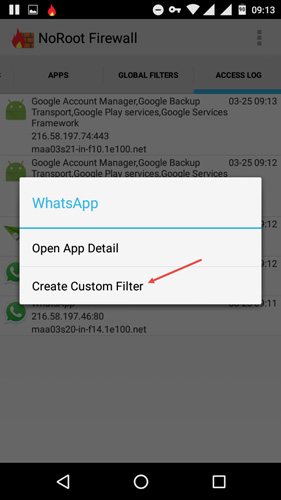
For advanced users, you can create custom filters. To create a custom filter for an app, simply tap on the app visible in the Access Log tab and then select the option “Create Custom Filter.”

android-app-noroot-firewall-app-info

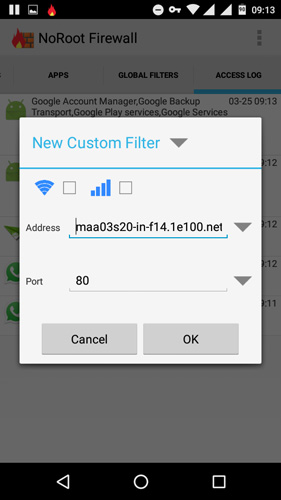
The above action will take you to the Custom Filter screen, here, configure your custom filter and then tap on the button “Ok” to save the changes.

android-app-noroot-firewall-custom-filter

Finally, if you want to stop the firewall, then go to the home screen and then tap on the button “Stop” to stop the firewall. As soon as you stop the firewall, all the apps installed on your Android device will have access to the internet, be it via WiFi or mobile data.

That’s all there is to do and it is that simple to install and configure firewall on Android.

Do comment below sharing your thoughts and experiences and thoughts about add a firewall on Android.

Bring Back Save and Quit Feature When Closing Firefox with Multiple Tabs

0

If you are a Firefox user for long enough, you might remember the feature that lets you save the tabs when you try to close Firefox with multiple tabs. But for whatever reason, Mozilla thought that it is a good idea to disable this feature and show a simple warning message something like “You are closing multiple tabs.” This warning message is not at all useful in any way. Sure Firefox settings allow you to save the session when you exit the application, but those settings don’t allow you to choose whether you want to save the session or not on per session basis. So, if you are someone who likes the good old “Save and Quit” feature then here is how you can bring it back in Firefox.

Enable Save and Quit Feature in Firefox

Even though Firefox doesn’t provide any “point and click” setting in the Settings panel, enabling the Save and Quit feature in Firefox is pretty easy. All you have to do is change a config setting. To do that, open your Firefox browser, type about:config in the address bar and press the enter button on your keyboard.

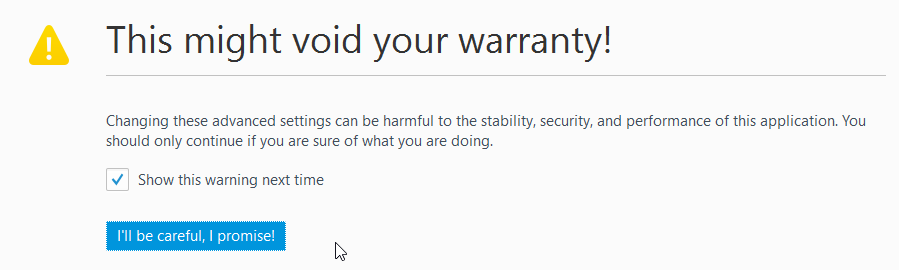
The above action will open the Firefox Configuration page. This page may show you a warning message. Simply click on the button “I’ll be Careful, I Promise” to see the main settings page.

firefox-save-and-quit-warning-message

Once you are in the settings page, search for the setting browser.showQuitWarning using the search bar visible on top of the page.

firefox-save-and-quit-search-setting

After finding the setting, right-click on the value field and then select the option “Toggle.” Alternatively, you can simply double click on the setting to toggle the value.

firefox-save-and-quit-toggle

The above action will toggle the value from the False to True. Once you are done with the changes, this is how it looks like.

firefox-save-and-quit-toggle-true

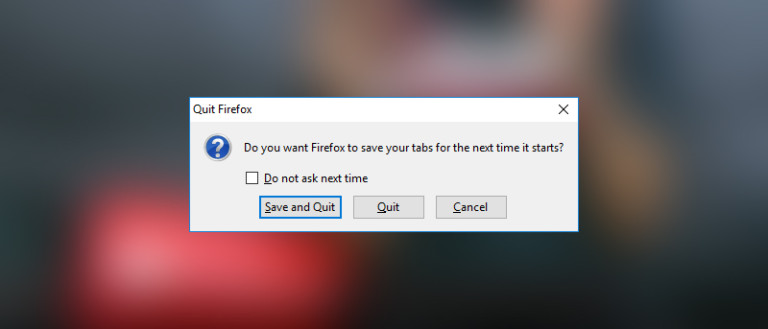
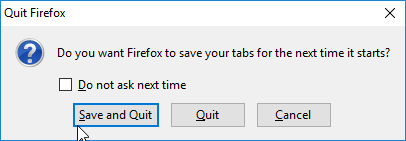
That’s all there is to do. From this point forward, whenever you are trying to close multiple tabs, Firefox will ask whether you would like to “Save and Quit” or just quit without saving the current session.

firefox-save-and-quit-enabled

In future, if you ever want to disable this feature, simply go through the procedure and toggle the value back to “False” and you are good to go.

Hopefully that helps and do comment below sharing your thoughts and experiences about using the above method to bring back Save and Quit feature when closing Firefox with multiple tabs opened.

How to Download Google Chrome 64-bit Version in Windows

0

Google long back introduced the 64-bit version of Chrome, which is a good thing for any of you who are on a 64-bit computer. In case you are wondering, if you bought your PC recently or even in past couple of years or so then you are most probably on a 64-bit processor. However, when you try to download the Chrome browser, the download page by default gives you the 32-bit version. Moreover, the web page doesn’t directly show you the download link for the 64-bit version. So, here is how you can download and install Google Chrome 64-bit version in Windows.

Why Use 64-bit Version Google Chrome

Using a 64-bit version of Chrome has some pretty good advantages over the 32-bit version. You will get much-improved security, over 20 percent increase in page loading times, over 10 percent increase in video rendering speed, etc.

However, if you are using old Chrome extensions that are only supported on 32-bit version then you might not be able to use those extensions on the 64-bit version.

Find If Your System is 32-Bit or 64-Bit

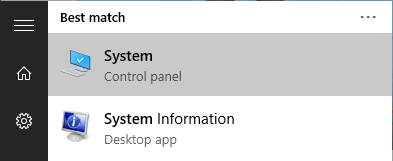
Finding your system architecture is simple, just search for “System” in the start menu and open it.

64-bit-google-chrome-search-system

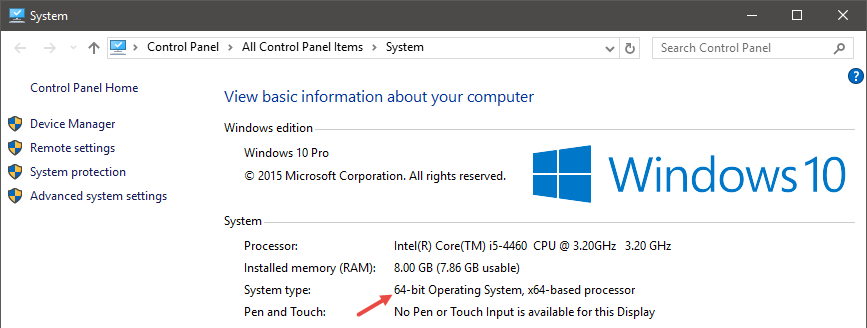
Here, you will find your system architecture next to “System type” under the “System” category.

64-bit-google-chrome-system-window

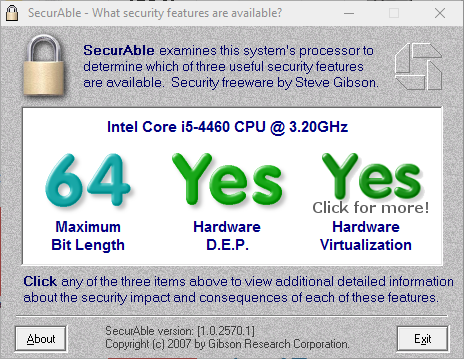
Alternatively, download this free and portable software and execute it. It will instantly tell whether your system in 32 or 64-bit.

64-bit-google-chrome-securable

Download Google Chrome 64-bit Version

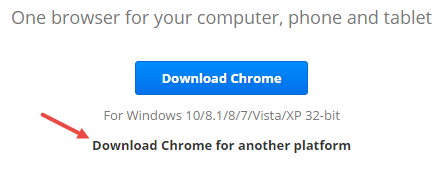
Downloading 64-bit version of Google Chrome is pretty easy. To start off, head over to the official download page and click on the link “Download Chrome for Another Platform” appearing right under the download button.

64-bit-google-chrome-choose-another-platform

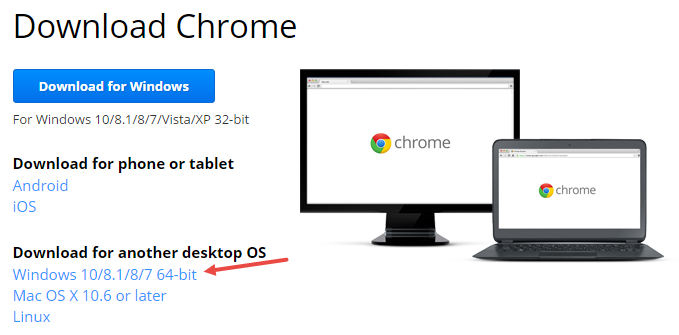
The above action will open another prompt. Here, find the 64-bit version link and click on it.

64-bit-google-chrome-select-64-bit-link

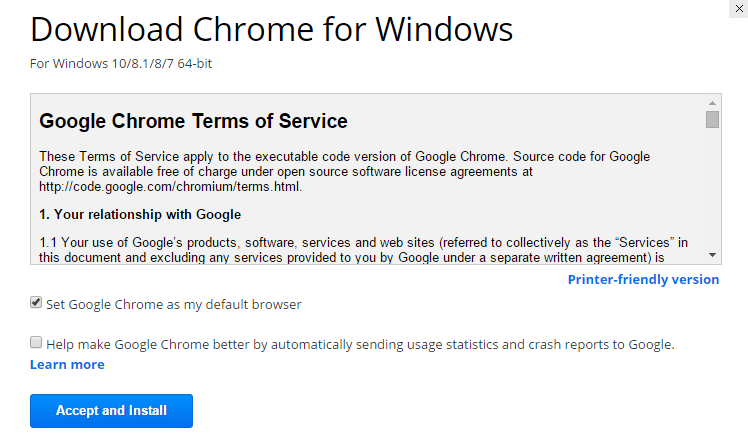
Google may ask you to accept the term and conditions. Just read them and click on the button “Accept and Install” to start the download.

64-bit-google-chrome-accept-install

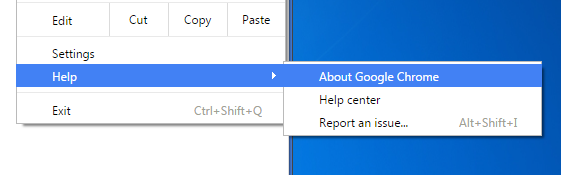
Once downloaded, install the software and open it. After opening navigate to “Help” and then “About Google Chrome.”

64-bit-google-chrome-select-about

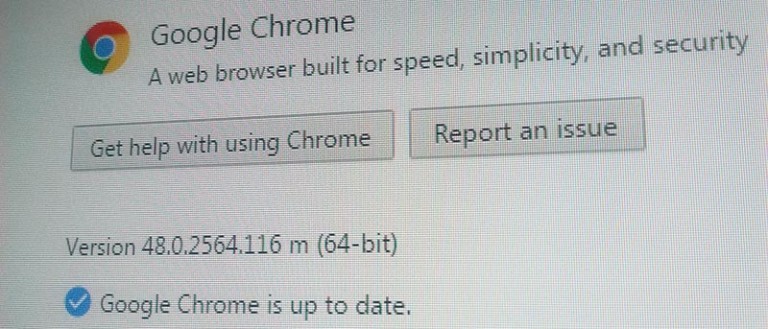
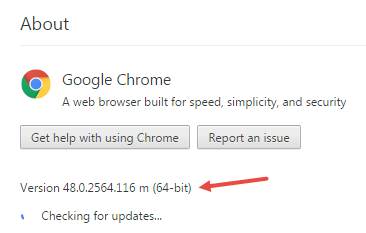
Now, if you’ve installed the 64-bit version of Google Chrome then the About page will display the “(64-bit)” right next to the version number.

64-bit-google-chrome-64-bit-installed

That’s all there is to do and it is that simple to download and install the 64-bit version of Google Chrome in Windows.

How to Check Hardware Info in Ubuntu

0

If you are using a computer then chances are that you will find yourself wanting to know the system hardware details once in a while. There may be several reasons for this like to know the current configuration, to get hardware ids, etc. No matter what the reason is, here are a couple of tools which can be used to check hardware info in Ubuntu.

Note: though I’m specifically showing this in Ubuntu, the tools work in most Linux distributions. The commands may differ, though.

Check Hardware Info on Ubuntu

1. HardInfo Tool

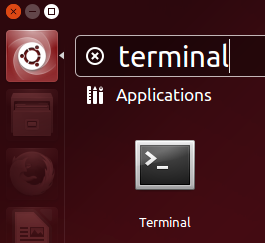
HardInfo is one of the best tools available for Linux to check the hardware info. It gives you a very detailed information for each and every device on your system. To install HardInfo, search for “Terminal” in the Dash and open it. Alternatively, you can also use the keyboard shortcut “Ctrl + Alt + T” to open the terminal.

check-hardware-info-ubuntu-search-terminal

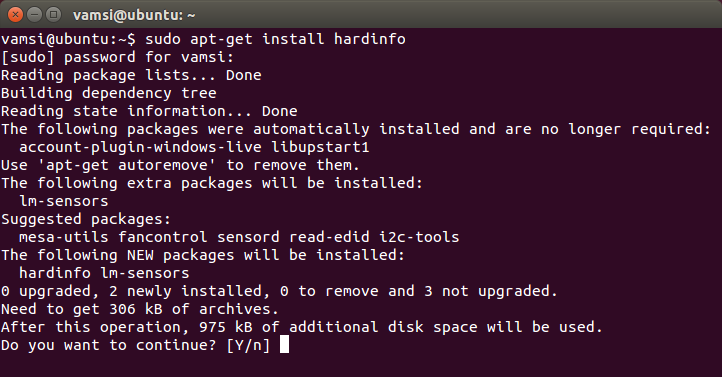
Once the terminal has been opened, copy and execute the below code. You will be prompted for the admin password, just type it in and press the enter key on your keyboard.

sudo apt-get install hardinfo

check-hardware-info-ubuntu-install-hardinfo

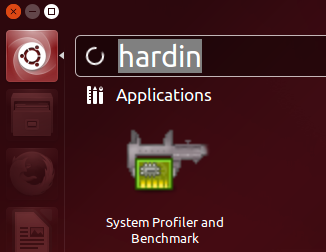
Once you are done installing the software, search for it in the Dash and open it.

check-hardware-info-ubuntu-search-hardinfo

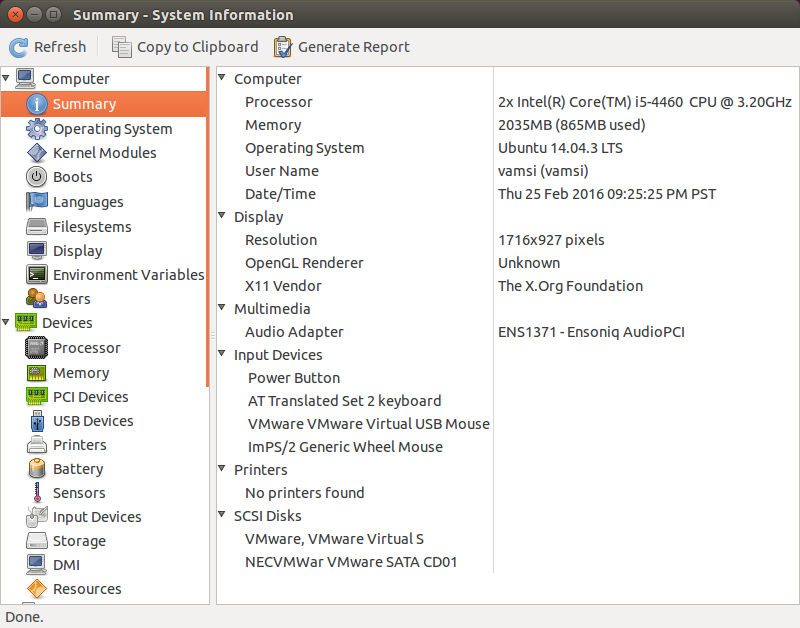
As you can see, the HardInfo Tool gives you a boatload of information about all the hardware on your system. Just like “System Information” tool in Windows.

check-hardware-info-ubuntu-hardinfo

2. Sysinfo Tool

If you are looking for a more lightweight and minimal hardware info tool then you can use the Sysinfo Tool. To start off, we need to download and install the tool.

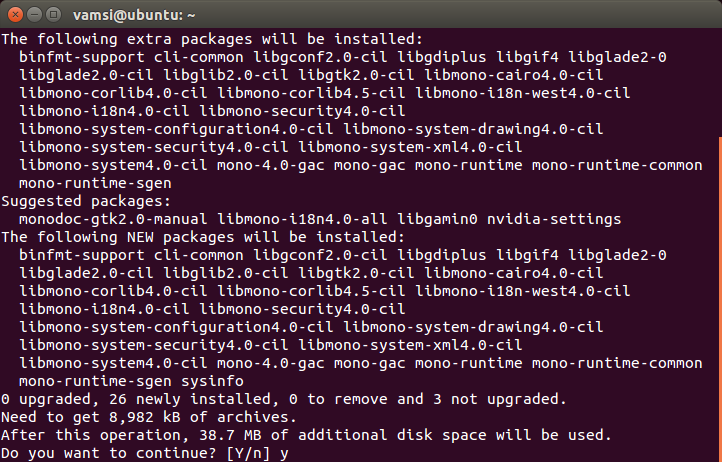
To do that, open the terminal, copy and execute the below command. Again, you will be prompted for the admin password, just type it in and press the enter button.

sudo apt-get install sysinfo

check-hardware-info-ubuntu-install-sysinfo

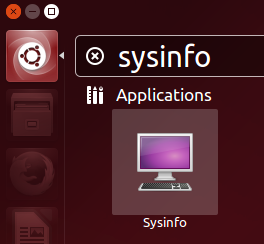
After installing Sysinfo, search for it in the Dash and open it.

check-hardware-info-ubuntu-search-sysinfo

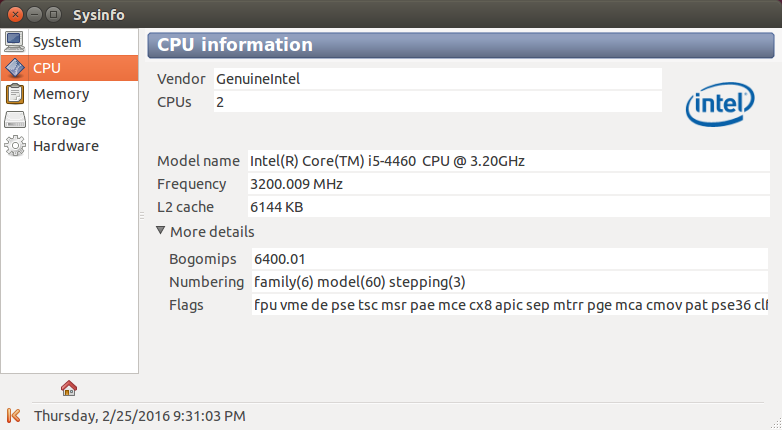
As you can see from the below image, the Sysinfo tool only shows the most required hardware info and is pretty minimal, both in user interface and information.

check-hardware-info-ubuntu-sysinfo

That’s all there is to do and it is that simple to check hardware info in Ubuntu.

Do comment below sharing your thoughts and experiences about using the above tools or your favorite software or commands to check for hardware info in Ubuntu.