Here’s How to Play the Facebook Messenger’s Secret Basketball Game

There is some sort of hidden charm about the secret games and other stuff buried deep in the regular apps and software. Do you remember the famous Flight Simulator game in Microsoft Excel or the hidden game in the Chrome browser that you can play when you cannot connect to the Internet? Yes, they are interesting and fun to play. When it comes to Facebook, besides from the Chess game that is tucked away into the Messanger app, there is a new Basketball game, thanks to the new Emojis. So, how about shooting a few hoops?

Facebook Messenger’s Secret Basketball Game

Playing Facebook Messenger’s secret basketball game is pretty easy and straightforward. To start off, make sure that you have the latest version of Facebook. If you don’t have Facebook Messenger installed, you can easily download the Android and iOS apps.

Once you’ve confirmed that you have the latest version of Facebook Messenger, it’s time to play the game.

To play the game, all you have to do is send the basketball emoji to one of your friends in the Messenger. If you can’t find the emoji in that huge list, then copy it from here ?.

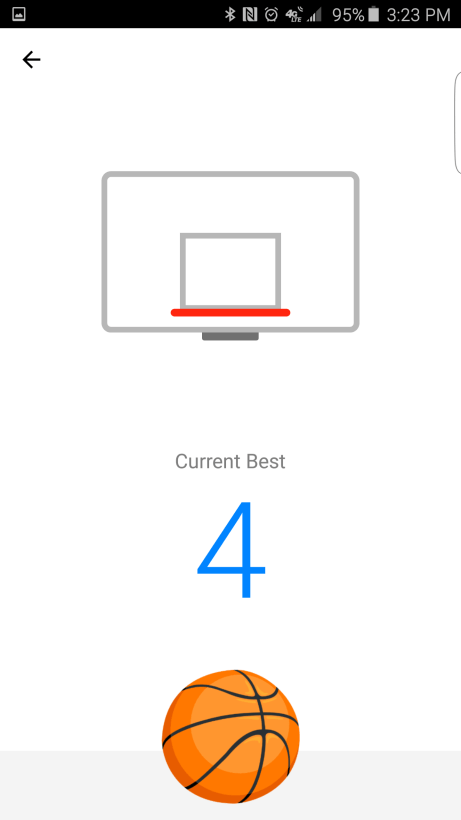
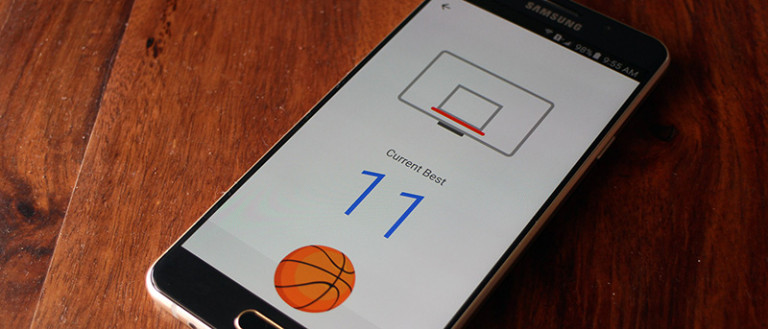
Once you are done sending the message, simply tap on the basketball emoji from the message thread and you can start the game. The game mechanics are simple, just swipe up to put the ball in the basket.

facebook-messenger-basketball

Playing this game is a piece of cake right? No, after a few shots the basket starts to move sides ways which really challenges you to score a goal. In case you are wondering, the goal of this game is to challenge your friend and see who can score the most goals.

That’s it. There goes the days worth of productivity and actual work.

Do comment below sharing your thoughts and experiences about the new secret basketball game in the Facebook Messager or just about the general hidden fun stuff in software.

How to Delete Files Immediately and Permanently on Mac OS [Quick Tip]

0

Since I spend a lot of time writing, taking screenshots, and downloading images from the internet to help myself with my work, I usually organise them in a folder. Obviously, I will delete them at the end of the day or when I complete my work. But the thing is, all the images, screenshots and notes I delete will go directly to the trash can. Over the time, the trash gets bigger and bigger in just a few days. Yes, you can empty the trash with a single shortcut, but still, it is yet another step to follow through. So, if you ever need to delete files permanently, here is a quick tip for you.

Delete Files Immediately and Permanently on Mac

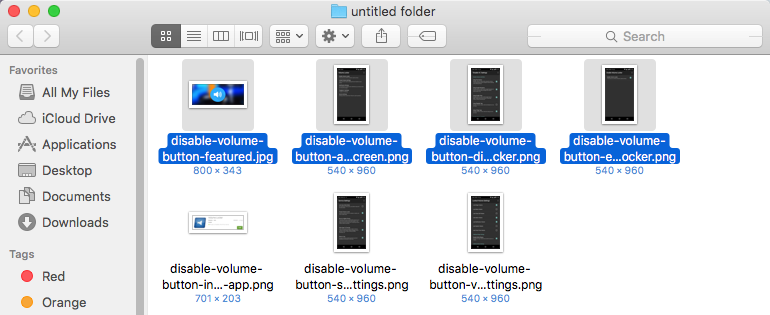
Deleting files and folders immediately and permanently on Mac is easier than you think. To start off, select all the files and folders you want to delete. You can use keyboard shortcut Option + click to select multiple files or folders.

delete-files-permanently-mac-select-files

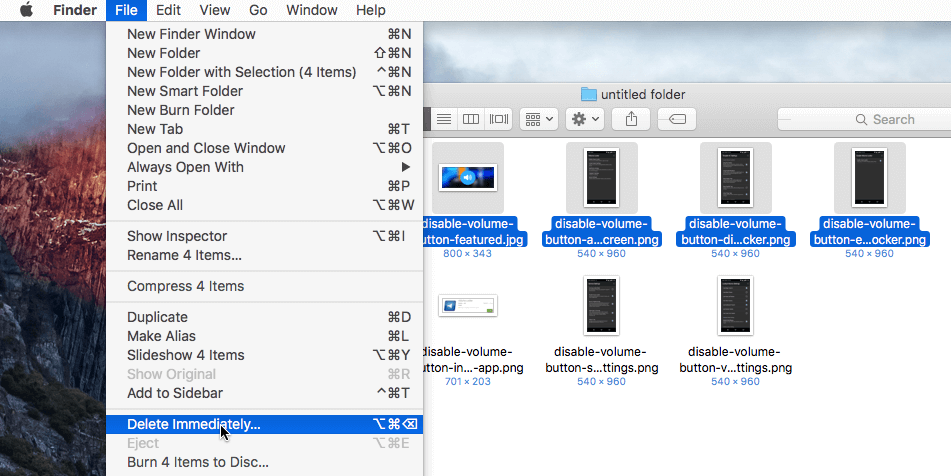
Once you are done selecting the files or folders, hold down the Option key, navigate to “File” on the top bar and then select the option “Delete Permanently.”

Note: you need to hold down the Option key on your keyboard to see the “Delete Permanently” option in the File menu.

delete-files-permanently-mac-select-delete-permanently

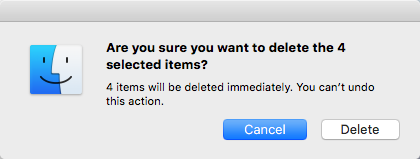
You might receive a confirmation dialog box. Simply click on the button “Delete” to complete the procedure.

delete-files-permanently-mac-confirm-dialog-box

This action will delete the selected files and folders permanently bypassing the trash can.

delete-files-permanently-mac-files-deleted

Alternatively, you can also use the direct keyboard shortcut. To do that, simply select all the files you want to delete and then press the keyboard shortcut Option + Command + Delete.

That’s all there is to do, the above keyboard shortcut will delete all the selected files and folders permanently bypassing the trash can.

Hopefully, the quick tip helps you and do comment below sharing your thoughts and experiences about using the above methods to delete files permanently on Mac.

How to Change Folder Location in Windows 10

0

Even though the SSDs and traditional hard drives are getting lower in price and larger in size (as in GBs and TBs), you sometimes find yourself with situations where you don’t have enough space in a partition or drive for essential programs and files. You will face this kind of situation typically in your C drive as it is the default save location for different folders like Downloads, Music, Videos, cloud storage, etc. In those conditions, you have two options. i.e, you can either move all the data in the folder to a new folder manually or you can just move the entire folder so that you change the location address system wide. So, if you ever face space constraints, here is how you can change the folder location in Windows 10.

Change Folder Location in Windows 10

Note:

  1. If you are looking to move the default save locations of apps, documents, music, pictures and videos on your C drive, then Windows 10 has a simpler way. Just open the Settings app and then navigate to “System > Storage.”
  2. The below method is also applicable to Windows 7 and 8.

Changing folder location in Windows 10 is pretty easy and straight forward. As most of you know, the Downloads folder in your Home folder will host all the files you downloaded from the internet. By moving the folder properly, you don’t have to edit the location in different applications like browsers, download managers, etc.

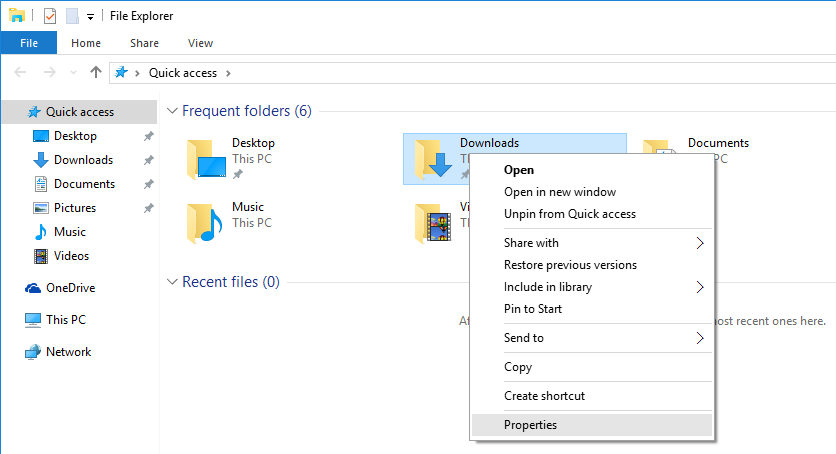
To start off, find the folder you want to move, right-click on it and then select the option “Properties.” Since I want to move the Downloads folder, I selected the properties of that folder.

change-folder-location-win10-properties

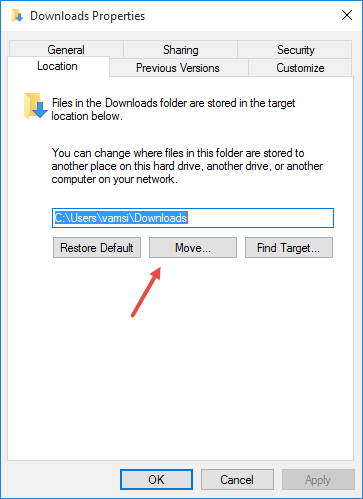
Once the folder properties window has been opened, navigate to the “Location” tab and click on the button “Move” to start the moving process.

change-folder-location-win10-click-move

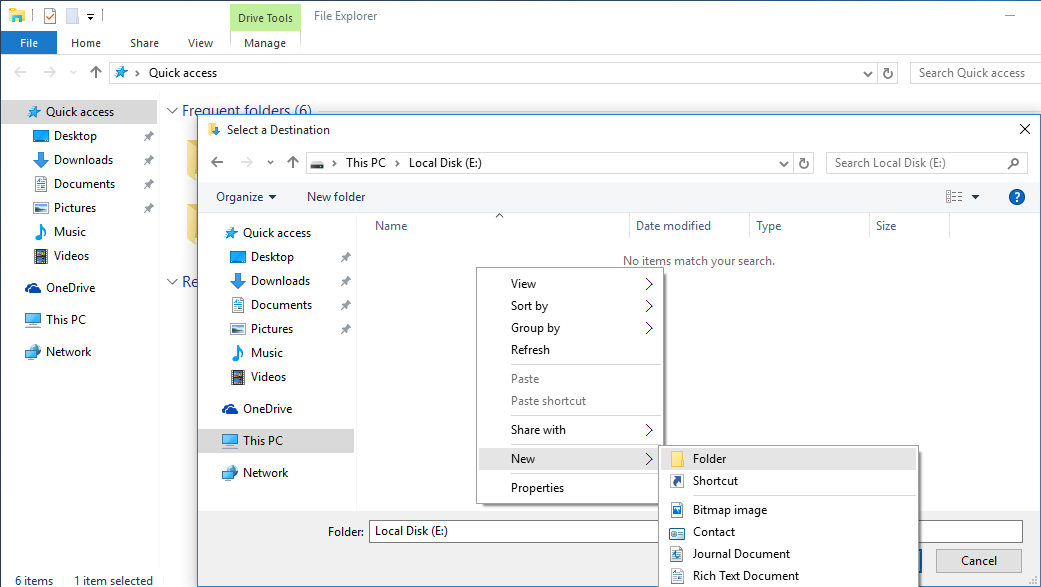
The above action will open the “Select a Destination” window. Here, navigate to the partition where you want to move the folder and create a new folder.

change-folder-location-win10-create-new-folder

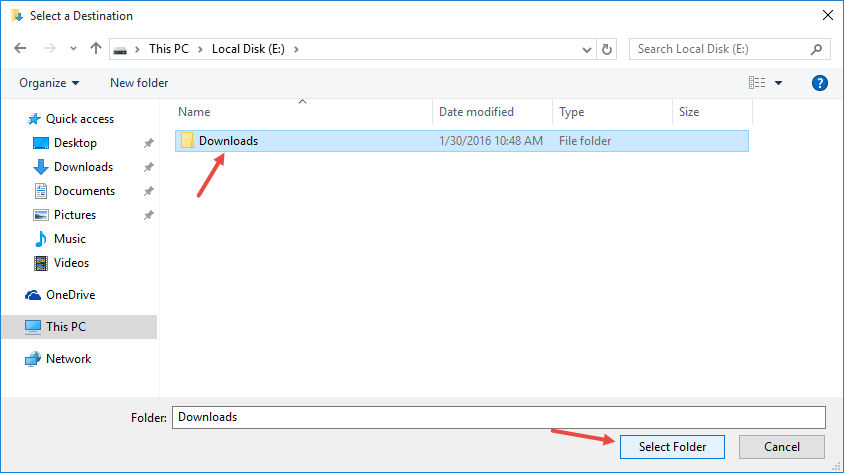
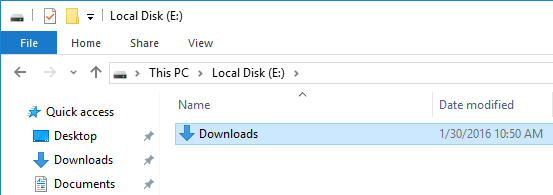
After creating a folder, select it and click on the button “Select Folder.” In my case, I’ve created a new folder with the name Downloads in my E drive and then selected it. You can select any folder you want.

change-folder-location-win10-select-folder

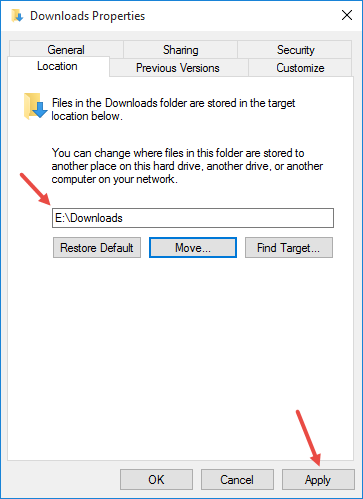
As soon as you’ve done that, the properties window will show you the changes. Simply click on the button “Apply.”

change-folder-location-win10-verify-new-location

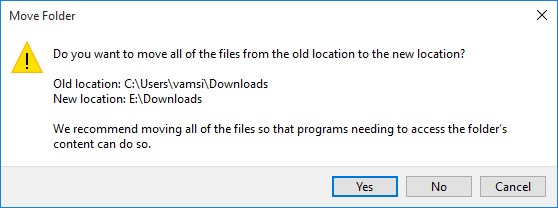
The above action will show you a little information window. Simply click on the button “Yes” to continue. In case you are wondering, when you click on the button “Yes,” Windows will move all the files and folders in the old location to the new location.

If you don’t want to move the files inside the folder then click on the button “No.”

change-folder-location-win10-click-yes

That’s all there is to do and you’ve successfully changed the folder location in Windows 10.

change-folder-location-win10-location-changed

Do comment below sharing your thoughts and experiences about using the above method to change folder location in Windows 10.

Here Is What’s Fixed and Broken in Windows 10 Redstone Build 14291 for PC and Mobile

0

Right on the St.Patricks day, Microsoft released the new Windows 10 Redstone build 14291 for fast ring insiders with a much-awaited feature Edge extensions, revamped Maps app and other improvements. As of now, there are only three Edge extensions available, but we should see more of major players like Adblock, Adblock Plus, Amazon, LastPass, etc.., later this year. Apart from the improvements, there are several bug fixes and as always, there are some issues and broken things in both the PC and Mobile builds. Below are the separate lists of what’s fixed and what’s broken in both PC and mobile.

If you haven’t yet installed the new insider preview, then do so by opening the settings panel. If you can’t see the update, give it some time and you should see it.

Things fixed in Windows 10 Redstone build 14291 for PC.

  • This issue causing the notification area (“systray”) to look out of alignment when turning on the “always show all icons in the notification area” should now be fixed.
  • We fixed the issue where connectivity to older Wi-Fi networks using the WEP encryption security method may be broken.
  • We fixed an issue where the “X” to close the “Find of Page” toolbar in Microsoft Edge is displayed off screen on 8-inch devices when in portrait mode.
  • We fixed an issue where the USB icon in the notification area was reverting to the old icon when ejecting drives.
  • We fixed an issue where clicking the suggested search in Microsoft Edge resulted in a URL to the search as the search string.

Known issues in Windows 10 Redstone build 14291 for PC.

  • We continue to investigate an issue in which some Surface Pro 3, Surface Pro 4, and Surface Book devices experience a freeze or hang and all input such as keyboard/trackpad and touch do not work. The workaround is to hold down the power button to force the device to hard-reboot.
  • Your PC may freeze when plugging in an Xbox One or Xbox 360 controller and other gamepads in this build.
  • If you use Hyper-V and have a Virtual Switch configured for your network adapter, you may see an error indicator (red-colored “X”) for your network adapter in the notification area of your taskbar. The error indicator is incorrect and your network adapter should continue to work just fine.
  • We are seeing reports of some apps such as QQ crashing. We are currently investigating, and this bug may also impact older apps such as Windows Live Mail and Expression Encoder 4.
  • If you have Kaspersky Anti-Virus, Internet Security, or the Kaspersky Total Security Suite installed on your PC there is a known driver bug that prevents these programs from working as expected in builds from the Development Branch. We are partnering with Kaspersky to fix this issue for a future release, but at this time there are no known workarounds. While this issue is present, we recommend using Windows Defender or another third party anti-virus product of your choice to remain protected.

Here is what’s fixed in Windows 10 Redstone build 14291 for mobile.

  • We fixed the issue where connectivity to older Wi-Fi networks using the WEP encryption security method may be broken.
  • We fixed an issue resulting in slower text input speed the more words were typed.
  • We have improved Word Flow recognition of longer words.
  • The All apps list has been updated to now follow the “Make Text Larger” ease of access setting.
  • We fixed an issue where Settings would sometimes list unresolved app names under Extras.
  • We fixed an issue where touch targets could be out of alignment in the Photos picker.

Known issues in Windows 10 Redstone build 14291 for mobile.

  • If you reset your phone on this build (Build 14291) and restore your phone from a backup,restore will fail to install apps from your backup’s apps list leaving blank grey titles on Start. If you delete the gray tiles and attempt to reinstall the same apps from the Store, you will not get app data restored. The next backup will overwrite the app backup data as well. To avoid hitting this bug, avoid resetting your phone on this build. If for some reason you do need to reset your device on this build, don’t restore your phone from a backup and you should turn off backup for apps and OS data to avoid creating a corrupt backup via Settings > Update & Security > Backup.
  • If you have a Microsoft Band 1 or 2 paired to your phone, it will no longer sync after updating to this build due to a system API failure that occurs after the update. If you want to get your Band syncing with your phone again – you can temporarily change the language of your phone as a short-term workaround until we release a fix. Additionally, you can also choose to reset your phone to get out of this state – however you may experience this update issue again with the next build until we fix this issue. This issue may also impact Skype video and audio calls.
  • The Gadgets app will not detect the Microsoft Display Dock on phones running Windows 10 Mobile Insider Preview builds, and thus cannot update the firmware version. If you have a dock which has already been updated to version 4 then this will not affect you. If you have a dock that has not been updated, then you may experience some minor issues with USB-C stability. You will still be able to use your dock and Continuum.
  • There is a new option under Settings > Update & security for Windows Insider Program. This is a work-in-progress option to improve managing your Windows Insider Program settings on your device. Right now, if you go to this option it crashes the Settings app. Please continue to use the Windows Insider app to manage your settings for now.

That’s all for now and do comment below if you find any issues or if you are having problems with the builds.

Windows 10 Build 14291 Is Now Available for Insiders with Edge Extensions and Other Improvements

0

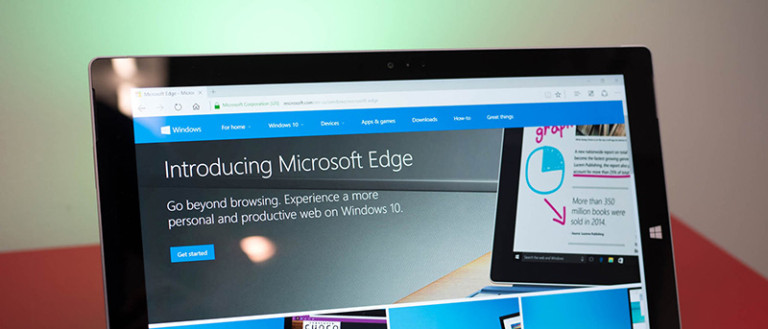
As to everyone’s surprise, Microsoft released a new Windows 10 build 14291 for insiders in the Fast ring. This build finally supports the Edge extensions, a much-awaited feature of Windows and even has some improvements from Maps, Feedback Hub, etc. As of now, there are only three edge extensions available for insiders, Reddit Enhancements, Mouse Gestures, and Microsoft Translate. Since the update has just started to roll out, if you can’t see the update then give it some time and you should have it.

Even though there are only three extensions available as of now, there will be more to come later this. Apparently, Edge extensions are pretty close the Chrome extensions, which simply means that the developers can easily port their extensions from Chrom to Edge with just minor changes. Of course, that totally depends on how complex the extensions are.

Here is what Microsoft has to say about the available and yet to be available extensions on Edge.

The Windows Insider build will include three preview extensions: Microsoft Translator, an extension that automatically translates pages in over 50 different languages, a Mouse Gestures extension, and an early preview version of the popular Reddit Enhancement Suite (RES). Later this year customers will find popular extensions from partners like AdBlock, Adblock Plus, Amazon, LastPass, Evernote and more.

As you can tell from the above statement, all the major players are ready to port their extensions over to Edge and hopefully, we will see them before the official release of Windows 10 Redstone build.

https://www.youtube.com/watch?v=hKAywBrQeAw

Finally, here is what’s everything new about the Windows 10 build 14291.

Extensions in Microsoft Edge: Today we are very excited to introduce extensions for Microsoft Edge. To try out an extension, just click on “More” (…) at the top right in Microsoft Edge and click “Extensions” to open the Extensions pane and click “Get extensions”. You can try out the Mouse Gestures, Microsoft Translator and Reddit Engagement Suite extensions today with more on the way. Extensions are only available on PC.

Pinned Tabs in Microsoft Edge: Microsoft Edge now lets you pin tabs, making it super easy to keep your most-used sites and web apps always available. To pin a tab, right-click on the tab you want to pin and choose “Pin tab”. To unpin a tab, right-click on the pinned tab you want to unpin and choose “Unpin tab”. Pinned tabs always appear at the start of the tab row, and only showing the site’s favicon. Pinned tabs don’t show a close button, so you won’t accidentally close them. Pinned tabs that are in your Microsoft Edge window when you close the app will come back the next time you open Microsoft Edge.

Other Microsoft Edge Improvements: You can now copy any link into your clipboard, and right-click on the address bar in Microsoft Edge and choose “Paste and go” from the context menu. Microsoft Edge pastes the URL into the address bar, and navigates to the site. You can also copy words to your clipboard, and choose “Paste and search”.

We have also made it easier to close tabs in Microsoft Edge on your mobile device, especially on devices with a larger screen size by increasing the size of the close button for tabs on the Tabs page.

Updated Maps app: This build includes a updated Maps app for Windows 10 that brings a more lightweight, scalable, and consistent UI as well as underlying architecture improvements and new features for you to try!

  • One-tap access to search and directions from anywhere, even on your phone. This is great especially for one-handed use.
  • You can view multiple searches and directions at the same time, on the same map as they are layered on top of each other and you can use tabs or the map to switch between them.
  • You can now minimize search results, directions, and location info to enjoy more of the map, while keeping them in easy reach.
  • You can see labels for your search results directly on the map. No more numbers to match between the map and the list.
  • Cortana will give you turn-by-turn directions (if Cortana is enabled).
  • We have improved the logic for nearby searches so you should see better (closer) results.
  • We have added the ability to search for your favorite city in the 3D cities list so no more scrolling forever to get to the city you want.
  • You can now access your favorites offline and add notes to them.
  • We have updated the turn-by-turn design to improve glanceability and landscape layout.

Updated Alarms & Clock app: We have pushed out an update to the Alarm & Clock app that introduces a new inline time picker and improved design for creating and editing alarms and timers.

Japanese one-handed kana touch keyboard: You can now choose one-handed kana touch keyboard for Japanese text typing. Type text in the same familiar way you would on your mobile device. One-handed keyboard is smaller than full-size touch keyboard, so it doesn’t hide your desktop too much. It can also be placed anywhere on the desktop. If you want to type with left hand, bring one-handed touch keyboard to the left side.

Japanese Lined-mode Text Input Canvas: Now, you can have a new experience with the Japanese lined-mode Text Input Canvas. It provides you natural and intuitive text input for people who enter Japanese text. Edit the written characters, such as striking out inked text and modifying characters, can be easily done with a pen.

Introducing Feedback Hub: As we announced last week, we are bringing together the Insider Hub and Windows Feedback apps into a single app called the Feedback Hub. And the Feedback Hub is now available in this build for both PC and Mobile. The Feedback Hub carries over all of the best things from the previous two apps plus a few new things. When you open Feedback Hub for the first time, you will see a search box at the top so you can quickly find and upvote feedback items from other Insiders or submit new feedback. You will also notice that Announcements and Quests show up together in a single feed under “What’s new”. When you submit new feedback to us, we have added a new description field so you can explain in more detail the feedback you are sending to us. The most helpful feedback for us includes a brief title that summarizes your feedback, then you can use the new description field to provide more detail, for example: the steps that an engineer could take to recreate a problem, or more information about a feature suggestion. And you’ll start seeing Microsoft engineers leaving comments on your feedback too! The familiar experience for browsing feedback is still a click away, just navigate to the Feedback tab from the left-hand navigation menu. We’re just starting to add capability to the new unified app and we’re excited to take this first step. We’re excited to hear what you think of the new Feedback Hub, go to Apps and Games > Feedback Hub and tell us what you think.

Do comment below sharing your thoughts about the Redstone build 14291.

How to Enable PIN Security in Windows 10

0

Windows 10 has many new features that are both useful and essential. Of all the features, Microsoft has added multiple ways you can sign in to your user account. i.e, using the traditional password, picture password or using a pin number. The new pin security in Windows 10 is pretty useful as it lets you to quickly login to your computer without typing in the complicated password. Moreover, if you are using your Microsoft account to log in to your user account, using pin security is the best way as you don’t have to enter your Microsoft account password each and every time you log in or unlock your PC. In case you are wondering, here is how you can enable and use PIN security in Windows 10.

Enable PIN Security in Windows 10

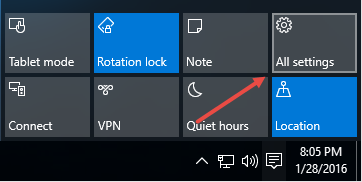
1. Enabling PIN security in Windows 10 is pretty easy and straight forward. To start off, click on the Notifications Icon and then select the option “All Settings.” Alternatively, you can also use the keyboard shortcut “Win + I.”

windows-10-pin-security-all-settings

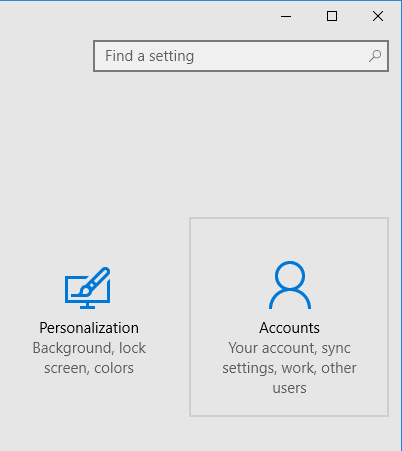
2. The above action will open the Windows 10 settings panel. Here, select the option “Accounts.”

windows-10-pin-security-select-accounts

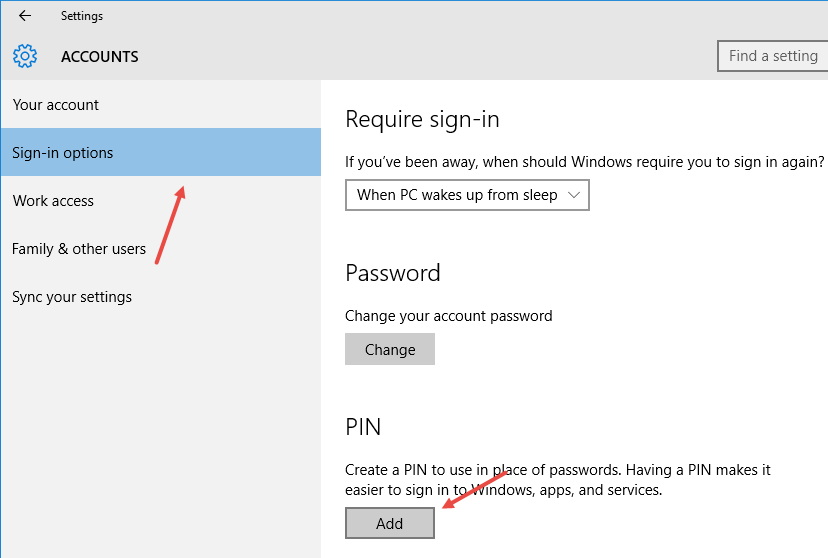
3. Once you are in the Account settings panel. select the option “Sing-in Options” in the left pane and the click on the button “Add” under the “PIN” category on the right panel.

windows-10-pin-security-click-add

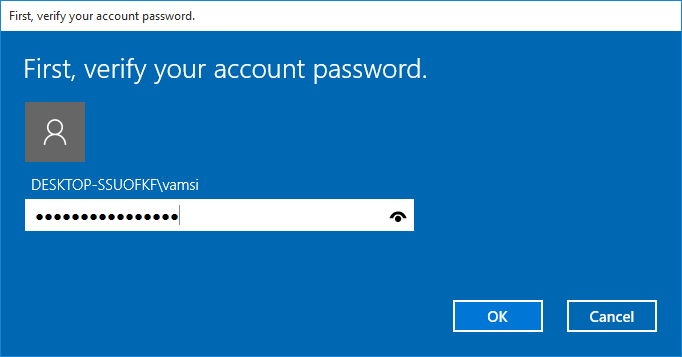
4. Before you can add the PIN security, you first need to verify your user account. To do that, enter your current user account password and click on the button “Ok” to continue.

windows-10-pin-security-enter-password

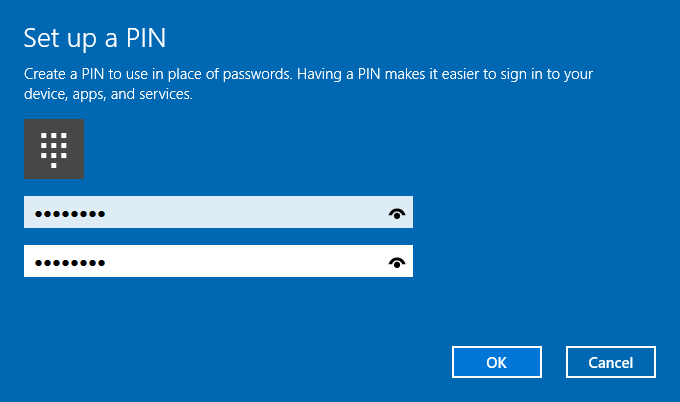
5. Now, enter your new PIN, verify the PIN by entering it again and click on the button “Ok.”

windows-10-pin-security-enter-new-pin

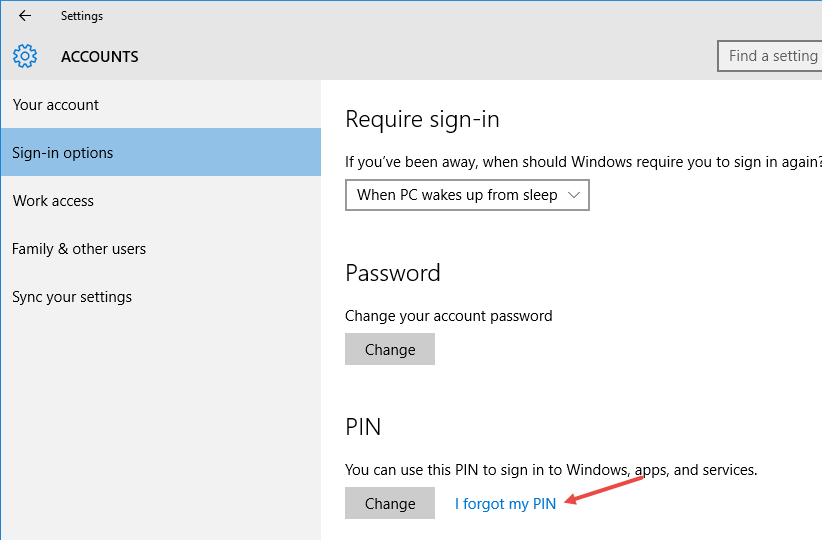
6. That’s all there is to do. You’ve successfully enabled PIN security on your Windows system. If you even want to change the PIN number, click on the link “I forgot my PIN.”

windows-10-pin-security-i-forgot-pin

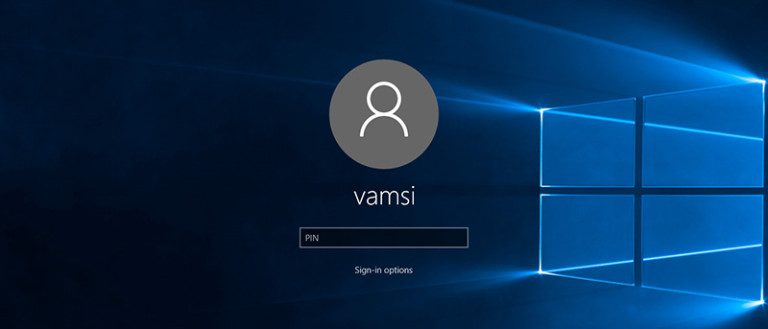
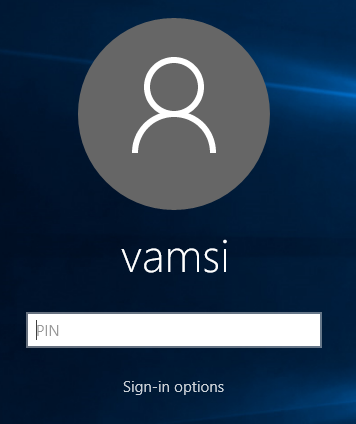
7. From this point forward, where you try to log in or unlock your system, you can enter the PIN number as your login password.

windows-10-pin-security-login-with-pin

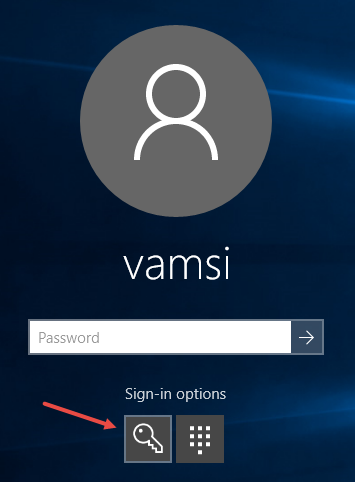
8. The good thing is that if you ever want, you can also login with your regular password, by clicking on the link “Sign-in options” and then selecting the “Lock” icon.

windows-10-pin-security-select-key-icon

So, what do you think of the new PIN security in Windows 10 and do you think it is useful in your daily computer usage? Do share your thoughts and experiences in the comments form below.

How to Stop Google From Redirecting to Country Specific Domain [Quick Tip] – Always Use Google.com

0

If you ever try to visit google.com from your web browser, Google automatically redirects you to a country specific domain. For instance, since I live in India, whenever I enter google.com into my web browser, Google redirects me to google.co.in as it is one of the several country specific domain’s for Google. Of course, if you are in the US then Google won’t redirect you as the google.com is the main domain for US visitors.

Google does this behaviour to provide location specific services and features like local search results, language, web page layout, etc.

As useful as it is, you may sometimes need to access google.com instead of the country specific Google search page. This is particularly true for VPN users.

So, if you want to stick with google.com and skip all the location specific domains then here is how you can stop Google from redirecting to a country specific domain.

Stop Google From Redirecting to Country Specific Domain

One of the best tricks to stop Google from redirecting to a country specific domain is actually provided by the Google itself.

Whenever you don’t want Google to redirect to a country-specific domain, simply add /ncr at the end of the URL. Once you add it, this is how the looks like.

http://google.com/ncr

In case you are wondering, “ncr” stands of No Country Redirection.

If you never want to visit the Google’s country specific page, then set the above URL as your homepage in your browser. You can easily set or modify your default homepage from your browser settings page.

Here is how you can set your default homepage in Chrome and Firefox.

Change Homepage in Chrome

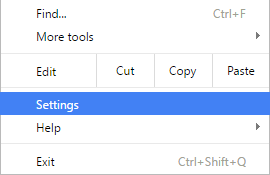
To set a default homepage in Chrome, click on the menu icon appearing on the upper-right corner and select the option “Settings.”

stop-google-redirection-chrome-settings

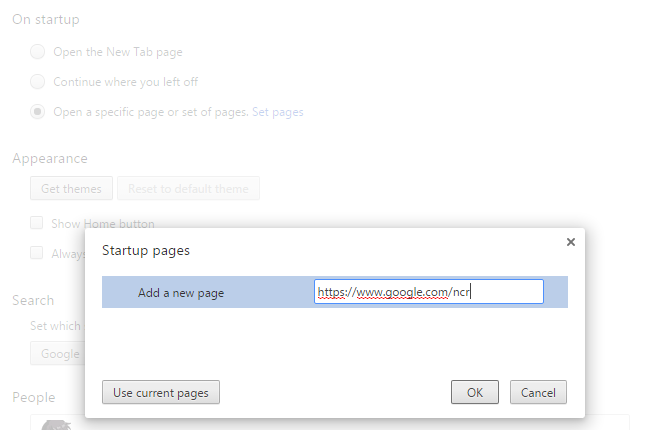
Once the settings page has been opened, select the radio button “Open a specific page or set of pages” under “On startup” and enter the above URL and click on the button “Ok.”

stop-google-redirection-set-home-page-chrome

That’s it. You are done setting up the default homepage in Chrome.

Change Homepage in Firefox

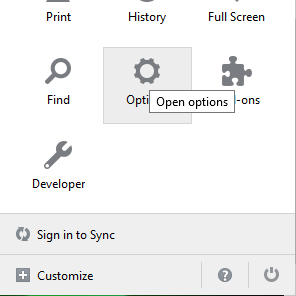
Setting a homepage in Firefox is also pretty similar. First off, click on the menu icon and then select the option “Options.”

stop-google-redirection-firefox-settings

Now, select the option “Show my homepage” from the drop-down menu next to “When Firefox starts” and enter the above URL in the “Homepage” field.

stop-google-redirection-set-home-page-firefox

From this point forward, Firefox opens your default homepage whenever you start your browser.

That’s all there is to do and it is that simple to always use google.com and stop Google from redirecting you to country specific domain or page.

Do comment below sharing your thoughts and experiances about using the above methods to stop Google from redirecting you to country specific domain or web page.

How to Import Photos to Photos App From External Devices in Windows 10

0

Windows 10 comes with several built-in apps that are not only good looking but are also pretty useful at most of the times. Out of all the apps, Photos app has gone through a big overhaul with universal design and useful image editing tools.

The good thing about the new Photos app is that it not only shows all your pictures in the local storage but can also show and download photos from your OneDrive account. Moreover, the Photos app also provides a handy solution to import all your pictures from external disks and drivers.

In case you are wondering, here is how you can import photos to Photos apps from external devices in Windows 10.

Import Photos to Photos App in Windows 10

Working with Photos app and importing photos from external devices is pretty easy and straightforward. One thing to keep in mind while importing photos to Photos app is that the app can only import photos stored on an external device like your pen drive or external hard disk.

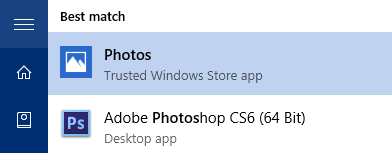
To start off, open up the Photos app by searching it for in the start menu.

win10-photos-app-search

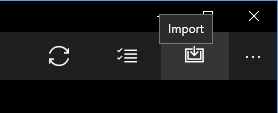
Once the Photos app has been opened, click on the “import” button appearing on the top right corner to start the importing process.

win10-photos-app-click-on-import

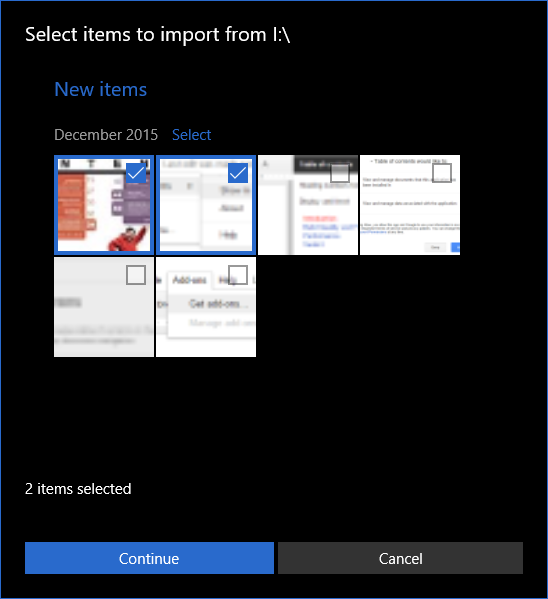
The above action will automatically detect the external drive, scans the drive and displays all the photos in it. Here, you can either select each photo one by one.

win10-photos-app-select=photos

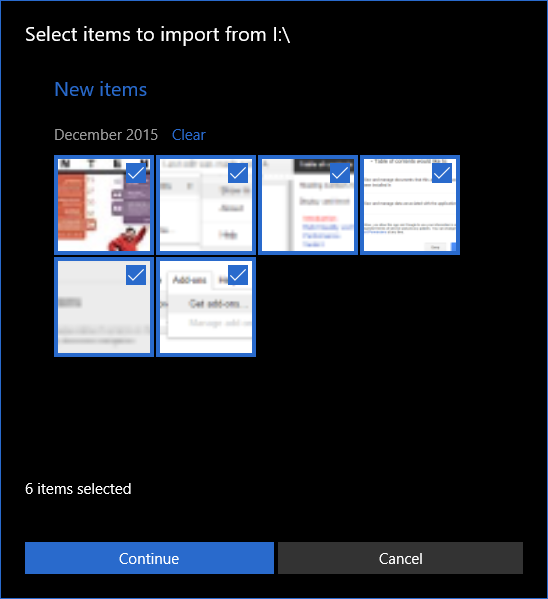
Or, you can select all of them at once by clicking on the link “Select.”

Once you are done selecting all the photos that you intend to import, click on the button “Continue.” In my case, I’m importing all the photos from the external drive.

win10-photos-app-select-all-photos

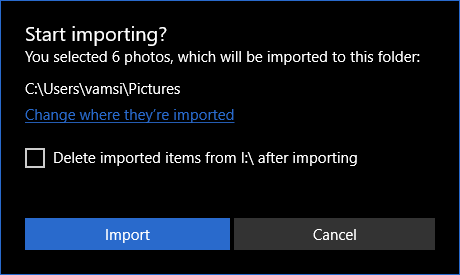
Now, the Photos app will ask wheater you want to delete the imported photos from the external drive. If you want to delete the imported photos from the external drive, the select the checkbox “Delete imported items from <drive> after importing” and click on the button “Import.”

Otherwise, just click on the button “Import” without selecting the checkbox. This action will not delete the photos from the external device.

win10-photos-app-import-photos

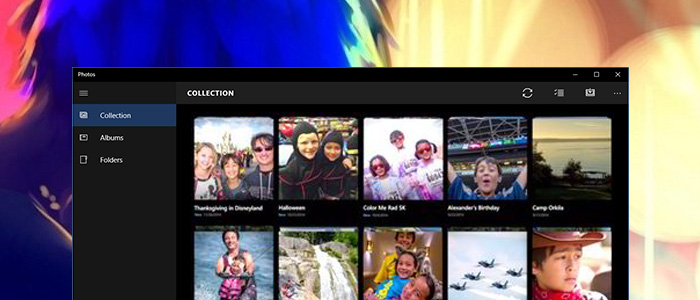
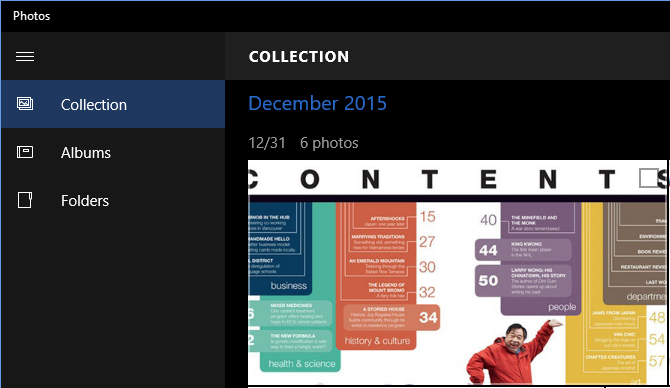
Once the photos have been imported, they will be displayed under the Collection category in your Photos app.

win10-photos-app-photos-imported

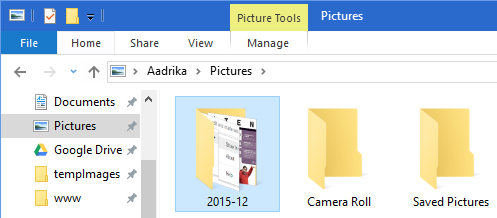
In case you are wondering, all the photos imported by the Photos app will be stored in the Pictures folder in your home directory. i.e, C:\Users\[username]\Pictures. You can always customize where the app will store from settings menu of Photos app.

win10-photos-app-photos-default-location

That’s all there is to do and it is that simple to import photos to Photos app from external drive in Windows 10.

Do comment below sharing your thoughts and experiences about using the above method to import photos to Photos app from external drive in Windows 10.

How to Customize Windows 10 Start Menu

0

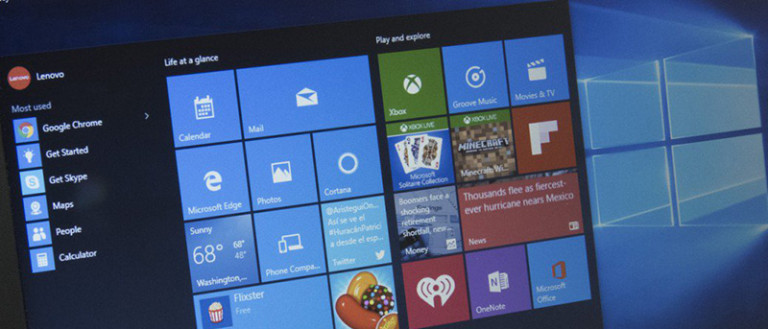
One of the big things about Windows 10 is that the Start Menu is back with best features in both Windows 7 and 8. Not only the start menu has best of the both worlds, but also has several customization options. With a little bit of effort, you can customize the Start menu to be your own.

Customizing the Tiles in the Start Menu

Just like in Windows 8, you can add, remove, and customize the live tiles appearing on the right-side of the start menu. For instance, if you want to add an application shortcut to the right-side, then simply find the application you need, right-click on it and select the option “Pin to Start.”
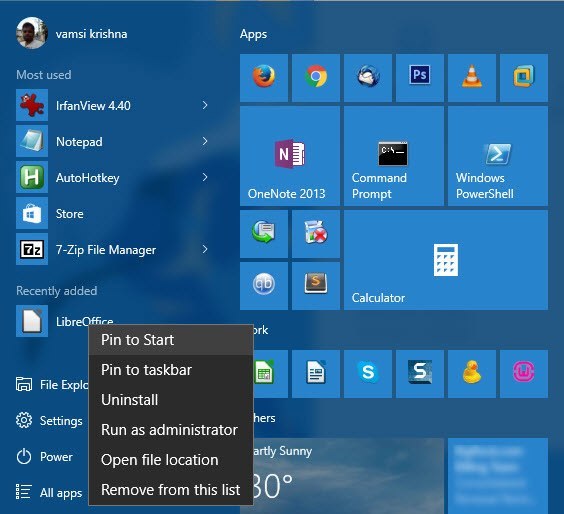
customize-win10-start-menu-pin-to-start

If you want to remove a tile from the Start menu, then right-click and select the option “Unpin from Start.”
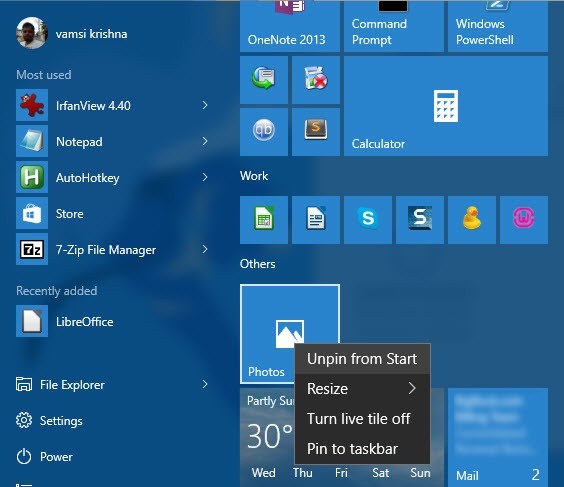
customize-win10-start-menu-unpin

You can also resize the tiles into four different sizes namely small, medium, wide, and large. To do that, right-click on any tile and select the appropriate option from the “Resize” submenu. In case you are wondering, the below picture shows all four tile sizes.
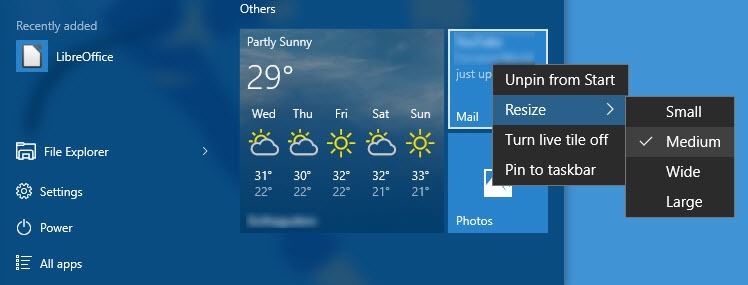
customize-win10-start-menu-tile-sizes

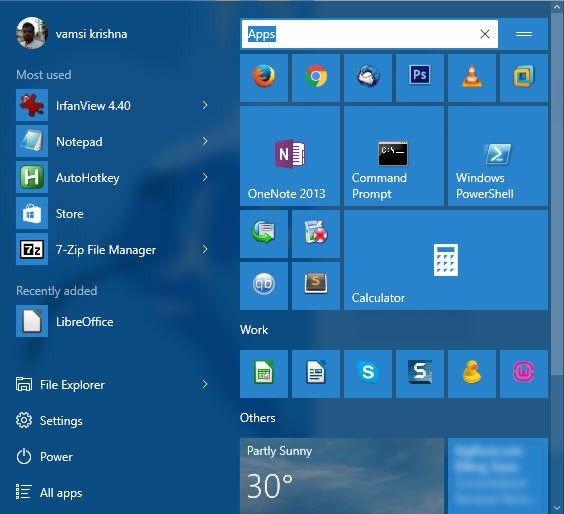
The other good thing is that you can group all your app shortcuts on the right side of the start menu just by dragging and dropping. Once you are done with grouping, you can name those groups. To do that double-click on the default group name and enter the new name.
customize-win10-start-menu-group-name

If there is no visible group name, then move your mouse above the group and you should see a prompt “Name group.” Just select it with you mouse and name the group accordingly.

customize-win10-start-menu-name-group

Resizing the Start Menu

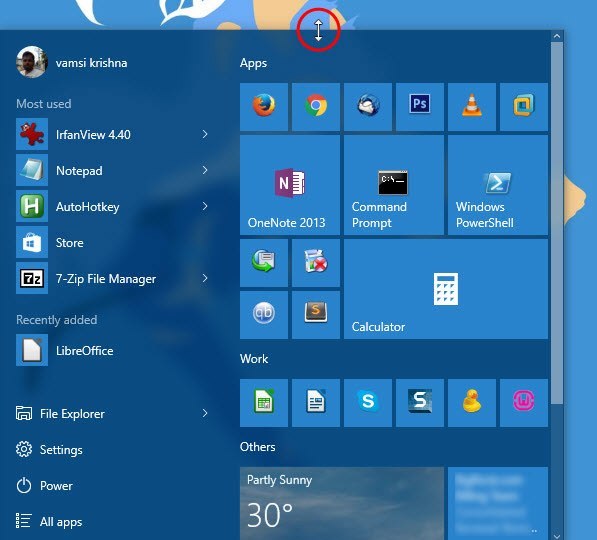
Unlike in Windows 8, the Start Menu in Windows 10 is flexible and you can easily resize the start menu by dragging it with your mouse.

For instance, if you want to increase the height of your start menu then place your mouse on the top edge of the start menu and drag it upwards.
customize-win10-start-menu-increase-height

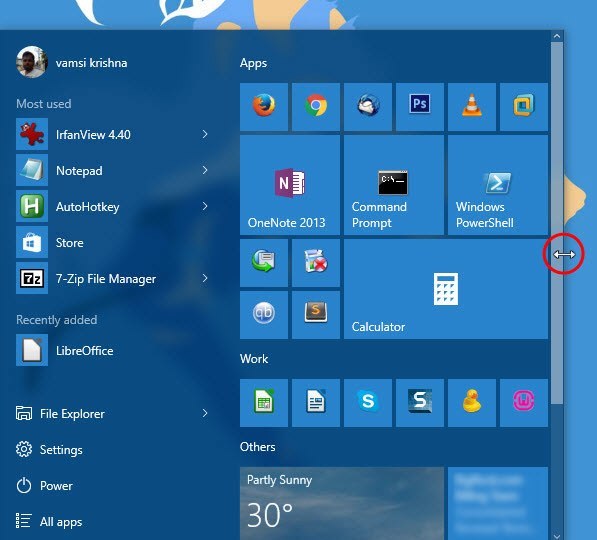
Alternatively, you can increase the width of the start screen by dragging it from the right-side. This is a good choice if you have a wide monitor.
customize-win10-start-menu-increase-width

Of course, you can also completely remove the right-side by shrinking the start menu accordingly. But before dragging it to the left side, make sure that there are no pinned apps on the right-side of the Start menu.

Customize Shortcuts in the Left Sidebar

Since the Windows start menu allows you to add apps to the right-side, there is not much you can do on the left side. But you can still add select folders to the left side of the start menu.

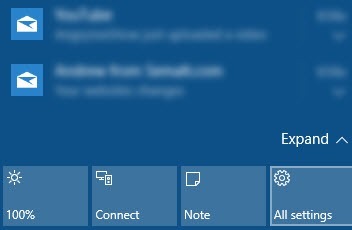
To do that, click on the Notifications icon and then select the option “All Settings.”
customize-win10-start-menu-all-settings

In the Settings panel, select the option “Personalization.”
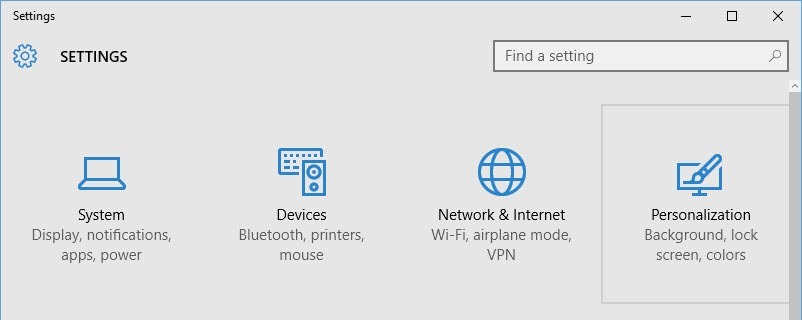
customize-win10-start-menu-select-personalization

Here in the Personalization panel, navigate to the “Start” section and then click on the link “Choose which folder appear on Start.”
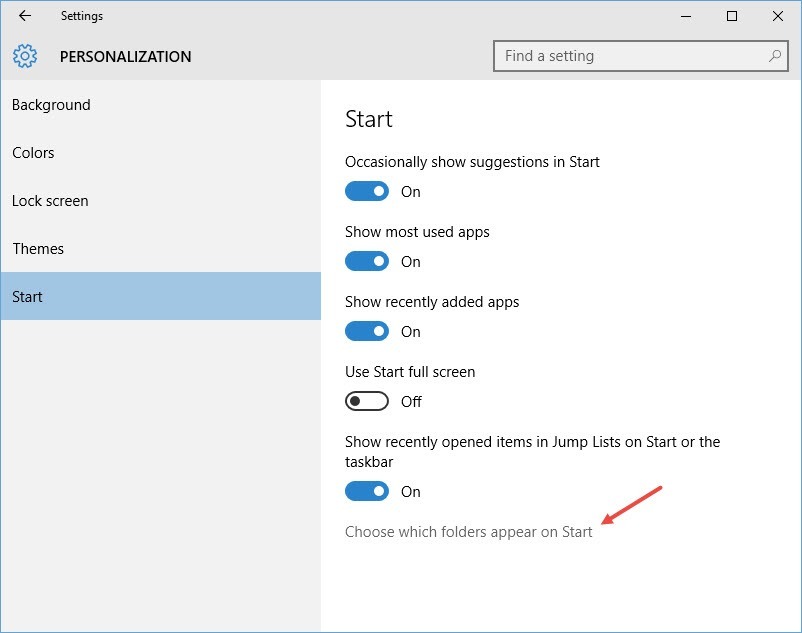
customize-win10-start-menu-click-link1

The above action will take you to the Folders screen. Here, select the folders you want to display on the start menu. In my case, I’ve selected my Network folder to appear on the start screen.
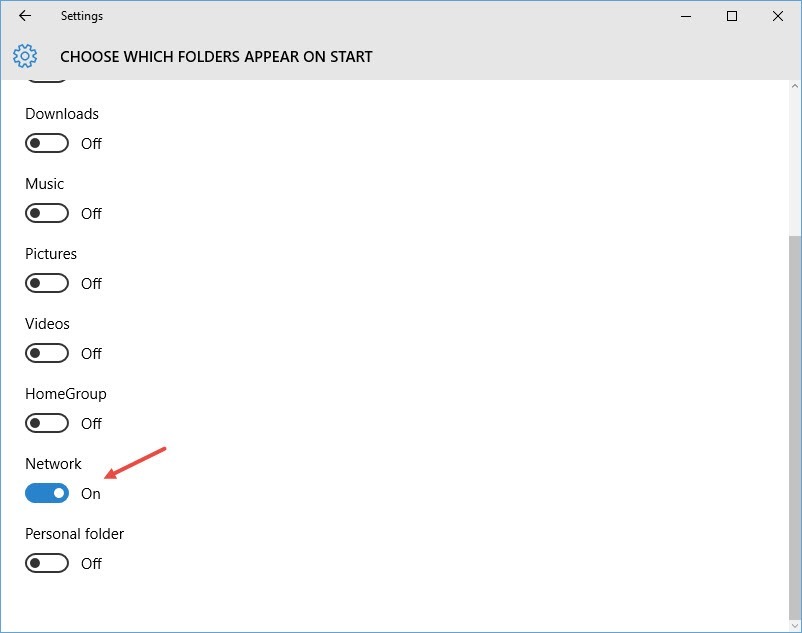
customize-win10-start-menu-select-folder

Once the folder has been added, this is how the bottom left side of the start menu looks like.
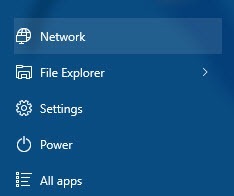
customize-win10-start-menu-folder-added-to-start

Pin Settings to Start Menu

Just like you can pin apps and folders to the Start menu, you can pin the items in the Settings panel. To do that, open the Settings panel from the Action center.

Once you are in the Settings panel, right-click on any option you want to add and then select the option “Pin to Start.”
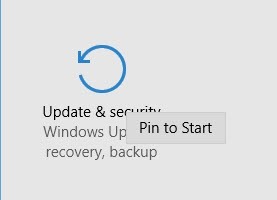
customize-win10-start-menu-pin-settings-to-start

As you can see from the above image, I’m adding the “Update and Security” option to the Start menu. Once added, this is how it looks like.
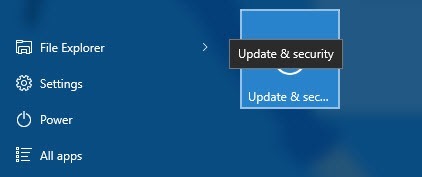
customize-win10-start-menu-settings-pinned-to-start

Change Color and Transparency

Besides from everything, you can also customize the look and feel of the Start menu by changing and color and transparency settings. To do that, open the “Personalization” panel and then select “Colors” from the left sidebar.
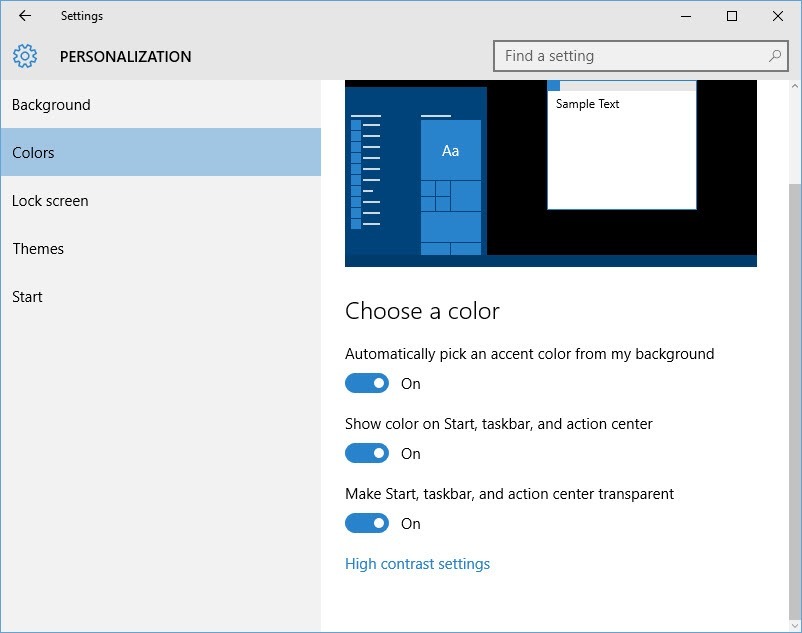
customize-win10-start-menu-start-menu-colors

Here, there will be three options to deal with. If you want Windows to automatically choose a color from the background then turn on the first option “Automatically pick and accent color from my background.”

If you turn off the above option, you can choose any color from the Color Palette.
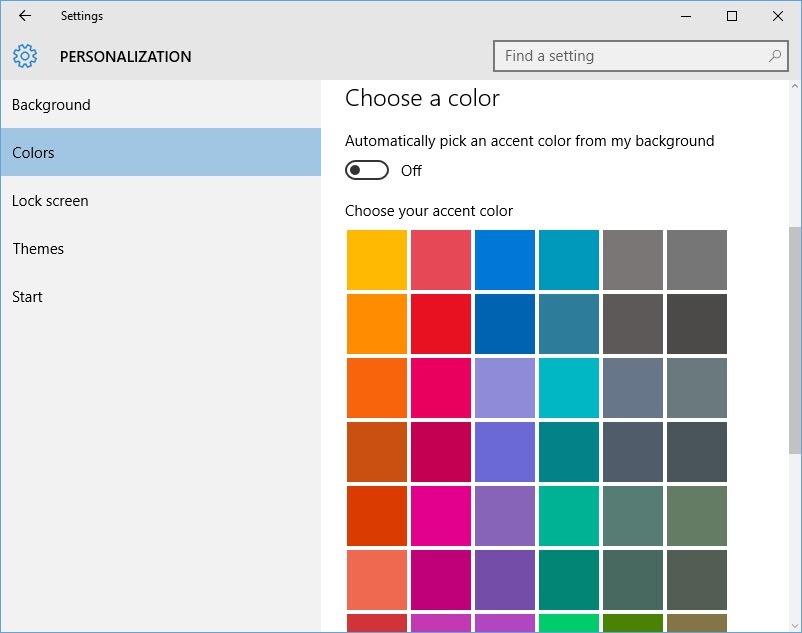
customize-win10-start-menu-choose-color

If you don’t want any color for the Start menu, taskbar, and the notification center, then turn off the second option “Show color on Start, taskbar, and action center.”

To turn off the transparency in the start menu, taskbar, and the action center, toggle the button under the third option “Make Start, taskbar, and action center transparent.”

Enable Windows 8 Style Start Screen

Last but not least. If you are someone who liked the Start Screen type implementation in Windows 8 then you can enable it in the Windows 10.

To enable the full-screen start menu, open the Settings panel, navigate to “Personalization” and then select “Start” from the left sidebar. Here toggle the option “Use Start full screen” and you are good to go.
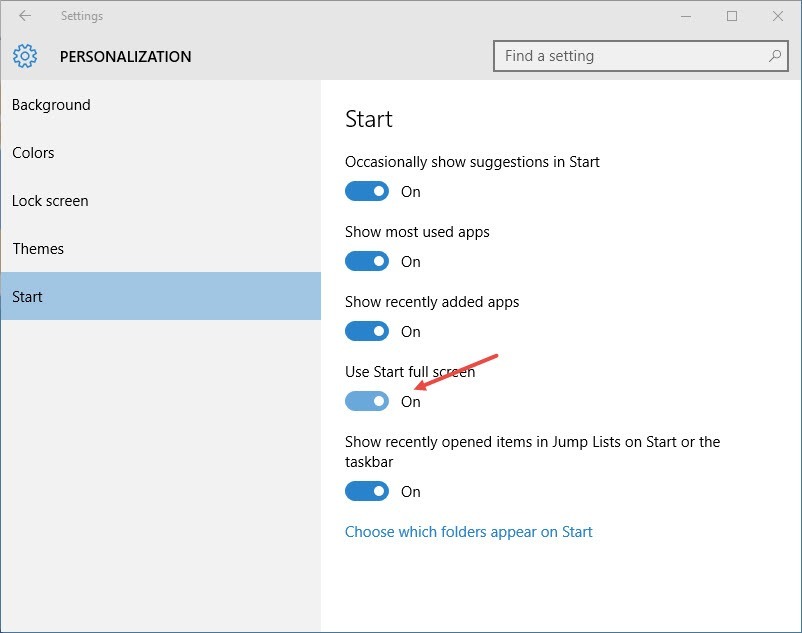
customize-win10-start-menu-turn-on-full-screen-start

That’s all for now and hopefully that helps. Do comment below sharing your thoughts and experiences about the new Start Menu and its customization options.

How to Force Windows 10 to Start up in Safe Mode

0

In Windows, you sometimes need to boot your machine into safe mode, be it to uninstall a driver, to scan and remove persistent viruses, to perform some administrative tasks, etc.

In older versions of Windows, you can easily make Windows boot into safe mode by pressing the F8 key while booting. But with the advancement of the PC hardware and Windows, it has become a lot more difficult to access the safe mode because of lightning fast boot speeds.

Though, the old method doesn’t work anymore, you can still boot into safe mode in several different ways. In case you are wondering here is one of the easiest ways to make your Windows 10 system boot into safe mode.

Force Windows 10 to Start up in Safe Mode

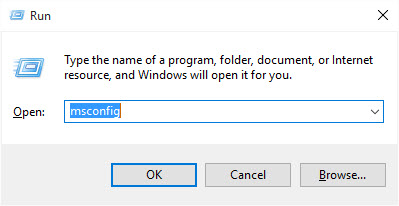
Forcing Windows 10 to start up in safe mode is pretty easy and straightforward. To start off, login to your Windows machine, press “Win + R,” type msconfig and then press the enter button.

win10-safemode-msconfig-run-command

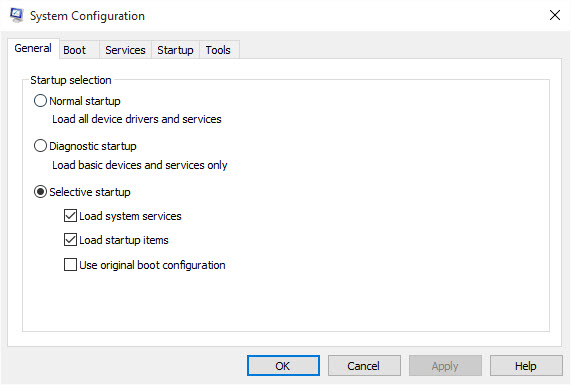
The above action will open the System Configuration window.

win10-safemode-boot-options

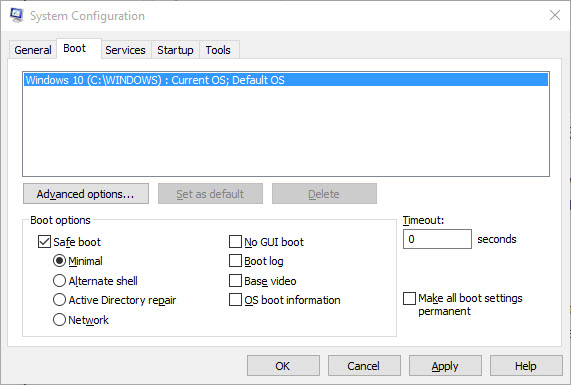
Here, navigate to the “Boot” tab and then select the checkbox “Safe boot” under the Boot Options section. Now, select the radio button “Minimal” and then press the button “Ok” to continue.

win10-safemode-system-config

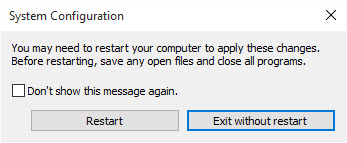
This action will open another window. If you want to boot into the safe mode right away, click on the button “Restart.” If you don’t want to restart your system right away, then click on the button “Exit without restart.”

win10-safemode-restart

When you restart your system the next time, you will be automatically booted into safe mode.

That’s all there is to do, as you can see, it is very easy to force Windows 10 to boot into safe mode. Since we’ve selected the “Minimal” option, most of the features are stripped down and the user interface is very minimal with the words “Safe Mode” screaming in all four corners of the screen.

Once you are done with the safe mode, reboot your system and you should be booted into normal Windows 10 environment.

Do comment below sharing your thoughts and experiences about using the above method to boot into safe mode in Windows 10.