Windows 10 Build 14332 Is Now Available for Insiders with Several Bug Fixes and Other Improvements

0

Microsoft yet again released another insider build for fast ring users with some new features and a whole lot of bug fixes. Starting from this build, Microsoft has started bug squashing and make the builds ready for the upcoming Anniversary update. So, go download the update and make sure that you pinpoint the bugs and report them via the feedback hub. Unfortunately, Microsoft didn’t provide any downloadable ISOs. However, just like with every other insider build, you can download the Windows 10 build 14332 using the Windows Update via the fast ring.

If you don’t see the update, don’t worry, give it some time and it should pop up eventually. If you are not an insider then you can use this link to quickly signup for Windows Insider program.

New Features in Windows 10 Build 14332

Bash and Command Prompt Improvements

In previous builds, you may have experienced networking issues that prevented tools running in Bash on Ubuntu on Windows from being able to access the Internet. For example, you may have seen apt-get fail to find its servers and download apps. This release fixes these issues and users should no longer need to modify their resolv.conf file by hand. We also fixed an issue when calling mv between the /mnt and non-/mnt drives – files and directories will now move correctly between the two points. For more information about the Bash updates in this build, check out our release notes.

For Command Prompt, we’ve made several improvements including improved windows scaling on PCs with High-DPI displays, better font selection and rendering for international characters, several cursor rendering and hiding improvements, improved background color painting, as well as improved scrolling for nano & EMACS editors.

Cortana can now search Office 365

In your PC, Cortana can now search your content in Office 365 including your emails, contacts, calendar as well as files in OneDrive for Business and SharePoint. To get started, just add your Office 365 work or school account in the Connected Accounts section of Cortana’s Notebook. When you search, choose the appropriate filter (email, contacts, calendar, or documents) at the top to see relevant Office 365 search results. Try this out and let us know what you think!

UPDATE: Due to server-side issues happening at the moment, this capability may not work. We’re working to get these server-side issues resolved shortly. We’ll update this post once that happens!

Improved Battery Life for Connected Standby PC’s

We’ve integrated the same underlying technology that Battery Saver uses to quiet down some of the less-valuable activity that occurs during Connected Standby while still keeping your PC connected to the Internet and allowing key connectivity scenarios to work. As a result, if you’re using a Surface or other Connected Standby PC, many of you will notice improved and more consistent standby battery life.

Tip: To see if you are running a PC with Connected Standby, you can run the “powercfg /a” command from an admin Command Prompt. If the first state listed says “Standby (S0 Low Power Idle) Network Connected”, you’re running on a PC capable of Connected Standby.

While we have worked hard to get the technology behind this to work optimally for what we think will be the vast majority of users, we’d like your feedback. If you notice any major issues (things you expected to work in Connected Standby but that do not), you have 2 options:

  1. Go into Settings > System > Battery and enable the app that you want to run during Connected Standby to “Always allowed” in the background. You can read more about these battery settings in last week’s blog post.
  2. If you want to revert fully back to the old behavior in Connected Standby, you can run the following command lines from an admin Command Prompt:
    powercfg /setdcvalueindex SCHEME_CURRENT SUB_ENERGYSAVER ESPOLICY 0
    powercfg /setactive scheme_current

Note: To re-enable the new Connected Standby behavior, you can run the same command lines as above but just change ‘0’ to ‘1’.

If you find that a scenario you depend on doesn’t work in the way you expect it to, please send us feedback via the Feedback Hub!

Though the build doesn’t have any visible features, those are some much needed and useful under-the-hood features and improvements. Do comment below sharing your thoughts and experiences about the new build.

How to Find and Change MAC Address in Mac OS X

0

Every network card on your system, be it your WiFi or the regular ethernet, will have its own unique identification address called MAC (Media Access Control) address. This address is usually used to identify your computer on the network. However, you sometimes may find yourselves in a situation where you need to spoof or change the MAC address. So, if you ever want to spoof or change MAC address in your OS X system, here is how to do it the easy way.

Change MAC Address in OS X

Though there are several free applications that let you change the MAC address with just a few clicks. You don’t have to use those applications as you can do it yourself with just a couple of commands.

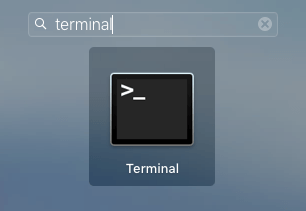
To start off, search for the terminal in the Launchpad or Spotlight and open it.

change-mac-address-os-x-terminal

Once the terminal has been opened, the first thing you need to do is find what your current MAC address is. This helps you cross check once you’ve changed the MAC address.

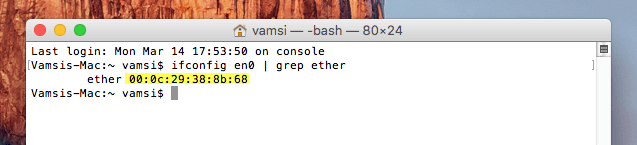
To know your current MAC address, simply execute the below command and it will display the current MAC address.

ifconfig en0 | grep ether

change-mac-address-os-x-find-mac-address

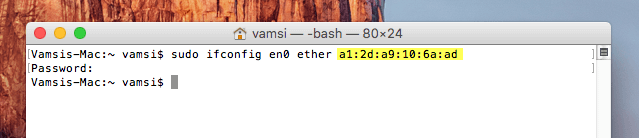
Once you got your current MAC address, its time to change it. To change the MAC address, execute the below command while replacing MAC address in it with whatever MAC address you want. If you want a random MAC address then you can use this web tool.

sudo ifconfig en0 ether a1:2d:a9:10:6a:ad

change-mac-address-os-x-set-mac-address

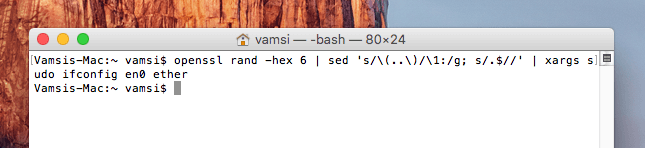
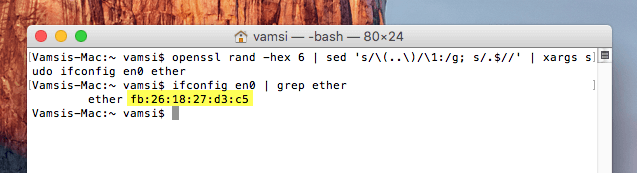
Alternatively, you can use the below command to generate a random MAC address for your system.

openssl rand -hex 6 | sed 's/\(..\)/\1:/g; s/.$//' | xargs sudo ifconfig en0 ether

change-mac-address-os-x-generate-mac-address

To verify the change of MAC address, use the first command and it will display the changed MAC address.

change-mac-address-os-x-check-changed-mac-address

That’s all there is to do and it is that simple to spoof or change MAC address in OS X. However, the MAC address in your system is hard coded into the network devices. Which simply means that the changes you just made are temporary and as soon as you restart your system, your MAC address will reset to original.

That being said, if you want a random MAC address every time your log into your system, you can create a script using the above commands and add it to the startup programs.

Hopefully that helps and do comment below sharing your thoughts and experiences about using the above method to spoof or change MAC address in Mac OS X.

How to Disable Automatic Image Loading in Chrome and Firefox

Whenever you visit a web page on a web browser, the browser automatically loads any and all images by default. This is how the browsers work and it is only natural to load whatever is on the web page. But not everyone needs to see all the images each and every time. Moreover, if you are on a limited internet connection or if you internet connection is slow, loading images on all the web pages you visit doesn’t make any sense as it is nothing but wasted resources. So, what you can do is disable automatic image loading in Chrome and Firefox.

Disable Automatic Image Loading in Chrome

Disabling automatic image loading in Chrome can be done in two ways, the first one is that disable image loading in Chrome settings. But that would be a hassle if you want to enable image loading whenever you want on select websites. So, to make this easier, the other way is to download and install a free chrome extension.

To start off, head over to Chrome web store and install the extension Block Image.

block-images-chrome-firefox-install-extension

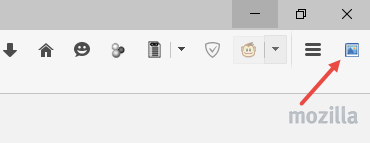
As soon as you install the extension, the extension icon will be added next to the browser address bar and from this point forward, any website you visit will no longer automatically download images.

block-images-chrome-firefox-extension-installed

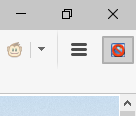
If you want a website to download images, just click on the Block Image extension icon to turn it off and reload the page. That’s it, all the images in that particular web page will appear.

block-images-chrome-firefox-disable-extension

Disable Automatic Image Loading in Firefox

Just like in Chrome, you can disable all image loading through Firefox settings page or through the about:config page. But as I said before, it will be a hassle if you want to enable image loading on specific websites.

To start off, head over to Firefox official add-ons page and install the add-on Image Block.

block-images-chrome-firefox-install-addon

After installing the add-on, restart your Firefox browser. By default, the Image Block add-on is disabled which simply means that even if you’ve installed the add-in, the browser will automatically download the images on the web pages.

block-images-chrome-firefox-addon-installed

To enabled the add-on, simply click on the add-on icon and you are good to go. From this point forward, you won’t see any images in the web pages you are visiting unless you wanted to.

block-images-chrome-firefox-enable-addon

Hopefully that helps and do comment below sharing your thoughts and experiences about using the above methods to disable automatic image loading in Chrome and Firefox.

How to Keep a Window Always on Top in Windows

0

Having multiple windows opened and moving back and forth between them is almost a daily task for many computer users. As most of you know, when there are multiple windows opened, the active window. i.e, the window you are working on will be on top of the others. However, we sometimes may need to have a particular window to stay no top of all other windows even if we are working on the other window. For instance, if you are working on an Excel sheet, you might need the calculator on top of it. Unfortunately, Windows doesn’t have any built-in way to make a window stay on top of others. So, here are a couple of ways you can keep a window always on top of other windows in Windows.

Keep a Window Always on Top

Though Windows doesn’t have any built-in option, there are a lot of apps that lets you do this. Here are two of those apps that work well with any Windows version.

1. Using AutoHotKey

Using AutoHotKey is one of my favorite and simplest ways to keep a window on top. In case you don’t know, AutoHotKey is a simple piece of software that makes almost everything easy by adding custom keyboard shortcuts and automating daily Windows tasks.

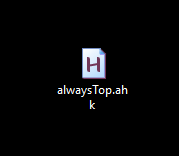
To start off, download and install AutoHotKey if you haven’t already. Now, open up the Notepad, copy and paste the below code and save the file with the name “alwaysTop.ahk.” Don’t forget to change the extension from .txt to .ahk.

;Always on Top
^+SPACE:: Winset, Alwaysontop, , A  ;Shift+Ctrl+Space
Return

always-on-top-window-ahk-file

That’s all there is to do. Just double-click on the file you just created to execute the application. From this point forward, whenever you want to keep a window on top, simply select the window and then press the keyboard shortcut Shift + Ctrl + Space.

Of course, if you know how to use AutoHotKey then you can customize the keyboard shortcut as per you requirement.

2. Using TurboTop

If you don’t like to deal with scripts and want a GUI (Graphical User Interface) to put a window always on top then you can use a free software called TurboTop.

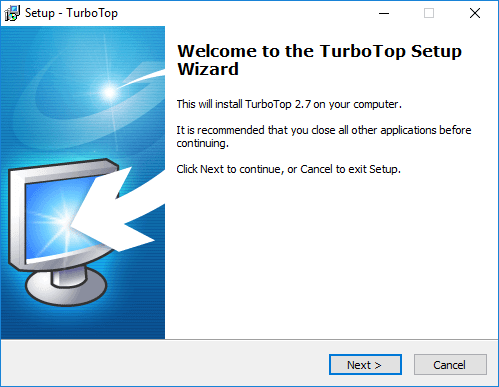
So, go ahead and download the software. Once downloaded, install it like any other Windows software.

always-on-top-window-install-turbo-top

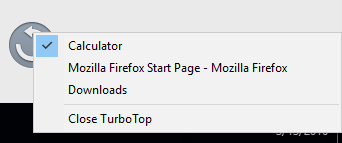
After installing the software, TurboTop will sit silently on your taskbar. To keep a Window on top, simply right-click on the TurboTop icon in the taskbar and then select the application from the list.

always-on-top-window-turbo-top-select-app

That’s all there is to do. The selected application will be on top of all other windows at all times. If you want to undo this action, simply uncheck the application and you are good to go.

Hopefully that helps and do comment below sharing your thoughts and experiences about using the above methods to always keep a window on top in Windows.

How to Customize Date and Time Format in Windows 10 [Quick Tip]

0

Windows 10 has many changes in terms of both aesthetics and features. One of the most notable changes is how you view and interact with the calendar in the taskbar. Not only that but Windows 10 has also changed how you can format the data and time appearing in the taskbar. So, if you ever want to customize the date and time format in Windows 10, here is how you can do it quickly.

Customize Date and Time Format in Windows 10

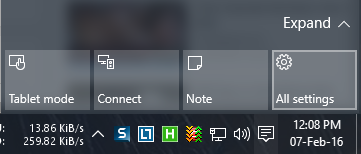
Customizing date and time format in Windows 10 is pretty easy and straightforward. To start off, click on the “Notifications” icon in the taskbar and then select the option “All Settings.” Alternatively, you can also use the keyboard shortcut “Win + I” to open the All Settings window.

time-date-settings-select-all-settings

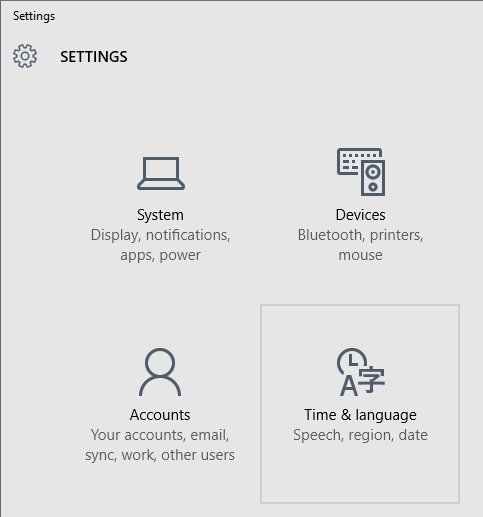
Once you are in the Settings panel, select the option “Time and Language.”

time-date-settings-select-time-language

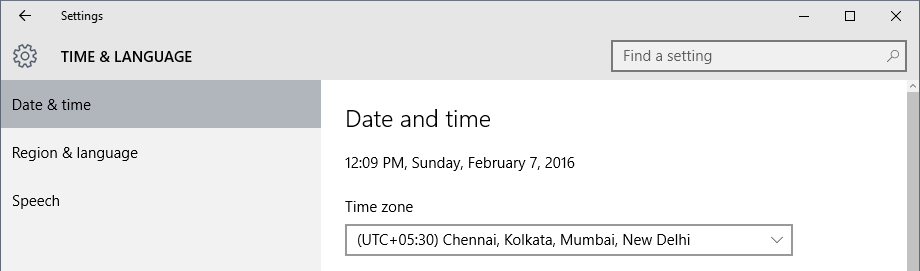
The above action will open the time and language window. Here, you can change your time zone by selecting your UTC from the drop-down under “Time Zone.”

time-date-settings-select-time-zone

Note: you can also access the Time and Language window by clicking on the time in your taskbar and then clicking on the link “Date and time settings.”

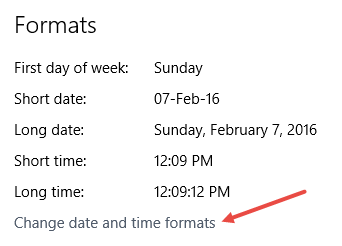
To change the data and time formats, click on the link “Change date and time formats” under the Formats section.

time-date-settings-select-change-date-time-formats

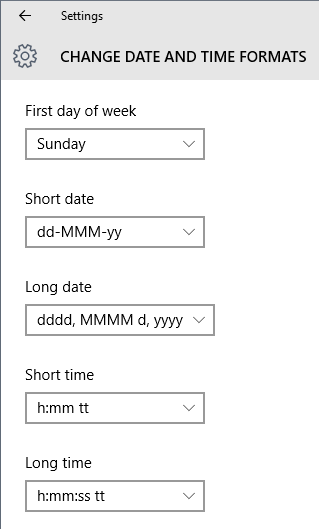
This action opens the time and date format window. Here you can change the date and time format under short data, long date, short time and long time.

time-date-settings-format-settings

That’s all there is to do and it is that simple to change or customize date and time formats in Windows 10.

Hopefully that helps and do comment below sharing your thoughts and experiences about the new date and time formats in Windows 10.

Fix: App is Damaged and Can’t be Opened Error on Mac OS X

0

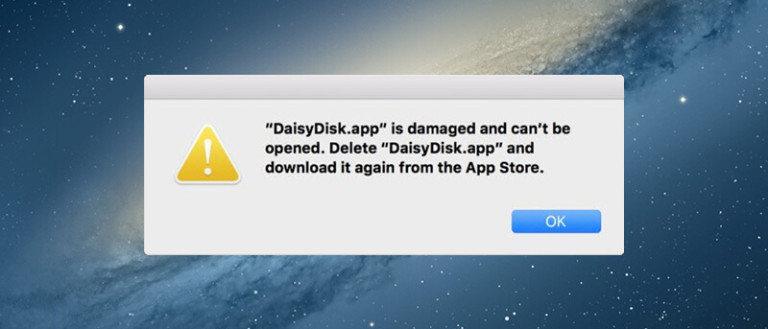
For some odd reason, the apps that are downloaded and installed from the Mac store are not opening for some users, even if you’ve used those apps before. In fact, when a user tries to open the app that is affected by this bug will receive an error something like “App is damaged and can’t be opened.” To make the matters worse, the system suggests deleting the app and reinstalling it again. Generally, this action won’t fix the error. The reason for this simple, the security certificate might be expired. So, if you are someone who is affected by this bug then here is how you can fix it.

Fix: App is Damaged and Can’t be Opened Error

There are three ways to fix the app is damaged error on Mac. So, follow one after the other and see what fixes the error for you.

1. Reboot your Mac

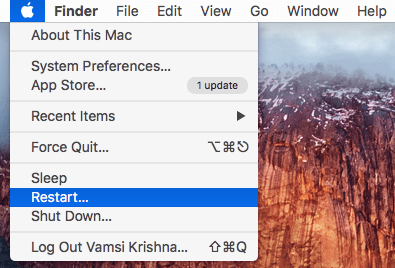
Often times, rebooting the Mac easily solves the issue. So, save all your work, close the applications and reboot your system. Once you are done rebooting, try to launch the application.

app-damaged-cant-be-opened-error-reboot-mac

If you are still receiving the error, try to reinstall it. For me, reinstalling the affected app after rebooting worked. If this didn’t work, then follow the below methods.

2. Re-authenticate your Mac

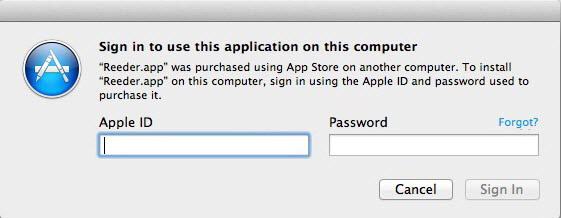
If the above simple method doesn’t work then reauthenticating your Mac with your Apple ID might solve the issue. So, head over to the App Store, sign-out, reboot and then and sign in again. This action will re-authenticate your Mac.

app-damaged-cant-be-opened-error-sign-in-apple-id

From this point forward, you shouldn’t receive the above error message. If you are still receiving the error, try to reinstall the app after signing with your Apple ID.

3. Kill the Effected Process

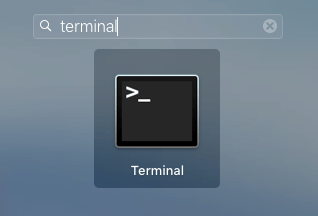
If nothing else works, then killing the affected processes after re-authenticating your Mac might solve the issue. To do that, search for the terminal using either Launchpad or Spotlight and then launch it.

app-damaged-cant-be-opened-error-select-terminal

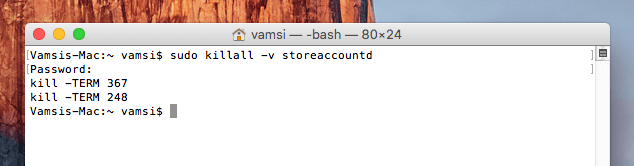
Once the terminal has been opened, copy the below command and execute it. As soon as you execute the command, the terminal will kill two processes.

sudo killall -v storeaccountd

app-damaged-cant-be-opened-error-execute-terminal-command

That’s it, just reboot your system and you should have solved the problem.

Hopefully that helps and do comment below sharing your thoughts and experiences about using the above methods to fix “App is damaged and can’t be fixed error.”

How to Open Terminal in Current Folder Location on Mac OS X

0

In Windows, you can easily open the Command Prompt from any folder by simply selecting the option “Open Command Here” from the “Shift + Right-click” menu. On Mac OS X there is no such functionality out of the box. Yes, you can easily navigate to whatever folder you want to by simply dragging and dropping the folder into the Terminal window. But when working with local directories this can be a bit of pain. Moreover, it’s not like Mac doesn’t have this kind of functionality, it’s just disabled by default. In case you are wondering, here is how you can open Terminal in the current folder location on your Mac OS X.

Open Terminal in the Current Folder Location

As I said before, Mac already has this function in the form of Services but is disabled. So, all you have to do is enable it and you are good to go.

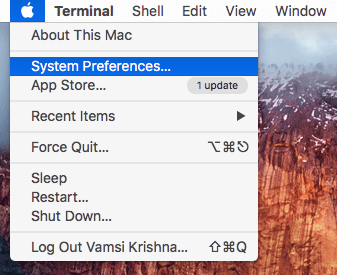
To do that, click on the Apple icon appearing on the top-right corner and then select the option “System Preferences.” Alternatively, you can also search for it in using the Launchpad or Spotlight.

open-terminal-current-location-select-system-pref

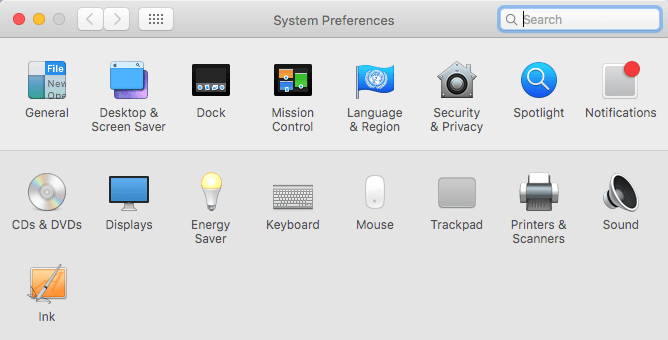
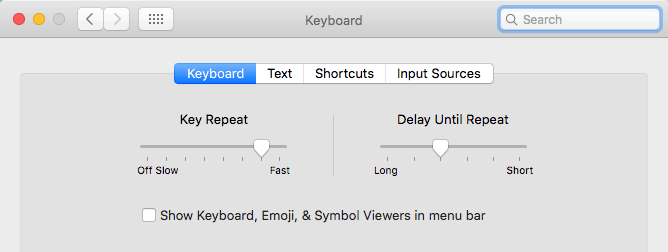
Once the System Preferences window has been opened, find and double click on the option “Keyboard.”

open-terminal-current-location-select-keyboard-option

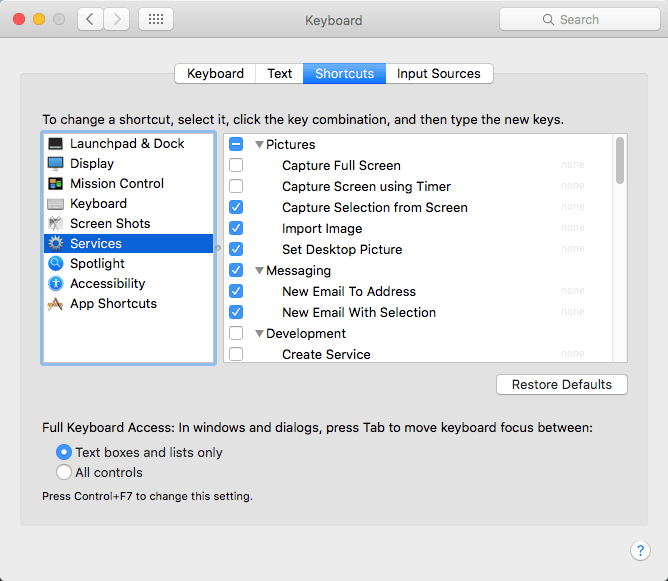
The above action will open the “Keyboard” settings window. Here, navigate to the tab “Shortcuts.”

open-terminal-current-location-select-shortcuts-tab

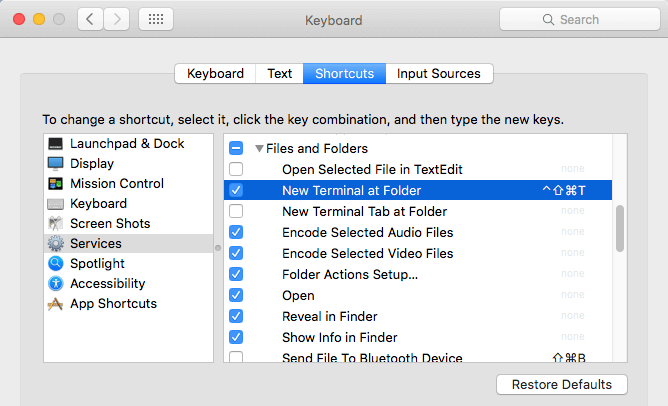
In the Shortcuts window,  select the option “Services” from the right pane. This action will show you all the available services on your Mac.

open-terminal-current-location-select-services

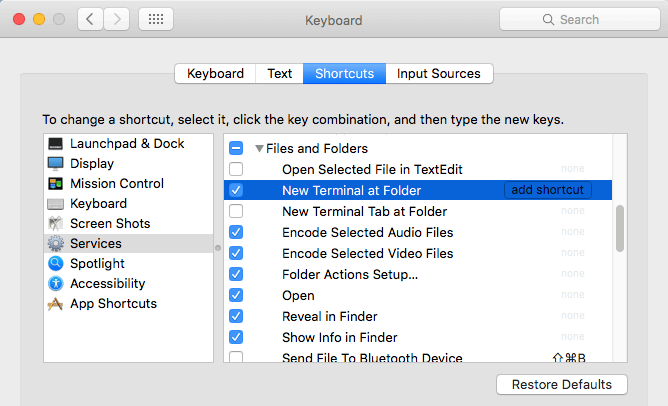
Once you see all the services, find the service “New Terminal at Folder” under the “Files and Folders” category and select the checkbox.

open-terminal-current-location-select-finder-terminal-service

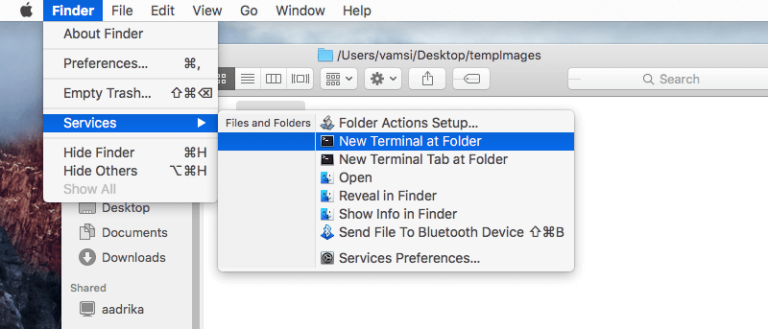
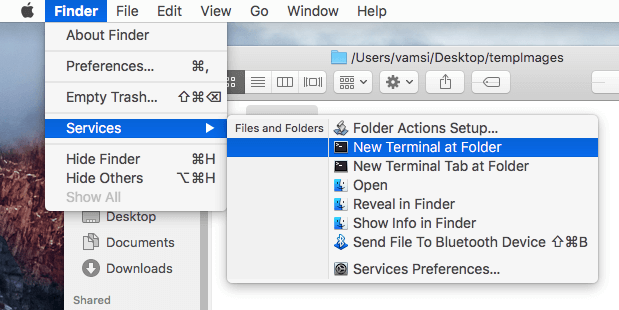
As soon as you select the checkbox, the service will be added to the Finder options. From this point forward, whenever you want to open the Terminal in current folder location, simply select the folder, navigate to “Finder > Services” and then select the option “New Terminal at Folder.”

open-terminal-current-location-in-action

That’s all there is to do. The above action will be open the terminal in current folder location.

If you want to, you can even assign a keyboard shortcut to quick launch terminal at current folder location.

open-terminal-current-location-terminal-shortcut

Hopefully that helps and do comment below sharing your thoughts and experiences about using the above method to open terminal in current folder location.

How to Put to Sleep or Shutdown Windows 10 Using Keyboard Shortcut [Quick Tip]

0

Shutting down, restarting, and putting your system into the sleep mode is already easy in Windows 10. All you have to do that, click on the start menu and select the appropriate option from the Power menu.

But the one thing about the whole process is that you have to use your mouse to do all of that. If you are a keyboard person like me, then taking your hands off of your keyboard is not that enticing. Moreover, performing different activities using just the keyboard shortcuts is way faster and easier. In case you are wondering, here is how you can quickly put to sleep or shutdown your Windows 10 system using a simple keyboard shortcut.

Put to Sleep or Shutdown Windows 10 With Keyboard Shortcut

To shut down or put your system to sleep, you can use the Power User menu that was introduced back in Windows 8. In case you don’t know, the Power User menu has a host of options that lets you access different parts of your Windows system.

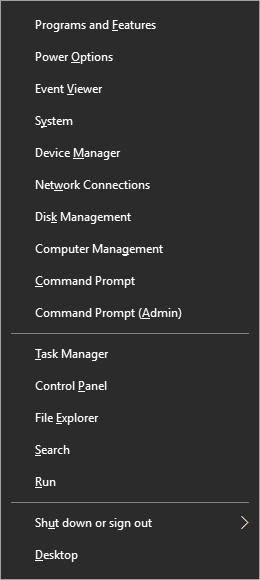
Moreover, the Power User menu also eliminates the need to use the start menu search or mess around with the Control Panel. To access the Power User menu in Windows 10, 8, or 8.1, press the keyboard shortcut Win + X.

win10-sleep-shutdown-power-user-menu

As you can see from the above image, the Power User menu has its own shortcut keys that can be used to access different options in it. Now, use the below shortcuts to quickly put your system to sleep, shutdown, restart, or hibernate.

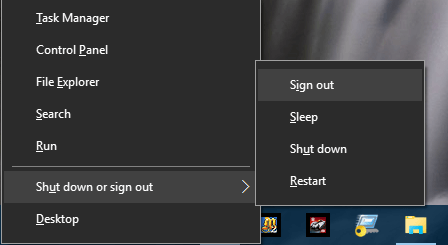
#1 Press Win + X, then press U and then press S to put your system to sleep.

#2 Press Win + X, then press U and then press U to put your system to shutdown.

#3 Press Win + X, then press U and then press R to put your system to restart.

#4 Press Win + X, then press U and then press H to put your system to hibernate.

#5 Press Win + X, then press U and then press I to put your system to sign out of the current session.

win10-sleep-shutdown-shortcuts

Of course, if you want to, you can always use the good old, Alt + F4 or the Ctrl + Alt + Del to shut down or put your system to sleep.

Hopefully that helps and do comment below sharing your thoughts and experiences about using the above methods to shut down or put your Windows 10 system to sleep.

Here’s What’s Fixed and What’s Broken in Windows 10 Preview Build 14316

0

Microsoft recently released the new Windows 10 preview build 14316 to the fast ring insiders. This new preview build has a slew of new features like the improvements to the Action center, dark mode, improved Windows update settings, new Cortana features, Feedback hub improvements, new Edge extensions, etc. As always, most of the issues from the previous build are fixed and there are a few more new things that are broken. So, here is what’s fixed and what’s broken in Windows 10 preview build 14316.

Here’s What’s Fixed in Build 14316

  • We fixed the issue where on some PCs with TPM chips, such as the ASUS Zenbook UX31, you may have experienced glitchy audio and jumpy movement when using the trackpad due to the “tpm-maintenance” task running constantly in the background instead of once per boot-up like it should.
  • We fixed the issue where if you use Hyper-V and have a Virtual Switch configured for your network adapter, you might see an error indicator (red-colored “X”) for your network adapter in the notification area of your taskbar.
  • We polished the Wi-Fi flyout UI and fixed an issue where text entry into a Wi-Fi password field was noticeably top-aligned rather than centered.
  • We fixed an issue for where when using multiple monitors and full-screen apps like PowerPoint or Remote Desktop would crash Windows Explorer.
  • We fixed an issue where Cortana wasn’t showing Settings pages in the search results.
  • We have updated the Windows Update notification after updates have been installed so now clicking on the notification will take you straight to your update history.
  • We fixed an issue where desktop (Win32) apps pinned to the Start menu would sometimes move after updating to a new build.
  • We fixed an issue where “Update and Restart” and “Update and Shut Down” wouldn’t start an update.

Here’s What’s Broken in Build 14316

  • The Visual Studio emulator for Windows 10 Mobile and Hololens will fail with “An authentication error has occurred. The Local Security Authority cannot be contacted”. If you are a developer and require the emulator for building apps, we suggesting moving to the Slow ring and skipping this build until we can fix this issue.
  • We continue to investigate issues with Narrator and other screen reader apps that make them unable to read selected text in the Feedback Hub, Cortana, and other apps.
  • In Microsoft Edge, some large downloads may appear to get stuck at 99% completion. You can work around this issue by renaming the file in your downloads after closing Microsoft Edge. This workaround skips security checks on the file, so it should be used only with files from a trusted source.
  • In some cases, attempting to turn on Developer Mode on may crash the Settings app. If this happens, the workaround is to use these steps here to enable Developer Mode.
  • Some apps notifications may only show the icon – however the full text of the notification will be visible within Action Center.

That’s all for now and do comment below sharing your thoughts and experiences about using the new Windows 10 preview build 14316.

source: Windows blog

Windows 10 Build 14316 Now Available for Windows Insider PCs – Here Is What’s New and Improved in This Build

0

In Build 2016, Microsoft introduced a lot of new features and improvements for the Anniversary update. Today, Microsoft released Windows 10 build 14316 for Windows Insiders. This build has several improvements over the previous build and you will also have access to some of the features that are announced in Build 2016. Some of the features that are introduced in this build are the bash on Windows, web notifications from Edge, sync notifications between phone and PC, etc. However, other major features like the improvements to Action Center and the Start menu are not available in this build.

Download Windows 10 Build 14316

You can download Windows 10 Build 14316 directly from the Windows Update. You should be an insider and turn on the fast release preview builds to get the update. If you are not an Insider yet then you can signup for it using this link.

If you didn’t see the update, don’t worry, give it some time and it should show up eventually. Unfortunately, Microsoft didn’t provide any ISO for this build to download it directly from the Windows Insider page.

What’s New in Windows 10 Build 14316

Bash on Windows

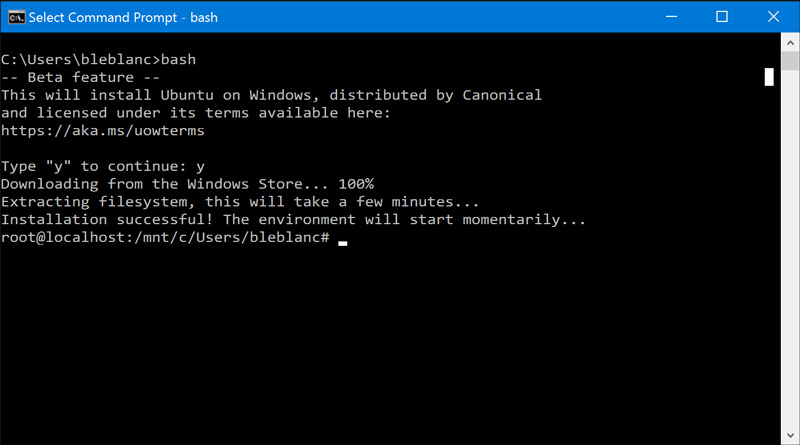
Run native Bash on Ubuntu on Windows: In this build, you can natively run Bash in Windows as announced last week at Build 2016. To do this, you first need to turn on Developer Mode via Settings > Update & security > For developers. Then search for “Windows Features” and choose “Turn Windows features on or off” and enable Windows Subsystem for Linux (Beta). To get Bash installed, open Command Prompt and type “bash”.
windows-insider-build-14316-bash-on-windows

Cortana Improvements

Cortana Cross-Device Features: Starting today, we will be releasing new features to Insiders on an ongoing basis that keeps you in perfect sync across all the devices where you use Cortana to stay connected and never miss a beat throughout your day. With today’s build, we are rolling out the below features. If you are an Insider who doesn’t have a Windows phone, these features will also work with Android devices too but you will need Cortana Version 1.5 or higher (Download here for U.S. and download here for China) for them to work.

Low Battery Notifications: Cortana will now inform you of low battery power on your mobile devices. For example, if your phone’s battery is low, a notification will pop up on your PC so you can promptly charge it before your next meeting.

[youtube=https://www.youtube.com/watch?v=99aPUSJkYL0]

Find my phone/Ring my phone: We all lose track of our phone from time to time and now you can ask Cortana to find your phone, regardless of device, on your PC using the new find my phone feature. The feature will allow users to locate their phone from their PC through geo-location and by having Cortana ring your phone.

[youtube=https://www.youtube.com/watch?v=bOGLBu4_cyY]

Share map directions across devices: To date, people go through a lot of effort to manually connect the dots between devices—emailing links to open on other devices or re-doing a search on the phone to find directions to a location they were just looking at on the PC. Today, we’re breaking down one of those barriers by enabling you to access navigation details across devices through Cortana. Tell Cortana “directions to < place>” on your PC and she’ll send those same directions to your phone.

[youtube=https://www.youtube.com/watch?v=zbZ1xS1Kc6o]

Making Cortana easier to setup on your device: If you are in Cortana supported markets and struggled to get Cortana enabled, this will automatically download the necessary speech-language, if needed, and enable Cortana for you.

New Extensions for Edge

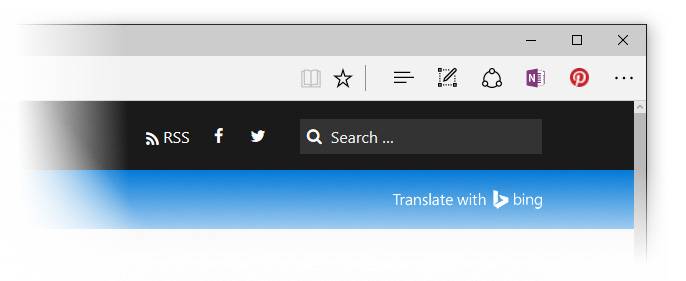
New and Updated Extensions for Microsoft Edge: A few weeks ago, we announced the availability of extension support for Microsoft Edge with more on the way. Today, we are excited to share with you some new extensions that you can try out – Pin It Button and OneNote Clipper. In addition, we have updated versions of Reddit Enhancement Suite, Mouse Gestures, and Microsoft Translator. To install these new extensions, just click on “More” (…) at the top right in Microsoft Edge and click “Extensions” to open the Extensions pane and click “Get extensions”.
windows-insider-build-14316-new-edge-extensions

Please note: There is change in this build that will break existing extensions installed on your PC in Microsoft Edge if they were previously installed using an older build. You can download the new installation files and re-install the existing extensions using the new installers.

Skype UWP Preview App

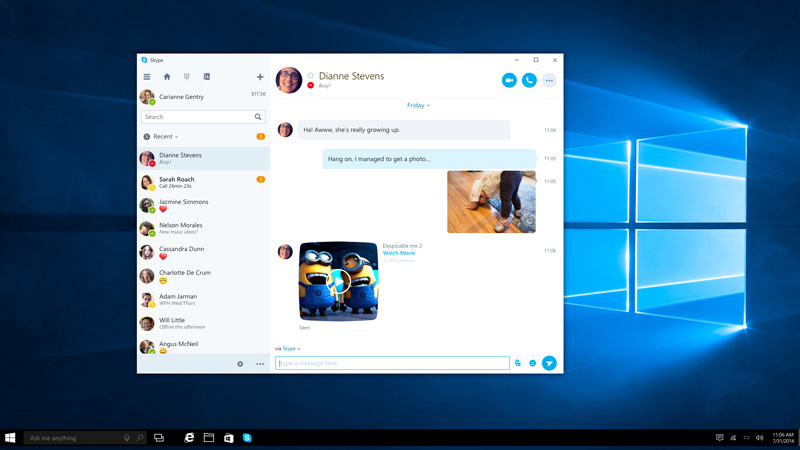
Try out the Skype UWP Preview app: You can try out the Skype UWP Preview app announced a couple of weeks ago on the Skype blog. The Skype UWP Preview app includes a lot of the basic Skype functionality – with more features and functionality to come in the next couple of releases. We are first releasing this for PCs only, but we will be making the Skype UWP app available for Mobile in a future build.
windows-insider-build-14316-uwp_full-new

Action Center Improvements

Action Center Improvements: We have added the ability to select which app notifications are more important to you in Action Center. On your device, you can manage the notification settings for individual apps by going to Settings > System > Notifications & actions. Just click or tap on a specific app to adjust its notification settings. You can prioritize its notifications in Action Center to be one of 3 levels: Normal, High, or Priority. Additionally, you can also adjust how many notifications are visible per app. The default is now 3 per app. If an app has more than 3 notifications, just click or tap to expand and see all notifications for that app. This was a top request from Insiders.

New Emojis

Updated Emoji: We wanted to share some cool work from our design team that is showing up in this build. We are updating the entire set of font-based emoji in Windows 10 that aligns with the Microsoft Design Language with a distinct visual style as well as the Unicode standard.

windows-insider-build-14316-emojis

These new emoji are designed to be detailed, expressive, and playful. Their larger size takes full advantage of every pixel and the two-pixel outline allows for emoji to appear on any color background without loss of fidelity. Our new emoji also supports skin tone modification across a wide variety of people glyphs.

New Personalization Features

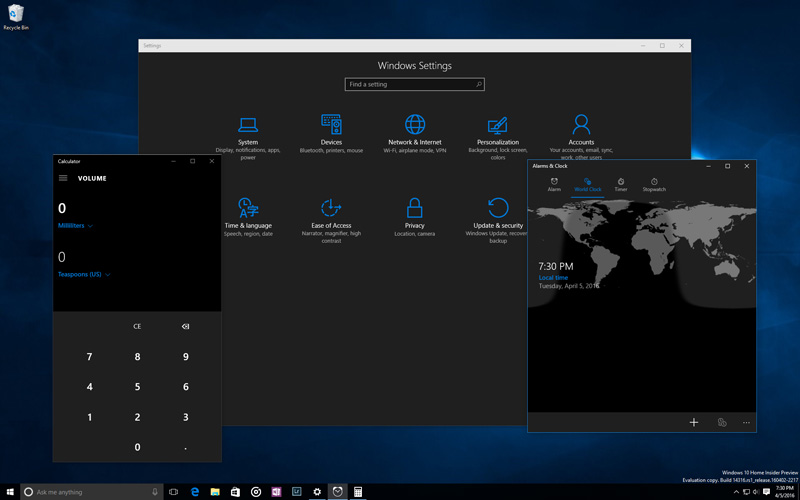
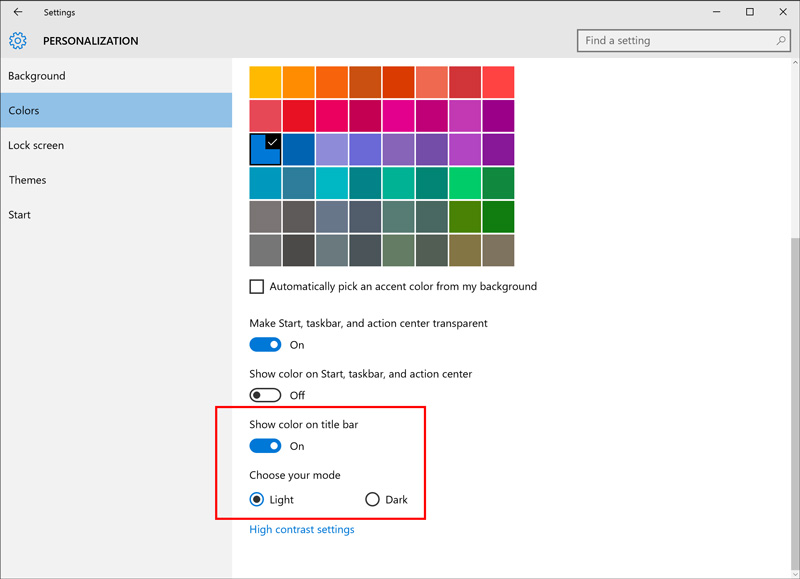
Personalization Improvements: We’ve added the ability to universally toggle between dark and light modes via Settings > Personalization > Colors.

When you switch to dark mode, apps such as Settings, Store, Alarms & Clock, Calculator and other UWP apps that listen and respond to theme changes in the OS will change into dark mode. Some UWP apps that control their own theme settings (separate from Windows) won’t change by toggling this setting.
windows-insider-build-14316-dark-mode

We’ve also added a new option under Settings > Personalization > Colors to show color only on app title bars in addition to the option to show color on Start, the taskbar, and Action Center.
windows-insider-build-14316-personalization-updates-colors

New Continuum Experience

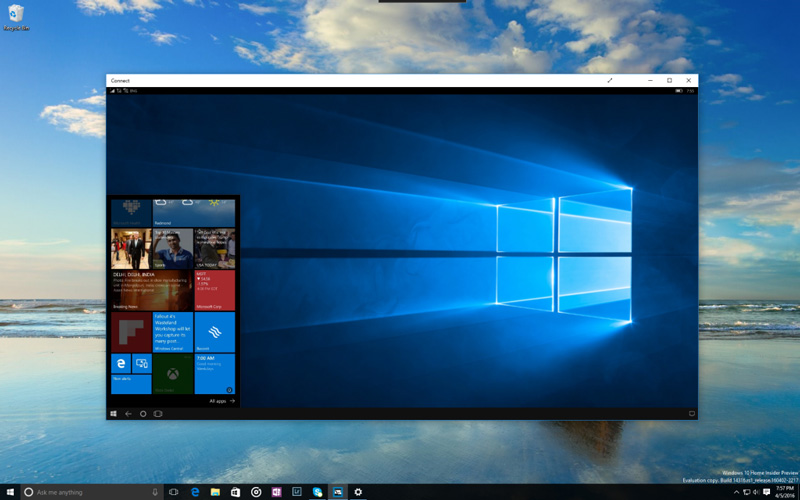
New PC access experience: Using the new Connect app, you can bring the Continuum experience from your phone (a Continuum-enabled Windows 10 phone is required) to the PC without needing a dock or Miracast adapter. Additionally, it also allows other Miracast-enabled PCs to project to other PCs without needing a dock or Miracast adapter as well. The Connect app will mention the ability to use a USB cable to connect to your PC however this is a bug and the app only supports wireless connections on PCs. This is an early preview of this feature – we have more work coming to make the experience even better.
windows-insider-build-14316-connect-app

Improvements to Virtual Desktops

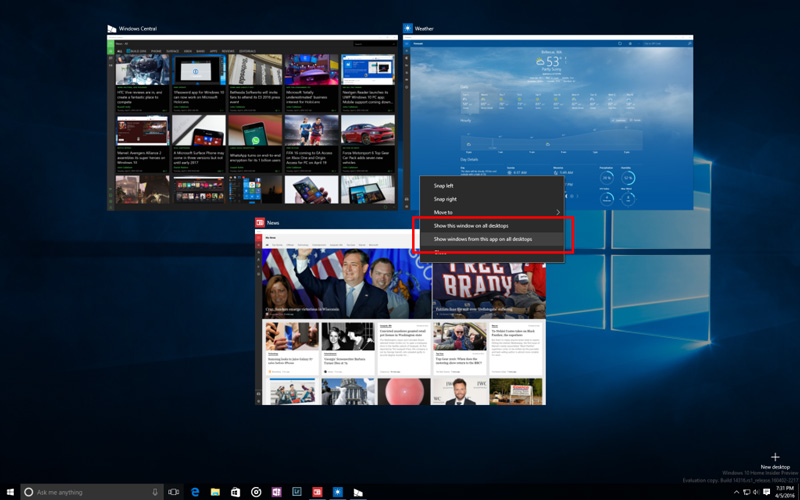
Virtual Desktop Improvements: You can now pin a window so it’s available on every desktop. To do this, launch Task View then right-click on the window you want to pin and choose “Show this window on all desktops”. Try pinning Skype or Groove Music so they’re always at your fingertips. And if you have a multi-mon setup, you might enjoy the ability to have your email app on the second monitor no matter which desktop you switch to.
windows-insider-build-14316-vd-show-all-desktops

New Update Progress Screen

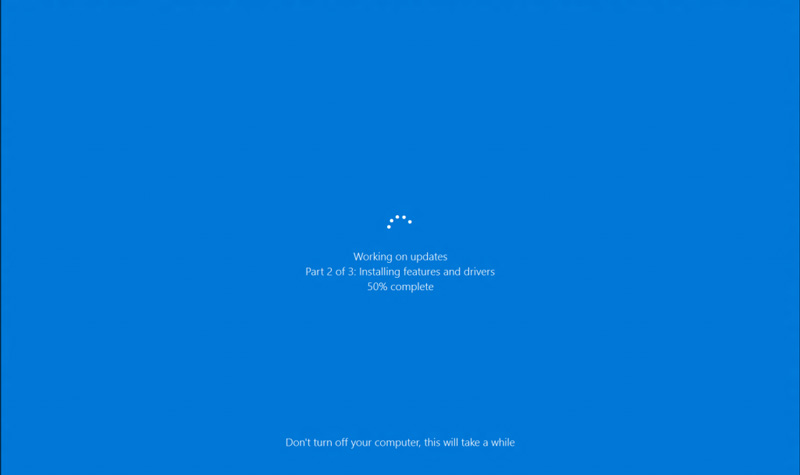
New Update Progress Experience: When you PC installs today’s new build update – you will see a new progress experience for installing the update. This is part of an effort to align the experience of installing updates from Windows Update.
windows-insider-build-14316-new-upgrade-UI

New Windows Update Settings

Updated Windows Update Settings: You can now set the time in which you are most active on your device by adjusting active hours under Settings > Update & security > Windows Update. Windows Update will avoid automatically installing updates during your active hours on your device.

You can Now Comment of Feedback Hub

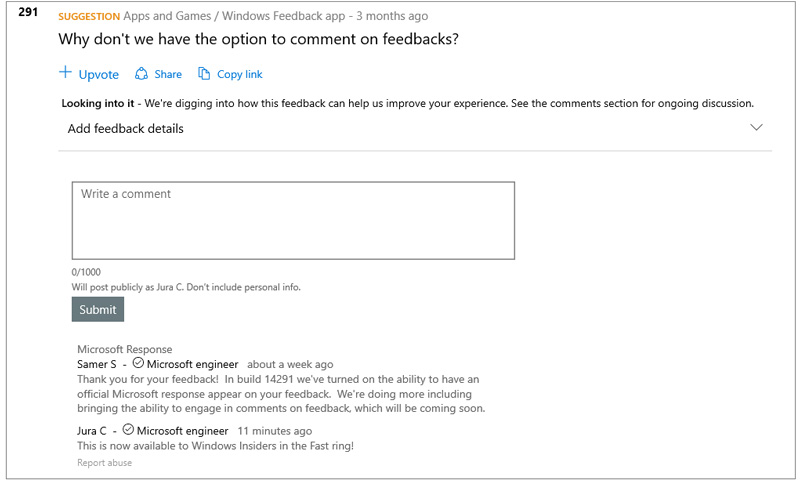
Commenting in the Feedback Hub: As we announced at Build last week, we have added the ability to comment on feedback inside the Feedback Hub. You have seen responses from our engineering team in the app already, in what we call “sticky comments”. Those comments are now the top items in a comments thread where you can discuss feedback with each other and us. So in addition to up-voting on feedback, you can now comment on feedback too. We hope you will use the discussion feature to share workarounds, discuss suggestions others have made, and share any new info you have about problems you’re seeing. As always, please let us know what you think by going to Apps & Games > Feedback Hub and joining the discussion!
windows-insider-build-14316-fb-hub-comment

That’s all for now and here’s what’s fixed and what’s broken in windows 10 preview build 14316. Do comment below sharing your thoughts and experiences about downloading and installing then new Windows 10 build 14316.

source: Windows blog