How to Create Windows 10 USB Installer Drive On Mac

0

Creating a Windows 10 USB installer drive in Windows is pretty easy, all you have to do is install the Media Creation Tool and follow the prompts. But if you are on a Mac then the procedure of creating Windows 10 USB installer is a bit different. However on Mac, you don’t have to install any third-party software to create the Windows 10 USB installer drive. So, read on to get to know how to create Windows 10 USB installer drive on Mac so that you can give the new Windows 10 OS a try or even dual boot your Mac.

Create Windows 10 USB Installer Drive On Mac

1. Creating Windows 10 USB installer drive on Mac is pretty easy and straightforward. To start off, head over to Microsoft and download the official Windows ISO. While selecting the OS from the dropdown menu, just select “Windows 10” and click on the “Confirm” button. Don’t bother with all those K and N stuff.
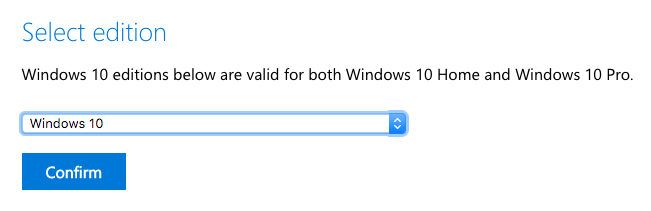
win10-usb-installer-mac-select-win10-version

Note: the above link will not provide the direct ISO download link if you are visiting the page from Windows 7, 8, 8.1, or 10 operating system.

2. As soon you click on the Confirm button, you will be asked to choose a language. Choose your language from the drop-down menu and click on the Confirm button. In my case, I’m selecting English International.

win10-usb-installer-mac-select-language

3. That’s it, you will be provided with the actual download links. Simply click on the 64-bit download button to download the Windows 10 ISO. The download links are only valid for 24 hours.

win10-usb-installer-mac-win10-download-links

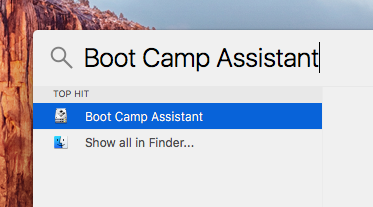
4. After downloading the ISO, insert your USB thumb drive. The thumb drive should be at least 4GB in size. After inserting, search for Boot Camp Assistant and open it. You can either search for it using the Spotlight or Launchpad.
win10-usb-installer-mac-search-bootcamp

5. Once the Boot Camp Assistant application has been opened, click on the button “Continue” on the main window. In the Select Tasks window, leave the default options as is and click on the button “Continue.”

win10-usb-installer-mac-bootcamp-select-checkbox

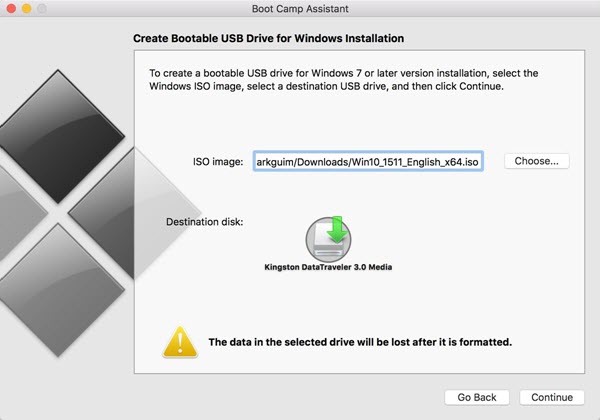
6. Now, click on the button “Choose” button, select the downloaded ISO file and click on the button “Continue” to move forward.
win10-usb-installer-mac-bootcamp-select-iso

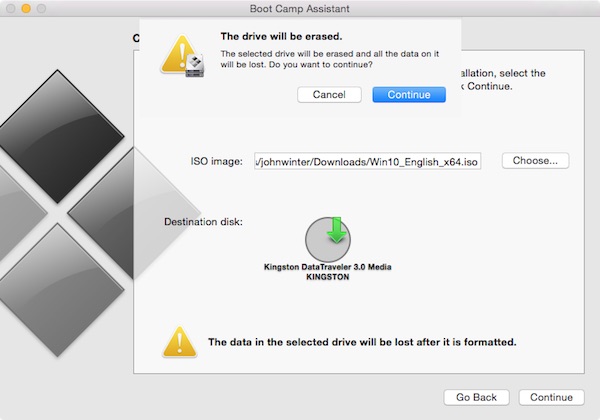
7. As soon as you click on the Continue button, Boot Camp will warn you that the USB drive will be erased. Just click on the button Continue to continue.
win10-usb-installer-mac-bootcamp-erase-warning

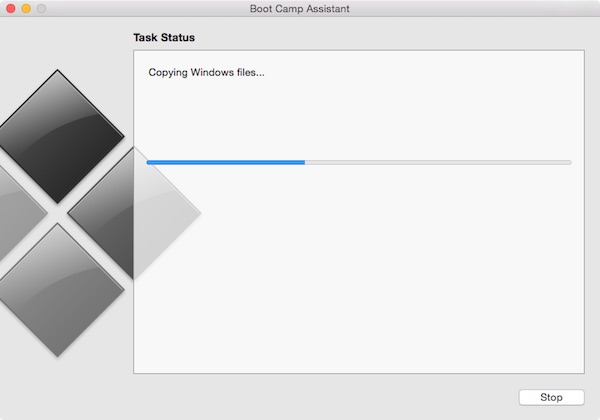
8. With the above action, Boot Camp will start the installation procedure.
win10-usb-installer-mac-bootcamp-copying

9. Once the bootable Windows 10 USB installer drive has been created, Boot Camp will let you know the same. Just click on the button “Quit” to close Boot Camp.
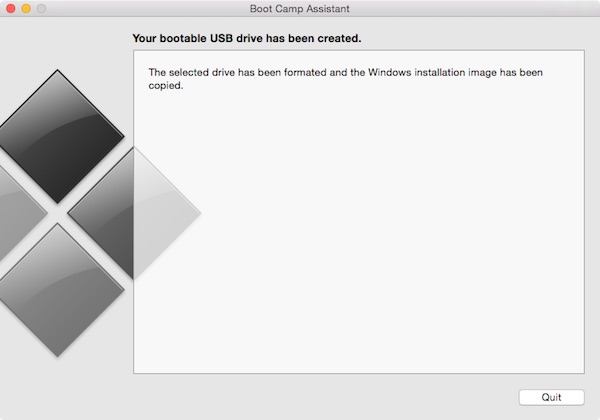
win10-usb-installer-mac-bootcamp-win10-usb-created

10. Now, eject the USB if you want to disconnect it from your Mac or just continue to try Windows 10.

win10-usb-installer-mac-bootcamp-eject-usb

That’s all there is to do and it is that simple to create Windows 10 USB installer drive on Mac.

Do comment below sharing your thoughts and experiences about using the above method to create Windows 10 USB installer on Mac.

How to Mount Remote Folders (FTP, Samba, SSH, WebDEV) in Ubuntu

0

If you are someone who needs to access remote folders like FTP, Samba, SSH or any other remote folders a lot then Ubuntu and many other Linux distributions have a built-in and simple way to mount them right in the file browser. Sure there are a lot of FTP and other clients to access these remote folders, but launching them and logging in each and every time is a bit clunky and time-consuming. So, if you want to be productive then mounting those remote folders right in Ubuntu is that way to go. Here is how you can do it.

Mount Remote Folders in Ubuntu

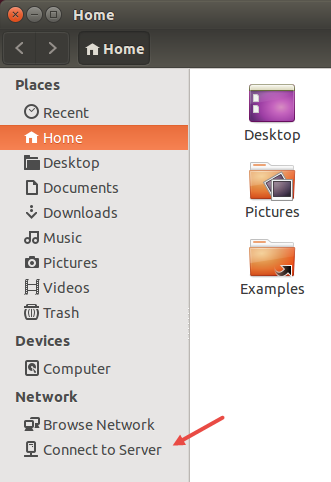
Mounting remote folders in Ubuntu is a pretty easy and straightforward. To start off, open up the File Browser using the shortcut on the Launcher or by searching for it in the Dash. Once opened, click on the option “Connect to Server” from the left navigation pane.

ubuntu-remote-folder-click-connect-to-server

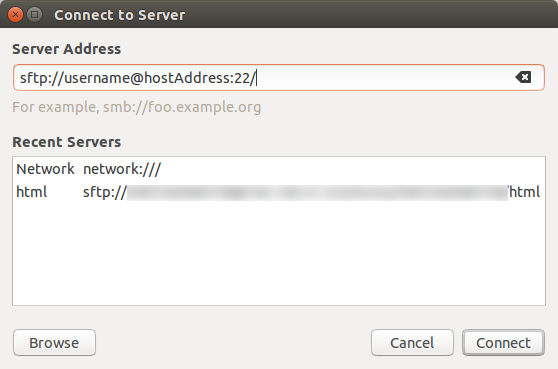
The above action will open the “Connect to Server” window. Here, enter your remote folder address and click on the connect button. In my case, I’m connecting to an SFTP server. So I entered the remote address as following.

sftp://username@remoteAddress:22/

Note: if you want to connect to remote folders that use, FTP, Samba, etc.., then you need to change the address format accordingly. For instance,  you can use ssh://192.168.0.100 for SSH, smb://foo.example.com for Samba, etc.

ubuntu-remote-folder-server-address

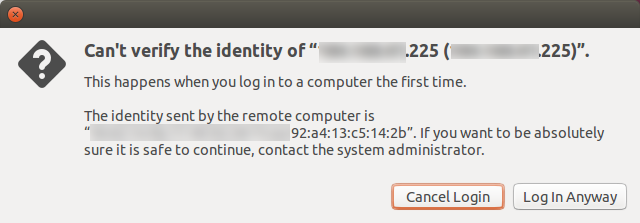
As soon as you click on the Connect button, Ubuntu may show you that it can’t verify the identity of the remote server or folder. Just click on the button “LogIn Anyway” to continue.

ubuntu-remote-folder-click-login-anyway

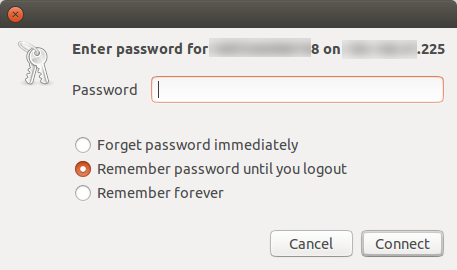
After clicking on the LogIn Anyway button, Ubuntu will ask for the Password, if any. Enter the password and click on the button “Connect.” By default, Ubuntu selects the checkbox “Remember password until logout.” If you log into this remote folder frequently then you might want to select the radio button “Remember forever” so that you don’t have to enter the password each and every time.

ubuntu-remote-folder-enter-password

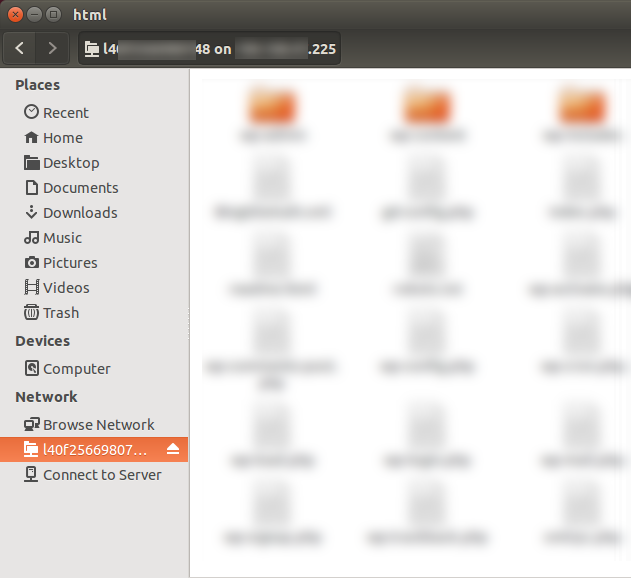
As soon as you click on the Connect button, you will be logged into the remote folder. You can access all the contents of the remote folder directly from Ubuntu file browser.

ubuntu-remote-folder-logged-in-successful

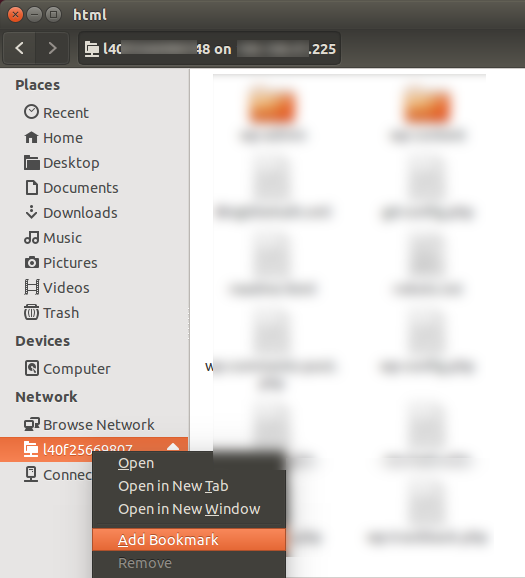
Also, if you are going to use this remote folder frequently then you can create a bookmark so that you can open the remote folder with just a click. To do that, right-click on the remote drive in the left pane and then select the option “Add Bookmark” and you are good to go.

ubuntu-remote-folder-select-add-bookmark-option

That’s all there is to do and it is that simple to mount remote folders like FTP, SFTP, SSH, WebDEV, Samba, etc.., directly in Ubuntu file manager.

Do comment below sharing your thoughts and experiences about using the above method to mount remote folders in Ubuntu.

How to Show Current Path in Mac OS X Finder

0

Finder is the default application that enables you to browse the file system on Mac. The Finder application is not only powerful but it does have some decent customization options to meet your needs. As good as it is, the Finder won’t provide any easier way to either see the copy current file path and it doesn’t even allow you to see the file or folder path anywhere in the Finder window. This can be quite bothersome at times as you might need the file or folder path for various things like sharing the details with other people, to enter it in the terminal etc.
No matter what the reason is, here is how you can show the current path in Mac OS X Finder.

Show Current Path in Mac OS X Finder

To show the current path in Mac OS X finder, you have two ways. The first is to use the build in option and the second is that use the hidden terminal tweak.

First Method: Using Finder

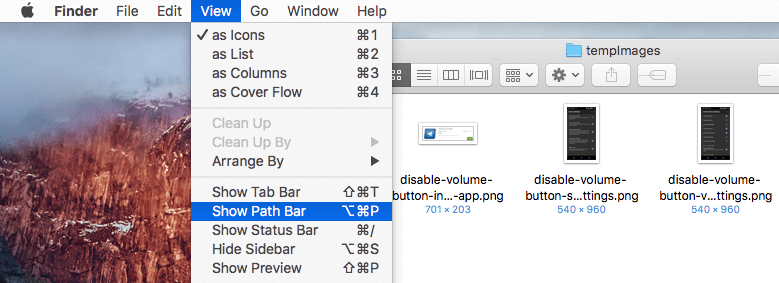
To start off, open up the Finder window, navigate to “View” and then select the option “Show Path Bar.” Alternatively, you can also use the keyboard shortcut Option + Command + P to achieve the same.

mac-current-path-finder-show-file-path-option

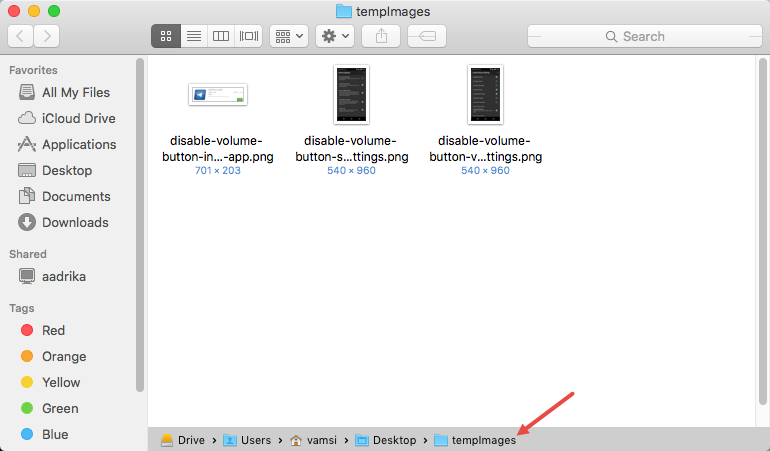
As soon as you’ve done that, the current path will appear at the bottom of the Finder window. As you can see from the below image, the file or folder path will be shown as nested folders rather than in the text form.

mac-current-path-finder-file-path-bottom-bar

Second Method: Using Terminal Tweak

If you don’t like the first method or if you want to show the current path in the text form then you can use the below terminal tweak.

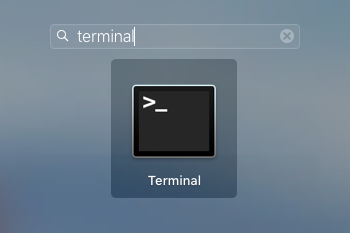
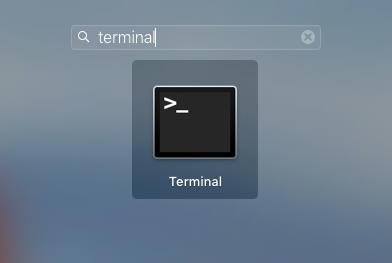
To start off, search for terminal in the Launchpad and open it.

mac-current-path-finder-open-terminal

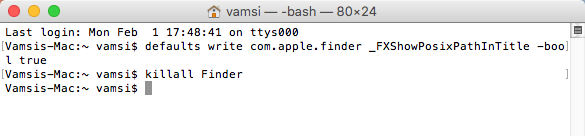
Once the terminal has been opened, copy and paste the below command and then press the enter button to execute the command.

defaults write com.apple.finder _FXShowPosixPathInTitle -bool false

mac-current-path-finder-terminal-command

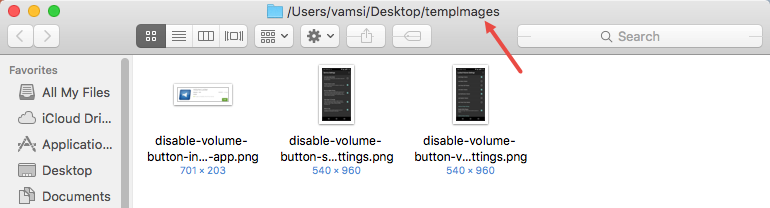
As soon as you execute the command, the Finder adds the current path to the Finder’s title bar. However, to see the changes you either need to restart your system or just restart the Finder.

To restart the Finder, copy and paste the below command in the terminal and press the enter button.

killall Finder

mac-current-path-finder-restart-finder

Once you execute the command, the Finder app will restart and from this point forward, you can see the current path in the Finder title bar.

mac-current-path-finder-file-path-titlebar

That’s all there is to do and it is that simple to show the current path in Mac OS X Finder.

Do comment below sharing your thoughts and experiences about using the above methods to show the current path in Mac OS X finder.

How to Add Recent Items Stack to Mac OS X Dock

0

On your Mac, you can drag and drop all the most used apps, docs, files, folders, etc.., on to the dock so that you can access them quickly without fiddling around with other menus and stuff. But the thing is, the more stuff you have on your dock the more it gets cluttered. To deal with this, you can create a recent items stack or a favorite items stack on Mac OS X dock. This will free up some space on the dock and will also make it tidier. In case you are wondering, here is how you can add recent items stack to Mac OS X dock with a simple command.

Add Recent Items Stack to Mac OS X Dock

Adding recent items stack to Mac OS X dock is easier than you think. To start off, search for Terminal in the Launchpad and open it.

mac-osx-dock-open-terminal

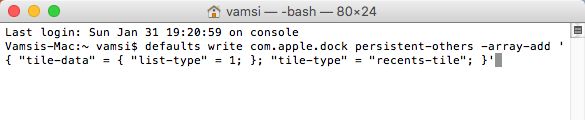
Once the Terminal has been opened, copy the below command, paste it in the Terminal and press the enter button.

defaults write com.apple.dock persistent-others -array-add '{ "tile-data" = { "list-type" = 1; }; "tile-type" = "recents-tile"; }'

mac-osx-dock-execute-command

As soon as you press the enter button, the command gets executed and the recent items stack will be added to Mac OS X dock. Of course, you won’t see any confirmation whatsoever. So, don’t worry.

mac-osx-dock-command-executed

Even though the recent items stack has been added, you won’t see any changes on the dock. To see the changes, you can either restart your system or simply restart the Dock. In my case, I’m using the below command to restart the Mac OS X dock.

killall Dock

mac-osx-dock-kill-dock

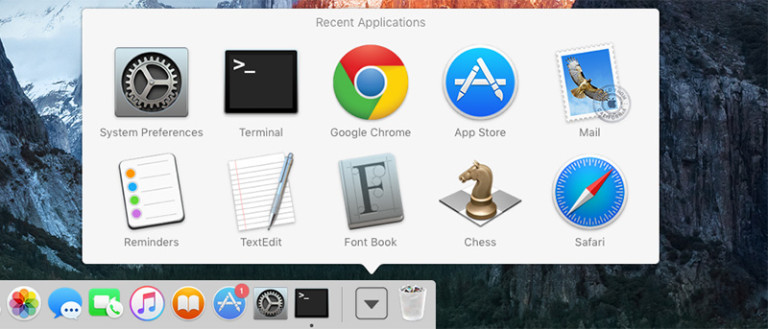
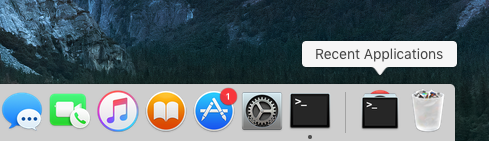
Once restarted, you will see a new stack with all your recent items.

mac-osx-dock-recent-items-stack

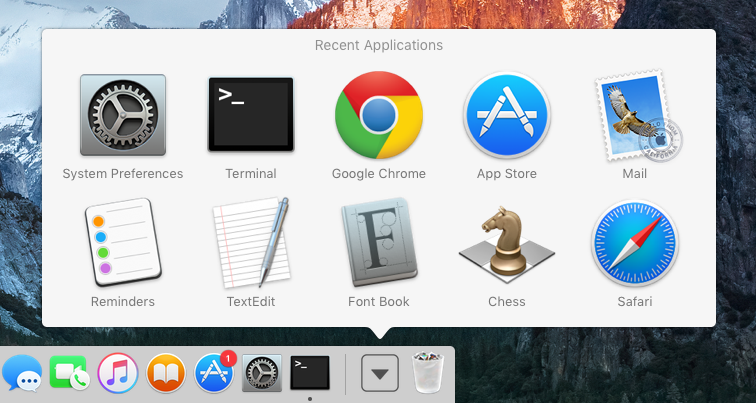
By default, the recent items stack is set to show all the recent applications you’ve opened.

mac-osx-dock-recent-applications

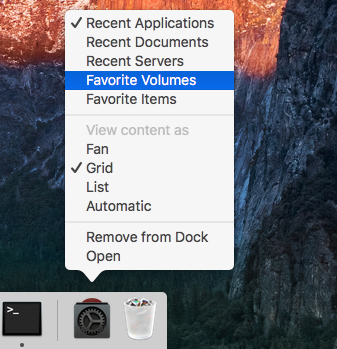
If you want to change it, simply right-click on it and select either, recent applications, documents, servers, favorite volumes, or even favorite items.

mac-osx-dock-select-items-stack

That’s all there is to do and it is that simple to add recent items stack to Mac OS X dock. Do comment below sharing your thoughts and experiences about using the above method to add recent items stack to Mac OS X dock.

How to Check Hard Disk Health in Windows

0

Nobody wants their seemingly healthy hard drive to randomly die on one fine morning. That is why it is always a good idea to regularly check your hard disk health so that you can backup all your important files and folders while you still can. Sure, Windows has its own tools (CHKDSK) to check for and correct any disk errors. But the problem with CHKDSK is that is is not fully capable of letting you know your hard disk health. Even the built-in WMIC (Windows Management Instrumentation Command-line) tool is not capable of giving you a detailed report of your hard disk health. So, if you ever want to check hard disk health in Windows, here is how you can do it.

Check Hard Disk Health in Windows

Since there are no built-in tools that give you a detailed health report of your hard disk, we are going to use a free and lightweight software called CrystalDiskInfo. To start off, download the software from the official website.

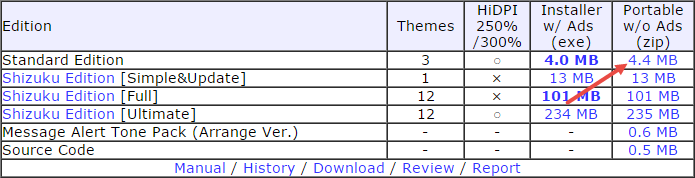
The good thing about the software is that it is available in both installable and portable variants. In my case, I’m downloading the portable version so that I don’t have to install yet another program and I can also carry it wherever I want.

crystaldiskinfo-hard-drive-health-download-app

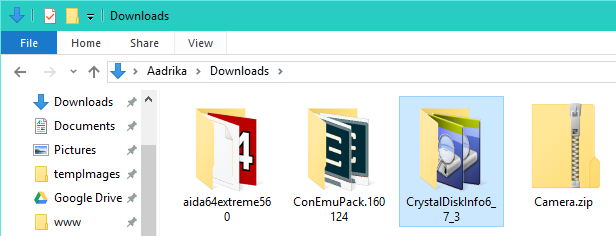
Once you are done downloading, extract the contents to a folder.

crystaldiskinfo-hard-drive-health-extract-content

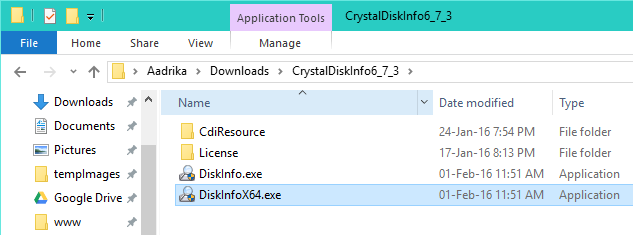
After extracting, execute the application depending on your system architecture (32-bit or 64-bit). In my case, I’m executing the 64-bit version of CrystalDiskInfo.

crystaldiskinfo-hard-drive-health-execute-application

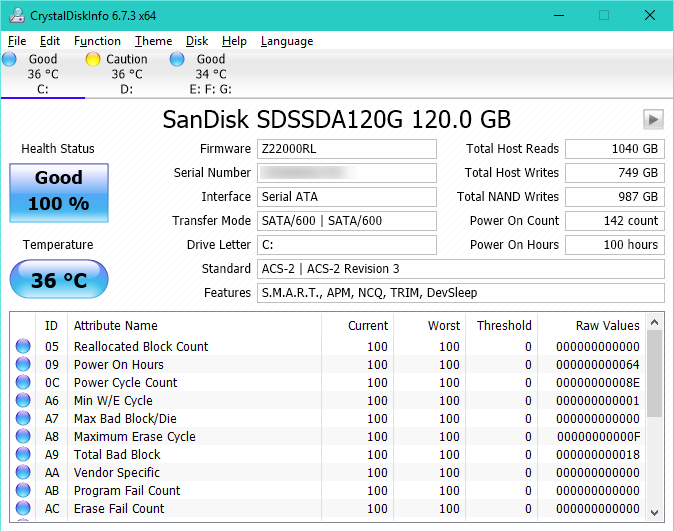
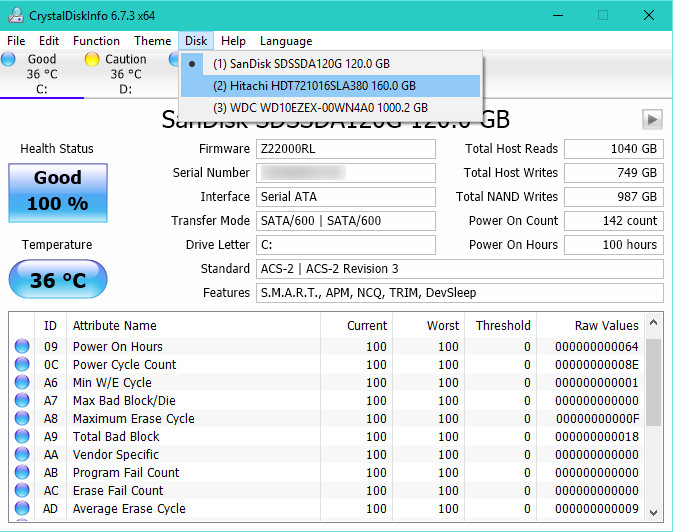
As soon as you open the application, it will show you the current health status of all your hard drivers. As you can see from the below image, the application not only shows the health report but also shows the current temperature of the hard drive.

crystaldiskinfo-hard-drive-health-hard-drive-health

If you have multiple hard drives in your system then the application will show the health report of all the hard drivers in their own separate tabs. Just click on them to see the health report of each individual drive. Alternatively, you can also do the same thing by navigating to Disk and then selecting the hard drive you want.

crystaldiskinfo-hard-drive-health-hard-drive-list

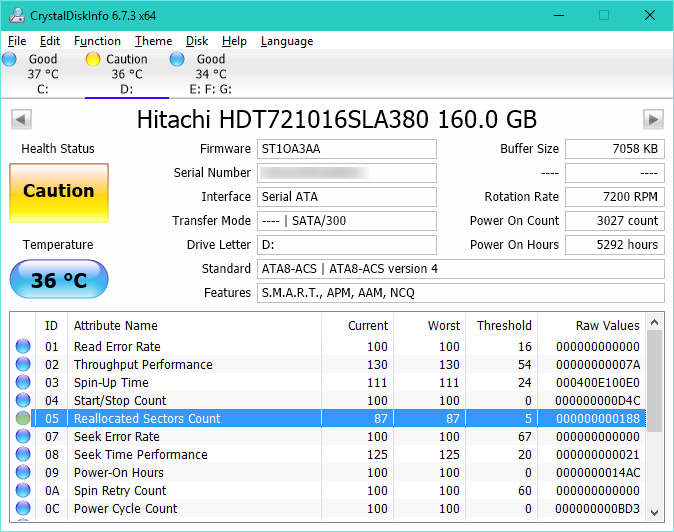
Just to show you, I’ve attached my old 160 GB Hitachi hard drive (8+ years and still kicking) and the application clearly recognised that the drive has irrecoverable errors and flagged it with Caution status.

At this point, you shouldn’t trust the hard drive with any important data. In my case, I want to see how long the hard can stand. So, I’ll use it to store all my temporary files which will be deleted by the end of the day.

crystaldiskinfo-hard-drive-health-caution-status

The good thing about CrystalDiskInfo is that if you’ve installed the standalone version, the application can actively monitor all your hard drives and will sound the alarm and/or send you an email report when it finds abnormalities.

That’s all there is to do and it is that simple to check hard drive health in Windows.

Do comment below sharing your thoughts and experiences about using the above application to check hard disk health status. Also, have you ever faced a situation where the hard drive just died on you without any warning?

How to View and Copy File or Folder Path on Mac

0

For whatever reason, the OS X operating system has no straightforward way to view the file path or copy the text based full file path. Obviously, since Finder doesn’t have any address bar there is no need for you to copy or view the exact file or folder path. But if you are documenting something or if you have complicated nested folders, then it is pretty helpful to view and copy the file or folder path in Mac. So, if you ever need, here is how you can view and copy file or folder path on Mac.
View File or Folder Path on Mac

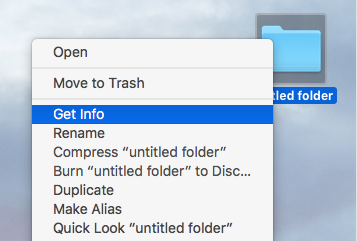
If you just want to view the file or folder path without the need for copying it then you can do that pretty easily. To start off, right-click on the file or folder you want to see the path and then select the option “Get Info.”

finder-file-path-select-get-info

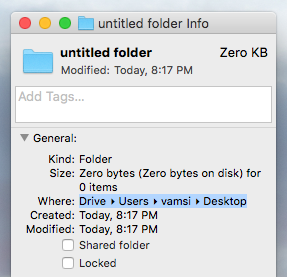
The above action will open the Folder or File Info window. Here you will see the file or folder path next to “Where” in the General section.

finder-file-path-info

As you can see from the screenshot above, this method shows the nested folder structure of the target file or folder.

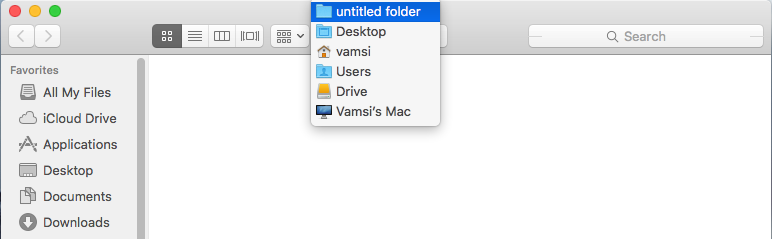
Alternatively, you can also view the path as menu using the Command key on your keyboard. To do that, open the file or folder and the click on the name on the title bar while holding down the Command key (Command + Click).

finder-file-path-view-path-command-click

This action will show you the file or folder path as a menu where you can navigate to any folder you want by clicking on the folders in the list.

Copy File or Folder Path on Mac

Instead of just viewing the file or folder, you can also copy the path in the form of text if needed. There are several methods to do that but here are two of the easiest methods.

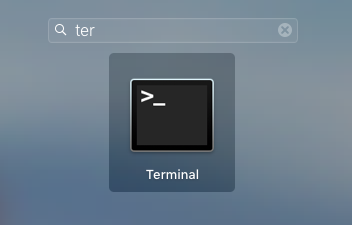
The first one is to use the Terminal. To do that, search for the Terminal in Launchpad and then open it.

finder-file-path-open-terminal

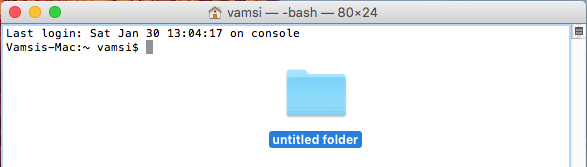
Once the terminal has been opened, drag and drop the file or folder into the terminal window.

finder-file-path-drag-drop-file-folder-terminal

This action will automatically paste the file or folder path in the terminal where you can copy it using the keyboard shortcut Command + C.

finder-file-path-copy-path-terminal

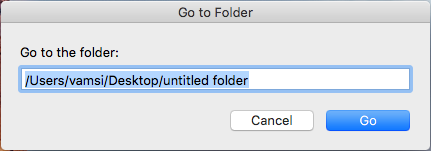
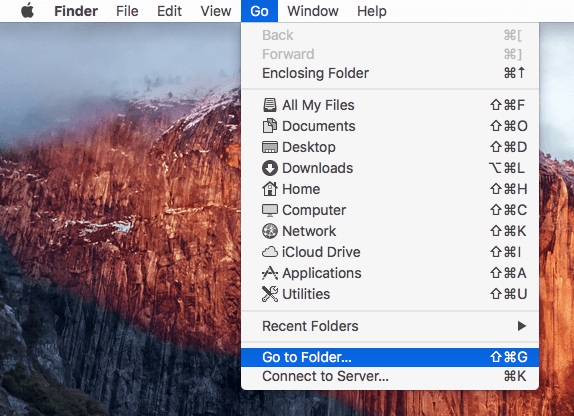
Alternatively, you can also use the “Go to” option in Finder. To do that, open up any Finder window, select “Go” and then “Go to Folder” option.

finder-file-path-select-go-to-folder

The above action will open the Go to Folder window. Here, drag and drop the file or folder to reveal its full path.

Again, you can use the keyboard shortcut Command + C to copy the file or folder path.

finder-file-path-copy-path-go-to-folder

That’s all there is to do and it is that simple to view and copy file or folder path on Mac.
Do comment below sharing your thoughts and experiences about using the above methods to view and copy file or folder path on Mac.
How to Block or Disable Volume Buttons on Android

0

The volume buttons on any Android smartphone or tablet are pretty helpful as they give us the ability to quickly control the media volume, call volume, ringer volume, etc. But more often than not, most of us are prone to accidentally press the volume buttons messing up the ringer and putting it either in low volume or just completely muting it. This is especially true if you are giving your Android device to children or other people. This can be quite frustrating at times. So, if you think you need a solution then here is how you can block or disable volume buttons on Android.

Disable Volume Buttons on Android

1. It is very easy to disable volume buttons on Android. In fact, it is straightforward. To start off, head over to Play Store and then download the app Volume Locker.

Disable Volume Buttons - Install Volume Locker App
Disable Volume Buttons – Install Volume Locker App

2. Once you are done installing the app, launch it from the home screen or from the menu.

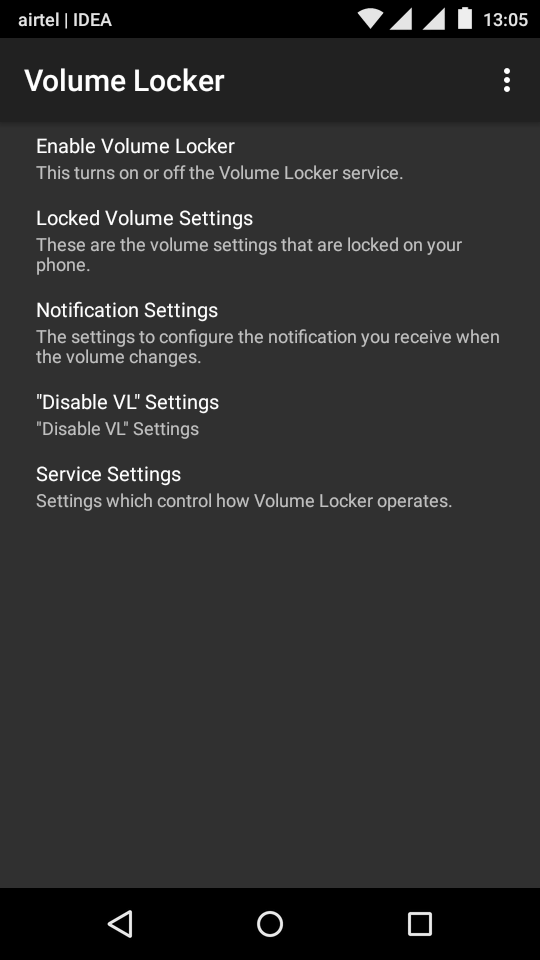
3. The first thing you need to do is enable the Volume Locker app. To do that, select the option “Enable Volume Locker.”

Disable Volume Buttons - App Home Screen
Disable Volume Buttons – App Home Screen
Wondering how I took these Android app screenshots? Here’s how to take screenshot on Android.

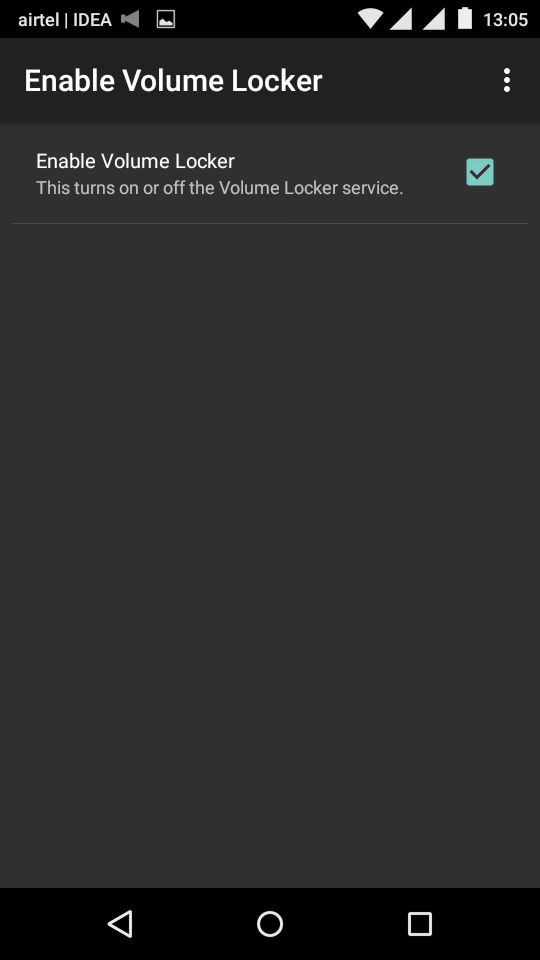
4. Once the menu has been opened, select the checkbox “Enable Volume Locker.” This action will start the Volume Locker service and even puts itself in the notifications bar so that it won’t be stopped by Android.

Disable Volume Buttons - Enable Volume Locker
Disable Volume Buttons – Enable Volume Locker

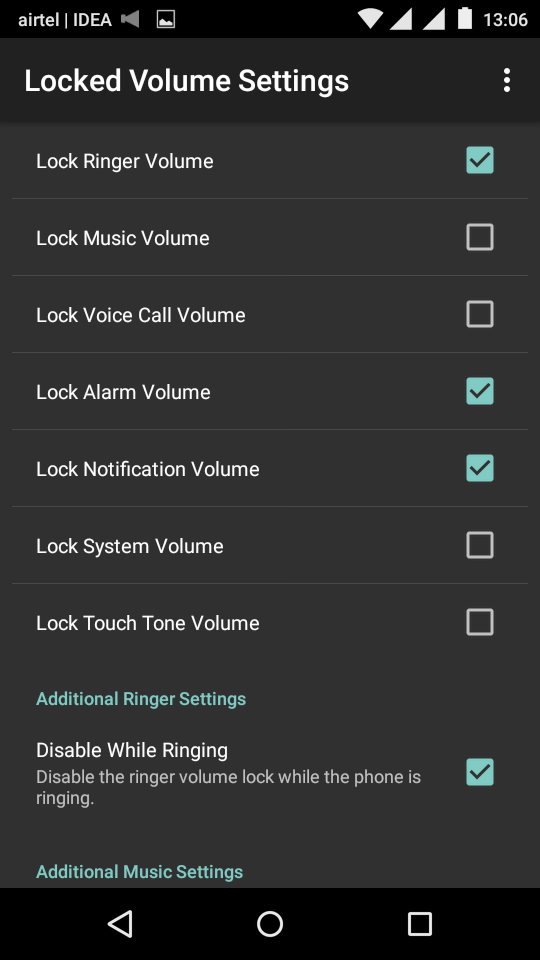
5. The good thing about the app is that it is configured optimally out of the box i.e, you can only control the media volume and voice volume when the app is activated. So whenever the volume buttons are accidentally pressed there won’t be any changes unless you are listening to some sort of media or when you are on a call. Simply put, you don’t have to worry about changing the ringer volume.

6. You can configure all the above settings by navigating to “Volume Locker Settings” on the app home screen. As I said before, the app is configured optimally.

Disable Volume Buttons - Volume Locker Settings
Disable Volume Buttons – Volume Locker Settings

7. You can also configure where and when the Volume Locker is disabled. To do that, navigate to “Disable VL Settings” from the app home screen.

Disable Volume Buttons - Disable Volume Locker
Disable Volume Buttons – Disable Volume Locker

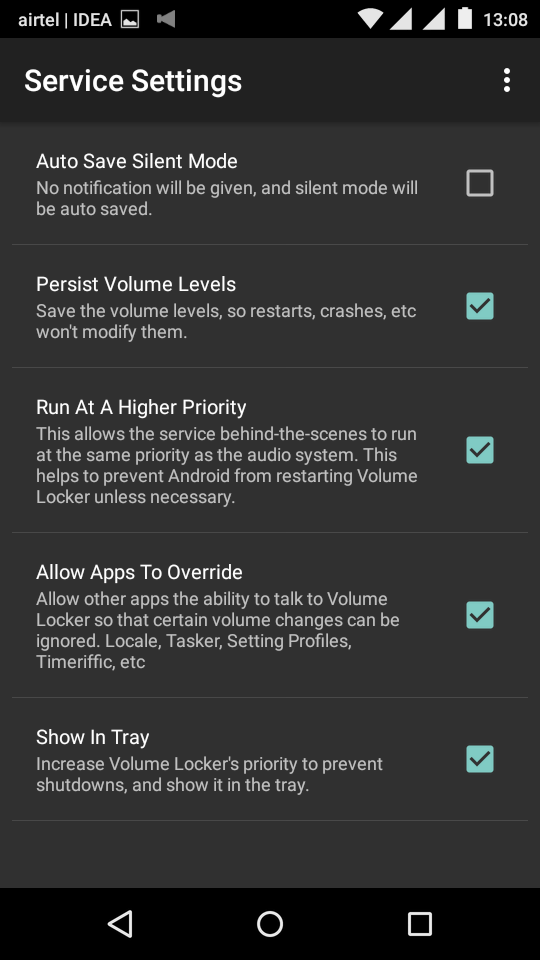
8. If you want to control how Volume Locker service behaves, you can do so by navigating to “Service Settings” from the app home screen.

Disable Volume Buttons - Service Settings
Disable Volume Buttons – Service Settings

That’s all there is to do and it is that simple to block or disable volume buttons on Android.

Do comment below sharing your thoughts and experiences about using the above app to control or disable volume buttons on android.

How to Make Password Asterisks Visible in Linux Terminal Window

0

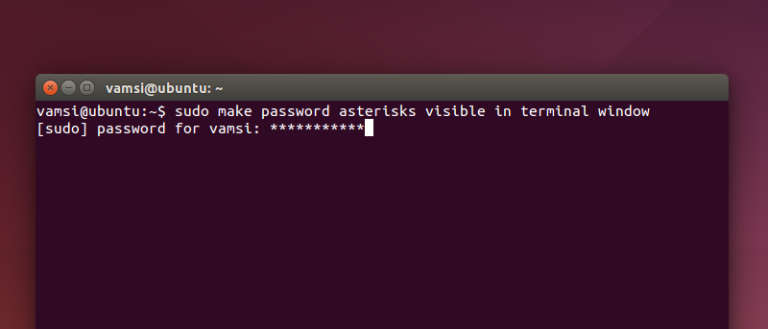
One thing that bothers most beginner Linux users is whenever you use the sudo command, the terminal asks for the administrator password. When you try to enter the password, the terminal window doesn’t show any feedback whatsoever making it hard to know wheater you entered the password or not. Of course, if you’ve used the terminal window for a couple of times or if you spend a few hours with any Linux operating system then you will get used to it pretty quickly. However, with a simple tweak, you can make the typed password appear as asterisks in the terminal window. So, if you think having some sort of feedback is nice, here is how to make password asterisks visible in Linux terminal window.

Password Asterisks in Linux Terminal

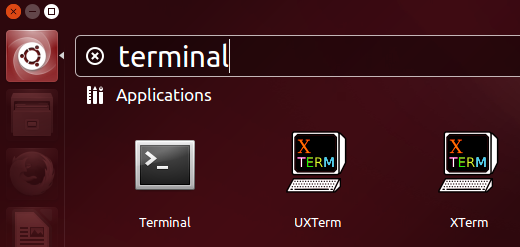
Making password asterisks visible in Linux terminal windows is easier than you think. To start off, search for terminal in the Dash and then open it.

linux-terminal-password-asterisks-visible-open-terminal

Once the terminal has been opened, copy and paste the below command and press the enter button. This action will ask you for the administrator password. Just type in the password and press the enter button to continue.

sudo visudo

linux-terminal-password-asterisks-visible-enter-password

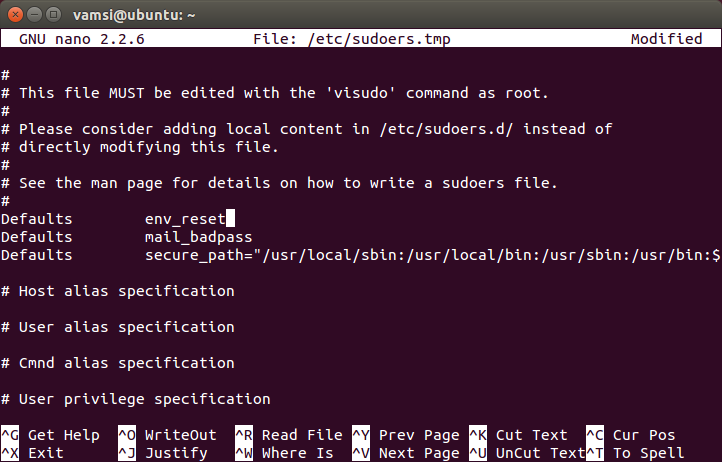
The above action will open the sudoers file in the “Nano” text editor inside your terminal. In case you are wondering, this text editor in the terminal is capable of validating the syntax.

Note: never ever open the sudoers file with a normal text editor as it may break your system.

Here in this window, use your arrow keys on your keyboard to navigate to the following line.

Defaults    env_reset

linux-terminal-password-asterisks-visible-open-sudoers-file

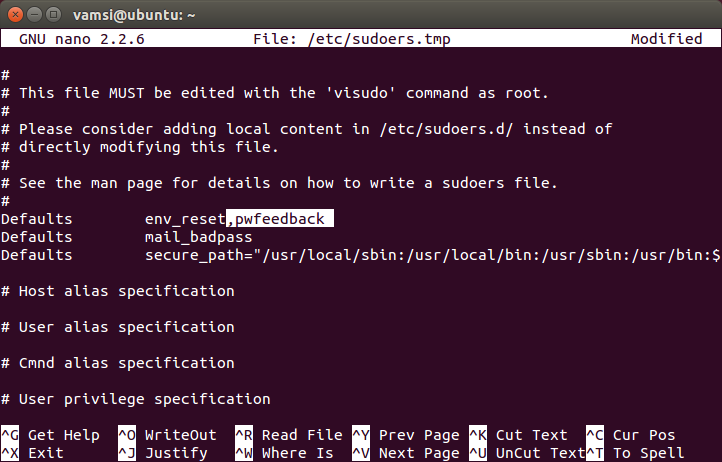
Once you are here, add the following command next to env_reset. This is how it looks like when are done adding.

,pwfeedback

linux-terminal-password-asterisks-visible-add-pwfeedback

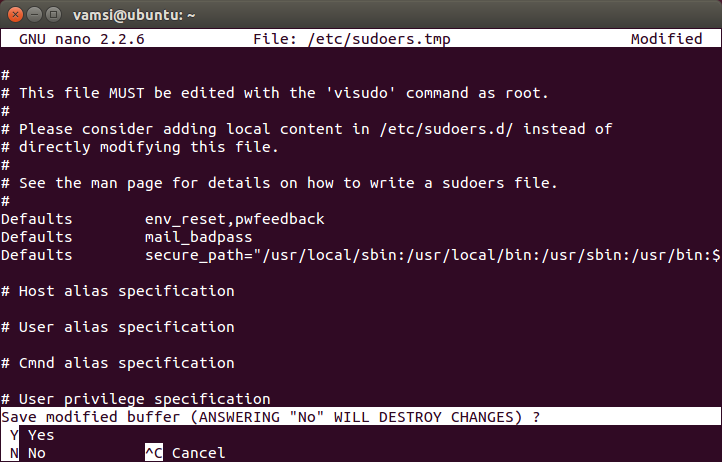
After adding the command, press Ctrl + X. When the terminal window asks whether would you like to save the file, simply press “y” on your keyboard.

linux-terminal-password-asterisks-visible-save-file

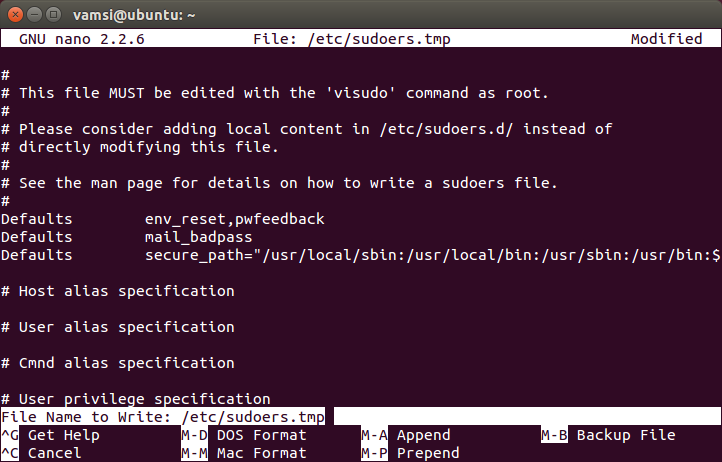
Again, the terminal window will ask you for the filename. Just keep the defaults and press the enter button to continue.

linux-terminal-password-asterisks-visible-file-name

With the above action, you are done editing the file and you are back to the normal terminal window. Before you can see the changes, you need to close and reopen the terminal window. Use the exit command to close the terminal window.

linux-terminal-password-asterisks-visible-exit-terminal

From this point forward, whenever you type your password in the terminal window, the password asterisks will be visible.

linux-terminal-password-asterisks-visible-password-asterisks-visiable

That’s all there is to do and it is that simple to make password asterisks visible in Linux terminal window.

Do comment below sharing your thoughts and experiences about using the above method to make password asterisks visible in Linux terminal window.

How to Enable Windows Photo Viewer in Windows 10

0

Windows 10 has many great features and was even packed with new and improved apps like Photos, Mail, Calendar, etc. If you ever tried to view an image or photo in Windows 10, the operating system will open it with the new Photos app, which is really good for what it is. The new Photos app enables you to create collections, upload photos to the cloud, import photos from external drives, etc. Taking all that into account, Microsoft chose to replace the default Windows Photo Viewer application with the new Photos modern app.

Even though the new Photos app is pretty good, it is not as fast as the Photo Viewer application available in Windows 7 or 8. That being said, Microsoft hasn’t completely removed the Photo Viewer application from Windows 10. Instead, it just removed the registry keys and kept the application hidden from the “Default Apps” settings. So, if you prefer the good old Windows Photo Viewer app over the new Photos app then here is how you can enable Windows Photo Viewer in Windows 10.

Note: to add the Windows registry keys, you need administrative privileges.

Enable Windows Photo Viewer in Windows 10

Thankfully, enabling Windows Photo Viewer in Windows 10 has been made easy with a simple registry hack.

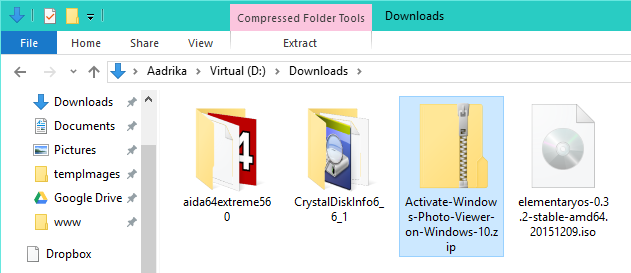
1. To start off, download this zip file and once downloaded, open the zip file. Windows natively support the .zip extension so you don’t need any third party applications.

win10-photo-viewer-download-reg-file

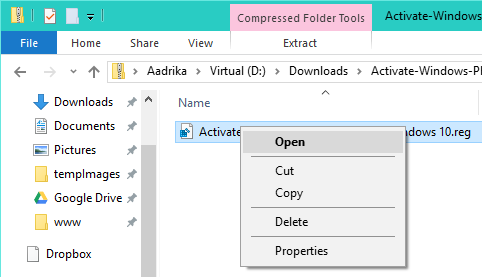
2. Once you’ve opened the zip file, you will find a file with .reg extension. Simply right-click on it and select the option “Open.”

win10-photo-viewer-open-reg-file

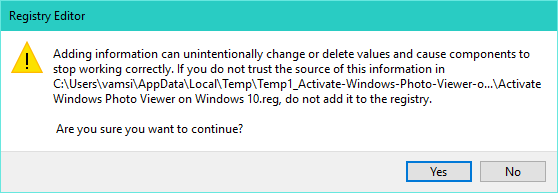
3. The above action will show you a little warning window. Simply click on the button “Yes” to continue.

win10-photo-viewer-reg-warning

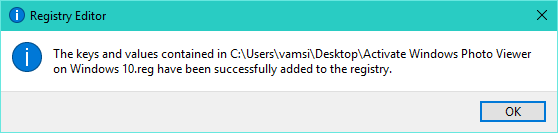
4. Once the registry keys are added, Windows will show again show you a little window letting you know the same.

win10-photo-viewer-reg-added

That’s all there is to do. You’ve successfully enabled the good old Windows Photo Viewer in Windows 10. Just restart or sign-out and sign-in to your system to start using it.

Set Windows Photo Viewer as Default

After enabling the Windows Photos Viewer, you need to set it as the default photo viewing application.

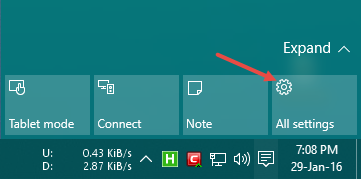
1. To do that, click on the notifications icon and the select the option “All Settings.” Alternatively, you can also use the keyboard shortcut “Win + I.”

win10-photo-viewer-select-all-settings

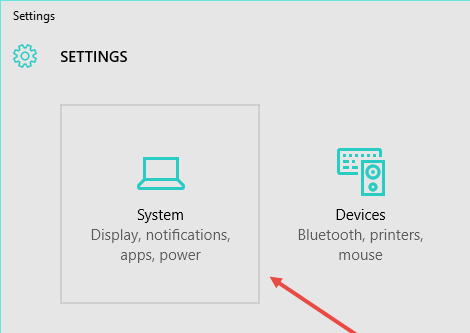
2. The above action will open the settings window. Since we need to edit the default app settings, select “System” option to continue.

win10-photo-viewer-select-system

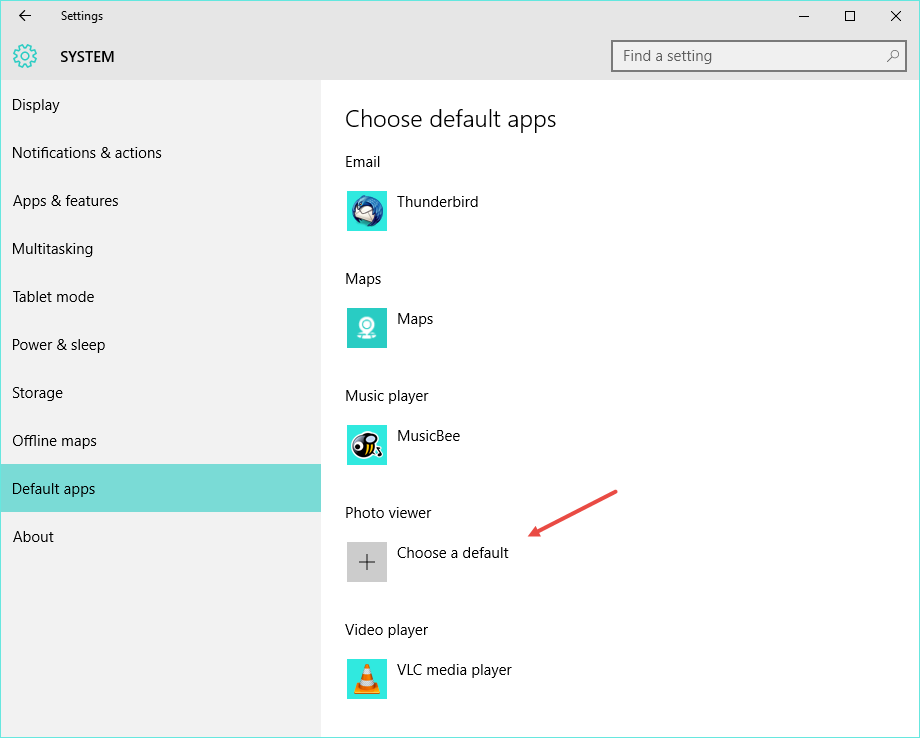
3. Once you are in the System panel, navigate to “Default Apps” on the left pane and then click on the button “Choose a Default” under “Photo Viewer.” Now, select Windows Photo Viewer from the list and you are good to go.

win10-photo-viewer-set-default-app

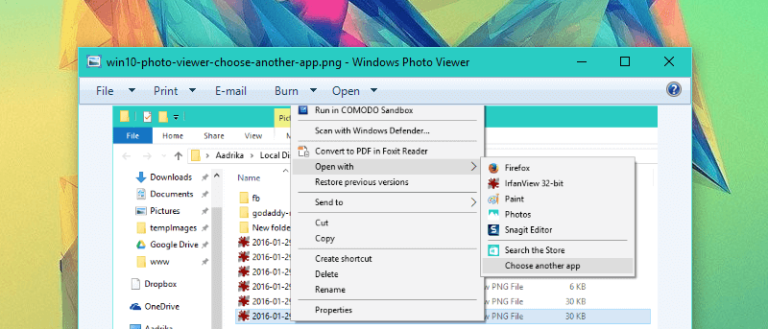
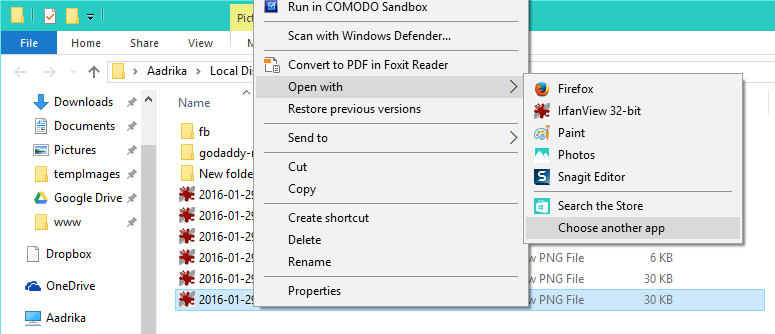
4. Alternatively, you can also set the Windows Photo Viewer as the default app based on specific image type. i.e, png, jpg, etc. To do that, right-click on the image you want to set Windows Photo Viewer as default and select the option “Open with” and then “Choose another app.”

win10-photo-viewer-choose-another-app

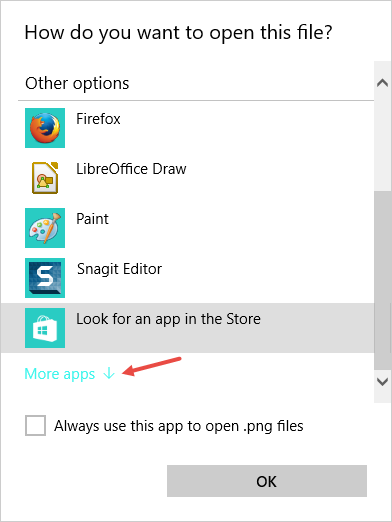
5. The above action will open the “Open with” panel. Here, scroll down and click on the link “More apps.”

win10-photo-viewer-click-more-apps

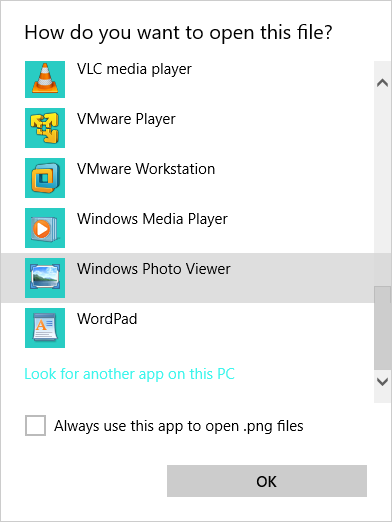
6. This action will reveal all the apps on the list. Simply scroll down and then select the option “Windows Photo Viewer” from the list. If you want to make it the default app for that particular image type then select the checkbox “Always use this app to open .extension files.” and you are good to go.

win10-photo-viewer-select-windows-photo-viewer

That’s all there is to do and it is that simple to enable Windows Photo Viewer app in Windows 10. Do comment below sharing your thoughts about the new Photos app and the good old Windows Photo Viewer desktop application.

As a side note, if you need a better and faster application to view your images then I would recommend IrfanView. It may look a bit old but is totally worth it.

How to Turn off Gatekeeper on Mac

0

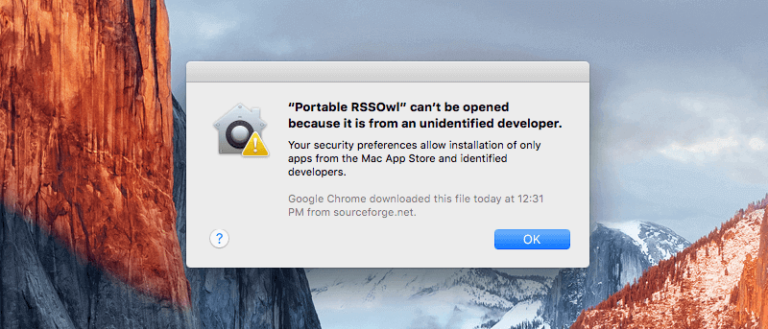
Whenever you try to run an application that is downloaded from the internet, your Mac machine will block the app from running, this is especially true if the app is unsigned. Your mac behaves this way because of a security feature called Gatekeeper which by default blocks any applications that are not from the App Store and/or from an unsigned developer. So if you ever want to run an application without bothering with the Gatekeeper feature then here is how you can disable it both temporarily and permanently.

Turn off Gatekeeper in Mac Temporarily

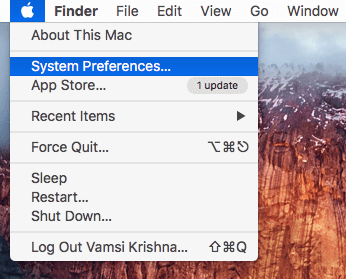
Fortunately, you can easily turn off the Gatekeeper feature in mac. To do that, click on the Apple icon on the top left corner and then select the option “System Preferences.”
turn-off-gatekeeper-select-system-pref

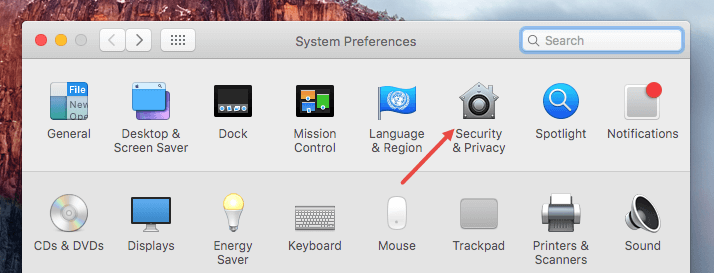
The above action will open the System Preferences window. Here, select the option “Security and Privacy” appearing the first section.

turn-off-gatekeeper-select-security-privacy

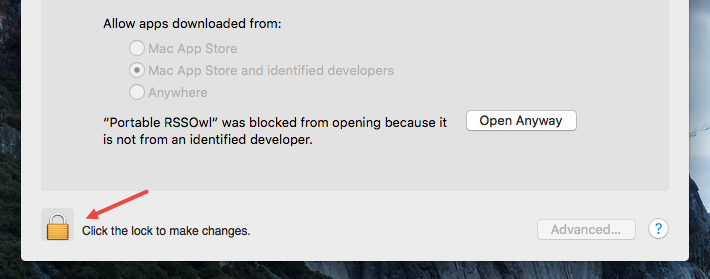
Once the Security and Privacy window has been opened, click on the lock icon appearing at the bottom of the window.

turn-off-gatekeeper-unlock

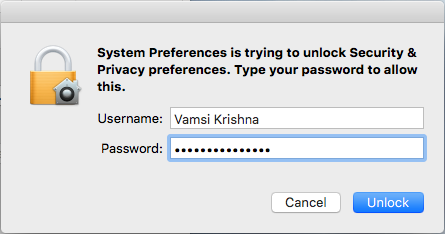
Now, enter your user account password and click on the “Unlock” button.

turn-off-gatekeeper-enter-password

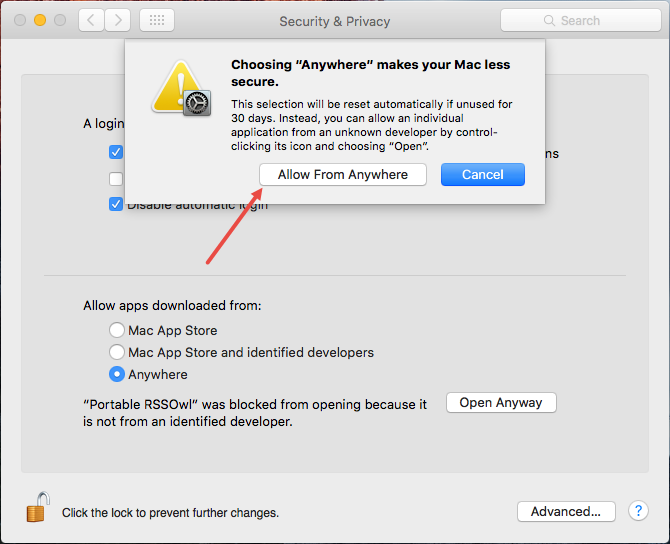
Once the options are unlocked, select the radio button “Anywhere.” This action will show you a warning window. Simply click on the button “Allow From Anywhere” and you are good to go.

turn-off-gatekeeper-allow-from-anywhere

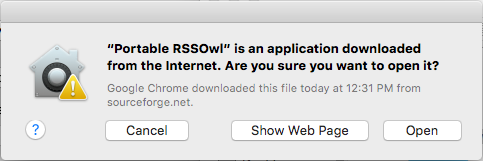
That’s all there is to do and from this point forward you can open the programs downloaded from the internet (also unsigned programs).

turn-off-gatekeeper-open-application

As the warning window tells you, the Gatekeeper feature will turn back on if unused for 30 days. If you want to enable it manually, go back the Security and Privacy window select the radio button “Mac App Store and identified developers” or “Mac App Store.”

Turn off Gatekeeper in Mac Permanently

Note: I don’t recommend you to permanently disable the Gatekeeper feature and only follow the below procedure if you know what you are doing.

If you don’t want the Gatekeeper feature to automatically reset after 30 days of inactivity then you can disable the Gatekeeper feature permanently.

To do that, search for “Terminal” in the Launchpad and open it. You can also use the Spotlight to search for the Terminal.

turn-off-gatekeeper-open-terminal

Once the Terminal has been opened, copy the below command, paste it and press the enter button.

sudo defaults write /Library/Preferences/com.apple.security GKAutoRearm -bool NO

You will be prompted for your user account password. Simply enter the password and press the enter button.

turn-off-gatekeeper-terminal-enter-password

That’s all there is to do. You won’t receive any confirmation whatsoever but the Gatekeeper feature has been disabled completely.

turn-off-gatekeeper-terminal-gk-turned-off

In future, if you ever want to turn on the Gatekeeper feature, simply copy and paste the blow command in the terminal and press the enter button.

sudo defaults write /Library/Preferences/com.apple.security GKAutoRearm -bool YES

turn-off-gatekeeper-re-enable-gatekeeper

With the above action, the Gatekeeper feature will be enabled and you are good to go.

That’s all there is to do and it is that simple to disable or turn off Gatekeeper feature in Mac both temporarily and permanently. Do comment below sharing your thoughts and experiences about using the Gatekeeper feature and disabling it when needed.